light MERCEDES-BENZ CLS COUPE 2018 Owners Manual
[x] Cancel search | Manufacturer: MERCEDES-BENZ, Model Year: 2018, Model line: CLS COUPE, Model: MERCEDES-BENZ CLS COUPE 2018Pages: 589, PDF Size: 10.95 MB
Page 250 of 589
*
NO
TEDama getothe full y-electric trailer
hitch The fully-elect
ric trailer hitch could be
mechanically damaged byapplying additional
pressure when the ball neck is being exten‐
ded or retracted. #
Do not ma kethe ball neck extend/
re tract faster by applying additional
pressure. Re
quirements:
Ensure thefo llowing before extending/r etra cting
th e ball neck fully electrically:
R The transmission has been shif tedto posi‐
tion jori.
R The range of mo vement is clear.
R Only when retracting: ensuretrailer cables
or adap ter plugs ha vebeen remo ved. Extending/r
etra cting the ball neck fully elec‐
trically #
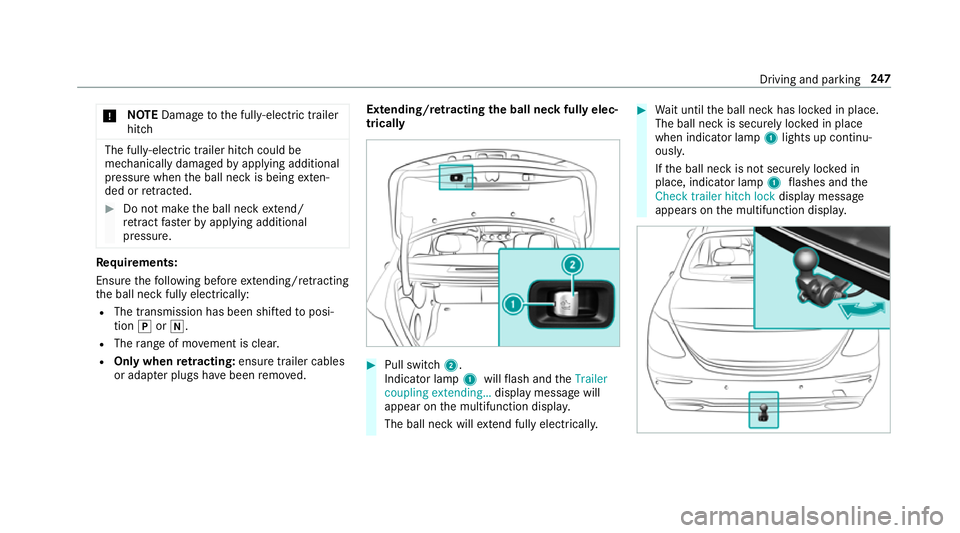
Pull swit ch2.
Indicator lamp 1willflash and theTrailer
coupling extending… display message will
appear on the multifunction displa y.
The ball neck will extend fully electrically. #
Wait until the ball neck has loc ked in place.
The ball neck is securely loc ked in place
when indicator lamp 1lights up continu‐
ousl y.
If th e ball neck is not securely loc ked in
place, indicator lamp 1flashes and the
Check trailer hitch lock displaymessa ge
appears on the multifunction displa y. Driving and pa
rking 247
Page 251 of 589
#
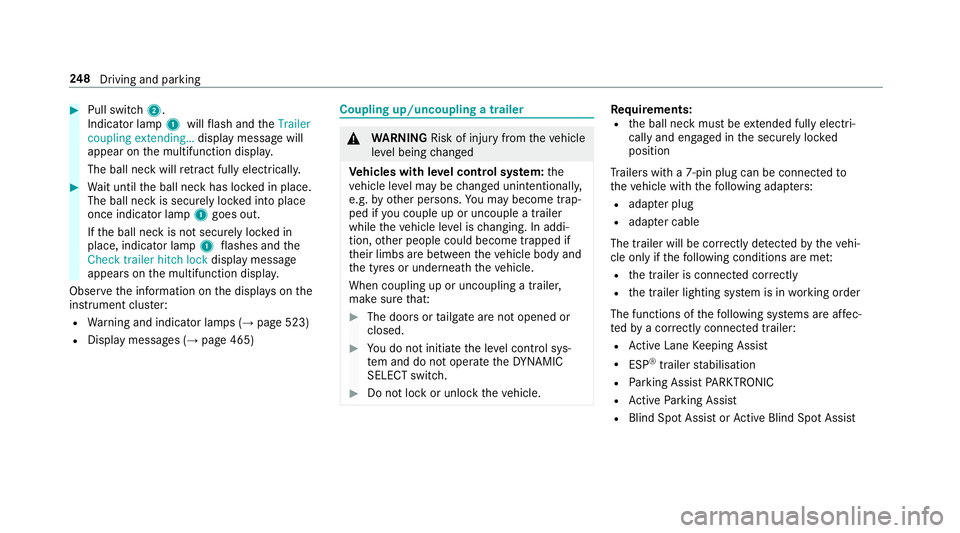
Pull switch 2.
Indicator lamp 1willflash and theTrailer
coupling extending… display message will
appear on the multifunction displa y.
The ball neck will retract fully electrically. #
Wait until the ball neck has loc ked in place.
The ball neck is securely loc ked into place
once indicator lamp 1goes out.
If th e ball neck is not securely loc ked in
place, indicator lamp 1flashes and the
Check trailer hitch lock displaymessa ge
appears on the multifunction displa y.
Obser vethe information on the displa yson the
instrument clus ter:
R Warning and indicator lamps (→ page 523)
R Display messages (→ page 465) Coupling up/uncoupling a trailer
&
WARNING Risk of inju ryfrom theve hicle
le ve l being changed
Ve hicles with le vel control sy stem: the
ve hicle le vel may be changed unin tentional ly,
e.g. by ot her persons. You may become trap‐
ped if you couple up or uncouple a trailer
while theve hicle le vel is changing. In addi‐
tion, other people could become trapped if
th eir limbs are between theve hicle body and
th e tyres or underneath theve hicle.
When coupling up or uncoupling a trailer,
make sure that: #
The doors or tailgate are not opened or
closed. #
You do not initiate the le vel control sys‐
te m and do not operate theDY NA MIC
SELECT switch. #
Do not lock or unlock theve hicle. Re
quirements:
R the ball neck must be extended fully electri‐
cal lyand engaged in the securely loc ked
position
Tr ailers with a 7-pin plug can be connec tedto
th eve hicle with thefo llowing adap ters:
R adap ter plug
R adapte r cable
The trailer will be cor rectly de tected bytheve hi‐
cle only if thefo llowing conditions are me t:
R the trailer is connected cor rectly
R the trailer lighting sy stem is in working order
The functions of thefo llowing sy stems are af fec‐
te dby a cor rectly connected traile r:
R Active Lane Keeping Assist
R ESP ®
trailer stabilisation
R Parking Assist PARKTRONIC
R Active Parking Assist
R Blind Spot Assist or Active Blind Spot Assi st248
Driving and pa rking
Page 252 of 589
Coupling up a trailer
* NO
TEDama getotheve hicle battery due
to full discharge Charging
the trailer battery using the po wer
supply of the trailer can damage theve hicle
batter y. #
Do not use theve hicle's po wer supply
to charge the trailer batter y. #
Remo vethe co ver from the ball head and
st ore it in a safe place (→ page105). #
Position the trailer on a le vel sur face behind
th eve hicle and couple it up totheve hicle. #
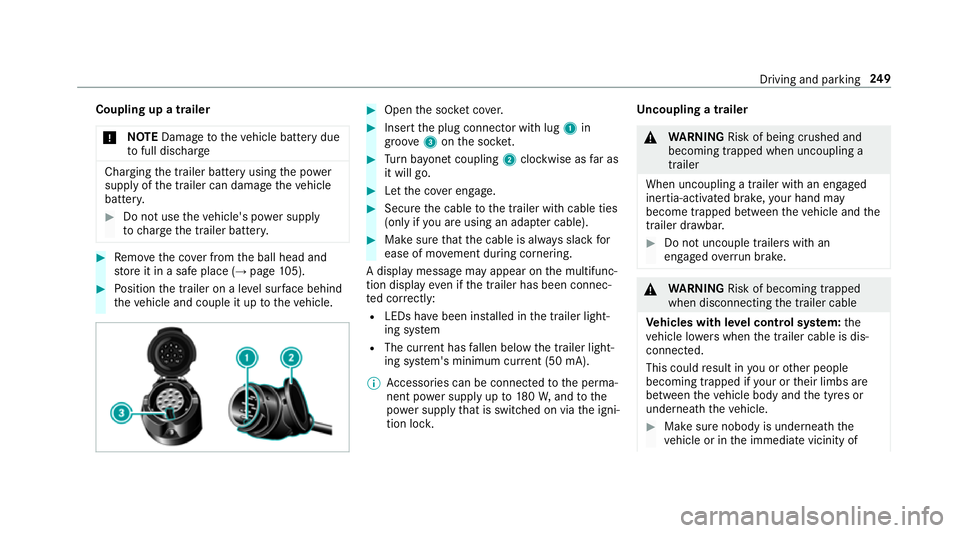
Open the soc ket co ver. #
Insert the plug connector with lug 1in
groo ve3 onthe soc ket. #
Turn bayonet coupling 2clockwise as far as
it will go. #
Let the co ver engage. #
Secure the cable tothe trailer with cable ties
(only if you are using an adap ter cable). #
Make sure that the cable is alw ays slack for
ease of mo vement during cornering.
A display messa gemay appear on the multifunc‐
tion display even if the trailer has been connec‐
te d cor rectly:
R LEDs ha vebeen ins talled in the trailer light‐
ing sy stem
R The cur rent has fallen below the trailer light‐
ing sy stem's minimum cur rent (50 mA).
% Accessories can be connected tothe perma‐
nent po wer supp lyup to180W, and tothe
po we r supp lythat is swit ched on via the igni‐
tion loc k. Un
coupling a trailer &
WARNING Risk of being crushed and
becoming trapped when uncoupling a
trailer
When uncoupling a trailer wi than engaged
ine rtia-activated brake, your hand may
become trapped between theve hicle and the
trailer dr awbar. #
Do not uncouple trailers with an
engaged overrun brake. &
WARNING Risk of becoming trapped
when disconnecting the trailer cable
Ve hicles with le vel control sy stem: the
ve hicle lo werswhen the trailer cable is dis‐
connected.
This could result in you or other people
becoming trapped if your or their limbs are
between theve hicle body and the tyres or
underneath theve hicle. #
Make sure nobody is underneath the
ve hicle or in the immediate vicinity of Driving and parking
249
Page 261 of 589
Ad
justing the in stru ment lighting #
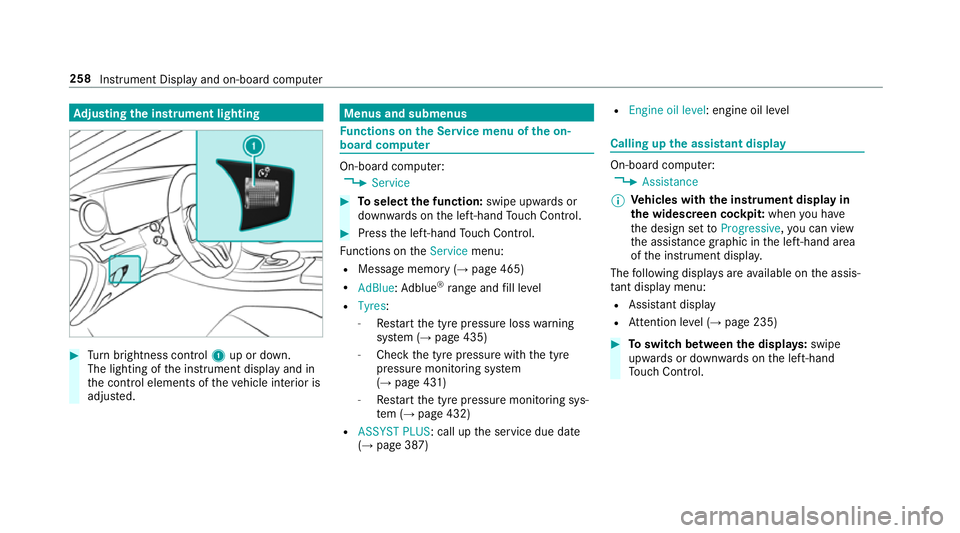
Turn brightness control 1up or down.
The lighting of the instrument display and in
th e control elements of theve hicle interior is
adjus ted. Menus and submenus
Fu
nctions on the Service menu of the on-
board compu ter On-board computer:
, Service #
Toselect the function: swipe upwards or
down wards on the left-hand Touch Control. #
Press the left-hand Touch Control.
Fu nctions on theService menu:
R Message memory (→ page 465)
R AdBlue :Ad blue ®
ra nge and fill le vel
R Tyres:
- Restart the tyre pressure loss warning
sy stem (→ page 435)
- Check the tyre pressure with the tyre
pressure monitoring sy stem
(→ page 431)
- Restart the tyre pressure monitoring sys‐
te m (→ page 432)
R ASSYST PLUS : call upthe service due date
(→ page 387) R
Engine oil level: engine oil le vel Calling up
the assistant display On-board computer:
, Assistance
% Ve
hicles with the instrument display in
th e widescreen cockpit: whenyou ha ve
th e design set toProgressive ,yo u can view
th e assis tance graphic in the left-hand area
of the instrument displa y.
The following displa ysare available on the assis‐
ta nt displ aymenu:
R Assis tant displ ay
R Attention le vel (→ page 235) #
Toswitch between the displa ys:swipe
upwards or down wards on the left-hand
To uch Control. 258
Instru ment Display and on-board computer
Page 262 of 589
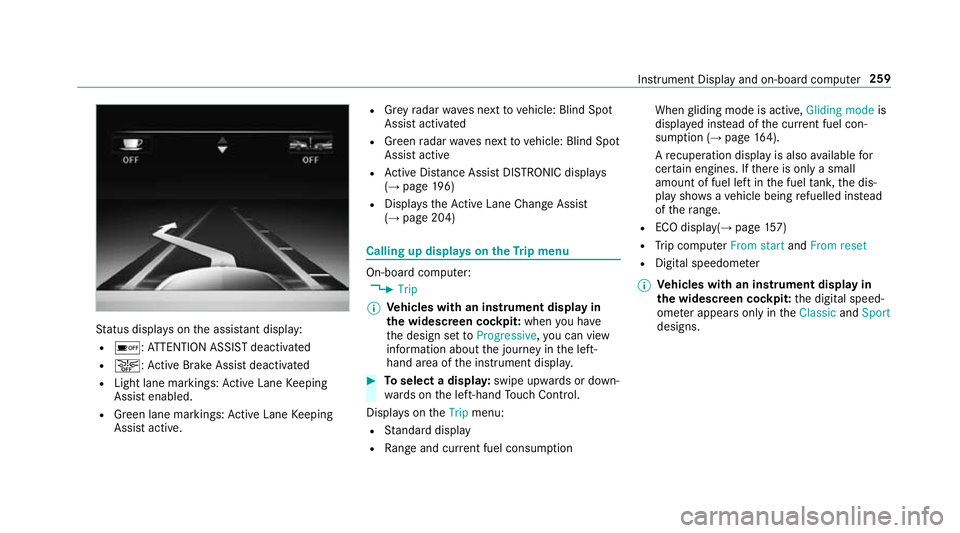
St
atus displa yson the assis tant displ ay:
R é :AT TENTION ASSIST deactivated
R æ: Active Brake Assi stdeactivated
R Light lane markings: Active Lane Keeping
Assist enabled.
R Green lane markings: Active Lane Keeping
Assist active. R
Grey radar waves next tovehicle: Blind Spot
Assist activated
R Green radar waves next tovehicle: Blind Spot
Assist active
R Active Dis tance Assi stDISTRONIC displa ys
( → page 196)
R Displ aysth eAc tive Lane Change Assi st
( → page 204) Calling up displa
yson theTr ip menu On-board computer:
, Trip
% Ve
hicles with an instrument display in
th e widescreen cockpit: whenyou ha ve
th e design set toProgressive ,yo u can view
information about the journey in the left-
hand area of the instrument displa y. #
Toselect a displa y:swipe upwards or down‐
wa rds on the left-hand Touch Control.
Displa yson theTrip menu:
R Standard display
R Range and cur rent fuel consu mption When
gliding mode is active, Gliding modeis
displa yed ins tead of the cur rent fuel con‐
su mp tion (→ page 164).
A recuperation displ ayis also available for
cer tain engines. If there is only a small
amount of fuel left in the fuel tank, the dis‐
play sho wsave hicle being refuelled ins tead
of thera nge.
R ECO displ ay(→page 157)
R Trip computer From startandFrom reset
R Digital speedom eter
% Ve
hicles with an instrument display in
th e widescreen cockpit: the digital speed‐
ome ter appears only in theClassic andSport
designs. Instrument Display and on-board computer
259
Page 268 of 589
Head-up Display
Fu
nction of the head-up display Mercedes-AMG
vehicles: be sure toobser ve
th e information in the Supplement. Otherwise,
yo u may failto recognise dangers.
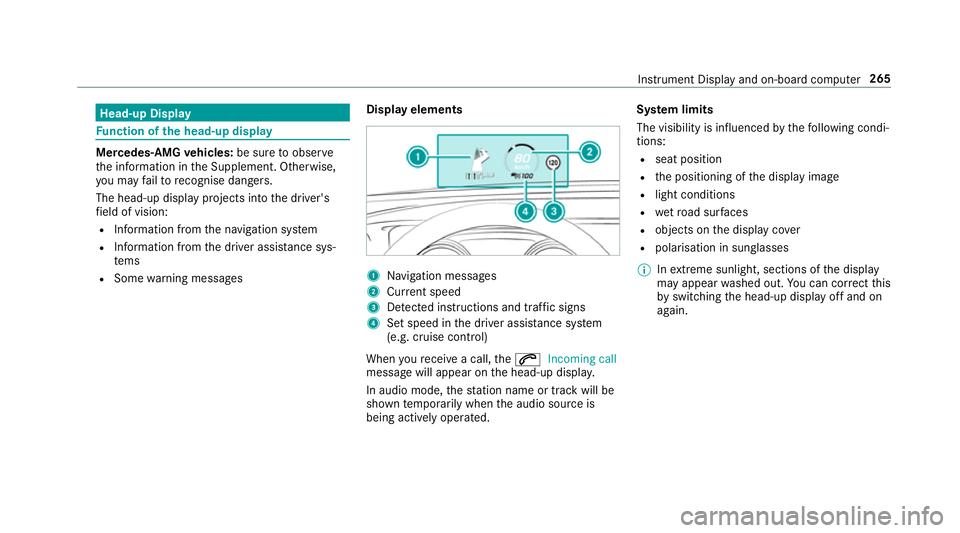
The head-up displ ayprojects into the driver's
fi eld of vision:
R Information from the navigation sy stem
R Information from the driver assis tance sys‐
te ms
R Some warning messages Display elements 1
Navigation messa ges
2 Current speed
3 Detected instructions and traf fic signs
4 Set speed in the driver assis tance sy stem
(e.g. cruise control)
When youre cei vea call, the6 Incoming call
message will appear on the head-up displa y.
In audio mode, thest ation name or track will be
shown temp orarily when the audio source is
being actively operated. Sy
stem limits
The visibility is influenced bythefo llowing condi‐
tions:
R seat position
R the positioning of the display image
R light conditions
R wetro ad sur faces
R objects on the display co ver
R polarisation in sunglasses
% Inextreme sunlight, sections of the display
may appear washed out. You can co rrect this
by switching the head-up display off and on
again. Instrument Display and on-board computer
265
Page 281 of 589
Message
voice commands Vo
ice command Function
Text message to
crea tea message. All address book names are available.
Reply To
reply toa message
Forward text message To
forw ard a message Overview of
vehicle voice commands Yo
u can use theve hicle voice commands to
directly call up the cor responding menus forthe
ve hicle settings.
Ve hicle voice commands Vo
ice command Function
Ambient light menu To
display ambient light settings
Ambient light "blue" To
switch ambient light toblue
Display and styles menu To
show display settings
Assistance menu To
display assis tance settings
Scent menu To
display fragrance settings 278
LINGU ATRO NIC
Page 282 of 589

Vo
ice command Function
Energy flow To
display energy flow settings
Ionisation menu To
display ionisation settings
Climate control menu To
display climate control settings
Automatic climate control driver on To
switch on the automatic climate control settings on the driver's side
Light menu To
display light settings
Massage menu To
display massage settings
Massage driver's seat on To
switch on the massage function forth e driver's seat
Massage driver's seat off To
switch off the massage function forth e driver's seat
Outside temperature To
display the outside temp erature
Engine data To
display engine data
Seats menu To
display seat adjustment settings
Seat heating front passenger level "2" To
set the seat heating forth e front passenger seat toleve l 2
Consumption menu To
display consum ption
Vehicle data To
display vehicle data LINGU
ATRO NIC 279
Page 292 of 589
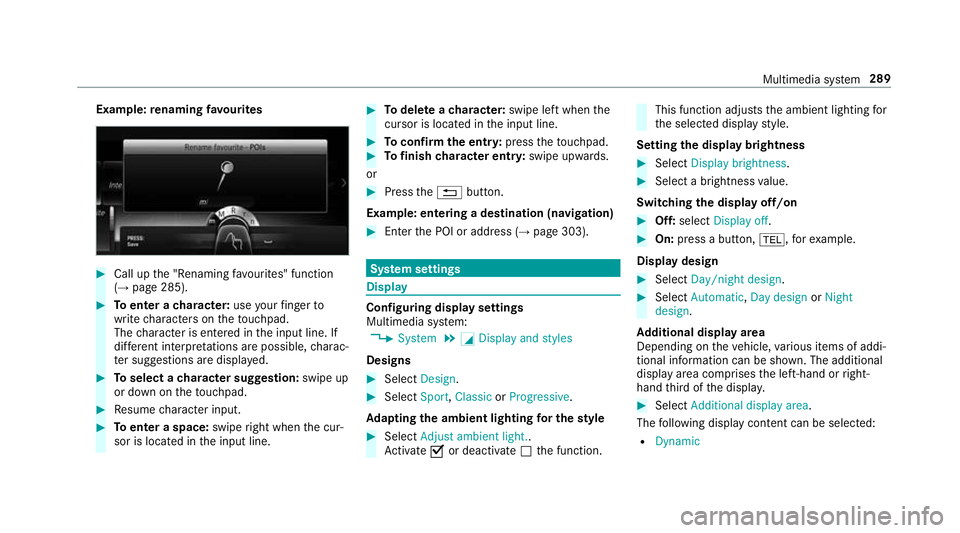
Example:
renaming favo urites #
Call up the "Renaming favo urites" function
(→ page 285). #
Toenter a character: useyour finger to
write characters on theto uchpad.
The character is entered in the input line. If
dif fere nt interpr etations are possible, charac‐
te r suggestions are displa yed. #
Toselect a character suggestion: swipe up
or down on theto uchpad. #
Resume character input. #
Toenter a space: swiperight when the cur‐
sor is located in the input line. #
Todel ete a character: swipe left when the
cursor is loca ted in the input line. #
Toconfirm the entr y:press theto uchpad. #
Tofinish character entr y:swipe upwards.
or #
Press the% button.
Example: entering a destination (navigation) #
Ente rth e POI or address (→ page 303). Sy
stem settings Display
Configuring display settings
Multimedia sy
stem:
, System .
G Display and styles
Designs #
Select Design. #
Select Sport,Classic orProgressive.
Ad apting the ambient lighting for the style #
Select Adjust ambient light. .
Ac tivate Oor deacti vate ª the function. This function adjusts
the ambient lighting for
th e selected display style.
Setting the display brightness #
Select Display brightness . #
Select a brightness value.
Switching the display off/on #
Off: select Display off . #
On: press a button, %,forex ample.
Displ aydesign #
Select Day/night design. #
Select Automatic, Day design orNight
design.
Ad ditional displ ayarea
Depending on theve hicle, various items of addi‐
tional information can be shown. The additional
display area comprises the left-hand or right-
hand third of the displa y. #
Select Additional display area .
The following display con tent can be selected:
R Dynamic Multimedia sy
stem 289
Page 295 of 589
The connection
toa secure Wi-Fi network is
made via a secu rity key.
Setting up Wi-Fi
Re quirements:
R The device tobe connec ted supports one of
th eth re e means of connection described
(→ page 291).
Multimedia sy stem:
, System .
ö Connectivity
Ac tivating/deactivating Wi-Fi #
Switch Wi-FionO or off ª.
If Wi-Fi is deactivated ª, communication via
Wi -Fi toall devices is inter rupte d. This also
means that a connection tothe HERMES
communication module cann otbe es tab‐
lished. Then functions such as dynamic route
guidance with Live Traf fic Information are not
av ailable.
Connecting the multimedia sy stem with a
device via Wi-Fi
This function is available if a HERMES communi‐
cation module is not ins talled. The type of connection es
tablished must be
selected on the multimedia sy stem and on the
device tobe connec ted.
% The connection procedure may dif fer
depending on the device. Follow the instruc‐
tions that are shown in the displa y.Fu rther
information (see the manufacturer's operat‐
ing instructions). #
Select Internet settings . #
Select Search for Wi-Fi networks.
Using a security key #
Select a Wi-Fi network in the list. #
Have the security key displa yed on the device
to be connec ted (see the manufacturer's
operating instructions). #
Ente rth is security key on the multimedia sys‐
te m. #
Confirm the entry with¡.
% All devices support a security key as a
means of connection. Using a WPS PIN #
Highlight a Wi-Fi network in the list. #
Select ¥Connect using WPS PIN input.
The multimedia sy stem generates an eight-
digit PIN. #
Enter this PIN on the device tobe connec ted. #
Confirm the entry.
Using a button
Re quirements:
R This function is only available in a Wi-Fi fre‐
qu ency of 2.4 GHz. #
Highlight a Wi-Fi network in the list. #
Select ¥Connect via WPS PBC. #
Select "Connect via WPS PBC" in the options
on the device tobe connec ted. #
Press the WPS button on the device tobe
connec ted. #
Select Continue inthe multimedia sy stem. 292
Multimedia sy stem