navigation MERCEDES-BENZ CLS COUPE 2018 Workshop Manual
[x] Cancel search | Manufacturer: MERCEDES-BENZ, Model Year: 2018, Model line: CLS COUPE, Model: MERCEDES-BENZ CLS COUPE 2018Pages: 589, PDF Size: 10.95 MB
Page 338 of 589
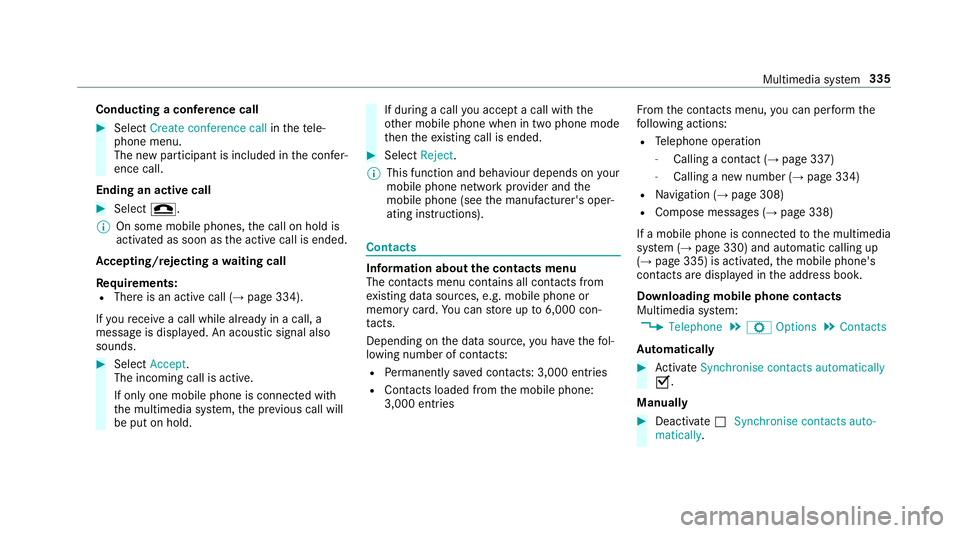
Conducting a conference call
#
Select Create conference call inthete le‐
phone menu.
The new participant is included in the confe r‐
ence call.
Ending an active call #
Select =.
% On some mobile phones, the call on hold is
activated as soon as the active call is ended.
Ac cepting/rejecting a waiting call
Re quirements:
R There is an active call (→ page 334).
If yo ure cei vea call while already in a call, a
message is displa yed. An acoustic signal also
sounds. #
Select Accept.
The incoming call is active.
If only one mobile phone is connec ted with
th e multimedia sy stem, the pr evious call will
be put on hold. If during a call
you accept a call with the
ot her mobile phone when in two phone mode
th en theex isting call is ended. #
Select Reject.
% This function and behaviour depends on your
mobile phone network pr ovider and the
mobile phone (see the manufacturer's oper‐
ating instructions). Contacts
Information about
the contacts menu
The con tacts menu contains all contacts from
ex isting data sources, e.g. mobile phone or
memo rycard. You can store up to6,000 con‐
ta cts.
Depending on the data source, you ha vethefo l‐
lowing number of con tacts:
R Perm anently sa ved con tacts: 3,000 entries
R Contacts loaded from the mobile phone:
3,000 entri es Fr
om the conta cts menu, you can per form the
fo llowing actions:
R Telephone operation
- Calling a con tact (→ page 337)
- Calling a new number (→ page 334)
R Navigation (→ page 308)
R Compose messa ges (→ page 338)
If a mobile phone is connected tothe multimedia
sy stem (→ page 330) and automatic calling up
(→ page 335) is activated, the mobile phone's
conta cts are displ ayed in the address book.
Downloading mobile phone contacts
Multimedia sy stem:
, Telephone .
Z Options .
Contacts
Au tomatically #
Activate Synchronise contacts automatically
O.
Manual ly #
Deactivate ªSynchronise contacts auto-
matically. Multimedia sy
stem 335
Page 339 of 589
#
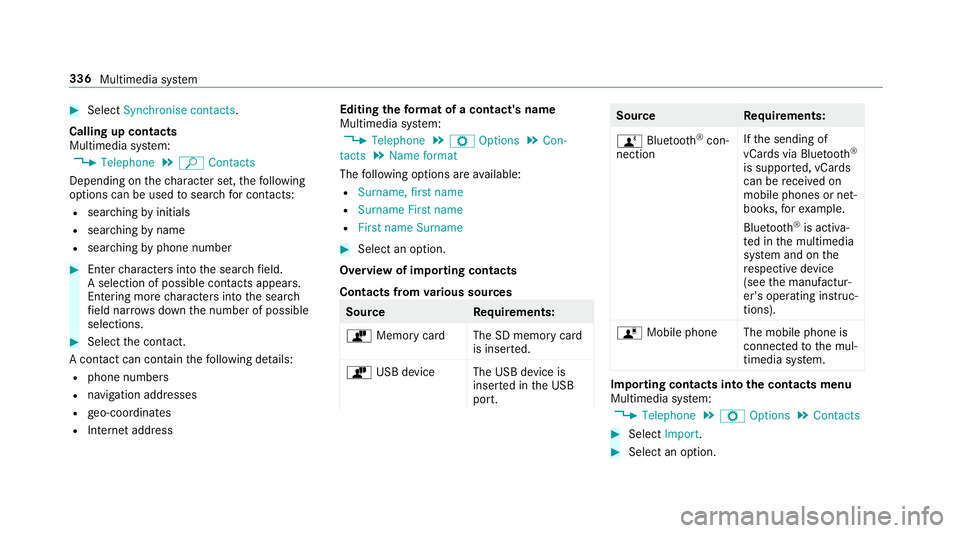
Select Synchronise contacts .
Calling up contacts
Multimedia sy stem:
, Telephone .
ª Contacts
Depending on thech aracter set, thefo llowing
options can be used tosear chfor contacts:
R sear ching byinitials
R sear ching byname
R searching byphone number #
Ente rch aracters into the sear chfield.
A selection of possible conta cts appears.
Entering more characters into the sear ch
fi eld nar rows down the number of possible
selections. #
Select the conta ct.
A contact can contain thefo llowing de tails:
R phone numbers
R navigation addresses
R geo-coordinates
R Internet address Editing
thefo rm at of a contact's name
Multimedia sy stem:
, Telephone .
Z Options .
Con-
tacts .
Name format
The following options are available:
R Surname, first name
R Surname First name
R First name Surname #
Select an option.
Overview of importing contacts
Contacts from various sources Source
Requirements:
ò Memory car dThe SD memory card
is inser ted.
ò USB device The USB device is
inserted in the USB
port. Source
Requirements:
ñ Bluetooth ®
con‐
nection If
th e sending of
vCards via Blue tooth®
is suppor ted, vCards
can be recei ved on
mobile phones or net‐
books, forex ample.
Blue tooth ®
is activa‐
te d in the multimedia
sy stem and on the
re spective device
(see the manufactur‐
er's operating instruc‐
tions).
ó Mobile phone The mobile phone is
connectedtothe mul‐
timedia sy stem. Importing contacts into
the contacts menu
Multimedia sy stem:
, Telephone .
Z Options .
Contacts #
Select Import. #
Select an option. 336
Multimedia sy stem
Page 342 of 589
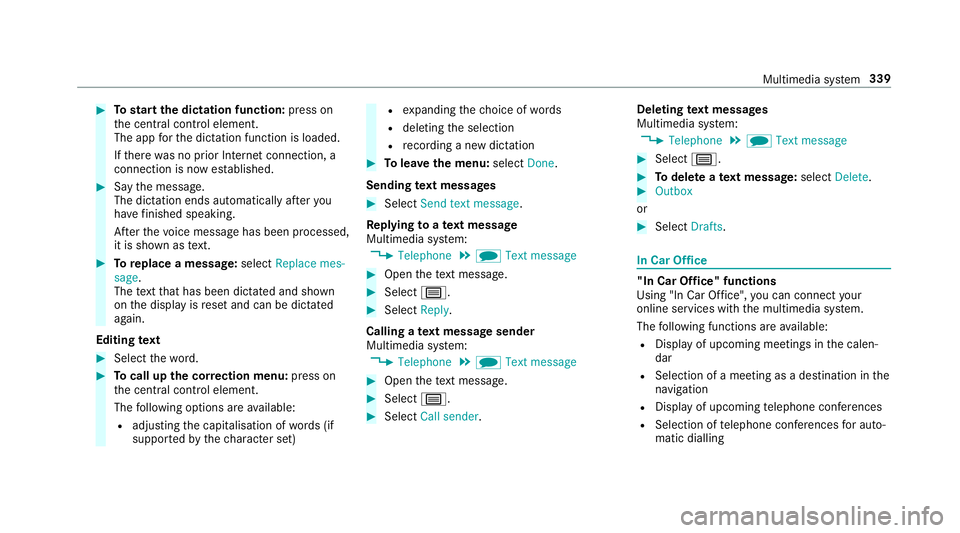
#
Tostart the dictation function: press on
th e cent ral control element.
The app forth e dictation function is loaded.
If th ere was no prior Internet connection, a
connection is now es tablished. #
Say the message.
The dictation ends automatically af teryou
ha ve finished speaking.
Af terth evo ice message has been processed,
it is shown as text. #
Toreplace a message: selectReplace mes-
sage.
The text that has been dictated and shown
on the display is reset and can be dictated
again.
Editing text #
Select thewo rd. #
Tocall up the cor rection menu: press on
th e cent ral control element.
The following options are available:
R adjusting the capitalisation of words (if
suppor tedby thech aracter set) R
expanding thech oice of words
R deleting the selection
R recording a new dictation #
Tolea vethe menu: selectDone.
Sending text messages #
Select Send text message .
Re plying toate xt message
Multimedia sy stem:
, Telephone .
i Text message #
Open thete xt messa ge. #
Select p. #
Select Reply.
Calling a text message sender
Multimedia sy stem:
, Telephone .
i Text message #
Open thete xt messa ge. #
Select p. #
Select Call sender. Deleting
text messages
Multimedia sy stem:
, Telephone .
i Text message #
Select p. #
Todel ete a text message: selectDelete. #
Outbox
or #
Select Drafts. In Car Of
fice "In Car Of
fice" functions
Using "In Car Of fice", you can connect your
online services with the multimedia sy stem.
The following functions are available:
R Display of upcoming meetings in the calen‐
dar
R Selection of a meeting as a destination in the
navigation
R Display of upcoming telephone con fere nces
R Selection of telephone con fere nces for auto‐
matic dialling Multimedia sy
stem 339
Page 348 of 589
Tr
ansfer redve hicle data with Android Auto
and Apple CarPlay™ Overview of transfer
redve hicle data
When using Android Autoor Apple CarPlay™,
cer tain vehicle data is transfer redto the mobile
phone. This enables youto getth e best out of
selected mobile phone services. Vehicle data is
not directly accessible.
The following sy stem information is transmit ted:
R Software release of the multimedia sy stem
R System ID (anonymised)
The transfer of this data is used tooptimise
communication between theve hicle and the
mobile phone.
To do this, and toassign se veralve hicles tothe
mobile phone, a vehicle identifier is randomly
ge nerated.
This has no connection totheve hicle identifica‐
tion number (VIN) and is dele ted when the multi‐
media sy stem is reset (→ page 299).
The following driving status data is transmitted:
R Transmission position engaged R
Distinction between par ked, standstill, rolling
and driving
R Day/night mode of the instrument clus ter
The transfer of this data is used toalter how
con tent is displ ayed tocor respond tothe driving
situation.
The following position data is transmitte d:
R Coordinates
R Speed
R Compass direction
R Acceleration di rection
This da tais only transfer red while the navigation
sy stem is active in order toimpr oveit (e.g. so it
can continue functioning when in a tunnel). Mercedes me connect
Information on Mercedes me connect
Mercedes me connect pr
ovides thefo llowing
services:
R Accident and breakdown mana gement (me
button) R
Concierge Service (when the service is acti‐
va ted), appointment requests or similar (me
button)
R Mercedes-Benz emer gency call sy stem (SOS
button)
The Mercedes-Benz Cus tomer Centre and the
Mercedes-Benz emer gency call centre are availa‐
ble foryo u around the cloc k.
The me button and the emer gency call sy stem
can be found on theve hicle's overhead control
panel (→ page 346).
Yo u can also call the Mercedes-Benz Cus tomer
Centre using the multimedia sy stem
(→ page 346).
Please no tethat Mercedes me connect is a
Mercedes-Benz service. In emer gencies, al ways
call the national emer gency services firs t using
th est andard national emer gency service phone
numbe rs. In eme rgencies, you can also use the
Mercedes-Benz emer gency call sy stem
(→ page 349).
Obser vethe conditions of use for Mercedes me
connect and other services. These can be Multimedia sy
stem 345
Page 378 of 589
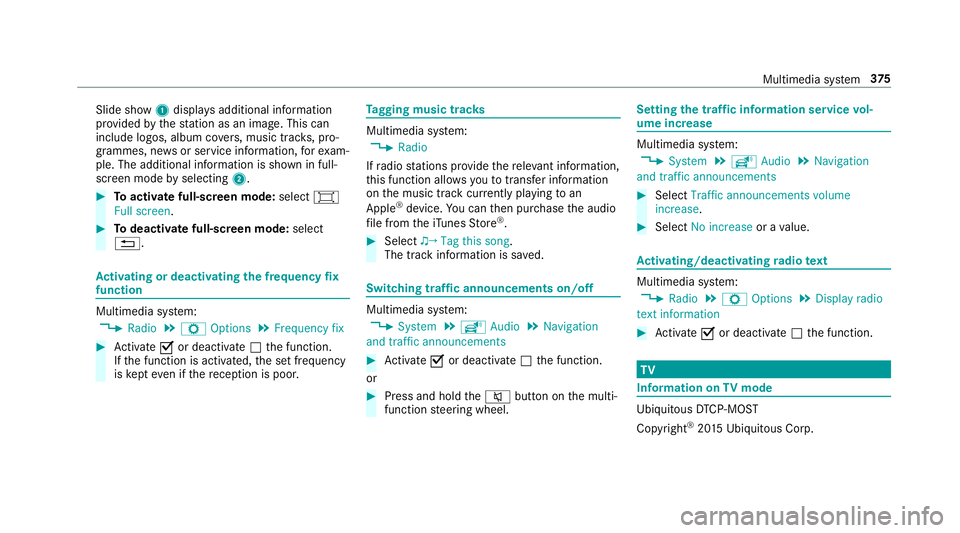
Slide show
1displ ays additional information
pr ov ided bythest ation as an image. This can
include logos, album co vers, music trac ks, pro‐
grammes, ne wsor service information, forex am‐
ple. The additional information is shown in full-
sc reen mode byselecting 2. #
Toactivate full-screen mode: select#
Full screen. #
Todeactivate full-sc reen mode: select
%. Ac
tivating or deactivating the frequency fix
function Multimedia sy
stem:
, Radio .
Z Options .
Frequency fix #
Activate Oor deacti vate ª the function.
If th e function is activated, the set frequency
is ke pt eve n ifthere ception is poo r. Ta
gging music trac ks Multimedia sy
stem:
, Radio
If ra dio stations pr ovide there leva nt information,
th is function allo wsyouto trans fer information
on the music track cur rently pl aying toan
Apple ®
device. You can then pur chase the audio
fi le from theiTunes Store ®
. #
Select ♫→ Tag this song.
The track information is sa ved. Switching traf
fic announcements on/off Multimedia sy
stem:
, System .
õ Audio .
Navigation
and traffic announcements #
Activate Oor deacti vate ª the function.
or #
Press and hold the8 button on the multi‐
function steering wheel. Setting
the traf fic information service vol‐
ume increase Multimedia sy
stem:
, System .
õ Audio .
Navigation
and traffic announcements #
Select Traffic announcements volume
increase. #
Select No increase or avalue. Ac
tivating/deactivating radio text Multimedia sy
stem:
, Radio .
Z Options .
Display radio
text information #
Activate Oor deacti vate ª the function. TV
Information on
TVmode Ubiquito
usDTCP-MOST
Copyright ®
20 15 Ubiquitous Corp. Multimedia sy
stem 375
Page 382 of 589
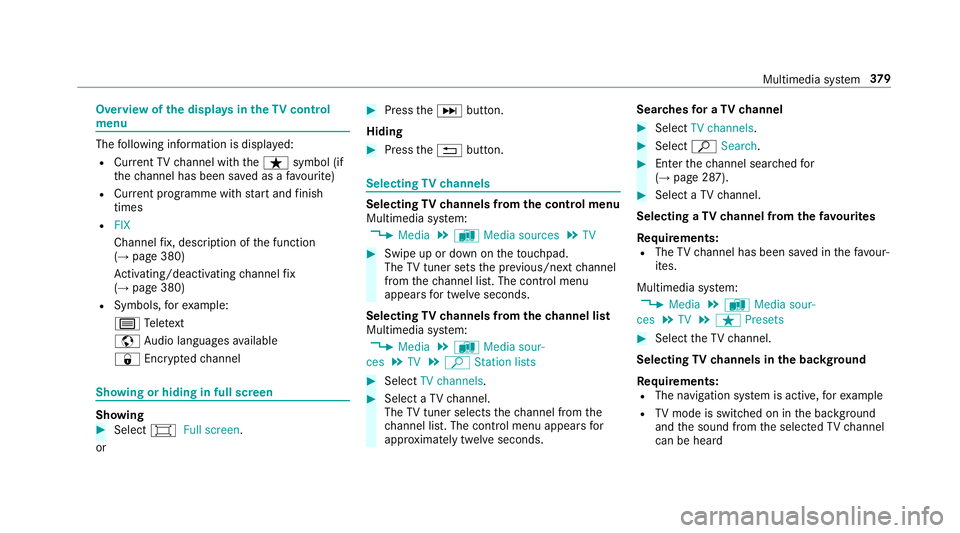
Overview of
the displa ysintheTV cont rol
menu The
following information is displa yed:
R Cur rent TV channel with theß symbol (if
th ech annel has been sa ved as a favo urite)
R Cur rent programme wi thstart and finish
times
R FIX
Channel fix, description of the function
(→ page 380)
Ac tivating/deactivating channel fix
( → page 380)
R Symbols, forex ample:
p Telete xt
z Audio languages available
r Encryp tedch annel Showing or hiding in full screen
Showing
#
Select #Full screen .
or #
Press theD button.
Hiding #
Press the% button. Selecting
TVchannels Selecting
TVchannels from the control menu
Multimedia sy stem:
, Media .
à Media sources .
TV #
Swipe up or down on theto uchpad.
The TVtuner sets the pr evious/n extch annel
from thech annel list. The control menu
appears for twelve seconds.
Selecting TVchannels from thech annel list
Multimedia sy stem:
, Media .
à Media sour-
ces .
TV .
ª Station lists #
Select TV channels. #
Select a TVchannel.
The TVtuner selects thech annel from the
ch annel list. The control menu appears for
appr oximately twelve seconds. Sear
ches for a TVchannel #
Select TV channels . #
Select ªSearch . #
Enter thech annel sear ched for
( → page 287). #
Select a TVchannel.
Selecting a TVchannel from thefa vo urites
Re quirements:
R The TVchannel has been sa ved in thefa vo ur‐
ites.
Multimedia sy stem:
, Media .
à Media sour-
ces .
TV .
ß Presets #
Select theTV channel.
Selecting TVchannels in the bac kground
Re quirements:
R The navigation sy stem is active, forex ample
R TVmode is switched on in the bac kground
and the sound from the selected TVchannel
can be heard Multimedia sy
stem 37 9