ad blue MERCEDES-BENZ E-Class 2014 W212 Comand Manual
[x] Cancel search | Manufacturer: MERCEDES-BENZ, Model Year: 2014, Model line: E-Class, Model: MERCEDES-BENZ E-Class 2014 W212Pages: 270, PDF Size: 5.82 MB
Page 46 of 270
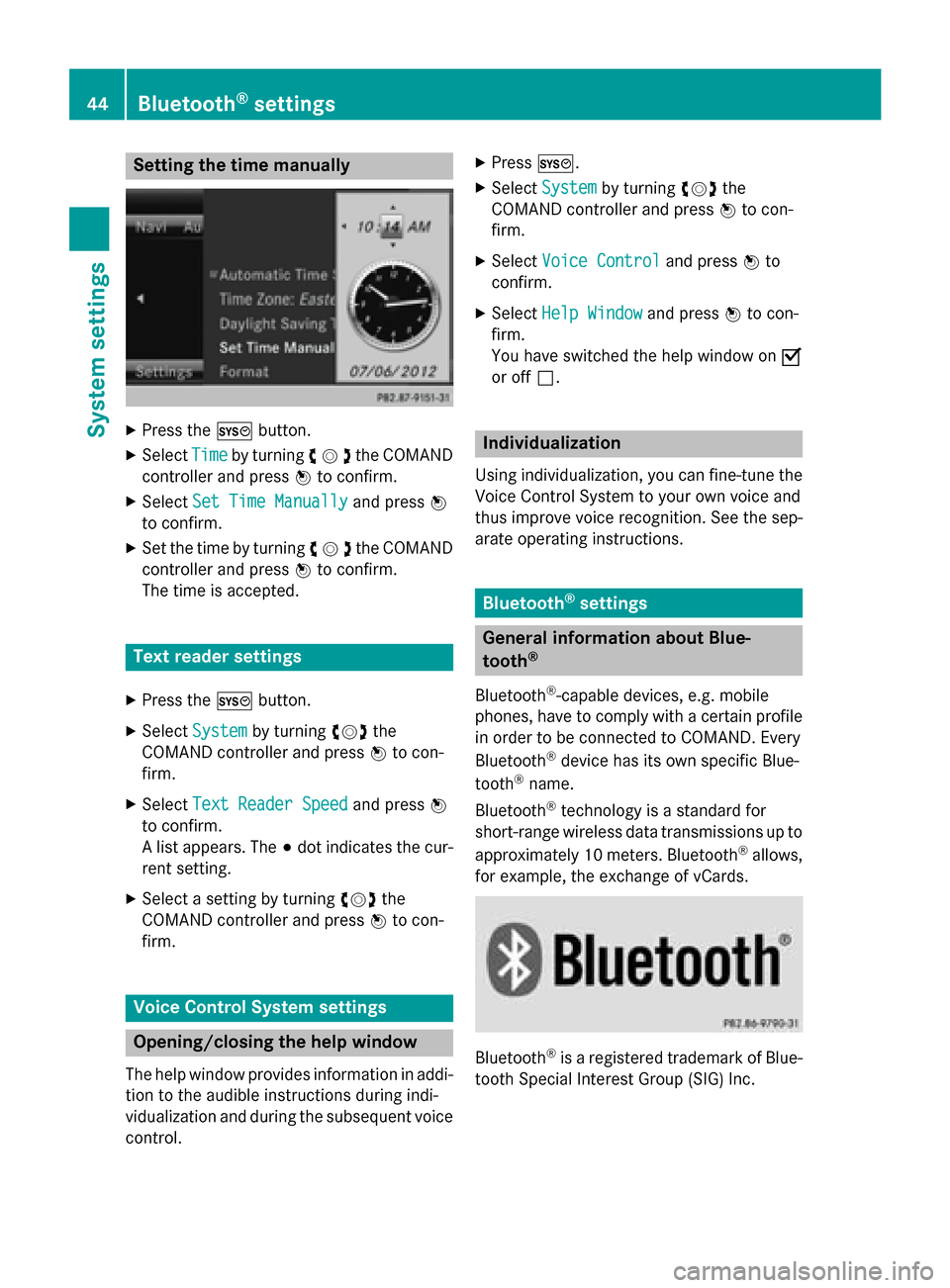
Setting the time manually
X
Press the 0066button.
X Select Time
Timeby turning 00790052007Athe COMAND
controller and press 0098to confirm.
X Select Set Time Manually
Set Time Manually and press0098
to confirm.
X Set the time by turning 00790052007Athe COMAND
controller and press 0098to confirm.
The time is accepted. Text reader settings
X Press the 0066button.
X Select System
System by turning 00790052007Athe
COMAND controller and press 0098to con-
firm.
X Select Text Reader Speed
Text Reader Speed and press0098
to confirm.
A list appears. The 003Bdot indicates the cur-
rent setting.
X Select a setting by turning 00790052007Athe
COMAND controller and press 0098to con-
firm. Voice Control System settings
Opening/closing the help window
The help window provides information in addi-
tion to the audible instructions during indi-
vidualization and during the subsequent voice control. X
Press 0066.
X Select System System by turning 00790052007Athe
COMAND controller and press 0098to con-
firm.
X Select Voice Control
Voice Control and press0098to
confirm.
X Select Help Window
Help Window and press0098to con-
firm.
You have switched the help window on 0073
or off 0053. Individualization
Using individualization, you can fine-tune the
Voice Control System to your own voice and
thus improve voice recognition. See the sep-
arate operating instructions. Bluetooth
®
settings General information about Blue-
tooth
®
Bluetooth ®
-capable devices, e.g. mobile
phones, have to comply with a certain profile
in order to be connected to COMAND. Every
Bluetooth ®
device has its own specific Blue-
tooth ®
name.
Bluetooth ®
technology is a standard for
short-range wireless data transmissions up to
approximately 10 meters. Bluetooth ®
allows,
for example, the exchange of vCards. Bluetooth
®
is a registered trademark of Blue-
tooth Special Interest Group (SIG) Inc. 44
Bluetooth ®
settingsSystem settings
Page 47 of 270
Activating/deactivating Bluetooth
®
X Press 0066.
The system menu appears.
X Select Settings
Settings by turning 00790052007Athe
COMAND controller and press 0098to con-
firm.
X Select Activate Activate Bluetooth Bluetooth and press0098
to confirm.
This switches Bluetooth ®
on 0073 or off 0053. Setting the system language
This function allows you to determine the lan-
guage for the menu displays and the naviga-
tion announcements. The selected language
affects the characters available for entry.
The navigation announcements are not avail-
able in all languages. If a language is not avail- able, the navigation announcements will be in English.
When you set the system language, the lan-
guage of the Voice Control System will
change accordingly. If the selected language
is not supported by the Voice Control System,
English will be selected.
X Press the 0066button.
X Select System
System by turning 00790052007Athe
COMAND controller and press 0098to con-
firm.
X Select Language Language and press0098to confirm.
The list of languages appears. The 003Bdot
indicates the current setting.
X Select the language by turning 00790052007Athe
COMAND controller and press 0098to con-
firm.
COMAND loads the selected language and
sets it. Assigning a favorites button
X To assign a favorites button: press the
0066 button.
X Select System System by turning 00790052007Athe
COMAND controller and press 0098to con-
firm.
X Select Assign
Assign as
asFavorite
Favorite and press0098
to confirm.
The list of predefined functions appears.
The dot 003Bindicates the currently selected
function.
X Select the function by turning 00790052007Athe
COMAND controller and press 0098to con-
firm.
The favorites button is assigned the selec-
ted function.
X Example: to call up a favorite: press the
007D favorites button.
This calls up the predefined function.
You can select the following predefined func-
tions in a menu:
R SplitView on/off SplitView on/off : you can switch the
screen view for the front passenger on or
off.
R Display On/Off Display On/Off : you can switch the dis-
play off or on.
R Full Screen: 'Clock'
Full Screen: 'Clock': you can call up
the full screen with the clock.
R 00A7 Menu
Menu: you can call up the online and
Internet functions.
R 360°
360° Camera
Camera : you can call up the picture of
the 360° camera.
R Full screen: 'Map'
Full screen: 'Map' : you can call up the
full screen with the map.
R Spoken Driving Tip
Spoken Driving Tip : you can call up the
current driving recommendation.
R Display
Display Traffic
Traffic Messages
Messages: you can call
up traffic reports.
R Navigate Home
Navigate Home: you can start route guid-
ance to your home address if you have
already entered and saved the address
(Y page 69). Assigning a favorites button
45System settings
Page 90 of 270
COMAND may give differing navigation com-
mands if the actual street/traffic situation
does not correspond with the digital map's
data. For example, if the road layout or the
direction of a one-way street has been
changed.
For this reason, you must always observe
road and traffic rules and regulations during
your journey. Road and traffic rules and reg-
ulations always have priority over the sys-
tem's driving recommendations.
Route guidance begins once a route has been calculated (Y page 69).
COMAND guides you to your destination by
means of navigation announcements in the
form of audible navigation announcements
and route guidance displays.
The route guidance displays can be seen if the
display is switched to navigation mode.
If you do not follow the navigation announce- ments or if you leave the calculated route,
COMAND automatically calculates a new
route to the destination.
If the digital map contains the corresponding
information, the following applies:
R during route guidance, COMAND tries to
avoid roads with restricted access. Those
roads, for example, that are closed to
through-traffic.
R roads that have time restrictions (e.g.
closed on Sundays and public holidays) are considered for route guidance on days
when they are open. For this purpose, the
relevant times must be correctly stored in
the database. Displays during route guidance
Change of direction Changes of direction have three phases:
R preparation phase
R announcement phase
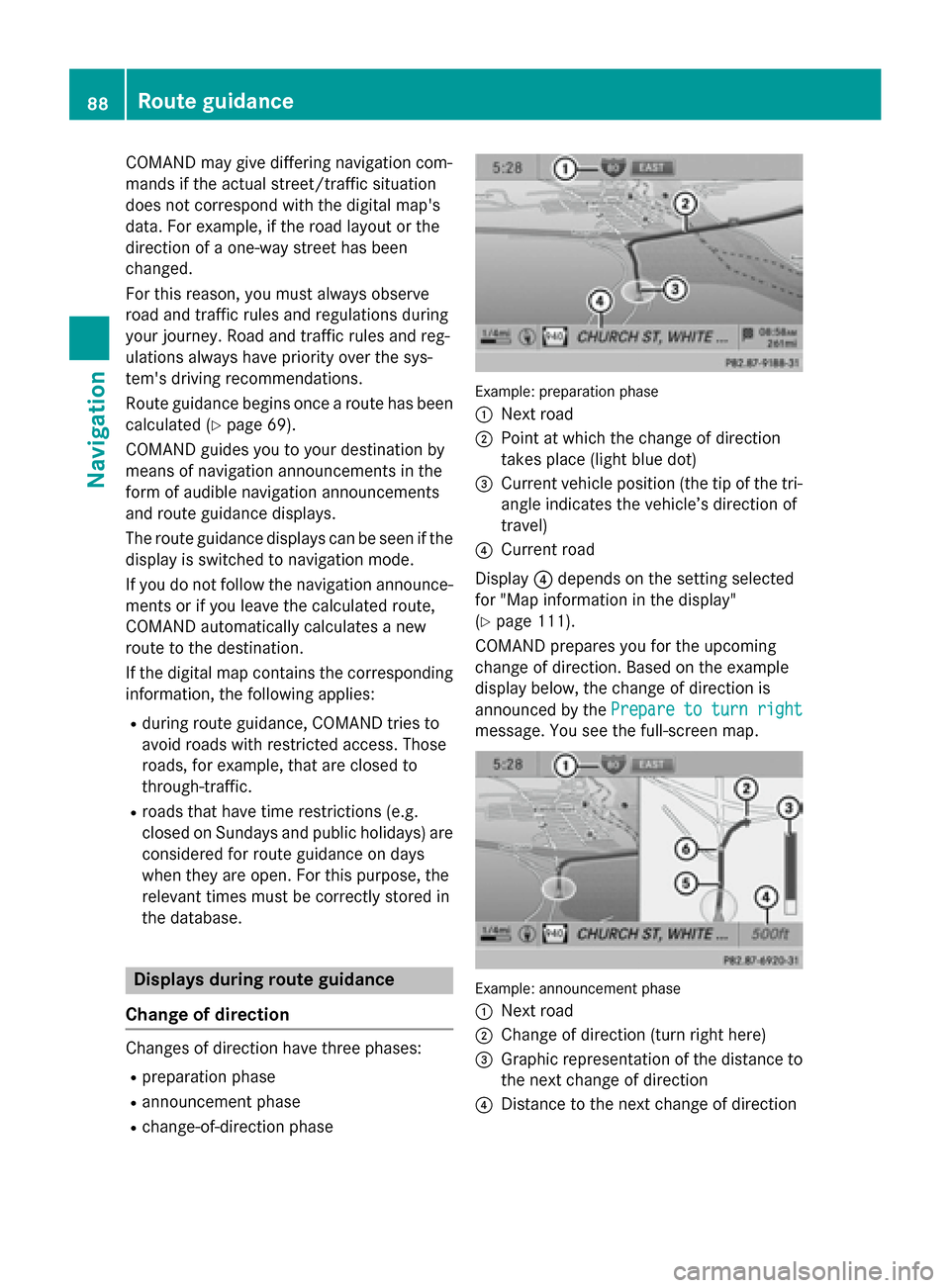
R change-of-direction phase Example: preparation phase
0043
Next road
0044 Point at which the change of direction
takes place (light blue dot)
0087 Current vehicle position (the tip of the tri-
angle indicates the vehicle’s direction of
travel)
0085 Current road
Display 0085depends on the setting selected
for "Map information in the display"
(Y page 111).
COMAND prepares you for the upcoming
change of direction. Based on the example
display below, the change of direction is
announced by the Prepare to turn right Prepare to turn right
message. You see the full-screen map. Example: announcement phase
0043
Next road
0044 Change of direction (turn right here)
0087 Graphic representation of the distance to
the next change of direction
0085 Distance to the next change of direction 88
Route guidanceNavigation
Page 91 of 270

0083
Route (highlighted in blue, shown in both
the left and right displays)
0084 Point at which the change of direction
takes place (light blue dot, shown in both the left and right displays)
i The filled-in section of visual display for
distance 0087gets shorter the nearer you get
to the announced change of direction.
COMAND announces the imminent change of
direction. Based on the example display
below, the change of direction is announced
beforehand by the message: Please turn Please turn
right in 500 ft. and follow the right in 500 ft. and follow the
The distance announced before the next
change of direction depends on the type of
road and its permissible maximum speed.
The display is now split into two sectors. In
the left half, you see the normal map view.
The right-hand half shows:
R an enlarged section of the area around the
intersection (crossing zoom) or
R a 3D image of the road's course with the
route indicating the next change of direc-
tion Example: change-of-direction phase
0043
Current vehicle position (the tip of the tri-
angle indicates the vehicle’s direction of
travel)
0044 Graphic representation of the distance to
the next change of direction
0087 Distance to the next change of direction
COMAND announces the imminent change of
direction. Based on the example display below, the
change of direction is announced 150 ft
before the change of direction with the Now
Now
turn right turn right message.
The display is split into two halves, as in the
announcement phase.
Once the change of direction is completed,
COMAND automatically switches back to full- screen display.
Example of a display without changes of
direction 0043
Route (highlighted in blue)
0044 Current vehicle position
0087 Current road
0085 Map orientation selected
0083 Map scale selected
Lane recommendations Example: lane recommendations
0043
Point of the next change of direction
0044 Point of the change of direction after next
0087 Next change of direction (in this case, turn
off to the right) Route guidance
89Navigation Z
Page 92 of 270

0085
Graphic representation of the distance to
the next change of direction
0083 Distance to the next change of direction
0084 Possible lane (light blue)
006B Recommended lane (dark blue)
006C Lane not recommended (gray)
006D Current vehicle position, the tip of the tri-
angle indicating the vehicle’s direction of
travel
On multi-lane roads, COMAND can display
lane recommendations for the next change of direction. The corresponding data must be
available in the digital map.
COMAND displays lane recommendation 006B
based on the next two changes of direction.
The number of lanes applies to the point at
which the next change of direction is
required.
i The multifunction display also shows lane
recommendations.
Only the recommended lanes are displayed here, see the separate vehicle Operator's
Manual. Display and description of lane recom-
mendations Lane Day
mode Night
mode
Recommended lane
In this lane, you will
be able to complete
the next two
changes of direction
without changing
lanes. Dark
blue Light
blue
Possible lane
In this lane, you will
only be able to com-
plete the next
change of direction
without changing
lanes. Light
blue Dark
blue
Lane not recom-
mended
In this lane, you will
not be able to com-
plete the next
change of direction
without changing
lanes. Light
brown or
light gray Gray
i
The colors used in the lane recommenda-
tion display vary depending on whether day
or night mode is switched on. 90
Route guidanceNavigation
Page 95 of 270
X
Select Route
Routein the navigation system
menu bar by turning 00790052007Athe COMAND
controller and press 0098to confirm.
X Select Detour
Detour and press 0098to confirm.
X To block a section of the route: select
Longer
Longer orShorter
Shorter repeatedly and press
0098 to confirm until the desired section has
been selected.
i The total length of the section that can be
blocked is defined by the digital map. The
menu items are available accordingly.
X To start route calculation: selectStart
Start
and press 0098to confirm.
X To delete the blocked section: select
Delete Delete while the message is shown and
press 0098to confirm.
COMAND calculates the route without the
block.
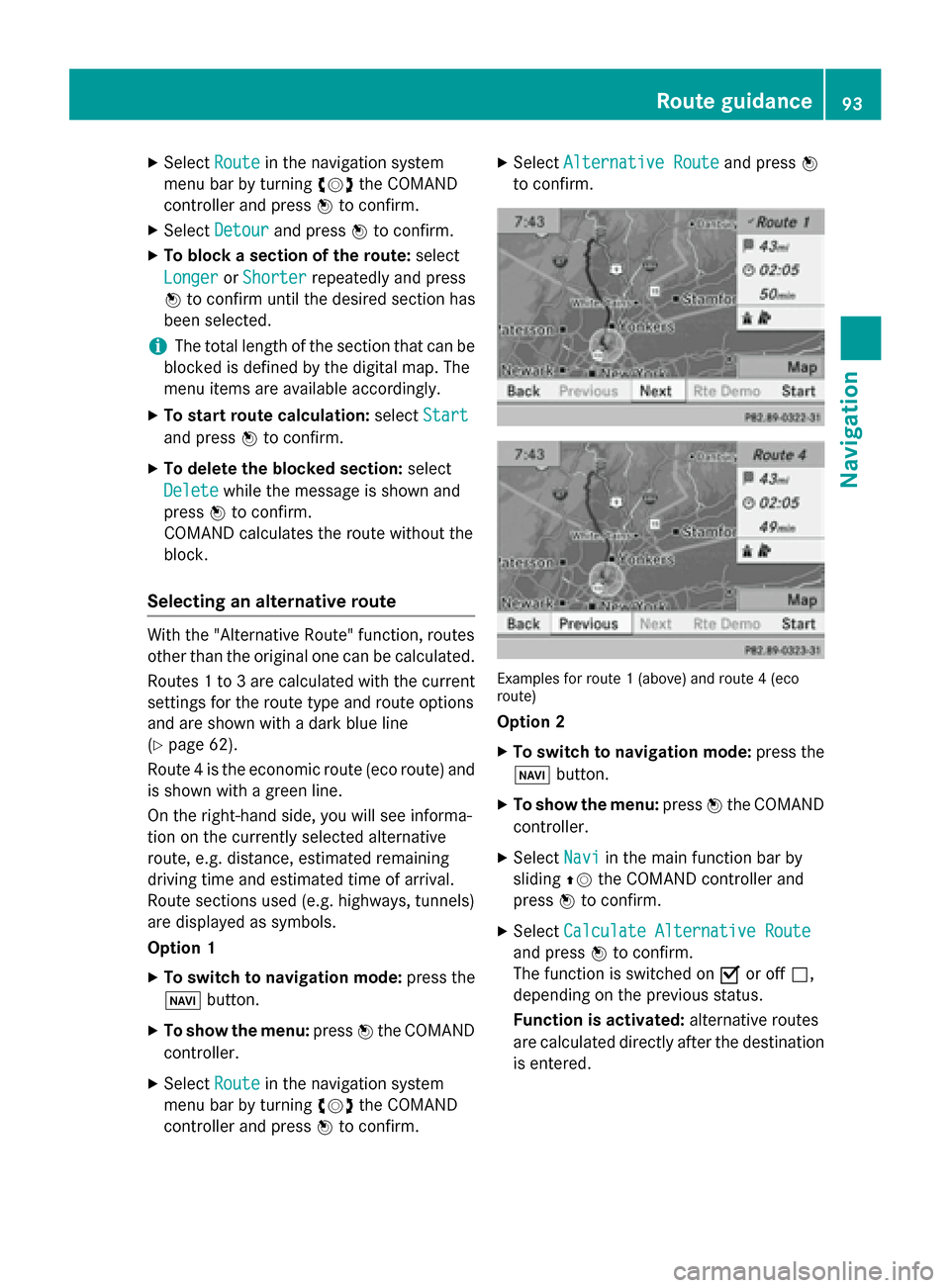
Selecting an alternative route With the "Alternative Route" function, routes
other than the original one can be calculated.
Routes 1 to 3 are calculated with the current
settings for the route type and route options
and are shown with a dark blue line
(Y page 62).
Route 4 is the economic route (eco route) and
is shown with a green line.
On the right-hand side, you will see informa-
tion on the currently selected alternative
route, e.g. distance, estimated remaining
driving time and estimated time of arrival.
Route sections used (e.g. highways, tunnels)
are displayed as symbols.
Option 1
X To switch to navigation mode: press the
00BE button.
X To show the menu: press0098the COMAND
controller.
X Select Route Routein the navigation system
menu bar by turning 00790052007Athe COMAND
controller and press 0098to confirm. X
Select Alternative Route Alternative Route and press0098
to confirm. Examples for route 1 (above) and route 4 (eco
route)
Option 2
X To switch to navigation mode: press the
00BE button.
X To show the menu: press0098the COMAND
controller.
X Select Navi Naviin the main function bar by
sliding 00970052the COMAND controller and
press 0098to confirm.
X Select Calculate Alternative Route Calculate Alternative Route
and press 0098to confirm.
The function is switched on 0073or off 0053,
depending on the previous status.
Function is activated: alternative routes
are calculated directly after the destination
is entered. Route guidance
93Navigation Z
Page 98 of 270
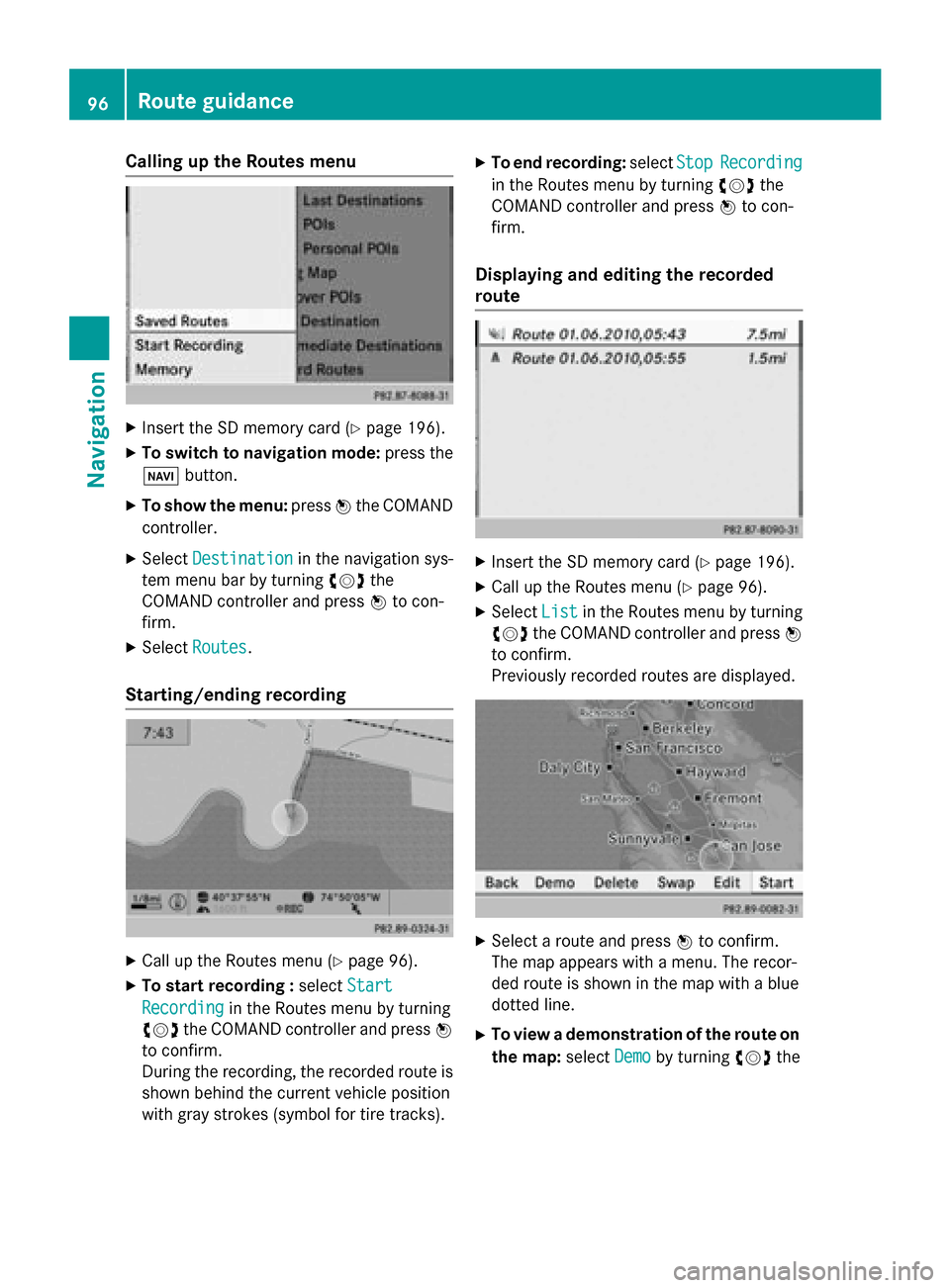
Calling up the Routes menu
X
Insert the SD memory card (Y page 196).
X To switch to navigation mode: press the
00BE button.
X To show the menu: press0098the COMAND
controller.
X Select Destination
Destination in the navigation sys-
tem menu bar by turning 00790052007Athe
COMAND controller and press 0098to con-
firm.
X Select Routes
Routes .
Starting/ending recording X
Call up the Routes menu (Y page 96).
X To start recording : selectStart
Start
Recording
Recording in the Routes menu by turning
00790052007A the COMAND controller and press 0098
to confirm.
During the recording, the recorded route is
shown behind the current vehicle position
with gray strokes (symbol for tire tracks). X
To end recording: selectStop StopRecording Recording
in the Routes menu by turning 00790052007Athe
COMAND controller and press 0098to con-
firm.
Displaying and editing the recorded
route X
Insert the SD memory card (Y page 196).
X Call up the Routes menu (Y page 96).
X Select List Listin the Routes menu by turning
00790052007A the COMAND controller and press 0098
to confirm.
Previously recorded routes are displayed. X
Select a route and press 0098to confirm.
The map appears with a menu. The recor-
ded route is shown in the map with a blue
dotted line.
X To view a demonstration of the route on
the map: selectDemo
Demo by turning 00790052007Athe 96
Route guidanceNavigation
Page 100 of 270

Route guidance to a destination that is
not on a digitized road Example: route guidance to an off-road destination
0043 Off-road destination
0044 Off-road route section (blue dashes)
0087 Current vehicle position (the tip of the tri-
angle indicates the vehicle’s direction of
travel)
0085 Off-road (if available)
COMAND can guide you to destinations
which are within the area of the digital map,
but which are not themselves recorded on the map.
These destinations are known as off-road
destinations, which you can enter using the
map, for example. In these cases, COMAND
guides you for as long as possible with navi-
gation announcements and displays on roads
known to the system.
If the vehicle reaches an area which is not part
of the digital map, the display appears as a
split-screen view. On the right, an arrow
appears that points to off-road destina-
tion 0043. You will hear the announcement:
"Please follow the arrow on the display". As
the vehicle approaches the destination, the
Area of destination reached
Area of destination reached message
appears.
Route guidance from an off-road loca-
tion to a destination If the vehicle position is within the area cov-
ered by the digital map, but the map does not
contain any information about that location,
the vehicle is in an off-road location. COMAND is also able to guide you to a des-
tination even from an off-road location.
At the start of route guidance, you will see the Off Mapped Road Off Mapped Road message, an arrow and
the distance to the destination. The arrow
shows the compass heading to the actual
destination.
The route is highlighted blue, starting from
the last recognized street the vehicle was on
before it left the map.
As soon as the vehicle is back on a road
known to the system, route guidance contin- ues in the usual way.
Route guidance from an off-map loca-
tion to a destination If the vehicle position is outside the area cov-
ered by the digital map, then the vehicle is in an off-map location. COMAND is also able to
guide you to a destination even from an off-
map location.
At the start of route guidance, you will see the
Off Mapped Road Off Mapped Road message, an arrow and
the distance to the destination. The direction
arrow shows the compass heading to the des- tination.
The route is highlighted in blue from the near- est road known to the system.
As soon as the vehicle is back on a road
known to the system, route guidance contin-
ues in the usual way.
Off-road during route guidance Due to road works, for example, there may be
differences between the data on the digital
map and the actual course of the road.
In such cases, the system will temporarily be
unable to locate the vehicle position on the
digital map. The vehicle is therefore in an off- road position.
In the display, you will see the Off Mapped Off Mapped
Road
Road message, an arrow and the distance to
the destination. The direction arrow shows
the compass heading to the destination. 98
Route guidanceNavigation
Page 125 of 270
Your COMAND equipment
................124
General notes .................................... 124
Telephony via the Bluetooth ®
inter-
face .................................................... 125
Reception and transmission vol-
ume .................................................... 131
Using the telephone .........................132
Using the phone book ......................136
Using call lists ................................... 140
Using the speed dial list ...................142
Text messages .................................. 144
Using the address book ...................146 123Telephone
Page 126 of 270

Your COMAND equipment
These operating instructions describe all the
standard and optional equipment for your
COMAND system, as available at the time of
going to print. Country-specific differences
are possible. Please note that your
COMAND system may not be equipped with
all the features described. General notes
Important safety notes
G
WARNING
If you operate mobile communication equip-
ment while driving, you will be distracted from traffic conditions. You could also lose controlof the vehicle. There is a risk of an accident.
Only operate this equipment when the vehicleis stationary.
If you make a call on your mobile phone while
driving, always use hands-free mode. Only
use the mobile phone when road, weather
and traffic conditions permit. Some jurisdic-
tions prohibit the driver from using a mobile
phone while driving a vehicle.
Bear in mind that at a speed of only 30 mph
(approximately 50 km/h), the vehicle covers
a distance of 44 feet (approximately 14 m)
per second.
Excessive levels of electromagnetic radiation
may cause damage to your health and the
health of others.
There is scientific discussion surrounding the possible health risks posed by electromag-
netic fields. You can reduce this risk by using
an exterior antenna.
Therefore, only use mobile communication
equipment if it is connected to the exterior
antenna of the vehicle. Introduction
COMAND provides telephony via the Blue-
tooth ®
interface.
When connecting Bluetooth ®
-capable mobile
phones with PBAP (Phone BookAccess
Profile), the contacts are automatically down- loaded to COMAND.
With a suitable mobile phone, you can use the
hands-free system and receive vCards via the
Bluetooth ®
interface.
You can use the text message function
(receiving and reading) if the mobile phone
supports the MAP (Message AccessProfile)
Bluetooth ®
profile.
You can obtain more detailed information
about suitable mobile phones and about con-
necting Bluetooth ®
-capable mobile phones to
COMAND on the Internet at
http://www.mbusa-mobile.com . Or call
the Mercedes-Benz Customer Assistance
center at
1-800-FOR-MERCedes(1-800-367-6372 )for
the USA or at 1-800-387-0100 for Canada. Call disconnection while the vehicle is
in motion
A call may be disconnected if:
R there is insufficient network coverage in
certain areas.
R you move from one transmitter/receiver
area (cell) into another and no channels are
free.
R you use a SIM card which is not compatible
with the network available. Operating options
You can operate the telephone by:
R using the COMAND controller:
turn 00790052007A
slide 009500520096 or009700520064 124
General notesTelephone