phone MERCEDES-BENZ E-Class 2014 W212 Comand Manual
[x] Cancel search | Manufacturer: MERCEDES-BENZ, Model Year: 2014, Model line: E-Class, Model: MERCEDES-BENZ E-Class 2014 W212Pages: 270, PDF Size: 5.82 MB
Page 46 of 270
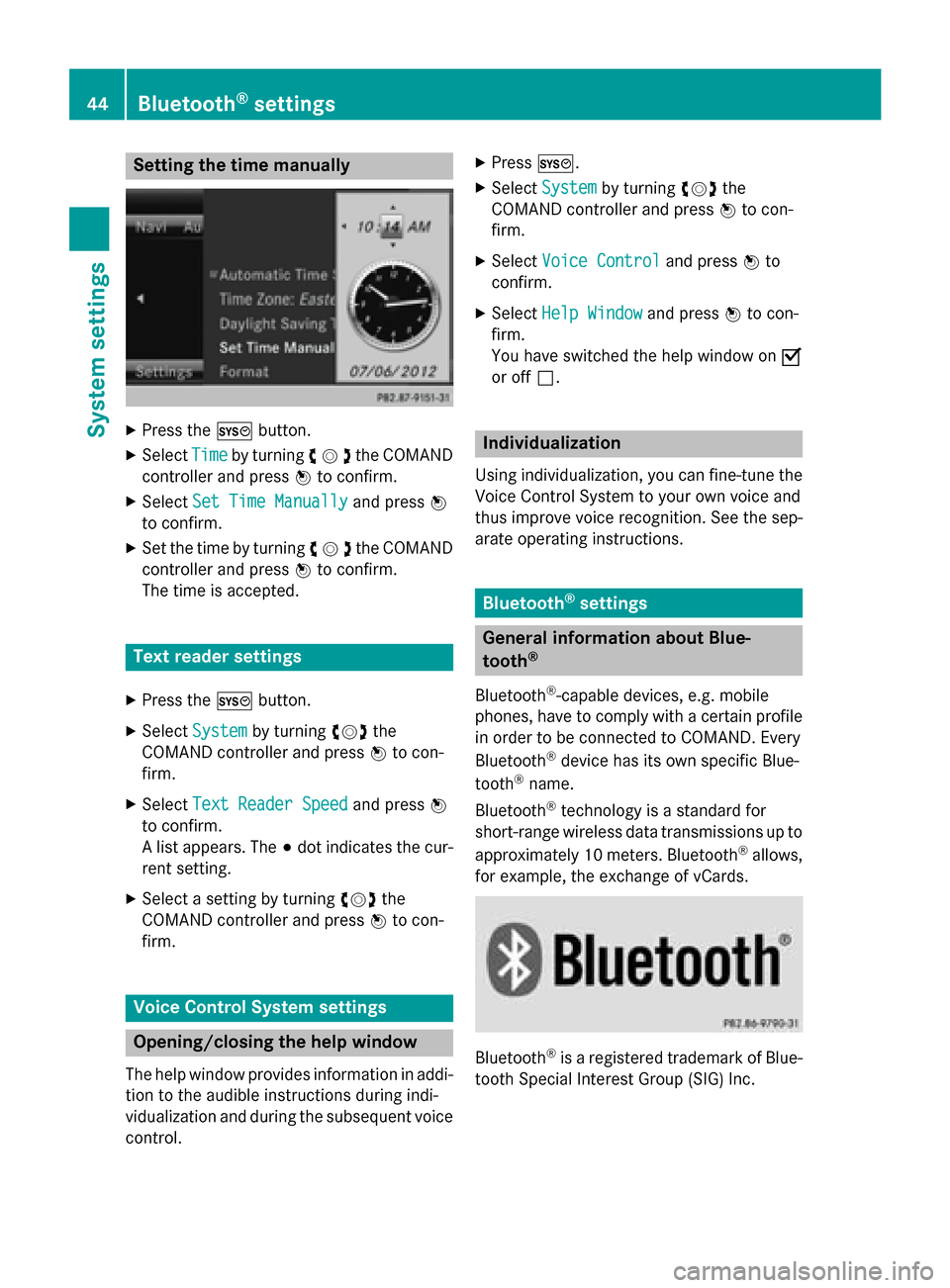
Setting the time manually
X
Press the 0066button.
X Select Time
Timeby turning 00790052007Athe COMAND
controller and press 0098to confirm.
X Select Set Time Manually
Set Time Manually and press0098
to confirm.
X Set the time by turning 00790052007Athe COMAND
controller and press 0098to confirm.
The time is accepted. Text reader settings
X Press the 0066button.
X Select System
System by turning 00790052007Athe
COMAND controller and press 0098to con-
firm.
X Select Text Reader Speed
Text Reader Speed and press0098
to confirm.
A list appears. The 003Bdot indicates the cur-
rent setting.
X Select a setting by turning 00790052007Athe
COMAND controller and press 0098to con-
firm. Voice Control System settings
Opening/closing the help window
The help window provides information in addi-
tion to the audible instructions during indi-
vidualization and during the subsequent voice control. X
Press 0066.
X Select System System by turning 00790052007Athe
COMAND controller and press 0098to con-
firm.
X Select Voice Control
Voice Control and press0098to
confirm.
X Select Help Window
Help Window and press0098to con-
firm.
You have switched the help window on 0073
or off 0053. Individualization
Using individualization, you can fine-tune the
Voice Control System to your own voice and
thus improve voice recognition. See the sep-
arate operating instructions. Bluetooth
®
settings General information about Blue-
tooth
®
Bluetooth ®
-capable devices, e.g. mobile
phones, have to comply with a certain profile
in order to be connected to COMAND. Every
Bluetooth ®
device has its own specific Blue-
tooth ®
name.
Bluetooth ®
technology is a standard for
short-range wireless data transmissions up to
approximately 10 meters. Bluetooth ®
allows,
for example, the exchange of vCards. Bluetooth
®
is a registered trademark of Blue-
tooth Special Interest Group (SIG) Inc. 44
Bluetooth ®
settingsSystem settings
Page 62 of 270
Your COMAND equipment
These operating instructions describe all the
standard and optional equipment for your
COMAND system, as available at the time of
going to print. Country-specific differences
are possible. Please note that your
COMAND system may not be equipped with
all the features described. Introduction
Important safety notes
G
WARNING
If you operate information systems and com-
munication equipment integrated in the vehi- cle while driving, you will be distracted from
traffic conditions. You could also lose control of the vehicle. There is a risk of an accident.
Only operate the equipment when the traffic
situation permits. If you are not sure that this
is possible, park the vehicle paying attention
to traffic conditions and operate the equip-
ment when the vehicle is stationary.
You must observe the legal requirements for
the country in which you are currently driving when operating COMAND.
COMAND calculates the route to the destina-
tion without taking account of the following,
for example:
R traffic lights
R stop and yield signs
R merging lanes
R parking or stopping in a no parking/no
stopping zone
R other road and traffic rules and regulations
R narrow bridges
COMAND can give incorrect navigation com-
mands if the actual street/traffic situation
does not correspond with the digital map's
data. Digital maps do not cover all areas nor
all routes in an area. For example, a route may have been diverted or the direction of a one-
way street may have changed.
For this reason, you must always observe
road and traffic rules and regulations during
your journey. Road and traffic rules and reg-
ulations always have priority over the sys-
tem's driving recommendations.
Navigation announcements are intended to
direct you while driving without diverting your attention from the road and driving.
Please always use this feature instead of con-sulting the map display for directions. Look-
ing at the icons or map display can distract
you from traffic conditions and driving, and
increase the risk of an accident. General notes
Operational readiness of the navigation system The navigation system must determine the
position of the vehicle before first use or
whenever operational status is restored.
Therefore, you may have to drive for a while
before precise route guidance is possible.
GPS reception Among other things, correct functioning of
the navigation system depends on GPS recep-
tion. In certain situations, GPS reception may
be impaired, there may be interference or
there may be no reception at all, e.g. in tun-
nels or parking garages.
i Using roof carriers may impair the correct
functioning of a roof antenna (phone, sat-
ellite radio, GPS).
Entry restriction On vehicles for certain countries, there is a
restriction on entering data.
The restriction is active from a vehicle speed
of above approximately 3 mph (5 km/h).As
soon as the speed falls below approximately 60
IntroductionNavigation
Page 77 of 270

X
To display the details: selectDetails
Details by
turning 00790052007Athe COMAND controller and
press 0098to confirm.
X To make a call: selectCall
Callwith the
COMAND controller and press 0098to con-
firm. COMAND switches to telephone
mode (Y page 132).
i This menu item is available if the way
point has a telephone number and if a
mobile phone is connected to COMAND
(Y page 126).
X To call up the map: selectMap Mapwith the
COMAND controller and press 0098to con-
firm.
X You can move the map and select the des-
tination.
X To store the way point in the destina-
tion memory: selectPresets
Presets with the
COMAND controller and press 0098to con-
firm (Y page 105). Way point menu with two way point entries
Editing way points Way points can be:
R changed
R changed in sequence in the way point menu
R deleted
To change the sequence, at least one way
point and the destination must be entered. X
Select a way point in the way point menu by
turning 00790052007Athe COMAND controller and
press 0098to confirm.
A menu appears. X
To change a way point: selectEdit
Editfrom
the menu and press 0098to confirm.
X Change the address, e.g. the city and
street, and confirm with OK OK.
The way point menu appears and displays
the modified way point. You can change the sequence of the way
points and the destination. Destination entry
75Navigation Z
Page 80 of 270
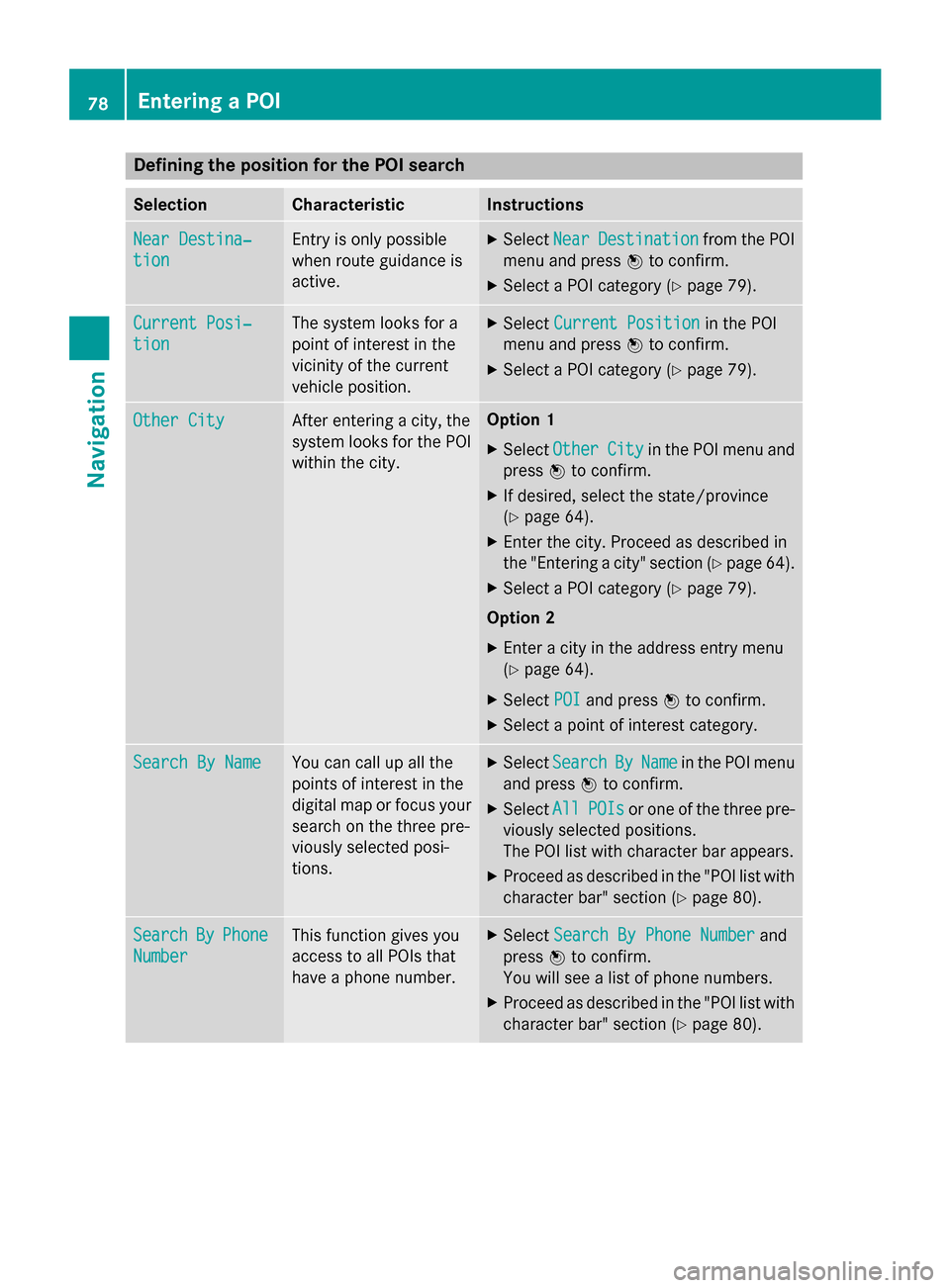
Defining the position for the POI search
Selection Characteristic Instructions
Near Destina‐
Near Destina‐
tion tion Entry is only possible
when route guidance is
active. X
Select Near NearDestination
Destination from the POI
menu and press 0098to confirm.
X Select a POI category (Y page 79).Current Posi‐
Current Posi‐
tion tion The system looks for a
point of interest in the
vicinity of the current
vehicle position. X
Select Current Position Current Position in the POI
menu and press 0098to confirm.
X Select a POI category (Y page 79).Other City
Other City After entering a city, the
system looks for the POI
within the city. Option 1
X Select Other Other City
Cityin the POI menu and
press 0098to confirm.
X If desired, select the state/province
(Y page 64).
X Enter the city. Proceed as described in
the "Entering a city" section (Y page 64).
X Select a POI category (Y page 79).
Option 2
X Enter a city in the address entry menu
(Y page 64).
X Select POI POIand press 0098to confirm.
X Select a point of interest category. Search By Name
Search By Name You can call up all the
points of interest in the
digital map or focus your
search on the three pre-
viously selected posi-
tions. X
Select Search Search By
ByName
Name in the POI menu
and press 0098to confirm.
X Select All
AllPOIs
POIs or one of the three pre-
viously selected positions.
The POI list with character bar appears.
X Proceed as described in the "POI list with
character bar" section (Y page 80).Search Search
By
ByPhone
Phone
Number
Number This function gives you
access to all POIs that
have a phone number. X
Select Search By Phone Number Search By Phone Number and
press 0098to confirm.
You will see a list of phone numbers.
X Proceed as described in the "POI list with
character bar" section (Y page 80).78
Entering a POINavigation
Page 82 of 270

The search results display the following infor-
mation:
R an arrow that shows the linear direction to
the point of interest
R the linear distance to the POI
R the name of the POI
i The arrow and linear distance to the des-
tination are not visible if you have entered a POI after entering another city.
The arrow is also not shown when search-
ing for a POI in the vicinity of the destina-
tion.
Depending on the POI selected, COMAND
uses different reference points in deter-
mining the linear distance to the destina-
tion:
R vicinity of current position: the linear dis-
tance is the distance of the point of inter-
est from the current vehicle position.
R vicinity of destination: the linear distance
is the distance from the destination
entered to the point of interest.
Selecting a POI 0043
Point of interest with address
0044 To start route calculation
0087 To store an address in the destination
memory
0085 To display details
0083 To make a call (when available)
0084 To cancel selection
006B To display a point of interest's position on
the map Further information on searching via POI cat-
egories (Y page 79).
X Select the POI in the POI list by turning
00790052007A the COMAND controller and press 0098
to confirm.
The complete address of the point of inter-
est selected is shown.
X To start route calculation: select
Start
Start 0044and press 0098to confirm.
X To store an address in the destination
memory: selectSave Save0087and press 0098to
confirm. You can now select storing
options (Y page 105).
X To show the detailed view: select
Details
Details 0085and press 0098to confirm.
X To make a call: selectCall
Call0083 and press
0098 to confirm. COMAND switches to tele-
phone mode (Y page 132).
i This menu item is available if the POI has
a telephone number and a mobile phone is
connected to COMAND (Y page 126).
X To call up the map: selectMap
Map006B and
press 0098to confirm.
X You can move the map and select the des-
tination (Y page 71).
POI list with character bar Search by name in the vicinity of the destination
(example)
If you have selected Search By Name Search By Namein the
POI menu and then defined the position for
the search (Y page 78), the POI list with char-
acter bar appears. 80
Entering a POINavigation
Page 83 of 270
Depending on your selection, you can select
all available points of interest on the digital
map or the points of interest in the vicinity of the selected position.
X Proceed as described in "Searching for a
phone book entry" (Y page 137).
If COMAND can assign the characters
entered to one entry unambiguously, the
address entry appears automatically.
X To start route calculation: selectStart
Start
and press 0098to confirm. ZAGAT
®
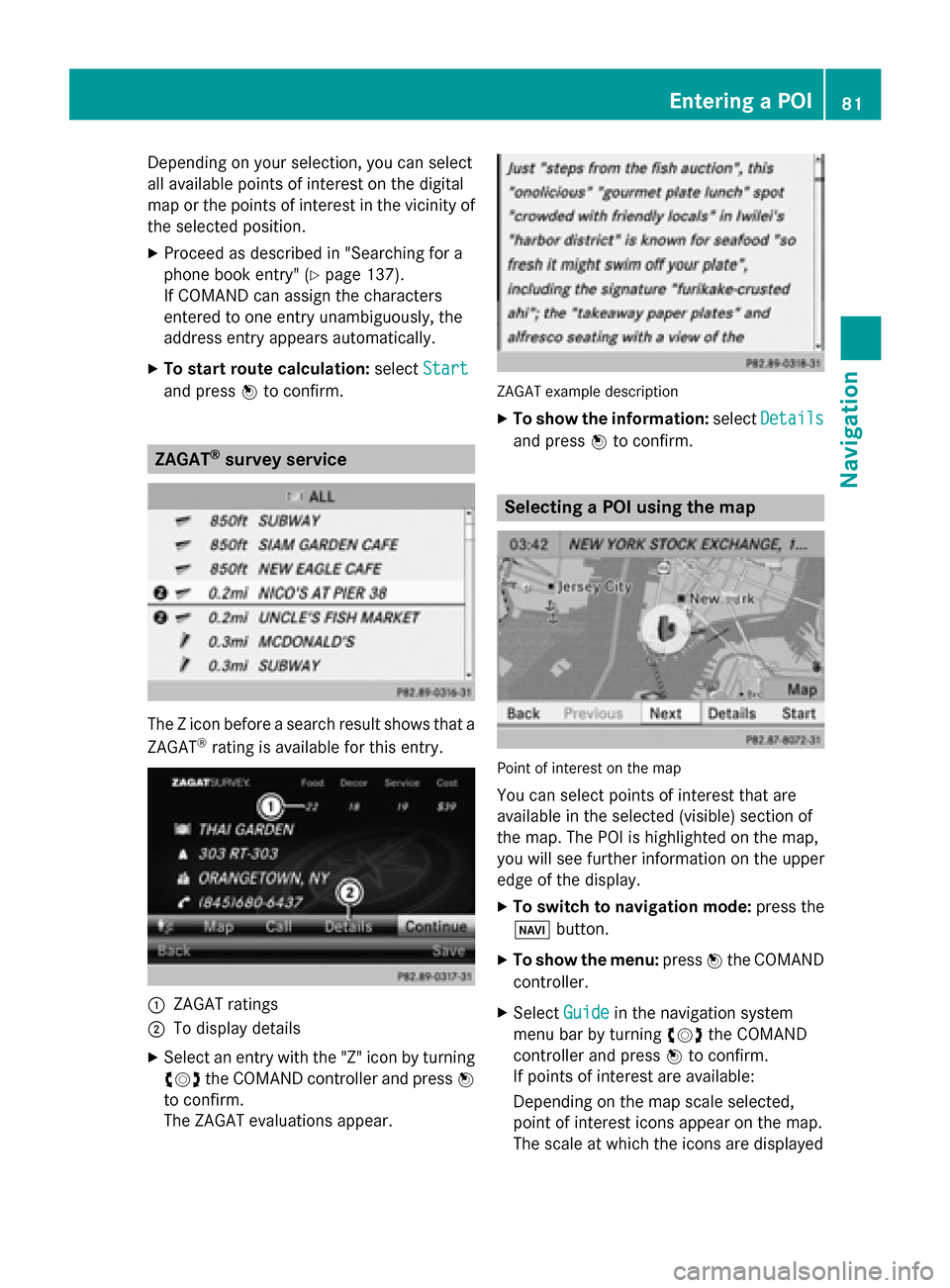
survey service The Z icon before a search result shows that a
ZAGAT ®
rating is available for this entry. 0043
ZAGAT ratings
0044 To display details
X Select an entry with the "Z" icon by turning
00790052007A the COMAND controller and press 0098
to confirm.
The ZAGAT evaluations appear. ZAGAT example description
X To show the information: selectDetails Details
and press 0098to confirm. Selecting a POI using the map
Point of interest on the map
You can select points of interest that are
available in the selected (visible) section of
the map. The POI is highlighted on the map,
you will see further information on the upper
edge of the display.
X To switch to navigation mode: press the
00BE button.
X To show the menu: press0098the COMAND
controller.
X Select Guide Guidein the navigation system
menu bar by turning 00790052007Athe COMAND
controller and press 0098to confirm.
If points of interest are available:
Depending on the map scale selected,
point of interest icons appear on the map.
The scale at which the icons are displayed Entering a POI
81Navigation Z
Page 88 of 270
Selection Explanation
Not Classi‐
Not Classi‐
fied fied Standard entry for per-
sonal points of interest.
COMAND COMAND Personal POIs which you
have imported via the
online function
(Y
page 171). Coffee Coffee
Shops
Shops Symbol and category that
you have created yourself
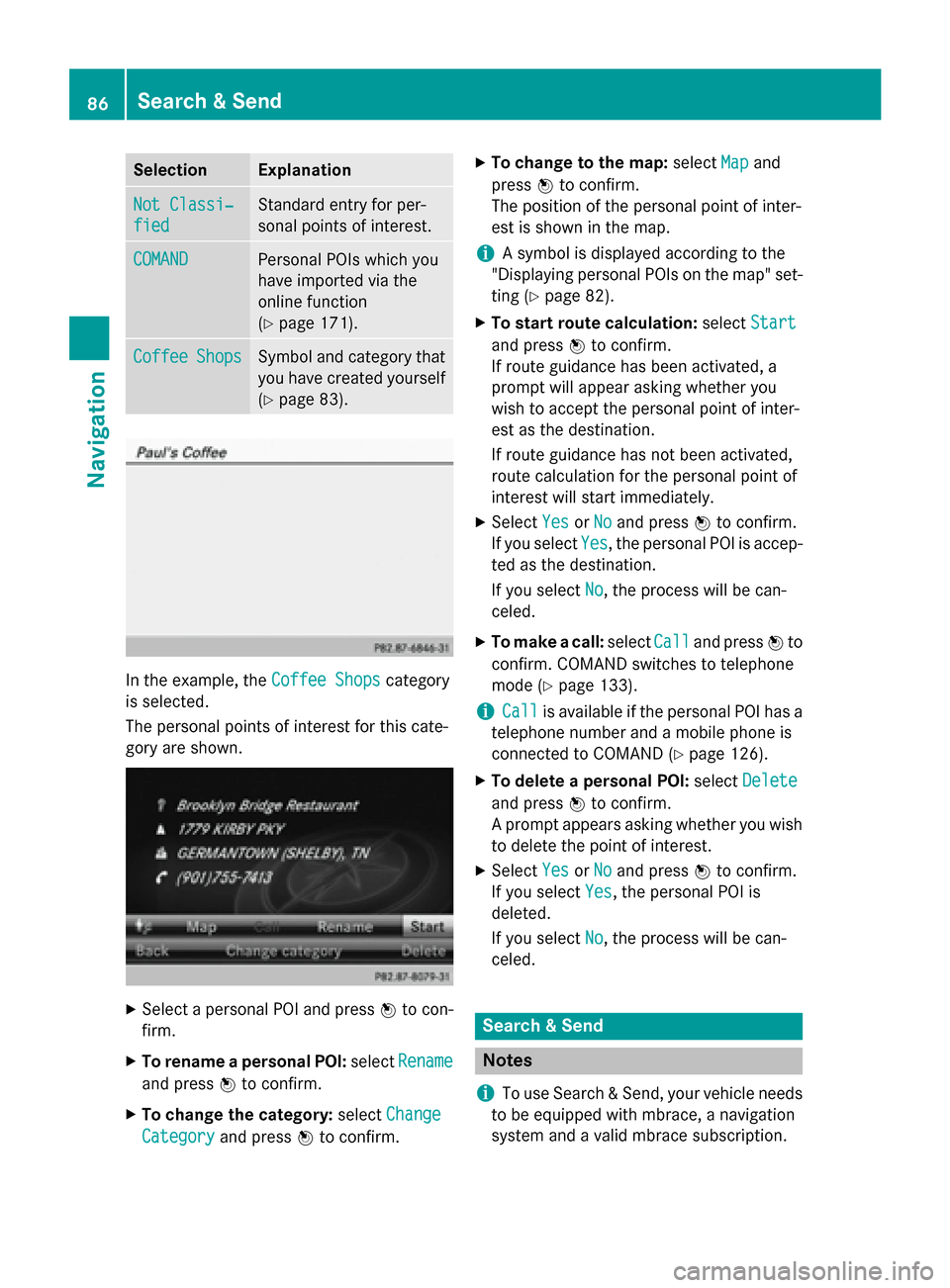
(Y page 83). In the example, the
Coffee Shops
Coffee Shopscategory
is selected.
The personal points of interest for this cate-
gory are shown. X
Select a personal POI and press 0098to con-
firm.
X To rename a personal POI: selectRename Rename
and press 0098to confirm.
X To change the category: selectChange
Change
Category
Category and press0098to confirm. X
To change to the map: selectMap
Mapand
press 0098to confirm.
The position of the personal point of inter-
est is shown in the map.
i A symbol is displayed according to the
"Displaying personal POIs on the map" set- ting (Y page 82).
X To start route calculation: selectStart Start
and press 0098to confirm.
If route guidance has been activated, a
prompt will appear asking whether you
wish to accept the personal point of inter-
est as the destination.
If route guidance has not been activated,
route calculation for the personal point of
interest will start immediately.
X Select Yes YesorNo
No and press 0098to confirm.
If you select Yes
Yes, the personal POI is accep-
ted as the destination.
If you select No No, the process will be can-
celed.
X To make a call: selectCall
Calland press 0098to
confirm. COMAND switches to telephone
mode (Y page 133).
i Call Call
is available if the personal POI has a
telephone number and a mobile phone is
connected to COMAND (Y page 126).
X To delete a personal POI: selectDelete Delete
and press 0098to confirm.
A prompt appears asking whether you wish to delete the point of interest.
X Select Yes
YesorNo
No and press 0098to confirm.
If you select Yes
Yes, the personal POI is
deleted.
If you select No No, the process will be can-
celed. Search & Send
Notes
i To use Search & Send, your vehicle needs
to be equipped with mbrace, a navigation
system and a valid mbrace subscription. 86
Search & SendNavigation
Page 93 of 270
HOV or carpool lanes
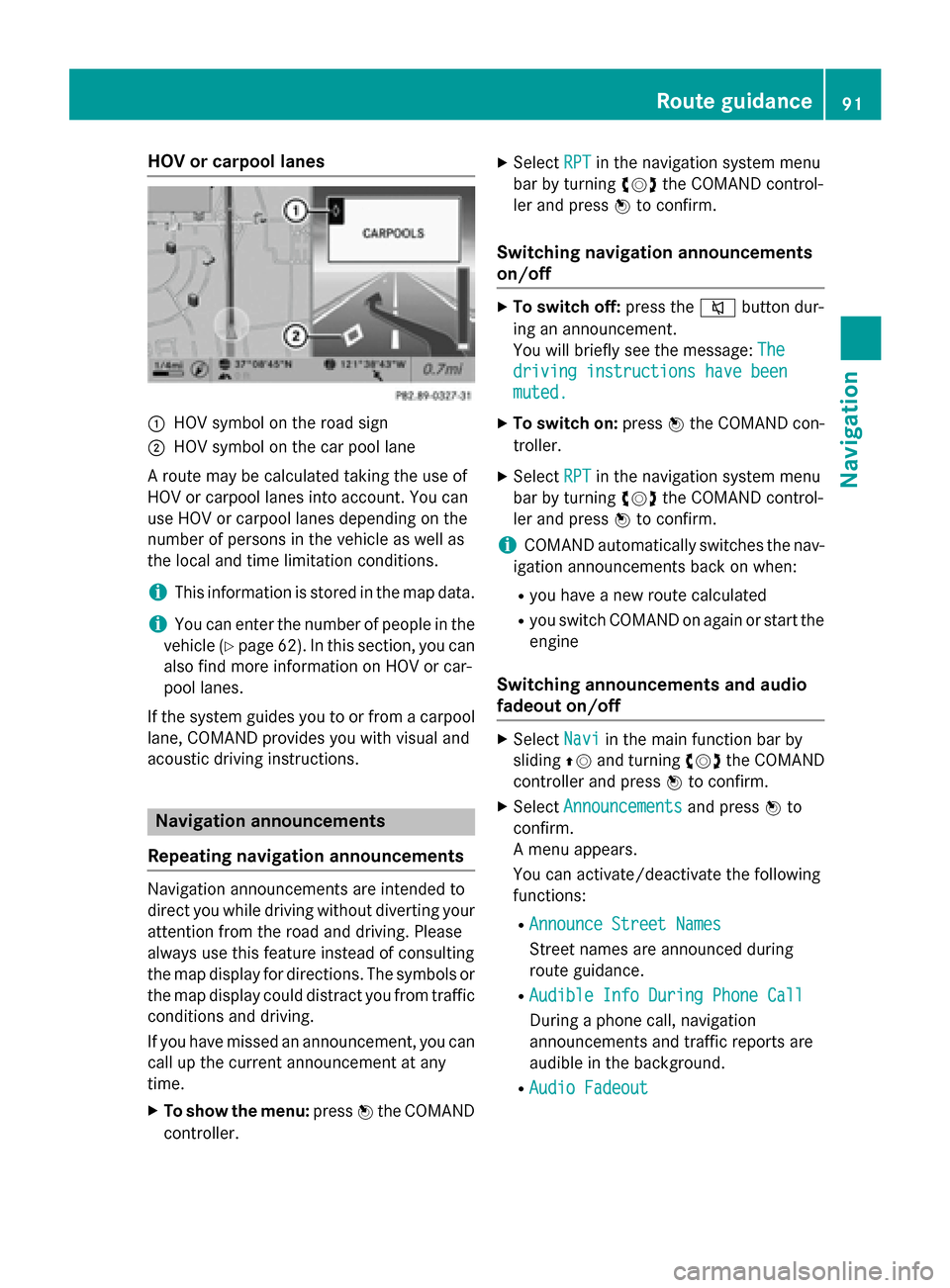
0043
HOV symbol on the road sign
0044 HOV symbol on the car pool lane
A route may be calculated taking the use of
HOV or carpool lanes into account. You can
use HOV or carpool lanes depending on the
number of persons in the vehicle as well as
the local and time limitation conditions.
i This information is stored in the map data.
i You can enter the number of people in the
vehicle (Y page 62). In this section, you can
also find more information on HOV or car-
pool lanes.
If the system guides you to or from a carpool
lane, COMAND provides you with visual and
acoustic driving instructions. Navigation announcements
Repeating navigation announcements Navigation announcements are intended to
direct you while driving without diverting your attention from the road and driving. Please
always use this feature instead of consulting
the map display for directions. The symbols or the map display could distract you from traffic
conditions and driving.
If you have missed an announcement, you can call up the current announcement at any
time.
X To show the menu: press0098the COMAND
controller. X
Select RPT
RPT in the navigation system menu
bar by turning 00790052007Athe COMAND control-
ler and press 0098to confirm.
Switching navigation announcements
on/off X
To switch off: press the0063button dur-
ing an announcement.
You will briefly see the message: The The
driving instructions have been
driving instructions have been
muted. muted.
X To switch on: press0098the COMAND con-
troller.
X Select RPT
RPTin the navigation system menu
bar by turning 00790052007Athe COMAND control-
ler and press 0098to confirm.
i COMAND automatically switches the nav-
igation announcements back on when:
R you have a new route calculated
R you switch COMAND on again or start the
engine
Switching announcements and audio
fadeout on/off X
Select Navi Naviin the main function bar by
sliding 00970052and turning 00790052007Athe COMAND
controller and press 0098to confirm.
X Select Announcements Announcements and press0098to
confirm.
A menu appears.
You can activate/deactivate the following
functions:
R Announce Street Names Announce Street Names
Street names are announced during
route guidance.
R Audible Info During Phone Call Audible Info During Phone Call
During a phone call, navigation
announcements and traffic reports are
audible in the background.
R Audio Fadeout Audio Fadeout Route guidance
91Navigation Z
Page 96 of 270
Menu functions
X To select the next or previous alterna-
tive route: selectNext NextorPrevious
Previous and
press 0098to confirm.
X To start route guidance using the selec-
ted alternative route: selectStart
Start and
press 0098to confirm.
COMAND begins route guidance on the
selected alternative route. Route information
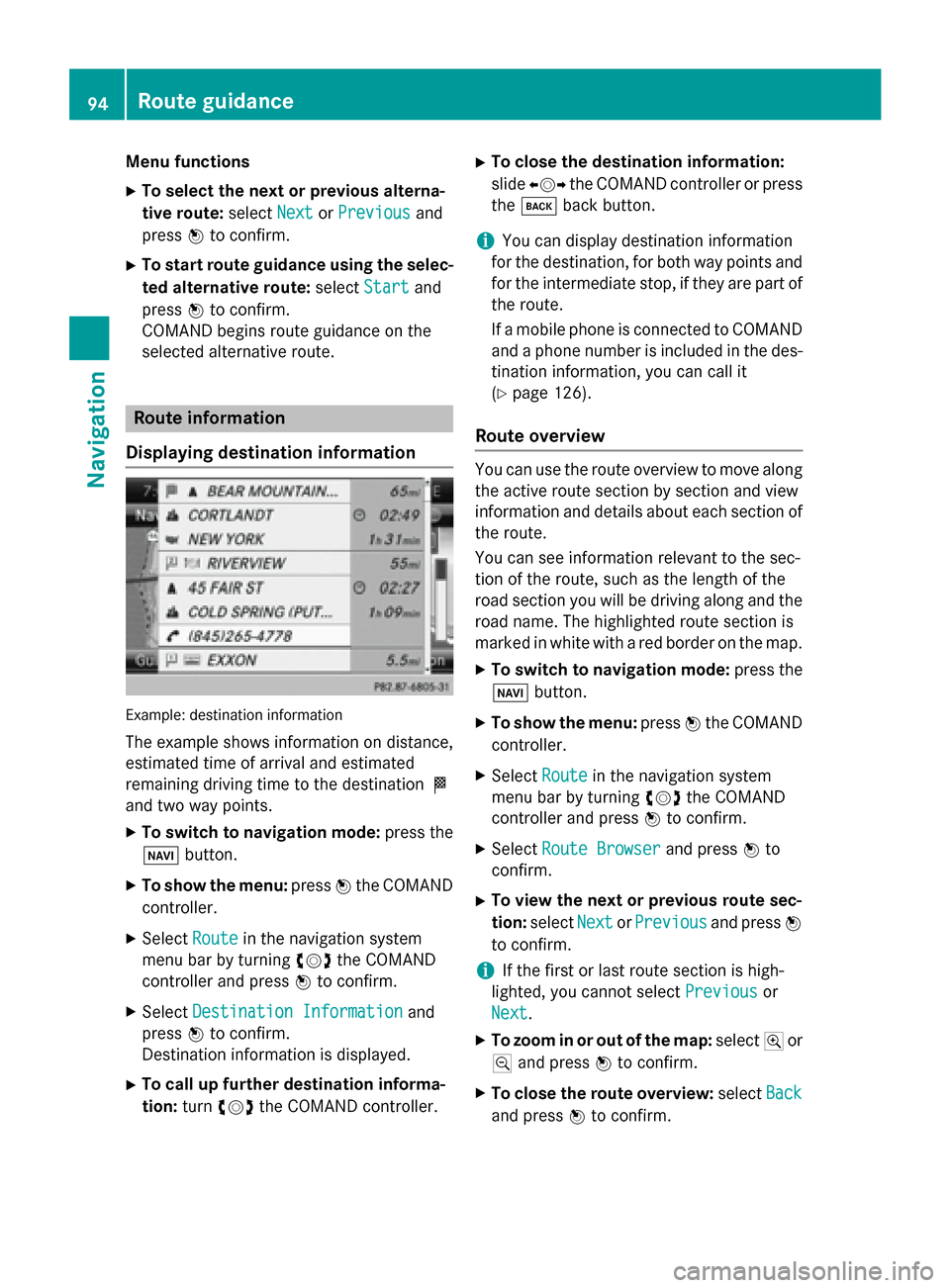
Displaying destination information Example: destination information
The example shows information on distance,
estimated time of arrival and estimated
remaining driving time to the destination 004B
and two way points.
X To switch to navigation mode: press the
00BE button.
X To show the menu: press0098the COMAND
controller.
X Select Route Routein the navigation system
menu bar by turning 00790052007Athe COMAND
controller and press 0098to confirm.
X Select Destination Information
Destination Information and
press 0098to confirm.
Destination information is displayed.
X To call up further destination informa-
tion: turn00790052007A the COMAND controller. X
To close the destination information:
slide 009500520096 the COMAND controller or press
the 003D back button.
i You can display destination information
for the destination, for both way points and
for the intermediate stop, if they are part of the route.
If a mobile phone is connected to COMANDand a phone number is included in the des- tination information, you can call it
(Y page 126).
Route overview You can use the route overview to move along
the active route section by section and view
information and details about each section of the route.
You can see information relevant to the sec-
tion of the route, such as the length of the
road section you will be driving along and the road name. The highlighted route section is
marked in white with a red border on the map.
X To switch to navigation mode: press the
00BE button.
X To show the menu: press0098the COMAND
controller.
X Select Route Routein the navigation system
menu bar by turning 00790052007Athe COMAND
controller and press 0098to confirm.
X Select Route Browser Route Browser and press0098to
confirm.
X To view the next or previous route sec-
tion: select Next NextorPrevious
Previous and press0098
to confirm.
i If the first or last route section is high-
lighted, you cannot select Previous
Previousor
Next
Next.
X To zoom in or out of the map: select004Aor
0049 and press 0098to confirm.
X To close the route overview: selectBack
Back
and press 0098to confirm. 94
Route guidanceNavigation
Page 109 of 270

X
Select Yes
YesorNo
No and press 0098to confirm.
If you select Yes
Yes, COMAND deletes the
destination. You will see a message to this effect.
If you select No No, the process will be can-
celed.
i If the navigable address data for the des-
tination being deleted is also assigned to an
address book entry, COMAND will also
delete this data from there. If the corre-
sponding address book entry does not con-
tain any further data, such as telephone
numbers, COMAND deletes the entire
address book entry. Previous destinations
Introduction
COMAND automatically stores the previous
destinations for which route calculation has
been started. If the memory is full, COMAND deletes the oldest destination. You can also
save a destination from the list of previous
destinations in the destination memory. It will
be stored there permanently. Storing a destination permanently in
the destination memory
X Proceed as described in the "From the list
of previous destinations" section
(Y page 70). Storing the vehicle position in the list
of previous destinations
X To switch on navigation mode: press the
00BE function button.
X To show the menu: press0098the COMAND
controller. X
Select Position
Position in the navigation system
menu bar by turning 00790052007Athe COMAND
controller and press 0098to confirm.
X Select Save SaveVehicle
Vehicle Position
Position and press
0098 to confirm.
COMAND stores the current vehicle posi-
tion as a destination in the list of previous
destinations. Storing the crosshair position in the
list of previous destinations
A crosshair appears on the map if you have
moved the map manually (Y page 108). You
can store the crosshair position as a destina-
tion in the list of previous destinations.
X To show the menu: press0098the COMAND
controller.
X Select Position Position in the navigation system
menu bar by turning 00790052007Athe COMAND
controller and press 0098to confirm.
X Select Save Crosshair Position
Save Crosshair Position and
press 0098to confirm. Deleting one of the previous destina-
tions
X To switch on navigation mode: press the
00BE function button.
X To show the menu: press0098the COMAND
controller.
X Select Destination
Destination in the navigation sys-
tem menu bar by turning 00790052007Athe
COMAND controller and press 0098to con-
firm.
X Select From Last Destinations From Last Destinations and
press 0098to confirm.
The list of last destinations appears.
X Select the desired destination and press 0098
to confirm.
The destination address appears. Previous destinations
107Navigation Z