light MERCEDES-BENZ E-Class 2016 W213 Comand Manual
[x] Cancel search | Manufacturer: MERCEDES-BENZ, Model Year: 2016, Model line: E-Class, Model: MERCEDES-BENZ E-Class 2016 W213Pages: 246, PDF Size: 6.7 MB
Page 174 of 246
XFor the channel number, press the corre-
sponding number keys on the control panel
one after the other.
XPress thezkey on the number keypad.
COMAND sets the selected channel.
iYou can only select currently permitted
digits.
Selecting a channel via the satellite
radio station list
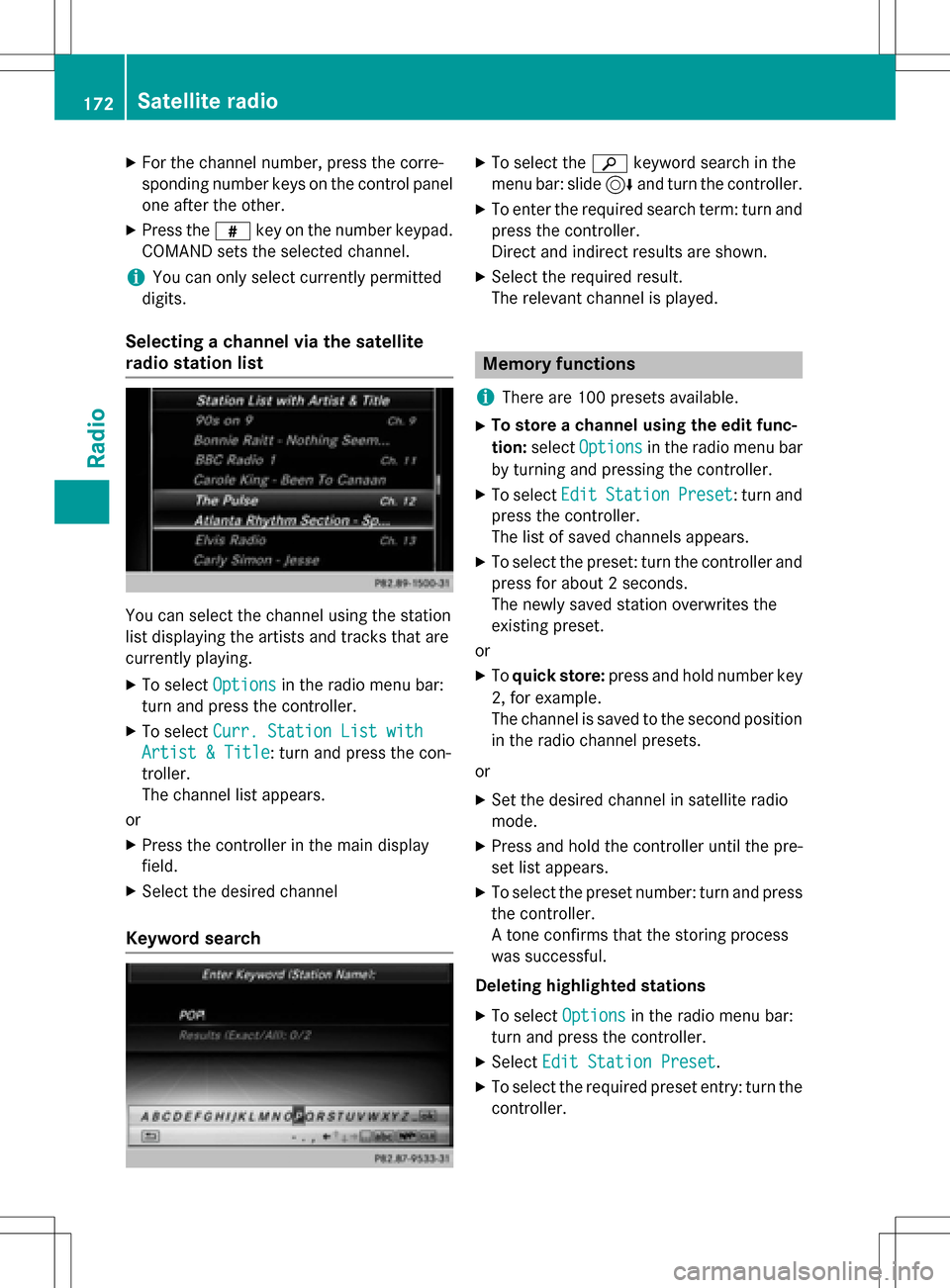
You can select the channel using the station
list displaying the artists and tracks that are
currently playing.
XTo select Optionsin the radio menu bar:
turn and press the controller.
XTo select Curr. Station List with
Artist & Title: turn and press the con-
troller.
The channel list appears.
or
XPress the controller in the main display
field.
XSelect the desired channel
Keyword search
XTo select the èkeyword search in the
menu bar: slide 6and turn the controller.
XTo enter the required search term: turn and
press the controller.
Direct and indirect results are shown.
XSelect the required result.
The relevant channel is played.
Memory functions
i
There are 100 presets available.
XTo store a channel using the edit func-
tion: select Options
in the radio menu bar
by turning and pressing the controller.
XTo select EditStationPreset: turn and
press the controller.
The list of saved channels appears.
XTo select the preset: turn the controller and
press for about 2 seconds.
The newly saved station overwrites the
existing preset.
or
XTo quick store: press and hold number key
2, for example.
The channel is saved to the second position
in the radio channel presets.
or
XSet the desired channel in satellite radio
mode.
XPress and hold the controller until the pre-
set list appears.
XTo select the preset number: turn and press
the controller.
A tone confirms that the storing process
was successful.
Deleting highlighted stations
XTo select Optionsin the radio menu bar:
turn and press the controller.
XSelect Edit Station Preset.
XTo select the required preset entry: turn the
controller.
172Satellite radio
Radio
Page 175 of 246
XSlide9the controller.
XTo select the Delete Highlighted Sta‐
tion/Channeloption in the additional
menu: turn and press the controller.
or
XPress the $button.
The prompt Do you want to delete
the preset?appears
XTo selectYes: turn and press the controller.
The highlighted station is deleted.
or
XTo select No: press the controller.
The process is canceled.
Music and sport alerts
General notes
This function makes it possible to store a pro-
gram alert for your favorite artists, tracks or
sporting events.
You can store up to 30 music and sports
alerts (favorites).
Music alerts can only be saved whilst a track
is being played. You can also specify sport
alerts via the menu option. The system then
continuously searches through all the chan-
nels. If a match is found with a saved mes-
sage, you will be informed. A window appears with the respective information.
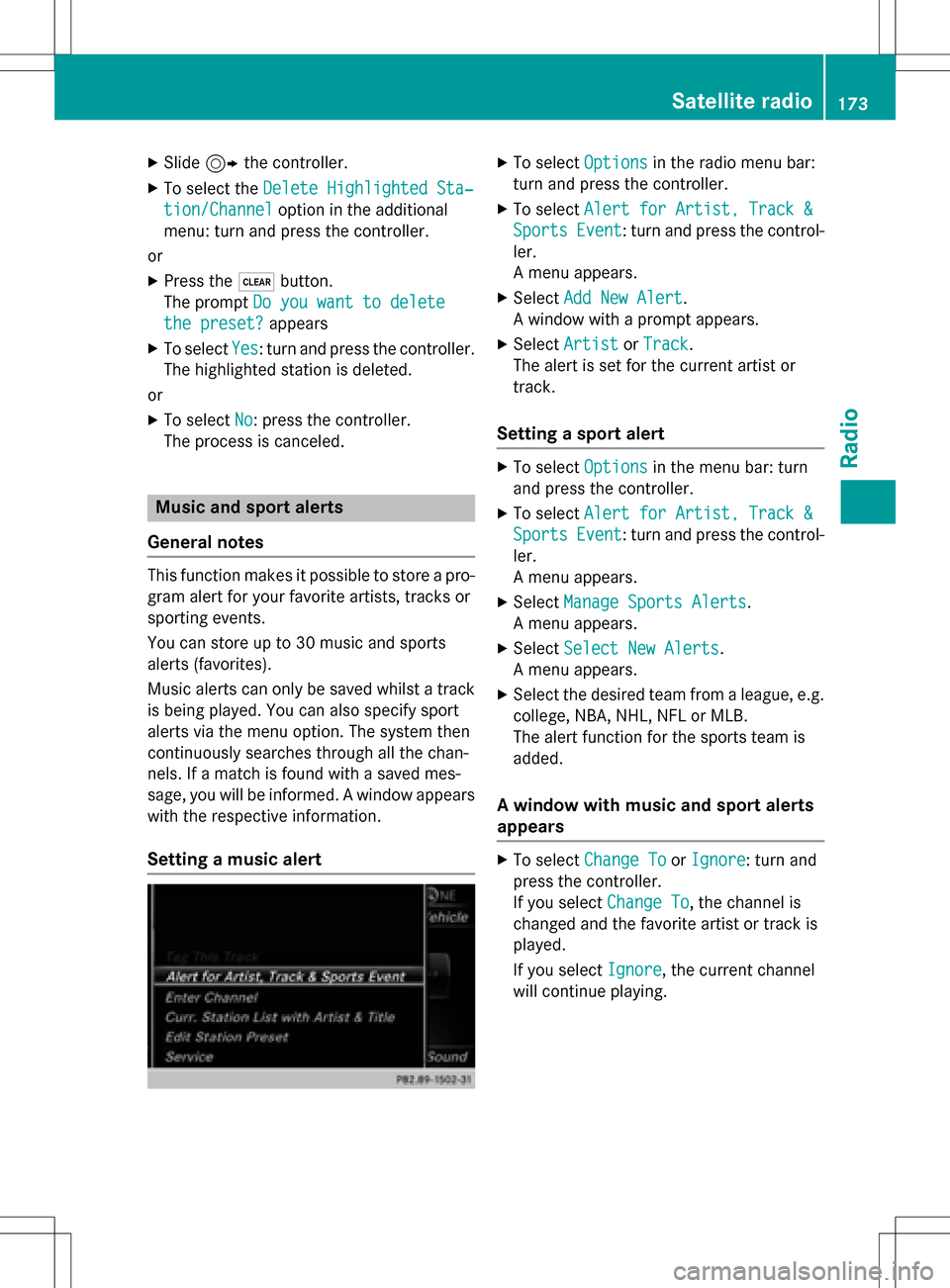
Setting a music alert
XTo select Optionsin the radio menu bar:
turn and press the controller.
XTo select Alert for Artist, Track &
SportsEvent: turn and press the control-
ler.
A menu appears.
XSelect Add New Alert.
A window with a prompt appears.
XSelect ArtistorTrack.
The alert is set for the current artist or
track.
Setting a sport alert
XTo select Optionsin the menu bar: turn
and press the controller.
XTo select Alert for Artist, Track &
SportsEvent: turn and press the control-
ler.
A menu appears.
XSelect Manage Sports Alerts.
A menu appears.
XSelect Select New Alerts.
A menu appears.
XSelect the desired team from a league, e.g.
college, NBA, NHL, NFL or MLB.
The alert function for the sports team is
added.
A window with music and sport alerts
appears
XTo select Change ToorIgnore: turn and
press the controller.
If you select Change To
, the channel is
changed and the favorite artist or track is
played.
If you select Ignore
, the current channel
will continue playing.
Satellite radio173
Radio
Page 204 of 246
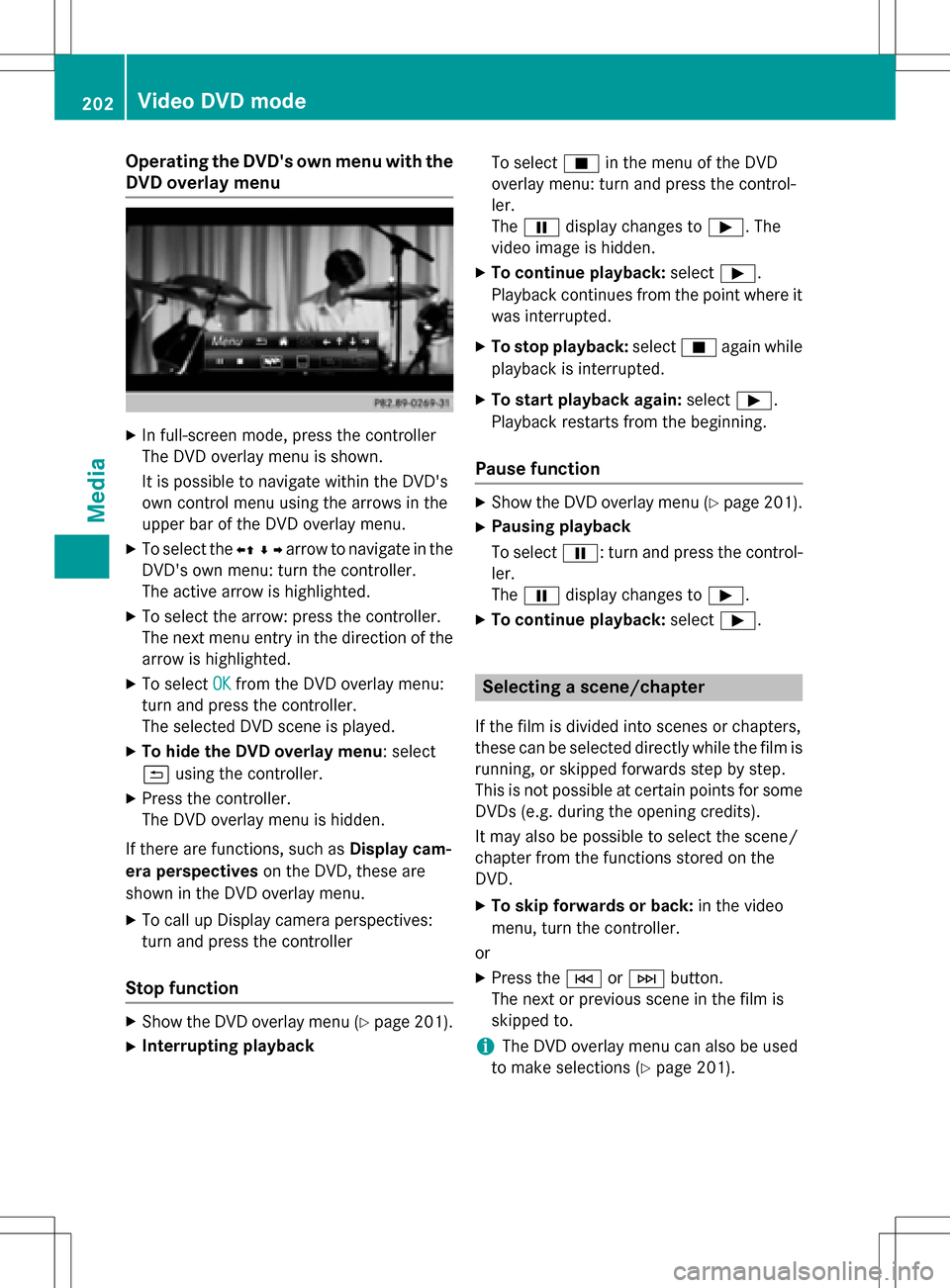
Operating the DVD's own menu with the
DVD overlay menu
XIn full-screen mode, press the controller
The DVD overlay menu is shown.
It is possible to navigate within the DVD's
own control menu using the arrows in the
upper bar of the DVD overlay menu.
XTo select theXZ¬Yarrow to navigate in the
DVD's own menu: turn the controller.
The active arrow is highlighted.
XTo select the arrow: press the controller.
The next menu entry in the direction of the arrow is highlighted.
XTo select OKfrom the DVD overlay menu:
turn and press the controller.
The selected DVD scene is played.
XTo hide the DVD overlay menu: select
& using the controller.
XPress the controller.
The DVD overlay menu is hidden.
If there are functions, such as Display cam-
era perspectives on the DVD, these are
shown in the DVD overlay menu.
XTo call up Display camera perspectives:
turn and press the controller
Stop function
XShow the DVD overlay menu (Ypage 201).
XInterrupting playback To select
Éin the menu of the DVD
overlay menu: turn and press the control-
ler.
The Ë display changes to Ì. The
video image is hidden.
XTo continue playback: selectÌ.
Playback continues from the point where it was interrupted.
XTo stop playback: selectÉagain while
playback is interrupted.
XTo start playback again: selectÌ.
Playback restarts from the beginning.
Pause function
XShow the DVD overlay menu (Ypage 201).
XPausing playback
To select Ë: turn and press the control-
ler.
The Ë display changes to Ì.
XTo continue playback: selectÌ.
Selecting a scene/chapter
If the film is divided into scenes or chapters,
these can be selected directly while the film is
running, or skipped forwards step by step.
This is not possible at certain points for some
DVDs (e.g. during the opening credits).
It may also be possible to select the scene/
chapter from the functions stored on the
DVD.
XTo skip forwards or back: in the video
menu, turn the controller.
or
XPress the EorF button.
The next or previous scene in the film is
skipped to.
iThe DVD overlay menu can also be used
to make selections (
Ypage 201).
202Video DVD mode
Media
Page 220 of 246
Weather map
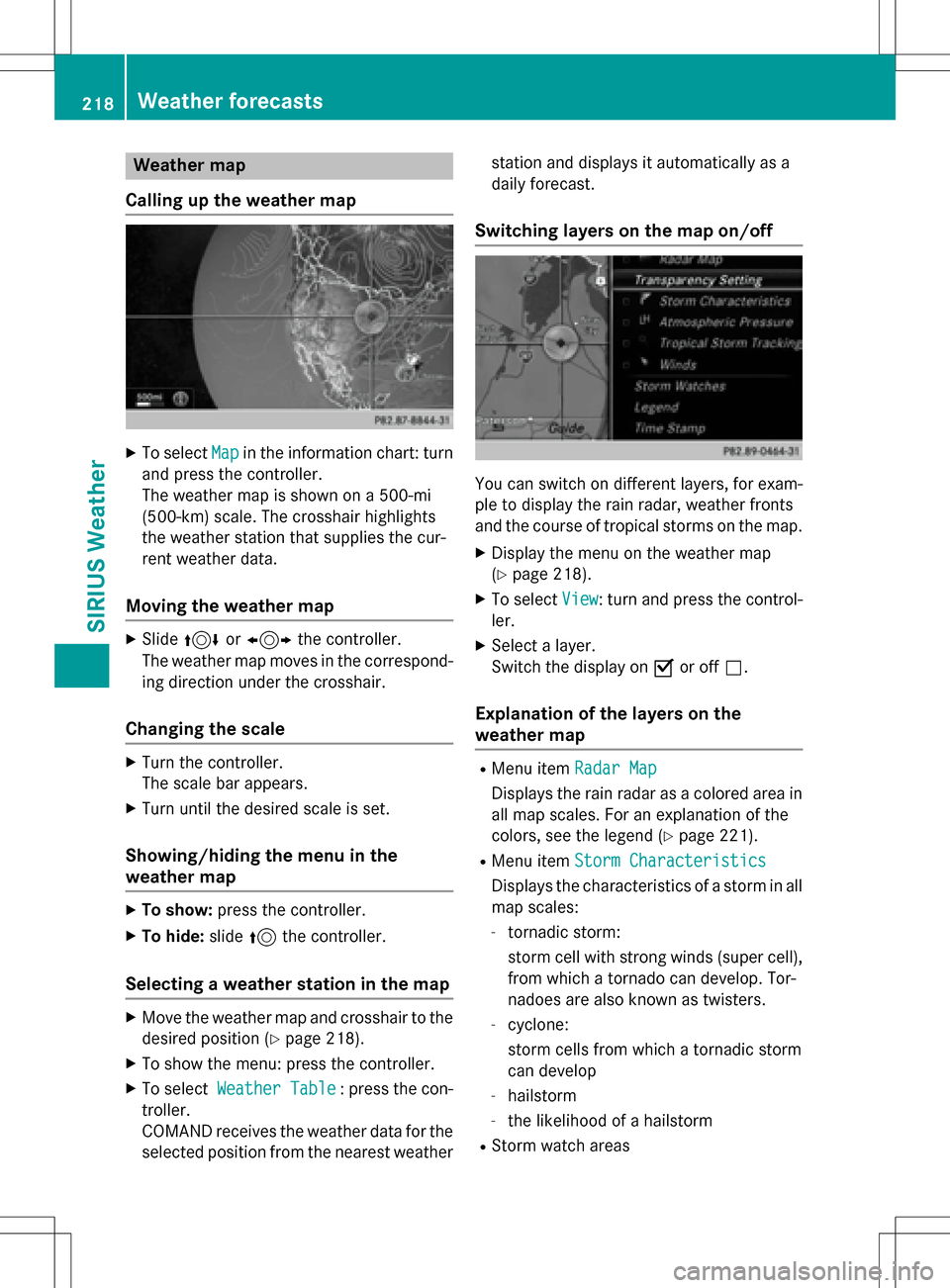
Calling up the weather map
XTo select Mapin the information chart: turn
and press the controller.
The weather map is shown on a 500-mi
(500-km) scale. The crosshair highlights
the weather station that supplies the cur-
rent weather data.
Moving the weather map
XSlide 4 or1 the controller.
The weather map moves in the correspond-
ing direction under the crosshair.
Changing the scale
XTurn the controller.
The scale bar appears.
XTurn until the desired scale is set.
Showing/hiding the menu in the
weather map
XTo show: press the controller.
XTo hide:slide5the controller.
Selecting a weather station in the map
XMove the weather map and crosshair to the
desired position (
Ypage 218).
XTo show the menu: press the controller.
XTo select Weather Table: press the con-
troller.
COMAND receives the weather data for the
selected position from the nearest weather station and displays it automatically as a
daily forecast.
Switching layers on the map on/off
You can switch on different layers, for exam-
ple to display the rain radar, weather fronts
and the course of tropical storms on the map.
XDisplay the menu on the weather map
(
Ypage 218).
XTo select
View: turn and press the control-
ler.
XSelect a layer.
Switch the display on Oor off ª.
Explanation of the layers on the
weather map
RMenu item Radar Map
Displays the rain radar as a colored area in
all map scales. For an explanation of the
colors, see the legend (
Ypage 221).
RMenu item Storm Characteristics
Displays the characteristics of a storm in all
map scales:
-tornadic storm:
storm cell with strong winds (super cell),
from which a tornado can develop. Tor-
nadoes are also known as twisters.
-cyclone:
storm cells from which a tornadic storm
can develop
-hailstorm
-the likelihood of a hailstorm
RStorm watch areas
218Weather forecasts
SIRIUS Weather
Page 223 of 246
Region of origincategory
Atlantic, North
and South
Pacific OceansName of tropical storm
(Hurricane Cate‐
gory 3)
Displays hurricane cat-
egories 1 through 5
Northwestern
Pacific OceanTropical Low Pres‐
sure System
Northwestern
Pacific OceanName of tropical storm
(Tropical Cyclone)
Northwestern
Pacific OceanName of tropical storm
(Typhoon)
Northwestern
Pacific OceanName of tropical storm
(Super-Typhoon)
You can also see the time stamp for the
weather data on map scales of 50 miles and
smaller.
The weather map shows wind directions and
wind speeds.
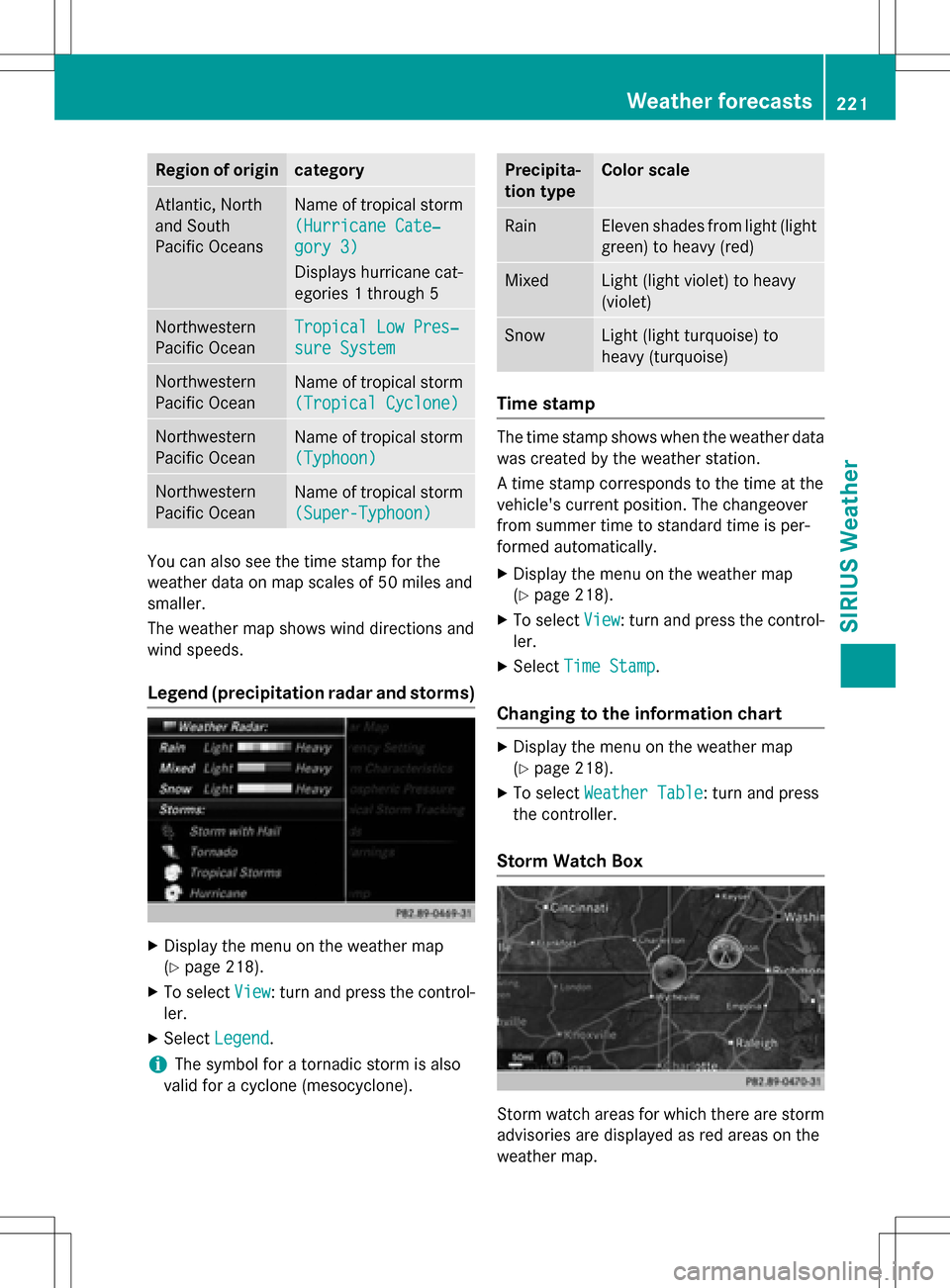
Legend (precipitation radar and storms)
XDisplay the menu on the weather map
(
Ypage 218).
XTo selectView: turn and press the control-
ler.
XSelect Legend.
iThe symbol for a tornadic storm is also
valid for a cyclone (mesocyclone).
Precipita-
tion typeColor scale
RainEleven shades from light (light
green) to heavy (red)
MixedLight (light violet) to heavy
(violet)
SnowLight (light turquoise) to
heavy (turquoise)
Time stamp
The time stamp shows when the weather data
was created by the weather station.
A time stamp corresponds to the time at the
vehicle's current position. The changeover
from summer time to standard time is per-
formed automatically.
XDisplay the menu on the weather map
(
Ypage 218).
XTo select View: turn and press the control-
ler.
XSelect Time Stamp.
Changing to the information chart
XDisplay the menu on the weather map
(
Ypage 218).
XTo select Weather Table: turn and press
the controller.
Storm Watch Box
Storm watch areas for which there are storm
advisories are displayed as red areas on the
weather map.
Weather forecasts221
SIRIUS Weather
Page 224 of 246
Activating/deactivating the display of areas
in red:
XDisplay the menu on the weather map
(
Ypage 218).
XTo selectView: turn and press the control-
ler.
The list of display levels appears.
XSelect Storm Watch.
XSelectShowSym.forStormAreason
Map.
Depending on the previous setting, activate
O or deactivate ªthe display of areas in
red.
Activating/deactivating the automatic dis-
play of warning popups:
XSelect Display Storm Watch Automat‐
ically.
Depending on the previous setting, activate
O or deactivate ªthe automatic display
of warning popups.
Setting the radius for the popups:
XSelect 5 miles(5 km), 50 miles(50 km)
or 200 miles
(200 km).
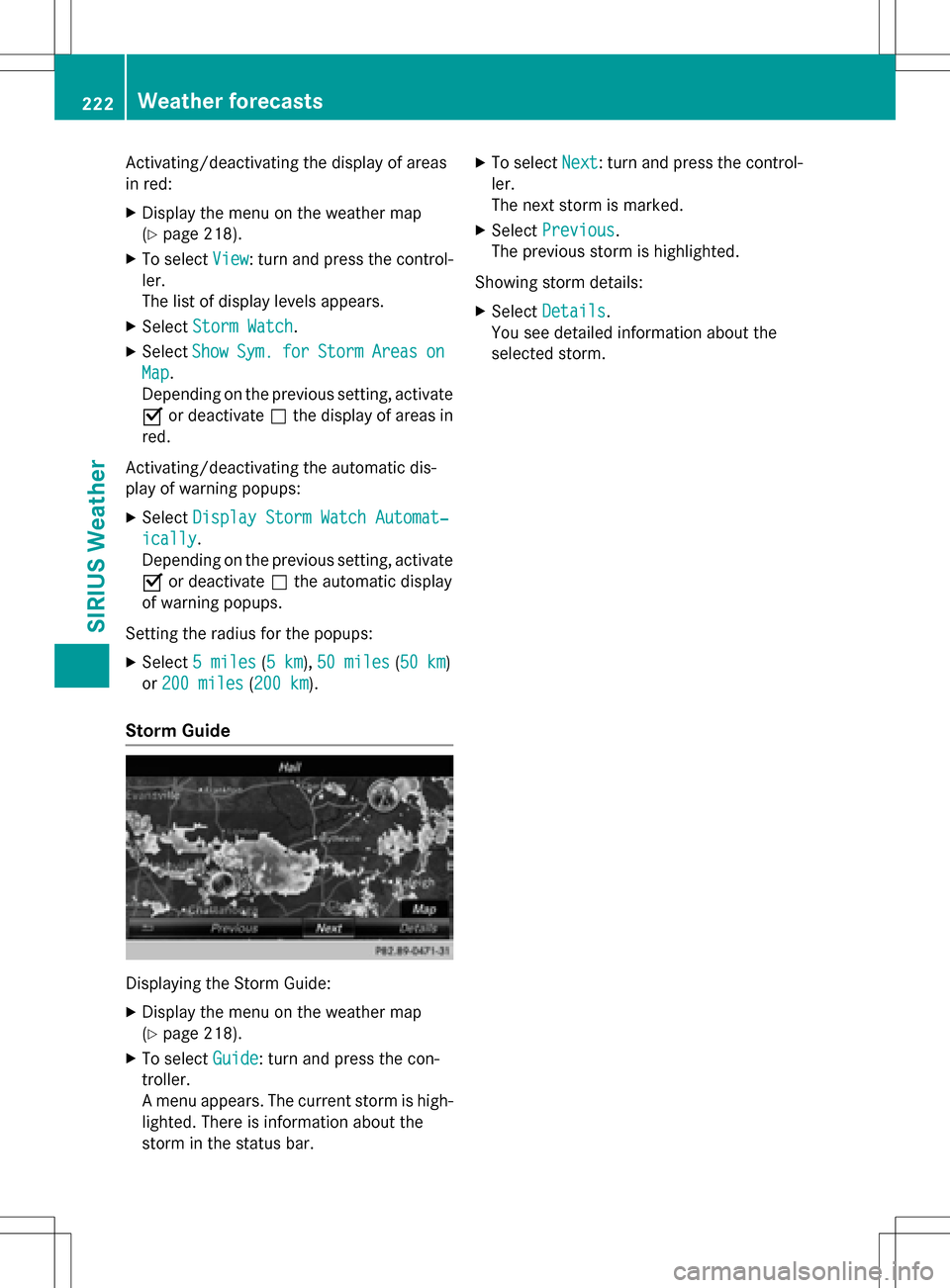
Storm Guide
Displaying the Storm Guide:
XDisplay the menu on the weather map
(
Ypage 218).
XTo select Guide: turn and press the con-
troller.
A menu appears. The current storm is high-
lighted. There is information about the
storm in the status bar.
XTo select Next: turn and press the control-
ler.
The next storm is marked.
XSelect Previous.
The previous storm is highlighted.
Showing storm details:
XSelect Details.
You see detailed information about the
selected storm.
222Weather forecasts
SIRIUS Weather
Page 227 of 246
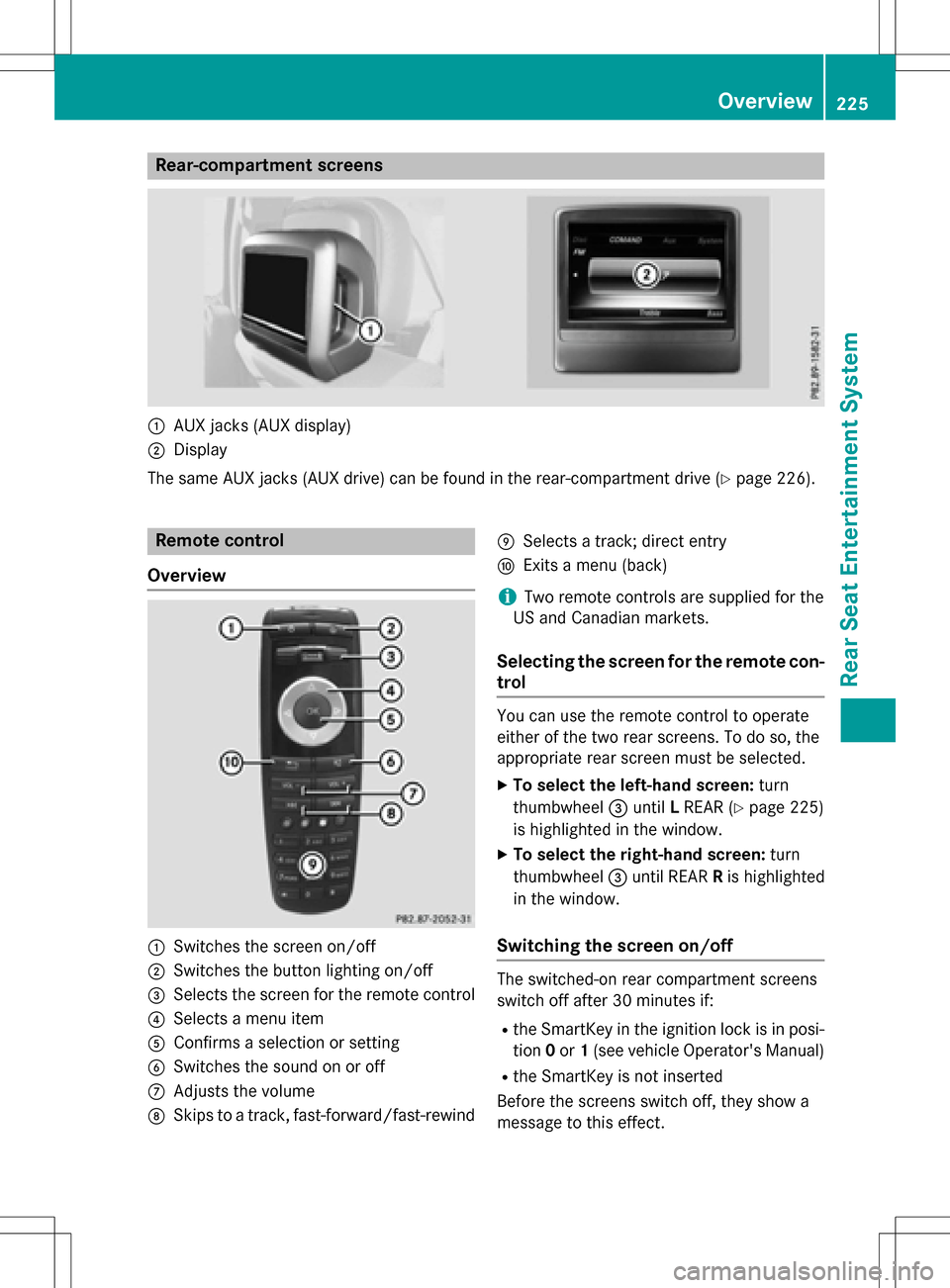
Rear-compartment screens
:AUX jacks (AUX display)
;Display
The same AUX jacks (AUX drive) can be found in the rear-compartment drive (
Ypage 226).
Remote control
Overview
:Switches the screen on/off
;Switches the button lighting on/off
=Selects the screen for the remote control
?Selects a menu item
AConfirms a selection or setting
BSwitches the sound on or off
CAdjusts the volume
DSkips to a track, fast-forward/fast-rewind
ESelects a track; direct entry
FExits a menu (back)
iTwo remote controls are supplied for the
US and Canadian markets.
Selecting the screen for the remote con-
trol
You can use the remote control to operate
either of the two rear screens. To do so, the
appropriate rear screen must be selected.
XTo select the left-hand screen: turn
thumbwheel =until LREAR (
Ypage 225)
is highlighted in the window.
XTo select the right-hand screen: turn
thumbwheel =until REAR Ris highlighted
in the window.
Switching the screen on/off
The switched-on rear compartment screens
switch off after 30 minutes if:
Rthe SmartKey in the ignition lock is in posi-
tion 0or 1(see vehicle Operator's Manual)
Rthe SmartKey is not inserted
Before the screens switch off, they show a
message to this effect.
Overview225
Rear Seat Entertainment System
Z
Page 228 of 246
You can switch the screens back on. How-
ever, this will discharge the starter battery.
XPoint the remote control at the rear-com-
partment screen which has been selected
for remote operation.
XPress button:on the remote control
(
Ypage 225).
The rear screen switches on or off.
Switching the button lighting on/off
XPress button ;on the remote control
(
Ypage 225).
Depending on the previous status, the but-
ton lighting is switched on or off.
iIf you do not use the remote control for
about 15 seconds, the button lighting
switches off automatically.
Switching the sound on or off
XPress button Bon the remote control
(
Ypage 225).
The sound is switched on/off.
Selecting a menu/menu item and con-
firming your selection
XSelect a menu/menu item using the
=;9: buttons on the
remote control and press the 9button to
confirm.
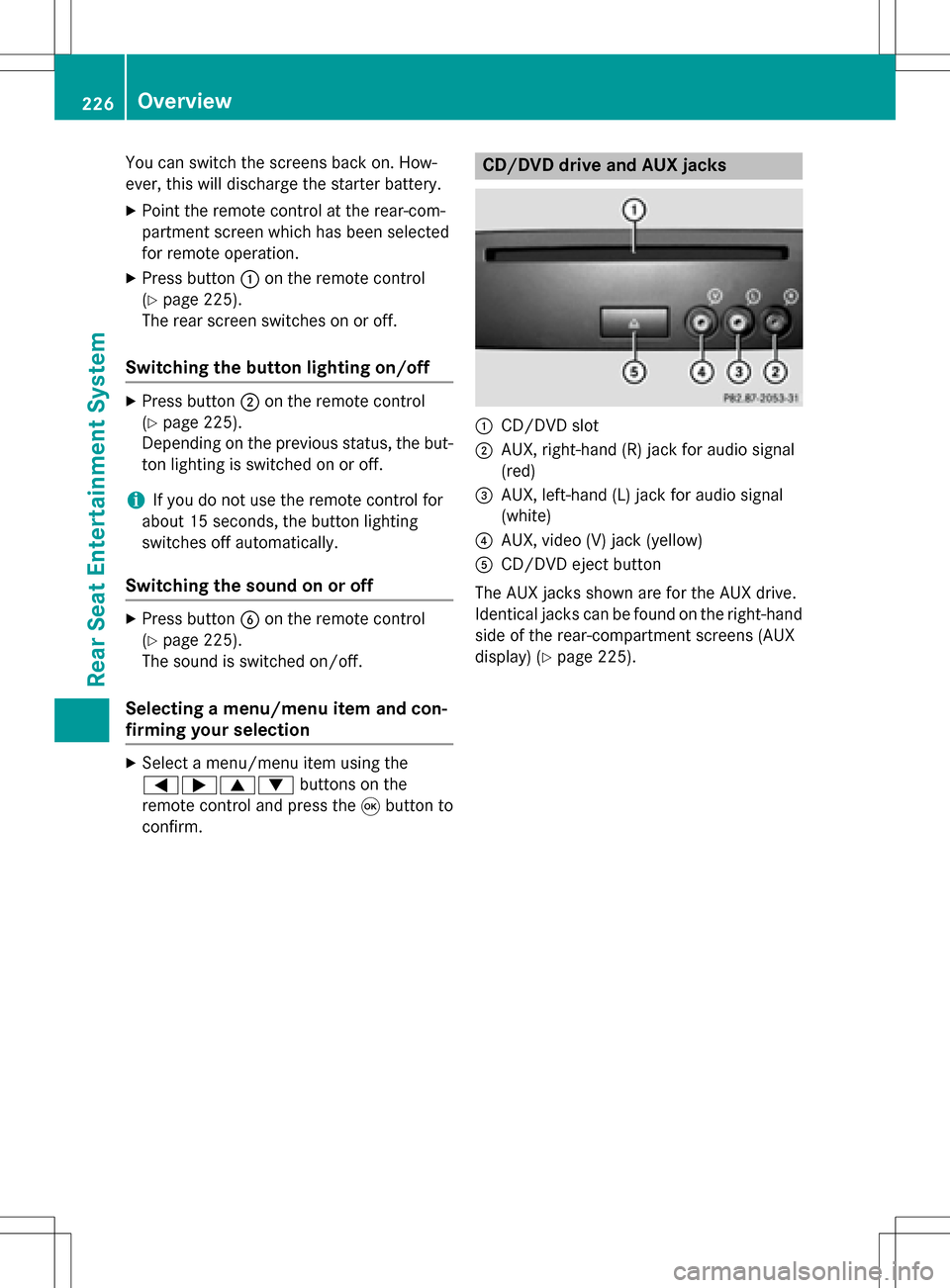
CD/DVD drive and AUX jacks
:CD/DVD slot
;AUX, right-hand (R) jack for audio signal
(red)
=AUX, left-hand (L) jack for audio signal
(white)
?AUX, video (V) jack (yellow)
ACD/DVD eject button
The AUX jacks shown are for the AUX drive.
Identical jacks can be found on the right-hand
side of the rear-compartment screens (AUX
display) (
Ypage 225).
226Overview
Rear Seat Entertainment System
Page 231 of 246
XTo open the battery compartment:
remove battery compartment cover=on
the back of the remote control.
XTo do so, press down retaining lug ;and
take off battery compartment cover =.
XRemove discharged batteriesAfrom the
tray.
XInsert the new batteries. Observe the polar-
ity markings on the batteries and battery
compartment when doing so.
Left-hand battery: the positive pole (+)
must face upwards.
Right-hand battery: the positive pole (+)
must face downwards.
XTo close the battery compartment:
insert battery compartment cover =start-
ing with retaining lugs ?into the battery
compartment and allow catch tab ;to
engage in place.
On the cordless headphones
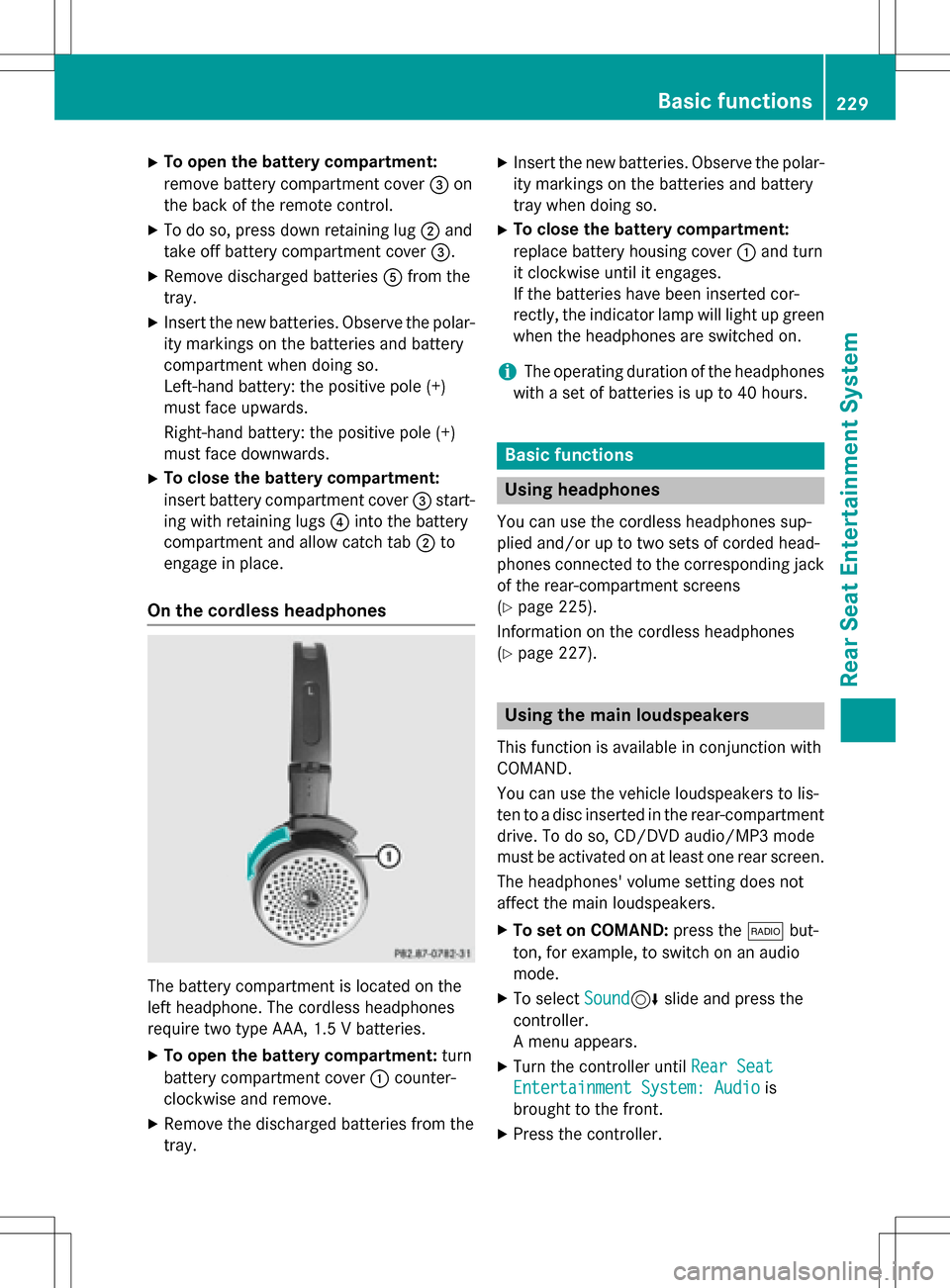
The battery compartment is located on the
left headphone. The cordless headphones
require two type AAA, 1.5 V batteries.
XTo open the battery compartment: turn
battery compartment cover :counter-
clockwise and remove.
XRemove the discharged batteries from the
tray.
XInsert the new batteries. Observe the polar-
ity markings on the batteries and battery
tray when doing so.
XTo close the battery compartment:
replace battery housing cover :and turn
it clockwise until it engages.
If the batteries have been inserted cor-
rectly, the indicator lamp will light up green
when the headphones are switched on.
iThe operating duration of the headphones
with a set of batteries is up to 40 hours.
Basic functions
Using headphones
You can use the cordless headphones sup-
plied and/or up to two sets of corded head-
phones connected to the corresponding jack
of the rear-compartment screens
(
Ypage 225).
Information on the cordless headphones
(
Ypage 227).
Using the main loudspeakers
This function is available in conjunction with
COMAND.
You can use the vehicle loudspeakers to lis-
ten to a disc inserted in the rear-compartment
drive. To do so, CD/DVD audio/MP3 mode
must be activated on at least one rear screen.
The headphones' volume setting does not
affect the main loudspeakers.
XTo set on COMAND: press the$but-
ton, for example, to switch on an audio
mode.
XTo select Sound6slide and press the
controller.
A menu appears.
XTurn the controller until Rear Seat
Entertainment System: Audiois
brought to the front.
XPress the controller.
Basic functions229
Rear Seat Entertainment System
Z
Page 233 of 246
Changing the picture format
XTo show the menu:press the9button on
the remote control.
XSelect DVD-Videousing
the :=; buttons and press the
9 button to confirm.
The dot in front of one of the menu items
Automatic
, 16:9 Optimized,4:3or
Widescreen
shows the currently set pic-
ture format.
XSelect a format using the 9:but-
tons and press the 9button to confirm.
System settings
Note
You can adjust all system settings individually
for each rear screen without affecting the
other screen.
Selecting the display language
XSelect Systemusing the 9=;
buttons on the remote control and press 9
to confirm.
You see the system menu on the selected
rear screen.
XSelect Settingsusing the :button
and press 9to confirm.
XConfirm Languageby pressing the 9but-
ton.
The list of languages appears. The #dot
indicates the current setting.
XSelect a language using the 9:but-
tons and press the 9button to confirm.
The Rear Seat Entertainment System sets
the selected language.
Switching the display design
XSelect Settingsusing the :button
and press 9to confirm.
XSelect Day Mode,Night Modeor Auto‐
maticusing the 9: buttons and
press the 9button to confirm.
The dot indicates the current setting.
DesignExplanation
Day ModeThe display is set per-
manently to day
design.
Night ModeThe display is set per-
manently to night
design.
AutomaticThe display design
changes depending on
the vehicle instrument
cluster illumination.
Setting the brightness
XSelect Settingsusing the :button
and press 9to confirm.
XSelect Brightnessusing the 9:
buttons and press the 9button to confirm.
A scale appears.
XAdjust the brightness using the 9:
buttons and press the 9button to confirm.
The bar moves up or down. The picture
becomes lighter or darker.
Showing/hiding the picture
XTo hide the picture: selectDisplay Off
in the system menu using the :;
buttons on the remote control and press
the 9button to confirm.
The picture is hidden.
XTo display the picture: press the9but-
ton.
System settings231
Rear Seat Entertainment System
Z