light MERCEDES-BENZ E-CLASS CABRIOLET 2017 Owners Manual
[x] Cancel search | Manufacturer: MERCEDES-BENZ, Model Year: 2017, Model line: E-CLASS CABRIOLET, Model: MERCEDES-BENZ E-CLASS CABRIOLET 2017Pages: 521, PDF Size: 10.64 MB
Page 274 of 521
#
Alternativel y,to filter the display byPOI
categor y:swipe down on theto uchpad.
or #
Slide the controller down. #
Select a POI categor y.#
User defined allowspersonal POI symbols to
be selected (→ page 284).
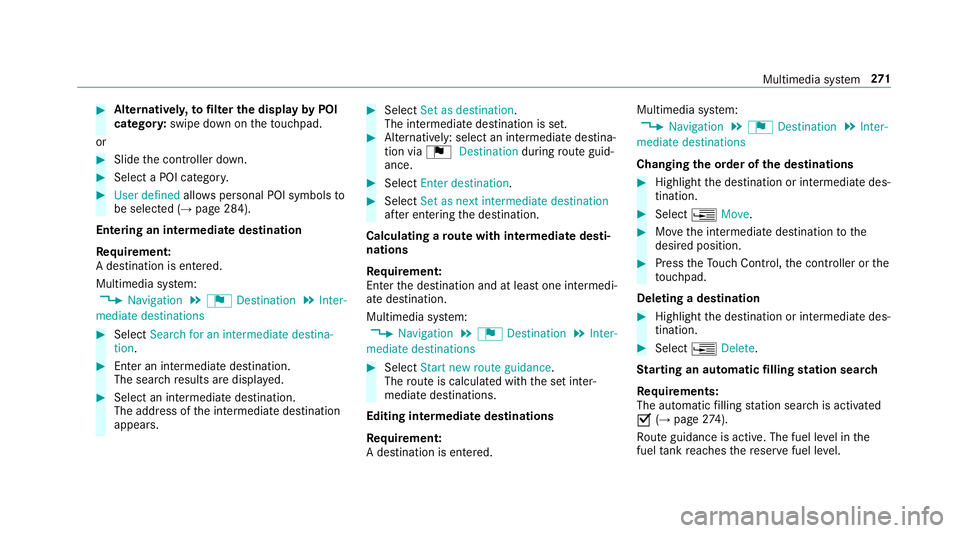
Entering an intermedia tedestination
Re quirement:
A destination is entered.
Multimedia sy stem:
, Navigation .
¬ Destination .
Inter-
mediate destinations #
Select Search for an intermediate destina-
tion . #
Ente r an intermedia tedestination.
The sear chresults are displa yed. #
Select an intermediate destination.
The address of the intermediate destination
appears. #
Select Set as destination.
The intermediate destination is set. #
Alternatively: select an intermediate destina‐
tion via ¬Destination duringroute guid‐
ance. #
Select Enter destination. #
Select Set as next intermediate destination
af te r entering the destination.
Calculating a route with intermediate desti‐
nations
Re quirement:
En terth e destination and at least one intermedi‐
ate destination.
Multimedia sy stem:
, Navigation .
¬ Destination .
Inter-
mediate destinations #
Select Start new route guidance.
The route is calculated with the set inter‐
mediate destinations.
Editing intermedia tedestinations
Re quirement:
A destination is entered. Multimedia sy
stem:
, Navigation .
¬ Destination .
Inter-
mediate destinations
Changing the order of the destinations #
Highlight the destination or intermediate des‐
tination. #
Select ¥Move. #
Movethe intermediate destination tothe
desired position. #
Press theTo uch Control, the controller or the
to uchpad.
Deleting a destination #
Highlight the destination or intermediate des‐
tination. #
Select ¥Delete.
St arting an automatic filling station sear ch
Re quirements:
The automatic filling station sear chis activated
O (→page 274).
Ro ute guidance is active. The fuel le vel in the
fuel tank reaches there ser vefuel le vel. Multimedia sy
stem 271
Page 278 of 521
Ro
ute guidance Note
s onroute guidance
Ro ute guidance begins once a route has been
calculated.
The road and traf fic ru les and regulations alw ays
ha ve priority over multimedia sy stem driving rec‐
ommendations.
Driving recommendations are:
R Navigation announcements
R Route guidance displ ays
R Lane recommendations
If yo u do not follow the navigation announce‐
ments or if you lea vethe calculated route, a new
ro ute is calculated automaticall y.
Driving recommendations may di ffer from the
actual road and traf fic conditions if:
R thero ute is diver ted
R the direction of a one- wayst re et has
ch anged
Fo rth is reason, you must alw ays obser veroad
and traf fic ru les and regulations during your
journe y. The
route may dif fer from the ideal route due to
th efo llowing:
R roadwor ks
R incomple tedigital map data
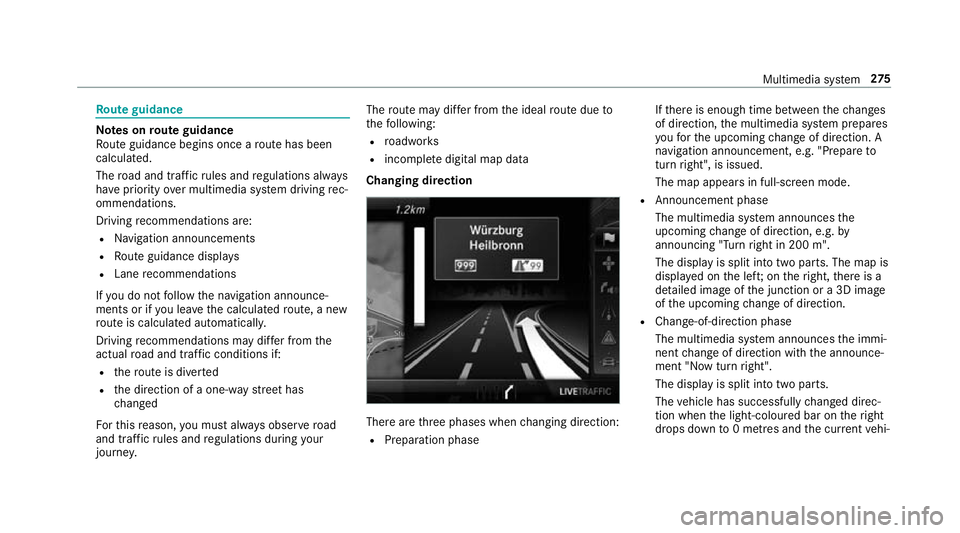
Changing direction There are
thre e phases when changing direction:
R Preparation phase If
th ere is enough time between thech anges
of direction, the multimedia sy stem prepares
yo ufo rth e upcoming change of direction. A
navigation announcement, e.g. "Prepare to
turn right", is issued.
The map appears in full-screen mode.
R Announcement phase
The multimedia sy stem announces the
upcoming change of direction, e.g. by
announcing "Turn right in 200 m".
The display is split into two parts. The map is
displa yed on the lef t;on theright, there is a
de tailed image of the junction or a 3D image
of the upcoming change of direction.
R Chan ge-of-direction phase
The multimedia sy stem announces the immi‐
nent change of direction with the announce‐
ment "Now turn right".
The display is split into two parts.
The vehicle has successfully changed direc‐
tion when the light-coloured bar on theright
drops down to0 metres and the cur rent vehi‐ Multimedia sy
stem 275
Page 282 of 521
R
a direction ar row showing the linear direction
to the POI
When theve hicle is back on a road kn ownto the
multimedia sy stem, route guidance continues as
no rm al. Destination
Saving
the cur rent vehicle position
Multimedia sy stem:
, Navigation .
Á Position #
Select Store position.
The cur rent vehicle position is sa vedto the
"Last destinations" memor y.
St oring a map position
Multimedia sy stem:
, Navigation
The map is in full-screen mode. #
Press theTo uch Control, the controller or the
to uchpad. #
Select "mo vemap" 3inthe map menu
(→ page 283). #
Select a position on the map.
A list appears if there are se veral map posi‐
tions. #
Highlight a map position. #
Select ¥Store in "Previous destinations".
The map position is sa vedto the "Last desti‐
nations" memor y.
Editing the last destinations
Multimedia sy stem:
, Navigation .
¬ Destination .
Previ-
ous destinations #
Highlight one of the last destinations. #
Tosave as a favo urite: select ¥Save as
global favourite . #
Tosave as "Home" address: select¥
Save as "Home" address . #
Tosave as "Work" address: select¥
Save as "Work" address . #
Todel ete a single or all destinations:
select ¥Delete orDelete all.
A prom ptappears. #
Select Yes. #
Todispl aydestination information: select
¥ Details. Ro
ute guidance with cur rent traf fic re ports Tr
af fic information overview
% The services are not available in everycoun‐
tr y.
Tr af fic re ports can be recei ved with thefo llowing
services:
R Live Traf fic Information
R FM RDS-TMC
It is not possible touse bo thservices simul‐
ta neously.
Live Traf fic Information or FM RDS-TMC is
displ ayed with a symbol.
% Hazard alerts can be recei ved using the Car-
to -X service.
% Theremay be dif fere nces between the traf fic
re ports recei ved and the actual road and
traf fic conditions. Multimedia sy
stem 279
Page 289 of 521
#
Tochange the size of the area: swipe up or
down on theTo uch Control or theto uchpad.
or #
Slide the controller up or down.
The map scale is enlar ged or reduced and
ch anges the size of the area. #
Toset the area: presstheTo uch Control,
th e controller or theto uchpad.
The area is en tere d into the list.
Changing an area
Multimedia sy stem:
, Navigation .
À Route .
Avoid
options .
Areas #
Highlight an area in the list. #
Select ¥Edit.
Moving the area on the map #
Swipe in any direction on theTo uch Control
or touchpad.
or #
Slide the controller in any direction. Changing
the size of the area #
Press theTo uch Control, theto uchpad or the
controller. #
Swipe up or down on theTo uch Control or
th eto uchpad.
or #
Slide the controller up or down. #
Press theTo uch Control, theto uchpad or the
controller.
Ta king the area for the route into account #
Avoid Oor do not avoid ªan area in the
list.
Ro ute guidance active: a new route is calcu‐
lated.
No route has been created: the setting is car‐
ri ed ove rto the next route guidance.
The route can include an area that is tobe
av oided in thefo llowing cases:
R the destination is located in an area that
is to be avo ided
R there is no sensible alternative route Deleting one or all areas
Multimedia sy
stem:
, Navigation .
À Route .
Avoid
options .
Areas #
Highlight an area in the list. #
Select ¥Delete or¥ Delete all. #
Confirm the prom ptwith Yes.
One or all areas are dele ted.
Up dating the map data
Up dating at the Mercedes-Benz se rvice
centre
The digital maps generated bythe map software
become outdated in the same way as co nven‐
tional road maps. Optimal route guidance can
on ly be pr ovided bythe navigation sy stem in
conjunction with the most up-to-date map data.
Information about new versions of the digital
map can be obtained from a Mercedes-Benz
service cent re. The reyou can recei veupdates to
th e digital map. 286
Multimedia sy stem
Page 295 of 521
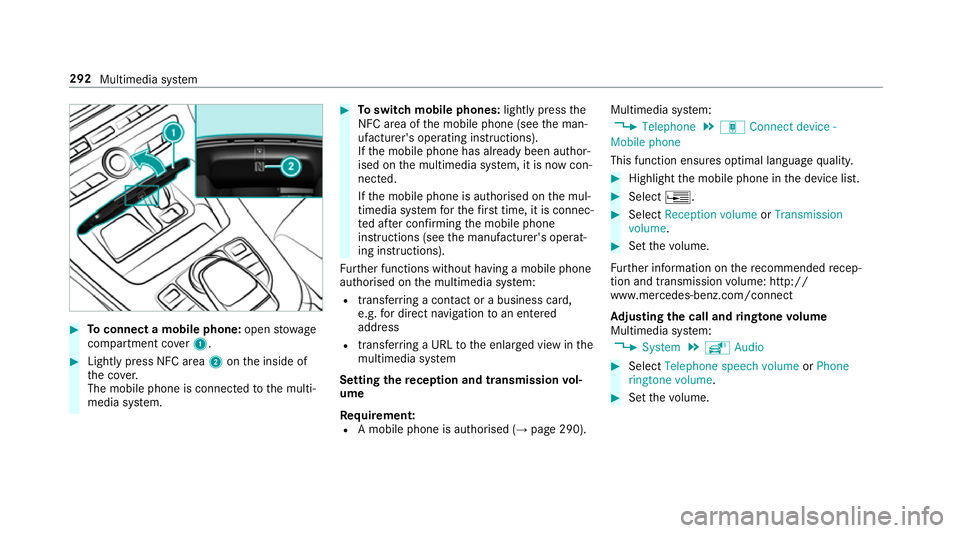
#
Toconnect a mobile phone: openstowage
compartment co ver1. #
Lightly press NFC area 2onthe inside of
th e co ver.
The mobile phone is connected tothe multi‐
media sy stem. #
Toswitch mobile phones: lightly pressthe
NFC area of the mobile phone (see the man‐
ufacturer's operating instructions).
If th e mobile phone has already been author‐
ised on the multimedia sy stem, it is now con‐
nected.
If th e mobile phone is authorised on the mul‐
timedia sy stem forth efirs t time, it is connec‐
te d af ter confirming the mobile phone
instructions (see the manufacturer's operat‐
ing instructions).
Fu rther functions without having a mobile phone
authorised on the multimedia sy stem:
R transfer ring a contact or a business card,
e.g. for direct navigation toan entered
address
R transfer ring a URL tothe enlar ged view in the
multimedia sy stem
Setting there ception and transmission vol‐
ume
Re quirement:
R A mobile phone is authorised (→ page 290).Multimedia sy
stem:
, Telephone .
á Connect device -
Mobile phone
This function ensures optimal language qualit y. #
Highlight the mobile phone in the device list. #
Select ¥. #
Select Reception volume orTransmission
volume . #
Set thevo lume.
Fu rther information on there commended recep‐
tion and transmission volume: http://
www.me rcedes-benz.com/connect
Ad justing the call and ringtone volume
Multimedia sy stem:
, System .
õ Audio #
Select Telephone speech volume orPhone
ringtone volume. #
Set thevo lume. 292
Multimedia sy stem
Page 299 of 521
The
following options are available:
R Contact details
R Save in vehicle
R Delete contact
Wi thin contact details #
Select ¥.
The following options are available:
R Call
R Send text message
R Save as global favourite
R Show website (when aweb address is
st ored)
R Navigate (when an address is stored)
R Send DTMF tones (for a number with DTMF
to nes)
Deleting a contact
Multimedia sy stem:
, Telephone .
ª Contacts
Yo u can dele tecontacts stored in theve hicle. #
Sear chfor a contact. #
Select the conta ct. #
Select ¥. #
Select Delete contact . #
Select Yes. Call li
st Call list
overview
If yo ur mobile phone suppo rts th e PBAP Blue‐
tooth ®
profile, the call lists from the mobile
phone are displa yed in the multimedia sy stem.
When connecting the mobile phone, you may
ha ve toconfirm the connection forth e PBAP
Blue tooth ®
profile.
If yo ur mobile phone does not suppo rtthe PBAP
Blue tooth ®
profile, the multimedia sy stem gener‐
ates its own call li sts. These are not the same as
th e call lists in your mobile phone. Making a call from
the call list
Multimedia sy stem:
, Telephone .
ø Call list -
Device_name #
Select an entry. #
Make the call.
Options in the call list
Multimedia sy stem:
, Telephone .
ø Call list -
Device_name #
Highlight the entry. #
Select ¥.
The following options are available:
R Send text message
R Open contact Te
xt messages Note
s onthete xt message functions
If th e connected mobile phone supports the
MAP Blue tooth®
profile, thete xt messa gefunc‐
tions can be used on the multimedia sy stem. 296
Multimedia sy stem
Page 300 of 521
Yo
u can obtain fur ther information about set‐
tings and suppor ted functions of Blue tooth®
-
capable mobile phones from a Mercedes-Benz
service centre or at: http://www.mercedes-
benz.com/connect
Some mobile phones require fur ther settings
af te r being connected tothe multimedia sy stem
(see manufacturer's Owner's Manual).
New messages are identified bythe1 symbol
in the multimedia sy stem's display and an audi‐
ble signal.
R The multimedia sy stem displa ys the100
ne we sttext messa ges.
R The ú symbol is displa yed when the
mobile phone's messa gememory is full.
Confi guring thete xt messages displa yed
Multimedia sy stem:
, Telephone .
Z Options .
Call up
messages #
Select ¥.
A menu with thefo llowing options is shown:
R All messages R
New and unread messages
R New messages
R Off (The text messa ges are not displa yed
automaticall y.) #
Select an option.
Re ading text messages
Multimedia sy stem:
, Telephone .
i Text message
Re ading a text message #
Select a text messa ge.
The message text is displ ayed.
Using there ad-aloud function #
Highlight thete xt messa ge. #
Select ¥. #
Select +Read aloud .
The text messa geisread aloud.
Composing and sending a text message
Multimedia sy stem:
, Telephone .
i Text message #
Navigate tothe left twice. #
Select Write new text message.
Ad ding a recipient #
Select Press to add recipient. #
Select the conta ct.
Dictating text #
Select Press to dictate.
The App forth e dictation function is loaded.
If th ere was no prior Internet connection, a
connection is now es tablished. #
Tostart the dictation function: press the con‐
troller or touchpad. #
Dictate your message.
The dic tation ends au tomatical lyafte ryou
ha ve finished speaking.
Af terth evo ice message has been processed,
it is shown as text.
Editing text #
Select thewo rd. Multimedia sy
stem 297
Page 302 of 521
Multimedia sy
stem:
, Telephone
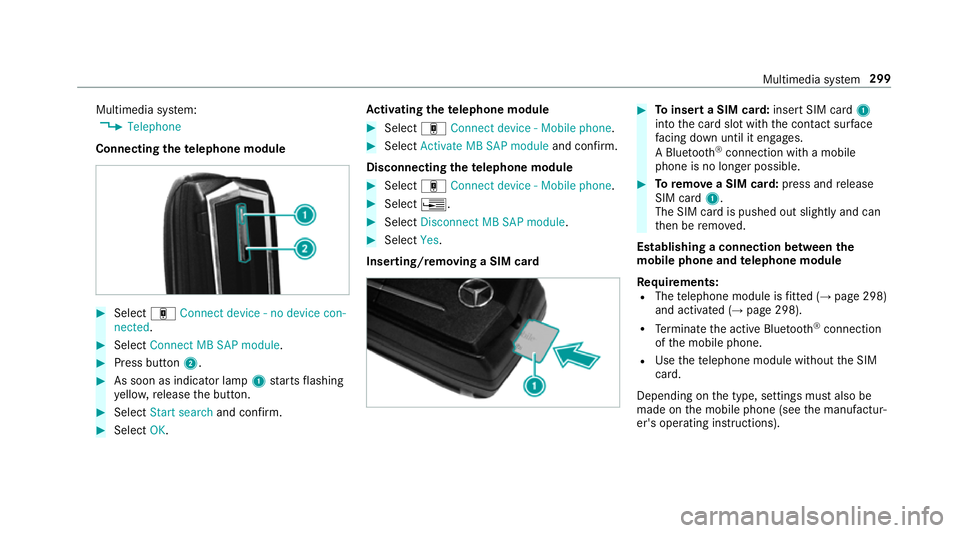
Connecting thete lephone module #
Select áConnect device - no device con-
nected. #
Select Connect MB SAP module. #
Press button 2. #
As soon as indicator lamp 1starts flashing
ye llo w, release the button. #
Select Start search and confirm. #
Select OK. Ac
tivating the telephone module #
Select áConnect device - Mobile phone . #
Select Activate MB SAP module and confirm.
Disconnecting thete lephone module #
Select áConnect device - Mobile phone . #
Select ¥. #
Select Disconnect MB SAP module. #
Select Yes.
Inserting/removing a SIM card #
Toinsert a SIM card: insert SIM card1
into the card slot with the conta ct surface
fa cing down until it engages.
A Blu etoo th®
connection wi tha mobile
phone is no lon ger possible. #
Toremo vea SIM card: press andrelease
SIM card 1.
The SIM card is pushed out slightly and can
th en be remo ved.
Establishing a connection between the
mo bile phone and telephone module
Re quirements:
R The telephone module is fitted (→ page 298)
and activated (→ page 298).
R Term inate the active Blue tooth ®
connection
of the mobile phone.
R Use thete lephone module without the SIM
card.
Depending on the type, settings must also be
made on the mobile phone (see the manufactur‐
er's operating instructions). Multimedia sy
stem 299
Page 304 of 521
St
oring the SIM card PIN in thete lephone
module
Multimedia sy stem:
, Telephone .
á Connect device - no
device connected .
SIM Card #
Select ¥. #
Switch Store PIN onO.
Te lephone module settings
Settings for using the telephone module with
th e mobile phone
Nu m‐
ber Fu
nction
0003 1A ctivates caller ID transmission
00030 Deacti vates caller ID transmission
0006 1A ctivates da taroaming
0006 0D eactivates data roaming
00 071A ctivates network pr ovider restric‐
tion 00070 Deacti
vates network pr ovider
re striction
0008 1A ctivates text messa getrans fer
00080 Deactivates text messa getrans fer
00082 Sets situation-rela ted dimming of
th e indicator lamp
0008 3D oes not change the brightness of
th e indicator lamp Setting
theringtone for the telephone mod‐
ule
Multimedia sy stem:
, Telephone .
á Connect device -
Mobile phone #
Highlight a mobile phone. #
Select ¥. #
Select Ringtones. #
Select a ringtone.
The ringtone is pl ayed.
The settings are applied once youex itthe
menu. Tr
ansfer ring the phone book via thete le‐
phone module
The transfer take s place automatically once a
connection has been es tablished via Blue tooth®
:
R Ifth e mobile phone supports the PBAP
(Phone BookAccess Profile), the sy stem
gives priority toloading phone book ent ries
from the phone memor y.
R Ifth ere are no entri es inthe phone memor y,
th e phone book entri es fromthe SIM card
are impor ted.
A list of compatible mobile phones can be found
at:
http://www.mercedes-benz.com/connect
Note s onreceiving text messages when
using thete lephone module
Obser vethefo llowing no tes when using thete le‐
phone module with Blue tooth®
(SAP profile):
R it is only possible toaccess thete xt messa ge
memory of the SIM card.
R incoming text messa ges are sa ved on the
SIM card. Multimedia sy
stem 301
Page 306 of 521
Re
setting thete lephone module to factory
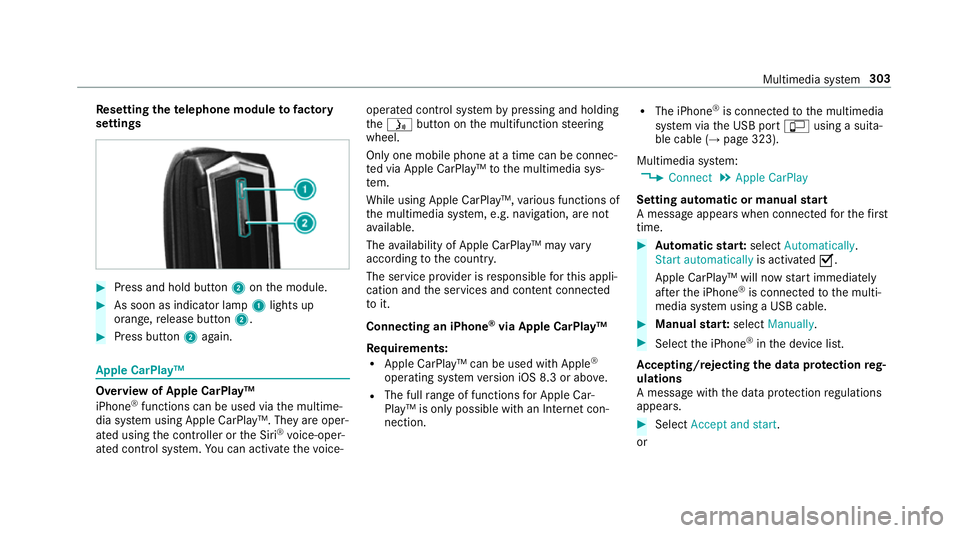
settings #
Press and hold button 2onthe module. #
As soon as indicator lamp 1lights up
orange, release button 2. #
Press button 2again. Apple CarPlay™
Overview of Apple CarPlay™
iPhone
®
functions can be used via the multime‐
dia sy stem using Apple CarPlay™. They are oper‐
ated using the controller or the Siri ®
vo ice-oper‐
ated control sy stem. You can activate thevo ice- operated control sy
stem bypressing and holding
th eó button on the multifunction steering
wheel.
Only one mobile phone at a time can be connec‐
te d via Apple CarPlay™ tothe multimedia sys‐
te m.
While using Apple CarPlay™, various functions of
th e multimedia sy stem, e.g. navigation, are not
av ailable.
The availability of Apple CarPlay™ may vary
according tothe count ry.
The service pr ovider is responsible forth is appli‐
cation and the services and conte nt connected
to it.
Connecting an iPhone ®
via Apple CarPlay™
Re quirements:
R Apple CarPlay™ can be used with Apple ®
operating sy stem version iOS 8.3 or abo ve.
R The full range of functions for Apple Car‐
Play™ is only possible with an Internet con‐
nection. R
The iPhone ®
is connected tothe multimedia
sy stem via the USB port çusing a suita‐
ble cable (→ page 323).
Multimedia sy stem:
, Connect .
Apple CarPlay
Setting automatic or manual start
A messa geappears when connec tedfo rth efirst
time. #
Automatic star t:select Automatically.
Start automatically is activatedO.
Apple CarPlay™ will now start immediately
af te rth e iPhone ®
is connected tothe multi‐
media sy stem using a USB cable. #
Manual star t:select Manually . #
Select the iPhone ®
in the device list.
Ac cepting/rejecting the data pr otection reg‐
ulations
A message with the data pr otection regulations
appears. #
Select Accept and start.
or Multimedia sy
stem 303