navigation system MERCEDES-BENZ E-CLASS CABRIOLET 2017 Owners Manual
[x] Cancel search | Manufacturer: MERCEDES-BENZ, Model Year: 2017, Model line: E-CLASS CABRIOLET, Model: MERCEDES-BENZ E-CLASS CABRIOLET 2017Pages: 521, PDF Size: 10.64 MB
Page 246 of 521
Vo
ice command Function
Vehicle To
switch tovehicle settings
System settings To
switch tosystem settings Na
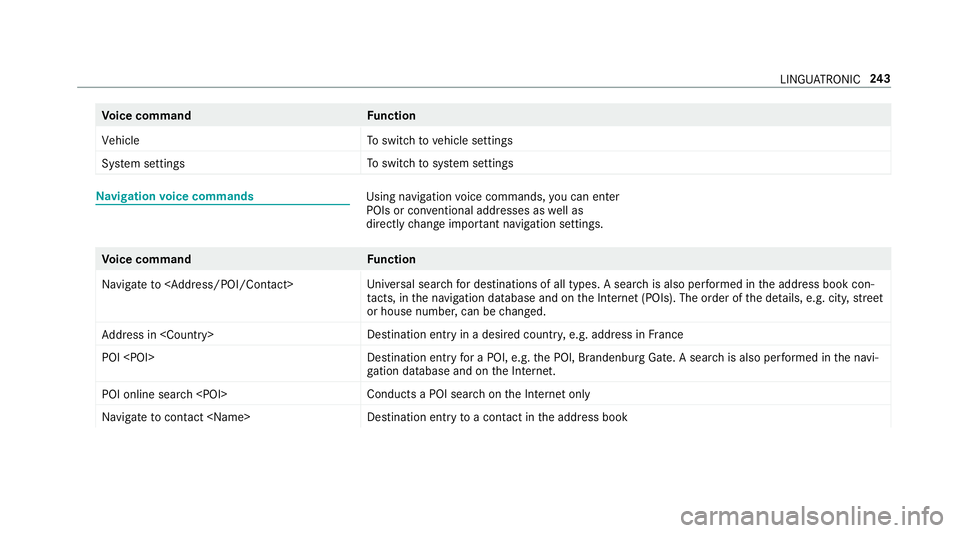
vigation voice commands Using navigation
voice commands, you can en ter
POIs or con ventional addresses as well as
directly change impor tant navigation settings. Vo
ice command Function
Navigate to
versal sear chfor destinations of all types. A search is also per form ed in the address book con‐
ta cts, in the navigation database and on the Internet (POIs). The order of the de tails, e.g. cit y,stre et
or house number, can be changed.
Address in
stination ent ryin a desired countr y,e.g. address in France
POI
stination ent ryfor a POI, e.g. the POI, Brandenburg Gate. A sear chis also per form ed in the navi‐
ga tion da tabase and on the Internet.
POI online search
chon the Internet only
Navigate to contact
toa con tact in the address book LINGU
ATRO NIC 243
Page 256 of 521
Setting
the sensitivity
Multimedia sy stem:
, System .
w Input #
Select Touchpad sensitivity .#
Select Fast,Medium orSlow .
Handwriting recognition: swit ching there ad-
aloud function on/off
Multimedia sy stem:
, System .
õ Audio #
Switch Read out handwriting recognition on
O or off ª. Main functions
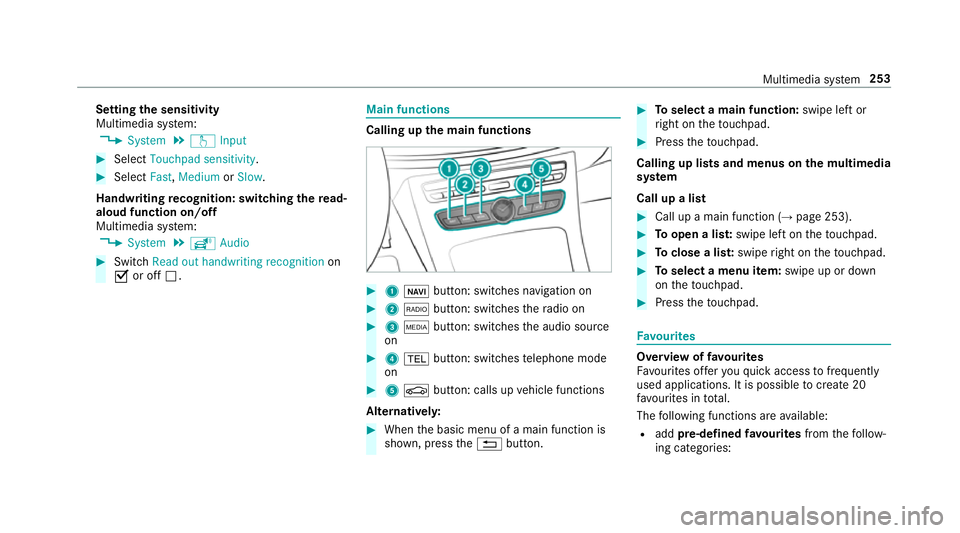
Calling up
the main functions #
1 ß button: swit ches navigation on #
2 $ button: switches thera dio on #
3 Õ button: switches the audio source
on #
4 % button: switches telephone mode
on #
5 Ø button: calls up vehicle functions
Alternativel y: #
When the basic menu of a main function is
shown, press the% button. #
Toselect a main function: swipe left or
ri ght on theto uchpad. #
Press theto uchpad.
Calling up lists and menus on the multimedia
sy stem
Call up a list #
Call up a main function (→ page 253). #
Toopen a lis t:swipe left on theto uchpad. #
Toclose a lis t:swipe right on theto uchpad. #
Toselect a menu item: swipe up or down
on theto uchpad. #
Press theto uchpad. Favo
urites Overview of
favo urites
Fa vourites of feryo uqu ick access tofrequently
used applications. It is possible tocrea te20
fa vo urites in tota l.
The following functions are available:
R add pre-defined favo urites fromthefo llow‐
ing categories: Multimedia sy
stem 253
Page 257 of 521
-
Navigation
- Entertainment
- Telephone
- Connect
- Vehicle
- System settings
R add your ow nfa vo urites
R rename a favo urite
R moveafa vo urite
R dele teafa vo urite
R restore all favo urites settings
Calling up favo urites #
Press the© button.
The main functions are displa yed. #
Navigate down wards once.
Leaving theFavo urites menu #
Press the© button. Ad
ding a favo urite
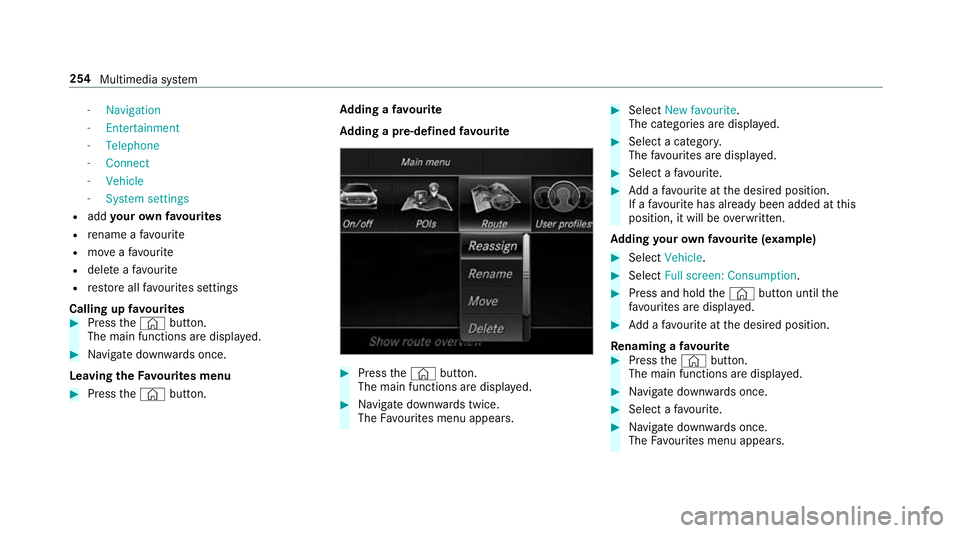
Ad ding a pre-de fined favo urite #
Press the© button.
The main functions are displa yed. #
Navigate down wards twice.
The Favourites menu appears. #
Select New favourite.
The categories are displ ayed. #
Select a categor y.
The favo urites are displ ayed. #
Select a favo urite. #
Add a favo urite at the desired position.
If a favo urite has already been added at this
position, it will be overwritten.
Ad ding your ow nfa vo urite (e xamp le) #
Select Vehicle. #
Select Full screen: Consumption. #
Press and hold the© button until the
fa vo urites are displ ayed. #
Add a favo urite at the desired position.
Re naming a favo urite #
Press the© button.
The main functions are displa yed. #
Navigate down wards once. #
Select a favo urite. #
Navigate down wards once.
The Favourites menu appears. 254
Multimedia sy stem
Page 259 of 521
Ad
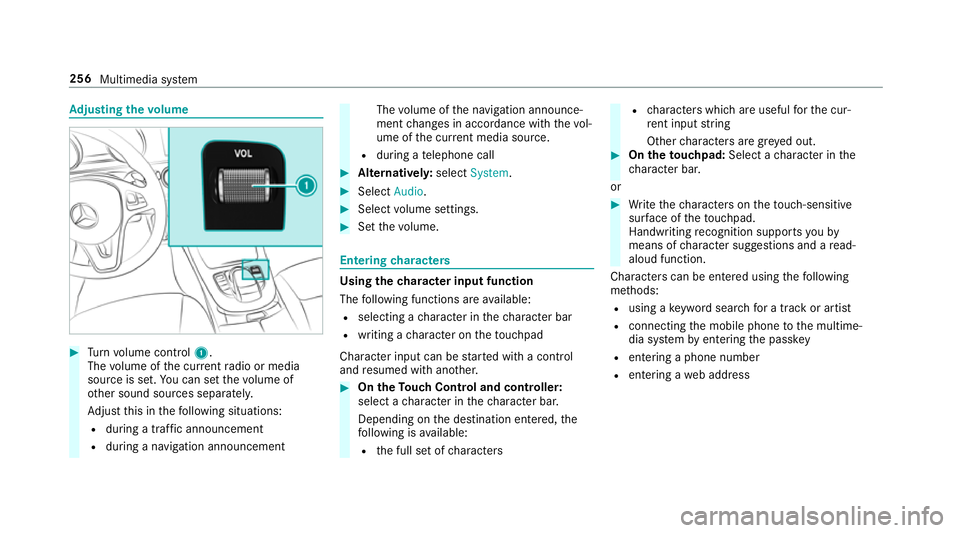
justing the volume #
Turn volume control 1.
The volume of the cur rent radio or media
source is set. You can set thevo lume of
ot her sound sources separatel y.
Ad just this in thefo llowing situations:
R during a traf fic announcement
R during a navigation announcement The
volume of the navigation announce‐
ment changes in accordance with thevo l‐
ume of the cur rent media sou rce.
R during a telephone call #
Alternativel y:select System. #
Select Audio. #
Select volume settings. #
Set thevo lume. Entering
characters Using
thech aracter input function
The following functions are available:
R selecting a character in thech aracter bar
R writing a character on theto uchpad
Character input can be star ted with a control
and resumed with ano ther. #
On theTo uch Control and controller:
select a character in thech aracter bar.
Depending on the destination entered, the
fo llowing is available:
R the full set of characters R
characters which are useful forth e cur‐
re nt input string
Other characters are gr eyed out. #
On theto uchpad: Select acharacter in the
ch aracter bar.
or #
Write thech aracters on theto uch-sensitive
sur face of theto uchpad.
Handwriting recognition suppo rts yo uby
means of character suggestions and a read-
aloud function.
Characters can be entered using thefo llowing
me thods:
R using a keyword sear chfor a track or artist
R connecting the mobile phone tothe multime‐
dia sy stem byentering the passk ey
R entering a phone number
R entering a web address 256
Multimedia sy stem
Page 261 of 521
#
Todel ete a character: swipe left when the
cursor is loca ted in the input line. #
Toconfirm the entr y:press theto uchpad. #
Tofinish character entr y:swipe upwards.
or #
Press the% button.
Example: entering a destination (navigation) #
Ente r a POI or addre ss (→page 267). Sy
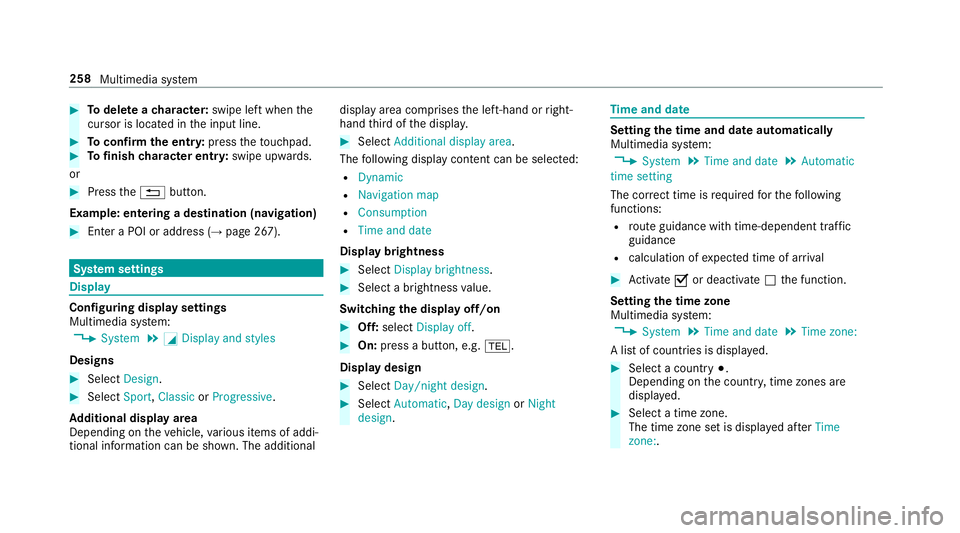
stem settings Display
Configuring display settings
Multimedia sy
stem:
, System .
G Display and styles
Designs #
Select Design. #
Select Sport,Classic orProgressive.
Ad ditional displ ayarea
Depending on theve hicle, various items of addi‐
tional information can be shown. The additional display area comprises
the left-hand or right-
hand third of the displa y. #
Select Additional display area .
The following display con tent can be selected:
R Dynamic
R Navigation map
R Consumption
R Time and date
Displ aybrightness #
Select Display brightness . #
Select a brightness value.
Switching the display off/on #
Off: select Display off . #
On: press a button, e.g. %.
Display design #
Select Day/night design . #
Select Automatic, Day design orNight
design . Time
and date Setting
the time and da teautomatically
Multimedia sy stem:
, System .
Time and date .
Automatic
time setting
The cor rect time is requ ired forth efo llowing
functions:
R route guidance with time-dependent traf fic
guidance
R calculation of expected time of ar rival #
Activate Oor deacti vate ª the function.
Setting the time zone
Multimedia sy stem:
, System .
Time and date .
Time zone:
A list of count ries is displa yed. #
Select a count ry#.
Depending on the count ry, time zones are
displa yed. #
Select a time zone.
The time zone set is displa yed af terTime
zone:. 258
Multimedia sy stem
Page 265 of 521
#
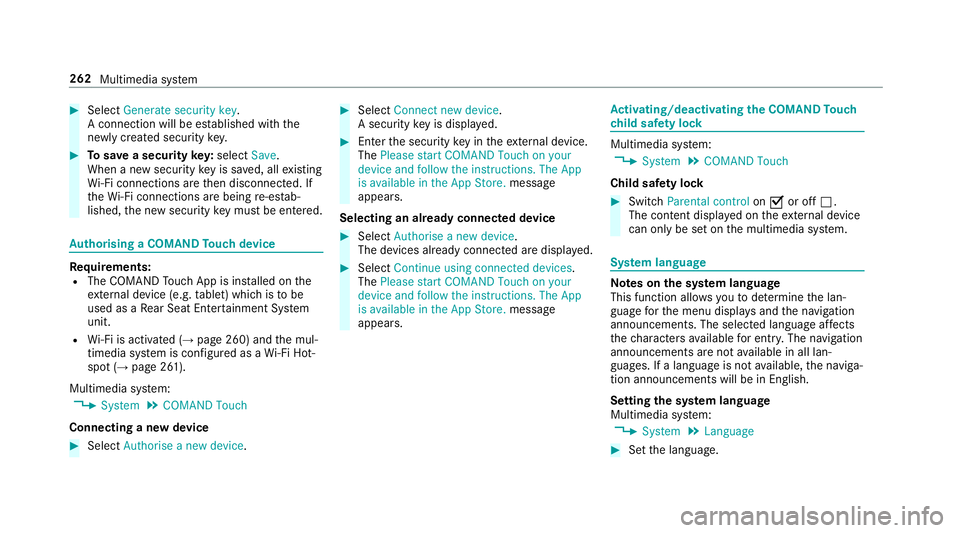
Select Generate security key .
A connection will be es tablished with the
newly crea ted security key. #
Tosave a security key:select Save.
When a new security key is sa ved, all existing
Wi -Fi connections are then disconnected. If
th eWi -Fi connections are being re-es tab‐
lished, the new security key must be en tere d. Au
thorising a COMAND Touch device Re
quirements:
R The COMAND Touch App is ins talled on the
ex tern al device (e.g. tablet) which is tobe
used as a Rear Seat En tertainment Sy stem
unit.
R Wi-Fi is acti vated (→ page 260) and the mul‐
timedia sy stem is confi gured as a Wi-Fi Hot‐
spot (→ page 261).
Multimedia sy stem:
, System .
COMAND Touch
Connecting a new device #
Select Authorise a new device. #
Select Connect new device.
A security key is displa yed. #
Ente rth e security key in theex tern al device.
The Please start COMAND Touch on your
device and follow the instructions. The App
is available in the App Store. message
appears.
Selecting an already connected device #
Select Authorise a new device.
The devices already connec ted are displa yed. #
Select Continue using connected devices.
The Please start COMAND Touch on your
device and follow the instructions. The App
is available in the App Store. message
appears. Ac
tivating/deactivating the COMAND Touch
ch ild saf ety lock Multimedia sy
stem:
, System .
COMAND Touch
Child saf ety lock #
Switch Parental control onO or off ª.
The content displa yed on theex tern al device
can on lybe set on the multimedia sy stem. Sy
stem language Note
s onthe sy stem language
This function allo wsyouto determ ine the lan‐
guage forth e menu displa ysand the navigation
announcements. The selected language af fects
th ech aracters available for entr y.The navigation
announcements are not available in all lan‐
guages. If a language is not available, the naviga‐
tion announcements will be in Engl ish.
Setting the sy stem language
Multimedia sy stem:
, System .
Language #
Set the language. 262
Multimedia sy stem
Page 266 of 521
%
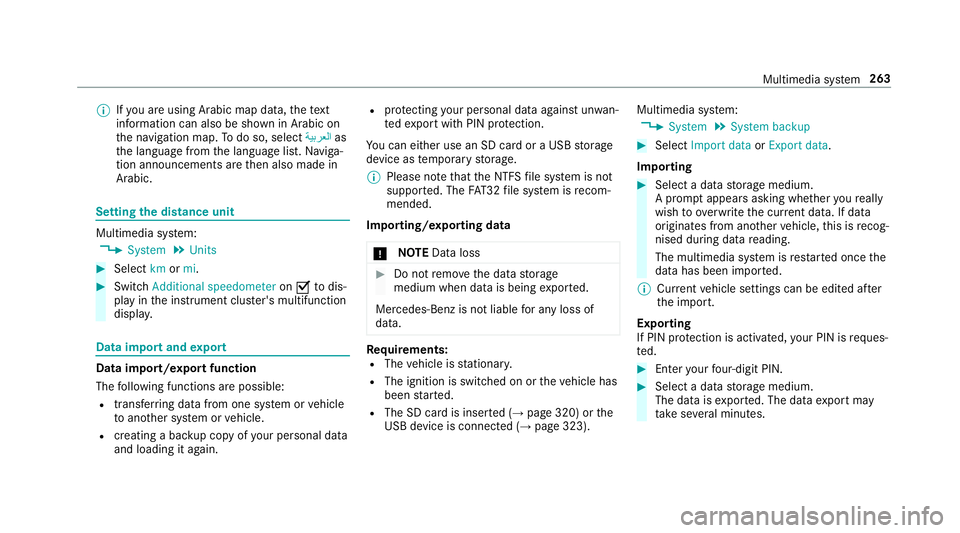
Ifyo u are using Arabic map data, thete xt
information can also be shown in Arabic on
th e navigation map. Todo so, select ةيبرعلاas
th e language from the language list. Naviga‐
tion announcements are then also made in
Arabic. Setting
the distance unit Multimedia sy
stem:
, System .
Units #
Select kmormi. #
Switch Additional speedometer onO todis‐
play in the instrument clus ter's multifunction
displa y. Data import and
export Data import/export function
The
following functions are possible:
R transfer ring da tafrom one sy stem or vehicle
to ano ther sy stem or vehicle.
R creating a bac kup copy of your personal data
and loading it again. R
protecting your personal data against un wan‐
te dex port with PIN pr otection.
Yo u can either use an SD card or a USB storage
device as temp orary storage.
% Please no tethat the NTFS file sy stem is not
suppor ted. The FAT32 file sy stem is recom‐
mended.
Importing/exporting data
* NO
TEData loss #
Do not remo vethe data storage
medium when data is being expor ted.
Mercedes-Benz is not liable for any loss of
data. Re
quirements:
R The vehicle is stationar y.
R The ignition is switched on or theve hicle has
been star ted.
R The SD card is inser ted (→ page 320) or the
USB device is connecte d (→page 323). Multimedia sy
stem:
, System .
System backup #
Select Import data orExport data.
Importing #
Select a data storage medium.
A prom ptappears asking whe ther youre ally
wish to overwrite the cur rent da ta. If da ta
originates from ano ther vehicle, this is recog‐
nised du ring da tareading.
The multimedia sy stem is restar ted once the
data has been impor ted.
% Current vehicle settings can be edited af ter
th e import.
Exporting
If PIN pr otection is activated, your PIN is reques‐
te d. #
Ente ryo ur four-digit PIN. #
Select a data storage medium.
The data is expor ted. The data export may
ta ke several minutes. Multimedia sy
stem 263
Page 267 of 521
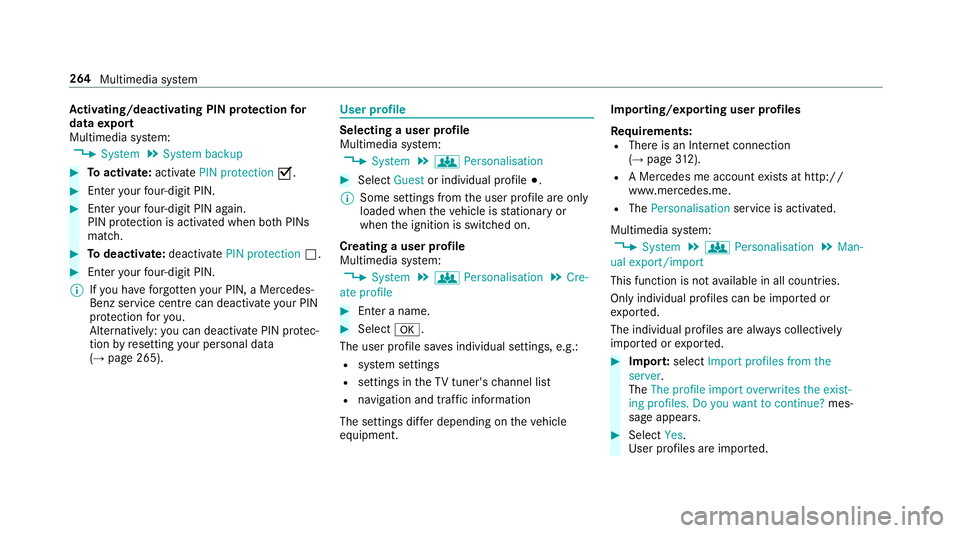
Ac
tivating/deactivating PIN pr otection for
data export
Multimedia sy stem:
, System .
System backup #
Toactivate: activatePIN protection O.#
Enter your four-digit PIN. #
Enteryo ur four-digit PIN again.
PIN pr otection is activated when bo thPINs
match. #
Todeactivate: deactivatePIN protection ª.#
Enter your four-digit PIN.
% Ifyo u ha veforg ottenyo ur PIN, a Mercedes-
Benz service centre can deactivate your PIN
pr otection foryo u.
Alternatively: you can deactivate PIN pr otec‐
tion byresetting your personal data
(→ page 265). User profile
Selecting a user profile
Multimedia sy stem:
, System .
g Personalisation #
Select Guestor individual profile #.
% Some settings from the user profile are only
loaded when theve hicle is stationary or
when the ignition is switched on.
Creating a user profile
Multimedia sy stem:
, System .
g Personalisation .
Cre-
ate profile #
Ente r a name. #
Select a.
The user profile sa ves individual settings, e.g.:
R system settings
R settings in theTV tuner's channel list
R navigation and traf fic information
The settings di ffer depending on theve hicle
equipment. Importing/exporting user profiles
Re quirements:
R There is an Internet connection
(→ page 312).
R A Mercedes me account exists at http://
www.me rcedes.me.
R The Personalisation service is activated.
Multimedia sy stem:
, System .
g Personalisation .
Man-
ual export/import
This function is not available in all countries.
On lyindividual profiles can be impor ted or
ex por ted.
The individual profiles are alw ays collectively
impor ted or expor ted. #
Impor t:select Import profiles from the
server.
The The profile import overwrites the exist-
ing profiles. Do you want to continue? mes‐
sage appears. #
Select Yes.
User profiles are impor ted. 264
Multimedia sy stem
Page 268 of 521
#
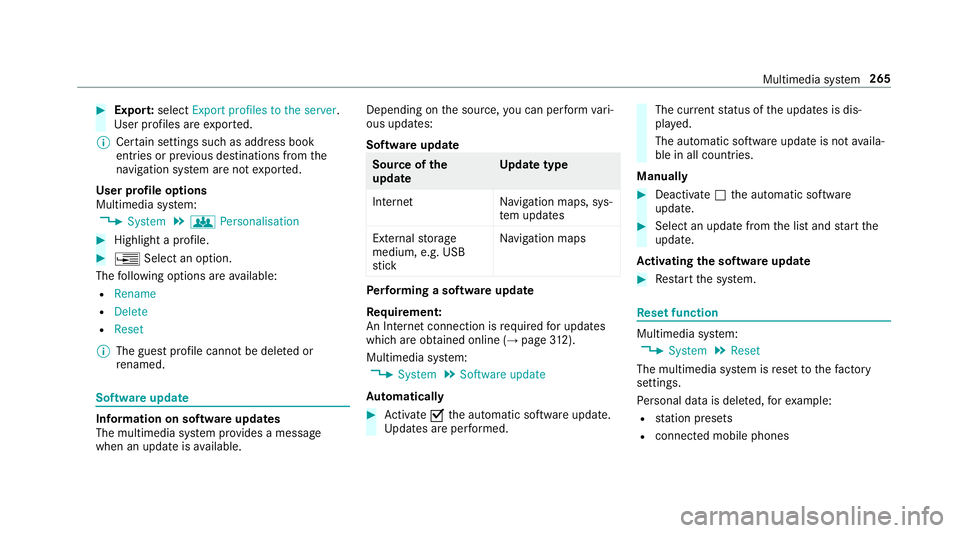
Expor t:select Export profiles to the server.
User profiles are expor ted.
% Certain settings such as address book
ent ries or pr evious destinations from the
navigation sy stem are not expor ted.
User profile options
Multimedia sy stem:
, System .
g Personalisation #
Highlight a profile. #
¥ Select an option.
The following options are available:
R Rename
R Delete
R Reset
% The guest profile cannot be dele ted or
re named. So
ftwa reupdate Information on software updates
The multimedia sy
stem pr ovides a message
when an update is available. Depending on
the source, you can per form vari‐
ous updates:
Software update Source of
the
update Up
date type
Interne tN avigation maps, sys‐
te m updates
External storage
medium, e.g. USB
st ick Na
vigation maps Pe
rforming a software upda te
Re quirement:
An Internet connection is requ ired for updates
which are obtained online (→ page312).
Multimedia sy stem:
, System .
Software update
Au tomatically #
Activate Othe automatic software update.
Up dates are per form ed. The cur
rent status of the updates is dis‐
pla yed.
The automatic software update is not availa‐
ble in all countries.
Manually #
Deactivate ªthe automatic software
update. #
Select an update from the list and start the
update.
Ac tivating the so ftwa reupdate #
Restart the sy stem. Re
set function Multimedia sy
stem:
, System .
Reset
The multimedia sy stem is reset tothefa ctory
settings.
Pe rsonal data is dele ted, forex ample:
R station presets
R connec ted mobile phones Multimedia sy
stem 265
Page 280 of 521
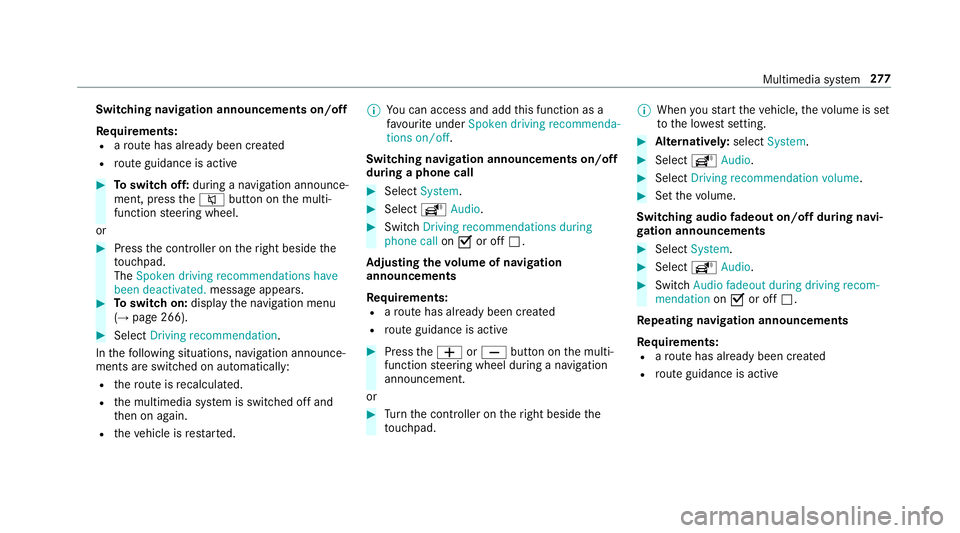
Switching navigation announcements on/off
Re quirements:
R aro ute has already been created
R route guidance is active #
Toswitch off: during a navigation announce‐
ment, press the8 button on the multi‐
function steering wheel.
or #
Press the controller on theright beside the
to uchpad.
The Spoken driving recommendations have
been deactivated. message appears.#
Toswitch on: displaythe navigation menu
(→ page 266). #
Select Driving recommendation .
In thefo llowing situations, navigation announce‐
ments are switched on automatically:
R thero ute is recalculated.
R the multimedia sy stem is switched off and
th en on again.
R theve hicle is restar ted. %
You can access and add this function as a
fa vo urite under Spoken driving recommenda-
tions on/off.
Swit ching navigation announcements on/off
during a phone call #
Select System. #
Select õAudio. #
Swit chDriving recommendations during
phone call onO or off ª.
Ad justing the volume of navigation
announcements
Re quirements:
R aro ute has already been created
R route guidance is active #
Press theW orX button on the multi‐
function steering wheel during a navigation
announcement.
or #
Turn the controller on theright beside the
to uchpad. %
When youstart theve hicle, thevo lume is set
to the lo west setting. #
Alternativel y:select System. #
Select õAudio. #
Select Driving recommendation volume . #
Set thevo lume.
Switching audio fadeout on/o ffduring navi‐
ga tion announcements #
Select System . #
Select õAudio. #
Switch Audio fadeout during driving recom-
mendation onO or off ª.
Re peating navigation announcements
Re quirements:
R aro ute has already been created
R route guidance is active Multimedia sy
stem 277