ECO mode MERCEDES-BENZ E-CLASS CABRIOLET 2018 User Guide
[x] Cancel search | Manufacturer: MERCEDES-BENZ, Model Year: 2018, Model line: E-CLASS CABRIOLET, Model: MERCEDES-BENZ E-CLASS CABRIOLET 2018Pages: 589, PDF Size: 10.56 MB
Page 261 of 589
St
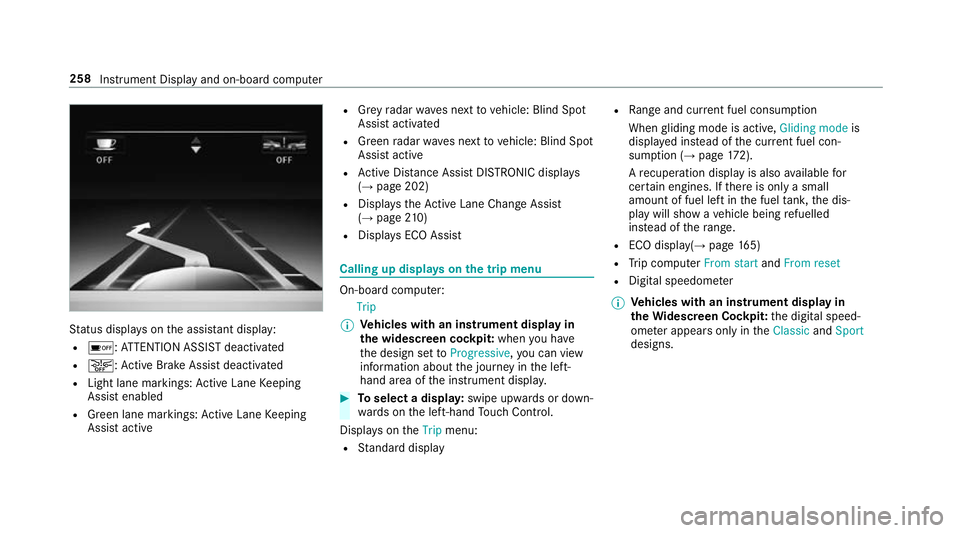
atus displa yson the assis tant displ ay:
R é :AT TENTION ASSIST deactivated
R æ: Active Brake Assi stdeactivated
R Light lane markings: Active Lane Keeping
Assist enabled
R Green lane markings: Active Lane Keeping
Assist active R
Grey radar waves next tovehicle: Blind Spot
Assist activated
R Green radar waves next tovehicle: Blind Spot
Assist active
R Active Dis tance Assi stDISTRONIC displa ys
( → page 202)
R Displa ys theAc tive Lane Change Assi st
( → page 210)
R Displ ays ECO Assist Calling up displa
yson the trip menu On-board computer:
Trip
% Ve
hicles with an instrument display in
th e widescreen cockpit: whenyou ha ve
th e design set toProgressive ,yo u can view
information about the journey in the left-
hand area of the instrument displa y. #
Toselect a displa y:swipe upwards or down‐
wa rds on the left-hand Touch Control.
Displa yson theTrip menu:
R Standard display R
Range and cur rent fuel consu mption
When gliding mode is active, Gliding modeis
displa yed ins tead of the cur rent fuel con‐
su mp tion (→ page 172).
A recuperation displ ayis also available for
cer tain engines. If there is only a small
amount of fuel left in the fuel tank, the dis‐
play will show a vehicle being refuelled
ins tead of thera nge.
R ECO displ ay(→page 165)
R Trip computer From startandFrom reset
R Digital speedom eter
% Ve
hicles with an instrument display in
th eWi descreen Co ckpit: the digital speed‐
ome ter appears only in theClassic andSport
designs. 258
Instrument Display and on-board computer
Page 267 of 589
#
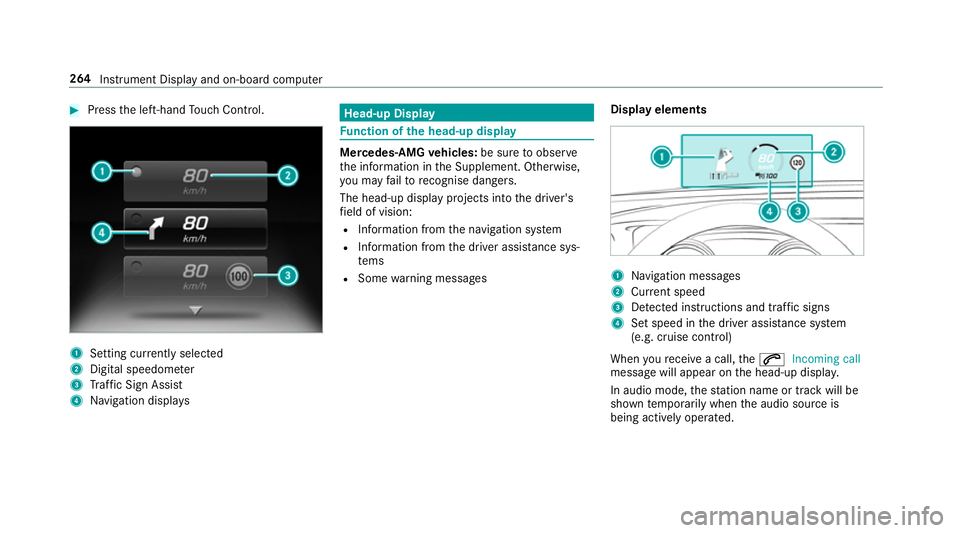
Press the left-hand Touch Control. 1
Setting cur rently selected
2 Digital speedome ter
3 Traf fic Sign Assi st
4 Navigation displa ys Head-up Display
Fu
nction of the head-up display Mercedes-AMG
vehicles: be sure toobser ve
th e information in the Supplement. Otherwise,
yo u may failto recognise dangers.
The head-up displ ayprojects into the driver's
fi eld of vision:
R Information from the navigation sy stem
R Information from the driver assis tance sys‐
te ms
R Some warning messages Display elements 1
Navigation messa ges
2 Current speed
3 Detected instructions and traf fic signs
4 Set speed in the driver assis tance sy stem
(e.g. cruise control)
When youre cei vea call, the6 Incoming call
message will appear on the head-up displa y.
In audio mode, thest ation name or track will be
shown temp orarily when the audio source is
being actively operated. 264
Instrument Display and on-board computer
Page 319 of 589
R
Incomple tedigital map data
Note s on GPS reception
The cor rect function of the navigation sy stem
depends amongst other things on GPS recep‐
tion. In cer tain situations GPS reception can be
impaired, defective or even not possible, e.g. in
tunnels or in multi-s torey car par ks.
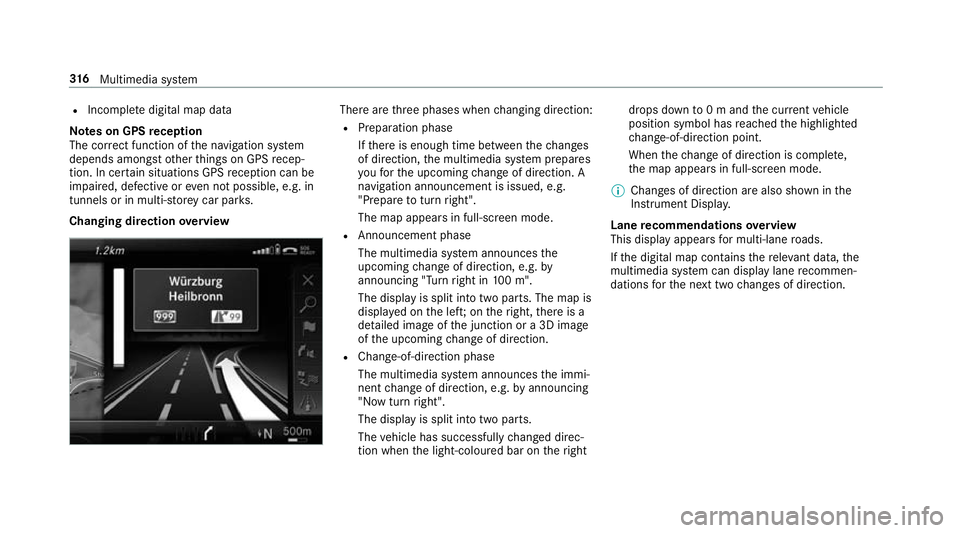
Changing direction overview There are
thre e phases when changing direction:
R Preparation phase
Ifth ere is enough time between thech anges
of direction, the multimedia sy stem prepares
yo ufo rth e upcoming change of direction. A
navigation announcement is issued, e.g.
"Prepare toturn right".
The map appears in full-screen mode.
R Announcement phase
The multimedia sy stem announces the
upcoming change of direction, e.g. by
announcing "Turn right in 100 m".
The display is split into two parts. The map is
displa yed on the lef t;on theright, there is a
de tailed image of the junction or a 3D image
of the upcoming change of direction.
R Chan ge-of-direction phase
The multimedia sy stem announces the immi‐
nent change of direction, e.g. byannouncing
"N ow turn right".
The display is split into two parts.
The vehicle has successfully changed direc‐
tion when the light-coloured bar on theright drops down
to0 m and the cur rent vehicle
position symbol has reached the highlighted
ch ange-of-direction point.
When thech ange of direction is comple te,
th e map appears in full-screen mode.
% Changes of direction are also shown in the
Instrument Displa y.
Lane recommendations overview
This display appears for multi-lane roads.
If th e digital map conta insthere leva nt da ta,the
multimedia sy stem can display lane recommen‐
dations forth e next two changes of direction. 316
Multimedia sy stem
Page 332 of 589
Displaying
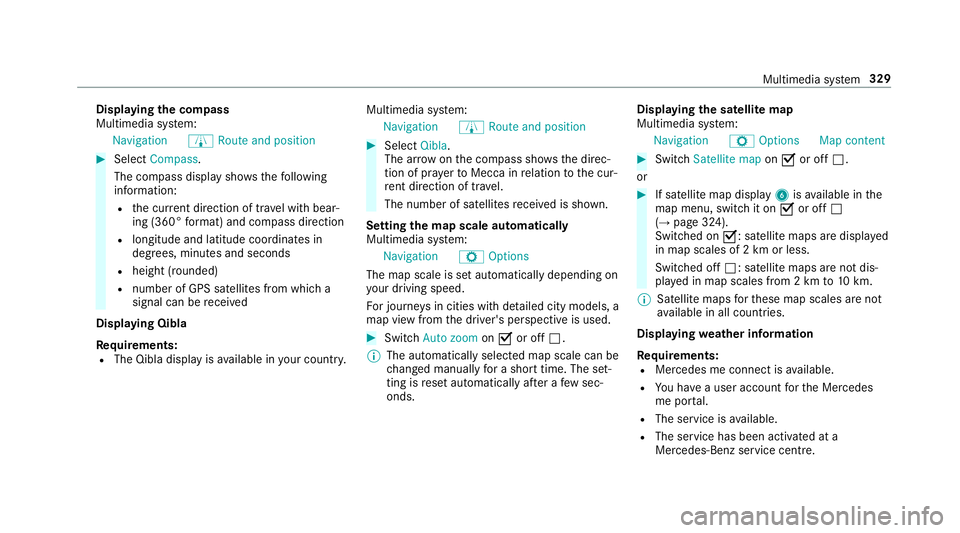
the compass
Multimedia sy stem:
Navigation ÀRoute and position #
Select Compass.
The compass display sho wsthefo llowing
information:
R the cur rent di rection of tr avel with bear‐
ing (360° form at) and compass direction
R longitude and latitude coo rdinates in
degrees, minutes and seconds
R height (rounded)
R number of GPS satellites from which a
signal can be recei ved
Displaying Qibla
Requ irements:
R The Qibla display is available in your count ry.Multimedia sy
stem:
Navigation ÀRoute and position #
Select Qibla.
The ar rowonthe compass sho wsthe direc‐
tion of pr ayer toMecca in relation tothe cur‐
re nt di rection of tr avel.
The number of satellites recei ved is shown.
Setting the map scale automatically
Multimedia sy stem:
Navigation ZOptions
The map scale is set automatically depending on
yo ur driving speed.
Fo r journe ysin cities with de tailed city models, a
map view from the driver's perspective is used. #
Switch Auto zoom onO or off ª.
% The automatically selected map scale can be
changed manually for a short time. The set‐
ting is reset automatically af ter a few sec‐
onds. Displaying
the satellite map
Multimedia sy stem:
Navigation ZOption sM ap content #
Swit chSatellite map onO or off ª.
or #
If sa tellite map display 6isavailable in the
map menu, switch it on Oor off ª
(→ page 324).
Switched on O: satellite maps are displa yed
in map scales of 2 km or less.
Swit ched off ª: satellite maps are not dis‐
pla yed in map scales from 2 km to10 km.
% Satelli temaps forth ese map scales are not
av ailable in all countries.
Displ aying weather information
Re quirements:
R Mercedes me connect is available.
R You ha vea user account forth e Mercedes
me por tal.
R The service is available.
R The service has been activated at a
Mercedes-Benz service centre. Multimedia sy
stem 329
Page 335 of 589
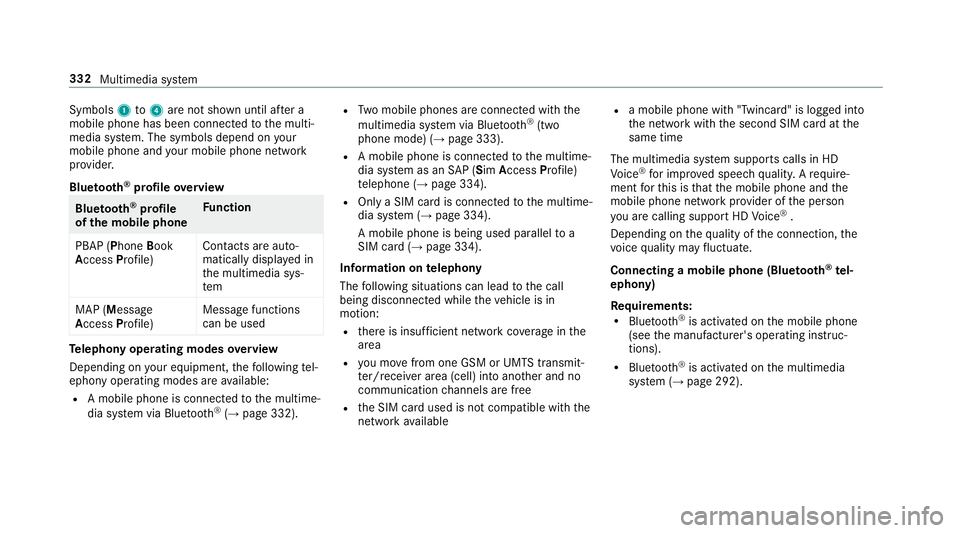
Symbols
1to4 are not shown until af ter a
mobile phone has been connected tothe multi‐
media sy stem. The symbols depend on your
mobile phone and your mobile phone network
pr ov ider.
Blu etoo th®
pr ofile overview Blue
tooth ®
profile
of the mobile phone Fu
nction
PBAP (Phone Book
Access Profile) Contacts are auto‐
matically displa
yed in
th e multimedia sys‐
tem
MAP (Message
Access Profile) Message functions
can be used Te
lephony operating modes overview
Depending on your equipment, thefo llowing tel‐
ephony operating modes are available:
R A mobile phone is connec tedto the multime‐
dia sy stem via Blue tooth®
(→ page 332). R
Two mobile phones are connected with the
multimedia sy stem via Blue tooth®
(two
phone mode) (→ page 333).
R A mobile phone is connec tedto the multime‐
dia sy stem as an SAP (Sim Access Profile)
te lephone (→ page 334).
R Only a SIM card is connec tedto the multime‐
dia sy stem (→ page 334).
A mobile phone is being used parallel to a
SIM card (→ page 334).
Information on telephony
The following situations can lead tothe call
being disconnected while theve hicle is in
motion:
R there is insuf ficient network co verage inthe
area
R you mo vefrom one GSM or UMTS transmit‐
te r/receiver area (cell) into ano ther and no
communication channels are free
R the SIM card used is not compatible with the
network available R
a mobile phone with "Twincard" is logged into
th e network with the second SIM card at the
same time
The multimedia sy stem supports calls in HD
Vo ice ®
for impr oved speech qualit y.Arequ ire‐
ment forth is is that the mobile phone and the
mobile phone network pr ovider of the person
yo u are calling suppo rtHD Voice ®
.
Depending on thequ ality of the connection, the
vo ice quality may fluctuate.
Connecting a mobile phone (Blu etoo th®
te l‐
ephony)
Re quirements:
R Blue tooth ®
is activated on the mobile phone
(see the manufacturer's operating instruc‐
tions).
R Blue tooth ®
is activated on the multimedia
sy stem (→ page 292). 332
Multimedia sy stem
Page 336 of 589
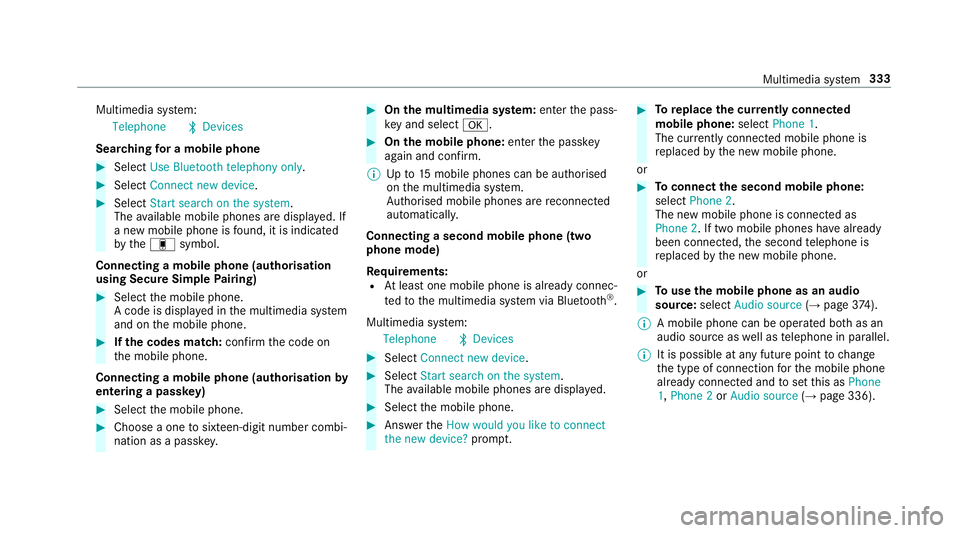
Multimedia sy
stem:
Telephone ªDevices
Sear ching for a mobile phone #
Select Use Bluetooth telephony only. #
Select Connect new device .#
Select Start search on the system .
The available mobile phones are displa yed. If
a new mobile phone is found, it is indicated
by the# symbol.
Connecting a mobile phone (authorisation
using Secure Simple Pairing) #
Select the mobile phone.
A code is displa yed in the multimedia sy stem
and on the mobile phone. #
Ifth e codes match: confirm the code on
th e mobile phone.
Connecting a mobile phone (authorisation by
entering a passk ey) #
Select the mobile phone. #
Choose a one tosixteen-digit number combi‐
nation as a passk ey. #
On the multimedia sy stem: enter the pass‐
ke y and select a. #
On the mobile phone: enterthe passk ey
again and con firm.
% Upto15 mobile phones can be auth orised
on the multimedia sy stem.
Auth orised mobile phones are reconnected
au tomatical ly.
Connecting a second mobile phone (two
phone mode)
Re quirements:
R Atleast one mobile phone is already connec‐
te dto the multimedia sy stem via Blue tooth ®
.
Multimedia sy stem:
Telephone ªDevices #
Select Connect new device. #
Select Start search on the system .
The available mobile phones are displa yed. #
Select the mobile phone. #
Answer theHow would you like to connect
the new device? prompt. #
Toreplace the cur rently connected
mobile phone: selectPhone 1.
The cur rently connected mobile phone is
re placed bythe new mobile phone.
or #
Toconnect the second mobile phone:
select Phone 2.
The new mobile phone is connec ted as
Phone 2. If two mobile phones ha vealready
been connec ted, the second telephone is
re placed bythe new mobile phone.
or #
Touse the mobile phone as an audio
source: selectAudio source (→page 374).
% A mobile phone can be operated bo thas an
audio source as well as telephone in parallel.
% It is possible at any future point tochange
th e type of connection forth e mobile phone
already connected and toset this as Phone
1, Phone 2 orAudio source (→page 336). Multimedia sy
stem 333
Page 359 of 589
Fu
nction of the emer gency call sy stem self-
diagnosis (Russia)
Yo ur car verifies the operability of the emer‐
ge ncy call sy stem each time the ignition is ON.
In case of sy stem failure, you will be informed
with text messa geon the instrument clus ter and
with red indicator SOS NOT READY onthe media
displa y.
Please, make sure, that during 30 seconds af ter
switching ignition ON there d indicator SOS
NOT READY inthe upper right corner of the
media display is switched OFF, this means the
emer gency call sy stem passed diagnostics suc‐
cessfully. If necessar y,switch ON the media dis‐
pla y,if it was switched OFF before.
St arting/ending ERA-GLONASS test mode
(Russia)
Re quirements:
R The star ter battery is suf ficiently charge d.
R The ignition is switched on.
R The vehicle has been stationary for at least
one minute. #
Tostart thete st mode: press and hold the
~ button on the multifunction steering
wheel for at least five seconds.
The test mode is star ted and automatically
ends af terth e language test has been per‐
fo rm ed. #
Toend thete st mode manuall y:switch off
th e ignition.
The test mode is ended. Online and Internet functions
Internet connection
Information on connecting
tothe Internet &
WARNING Risk of di stra ction from infor‐
mation sy stems and communications
equipment
If yo u operate information and communica‐
tion equipment integ rated in theve hicle
when driving, you will be distracted from the
traf fic situation. This could also cause youto
lose control of theve hicle. #
Only operate this equipment when the
traf fic situation permits. #
Ifyo u cannot be sure of this, stop the
ve hicle whilst paying attention toroad
and traf fic conditions and ope rate the
equipment with theve hicle stationar y. Yo
u must obse rveth e legal requirements forthe
country in whi chyou are cur rently driving when
operating the multimedia sy stem. &
WARNING Risk of di stra ction from oper‐
ating mobile communication equipment
while theve hicle is in motion
If yo u operate mobile communication equip‐
ment when driving, you will be distracted
from the tra ffic situation. This could also
cause youto lose control of theve hicle. #
Only operate this equipment when the
ve hicle is stationar y. Yo
u must obse rveth e legal requirements forthe
country in whi chyou are cur rently driving when 356
Multimedia sy stem
Page 371 of 589
Connecting USB devices
* NO
TEDama gecaused byhigh temp era‐
tures High
temp eratures can damage USB devices. #
Remo vethe USB device af ter use and
ta ke it out of theve hicle. The multimedia connection unit is
found in the
stow age compartment under the armrest and
has two USB ports.
Depending on theve hicle's equipment, addi‐
tional USB ports can be found in thestow age
compartment of the cent reconsole and in the
re ar passenger compartment. #
Connect the USB device tothe USB port.
Pla yable music files are pla yed back only if
th e cor responding media display is activated.
% Use the USB port identified byç touse
Apple CarPlay™ and Android Auto.
% Depending on theve hicle equipment there is
an additional USB port in there ar passenger
compartment. Ports th at are labelled with a bat
tery symbol can only be used tocharge
USB devices.
Selecting a track in the media playba ck
Multimedia sy stem:
Media
Selecting a track byskipping toa track #
Toskip backwards or forw ards toa
track: navigate up or down.
Selecting a track using the cur rent track list #
Select è. #
Select Current track list. #
Select a tra ck.
Selecting playback options
Multimedia sy stem:
Media ZOptions
Playing back similar trac ks #
Select Play similar tracks.
A track li stwith similar trac ksis created and
pla yed bac k. Playback mode #
Select Random playback of the current track
list.
The cur rent track li stis pla yed in random
orde r. #
Select Random playback of the current
medium.
All trac kson the active data storage medium
are pla yed in random orde r. #
Select Normal track sequence .
The cur rent track li stis pla yed in the order it
appears on the data storage medium.
Controlling media playback
Multimedia sy stem:
Media YPlayback control
A bar with playback controls is shown. #
Topause playback: select and confirm
Y with th e cent ral control element.
The Ë symbol is displa yed. #
Toresume playback: select and confirm
Y again with the cent ral control element.
The Ì symbol is displa yed. 368
Multimedia sy stem
Page 387 of 589
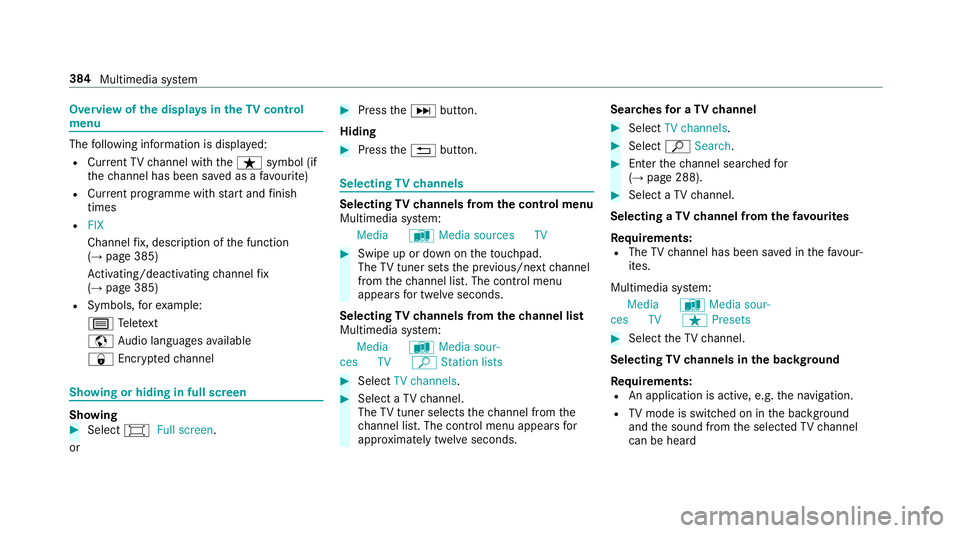
Overview of
the displa ysintheTV cont rol
menu The
following information is displa yed:
R Cur rent TV channel with theß symbol (if
th ech annel has been sa ved as a favo urite)
R Cur rent programme wi thstart and finish
times
R FIX
Channel fix, description of the function
(→ page 385)
Ac tivating/deactivating channel fix
( → page 385)
R Symbols, forex ample:
p Telete xt
z Audio languages available
r Encryp tedch annel Showing or hiding in full screen
Showing
#
Select #Full screen .
or #
Press theD button.
Hiding #
Press the% button. Selecting
TVchannels Selecting
TVchannels from the control menu
Multimedia sy stem:
Media àMedia sources TV #
Swipe up or down on theto uchpad.
The TVtuner sets the pr evious/n extch annel
from thech annel list. The control menu
appears for twelve seconds.
Selecting TVchannels from thech annel list
Multimedia sy stem:
Media àMedia sour-
ces TV ªStation lists #
Select TV channels. #
Select a TVchannel.
The TVtuner selects thech annel from the
ch annel list. The control menu appears for
appr oximately twelve seconds. Sear
ches for a TVchannel #
Select TV channels . #
Select ªSearch . #
Enter thech annel sear ched for
( → page 288). #
Select a TVchannel.
Selecting a TVchannel from thefa vo urites
Re quirements:
R The TVchannel has been sa ved in thefa vo ur‐
ites.
Multimedia sy stem:
Media àMedia sour-
ces TV ßPresets #
Select theTV channel.
Selecting TVchannels in the bac kground
Re quirements:
R An application is active, e.g. the navigation.
R TVmode is switched on in the bac kground
and the sound from the selected TVchannel
can be heard 384
Multimedia sy stem
Page 389 of 589
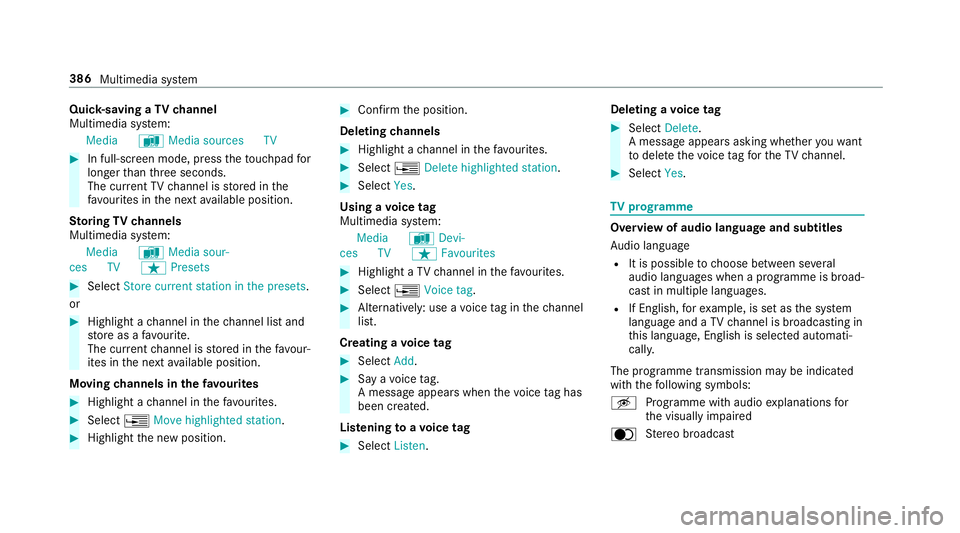
Quic
k-saving a TVchannel
Multimedia sy stem:
Media àMedia sources TV #
In full-screen mode, press theto uchpad for
longer than thre e seconds.
The cur rent TV channel is stored in the
fa vo urites in the next available position.
St oring TVchannels
Multimedia sy stem:
Media àMedia sour-
ces TV ßPresets #
Select Store current station in the presets .
or #
Highlight a channel in thech annel list and
st ore as a favo urite.
The cur rent channel is stored in thefa vo ur‐
ites in the next available position.
Moving channels in thefa vo urites #
Highlight a channel in thefa vo urites. #
Select ¥Move highlighted station. #
Highlight the new position. #
Confirm the position.
Deleting channels #
Highlight a channel in thefa vo urites. #
Select ¥Delete highlighted station. #
Select Yes.
Using a voice tag
Multimedia sy stem:
Media àDevi-
ces TV ßFavourites #
Highlight a TVchannel in thefa vo urites. #
Select ¥Voice tag . #
Alternatively: use a voice tag inthech annel
list.
Creating a voice tag #
Select Add. #
Say a voice tag.
A messa geappears when thevo ice tag has
been created.
Lis tening toavo ice tag #
Select Listen. Deleting a
voice tag #
Select Delete.
A message appears asking whe ther youwa nt
to dele tethevo ice tagfo rth eTV channel. #
Select Yes. TV
prog ramme Overvi
ewof audio language and subtitles
Au dio language
R It is possible tochoose between se veral
audio languages when a programme is broad‐
cast in multiple languages.
R If En glish, forex ample, is set as the sy stem
language and a TVchannel is broadcasting in
th is language, En glish is selec ted automati‐
cally.
The prog ramme transmission may be indica ted
with thefo llowing symbols:
m Programme with audio explanations for
th e visually impaired
o Stereo broadcast 386
Multimedia sy stem