audio MERCEDES-BENZ E-Class COUPE 2010 C212 Comand Manual
[x] Cancel search | Manufacturer: MERCEDES-BENZ, Model Year: 2010, Model line: E-Class COUPE, Model: MERCEDES-BENZ E-Class COUPE 2010 C212Pages: 224, PDF Size: 7.4 MB
Page 15 of 224
normal and random options ...........144
rear seat entertainment system .....175
steering wheel operation .................28
voice commands for ......................204
Track selection (video) ..... 160, 161, 179
voice commands for ......................204
Traffic lane recommendations ........... 83
Traffic messages ................................. 87
Traffic symbol information ................. 90
Training for voice control ................... 42
Transmit volume (phone) ................. 101
Treble setting
main system .................................... 35
rear seat entertainment system .....171
Troubleshooting
voice control .................................. 211
U
Units of measurement, navigation .... 52
Updating Gracenote ®
Media
Database ............................................ 143
Updating map software ...................... 48
USB devices
connecting to ................................. 147
playback options ............................ 152
playlists and folders .......................150
selecting active partition ...............152
selecting tracks .....................150, 152
V
Vehicle location (current)
displaying ......................................... 58
GPS reception .................................. 51
moving map to ................................. 55
saving in Last Destinations ........54, 95
Video .................................................. 156
control menu, displaying/hiding ....158
handling and care of discs .............156
interactive content ........................162
operating DVD menu .............160, 180
picture settings .............................. 160
rear seat entertainment system .....177
voice control with .......................... 211
Video Aux (auxiliary)
main system .................................. 163
rear seat entertainment system .....168
Voice control ..................................... 186
canceling the dialog .......................188
command list ................................. 205
creating voice names .....................198
general operation .......................... 186
help function .................................. 213
interrupting the dialog ...................187
operating safety ............................. 186
settings ............................................ 42
starting the dialog ..........................187
switching help screen on or off ........42
training for voice recognition ...........42
troubleshooting ............................. 211
with address book .........116, 197, 211
with DVD changer ..........................203
with external equipment (Aux) .......205
with navigation .............................. 191
with phone ..................................... 188
with radio and satellite radio .........201
Voice mail, voice control for ............ 191
Voice names, creating ...................... 198
Volume (loudness)
COMAND ......................................... 34
external audio sources ..........153, 163
mobile phones ............................... 101
muting COMAND ............................. 34
navigation announcements ........35, 85
phone calls ...................................... 35
voice command ............................. 188
wireless headsets ..........................169
W
Wireless headsets, rear seat
entertainment .................................... 168
basic operation .............................. 171
batteries for ................................... 170
muting audio playback ...................168
Y
Yahoo Local Maps ®
........................... 217
Z
ZAGAT ®
Rating Service ....................... 79
Zip code of destination, selecting ...... 65
Index13
Page 16 of 224
Where to find it
This operator's manual has been designed to
help you use your COMAND control unit in all
situations. Since not all models have the
same standard equipment, your COMAND
system equipment may deviate from some
descriptions and illustrations.
Indexes
Content and keyword indexes are intended to
help you find information quickly.
At a Glance
Here you will find an overview of the
components of COMAND. Then you will find
examples illustrating how to operate
COMAND and information on the basic
functions. If you are operating a COMAND for
the first time or have rented the vehicle, you
should first read this chapter.
System Settings
Here you will find all the important
information regarding the system settings of
the COMAND.
Navigation
Here you will find detailed information
regarding the following topics:
R Setting options for the map display and the
route calculation
R Destination input
R POI input
R Route guidance
R Traffic information
R Destination memory
Telephone
The telephone functions are described here.
You will also find information on the address
book.
Audio
Here you will find all information regarding
the audio function and its Radio, SatRadio,
CD-audio/DVD audio/MP3, Music Register,
Media Interface and Audio Aux modes.
Video
Here you will find all information regarding
the video system.
Rear Seat Entertainment (RSE)
In this chapter the Rear Seat Entertainment
is explained.
Voice Control
Here you will find information about operating
several COMAND functions via Voice Control.
Tele Aid
Here you will find information on how to use
Tele Aid and the Search & Send function.
Symbols
Trademarks ®
:
R Bluetooth ®
is a registered trademark of
Bluetooth SIG Inc.
R Logic 7 ®
is a registered trademark of
Harman International Industries,
Incorporated
14Introduction
Page 17 of 224
RMicrosoft ®
is a registered trademark of
Microsoft Corporation in the United States
and other countries
R SIRIUS and related marks are trademarks
of SIRIUS Satellite Radio Inc.
R Windows media ®
is a registered trademark
of Microsoft Corporation in the United
States and other countries
You will find the following symbols in these
operating instructions:GWarning!
Warning notices draw your attention to
hazards that may endanger your health or life,
or the health or life of others.
! Highlights hazards that may result in
damage to your COMAND.
i Helpful hints or further information you
may find useful.
XThis symbol points to
instructions for you to follow. A
number of these symbols
appearing in succession
indicates a multiple-step
procedure.OThe continuation symbol marks
an interrupted procedure which
will be continued on the next
page.( Y page 11)This symbol tells you where to
look for further information on
this subject.DisplayMessages, menu items or soft
key names appearing in the
COMAND color display are
printed in the style shown here.Operating SafetyGWarning
Any alterations of electronic components or
software can cause malfunctions.
Radio, satellite radio, amplifier, DVD changer,
navigation module, telephone and Voice
Control systems are interconnected.
Therefore, if one of the components is not
operational, or has not been removed/
replaced properly, the function of other
components could be impaired.
Such conditions might seriously impair the
operating safety of your vehicle.
We recommend to have any service work on
electronic components carried out by an
authorized Mercedes-Benz Center.
GWarning
In order to avoid distraction which could lead
to an accident, the driver should enter system
settings while the vehicle is at a standstill, and
operate the system only when permitted by
road, weather and traffic conditions.
Bear in mind that at a speed of just 30 mph
(approximately 50 km/h), your car covers a
distance of 44 feet (approximately 14 m) every
second.
COMAND supplies you with information to
help you select your route more easily and
guide you conveniently and safely to your
destination. For safety reasons, we
encourage the driver to stop the vehicle in a
safe place before answering or placing a call,
or consulting the COMAND screen to read
navigational maps, instructions, or
downloaded information.
GWarning
While the navigation system provides
directional assistance, the driver must remain
focused on safe driving behavior, especially
attention to traffic and street signs, and
should utilize the system’s audio cues while
driving.
Introduction15Z
Page 20 of 224
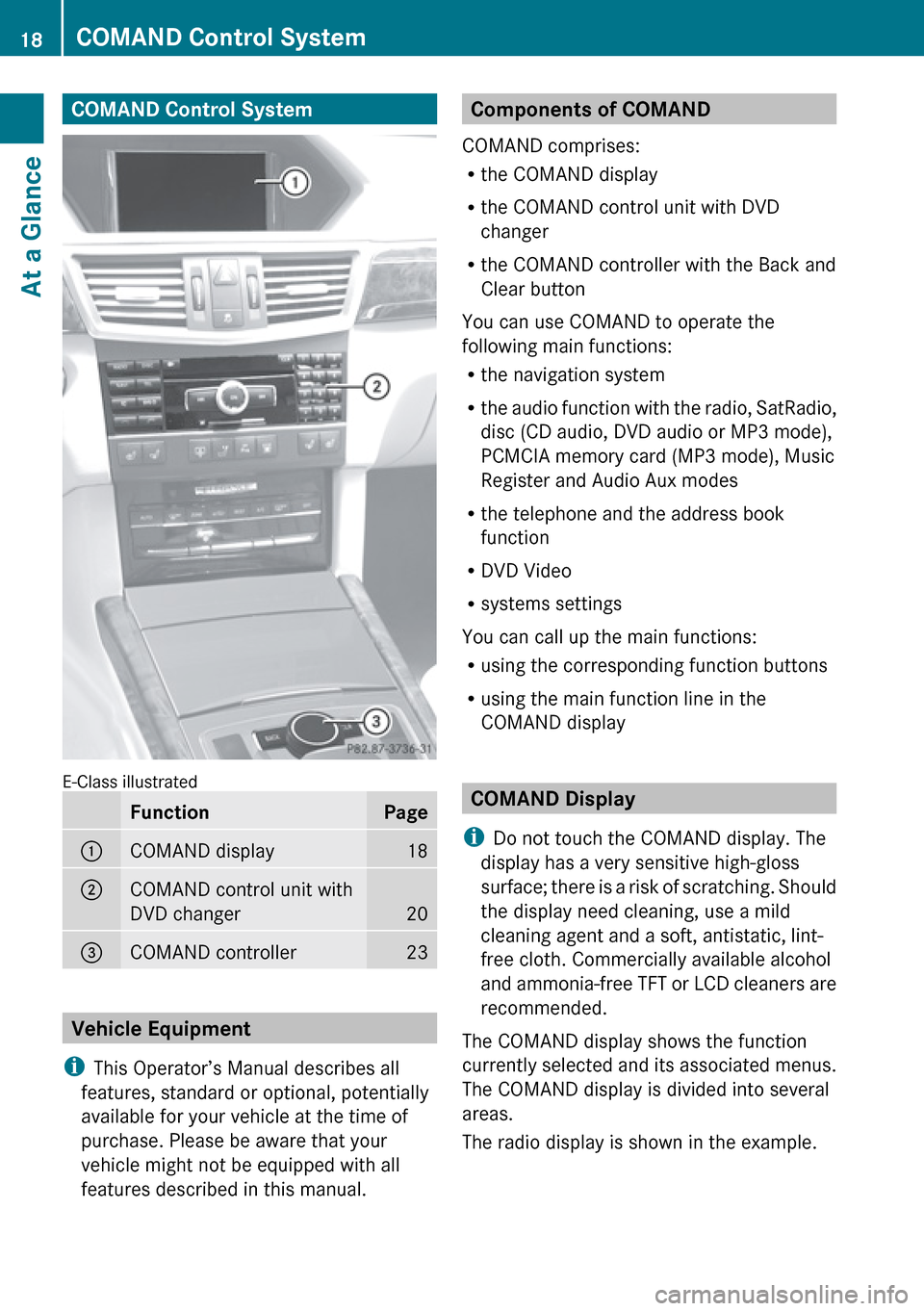
COMAND Control System
E-Class illustrated
FunctionPage1COMAND display182COMAND control unit with
DVD changer
20
3COMAND controller23
Vehicle Equipment
i This Operator’s Manual describes all
features, standard or optional, potentially
available for your vehicle at the time of
purchase. Please be aware that your
vehicle might not be equipped with all
features described in this manual.
Components of COMAND
COMAND comprises:
R the COMAND display
R the COMAND control unit with DVD
changer
R the COMAND controller with the Back and
Clear button
You can use COMAND to operate the
following main functions:
R the navigation system
R the audio function with the radio, SatRadio,
disc (CD audio, DVD audio or MP3 mode),
PCMCIA memory card (MP3 mode), Music
Register and Audio Aux modes
R the telephone and the address book
function
R DVD Video
R systems settings
You can call up the main functions:
R using the corresponding function buttons
R using the main function line in the
COMAND display
COMAND Display
i Do not touch the COMAND display. The
display has a very sensitive high-gloss
surface; there is a risk of scratching. Should
the display need cleaning, use a mild
cleaning agent and a soft, antistatic, lint-
free cloth. Commercially available alcohol
and ammonia-free TFT or LCD cleaners are
recommended.
The COMAND display shows the function
currently selected and its associated menus.
The COMAND display is divided into several
areas.
The radio display is shown in the example.
18COMAND Control SystemAt a Glance
Page 21 of 224
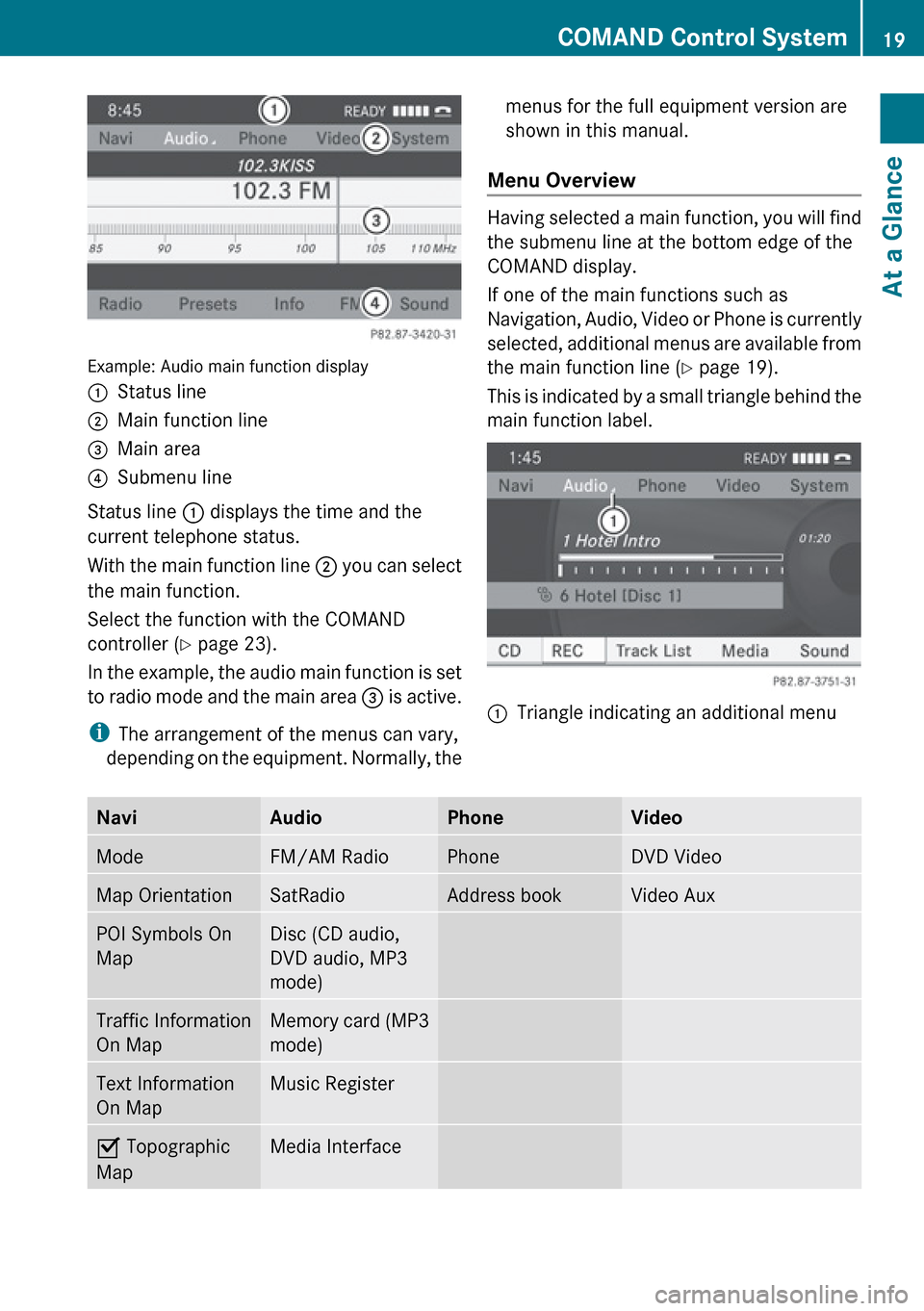
Example: Audio main function display
1Status line2Main function line3Main area4Submenu line
Status line 1 displays the time and the
current telephone status.
With the main function line 2 you can select
the main function.
Select the function with the COMAND
controller ( Y page 23).
In the example, the audio main function is set
to radio mode and the main area 3 is active.
i The arrangement of the menus can vary,
depending on the equipment. Normally, the
menus for the full equipment version are
shown in this manual.
Menu Overview
Having selected a main function, you will find
the submenu line at the bottom edge of the
COMAND display.
If one of the main functions such as
Navigation, Audio, Video or Phone is currently
selected, additional menus are available from
the main function line ( Y page 19).
This is indicated by a small triangle behind the
main function label.
1Triangle indicating an additional menuNaviAudioPhoneVideoModeFM/AM RadioPhoneDVD VideoMap OrientationSatRadioAddress bookVideo AuxPOI Symbols On
MapDisc (CD audio,
DVD audio, MP3
mode)Traffic Information
On MapMemory card (MP3
mode)Text Information
On MapMusic RegisterÇ Topographic
MapMedia InterfaceCOMAND Control System19At a GlanceZ
Page 22 of 224
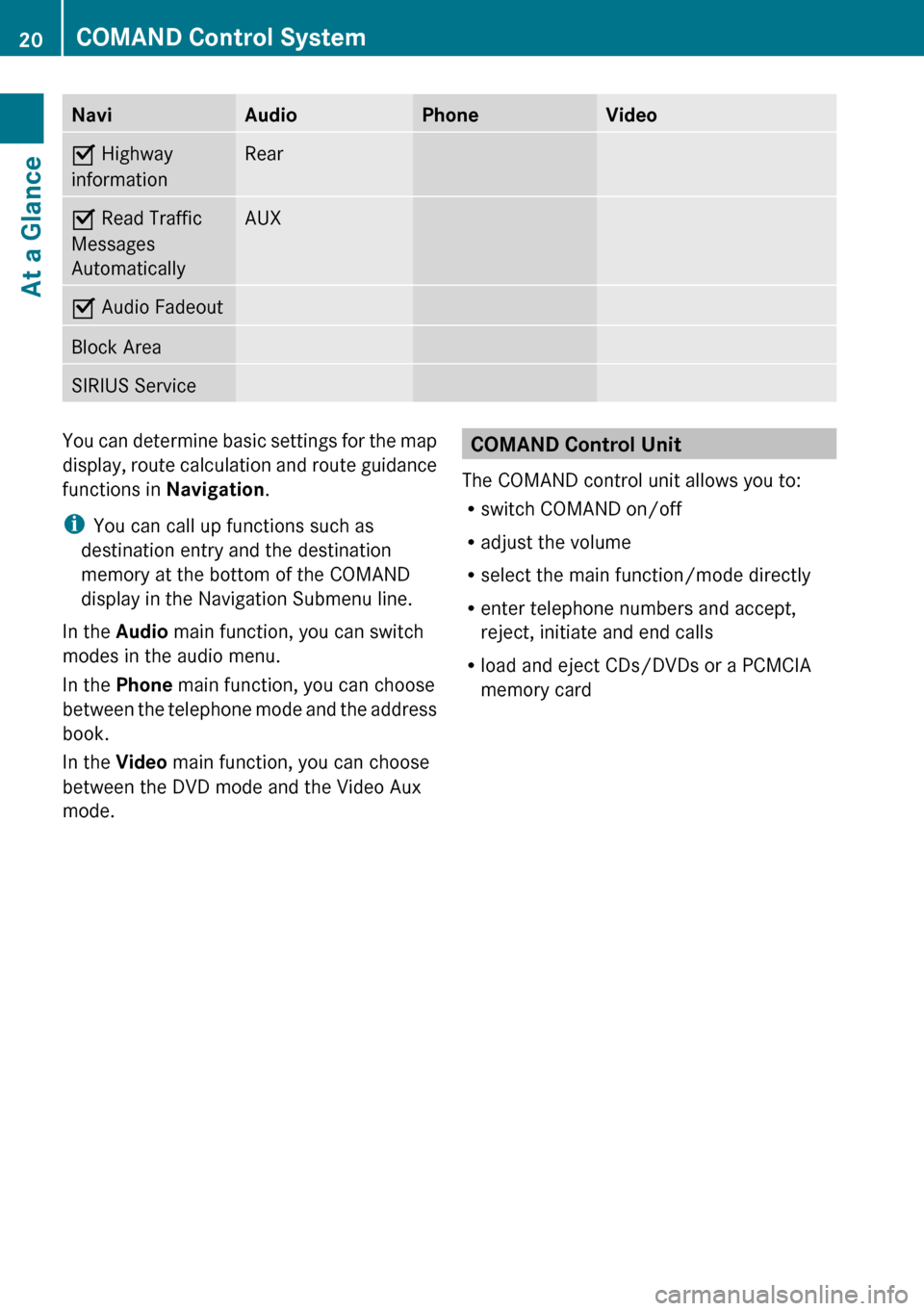
NaviAudioPhoneVideoÇ Highway
informationRearÇ Read Traffic
Messages
AutomaticallyAUXÇ Audio FadeoutBlock AreaSIRIUS ServiceYou can determine basic settings for the map
display, route calculation and route guidance
functions in Navigation.
i You can call up functions such as
destination entry and the destination
memory at the bottom of the COMAND
display in the Navigation Submenu line.
In the Audio main function, you can switch
modes in the audio menu.
In the Phone main function, you can choose
between the telephone mode and the address
book.
In the Video main function, you can choose
between the DVD mode and the Video Aux
mode.COMAND Control Unit
The COMAND control unit allows you to:
R switch COMAND on/off
R adjust the volume
R select the main function/mode directly
R enter telephone numbers and accept,
reject, initiate and end calls
R load and eject CDs/DVDs or a PCMCIA
memory card20COMAND Control SystemAt a Glance
Page 26 of 224
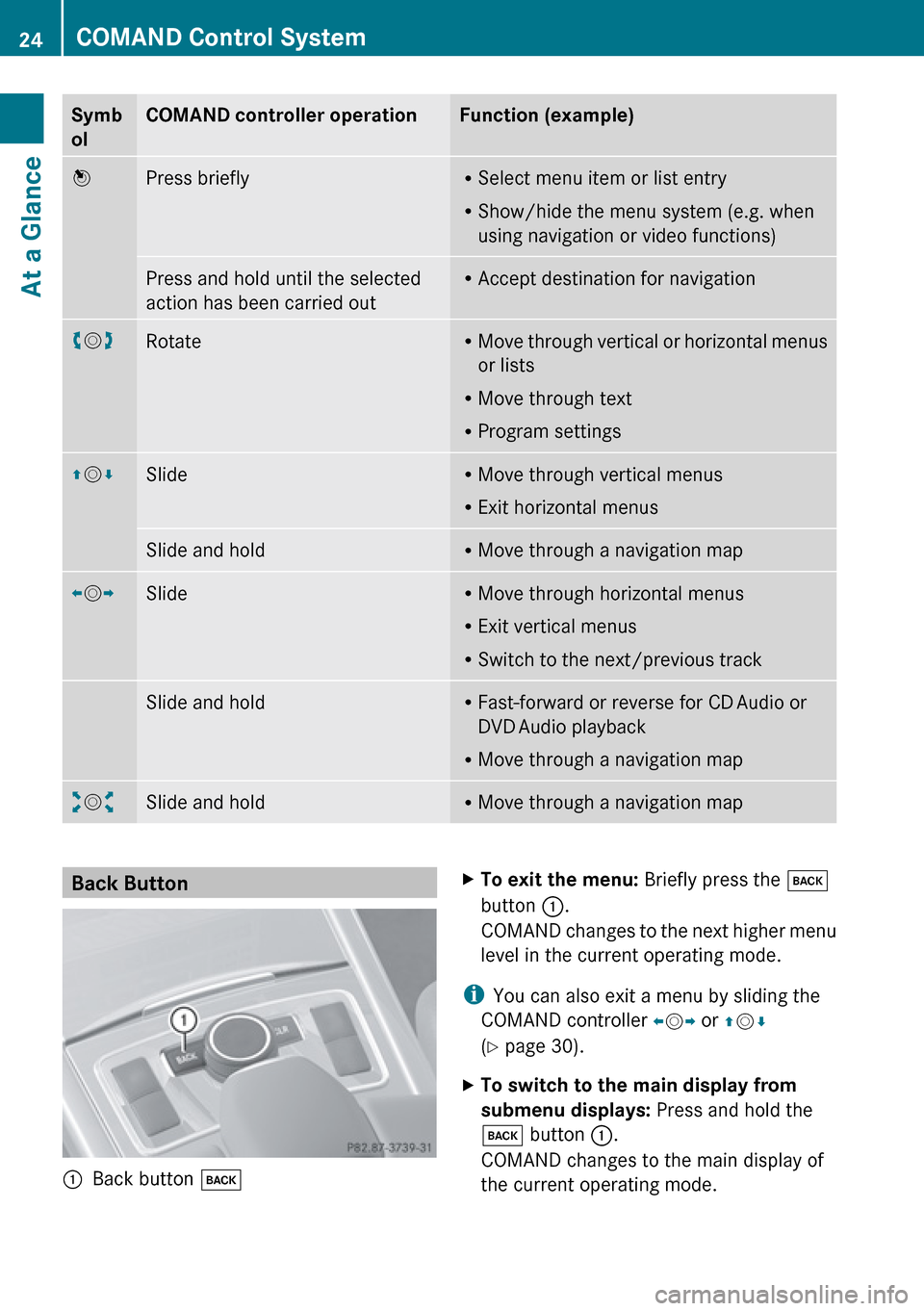
Symb
olCOMAND controller operationFunction (example)nPress brieflyR Select menu item or list entry
R Show/hide the menu system (e.g. when
using navigation or video functions)Press and hold until the selected
action has been carried outR Accept destination for navigationym zRotateR
Move through vertical or horizontal menus
or lists
R Move through text
R Program settingsqm rSlideR
Move through vertical menus
R Exit horizontal menusSlide and holdRMove through a navigation mapom pSlideR
Move through horizontal menus
R Exit vertical menus
R Switch to the next/previous trackSlide and holdRFast-forward or reverse for CD Audio or
DVD Audio playback
R Move through a navigation mapwm xSlide and holdR
Move through a navigation mapBack Button 1Back button kXTo exit the menu: Briefly press the k
button 1.
COMAND changes to the next higher menu
level in the current operating mode.
i You can also exit a menu by sliding the
COMAND controller om p or qm r
( Y page 30).
XTo switch to the main display from
submenu displays: Press and hold the
k button 1.
COMAND changes to the main display of
the current operating mode.24COMAND Control SystemAt a Glance
Page 28 of 224
driver when traffic and road conditions permit
it to be done safely.
Bear in mind that at a speed of just 30 mph
(approximately 50 km/h), your vehicle is
covering a distance of 44 feet (approximately
14 m) every second.XTo select a menu: Press the =
or ; button.XTo select a submenu or scroll in a list:
Press the 9 or : button.XTo select the next menu level up: Press
the % button.XTo select the standard display: Press the
% button repeatedly until the standard
display with the odometer and trip
odometer appears again in the display.
or
XPress and hold the % button until the
standard display with the odometer and trip
odometer appears.XTo confirm the selection: Press the
a button.XTo confirm a display message: Press the
a or % button.
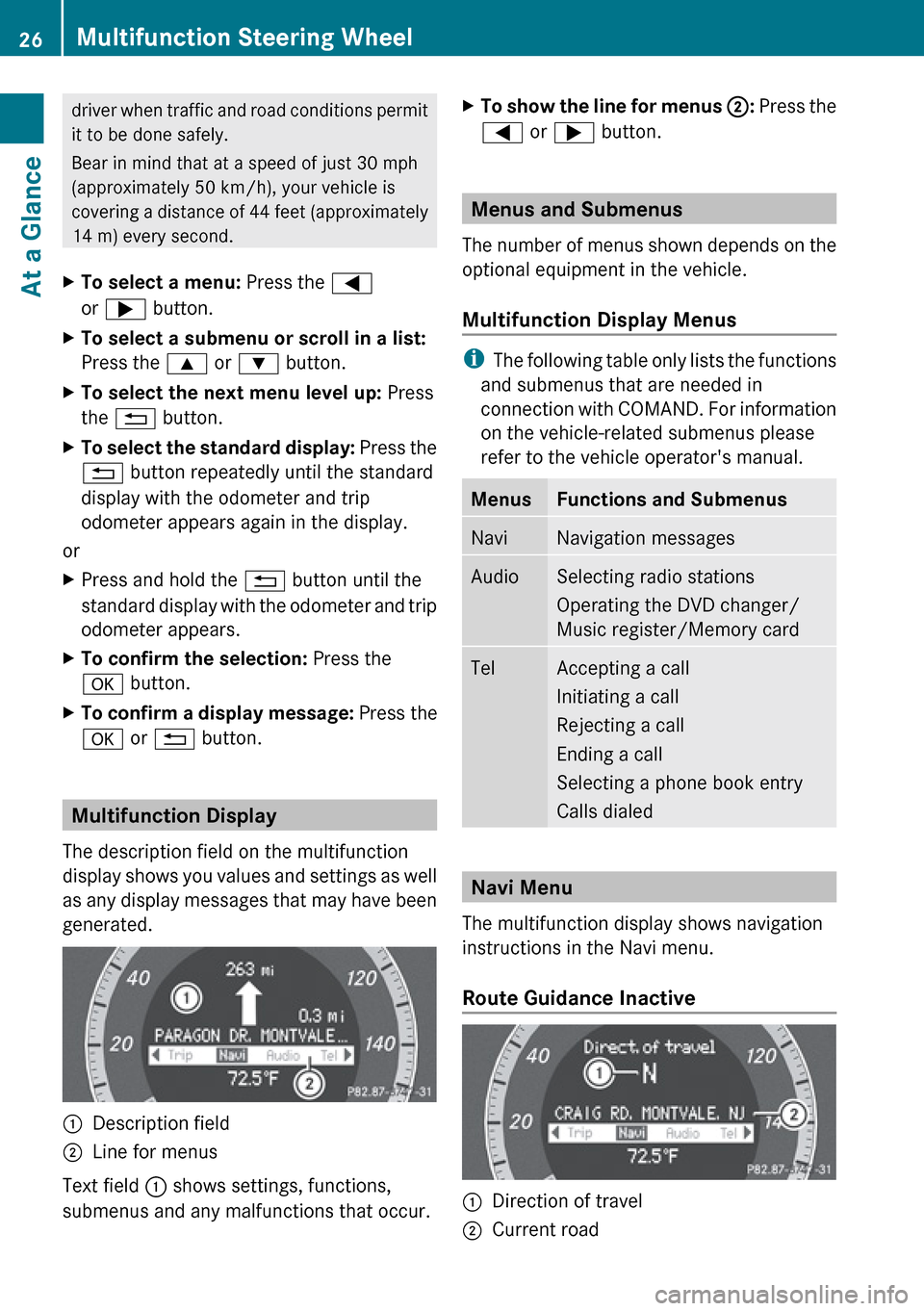
Multifunction Display
The description field on the multifunction
display shows you values and settings as well
as any display messages that may have been
generated.
1Description field2Line for menus
Text field 1 shows settings, functions,
submenus and any malfunctions that occur.
XTo show the line for menus 2: Press the
= or ; button.
Menus and Submenus
The number of menus shown depends on the
optional equipment in the vehicle.
Multifunction Display Menus
i The following table only lists the functions
and submenus that are needed in
connection with COMAND. For information
on the vehicle-related submenus please
refer to the vehicle operator's manual.
MenusFunctions and SubmenusNaviNavigation messagesAudioSelecting radio stations
Operating the DVD changer/
Music register/Memory cardTelAccepting a call
Initiating a call
Rejecting a call
Ending a call
Selecting a phone book entry
Calls dialed
Navi Menu
The multifunction display shows navigation
instructions in the Navi menu.
Route Guidance Inactive
1Direction of travel2Current road26Multifunction Steering WheelAt a Glance
Page 30 of 224
ROff Map : the vehicle is outside the range
of the digital map. The vehicle is in an off-
map position.
R Off Mapped Road : the vehicle is on a road
which is not in the digital map, or is away
from the road, for example in a car park.
R No Route : no route to the selected
destination could be calculated.
Audio Menu
Use the functions in the Audio menu to
operate the audio equipment. If no audio
equipment is switched on, the multifunction
display shows the message Audio Off.
XTo adjust the volume: Press the W or
X button.
Selecting a Radio Station/Channel
XSwitch on COMAND and select FM/ AM
Radio (Y page 123) or SatRadio
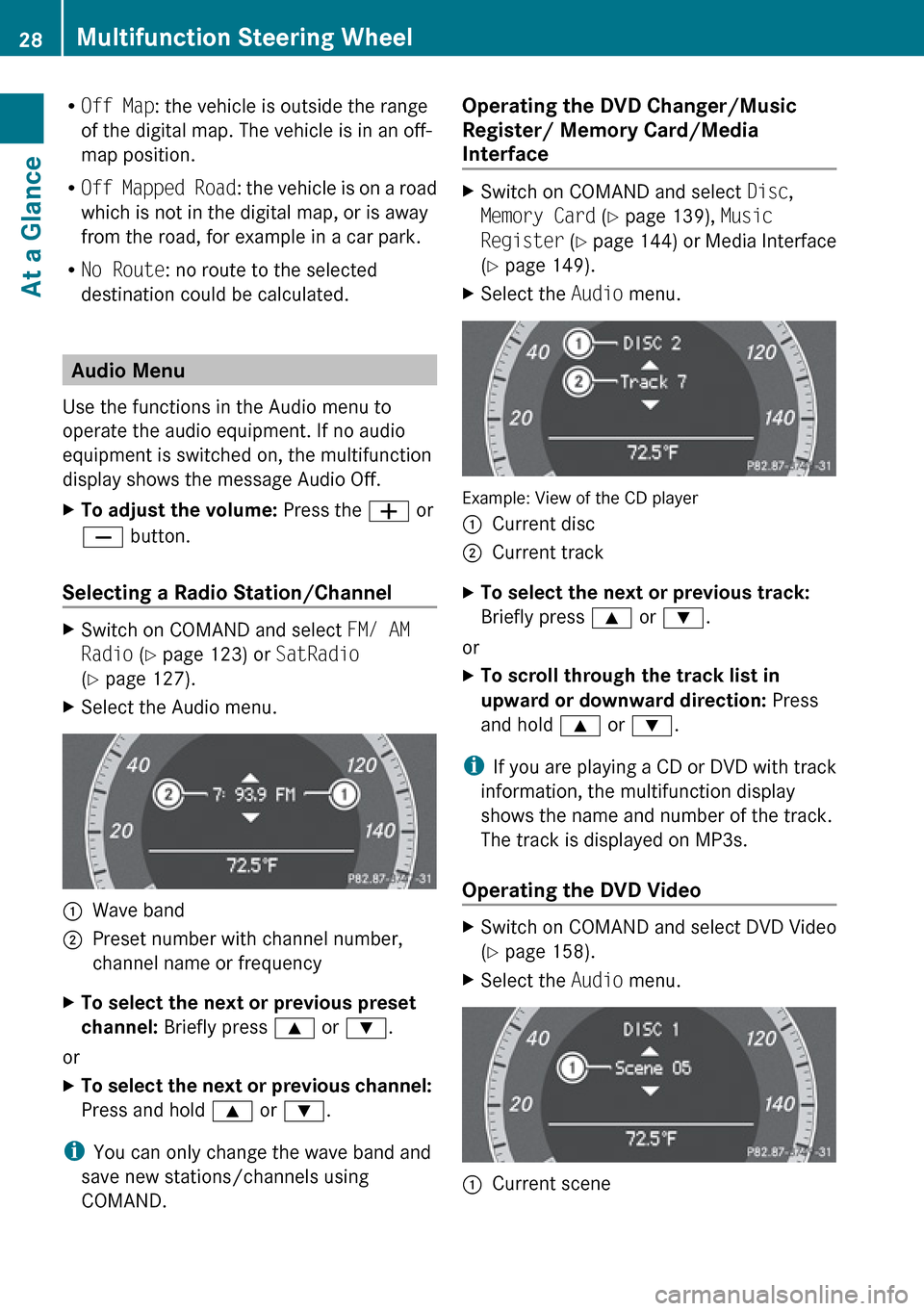
( Y page 127).XSelect the Audio menu.1Wave band2Preset number with channel number,
channel name or frequencyXTo select the next or previous preset
channel: Briefly press 9 or : .
or
XTo select the next or previous channel:
Press and hold 9 or : .
i
You can only change the wave band and
save new stations/channels using
COMAND.
Operating the DVD Changer/Music
Register/ Memory Card/Media
Interface XSwitch on COMAND and select Disc,
Memory Card (Y page 139), Music
Register (Y page 144) or Media Interface
( Y page 149).XSelect the Audio menu.
Example: View of the CD player
1Current disc2Current trackXTo select the next or previous track:
Briefly press 9 or : .
or
XTo scroll through the track list in
upward or downward direction: Press
and hold 9 or : .
i
If you are playing a CD or DVD with track
information, the multifunction display
shows the name and number of the track.
The track is displayed on MP3s.
Operating the DVD Video
XSwitch on COMAND and select DVD Video
( Y page 158).XSelect the Audio menu.1Current scene28Multifunction Steering WheelAt a Glance
Page 32 of 224
multifunction display. The name also
appears, provided it is stored in the phone
book. The selected number is stored in the
CALLS DIALED list in COMAND
( Y page 106).
If a call is connected, the phone book entry
appears in the multifunction display.
or
XIf there is more than one number for a
particular name: Press 6 or a to
display the numbers.XPress : or 9 to select the number
you want to dial.XPress 6 or a to start dialing.
The message Connecting Call... and
the selected number appear in the
multifunction display. The name also
appears, provided it is stored in the phone
book. The selected number is stored in the
CALLS DIALED list in COMAND.
If a call is connected, the phone book entry
appears in the multifunction display.
i To exit the phone book without making a
call, press the ~ button. Phone READY
appears in the multifunction display.
i If you press and hold the : or 9
button for more than one second, a rapid
scroll begins. After four seconds, the rapid
scroll speeds up. The rapid scroll stops
when you release the button or reach the
end of the list.
Redialing
COMAND saves the most recently dialed
names and numbers from the mobile phone.
This means that you do not have to search
through the entire phone book.
XSelect the Tel menu.
The multifunction display shows
Phone READY .XPress 6 to go to the most recently
dialed number or name in the
CALLS DIALED menu.XPress : or 9 to select the number
or name you are looking for.XPress 6 or a to start dialing.
Operating COMAND
Opening Menu of a Main Function
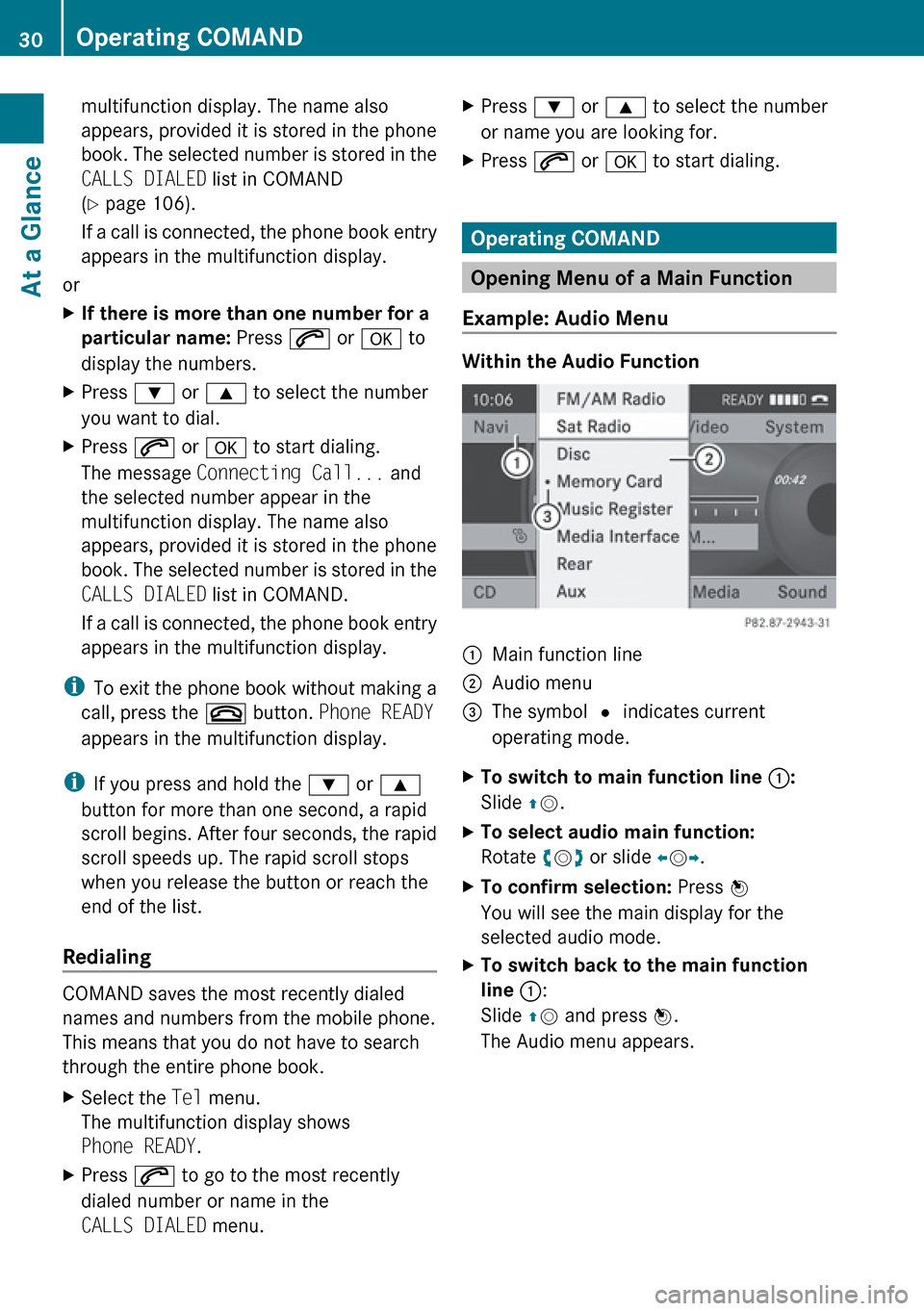
Example: Audio Menu
Within the Audio Function
1Main function line2Audio menu3The symbol R indicates current
operating mode.XTo switch to main function line 1:
Slide qm .XTo select audio main function:
Rotate ym z or slide om p.XTo confirm selection: Press n
You will see the main display for the
selected audio mode.XTo switch back to the main function
line 1 :
Slide qm and press n.
The Audio menu appears.30Operating COMANDAt a Glance