ESC MERCEDES-BENZ E-Class COUPE 2010 C212 Comand Manual
[x] Cancel search | Manufacturer: MERCEDES-BENZ, Model Year: 2010, Model line: E-Class COUPE, Model: MERCEDES-BENZ E-Class COUPE 2010 C212Pages: 224, PDF Size: 7.4 MB
Page 141 of 224
Switching to CD Audio, DVD Audio or
MP3 Mode
From the Control PanelXInsert a CD/DVD (Y page 134) or a PCMCIA
memory card ( Y page 136).
COMAND loads the medium inserted and
begins playback.
or
XPress the h function button.
i
Pressing the function button switches
directly to the disc mode selected last
(CD Audio, DVD Audio, MP3-CD or DVD
Video). COMAND then accesses all discs in
the DVD changer, the memory card or the
Music Register.
XIf necessary, select CD/DVD Audio/ MP3
media ( Y page 141).
or
XWhen playing a video DVD: Open the
media list as described in "Selecting DVD
media" ( Y page 141).XSelect an audio storage medium.
This switches to the required disc mode.
Via the COMAND Controller
From Another Main Function
XSelect Audio£Audio £Disc or
Memory Card or Music Register in the
audio menu display.
i If the desired mode is also the last active
mode, you only need to select Audio.
Within the Audio Function
XSelect Audio£Disc or Memory card in
the audio menu display.
i Disc accesses audio discs in the DVD
changer. Memory Card selects the slot for
the PCMCIA memory card.
XSelect CD/DVD Audio/MP3 as required
( Y page 141).
The desired disc mode is activated.
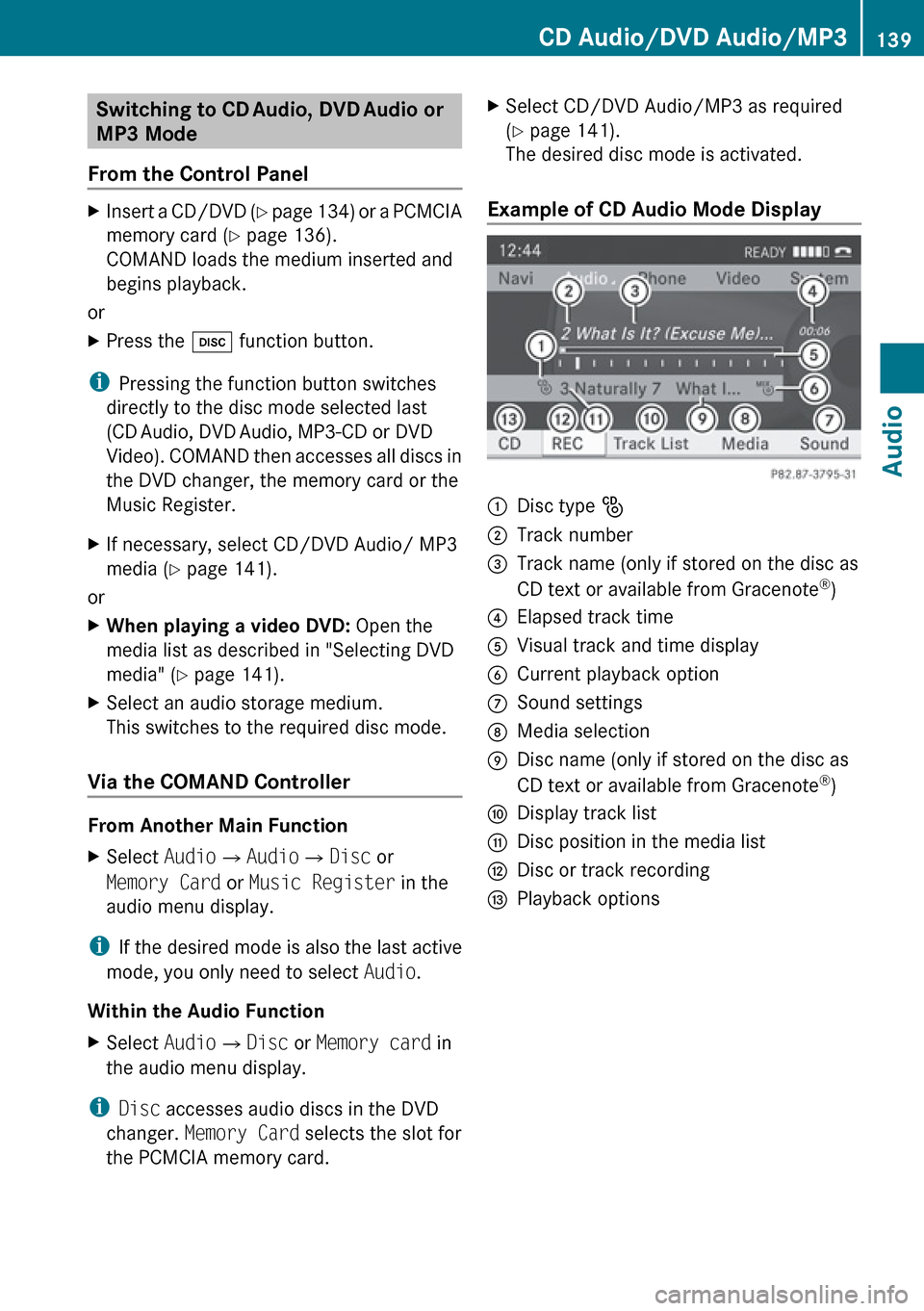
Example of CD Audio Mode Display
1Disc type _2Track number3Track name (only if stored on the disc as
CD text or available from Gracenote ®
)4Elapsed track time5Visual track and time display6Current playback option7Sound settings8Media selection9Disc name (only if stored on the disc as
CD text or available from Gracenote ®
)aDisplay track listbDisc position in the media listcDisc or track recordingdPlayback optionsCD Audio/DVD Audio/MP3139AudioZ
Page 158 of 224
General Information
Safety Notes
GWarning
COMAND is classified as a Class 1 laser
product. You must not open the casing. There
is a risk of exposure to invisible laser radiation
if you open the casing, or if the casing is faulty
or damaged.
COMAND does not contain any parts that you
are able to maintain yourself. For safety
reasons, all maintenance work must be
exclusively carried out by qualified
technicians.
GWarning
Only carry out the following when the vehicle
is stationary:
R Inserting a disc
R Ejecting a disc
There is a risk of accident by being distracted
from road and traffic conditions if you load a
CD/DVD while the vehicle is in motion.
Vehicle Equipment
i This Operator’s Manual describes all
features, standard or optional, potentially
available for your vehicle at the time of
purchase. Please be aware that your
vehicle might not be equipped with all
features described in this manual.
Automatic Picture Switch-off
The video picture is only displayed if the
gearshift lever is in “P” position.
When the gearshift lever is moved out of the
“P” position, the following message is
displayed: In order not to distract
you from the traffic situation, the
picture is faded out while the
vehicle is in motion.
When the gearshift lever is moved back into
the “P” position, the picture switches back
on.
Notes on Storage Media
i When playing copied discs, problems may
occur with the playback. A wide variety of
disc-writing software and writers are
available. Due to this variety we cannot
guarantee that the system will be able to
play discs that you have written/copied
yourself.
! Do not affix stickers or labels to the discs,
as they could peel off and damage
COMAND. Stickers can cause the disc to
bend, which can result in read errors and
disc recognition problems.
! COMAND is designed to hold discs which
comply with the EN 60908 standard. You
can therefore only use discs with a
maximum thickness of 1.3 mm.
If you insert thicker discs, e.g. those that
contain data on both sides (DVD on one
side and audio data on the other), they
cannot be ejected and can damage
COMAND.
Do not use discs with a diameter of 8 cm,
even with an adapter. Only use round discs
with a diameter of 12 cm.
Notes on the Care of Discs
R Only hold discs by the edge.
R Handle discs with care in order to prevent
malfunctions during playback.
R Avoid scratching, leaving fingerprints and
dust on the discs.
R Clean the discs occasionally with a
commercially available cleaning cloth.
Always wipe in a straight line from the
inside outwards, never in a circular motion.
156General InformationVideo
Page 159 of 224
RThe discs must only be labelled using pens
specially designed for this purpose.
R After use, replace the discs into the sleeve.
R Protect the discs from heat and direct
sunlight.
DVD Playback Conditions
Some DVDs may not comply with the NTSC
or PAL TV playback standards. Sound, picture
and other playback problems may occur
when you play such DVDs.
As standard, COMAND can play video DVDs
which meet the following criteria:
R Region code 1 or region code 0 (all regions)
i With a video DVD having another region
code, a corresponding message will be
displayed.
R PAL or NTSC TV standard
Information on this can usually be found
either on the DVD itself or on the DVD sleeve.
i The factory setting for COMAND is region
code 1. An authorized Mercedes-Benz
Center can change this setting up to five
times. This will enable you to play video
DVDs with other region codes, provided
that they have been made to the PAL or
NTSC TV standard.
Functional Restrictions
It may be the case that some functions or
actions may not be possible at certain times,
or may not be possible in general, depending
on the DVD.
When you activate such functions or actions,
this is indicated by the 7 in the display.
Loading a DVD
XProceed as described in the “Loading CDs
and DVDs” section ( Y page 134).
Ejecting a DVD
XProceed as described in the “Ejecting CDs
and DVDs” section ( Y page 136).
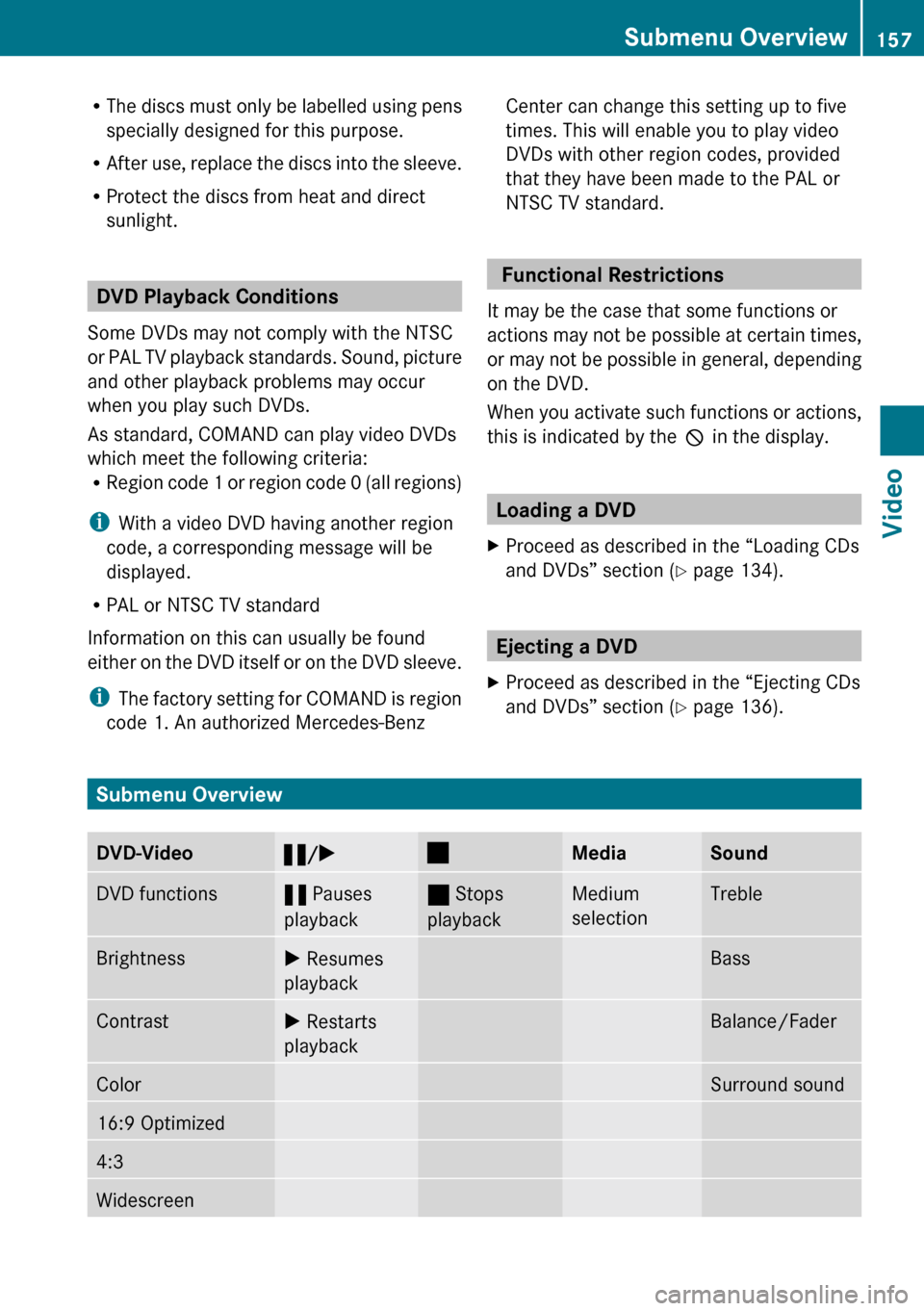
Submenu Overview
DVD-Video« /X±MediaSoundDVD functions« Pauses
playback± Stops
playbackMedium
selectionTrebleBrightnessX Resumes
playbackBassContrastX Restarts
playbackBalance/FaderColorSurround sound16:9 Optimized4:3WidescreenSubmenu Overview157VideoZ
Page 162 of 224
Pause Function XIn DVD Video mode, display the menu
system if necessary ( Y page 158).XTo pause playback: Select «.
The display « changes to X.XTo resume playback: Select X.
Playback continues from the point where it
was paused. The menu system is hidden.
Selecting a Scene/Chapter
XTo skip forwards or backwards: Rotate
y m z or slide om p in Full Screen mode.
orXPress the E or F button on the
control panel.
The control menu (Y page 158) appears for
approximately 8 seconds.
Selecting a Film/Track
i This function is only available if the DVD
is divided into several films/tracks.
XDisplay the menu system if necessary
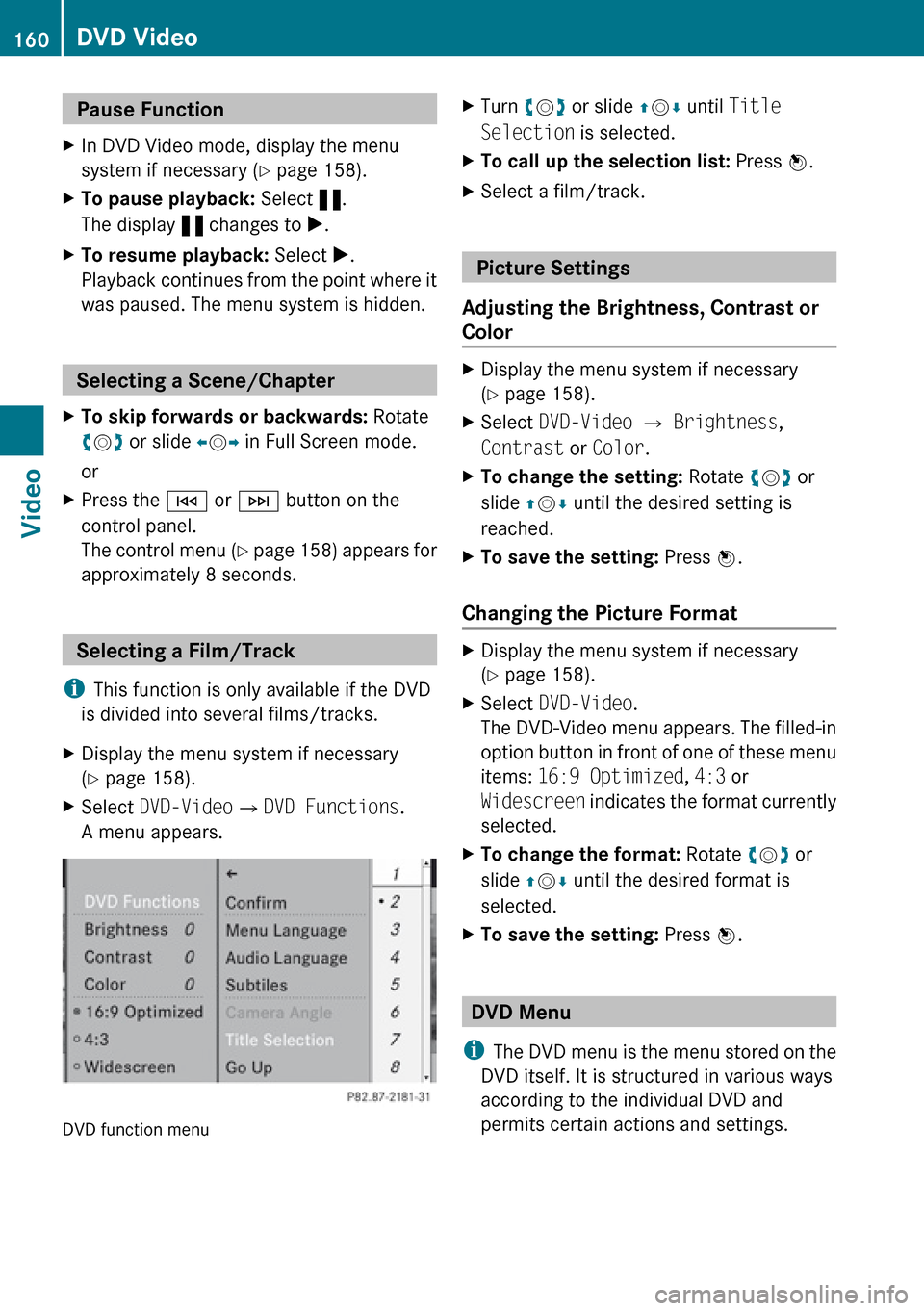
( Y page 158).XSelect DVD-Video £DVD Functions .
A menu appears.
DVD function menu
XTurn ym z or slide qm r until Title
Selection is selected.XTo call up the selection list: Press n.XSelect a film/track.
Picture Settings
Adjusting the Brightness, Contrast or
Color
XDisplay the menu system if necessary
( Y page 158).XSelect DVD-Video £ Brightness ,
Contrast or Color .XTo change the setting: Rotate ym z or
slide qm r until the desired setting is
reached.XTo save the setting: Press n.
Changing the Picture Format
XDisplay the menu system if necessary
( Y page 158).XSelect DVD-Video .
The DVD-Video menu appears. The filled-in
option button in front of one of these menu
items: 16:9 Optimized , 4:3 or
Widescreen indicates the format currently
selected.XTo change the format: Rotate ym z or
slide qm r until the desired format is
selected.XTo save the setting: Press n.
DVD Menu
i The DVD menu is the menu stored on the
DVD itself. It is structured in various ways
according to the individual DVD and
permits certain actions and settings.
160DVD VideoVideo
Page 168 of 224
General Information
Vehicle Equipment
i This Operator’s Manual describes all
features, standard or optional, potentially
available for your vehicle at the time of
purchase. Please be aware that your
vehicle might not be equipped with all
features described in this manual.
Overview
This chapter describes the RSE (Rear Seat
Entertainment) system:
R Basic functions ( Y page 170)
R System settings ( Y page 172)
R CD/DVD audio and MP3 operation
( Y page 173)
R DVD Video operation ( Y page 177)
R Aux operation ( Y page 181)
Safety Instructions
GWarning
The RSE CD/DVD player is a Class 1 laser
product. There is a danger of invisible laser
radiation when you open or damage the cover.
Do not remove the cover. The RSE CD/DVD
player does not contain any parts which can
be serviced by the user. For safety reasons,
have any necessary service work performed
by qualified personnel.
GWarning
The driver should not wear a Rear Seat
Entertainment headset while operating the
vehicle under any circumstances. The use of
a headset while driving the vehicle could
drastically impair the ability to react to audible
traffic conditions (e.g. emergency sirens from
police/fire/ambulance, another car’s horn,
etc.).GWarning
When not in use, headsets or external video
sources should be stored in a safe location
(e.g. one of the vehicle’s storage
compartments) so that they are not loose
within the passenger compartment during
braking, vehicle maneuvers or a traffic
accident. Objects moving within the
passenger compartment could cause serious
personal injury to vehicle occupants.
GWarning
Due to a potential choking hazard, wired
headset usage by children should only occur
with adult supervision.
Rear Seat Entertainment
Components
The rear-seat entertainment system consists
of:
R two display screens behind the head rests
of front-seats
R remote control(s)
R a CD/DVD drive
R Aux connectors on the drive and display
screens for connecting external devices
R two headsets (wireless headsets only
available in the US)
166General InformationRear Seat Entertainment
Page 179 of 224
RNormal Track Sequence
You will hear the tracks in the normal
sequence (e.g. track 1, 2, 3, etc.).
R Random Tracks:
You will hear the tracks in random order
(e.g. track 3, 8, 5, etc.).
R Random Folder (MP3 mode only)
The tracks in the currently active folder and
any subfolders are heard in random order.XTo select an option: Switch to CD or DVD-
A or MP3 mode ( Y page 174).XSelect CD or DVD-A or MP3 .
The option list appears. A R dot indicates
the option currently selected.XSelect an option.
The option is switched on. All options
except Normal Track Sequence will be
indicated in the main area.
i If you change the disc, the Normal
Track Sequence option is activated
automatically. If an option is selected, it
remains selected after the rear-seat
entertainment system is switched on or off.
Switching Track Information On/Off
(MP3 Mode Only)
If this function is switched on, folder and track
names are displayed.
If this function is switched off, disc and file
name are displayed.
XSelect Display Track Information .
The function is switched on Ç or off
c depending on the previous status.
DVD Video Operation
Please refer to the chapter “Audio” for
general information about CD/DVD discs
( Y page 133) and on the MP3 format
( Y page 132).
For Safety Instructions refer to section “CD/
DVD Audio and MP3 Operation”
( Y page 131).
For special notes on DVDs and DVD playback
conditions refer to chapter “Video”
( Y page 158).
Functional Restrictions
Depending on the DVD, it is possible that
certain functions or actions described in this
section will be temporarily blocked or may not
function at all. As soon as you try to activate
these functions or actions, you will see icon
7 in the display.
Loading and Ejecting DVDs
XProceed as described in the "CD/DVD
Audio and MP3 mode" section
( Y page 173).
Switching to DVD mode
XLoad a DVD Video disc.
The rear-seat entertainment system loads
the inserted disc.
The DVD is played according to the
playback options:
Either the film is started automatically or
the DVD menu appears that is stored on the
disc. In the latter case you must start the
film manually.XSelect Disc using the remote control.
DVD mode is activated.
The Video DVD meets the playback
criteria: Either the film is started
automatically or the DVD menu appears
that is stored on the disc. In the latter case
you must start the film manually.XTo do so, select the corresponding menu
item in the DVD menu ( Y page 180).
i
If Disc operation was selected last, the
disc is played automatically after loading.
DVD Video Operation177Rear Seat EntertainmentZ
Page 188 of 224
Overview
Operating Safety
GWarning!
Please devote your attention first and
foremost to the traffic situation you are in.
While the system permits hands-free phone
operation, attention to traffic may be diverted
not only by physical operation of a phone, but
also by the distraction of a phone
conversation while driving. As such, for safety
reasons, we encourage the driver to stop the
vehicle in a safe place before answering or
placing a phone call.
For safety reasons, you should only select a
destination when the vehicle is stationary.
While the navigation system provides
directional assistance, the driver must remain
focused on safe driving behavior, especially
pay attention to traffic and street signs, and
should utilize the system’s audio cues while
driving.
The navigation system does not supply any
information on stop signs, yield signs, traffic
regulations or traffic safety rules. Their
observance always remains in the driver’s
personal responsibility. DVD maps do not
cover all areas nor all routes within an area.
Traffic regulations always have priority over
any route recommendations given.
Bear in mind that at a speed of just 30 mph
(approximately 50 km/h), your vehicle is
covering a distance of 44 feet (approximately
14 m) every second.
GWarning
Navigation announcements are intended to
direct you while driving without diverting your
attention from the road and driving.
Please always use this feature instead of
consulting the map display for directions.
Consulting the symbols or map display for
directions may cause you to divert your
attention from driving and increase your risk
of an accident.
GWarning!
Please do not use the Voice Control System
in an emergency, as the tone of your voice
may change in a stressful situation. This could
cause a delay in completing your phone call
in a timely manner. This could distract you in
an emergency situation and cause you to be
involved in an accident.
Vehicle Equipment
i This Operator’s Manual describes all
features, standard or optional, potentially
available for your vehicle at the time of
purchase. Please be aware that your
vehicle might not be equipped with all
features described in this manual.
Symbols Only Used in this Chapter
The following symbols indicate:
sthat you have to say somethingtthat there is a voice output from the
voice controluthat the system shows information on
the display.
Usage
You can use the voice control system to
operate the following systems depending on
the equipment in your vehicle:
R Phone
R Navigation
R Address book
R Audio (radio, satellite radio, DVD changer,
memory card, music register, media
interface)
Say the commands without pausing between
individual words. If you enter a command that
does not exist or is incorrect, the voice
control system asks you for a new command
with Please repeat or Please repeat
186OverviewVoice Control
Page 190 of 224
To resume the dialog with voice control, press
the ? button on the multifunction steering
wheel.
Canceling the Dialog
XPress the % button.
or
XSay the command Cancel (except when
creating and storing voice tags, navigation
entries or during individualization).
or
XPress any button on COMAND.
Adjusting the Volume
XStart the dialog.XGive a command, e.g. Help.XPress the W or X button.
The volume increases or decreases during
voice output.
or
XSet the volume for the voice output on the
volume control for COMAND.
Display Messages
The audible help function can be
supplemented by visual help on the display
( Y page 42). If the help function is switched
on, the most important commands that are
currently possible appear in the display when
you start the dialog.
In the address book and navigation system, a
selection list is shown in the display if voice
control requires additional information from
you.
Entering Numbers
R Digits from “zero” to “nine” are permitted.
R Say the phone number in groups of three
to five digits.
Spell
R The letters of the alphabet and the numbers
0 to 9 are permitted.
R Say the letters in groups of five to seven
letters.
R Say each individual letter clearly.
i Using individualization, you can fine-tune
voice control to your own voice and thus
improve voice recognition. The process of
individualization is described in chapter
“System Settings” ( Y page 42).
i If you use individualization, it may impair
recognition of other users. Switch off
individualization if it makes recognition of
other users worse.
Phone
GWarning
Some jurisdictions prohibit the driver from
using a cellular telephone while driving.
Whether or not prohibited by law, for safety
reasons, the driver should not use the cellular
telephone while the vehicle is in motion. Stop
the vehicle in a safe location before placing or
answering a call.
If you nonetheless choose to use the mobile
phone while driving, please use the handsfree
feature and be sure to pay attention to the
traffic situation at all times. Use the mobile
phone only when road, weather and traffic
conditions permit. Otherwise, you may not be
able to observe traffic conditions and could
endanger yourself and others.
Bear in mind that at a speed of just 30 mph
(approximately 50 km/h), your vehicle is
covering a distance of 44 feet (approximately
14 m) every second.
188PhoneVoice Control
Page 192 of 224
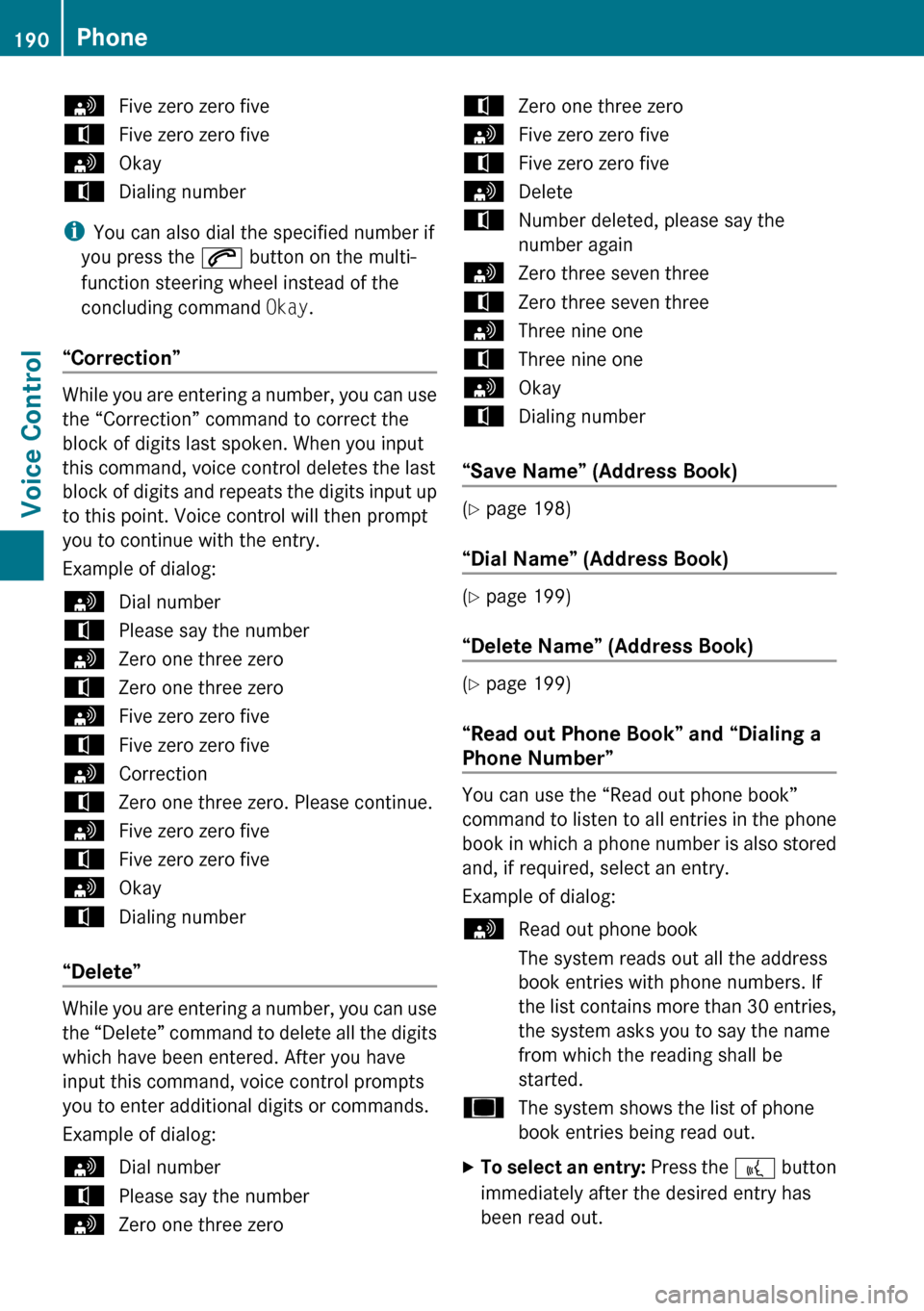
sFive zero zero fivetFive zero zero fivesOkaytDialing number
iYou can also dial the specified number if
you press the 6 button on the multi-
function steering wheel instead of the
concluding command Okay.
“Correction”
While you are entering a number, you can use
the “Correction” command to correct the
block of digits last spoken. When you input
this command, voice control deletes the last
block of digits and repeats the digits input up
to this point. Voice control will then prompt
you to continue with the entry.
Example of dialog:
sDial numbertPlease say the numbersZero one three zerotZero one three zerosFive zero zero fivetFive zero zero fivesCorrectiontZero one three zero. Please continue.sFive zero zero fivetFive zero zero fivesOkaytDialing number
“Delete”
While you are entering a number, you can use
the “Delete” command to delete all the digits
which have been entered. After you have
input this command, voice control prompts
you to enter additional digits or commands.
Example of dialog:
sDial numbertPlease say the numbersZero one three zerotZero one three zerosFive zero zero fivetFive zero zero fivesDeletetNumber deleted, please say the
number againsZero three seven threetZero three seven threesThree nine onetThree nine onesOkaytDialing number
“Save Name” (Address Book)
( Y page 198)
“Dial Name” (Address Book)
( Y page 199)
“Delete Name” (Address Book)
( Y page 199)
“Read out Phone Book” and “Dialing a
Phone Number”
You can use the “Read out phone book”
command to listen to all entries in the phone
book in which a phone number is also stored
and, if required, select an entry.
Example of dialog:
sRead out phone book
The system reads out all the address
book entries with phone numbers. If
the list contains more than 30 entries,
the system asks you to say the name
from which the reading shall be
started.uThe system shows the list of phone
book entries being read out.XTo select an entry: Press the ? button
immediately after the desired entry has
been read out.190PhoneVoice Control
Page 218 of 224
Overview
Vehicle Equipment
i This Operator’s Manual describes all
features, standard or optional, potentially
available for your vehicle at the time of
purchase. Please be aware that your
vehicle might not be equipped with all
features described in this manual.
The Tele Aid System
(Tele Aid – Telematic Alarm Identification on
Demand)
The Tele Aid system offers a variety of
services, e.g.:
R Automatic and manual emergency
R Roadside Assistance
R Information
R Search & Send
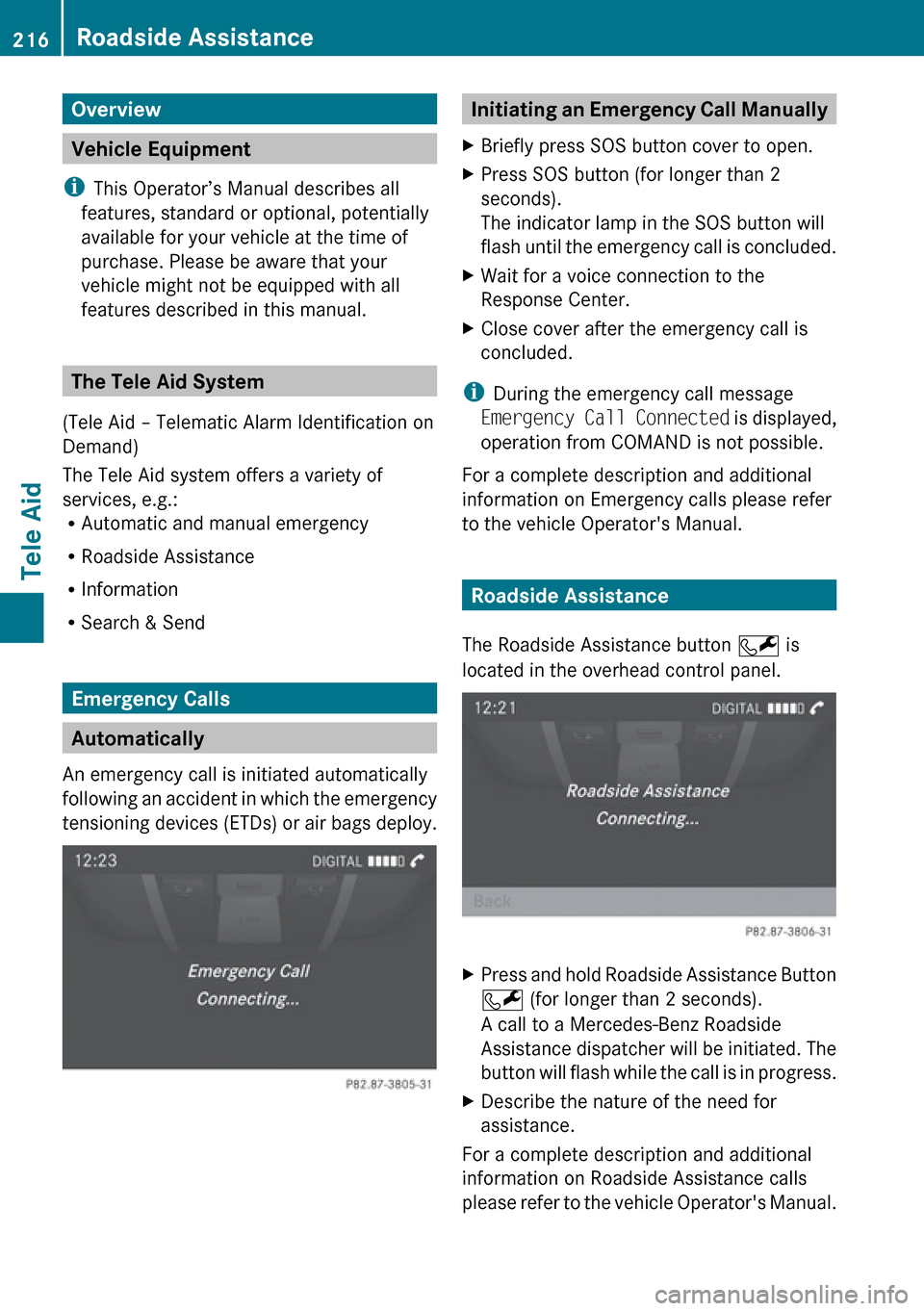
Emergency Calls
Automatically
An emergency call is initiated automatically
following an accident in which the emergency
tensioning devices (ETDs) or air bags deploy.
Initiating an Emergency Call ManuallyXBriefly press SOS button cover to open.XPress SOS button (for longer than 2
seconds).
The indicator lamp in the SOS button will
flash until the emergency call is concluded.XWait for a voice connection to the
Response Center.XClose cover after the emergency call is
concluded.
i During the emergency call message
Emergency Call Connected is displayed,
operation from COMAND is not possible.
For a complete description and additional
information on Emergency calls please refer
to the vehicle Operator's Manual.
Roadside Assistance
The Roadside Assistance button F is
located in the overhead control panel.
XPress and hold Roadside Assistance Button
F (for longer than 2 seconds).
A call to a Mercedes-Benz Roadside
Assistance dispatcher will be initiated. The
button will flash while the call is in progress.XDescribe the nature of the need for
assistance.
For a complete description and additional
information on Roadside Assistance calls
please refer to the vehicle Operator's Manual.
216Roadside AssistanceTele Aid