steering MERCEDES-BENZ E-Class COUPE 2014 C207 Repair Manual
[x] Cancel search | Manufacturer: MERCEDES-BENZ, Model Year: 2014, Model line: E-Class COUPE, Model: MERCEDES-BENZ E-Class COUPE 2014 C207Pages: 394, PDF Size: 5.28 MB
Page 237 of 394
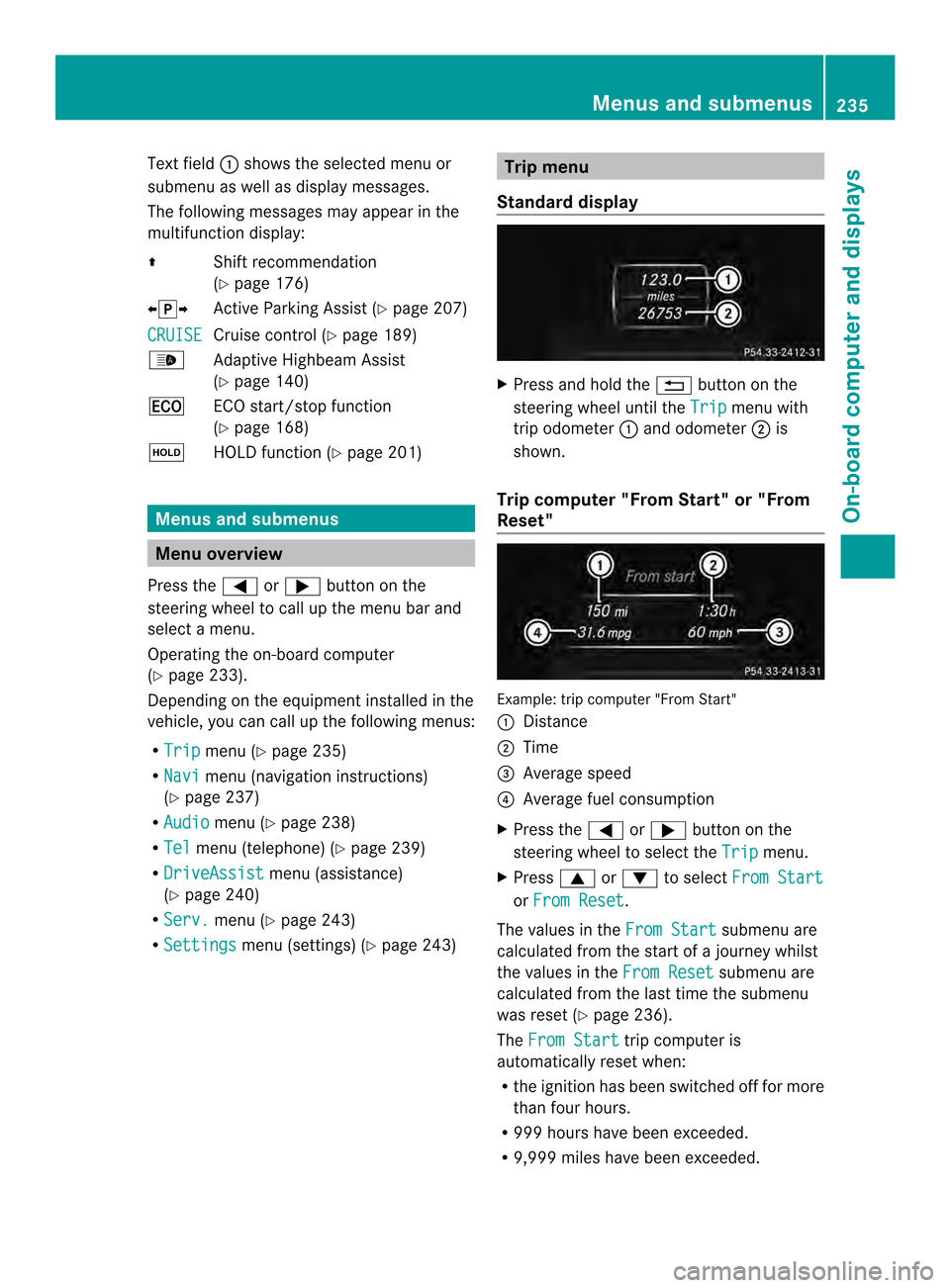
Text field
0002shows the selected menu or
submenu as well as display messages.
The following messages may appear in the
multifunction display:
000B Shift recommendation
(Ypage 176)
00090013000A Active Parking Assist (Y page 207)
CRUISE Cruise control (Y
page 189)
0003 Adaptive Highbeam Assist
(Ypage 140)
000C ECO start/stop function
(Ypage 168)
0001 HOLD function (Y page 201) Menus and submenus
Menu overview
Press the 0002or0005 button on the
steering wheel to call up the menu bar and
select a menu.
Operating the on-board computer
(Y page 233).
Depending on the equipment installed in the
vehicle, you can call up the following menus:
R Trip menu (Y
page 235)
R Navi menu (navigation instructions)
(Y page 237)
R Audio menu (Y
page 238)
R Tel menu (telephone) (Y
page 239)
R DriveAssist menu (assistance)
(Y page 240)
R Serv. menu (Y
page 243)
R Settings menu (settings) (Y
page 243) Trip menu
Standard display X
Press and hold the 0007button on the
steering wheel until the Trip menu with
trip odometer 0002and odometer 0003is
shown.
Trip computer "From Start" or "From
Reset" Example: trip computer "From Start"
0002
Distance
0003 Time
0023 Average speed
0022 Average fuel consumption
X Press the 0002or0005 button on the
steering wheel to select the Trip menu.
X Press 0003or0004 to select From Start or
From Reset .
The values in the From Start submenu are
calculated from the start of a journey whilst
the values in the From Reset submenu are
calculated from the last time the submenu
was reset (Y page 236).
The From Start trip computer is
automatically reset when:
R the ignition has been switched off for more
than four hours.
R 999 hours have been exceeded.
R 9,999 miles have been exceeded. Menus and submenus
235On-board computer and displays Z
Page 238 of 394
The
From Reset trip computer is
automatically reset if the value exceeds
9999 hours or 99,999 miles.
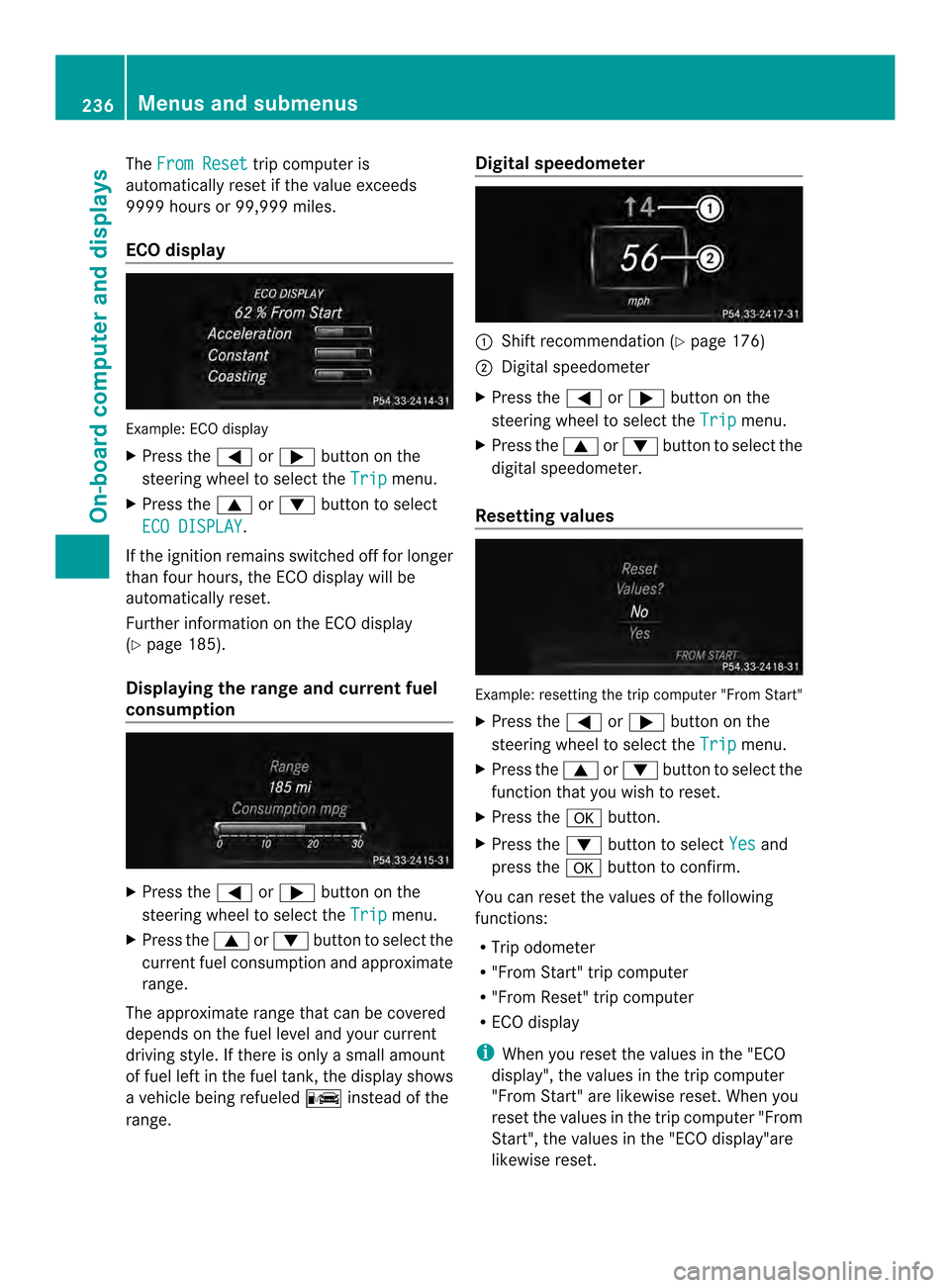
ECO display Example: ECO display
X Press the 0002or0005 button on the
steering wheel to select the Trip menu.
X Press the 0003or0004 button to select
ECO DISPLAY .
If the ignition remains switched off for longer
than four hours, the ECO display will be
automatically reset.
Further information on the ECO display
(Y page 185).
Displaying the range and current fuel
consumption X
Press the 0002or0005 button on the
steering wheel to select the Trip menu.
X Press the 0003or0004 button to select the
curren tfuel consumption and approximate
range.
The approximate range that can be covered
depends on the fuel level and your current
driving style. If there is only a small amount
of fuel left in the fuel tank, the display shows
a vehicle being refueled 000Ainstead of the
range. Digital speedometer
0002
Shift recommendation (Y page 176)
0003 Digital speedometer
X Press the 0002or0005 button on the
steering wheel to select the Trip menu.
X Press the 0003or0004 buttonto select the
digital speedometer.
Resetting values Example: resetting the trip computer "From Start"
X
Press the 0002or0005 button on the
steering wheel to select the Trip menu.
X Press the 0003or0004 button to select the
function that you wish to reset.
X Press the 000Bbutton.
X Press the 0004button to select Yes and
press the 000Bbutton to confirm.
You can reset the values of the following
functions:
R Trip odometer
R "From Start" trip computer
R "From Reset" trip computer
R ECO display
i When you reset the values in the "ECO
display", the values in the trip computer
"From Start" are likewise reset. When you
reset the values in the trip computer "From
Start", the values in the "ECO display"are
likewise reset. 236
Menus and submenusOn-board computer and displays
Page 239 of 394
Navigation syste
mmenu
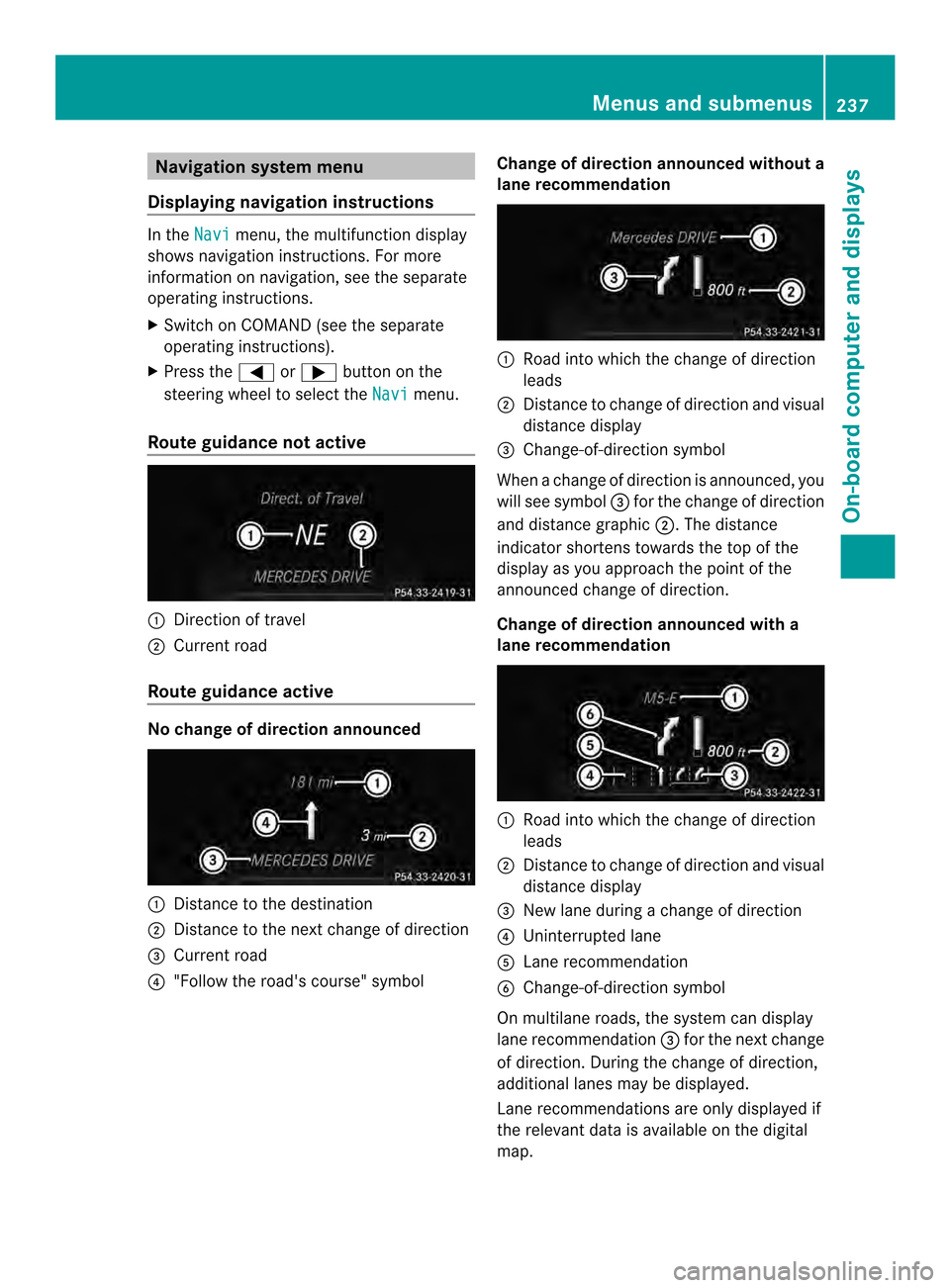
Displaying navigation instructions In the
Navi menu, the multifunction display
shows navigation instructions. For more
informatio nonnavigation ,see the separate
operating instructions.
X Switch on COMAND (see the separate
operating instructions).
X Press the 0002or0005 button on the
steering wheel to select the Navi menu.
Route guidance not active 0002
Direction of travel
0003 Current road
Route guidance active No change of direction announced
0002
Distance to the destination
0003 Distance to the next change of direction
0023 Current road
0022 "Follow the road's course" symbol Change of direction announced without a
lane recommendation 0002
Road into which the change of direction
leads
0003 Distance to change of direction and visual
distance display
0023 Change-of-direction symbol
When a change of direction is announced, you
will see symbol 0023for the change of direction
and distance graphic 0003.The distance
indicator shortens towards the top of the
display as you approach the point of the
announced change of direction.
Change of direction announced with a
lane recommendation 0002
Road into which the change of direction
leads
0003 Distance to change of direction and visual
distance display
0023 New lane during a change of direction
0022 Uninterrupted lane
0020 Lane recommendation
0021 Change-of-direction symbol
On multilane roads, the system can display
lane recommendation 0023for the next change
of direction. During the change of direction,
additional lanes may be displayed.
Lane recommendations are only displayed if
the relevant data is available on the digital
map. Menus and submenus
237On-board computer and displays Z
Page 240 of 394
Other status indicators of the
navigation system R
0001:y ou have reached the destination or an
intermediate destination.
R New Route... or
Calculating Route :
calculating a new route
R Off Map or
Off Mapped Road :t
he vehicle
position is outside the area of the digital
map (off-map position).
R No Route :n
o route could be calculated to
the selected destination. Audio menu
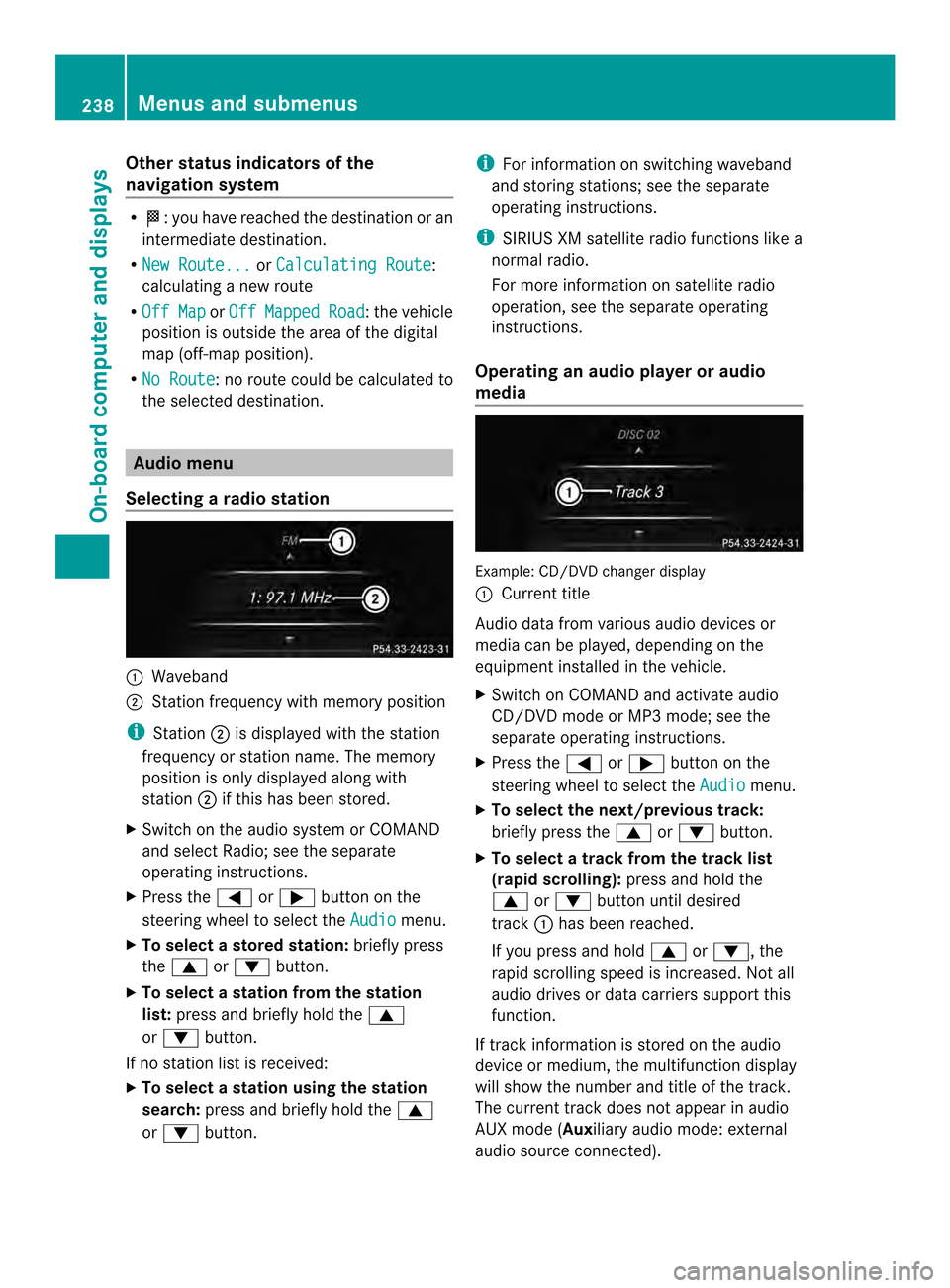
Selecting aradio station 0002
Waveband
0003 Station frequency with memory position
i Station 0003is displayed with the station
frequency or station name. The memory
position is only displayed along with
station 0003if this has bee nstored.
X Switch on the audio syste morCOMAND
and select Radio; see the separate
operating instructions.
X Press the 0002or0005 button on the
steering wheel to select the Audio menu.
X To select astore dstation: briefly press
the 0003 or0004 button.
X To select a station from the station
list: press and briefly hold the 0003
or 0004 button.
If no statio nlist is received:
X To select astation using the station
search: press and briefly hold the 0003
or 0004 button. i
For informatio nonswitching waveband
and storing stations; see the separate
operating instructions.
i SIRIUS XM satellite radio functions like a
normal radio.
For more informatio nonsatellite radio
operation, see the separate operating
instructions.
Operating an audio player or audio
media Example
:CD/DVD change rdisplay
0002 Current title
Audio data from various audio devices or
media can be played, depending on the
equipmen tinstalled in the vehicle.
X Switch on COMAND and activate audio
CD/DVD mode or MP3 mode; see the
separate operating instructions.
X Press the 0002or0005 button on the
steering wheel to select the Audio menu.
X To select the next/previous track:
briefly press the 0003or0004 button.
X To select a track from the track list
(rapi dscrolling): press and hold the
0003 or0004 buttonuntil desired
track 0002has been reached.
If you press and hold 0003or0004, the
rapid scrolling speed is increased .Not all
audio drives or data carriers support this
function.
If track information is stored on the audio
device or medium, the multifunction display
will show the number and title of the track.
The current track does not appear in audio
AUX mode (Auxiliary audio mode: external
audio source connected). 238
Menus and submenusOn-board computer and displays
Page 241 of 394
Video DVD operation
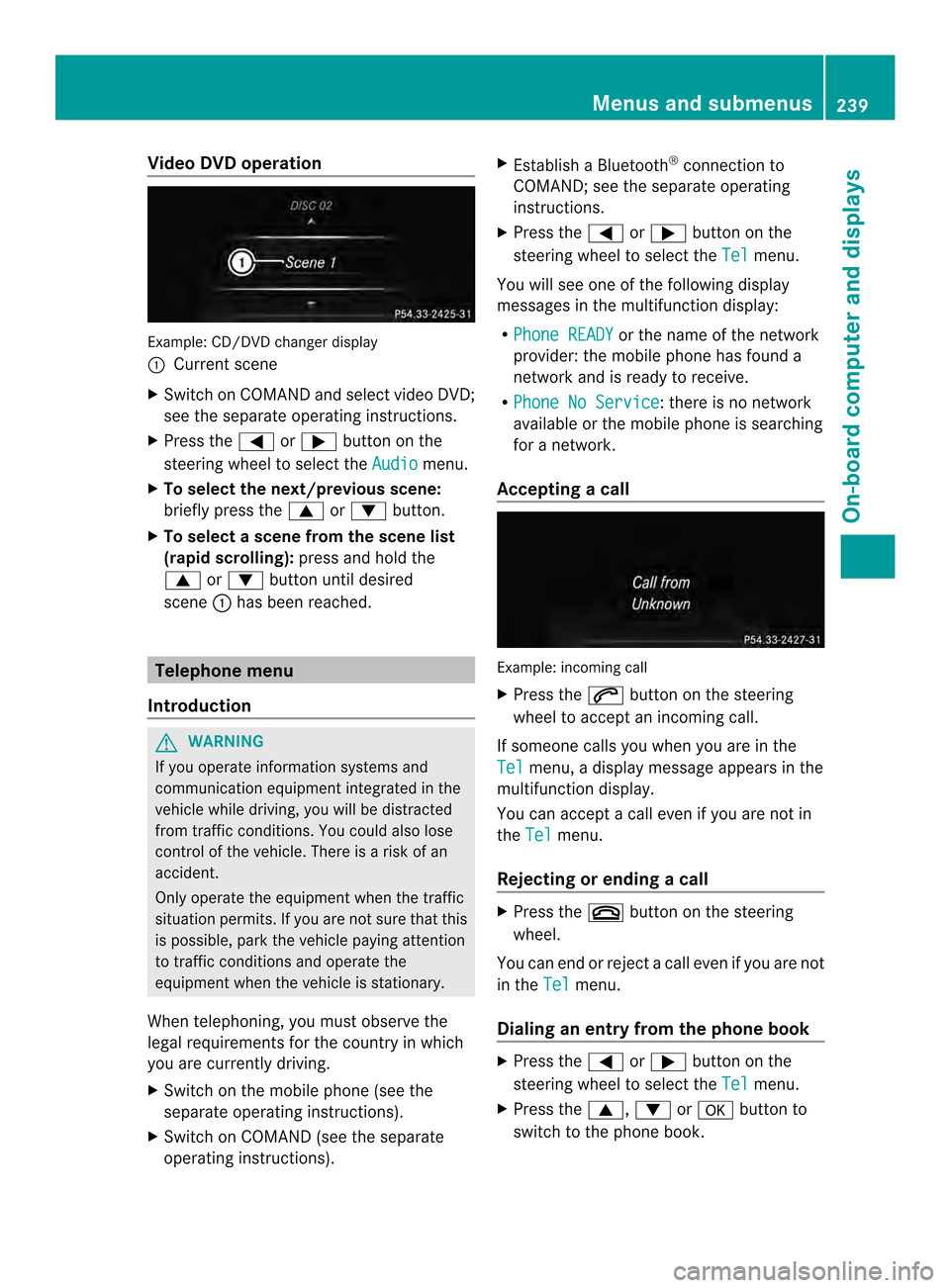
Example
:CD/DVD change rdisplay
0002 Current scene
X Switch on COMAN Dand select video DVD;
see the separate operating instructions.
X Press the 0002or0005 button on the
steering wheel to select the Audio menu.
X To select the next/previous scene:
briefly press the 0003or0004 button.
X To select ascene from the scene list
(rapid scrolling): press and hold the
0003 or0004 buttonuntil desired
scene 0002has been reached. Telephone menu
Introduction G
WARNING
If you operate informatio nsystems and
communication equipment integrated in the
vehicle while driving, you will be distracted
from traffic conditions. You could also lose
control of the vehicle. There is a risk of an
accident.
Only operate the equipmen twhen the traffic
situation permits. If you are not sure that this
is possible, park the vehicle paying attention
to traffic conditions and operate the
equipment when the vehicle is stationary.
When telephoning, you must observe the
legal requirements for the country in which
you are currently driving.
X Switch on the mobile phone (see the
separate operating instructions).
X Switch on COMAND (see the separate
operating instructions). X
Establish a Bluetooth ®
connection to
COMAND; see the separate operating
instructions.
X Press the 0002or0005 button on the
steering wheel to select the Tel menu.
You will see one of the following display
messages in the multifunction display:
R Phone READY or the name of the network
provider: the mobile phone has found a
network and is ready to receive.
R Phone No Service : there is no network
available or the mobile phone is searching
for a network.
Accepting acall Example: incoming call
X
Press the 0004button on the steering
wheel to accep tanincoming call.
If someone calls you when you are in the
Tel menu, a display message appears in the
multifunctio ndisplay.
You can accept a call even if you are not in
the Tel menu.
Rejecting or ending acall X
Press the 000Dbutton on the steering
wheel.
You can end or reject a call even if you are not
in the Tel menu.
Dialing an entry from the phone book X
Press the 0002or0005 button on the
steering wheel to select the Tel menu.
X Press the 0003,0004or000B button to
switch to the phone book. Menus and submenus
239On-board computer and displays Z
Page 242 of 394
X
Press the 0003or0004 button to select the
desired name.
or
X To begin rapid scrolling: press and hold
the 0003 or0004 button for longer than
one second.
Rapid scrolling stops when you release the
button or reach the end of the list.
X If only one telephone number is stored
for a name: press the0004or000B button
to start dialing.
or
X If there is more than one number for a
particular name: press the0004or000B
button to display the numbers.
X Press the 0003or0004 button to select the
number you want to dial.
X Press the 0004or000B button to start
dialing.
or
X To exit the telephone book: press the
000D or0007 button.
Redialing The on-board computer saves the last names
or numbers dialed in the redial memory.
X
Press the 0002or0005 button on the
steering wheel to select the Tel menu.
X Press the 0004button to switch to the
redial memory.
X Press the 0003or0004 button to select the
desired name or number.
X Press the 0004or000B button to start
dialing.
or
X To exit the redial memory: press the
000D or0007 button. Assistance menu
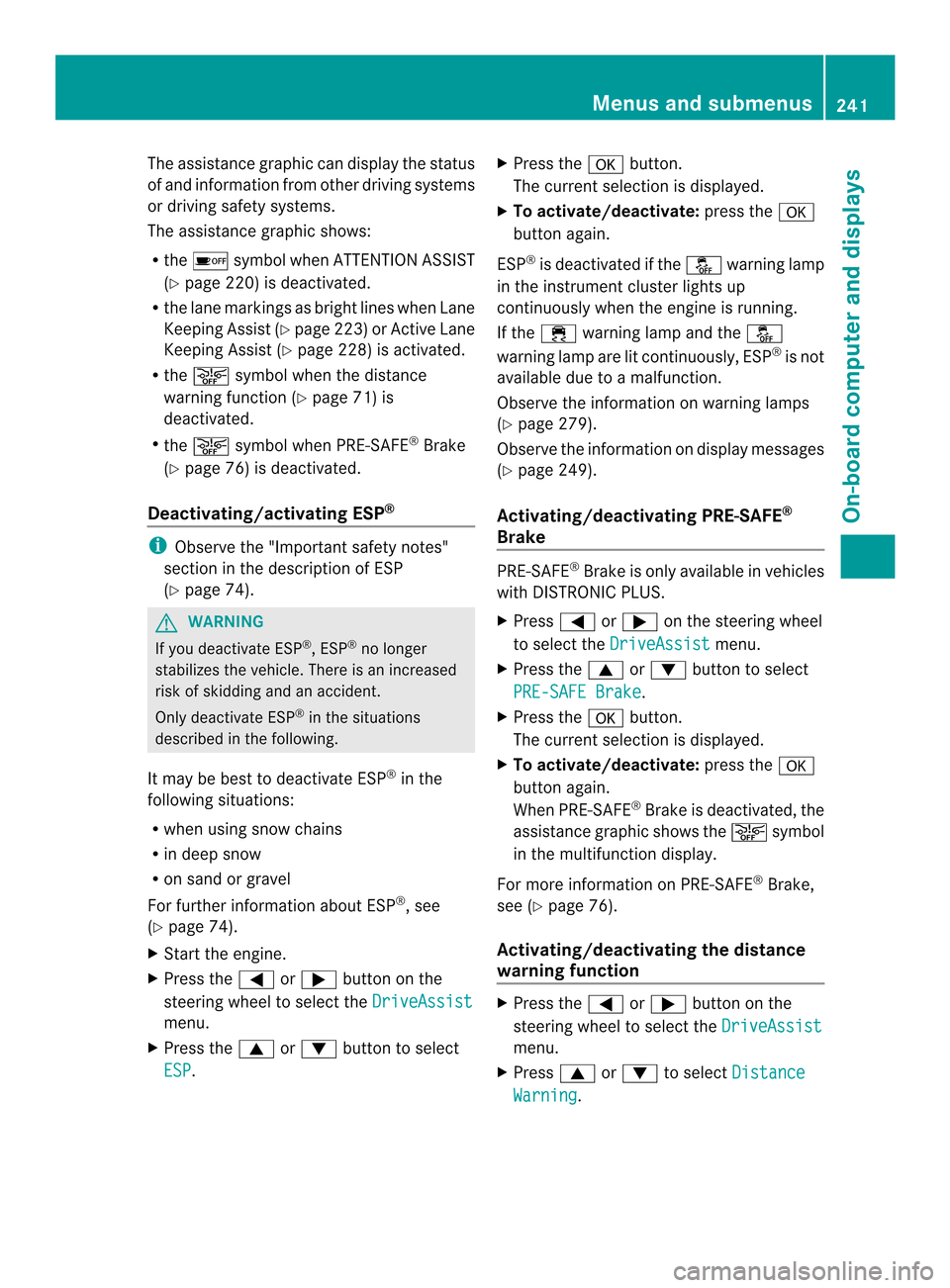
Introduction In the
DriveAssist menu, you have the
following options:
R Displaying the assistance graphic
(Y page 240)
R Activating/deactivating
ESP ®
(Y page 241)
R Activating/deactivating PRE-SAFE ®
Brake
(Y page 241)
R Activating/deactivating ATTENTION
ASSIST (Y page 242)
R Activating/deactivating the distance
warning function (Y page 241)
R Activating/deactivating Steering Assist of
DISTRONIC PLUS (Y page 242)
R Activating/deactivating Blind Spot Assist
or Active Blind Spot Assist (Y page 242)
R Activating/deactivating Lane Keeping
Assist or Active Lane Keeping Assist
(Y page 242)
Displaying the assistance graphic X
Press 0002or0005 on the steering wheel
to select the DriveAssist menu.
X Press 0003or0004 to select Assist. Graphic .
X Press the 000Bbutton.
The multifunction display shows the
DISTRONIC PLUS distance display in the
assistance graphic (Y page 197).
X Press 0003or0004 to display the
ATTENTION ASSIST assessment
(Y page 220). 240
Menus and submenusOn-board computer and displays
Page 243 of 394
The assistance graphic can display the status
of and information from other driving systems
or driving safety systems.
The assistance graphic shows:
R the 0002 symbol when ATTENTION ASSIST
(Y page 220) is deactivated.
R the lane markings as bright lines when Lane
Keeping Assist (Y page 223) or Active Lane
Keeping Assist (Y page 228) is activated.
R the 0001 symbol when the distance
warning function (Y page 71) is
deactivated.
R the 0001 symbol when PRE-SAFE ®
Brake
(Y page 76) is deactivated.
Deactivating/activating ESP ®i
Observe the "Importan tsafety notes"
section in the description of ESP
(Y page 74). G
WARNING
If you deactivate ESP ®
, ESP ®
no longer
stabilizes the vehicle .There is an increased
risk of skidding and an accident.
Only deactivate ESP ®
in the situations
described in the following.
It may be best to deactivate ESP ®
in the
following situations:
R when using snow chains
R in deep snow
R on sand or gravel
For further information about ESP ®
, see
(Y page 74).
X Start the engine.
X Press the 0002or0005 button on the
steering wheel to select the DriveAssistmenu.
X Press the 0003or0004 button to select
ESP . X
Press the 000Bbutton.
The current selection is displayed.
X To activate/deactivate: press the000B
button again.
ESP ®
is deactivated if the 0015warning lamp
in the instrumentc luster lights up
continuously when the engine is running.
If the 000C warning lamp and the 0015
warning lamp are lit continuously, ESP ®
is not
available due to a malfunction.
Observe the information on warning lamps
(Y page 279).
Observe the information on display messages
(Y page 249).
Activating/deactivating PRE-SAFE ®
Brake PRE-SAFE
®
Brake is only available in vehicles
with DISTRONIC PLUS.
X Press 0002or0005 on the steering wheel
to selec tthe DriveAssist menu.
X Press the 0003or0004 button to select
PRE-SAFE Brake .
X Press the 000Bbutton.
The current selection is displayed.
X To activate/deactivate: press the000B
button again.
When PRE-SAFE ®
Brake is deactivated, the
assistance graphic shows the 0001symbol
in the multifunction display.
For more information on PRE-SAFE ®
Brake,
see (Y page 76).
Activating/deactivating the distance
warning function X
Press the 0002or0005 button on the
steering wheel to select the DriveAssist menu.
X Press 0003or0004 to select Distance Warning . Menus and submenus
241On-board computer and displays Z
Page 244 of 394
X
Press the 000Bbutton.
The curren tselection is displayed.
X To activate/deactivate: press the000B
button again.
When the distance warning function is
deactivated, the assistance graphic shows
the 0001 symbol in the multifunction display.
Further information on the distance warning
function (Y page 71).
Activating/deactivating Steering
Assist of DISTRONIC PLUS X
Press the 0002or0005 button on the
steering wheel to select the DriveAssistmenu.
X Using 0003or0004, select DTR+: Steer.
Asst.
X
Press the 000Bbutton.
The curren tselection is displayed.
X To activate/deactivate: press the000B
button again.
When the steering assist of DISTRONIC
PLUS is activated, the multifunction display
shows the DTR+: Steering Assistant On message.
For further information on the steering assist
of DISTRONIC PLUS: (Y page 200).
Activating/deactivating ATTENTION
ASSIST X
Press 0002or0005 on the steering wheel
to select the DriveAssist menu.
X Press 0003or0004 to select Attention Assist .
X Press the 000Bbutton.
The curren tselection is displayed.
X Press 000Bto confirm.
X Press the 0004or0003 button to set Off ,
Standard or
Sensitive .
X Press the 000Bbutton to save the setting.
When ATTENTION ASSIST is deactivated,
the 0002 symbol appears in the multifunction display in the assistance
graphics display.
For further information about ATTENTION
ASSIST, see (Y page 220).
Activating/deactivating Blind Spot
Assist X
Press 0002or0005 on the steering wheel
to select the DriveAssist menu.
X Press the 0003or0004 button to select
Blind Spot Asst .
X Press the 000Bbutton.
The curren tselection is displayed.
X To activate/deactivate: press the000B
button again.
For further information about Blind Spot
Assist, see (Y page 221).
For further information about Active Blind
Spot Assist, see (Y page 225).
Activating/deactivating Lane Keeping
Assist X
Press 0002or0005 on the steering wheel
to select the DriveAssist menu.
X Press the 0003or0004 button to select
Lane Keep. Assist .
X Press the 000Bbutton.
The curren tselection is displayed.
X Press 000Bto confirm.
X Press the 0004or0003 button to set Off ,
Standard or
Adaptive .
X Press the 000Bbutton to save the setting.
When Lane Keeping Assist or Active Lane
Keeping Assist is activated, the
multifunction display shows the lane
markings as bright lines in the assistance
graphic.
For further information about Lane Keeping
Assist, see (Y page 223).
For further information about Active Lane
Keeping Assist, see (Y page 228).242
Menus and submenusOn-board computer and displays
Page 245 of 394
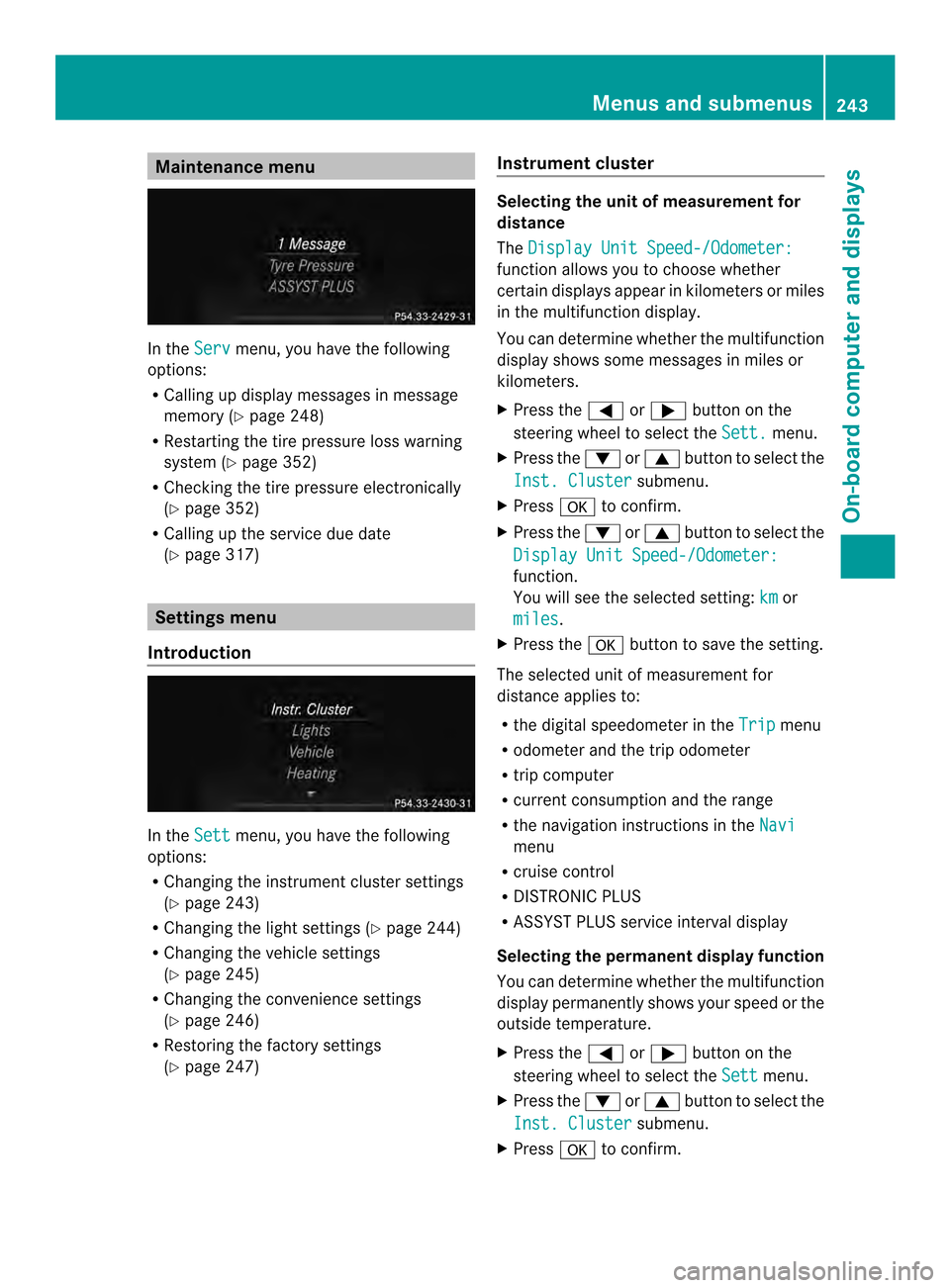
Maintenance menu
In the
Serv menu, you have the following
options:
R Calling up display messages in message
memory (Y page 248)
R Restarting the tire pressure loss warning
system (Y page 352)
R Checking the tire pressure electronically
(Y page 352)
R Calling up the service due date
(Y page 317) Settings menu
Introduction In the
Sett menu, you have the following
options:
R Changing the instrument cluster settings
(Y page 243)
R Changing the light settings (Y page 244)
R Changing the vehicle settings
(Y page 245)
R Changing the convenience settings
(Y page 246)
R Restoring the factory settings
(Y page 247) Instrument cluster Selecting the unit of measuremen
tfor
distance
The Display Unit Speed-/Odometer: function allows you to choose whether
certain displays appear in kilometers or miles
in the multifunction display.
You can determine whether the multifunction
display shows some messages in miles or
kilometers.
X
Press the 0002or0005 button on the
steering wheel to selec tthe Sett. menu.
X Press the 0004or0003 button to select the
Inst. Cluster submenu.
X Press 000Bto confirm.
X Press the 0004or0003 button to select the
Display Unit Speed-/Odometer: function.
You will see the selected setting:
km or
miles .
X Press the 000Bbutton to save the setting.
The selected unit of measurement for
distance applies to:
R the digital speedometer in the Trip menu
R odometer and the trip odometer
R trip computer
R current consumption and the range
R the navigation instructions in the Navi menu
R cruise control
R DISTRONIC PLUS
R ASSYST PLUS service interval display
Selecting the permanent display function
You can determine whether the multifunction
display permanently shows your speed or the
outside temperature.
X Press the 0002or0005 button on the
steering wheel to select the Sett menu.
X Press the 0004or0003 button to select the
Inst. Cluster submenu.
X Press 000Bto confirm. Menus and submenus
243On-board computer and displays Z
Page 246 of 394
![MERCEDES-BENZ E-Class COUPE 2014 C207 Repair Manual X
Press the 0004or0003 button to select the
Permanent Display function.
You will see the selected setting OutsideTemperature or
Additional Speedometer [km/h] /Additional
Speedometer [mph] .
X Press th](/img/4/3595/w960_3595-245.png "MERCEDES-BENZ E-Class COUPE 2014 C207 Repair Manual X
Press the 0004or0003 button to select the
Permanent Display function.
You will see the selected setting OutsideTemperature or
Additional Speedometer [km/h] /Additional
Speedometer [mph] .
X Press th")
X
Press the 0004or0003 button to select the
Permanent Display function.
You will see the selected setting OutsideTemperature or
Additional Speedometer [km/h] /Additional
Speedometer [mph] .
X Press the 000Bbutton to save the setting.
i The speed is displayed in km/h/mph
according to the setting.
Lights Setting the brightness of the instrument
cluster lighting and switches
The lighting in the instrument cluster, in the
displays and the controls in the vehicle
interior can be adjusted using the
Brightness Display/Switches: function.
X Press the 0002or0005 button on the
steering wheel to select the Sett. menu.
X Press the 0004or0003 button to select the
Lights submenu.
X Press 000Bto confirm.
X Press the 0004or0003 button to select the
Brightness Display/Switches: function.
You will see the selected setting.
X Press 000Bto confirm.
X Press the 0004or0003 button to adjust the
brightness to any level from Level 1 to
Level 5 (bright).
X Press the 000Bor0007 button to save the
setting.
If the light switch is set to 0004,0014or
000B, the brightness is dependent upon
the brightness of the ambient light.
i The light sensor in the instrument cluster
automatically controls the brightness of
the multifunction display.
In daylight, the displays in the instrument
cluster are not illuminated. Switching the daytime running lamps on/
off
i
This function is not available in Canada.
X Press the 0002or0005 button on the
steering wheel to select the Sett. menu.
X Press the 0004or0003 button to select the
Lights submenu.
X Press 000Bto confirm.
X Press 0004or0003 to select the Day Lights function.
If the Day Lights function has been
switched on, the cone of light and the
0003 symbol in the multifunction display
are shown in orange.
X Press the 000Bbutton to save the setting.
Further information on daytime running
lamps (Y page 135).
Setting the brightness of the ambient
lighting
X Press the 0002or0005 button on the
steering wheel to select the Sett. menu.
X Press the 0004or0003 button to select the
Lights submenu.
X Press 000Bto confirm.
X Press the 0004or0003 button to select the
Amb. Light +/-. function.
You will see the selected setting.
X Press 000Bto confirm.
X Press the 0004or0003 button to adjust the
brightness to any level from Off to
Level 5 (bright).
X Press the 000Bor0007 button to save the
setting.
Setting the ambient lighting color
X Press the 0002or0005 button on the
steering wheel to select the Sett. menu.
X Press the 0004or0003 button to select the
Lights submenu.
X Press 000Bto confirm.
X Press the 0004or0003 button to select the
Ambient Light Color function.244
Menus and submenusOn-board computer and displays