steering MERCEDES-BENZ E-Class COUPE 2014 C207 Workshop Manual
[x] Cancel search | Manufacturer: MERCEDES-BENZ, Model Year: 2014, Model line: E-Class COUPE, Model: MERCEDES-BENZ E-Class COUPE 2014 C207Pages: 394, PDF Size: 5.28 MB
Page 215 of 394
R
the ball coupling of a trailer tow hitch
R the rear section of an HGV
R a slanted post
Use the guidelines only for orientation.
Approach objects no further than the
bottom-mos tguideline. 0002
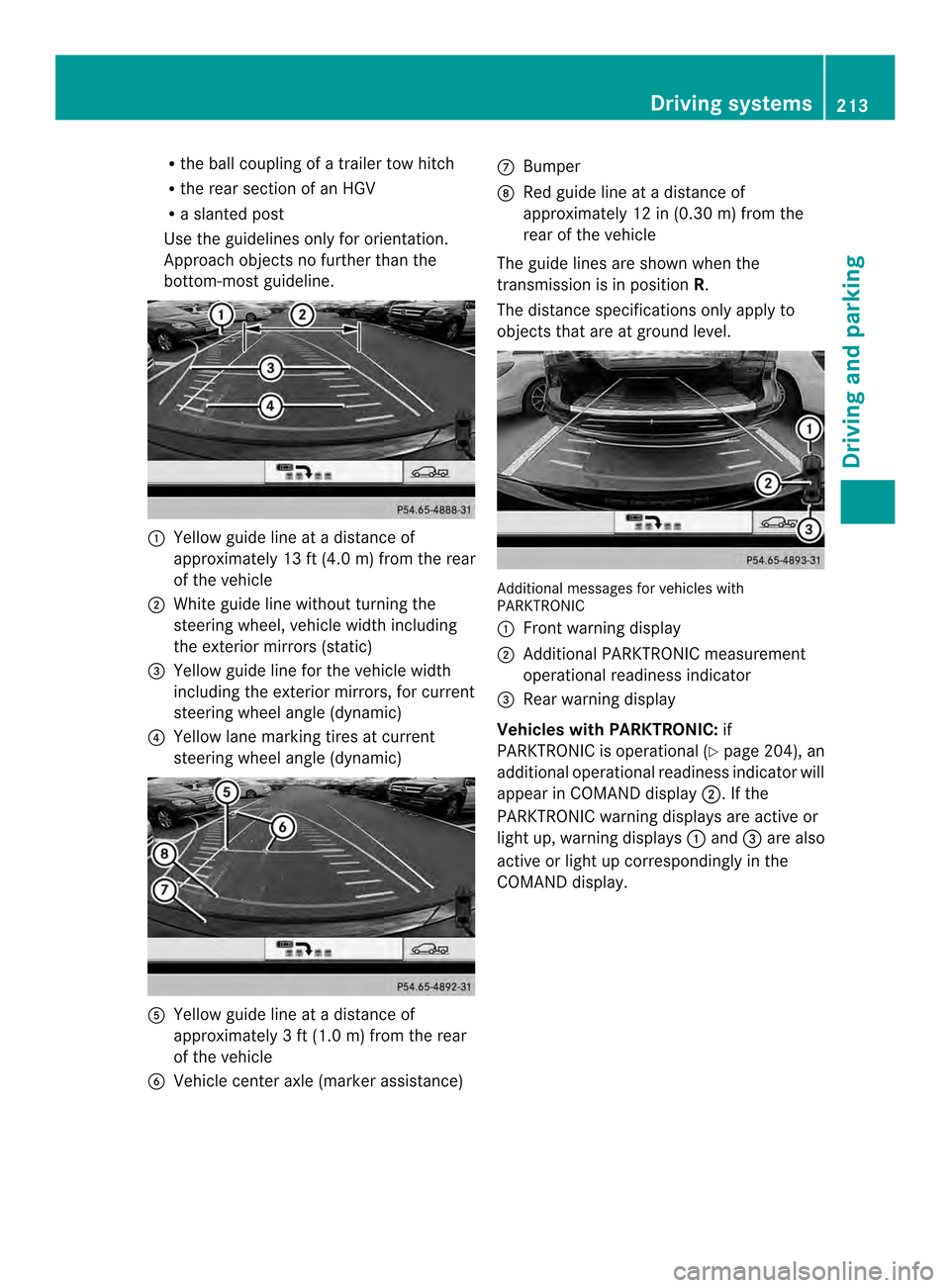
Yellow guide line at a distance of
approximately 13 ft (4.0 m) from the rear
of the vehicle
0003 White guide line without turning the
steering wheel, vehicle width including
the exterior mirrors (static)
0023 Yellow guide line for the vehicle width
including the exterior mirrors, for current
steering wheel angle (dynamic)
0022 Yellow lane marking tires at current
steering wheel angle (dynamic) 0020
Yellow guide line at a distance of
approximately 3 ft (1.0 m) from the rear
of the vehicle
0021 Vehicle center axle (marker assistance) 0014
Bumper
0015 Red guide line at a distance of
approximately 12 in (0.30 m) from the
rear of the vehicle
The guide lines are show nwhen the
transmission is in position R.
The distance specifications only apply to
objects that are at ground level. Additional messages for vehicles with
PARKTRONIC
0002
Front warning display
0003 Additional PARKTRONIC measurement
operational readiness indicator
0023 Rear warning display
Vehicles with PARKTRONIC: if
PARKTRONIC is operational (Y page 204), an
additional operational readiness indicator will
appearinC OMAND display 0003. If the
PARKTRONIC warning displays are active or
light up, warning displays 0002and 0023are also
active or light up correspondingly in the
COMAND display. Driving systems
213Driving and parking Z
Page 216 of 394
"Reverse parking" function
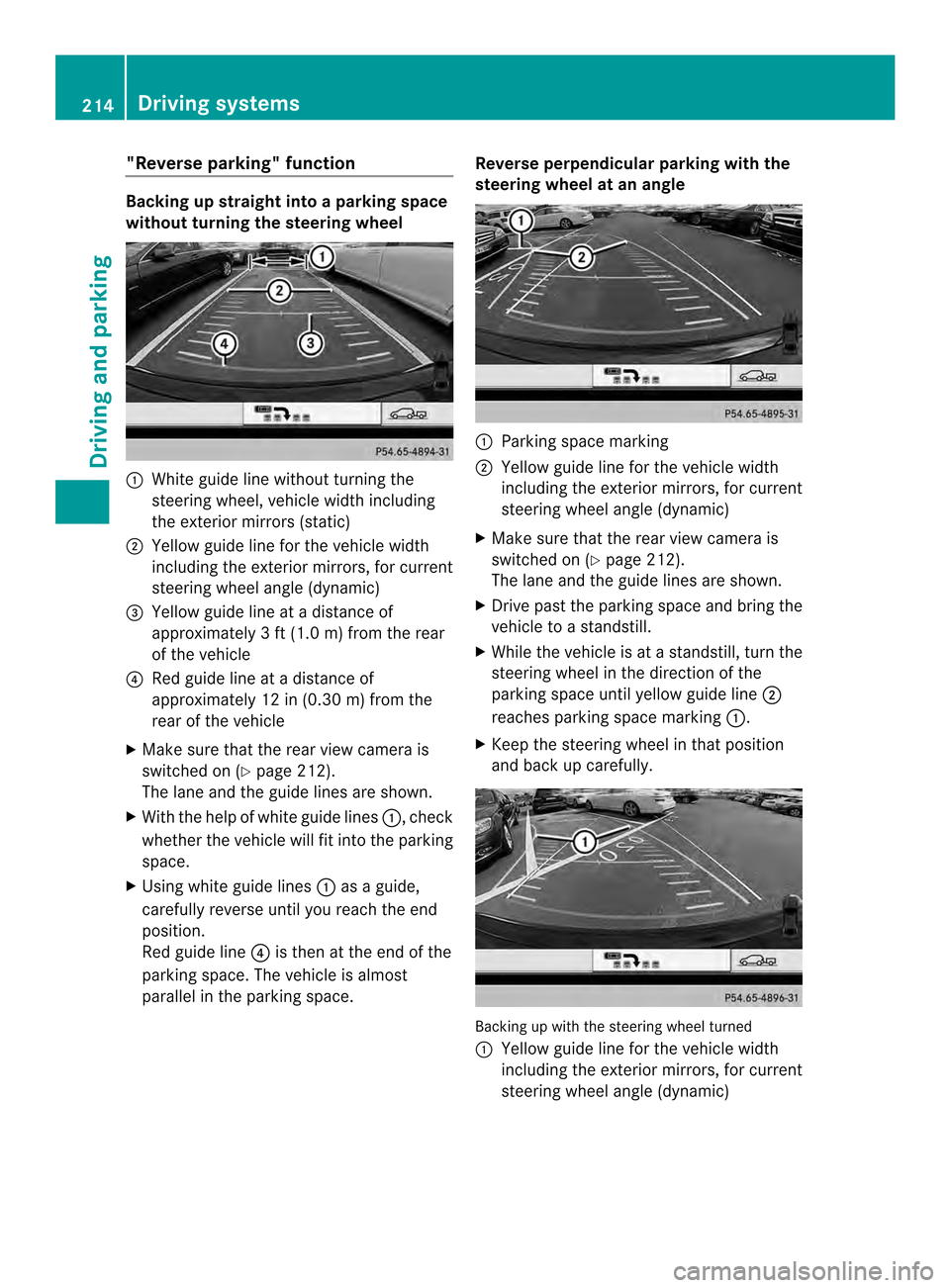
Backing up straight into a parking space
without turning the steering wheel
0002
White guide line without turning the
steering wheel, vehicle width including
the exterior mirrors (static)
0003 Yellow guide line for the vehicle width
including the exterior mirrors, for current
steering wheel angle (dynamic)
0023 Yellow guide line at a distance of
approximately 3 ft (1.0 m) from the rear
of the vehicle
0022 Red guide line at a distance of
approximately 12 in (0.30 m) from the
rear of the vehicle
X Make sure that the rear view camera is
switched on (Y page 212).
The lane and the guide lines are shown.
X With the help of white guide lines 0002, check
whether the vehicle will fit into the parking
space.
X Using white guide lines 0002as a guide,
carefully reverse until you reach the end
position.
Red guide line 0022is then at the end of the
parking space. The vehicle is almost
parallel in the parking space. Reverse perpendicular parking with the
steering wheel at an angle 0002
Parking space marking
0003 Yellow guide line for the vehicle width
including the exterior mirrors, for current
steering wheel angle (dynamic)
X Make sure that the rear view camera is
switched on (Y page 212).
The lane and the guide lines are shown.
X Drive past the parking space and bring the
vehicle to a standstill.
X While the vehicle is at a standstill, turn the
steering wheel in the direction of the
parking space until yellow guide line 0003
reaches parking space marking 0002.
X Keep the steering wheel in that position
and back up carefully. Backing up with the steering wheel turned
0002
Yellow guide line for the vehicle width
including the exterior mirrors, for current
steering wheel angle (dynamic) 214
Driving systemsDriving and parking
Page 217 of 394
X
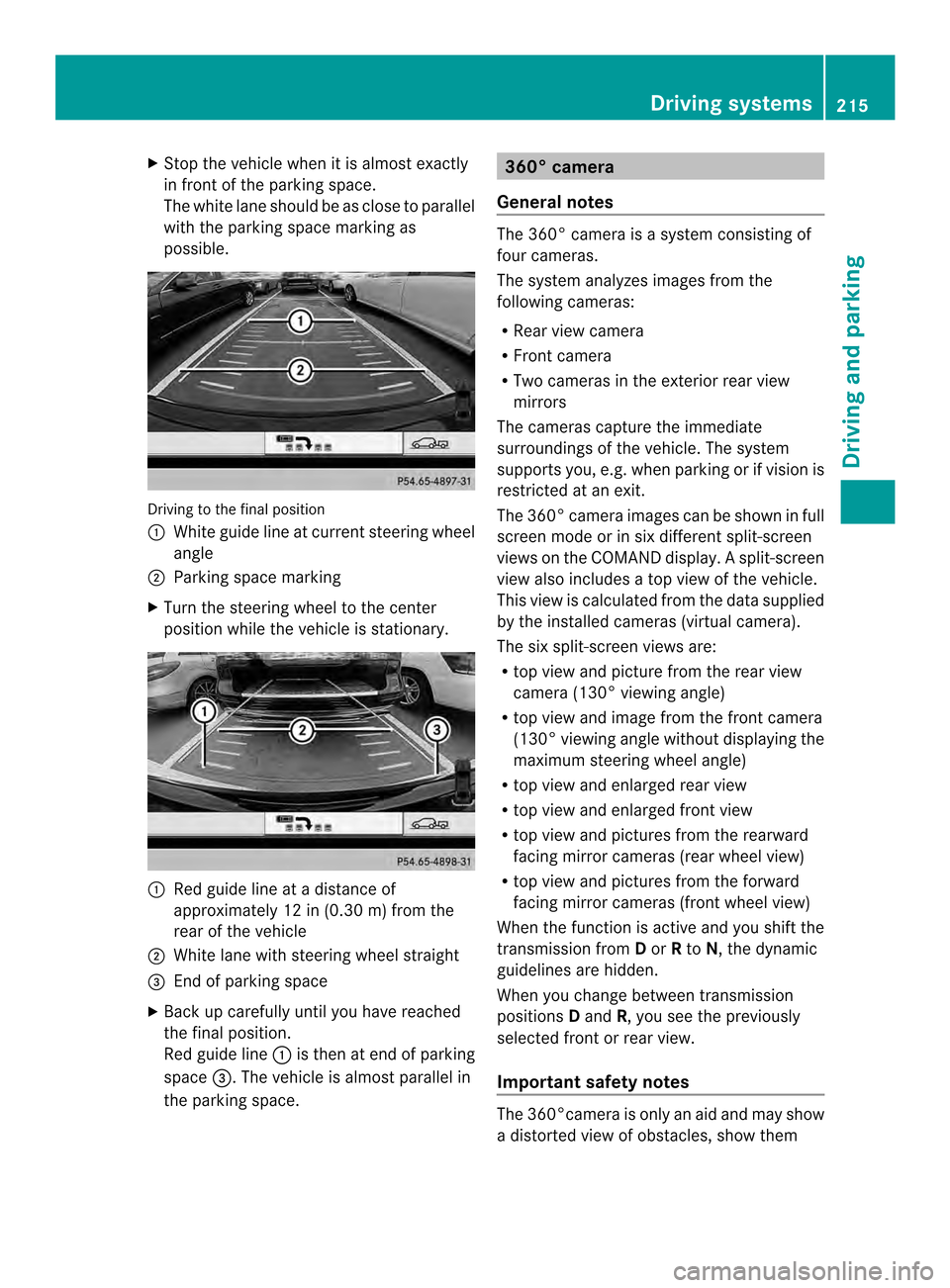
Stop the vehicle when it is almos texactly
in front of the parking space.
The white lane should be as close to parallel
with the parking space marking as
possible. Driving to the final position
0002
White guide line at current steering wheel
angle
0003 Parking space marking
X Turn the steering wheel to the center
positio nwhile the vehicle is stationary. 0002
Red guide line at a distance of
approximately 12 in (0.30 m) from the
rear of the vehicle
0003 White lane with steering wheel straight
0023 End of parking space
X Back up carefully until you have reached
the final position.
Red guide line 0002is then at end of parking
space 0023.The vehicle is almost parallel in
the parking space. 360° camera
General notes The 360° camera is a system consisting of
four cameras.
The system analyzes images from the
following cameras:
R
Rear view camera
R Front camera
R Two cameras in the exterior rear view
mirrors
The cameras capture the immediate
surroundings of the vehicle. The system
supports you, e.g. when parking or if vision is
restricted at an exit.
The 360° camera images can be shown in full
screen mode or in six different split-screen
views on the COMAND display. Asplit-screen
view also includes a top view of the vehicle.
This view is calculated from the data supplied
by the installed cameras (virtual camera).
The six split-screen views are:
R top view and picture from the rear view
camera (130 °viewing angle)
R top view and image from the front camera
(130° viewing angle without displaying the
maximum steering wheel angle)
R top view and enlarged rear view
R top view and enlarged front view
R top view and pictures fro mthe rearward
facing mirror cameras (rear wheel view)
R top view and pictures from the forward
facing mirror cameras (front wheel view)
When the function is active and you shift the
transmission from Dor Rto N, the dynamic
guidelines are hidden.
When you change between transmission
positions Dand R, you see the previously
selected front or rear view.
Important safety notes The 360°camera is only an aid and may show
a distorted view of obstacles, show them Driving systems
215Driving and parking Z
Page 219 of 394
X
Make sure that the SmartKey is in position
2 in the ignition lock.
X Make sure that the Activation by R gear setting is active in COMAND, see the
separate COMAND operating instructions.
X To show the 360° camera image: engage
reverse gear.
The area behind the vehicle is shown in the
COMAND display in split-screen mode. You
see the top view of the vehicle and the
image from the rear view camera.
Selecting the split-screen and full
screen displays X
To switch between split screen views:
switch to the line with the vehicle icons by
sliding 000B0002the COMAND controller.
X Turn 000E0002000F the COMAND controller and
select one of the vehicle symbols.
X To switch to full screen mode: select
Full Screen by turning
000E0002000Fthe
COMAND controller and press 000Cto
confirm.
i The full screen option is only available in
the following views:
R Top view with picture from the rear view
camera
R Top view with picture from the front
camera
Displays in the COMAND display Important safety notes
The camera system may show a distorted
view of obstacles, show them incorrectly or
not at all. Obstacles are not shown by the
system in the following locations:
R under the front and rear bumpers
R very close to the front and rear bumpers
R in the area immediately above the tailgate
handle/trunk lid handle R
very close to the exterior mirrors
R in the transitional areas between the
various cameras in the virtual top view
! Objects not at ground level may appearto
be further away than they actually are, e.g.:
R the bumper of a parked vehicle
R the drawbar of a trailer
R the ball coupling of a trailer tow hitch
R the rear section of an HGV
R a slanted post
Use the guidelines only for orientation.
Approach objects no further than the
bottom-most guideline.
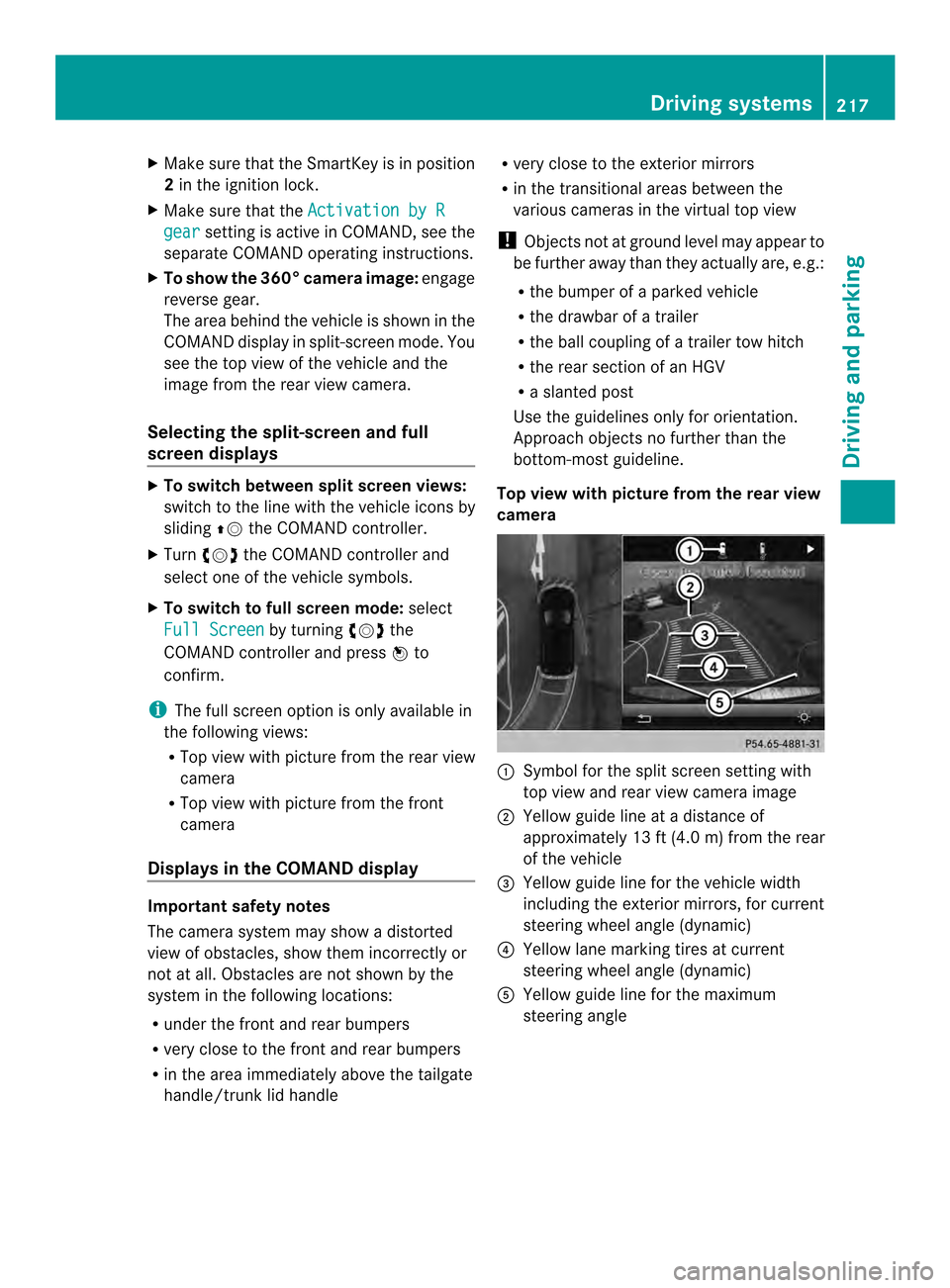
Top view with picture from the rear view
camera 0002
Symbol for the split scree nsetting with
top view and rear view camera image
0003 Yellow guide line at a distance of
approximately 13 ft (4.0 m) from the rear
of the vehicle
0023 Yellow guide line for the vehicle width
including the exterior mirrors, for current
steering wheel angle (dynamic)
0022 Yellow lane marking tires at current
steering wheel angle (dynamic)
0020 Yellow guide line for the maximum
steering angle Driving systems
217Driving and parking Z
Page 220 of 394
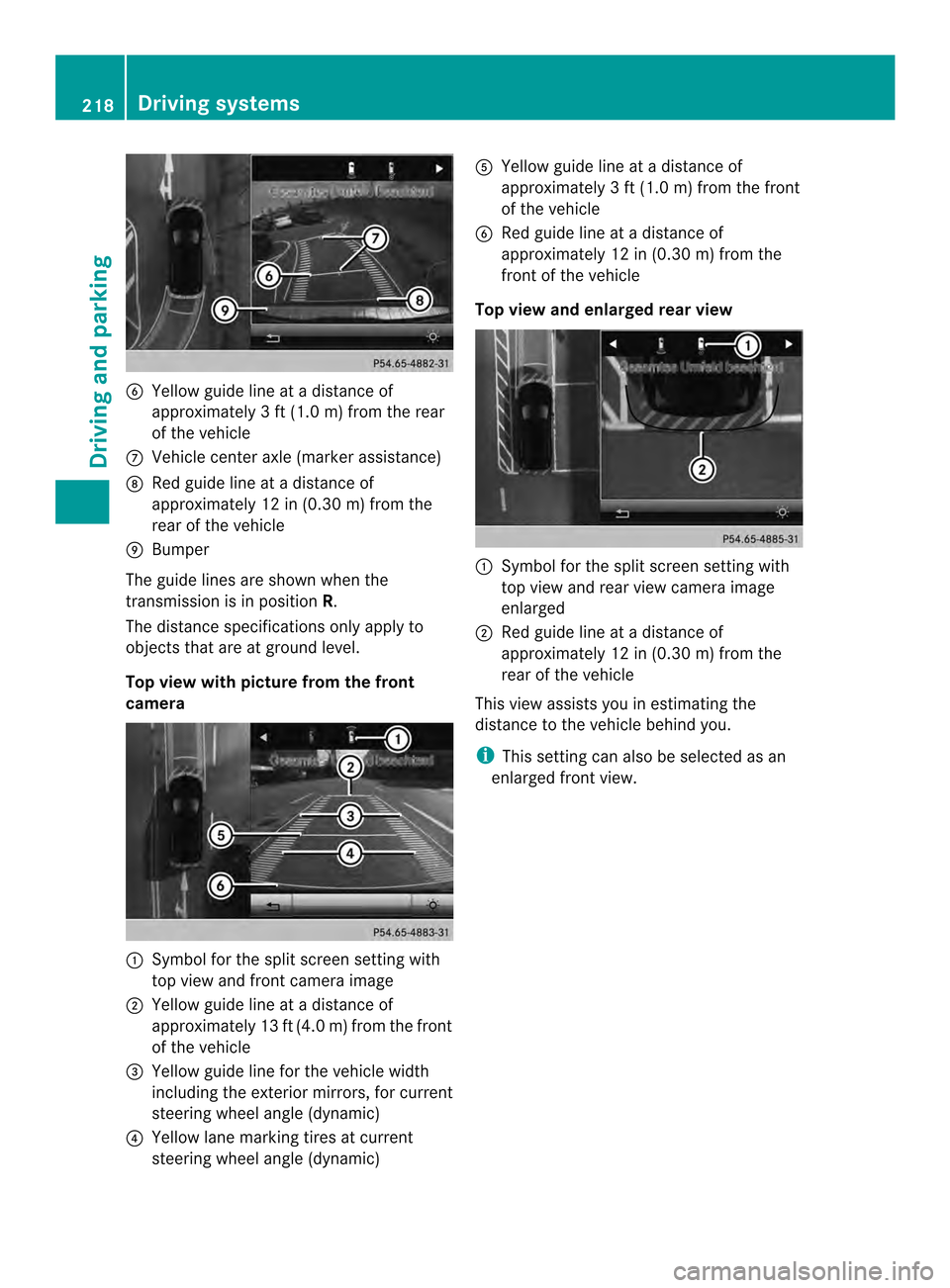
0021
Yellow guide line at a distance of
approximately 3 ft (1.0 m) from the rear
of the vehicle
0014 Vehicle center axle (marker assistance)
0015 Red guide line at a distanc eof
approximately 12 in (0.30 m) from the
rear of the vehicle
0016 Bumper
The guide lines are shown when the
transmission is in position R.
The distance specifications only apply to
objects that are at ground level.
Top view with picture from the front
camera 0002
Symbol for the split scree nsetting with
top view and front camera image
0003 Yellow guide line at a distance of
approximately 13 ft (4.0 m) from the front
of the vehicle
0023 Yellow guide line for the vehicle width
including the exterior mirrors, for current
steering wheel angle (dynamic)
0022 Yellow lane marking tires at current
steering wheel angle (dynamic) 0020
Yellow guide line at a distance of
approximately 3 ft (1.0 m) from the front
of the vehicle
0021 Red guide line at a distanc eof
approximately 12 in (0.30 m) from the
front of the vehicle
Top view and enlarged rea rview 0002
Symbol for the split screen setting with
top view and rear view camera image
enlarged
0003 Red guide line at a distance of
approximately 12 in (0.30 m) from the
rear of the vehicle
This view assists you in estimating the
distance to the vehicle behind you.
i This setting can also be selected as an
enlarged fron tview. 218
Driving systemsDriving and parking
Page 223 of 394
Activating ATTENTION ASSIST
X
Activate ATTENTION ASSIST using the on-
board computer (Y page 242).
The system determines the attention level
of the driver depending on the setting
selected:
Standard selected: the sensitivity with
which the system determine sthe attention
level is set to normal.
Sensitive selected: the sensitivity is set
higher. The attention level detected by
Attention Assist is adapted accordingly and
the driver is warned earlier.
When ATTENTION ASSIST is deactivated, the
0002 symbol and OFF appearint he
multifunction display in the assistance
display when the engine is running.
When ATTENTION ASSIST has been
deactivated, it is automatically reactivated
after the engine has been stopped. The
sensitivity selected corresponds to the last
selection activated (standard/sensitive).
Warning in the multifunction display If fatigue or increasing lapses in
concentration are detected, a warning
appears in the multifunction display:
Attention Assist: Take a Break! In addition to the message shown in the
multifunction display, you will then hear a
warning tone.
X If necessary, take a break.
X Confirm the message by pressing the
000B button on the steering wheel.
On long journeys, take regular breaks in good
time to allow yourself to rest properly. If you
do not take a break and ATTENTION ASSIST
still detects increasing lapses in
concentration, you will be warned again after
15 minutes at the earliest. This will only
happen if ATTENTION ASSIST still detects
typical indicators of fatigue or increasing
lapses in concentration. Lane Tracking package
General notes The Lane Tracking package consists of Blind
Spot Assist (Y
page 221) and Lane Keeping
Assist (Y page 223).
Blind Spot Assist General notes
Blind Spot Assist uses a radar sensor system
to monitor the areas on both sides of your
vehicle. It supports you from a speed of
approximately 20 mph
(30 km/h). A warning
display in the exterio rmirrors draws your
attention to vehicles detected in the
monitored area. If you then switch on the
corresponding tur nsignal to change lanes,
you will also receive a visual and audible
collision warning. Blind Spot Assist uses
sensors in the rear bumper for monitoring
purposes.
Important safety notes G
WARNING
Blind Spot Assist does not react to:
R vehicles overtaken too closely on the side,
placing the minthe blind spot area
R vehicles which approach with a large speed
differential and overtake your vehicle
As a result, Blind Spot Assist may not give
warnings in such situations. There is a risk of
an accident.
Always observe the traffic conditions
carefully, and maintain a safe lateral distance.
Blind Spot Assist is only an aid. It may fail to
detect some vehicles and is no substitute for
attentive driving. Always ensure that there is
sufficient distance to the side for other road
users and obstacles.
i USA only:
This device has been approved by the FCC
as a "VehicularR adar System". The radar
sensor is intended for use in an automotive
radar system only. Removing, tampering Driving systems
221Driving and parking Z
Page 225 of 394
If a vehicle is detected within the blind spot
monitoring range at speeds above 20 mph
(30 km/h), warning lamp
0002on the
corresponding side lights up red. This warning
is always emitted when a vehicle enters the
blind spot monitoring range from behind or
from the side. When you overtake a vehicle,
the warning only occurs if the difference in
speed is less than 7mph (12 km/h).
The yellow indicator lamp goes out if reverse
gear is engaged. In this event, Blind Spot
Assist is no longer active.
The brightness of the indicator/warning
lamps is adjusted automatically according to
the ambient light.
Collision warning
If a vehicle is detected in the monitoring range
of Blind Spot Assist and you switch on the
corresponding turn signal, a double warning
tone sounds. Red warning lamp 0002flashes. If
the turn signal remains on, vehicles detected
are indicated by the flashing of red warning
lamp 0002.There are no further warning tones.
Switching on Blind Spot Assist
X Make sure that Blind Spot Assist
(Y page 242) is activated in the on-board
computer.
X Turn the SmartKey to position 2in the
ignition lock.
Warning lamps 0002in the exterior mirrors
light up red for approximately
1.5 seconds and then turn yellow. Lane Keeping Assist General notes
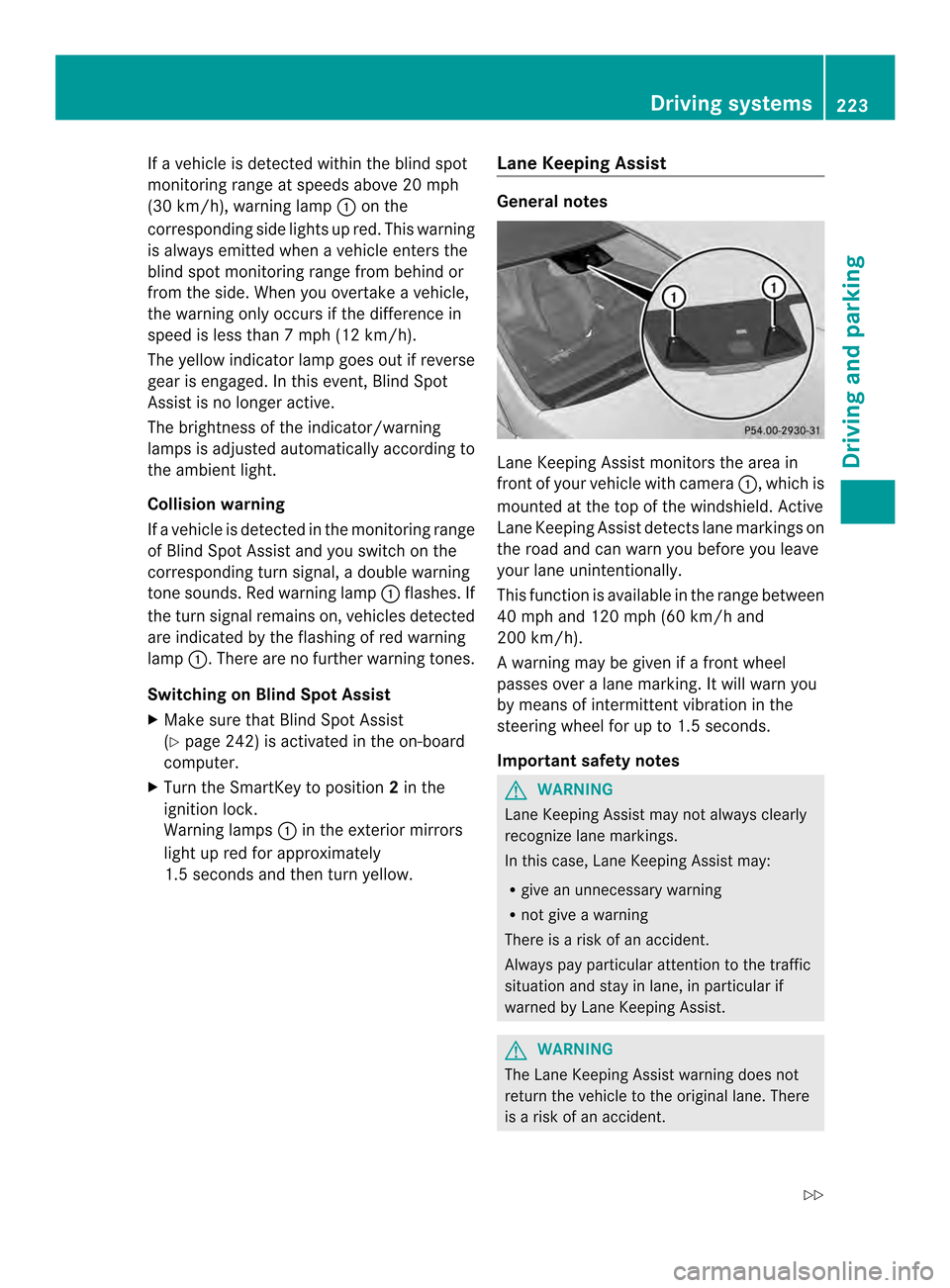
Lane Keeping Assist monitors the area in
front of your vehicle with camera
0002, which is
mounted at the top of the windshield. Active
Lane Keeping Assist detectsl ane markings on
the road and can warn you before you leave
your lane unintentionally.
This function is available in the range between
40 mph and 120 mph (60 km/h and
200 km/h).
A warning may be given if a front wheel
passes ove ralane marking. It will warn you
by means of intermittent vibration in the
steering wheel for up to 1. 5seconds.
Important safety notes G
WARNING
Lane Keeping Assist may not always clearly
recognize lane markings.
In this case, Lane Keeping Assist may:
R give an unnecessary warning
R not give a warning
There is a risk of an accident.
Always pay particular attention to the traffic
situation and stay in lane, in particular if
warned by Lane Keeping Assist. G
WARNING
The Lane Keeping Assist warning does not
return the vehicle to the original lane. There
is a risk of an accident. Driving systems
223Driving and parking
Z
Page 231 of 394
If no vehicle is detected in the adjacent lane
and there are broken lane markings detected,
no lane-correcting brake application is made.
Warning vibration in the steering wheel
A warning may be given if a front wheel
passes over a lane marking. It will warn you
by means of intermittent vibration in the
steering wheel for up to 1.5 seconds.
Lane-correcting brake application G
WARNING
A lane-correcting brake application cannot
always bring the vehicle back into the original
lane. There is a risk of an accident.
Always steer, brake or accelerate yourself,
especially if Active Lane Keeping Assist warns
you or makes a lane-correcting brake
application. G
WARNING
Active Lane Keeping Assist only detects
traffic conditions or road users to a limited
extent. In very rare cases, the system may
make an inappropriate brake application, e.g.
after intentionally driving over a solid lane
marking. There is arisk of an accident.
An inappropriate brake application may be
interrupted at any time if you steer slightly in
the opposite direction .Always make sure that
there is sufficient distance on the side for
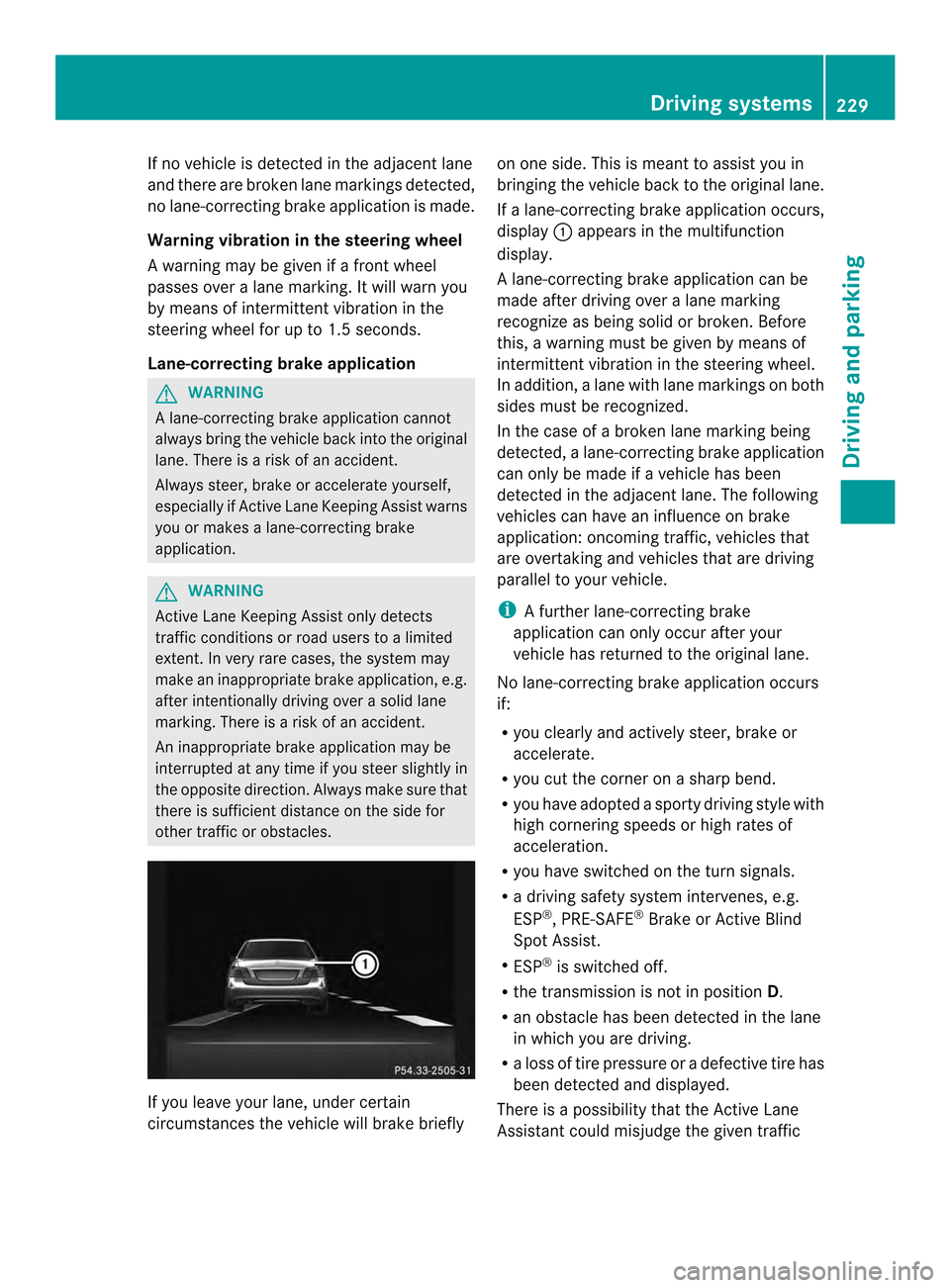
other traffic or obstacles. If you leave your lane, under certain
circumstances the vehicle will brake briefly on one side. This is mean
tto assist you in
bringing the vehicle back to the original lane.
If a lane-correcting brake application occurs,
display 0002appears in the multifunction
display.
A lane-correcting brake application can be
made after driving over a lane marking
recognize as being solid or broken .Before
this, a warning must be given by means of
intermittentv ibration in the steering wheel.
In addition, a lane with lane markings on both
sides must be recognized.
In the case of a broken lane marking being
detected, a lane-correcting brake application
can only be made if a vehicle has been
detected in the adjacent lane. The following
vehicles can have an influence on brake
application: oncoming traffic, vehicles that
are overtaking and vehicles that are driving
parallel to your vehicle.
i A further lane-correcting brake
application can only occur after your
vehicle has returned to the original lane.
No lane-correcting brak eapplication occurs
if:
R you clearly and actively steer, brake or
accelerate.
R you cut the corner on a sharp bend.
R you have adopted a sporty driving style with
high cornering speeds or high rates of
acceleration.
R you have switched on the turn signals.
R a driving safety system intervenes, e.g.
ESP ®
, PRE-SAFE ®
Brake or Active Blind
Spot Assist.
R ESP ®
is switched off.
R the transmission is not in position D.
R an obstacle has been detected in the lane
in which you are driving.
R a loss of tire pressure or a defective tire has
been detected and displayed.
There is a possibility that the Active Lane
Assistant could misjudge the given traffic Driving systems
229Driving and parking Z
Page 235 of 394
Outside temperature display
You should pay special attention to road
conditions when temperatures are around
freezing point.
The outside temperature display is in the
multifunction display (Y page 234).
Changes in the outside temperature are
displayed after a short delay. Speedometer with segments
The segments in the speedometer indicate
which speed range is available.
R Cruise control activated (Y page 189):
The segments light up from the stored
speed to the maximum speed.
R DISTRONIC PLUS activated (Y page 191):
One or two segments in the set speed
range light up.
R DISTRONIC PLUS detects avehicle in front:
The segments between the speed of the
vehicle in fron tand the stored speed light
up. Operating the on-board computer
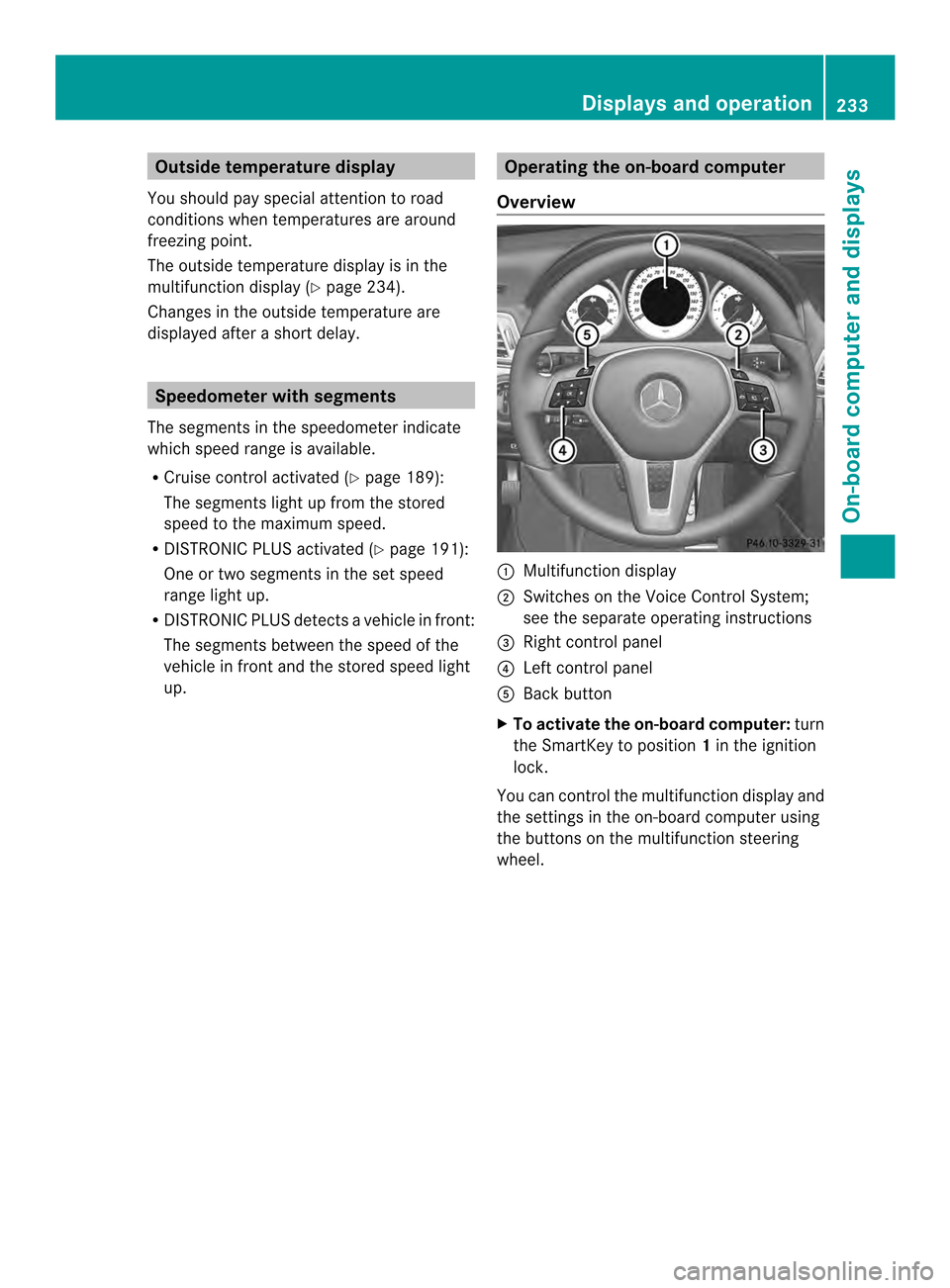
Overview 0002
Multifunctio ndisplay
0003 Switches on the Voice Control System;
see the separate operating instructions
0023 Right control panel
0022 Left control panel
0020 Back button
X To activat ethe on-board computer: turn
the SmartKey to position 1in the ignition
lock.
You can control the multifunction display and
the settings in the on-board computer using
the buttons on the multifunction steering
wheel. Displays and operation
233On-board computer and displays Z
Page 236 of 394
Left control panel
0002
0005 R
Calls up the menu and menu bar 0003
0004
Press briefly:
R
Scrolls in lists
R Selects a submenu or function
R In the Audio menu: selects a
stored station, an audio track or
a video scene
R In the Tel (telephone) menu:
switches to the phone book and
selects a name or telephone
number 0003
0004
Press and hold:
R
In the Audio menu: selects the
previous/nex tstation or selects
an audio track or a video scene
using rapid scrolling
R In the Tel (Telephone) menu:
starts rapid scrolling if the phone
book is open 000B R
Confirms a selection/display
message
R In the Tel (telephone) menu:
switches to the telephone book
and starts dialing the selected
number
R In the Audio menu: stops the
station search function at the
desired station Right control panel
000D R
Rejects or ends a call
R Exits phone book/redial
memory 0004 R
Makes or accepts a call
R Switches to the redial memory 0009
000A R
Adjusts the volume 0006 R
Mute Back button
0007
Press briefly:
R
Back
R Switches off the Voice Control
System; see the separate
operating instructions
R Hides display messages/calls
up the last Trip menu function
used
R Exits the telephone book/redial
memory 0007
Press and hold:
R
Calls up the standard display in
the Trip menu
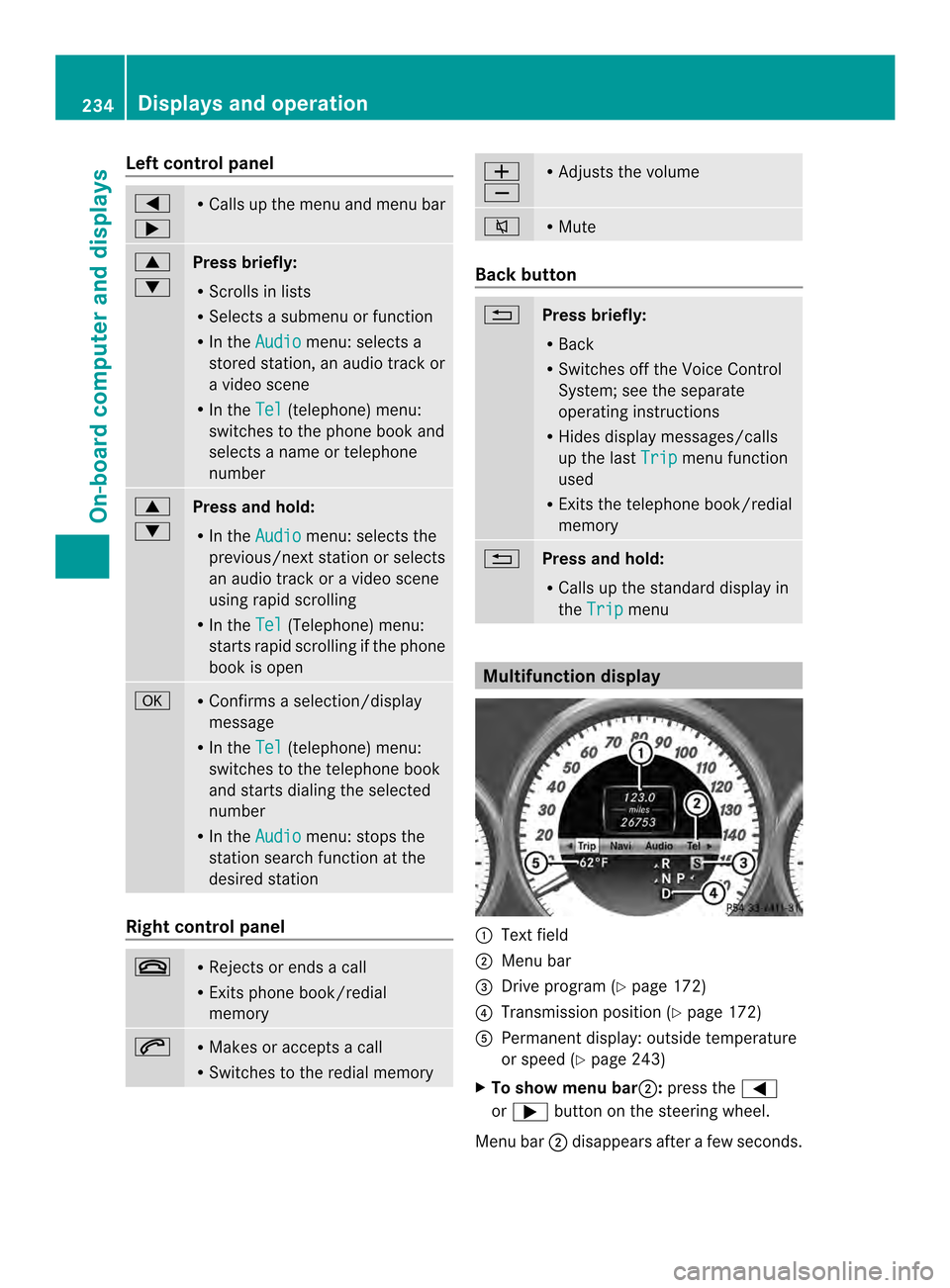
Multifunction display
0002
Text field
0003 Menu bar
0023 Drive program (Y page 172)
0022 Transmission positio n(Ypage 172)
0020 Permanent display: outside temperature
or speed (Y page 243)
X To show menu bar 0003:press the 0002
or 0005 button on the steering wheel.
Menu bar 0003disappears after a few seconds. 234
Displays and operationOn-board computer and displays