display MERCEDES-BENZ E-CLASS COUPE 2017 Owners Manual
[x] Cancel search | Manufacturer: MERCEDES-BENZ, Model Year: 2017, Model line: E-CLASS COUPE, Model: MERCEDES-BENZ E-CLASS COUPE 2017Pages: 541, PDF Size: 10.71 MB
Page 326 of 541
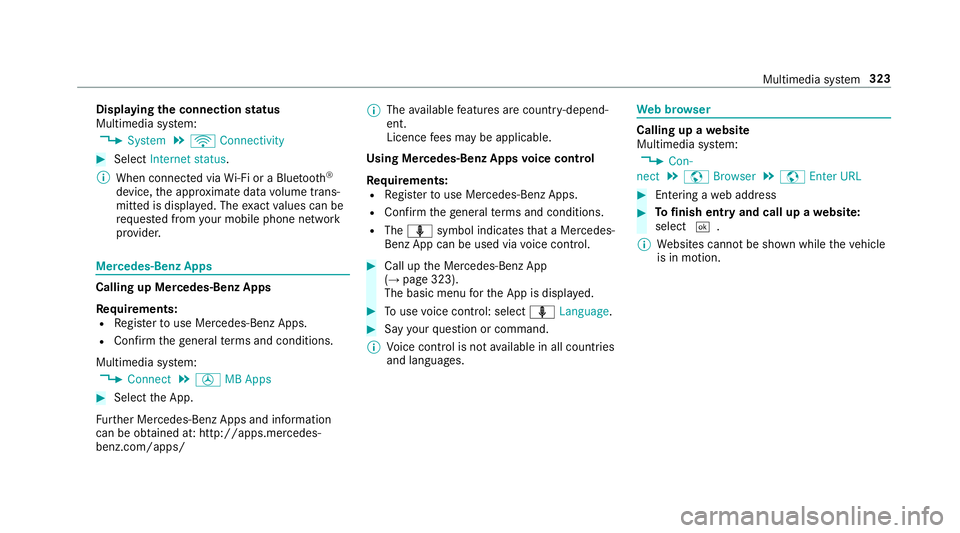
Displaying
the connection status
Multimedia sy stem:
, System .
ö Connectivity #
Select Internet status .
% When connected via Wi-Fi or a Blu etoo th®
device, the appr oximate data volume trans‐
mit ted is displa yed. The exact values can be
re qu ested from your mobile phone network
pr ov ider. Mercedes-Benz Apps
Calling up Mercedes-Benz Apps
Re
quirements:
R Regis terto use Mercedes-Benz Apps.
R Con firm thege neral term s and conditions.
Multimedia sy stem:
, Connect .
Ú MB Apps #
Select the App.
Fu rther Mercedes-Benz Apps and information
can be obtained at: http://apps.mercedes-
benz.com/apps/ %
The available features are countr y-depend‐
ent.
Licence fees may be applicable.
Using Mercedes-Benz Apps voice control
Re quirements:
R Regis terto use Mercedes-Benz Apps.
R Con firm thege neral term s and conditions.
R The o symbol indicates that a Mercedes-
Benz App can be used via voice control. #
Call up the Mercedes-Benz App
(→ page 323).
The basic menu forth e App is displa yed. #
Touse voice control: select oLanguage. #
Say your question or command.
% Voice control is not available in all countries
and languages. We
b br owser Calling up a
website
Multimedia sy stem:
, Con-
nect .
z Browser .
z Enter URL #
Ente ring a web address #
Tofinish entry and call up a website:
select ¬.
% Websites cann otbe shown while theve hicle
is in motion. Multimedia sy
stem 323
Page 328 of 541
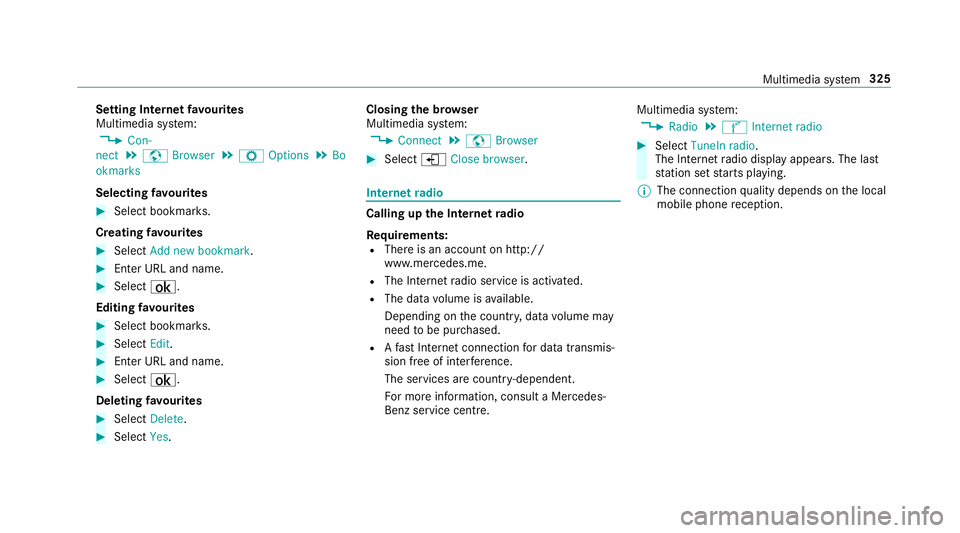
Setting Internet
favo urites
Multimedia sy stem:
, Con-
nect .
z Browser .
Z Options .
Bo
okmarks
Selecting favo urites #
Select bookma rks.
Creating favo urites #
Select Add new bookmark. #
Enter URL and name. #
Select ¡.
Editing favo urites #
Select bookma rks. #
Select Edit. #
Enter URL and name. #
Select ¡.
Deleting favo urites #
Select Delete. #
Select Yes. Closing
the br owser
Multimedia sy stem:
, Connect .
z Browser #
Select åClose browser . Internet
radio Calling up the In
ternetradio
Re quirements:
R There is an account on http://
www.me rcedes.me.
R The Internet radio service is activated.
R The data volume is available.
Depending on the count ry, data volume may
need tobe pur chased.
R Afast Internet connection for data transmis‐
sion free of inter fere nce.
The services are countr y-dependent.
Fo r more information, consult a Mercedes-
Benz service centre. Multimedia sy
stem:
, Radio .
Ý Internet radio #
Select TuneIn radio.
The Internet radio display appears. The last
st ation set starts playing.
% The connection quality depends on the local
mobile phone reception. Multimedia sy
stem 325
Page 329 of 541
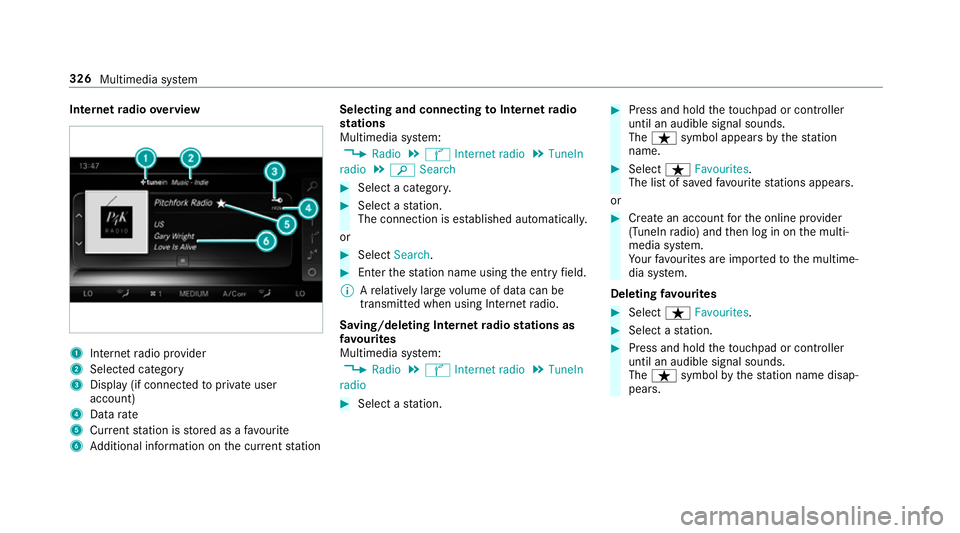
Internet
radio overview 1
Inte rn et radio pr ovider
2 Selec ted category
3 Display (if connec tedto private user
account)
4 Data rate
5 Current station is stored as a favo urite
6 Additional information on the cur rent station Selecting and connecting
toInternet radio
st ations
Multimedia sy stem:
, Radio .
Ý Internet radio .
TuneIn
radio .
è Search #
Select a categor y. #
Select a station.
The connection is es tablished automaticall y.
or #
Select Search. #
Enter thest ation name using the entry field.
% Arelatively lar gevolume of data can be
transmitte d when using Internet radio.
Saving/deleting Internet radio stations as
fa vo urites
Multimedia sy stem:
, Radio .
Ý Internet radio .
TuneIn
radio #
Select a station. #
Press and hold theto uchpad or cont roller
until an audible signal sounds.
The ß symbol appears bythest ation
name. #
Select ßFavourites.
The list of sa vedfavo urite stations appears.
or #
Create an account forth e online pr ovider
(TuneIn radio) and then log in on the multi‐
media sy stem.
Yo ur favo urites are impor tedto the multime‐
dia sy stem.
Deleting favo urites #
Select ßFavourites. #
Select a station. #
Press and hold theto uchpad or cont roller
until an audible signal sounds.
The ß symbol bythest ation name disap‐
pears. 326
Multimedia sy stem
Page 333 of 541
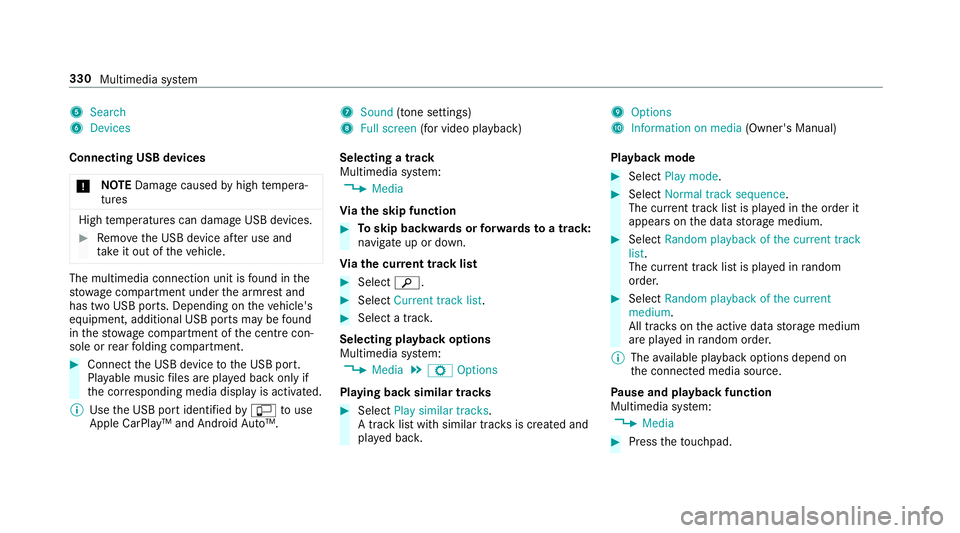
5
Search
6 Devices 7
Sound (tone settings)
8 Full screen (for video pl ayback) 9
Options
A Information on media (Owner's Manual)
Connecting USB devices * NO
TEDama gecaused byhigh temp era‐
tures High
temp eratures can damage USB devices. #
Remo vethe USB device af ter use and
ta ke it out of theve hicle. The multimedia connection unit is
found in the
stow age compartment under the armrest and
has two USB ports. Depending on theve hicle's
equipment, additional USB ports may be found
in thestow age compartment of the cent recon‐
sole or rear folding compartment. #
Connect the USB device tothe USB port.
Pla yable music files are pla yed back only if
th e cor responding media display is activated.
% Use the USB port identified byç touse
Apple CarPlay™ and Android Auto™. Selecting a track
Multimedia sy
stem:
, Media
Vi ath e skip function #
Toskip backwards or forw ards toa track:
navigate up or down.
Vi ath e cur rent track list #
Select è. #
Select Current track list. #
Select a tra ck.
Selecting playback options
Multimedia sy stem:
, Media .
Z Options
Playing back similar trac ks #
Select Play similar tracks.
A track li stwith similar trac ksis created and
pla yed bac k. Playback mode #
Select Play mode. #
Select Normal track sequence.
The cur rent track li stis pla yed in the order it
appears on the data storage medium. #
Select Random playback of the current track
list.
The cur rent track li stis pla yed in random
orde r. #
Select Random playback of the current
medium.
All trac kson the active data storage medium
are pla yed in random orde r.
% The available playback options depend on
th e connected media source.
Pa use and playback function
Multimedia sy stem:
, Media #
Press theto uchpad. 330
Multimedia sy stem
Page 341 of 541
Ac
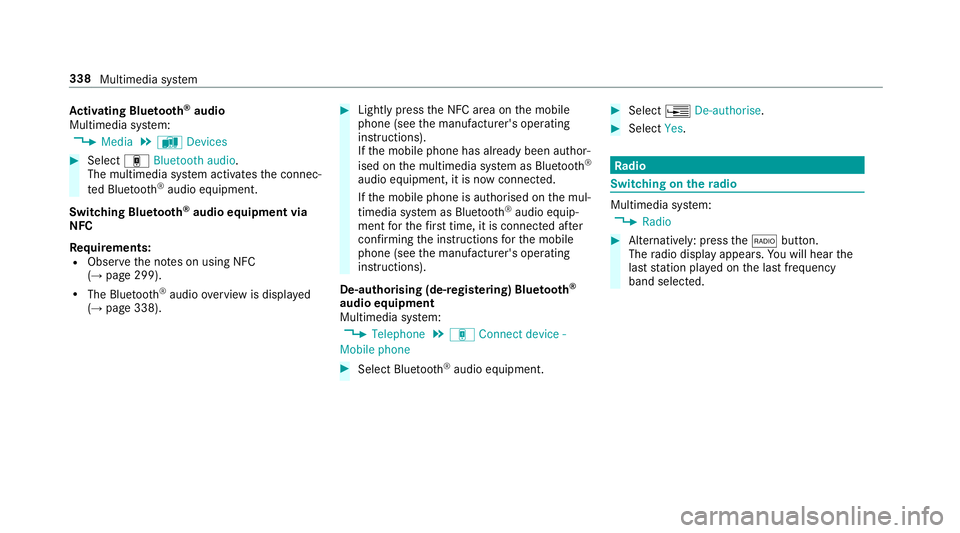
tivating Blue tooth ®
audio
Multimedia sy stem:
, Media .
à Devices #
Select áBluetooth audio.
The multimedia sy stem activates the connec‐
te d Blue tooth®
audio equipment.
Swit ching Blue tooth ®
audio equipment via
NFC
Requ irements:
R Obser vethe no tes on using NFC
(→ page 299).
R The Blue tooth®
audio overview is displa yed
( → page 338). #
Lightly press the NFC area on the mobile
phone (see the manufacturer's operating
instructions).
If th e mobile phone has already been author‐
ised on the multimedia sy stem as Blue tooth®
audio equipment, it is now connec ted.
If th e mobile phone is authorised on the mul‐
timedia sy stem as Blue tooth ®
audio equip‐
ment forth efirs t time, it is connected af ter
confirming the instructions forth e mobile
phone (see the manufacturer's operating
instructions).
De-authorising (de-regis tering) Blue tooth ®
audio equipment
Multimedia sy stem:
, Telephone .
á Connect device -
Mobile phone #
Select Blue tooth®
audio equipment. #
Select ¥De-authorise. #
Select Yes. Ra
dio Switching on the
radio Multimedia sy
stem:
, Radio #
Alternatively: press the$ button.
The radio display appears. You will hear the
last station pla yed on the last frequency
band selected. 338
Multimedia sy stem
Page 344 of 541
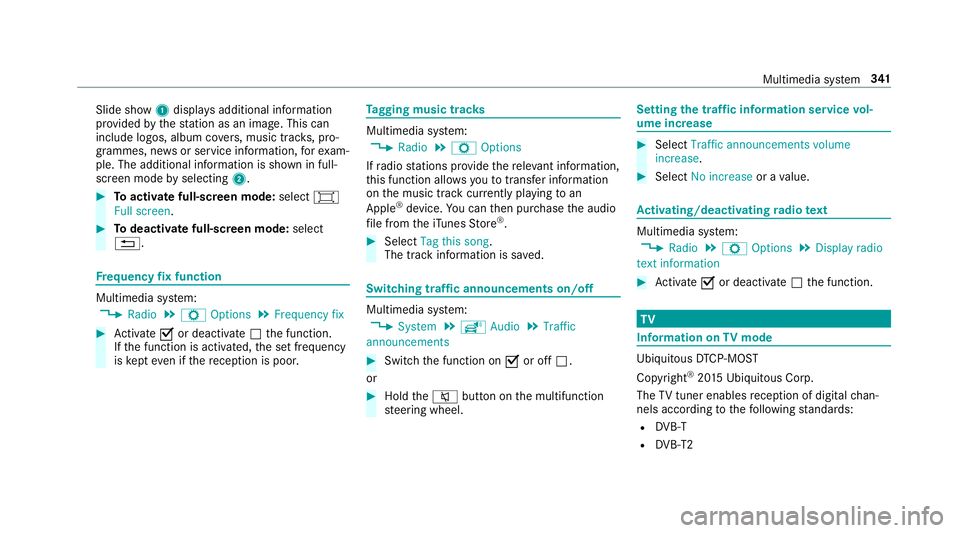
Slide show
1displ ays additional information
pr ov ided bythest ation as an image. This can
include logos, album co vers, music trac ks, pro‐
grammes, ne wsor service information, forex am‐
ple. The additional information is shown in full-
sc reen mode byselecting 2. #
Toactivate full-screen mode: select#
Full screen. #
Todeactivate full-sc reen mode: select
%. Fr
equency fix function Multimedia sy
stem:
, Radio .
Z Options .
Frequency fix #
Activate Oor deacti vate ª the function.
If th e function is activated, the set frequency
is ke pt eve n ifthere ception is poo r. Ta
gging music trac ks Multimedia sy
stem:
, Radio .
Z Options
If ra dio stations pr ovide there leva nt information,
th is function allo wsyouto trans fer information
on the music track cur rently pl aying toan
Apple ®
device. You can then pur chase the audio
fi le from theiTunes Store ®
. #
Select Tag this song.
The track information is sa ved. Switching traf
fic announcements on/off Multimedia sy
stem:
, System .
õ Audio .
Traffic
announcements #
Switch the function on Oor off ª.
or #
Hold the8 button on the multifunction
st eering wheel. Setting
the traf fic information service vol‐
ume increase #
Select Traffic announcements volume
increase. #
Select No increase or avalue. Ac
tivating/deactivating radio text Multimedia sy
stem:
, Radio .
Z Options .
Display radio
text information #
Activate Oor deacti vate ª the function. TV
Information on
TVmode Ubiquito
usDTCP-MOST
Copyright ®
20 15 Ubiquitous Corp.
The TVtuner enables reception of digital chan‐
nels according tothefo llowing standards:
R DVB-T
R DVB-T2 Multimedia sy
stem 341
Page 348 of 541
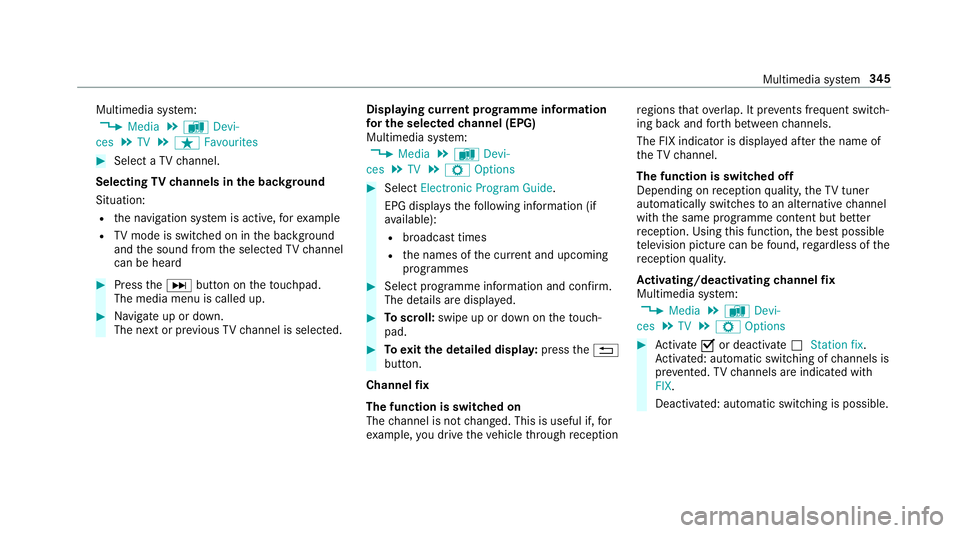
Multimedia sy
stem:
, Media .
à Devi-
ces .
TV .
ß Favourites #
Select a TVchannel.
Selecting TVchannels in the bac kground
Situation: R the navigation sy stem is active, forex ample
R TVmode is switched on in the bac kground
and the sound from the selected TVchannel
can be heard #
Press theD button on theto uchpad.
The media menu is called up. #
Navigate up or down.
The next or pr evious TVchannel is selec ted. Displaying cur
rent prog ramme in form ation
fo r the selected channel (EPG)
Multimedia sy stem:
, Media .
à Devi-
ces .
TV .
Z Options #
Select Electronic Program Guide.
EPG displa ys thefo llowing information (if
av ailable):
R broadcast times
R the names of the cur rent and upcoming
programmes #
Select programme information and confirm.
The de tails are displa yed. #
Toscroll: swipe up or down on theto uch‐
pad. #
Toexitth e detailed displa y:press the%
button.
Channel fix
The function is switched on
The channel is not changed. This is useful if, for
ex ample, you drive theve hicle thro ugh reception re
gions that ove rlap. It pr events frequent switch‐
ing ba ckand forth between channels.
The FIX indicator is displa yed af terth e name of
th eTV channel.
The function is swit ched off
Depending on reception qualit y,theTV tuner
au tomatical lyswitches toan alternative channel
with the same programme conte nt but better
re ception. Using this function, the best possible
te levision picture can be found, rega rdless of the
re ception qualit y.
Ac tivating/deactivating channel fix
Multimedia sy stem:
, Media .
à Devi-
ces .
TV .
Z Options #
Activate Oor deacti vate ª Station fix .
Ac tivated: au tomatic switching of channels is
pr eve nted. TVchannels are indicated with
FIX.
Deactivated: automatic swit ching is possible. Multimedia sy
stem 345
Page 351 of 541
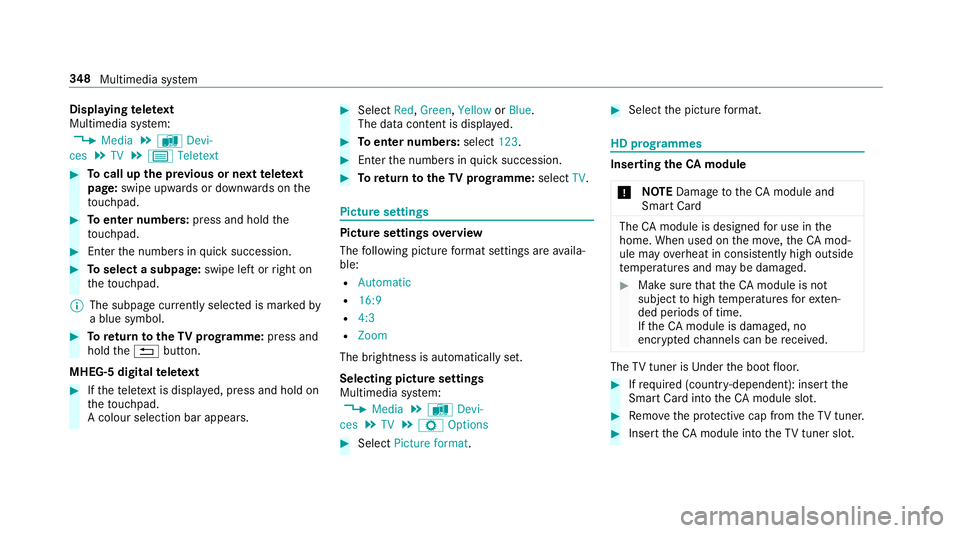
Displaying
telete xt
Multimedia sy stem:
, Media .
à Devi-
ces .
TV .
p Teletext #
Tocall up the pr evious or next telete xt
page: swipe upwards or down wards on the
to uchpad. #
Toenter numbers: press and holdthe
to uchpad. #
Enterth e numbers in quick succession. #
Toselect a subpage: swipe left orright on
th eto uchpad.
% The subpage cur rently selected is ma rked by
a blue symbol. #
Toreturn totheTV prog ramme: press and
hold the% button.
MHEG-5 digital telete xt #
Ifth ete lete xt is displ ayed, press and hold on
th eto uchpad.
A colour selection bar appears. #
Select Red,Green, YelloworBlue .
The data content is displ ayed. #
Toenter numbers: select123. #
Enterth e numbers in quick succession. #
Toreturn totheTV prog ramme: selectTV. Pictu
resettings Picture settings
overview
The following picture form at settings are availa‐
ble:
R Automatic
R 16:9
R 4:3
R Zoom
The brightness is automatically set.
Selecting picture settings
Multimedia sy stem:
, Media .
à Devi-
ces .
TV .
Z Options #
Select Picture format. #
Select the picture form at. HD prog
rammes Inse
rting theCA module
* NO
TEDama getotheCA module and
Smart Card The
CAmodule is designed for use in the
home. When used on the mo ve,th eCA mod‐
ule may overheat in consis tently high outside
te mp eratures and may be damaged. #
Make sure that theCA module is not
subject tohigh temp eratures forex ten‐
ded pe riods of time.
If th eCA module is dama ged, no
enc rypte dch annels can be recei ved. The
TVtuner is Under the boot floor. #
Ifre qu ired (countr y-dependent): insert the
Smart Ca rdinto theCA module slot. #
Remo vethe pr otective cap from theTV tune r. #
Insert theCA module into theTV tuner sl ot. 348
Multimedia sy stem
Page 355 of 541
ASS
YST PLUS se rvice inter val display Fu
nction of the ASS YST PLUS se rvice inter val
displ ay The ASS
YST PLUS service inter val display in the
instrument display pr ovides information on the
re maining time or dis tance be fore the next
service due date.
Yo u can hide this service message using the
back button on the left-hand side of thesteering
wheel.
Yo u can obtain fur ther information concerning
th e servicing of your vehicle from a qualified
specialist workshop, e.g. a Mercedes-Benz
Service Centre. Displaying
the service due da teOn-board computer:
, Service .
ASSYST PLUS
The next service due date is displa yed. #
Toexitth e displa y:press the back button
on the left-hand side of thesteering wheel. Make sure
toobser vethefo llowing fur ther rela‐
te d subjec t:
R Operating the on-board computer
(→ page 236). Car
rying out service workatregular inter‐
va ls *
NO
TEPremature wearthro ugh failure to
obser veservice due dates Service
workwhich is not car ried out at the
ri ght time or incomple tely can lead to
inc reased wear and damage totheve hicle. #
Alw ays obser vethe prescribed service
inter vals. #
Alw ays ha vethe prescribed service
wo rkcar ried out at a qualified specialist
wo rkshop. Special service
requ irements The prescribed service inter
val is based on nor‐
mal operation of theve hicle. Service workwill need
tobe per form ed more of ten if theve hicle
is operated under arduous conditions or
increased loads, forex ample:
R regular city driving with frequent intermedi‐
ate stops.
R ifth eve hicle is primarily used totrave l short
dis tances.
R for frequent operation in mountainous terrain
or on poor road sur faces.
R ifth e engine is of ten le ftidling for long peri‐
ods.
R in particula rly dusty conditions and/or if air-
re circulation mode is frequently used.
In these or similar operating conditions, ha ve,for
ex ample, the interior air filter, engine air filter,
engine oil and oil filter changed more frequent ly.
The tyres must be checked more frequently if
th eve hicle is operated under increased loads.
Fu rther information can be obtained at a quali‐
fi ed specialist workshop. 352
Maintenance and care
Page 356 of 541
Battery disconnection periods
The AS
SYST PLUS service inter val display
can only calculate the service due da tewhen
th e bat tery is connected. #
Notedown the service due date displa yed in
th e instrument display before disconnecting
th e battery (→ page 352). Engine compartment
Ac
tive bonn et(pedestrian pr otection) Operation of
the active bonnet (pedestrian
pr otection)
In cer tain accident situations, therisk of injury
to pedestrians can be reduced bythe actuation
of the active bonn et. The rear area of the engine
bonn etisraised byappr oximately 85 mm.
Fo rth e drive tothewo rkshop, reset the trig‐
ge red active bonn etyourself. If the active bonn et
has been triggered, pedestrian pr otection may
be limited.
A qu alified specialist workshop must re-ins tate
th e full functionality of the active bonn et. The active bonnet is not
available in all coun‐
tries.
Re setting the active bonnet &
WARNING Danger of bu rns from hot
component parts in the engine compart‐
ment
Cer tain component parts in the engine com‐
partment may be very hot, e.g. the engine,
th era diator and parts of theex haust sy stem. #
Let the engine cool down and only
to uch the component parts described
below: #
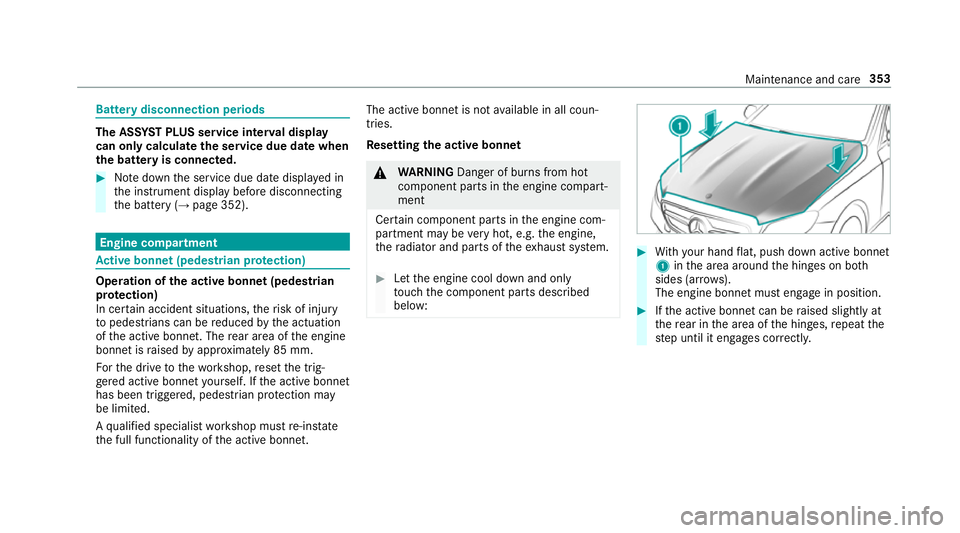
With your hand flat, push down active bonnet
1 inthe area around the hinges on bo th
sides (ar rows).
The engine bonnet must engage in position. #
Ifth e active bonn etcan be raised slight lyat
th ere ar in the area of the hinges, repeat the
st ep until it engages cor rectl y. Maintenance and care
353