display MERCEDES-BENZ E-CLASS COUPE 2017 Workshop Manual
[x] Cancel search | Manufacturer: MERCEDES-BENZ, Model Year: 2017, Model line: E-CLASS COUPE, Model: MERCEDES-BENZ E-CLASS COUPE 2017Pages: 541, PDF Size: 10.71 MB
Page 224 of 541
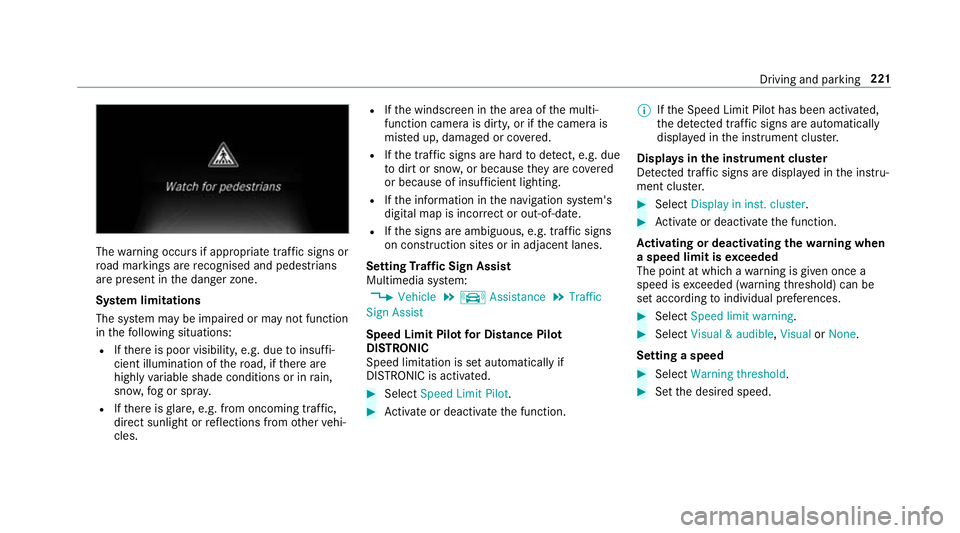
The
warning occurs if appropriate traf fic signs or
ro ad markings are recognised and pedestrians
are present in the danger zone.
Sy stem limitations
The sy stem may be impaired or may not function
in thefo llowing situations:
R Ifth ere is poor visibility, e.g. due toinsuf fi‐
cient illumination of thero ad, if there are
highly variable shade conditions or in rain,
sno w,fog or spr ay.
R Ifth ere is glare, e.g. from oncoming traf fic,
di re ct sunlight or reflections from other vehi‐
cles. R
Ifth e windscreen in the area of the multi‐
function camera is dirty, or if the camera is
mis ted up, damaged or co vered.
R Ifth e tra ffic signs are hard todetect, e.g. due
to dirt or sno w,or because they are co vered
or because of insuf ficient lighting.
R Ifth e information in the navigation sy stem's
digital map is incor rect or out-of-da te.
R Ifth e signs are ambiguous, e.g. tra ffic signs
on con stru ction sites or in adjacent lanes.
Setting Traf fic Sign Assist
Multimedia sy stem:
, Vehicle .
k Assistance .
Traffic
Sign Assist
Speed Limit Pilot for Di stance Pil ot
DISTRONIC
Speed limi tation is set au tomatically if
DISTRONIC is activated. #
Select Speed Limit Pilot. #
Activate or deacti vate the function. %
Ifth e Speed Limit Pilot has been activated,
th e de tected traf fic signs are au tomatical ly
displa yed in the instrument clus ter.
Displa ysinthe instrument clus ter
De tected traf fic signs are displ ayed in the instru‐
ment clus ter. #
Select Display in inst. cluster. #
Activate or deacti vate the function.
Ac tivating or deactivating the warning when
a speed limit is exceeded
The point at which a warning is given once a
speed is exceeded (warning thre shold) can be
set according toindividual preferences. #
Select Speed limit warning. #
Select Visual & audible ,Visual orNone.
Setting a speed #
Select Warning threshold. #
Set the desired speed. Driving and parking
221
Page 232 of 541
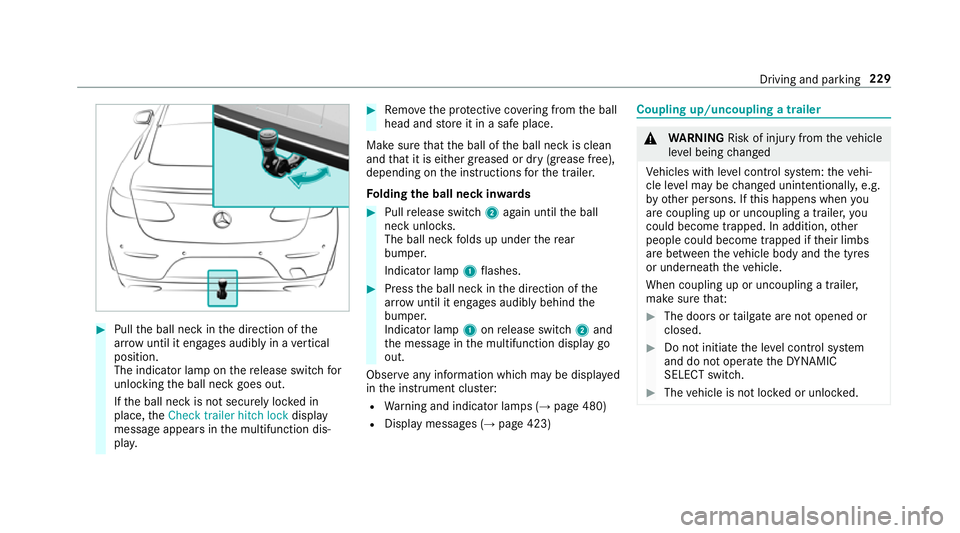
#
Pull the ball neck in the direction of the
ar row until it en gage s audibly in a vertical
position.
The indicator lamp on there lease switch for
unlo cking the ball neck goes out.
If th e ball neck is not securely loc ked in
place, theCheck trailer hitch lock display
message appears in the multifunction dis‐
pla y. #
Remo vethe pr otective co vering from the ball
head and store it in a safe place.
Make sure that the ball of the ball neck is clean
and that it is either greased or dry (grease free),
depending on the instructions forth e trailer.
Fo lding the ball neck in wards #
Pull release switch 2again until the ball
neck unloc ks.
The ball neck folds up under there ar
bumper.
Indicator lamp 1flashes. #
Press the ball neck in the direction of the
ar row until it en gage s audibly behind the
bumper.
Indicator lamp 1onrelease switch 2and
th e message in the multifunction display go
out.
Obser veany information which may be displa yed
in the instrument clus ter:
R Warning and indicator lamps (→ page 480)
R Display messages (→ page 423) Coupling up/uncoupling a trailer
&
WARNING Risk of inju ryfrom theve hicle
le ve l being changed
Ve hicles with le vel control sy stem: theve hi‐
cle le vel may be changed unin tentional ly, e.g.
by ot her persons. If this happens when you
are coupling up or uncoupling a trailer, you
could become trapped. In addition, other
people could become trapped if their limbs
are between theve hicle body and the tyres
or underneath theve hicle.
When coupling up or uncoupling a trailer,
make sure that: #
The doors or tailgate are not opened or
closed. #
Do not initiate the le vel control sy stem
and do not operate theDY NA MIC
SELECT switch. #
The vehicle is not loc ked or unloc ked. Driving and parking
229
Page 233 of 541
Re
quirements:
Before coupling up the trailer, the ball neck must
be fully extended and engaged in the securely
loc ked position.
Tr ailers with a 7-pin plug can be connec tedto
th eve hicle:
R adap ter plug
R adapte r cable
In order forth e trailer tobe recognised bythe
ve hicle:
R the electrical connection must be set up cor‐
re ctly
R the trailer lighting sy stem must be in working
order
The operation of thefo llowing sy stems depends
on the trailer being connected cor rectly:
R ESP ®
R Parking Assist PARKTRONIC
R Parking Pilot
R Blind Spot Assist or Active Blind Spot Assi st
R Active Lane Keeping Assist Coupling up a trailer
* NO
TEDama getothe battery due tofull
discharge Charging
the trailer battery using the po wer
supply of the trailer can damage the batter y. #
Do not use the po wer supp lyto charge
th e trailer batter y. #
Remo vethe pr otective co vering from the ball
head and store it in a safe place. #
Position the trailer on a le vel sur face behind
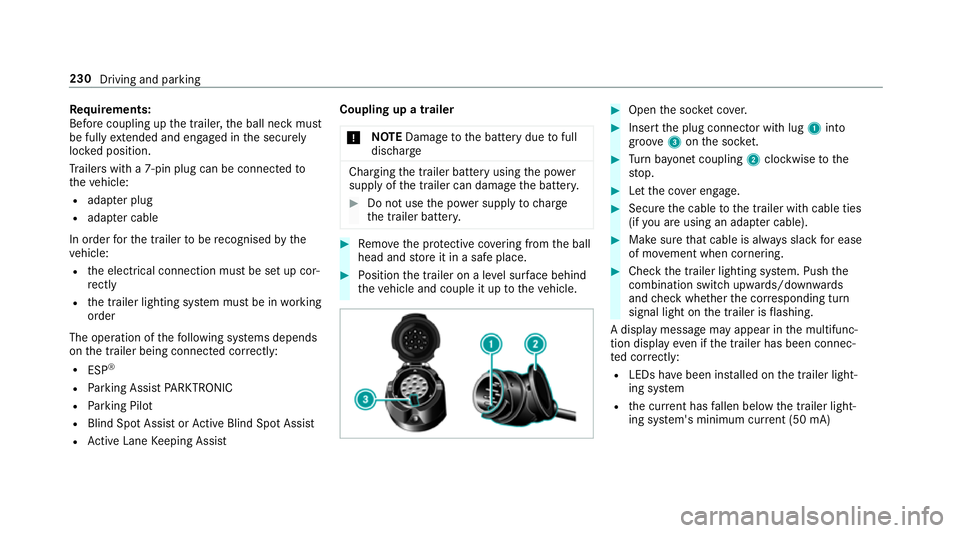
th eve hicle and couple it up totheve hicle. #
Open the soc ket co ver. #
Insert the plug connector with lug 1into
groo ve3 onthe soc ket. #
Turn bayonet coupling 2clockwise tothe
st op. #
Let the co ver engage. #
Secure the cable tothe trailer with cable ties
(if you are using an adap ter cable). #
Make sure that cable is alw ays slack for ease
of mo vement when cornering. #
Check the trailer lighting sy stem. Push the
combination switch up wards/down wards
and check whe ther the cor responding turn
signal light on the trailer is flashing.
A display message may appear in the multifunc‐
tion display even if the trailer has been connec‐
te d cor rectly:
R LEDs ha vebeen ins talled on the trailer light‐
ing sy stem
R the cur rent has fallen below the trailer light‐
ing sy stem's minimum cur rent (50 mA) 230
Driving and pa rking
Page 237 of 541
Instrument display
overview &
WARNING Risk of accident due toan
instrument display malfunction
If th e instrument display has failed or mal‐
functioned, you may not recognise function
re strictions applying tosaf etyre leva nt sys‐
te ms.
The operating saf ety of your vehicle may be
impaired. #
Drive on carefull y.#
Have theve hicle checked immediately
at a qualified specialist workshop. If
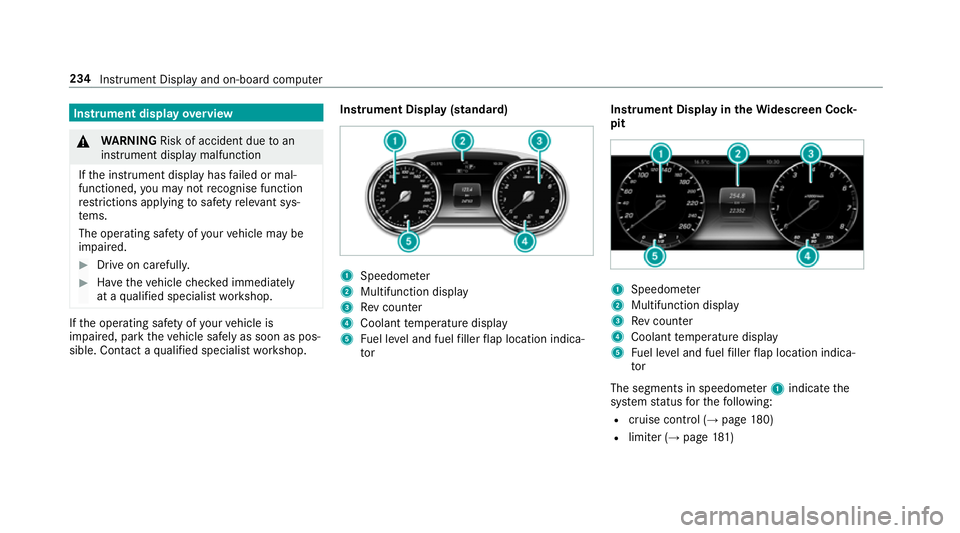
th e operating saf ety of your vehicle is
impaired, park theve hicle safely as soon as pos‐
sible. Contact a qualified specialist workshop. Instrument Display (standard) 1
Speedome ter
2 Multifunction display
3 Rev counter
4 Coolant temp erature display
5 Fuel le vel and fuel filler flap location indica‐
tor Instrument Display in
theWi descreen Co ck‐
pit 1
Speedom eter
2 Multifunction display
3 Rev counter
4 Coolant temp erature display
5 Fuel le vel and fuel filler flap location indica‐
tor
The segments in speedome ter1 indica tethe
sy stem status forth efo llowing:
R cruise control (→ page180)
R limiter (→ page181) 234
Instru ment Display and on-board computer
Page 238 of 541
R
Distance Pilot DISTRONIC (→ page 183)
Ve hicles with Traf fic Sign Assist and Wide‐
sc reen Cockpit: detected instructions and traf‐
fi c signs appear in the speedome ter
( → page 219).
* NO
TEEngine damage due toexc essively
high engine speeds The engine will be damaged if
you drive with
th e engine in theov errevving range. #
Do not drive wi th the engine in theove r‐
re vving range. The fuel supply is inter
rupted toprotect the
engine when there d band in rev counter 3
(o ve rrev ving range) is reached.
During no rmal operating conditions, coolant
te mp erature display 4may rise to120 °C. &
WARNING Danger of bu rns when open‐
ing the bonn et
If yo u open the engine bonn etwhen the
engine has overheated or during a fire inthe engine compartment,
you could come into
contact with hot gases or other escaping
operating fluids. #
Before opening the bonn et, allow the
engine tocool down. #
Intheeve nt of a fire inthe engine com‐
partment, keep the engine bonn et
closed and call thefire service. Ve
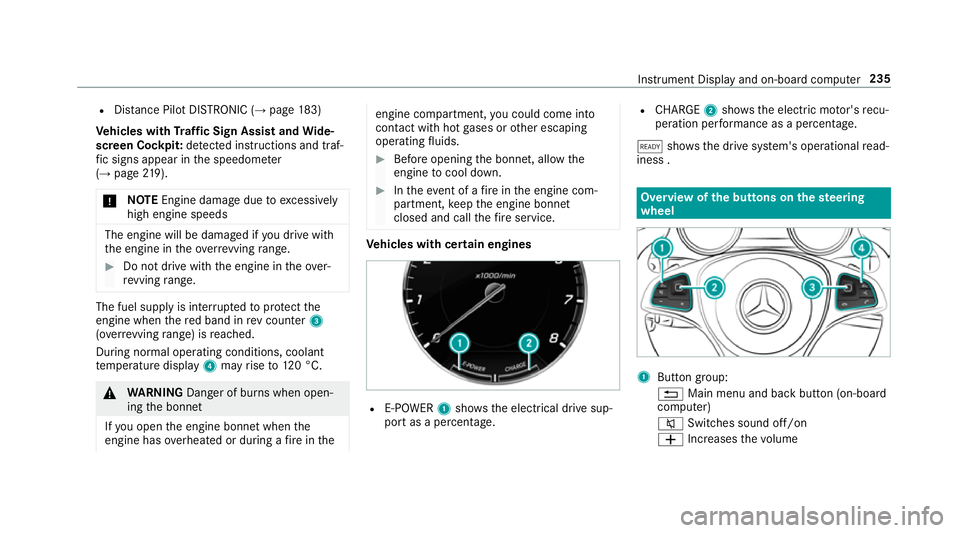
hicles with cert ain engines R
E-POWER 1shows th e electrical drive sup‐
port as a percentage. R
CHARGE 2showsthe electric mo tor's recu‐
peration per form ance as a percen tage.
õ showsthe drive sy stem's operational read‐
iness . Overview of
the but tons on thest eering
wheel 1
Button group:
% Main menu and ba ckbutton (on-board
computer)
8 Switches sound off/on
W Increases thevo lume Instrument Display and on-board computer
235
Page 239 of 541
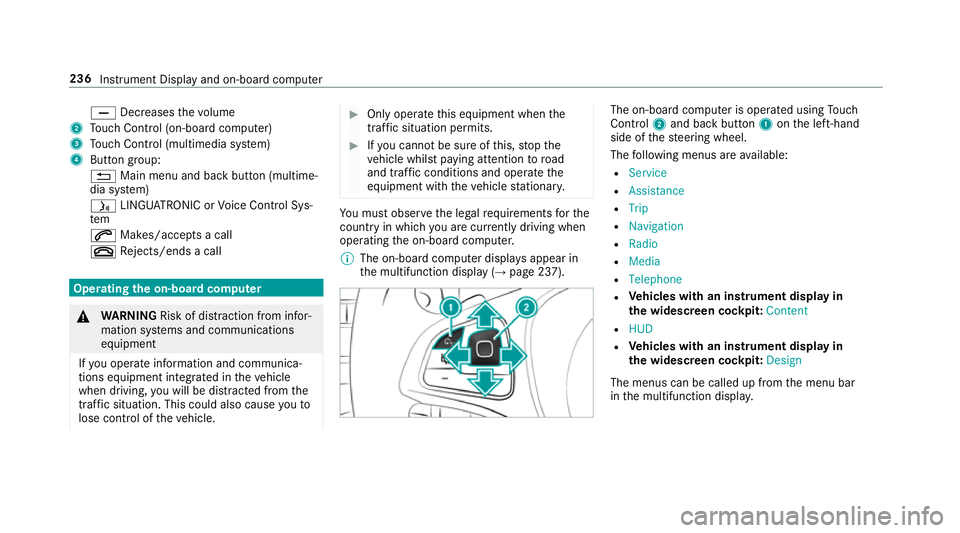
X
Decreases thevo lume
2 Touch Control (on-board co mputer)
3 Touch Control (multimedia sy stem)
4 Button group:
% Main menu and back button (multime‐
dia sy stem)
ó LINGU ATRO NIC or Voice Cont rol Sys‐
tem
6 Makes/accepts a call
~ Rejects/ends a call Ope
rating the on-board co mputer &
WARNING Risk of di stra ction from infor‐
mation sy stems and communications
equipment
If yo u operate information and communica‐
tions equipment integ rated in theve hicle
when driving, you will be distracted from the
traf fic situation. This could also cause youto
lose control of theve hicle. #
Only operate this equipment when the
traf fic situation permits. #
Ifyo u cannot be sure of this, stop the
ve hicle whilst paying attention toroad
and traf fic conditions and ope rate the
equipment with theve hicle stationar y. Yo
u must obse rveth e legal requirements forthe
country in whi chyou are cur rently driving when
operating the on-board computer.
% The on-board computer displa ysappear in
th e multifunction display (→ page 237). The on-board computer is operated using
Touch
Control 2and back but ton1 onthe left-hand
side of thesteering wheel.
The following menus are available:
R Service
R Assistance
R Trip
R Navigation
R Radio
R Media
R Telephone
R Vehicles with an instrument display in
th e widescreen cockpit: Content
R HUD
R Vehicles with an instrument display in
th e widescreen cockpit: Design
The menus can be called up from the menu bar
in the multifunction displa y.236
Instrument Display and on-board computer
Page 240 of 541
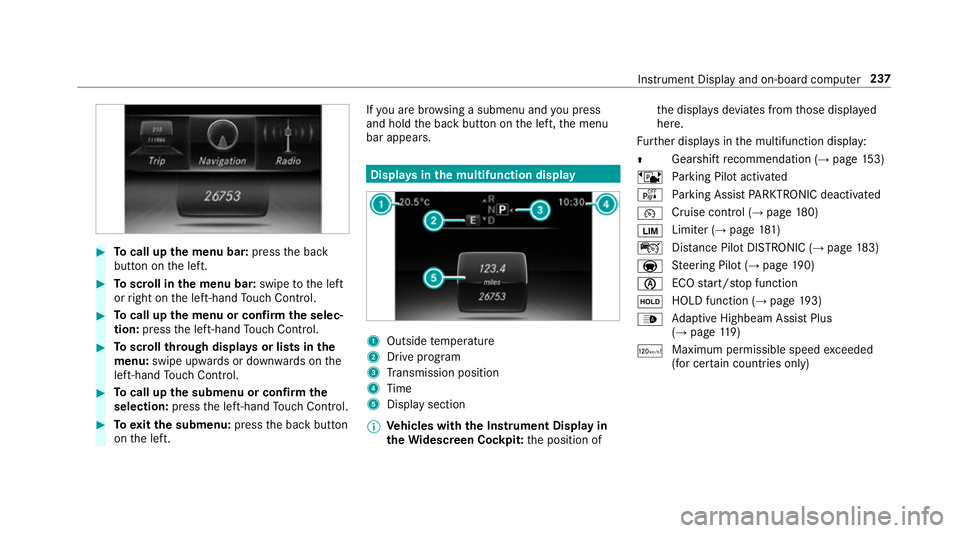
#
Tocall up the menu bar: pressthe back
button on the left. #
Toscroll in the menu bar: swipetothe left
or right on the left-hand Touch Control. #
Tocall up the menu or confirm the selec‐
tion: press the left-hand Touch Control. #
Toscroll through displa ysor lists in the
menu: swipe upwards or down wards on the
left-hand Touch Control. #
Tocall up the submenu or confirm the
selection: pressthe left-hand Touch Control. #
Toexitth e submenu: pressthe back button
on the left. If
yo u are br owsing a submenu and you press
and hold the back button on the left, the menu
bar appears. Displa
ysinthe multifunction display 1
Outside temp erature
2 Drive prog ram
3 Transmission position
4 Time
5 Display section
% Ve
hicles with the Instrument Display in
th eWi descreen Co ckpit: the position of th
e displa ysdeviates from those displa yed
here.
Fu rther displa ysinthe multifunction display:
Z Gearshift
recommendation (→ page 153)
ë Parking Pilot activated
é Parking Assist PARKTRONIC deacti vated
¯ Cruise cont
rol (→ page 180)
È Limi
ter (→ page 181)
ç Distance Pilot DISTRONIC (→ page 183)
a St
eering Pilot (→ page190)
è ECO
start/ stop function
ë HOLD function (→
page193)
_ Ad
aptive Highbeam Assist Plus
(→ page 119)
ð Ma
ximum pe rmissible speed exceeded
(for cer tain countries only) Instrument Display and on-board computer
237
Page 241 of 541
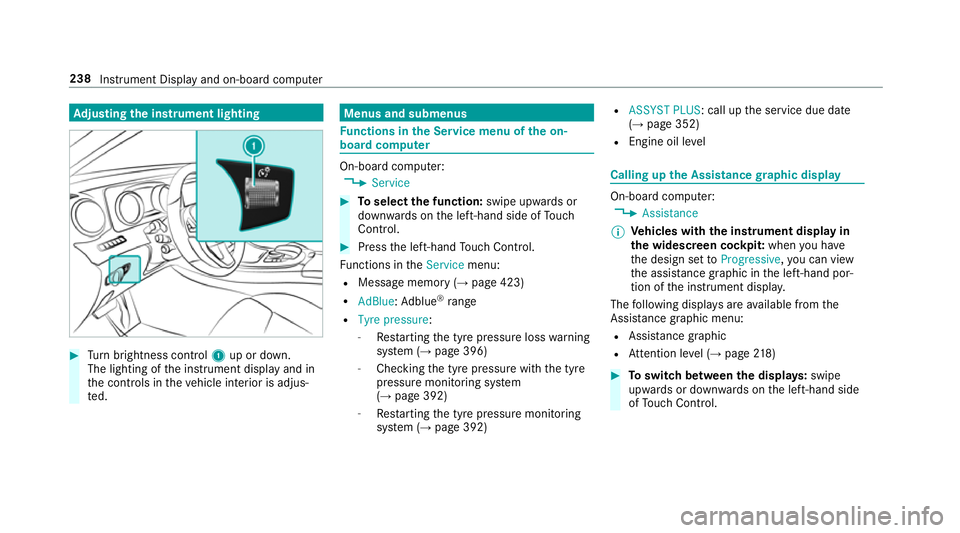
Ad
justing the in stru ment lighting #
Turn brightness control 1up or down.
The lighting of the instrument display and in
th e controls in theve hicle interior is adjus‐
te d. Menus and submenus
Fu
nctions in the Service menu of the on-
board compu ter On-board computer:
, Service #
Toselect the function: swipe upwards or
down wards on the left-hand side of Touch
Control. #
Press the left-hand Touch Control.
Fu nctions in theService menu:
R Message memory (→ page 423)
R AdBlue: Adblue ®
ra nge
R Tyre pressure :
- Restarting the tyre pressure loss warning
sy stem (→ page 396)
- Checking the tyre pressure with the tyre
pressure monitoring sy stem
(→ page 392)
- Restarting the tyre pressure monitoring
sy stem (→ page 392) R
ASSYST PLUS: call up the service due date
(→ page 352)
R Engine oil le vel Calling up
the Assistance graphic display On-board computer:
, Assistance
% Ve
hicles with the instrument display in
th e widescreen cockpit: whenyou ha ve
th e design set toProgressive ,yo u can view
th e assis tance graphic in the left-hand por‐
tion of the instrument displa y.
The following displa ysare available from the
Assi stance graphic menu:
R Assis tance graphic
R Attention le vel (→ page 218) #
Toswitch between the displa ys:swipe
up wa rds or down wards on the left-hand side
of Touch Control. 238
Instru ment Display and on-board computer
Page 242 of 541
St
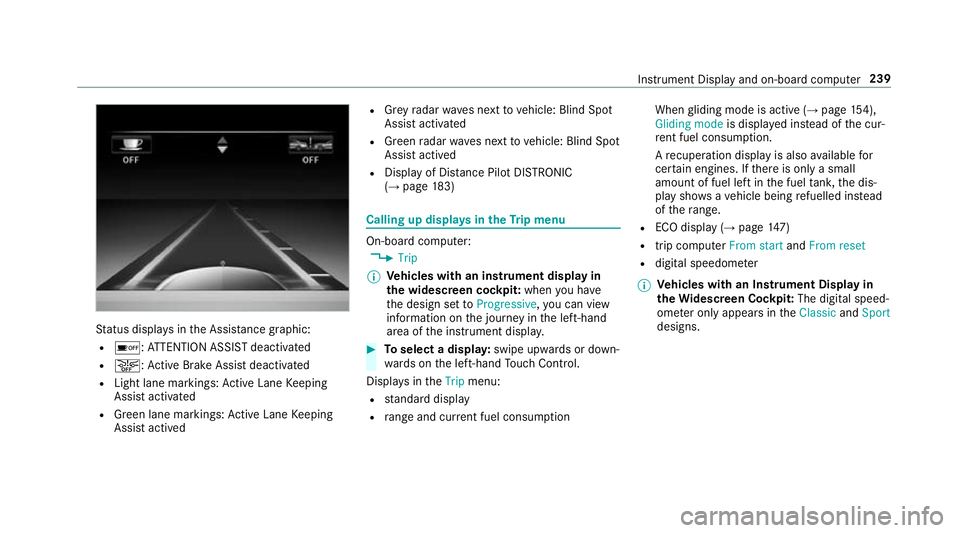
atus displa ysinthe Assis tance graphic:
R é: ATTENTION ASSIST deactivated
R æ: Active Brake Assi stdeactivated
R Light lane markings: Active Lane Keeping
Assist activated
R Green lane markings: Active Lane Keeping
Assist actived R
Grey radar waves next tovehicle: Blind Spot
Assist activated
R Green radar waves next tovehicle: Blind Spot
Assist actived
R Display of Dis tance Pilot DISTRONIC
(→ page 183) Calling up
displays in theTr ip menu On-board computer:
, Trip
% Ve
hicles with an instrument display in
th e widescreen cockpit: whenyou ha ve
th e design set toProgressive ,yo u can view
information on the journey in the left-hand
area of the instrument displa y. #
Toselect a displa y:swipe upwards or down‐
wa rds on the left-hand Touch Control.
Displa ysintheTrip menu:
R standard display
R range and cur rent fuel consu mption When
gliding mode is active (→ page154),
Gliding mode is displayed ins tead of the cur‐
re nt fuel consu mption.
A recuperation displ ayis also available for
cer tain engines. If there is only a small
amount of fuel left in the fuel tank, the dis‐
play sho wsave hicle being refuelled ins tead
of thera nge.
R ECO displ ay (→page 147)
R trip computer From startandFrom reset
R digital speedome ter
% Ve
hicles with an Instrument Display in
th eWi descreen Co ckpit: The digital speed‐
ome ter only appears in theClassic andSport
designs. Instrument Display and on-board computer
239
Page 243 of 541
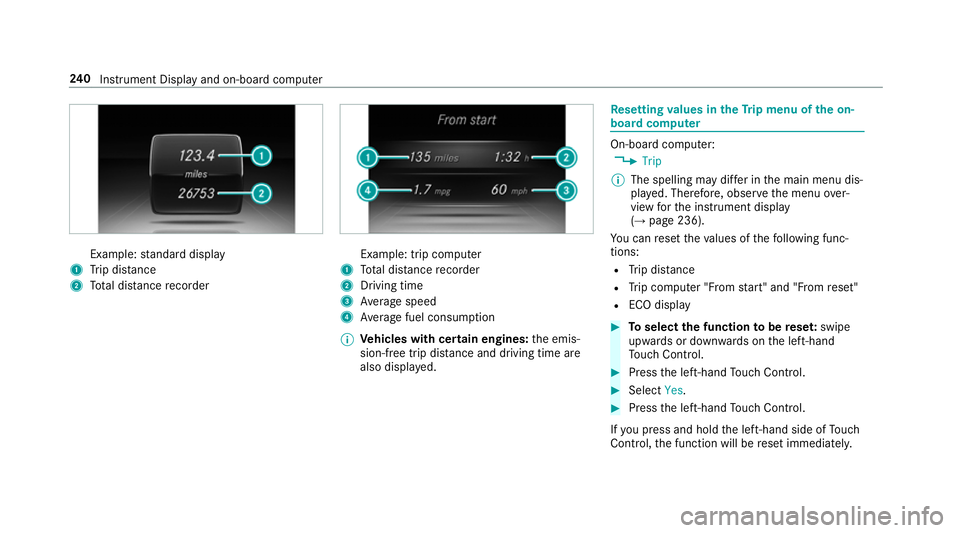
Example:
standard display
1 Trip dis tance
2 Total dis tance recorder Example: trip compu
ter
1 Total dis tance recorder
2 Driving time
3 Average speed
4 Average fuel consum ption
% Vehicles with cert ain engines:the emis‐
sion-free trip dis tance and driving time are
also displ ayed. Re
setting values in theTr ip menu of the on-
board compu ter On-board computer:
, Trip
% The spelling may dif fer in the main menu dis‐
pla yed. Therefore, obser vethe menu over‐
view forth e instrument display
(→ page 236).
Yo u can reset theva lues of thefo llowing func‐
tions:
R Trip dis tance
R Trip computer "F rom start" and "F rom reset"
R ECO display #
Toselect the function tobe rese t:swipe
upwards or down wards on the left-hand
To uch Control. #
Press the left-hand Touch Control. #
Select Yes. #
Press the left-hand Touch Control.
If yo u press and hold the left-hand side of Touch
Control, the function will be reset immediately. 240
Instrument Display and on-board computer