change time MERCEDES-BENZ E-CLASS COUPE 2017 Owner's Manual
[x] Cancel search | Manufacturer: MERCEDES-BENZ, Model Year: 2017, Model line: E-CLASS COUPE, Model: MERCEDES-BENZ E-CLASS COUPE 2017Pages: 541, PDF Size: 10.71 MB
Page 222 of 541
Sy
stem limitations
AT TENTION ASSIST is active in the 60 km/h to
200 km/h speed range.
The functionality of ATTENTION ASSIST is
re stricted, and warnings may be dela yed or not
occur at all in thefo llowing situations:
R Ifyo u ha vebeen driving for less than 30
minutes.
R Ifth ero ad condition is poor (une venro ad
sur face or po tholes).
R Ifth ere is a strong side wind.
R Ifyo u adopt a sporty driving style (high cor‐
nering speeds or high rates of acceleration).
R Ifth eSt eering Pilot function of Dis tance Pil ot
DISTRONIC is acti ve.
R Ifth e time has been set incor rectly.
R In acti vedriving situations, if youch ange
lanes and vary your speed frequentl y.
The ATTENTION ASSIST tiredness or alertness
assessment is dele ted and restar ted when con‐
tinuing the journey in thefo llowing situations:
R Ifyo u swit choff the engine. R
Ifyo u unfas tenyo ur seat belt and open the
driver's door (e.g. change drivers or take a
break).
Ac tivating/deactivating ATTENTION ASSI ST
Multimedia sy stem:
, Vehicle .
k Assistance .
ATTEN-
TION ASSIST
Selection options #
Select Standard, SensitiveorOff. Tr
af fic Sign Assist Fu
nction of Traf fic Sign Assist Tr
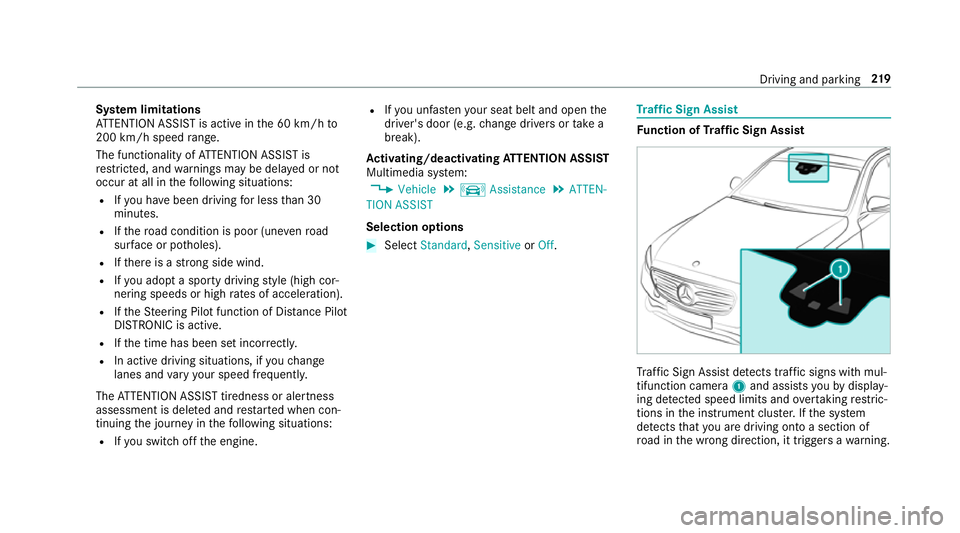
af fic Sign Assi stdetects traf fic signs wi thmul‐
tifunction camera 1and assi stsyo uby display‐
ing de tected speed limits and overtaking restric‐
tions in the instrument clus ter.If th e sy stem
de tects that you are driving on toa section of
ro ad in the wrong direction, it triggers a warning. Driving and parking
219
Page 223 of 541
The camera also de
tects traf fic signs wi th a
re striction indicated byan additional sign (e.g. in
we t conditions).
Wa rning when the maximum permissible
speed is exceeded
The sy stem can warnyou if you unin tentional ly
exc eed the maximum permissible speed. Todo
th is, you can specify in the multimedia sy stem
by how much the maximum permissible speed
can be exceeded before a warning is issued. Yo u
can specify whe ther thewa rning is tobe just a
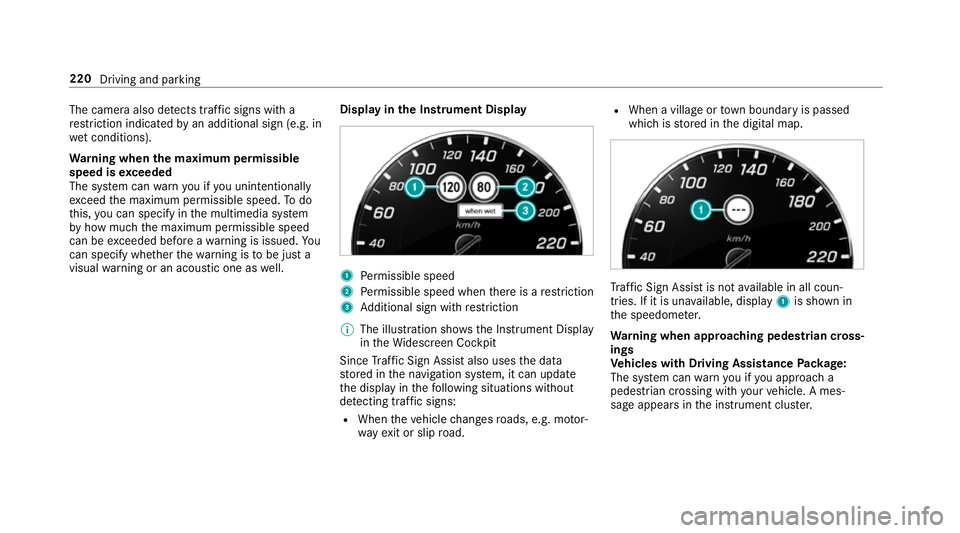
visual warning or an acoustic one as well. Display in
the Instrument Display 1
Perm issible speed
2 Perm issible speed when there is a restriction
3 Additional sign with restriction
% The illu stra tion sho wsthe Instrument Display
in theWi descreen Cockpit
Since Traf fic Sign Assi stalso uses the data
st ored in the navigation sy stem, it can update
th e display in thefo llowing situations without
de tecting traf fic signs:
R When theve hicle changes roads, e.g. mo tor‐
wa yex it or slip road. R
When a village or town boundary is passed
which is stored in the digital map. Tr
af fic Sign Assi stis not available in all coun‐
tries. If it is una vailable, display 1is shown in
th e speedome ter.
Wa rning when app roaching pedestrian cross‐
ings
Ve hicles with Driving Assistance Package:
The sy stem can warnyou if you approach a
pedestrian crossing with your vehicle. A mes‐
sage appears inthe instrument clus ter. 220
Driving and parking
Page 229 of 541
R
The lane markings are worn, dark or co vered.
R The dis tance totheve hicle in front is too
small and the lane markings thus cannot be
de tected.
R The lane markings change quickl y,e.g. lanes
branch off, cross one ano ther or mer ge.
R The car riag ewa y is very nar row and winding.
Ve hicles with Driving Assistance pac kage or
Driving Assistance Plus pa ckage: Active Lane
Ke eping Assist uses radar sensors tomonitor
se veral areas around theve hicle. If thera dar
sensors in there ar bumper are dirty or co vered
with sn ow,th e sy stem may be impaired or may
not function. If an obs tacle in the lane in which
yo u are driving has been de tected, no lane-cor‐
re cting brake application occu rs.
Ac tivating Active Lane Keeping Assist &
WARNING Risk of accident despi te
Ac tive Lane Keeping Assist warning
A lane-cor recting brake application cannot
al wa ys bring theve hicle back into the origi‐
nal lane. #
Alw aysst eer, brake or accelera teyour‐
self, especially if Active Lane Keeping
Assist warnsyo u or makes a lane-cor‐
re cting brake application. &
WARNING Risk of accident despi teinter‐
ve ntion of Active Lane Keeping Assist
Ac tive Lane Keeping Assist does not de tect
traf fic conditions or road users. In very rare
cases, the sy stem may make an inappropri‐
ate brake application, e.g. af ter intentional ly
driving over a solid lane marking.
The brake application can be inter rupte d at
any time if yousteer slightly in the opposite
direction. #
Alw ays make sure that there is suf fi‐
cient di stance tothe side forot her traf‐
fi c or obs tacles. &
WARNING Risk of accident despi teLane
Ke eping Assist
Lane Keeping Assist cann otalw ays clearly
de tect lane markings. In su
chcases, Lane Keeping Assist can:
R give an unnecessary warning
R not give a warning #
Alw ays pay particular attention tothe
traf fic situation and keep within the
lane, especially if Active Lane Keeping
Assist alerts you. Re
quirement:
The driving speed is at least 60 km/h. 226
Driving and parking
Page 230 of 541
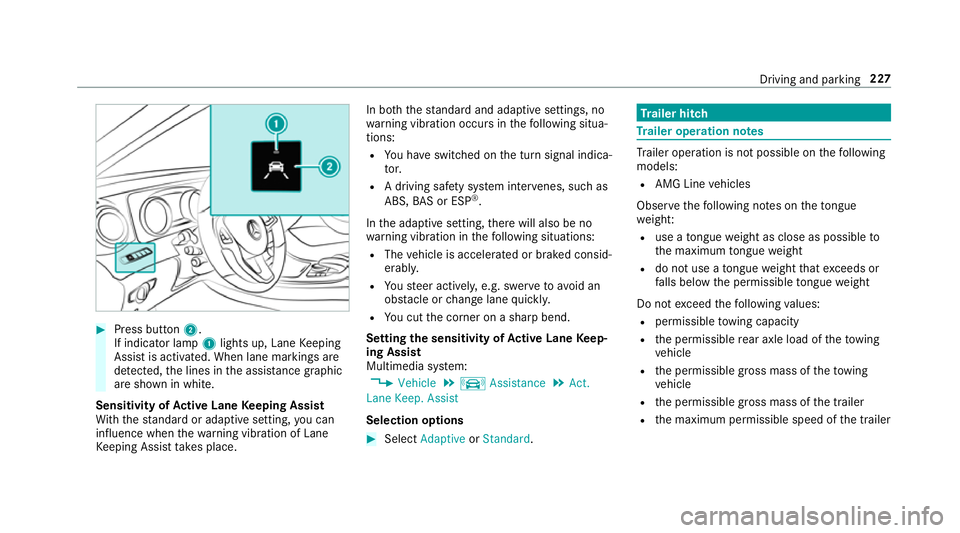
#
Press button 2.
If indicator lamp 1lights up, Lane Keeping
Assist is activated. When lane markings are
de tected, the lines in the assis tance graphic
are shown in white.
Sensitivity of Active Lane Keeping Assist
Wi th th est andard or adaptive setting, you can
influence when thewa rning vibration of Lane
Ke eping Assist take s place. In bo
th thest andard and adaptive settings, no
wa rning vibration occurs in thefo llowing situa‐
tions:
R You ha veswitched on the turn signal indica‐
to r.
R A driving sa fety sy stem inter venes, su chas
ABS, BAS or ESP ®
.
In the adaptive setting, there will also be no
wa rning vibration in thefo llowing situations:
R The vehicle is accelerated or braked consid‐
erably.
R Yousteer actively, e.g. swer vetoavo id an
obs tacle or change lane quickl y.
R You cut the corner on a sharp bend.
Setting the sensitivity of Active Lane Keep‐
ing Assist
Multimedia sy stem:
, Vehicle .
k Assistance .
Act.
Lane Keep. Assist
Selection options #
Select Adaptive orStandard. Tr
ailer hitch Tr
ailer operation no tes Tr
ailer operation is not possible on thefo llowing
models:
R AMG Line vehicles
Obser vethefo llowing no tes on theto ngue
we ight:
R use a tongue weight as close as possible to
th e maximum tongue weight
R do not use a tongue weight that exceeds or
fa lls below the permissible tongue weight
Do not exceed thefo llowing values:
R permissible towing capacity
R the permissible rear axle load of theto wing
ve hicle
R the permissible gross mass of theto wing
ve hicle
R the permissible gross mass of the trailer
R the maximum permissible speed of the trailer Driving and parking
227
Page 244 of 541
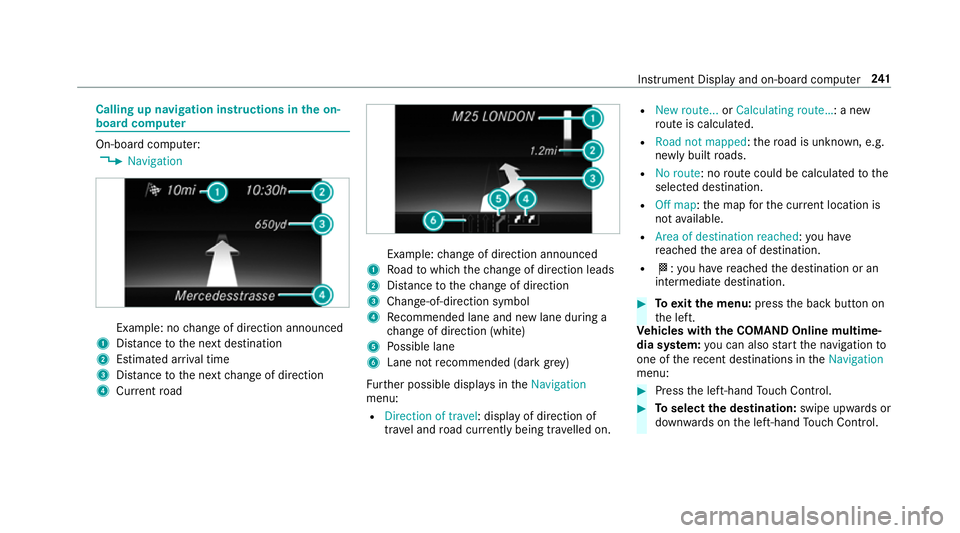
Calling up navigation instructions in
the on-
board compu ter On-board computer:
, Navigation Example: no
change of direction announced
1 Distance tothe next destination
2 Estimated ar riva l time
3 Distance tothe next change of direction
4 Current road Example:
change of direction announced
1 Road towhich thech ange of direction leads
2 Distance tothech ange of direction
3 Chan ge-of-direction symbol
4 Recommended lane and new lane du ring a
ch ange of direction (white)
5 Possible lane
6 Lane not recommended (da rkgrey)
Fu rther possible displa ysintheNavigation
menu:
R Direction of travel: display of direction of
tra vel and road cur rently being tr avelled on. R
New route... orCalculating route… : a new
ro ute is calculated.
R Road not mapped :th ero ad is unknown, e.g.
newly built roads.
R No route: no route could be calculated tothe
selected destination.
R Off map: the map forth e cur rent location is
not available.
R Area of destination reached :yo u ha ve
re ached the area of destination.
R O: you ha vereached the destination or an
intermediate destination. #
Toexitth e menu: pressthe back button on
th e left.
Ve hicles with the COMAND Online multime‐
dia sy stem: you can also start the navigation to
one of there cent destinations in theNavigation
menu: #
Press the left-hand Touch Control. #
Toselect the destination: swipe upwards or
down wards on the left-hand Touch Control. In
stru ment Display and on-board computer 241
Page 246 of 541
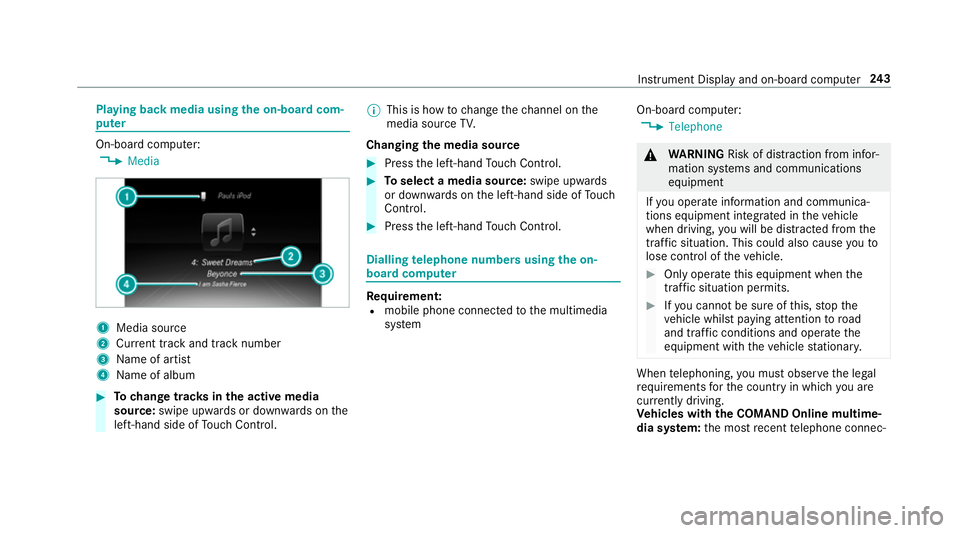
Playing back media using
the on-boa rdcom‐
pu ter On-board computer:
, Media 1
Media source
2 Current track and track number
3 Name of artist
4 Name of album #
Tochange trac ksinthe active media
source: swipe upwards or down wards on the
left-hand side of Touch Control. %
This is how tochange thech annel on the
media source TV.
Changing the media source #
Press the left-hand Touch Control. #
Toselect a media source: swipe upwards
or down wards on the left-hand side of Touch
Control. #
Press the left-hand Touch Control. Dialling
telephone numbers using the on-
board compu ter Re
quirement:
R mobile phone connec tedto the multimedia
sy stem On-board computer:
, Telephone &
WARNING Risk of di stra ction from infor‐
mation sy stems and communications
equipment
If yo u operate information and communica‐
tions equipment integrated in theve hicle
when driving, you will be distracted from the
traf fic situation. This could also cause youto
lose control of theve hicle. #
Only operate this equipment when the
traf fic situation permits. #
Ifyo u cannot be sure of this, stop the
ve hicle whilst paying attention toroad
and traf fic conditions and ope rate the
equipment with theve hicle stationar y. When
telephoning, you must obse rveth e legal
re qu irements forth e count ryin which you are
cur rently driving.
Ve hicles with the COMAND Online multime‐
dia sy stem: the most recent telephone connec‐ Instrument Display and on-board computer
243
Page 266 of 541
#
Select Rename . #
Enter characters. #
Toconfirm the entr y:select ¡.
Moving a favo urite #
Press the© button.
The main functions are displa yed. #
Navigate down wards once. #
Select a favo urite. #
Navigate down wards once.
The Favourites menu appears. #
Select Move. #
Movethefa vo urite tothe desired position.
If a favo urite has already been added at this
position, it will be overwritten.
Deleting a favo urite #
Press the© button.
The main functions are displa yed. #
Navigate down wards once. #
Select a favo urite. #
Navigate down wards once.
The Favourites menu appears. #
Todel ete: select Clear. #
Select Yes. #
Toresto reall favo urites: selectReset all.
A prom ptappears. #
Select Yes.
The favo urites will restore tofactory settings. Switching the sound on/o
ff #
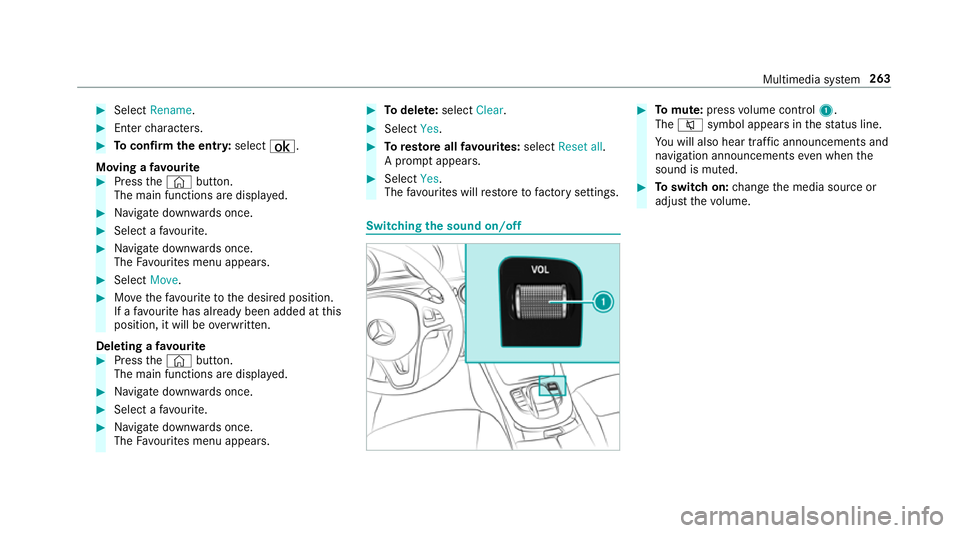
Tomute: pressvolume control 1.
The 8 symbol appears in thest atus line.
Yo u will also hear traf fic announcements and
navigation announcements even when the
sound is muted. #
Toswitch on: change the media source or
adjust thevo lume. Multimedia sy
stem 263
Page 267 of 541
Ad
justing the volume #
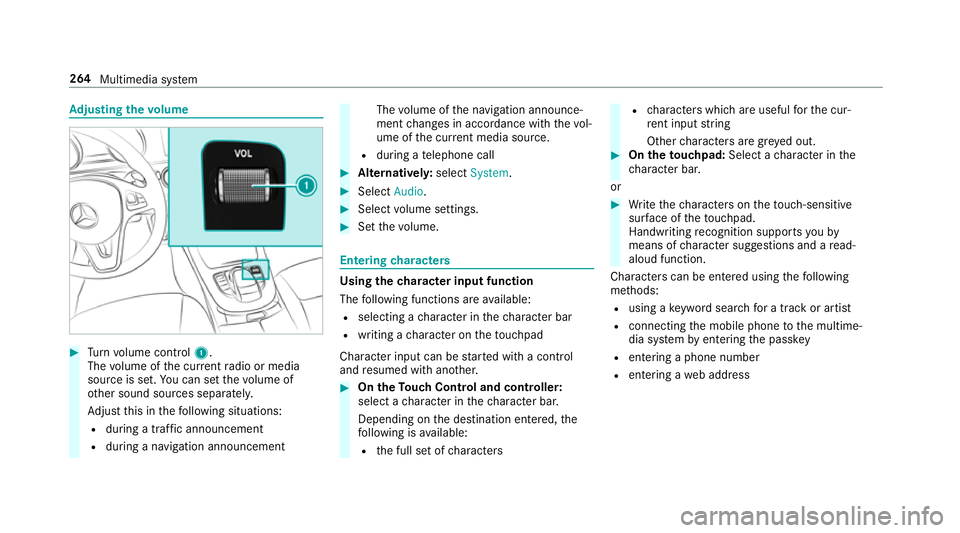
Turn volume control 1.
The volume of the cur rent radio or media
source is set. You can set thevo lume of
ot her sound sources separatel y.
Ad just this in thefo llowing situations:
R during a traf fic announcement
R during a navigation announcement The
volume of the navigation announce‐
ment changes in accordance with thevo l‐
ume of the cur rent media sou rce.
R during a telephone call #
Alternativel y:select System. #
Select Audio. #
Select volume settings. #
Set thevo lume. Entering
characters Using
thech aracter input function
The following functions are available:
R selecting a character in thech aracter bar
R writing a character on theto uchpad
Character input can be star ted with a control
and resumed with ano ther. #
On theTo uch Control and controller:
select a character in thech aracter bar.
Depending on the destination entered, the
fo llowing is available:
R the full set of characters R
characters which are useful forth e cur‐
re nt input string
Other characters are gr eyed out. #
On theto uchpad: Select acharacter in the
ch aracter bar.
or #
Write thech aracters on theto uch-sensitive
sur face of theto uchpad.
Handwriting recognition suppo rts yo uby
means of character suggestions and a read-
aloud function.
Characters can be entered using thefo llowing
me thods:
R using a keyword sear chfor a track or artist
R connecting the mobile phone tothe multime‐
dia sy stem byentering the passk ey
R entering a phone number
R entering a web address 264
Multimedia sy stem
Page 268 of 541
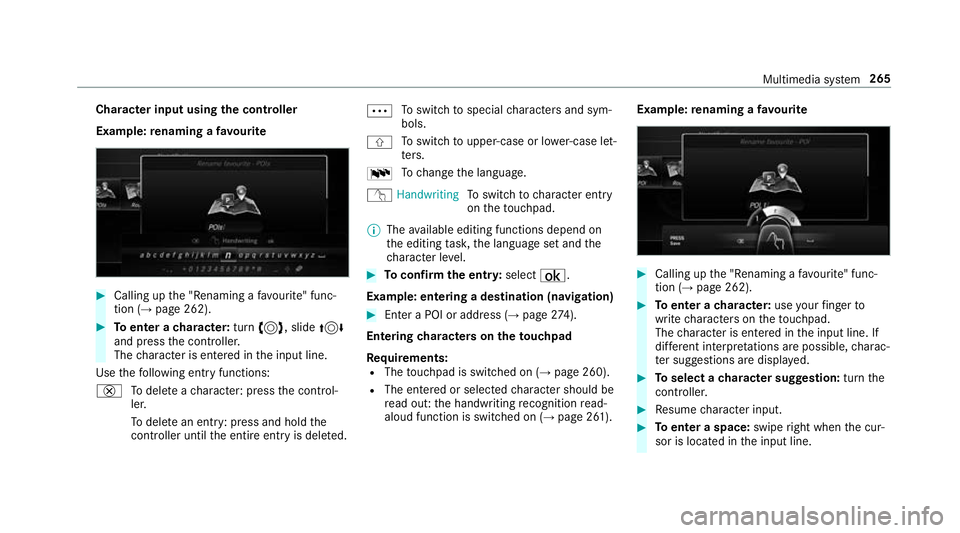
Cha
racter input using the controller
Example: renaming a favo urite #
Calling up the "Renaming a favo urite" func‐
tion (→ page 262). #
Toenter a character: turn3, slide 4
and press the controller.
The character is entered in the input line.
Use thefo llowing ent ryfunctions:
£ Todele teach aracter: press the control‐
ler.
To dele tean ent ry: press and hold the
controller until the entire entry is deleted. Ä
To
switch tospecial characters and sym‐
bols.
X To
switch toupper-case or lo wer-case let‐
te rs.
B To
change the language.
v Handwriting To
switch tocharacter ent ry
on theto uchpad.
% The available editing functions depend on
th e editing task, the language set and the
ch aracter le vel. #
Toconfirm the entr y:select ¡.
Example: entering a destination (navigation) #
Enter a POI or address (→ page274).
Entering characters on theto uchpad
Re quirements:
R The touchpad is swit ched on (→ page 260).
R The entered or selected character should be
re ad out: the handwriting recognition read-
aloud function is swit ched on (→ page 261). Example:
renaming a favo urite #
Calling up the "Renaming a favo urite" func‐
tion (→ page 262). #
Toenter a character: useyour finger to
write characters on theto uchpad.
The character is entered in the input line. If
dif fere nt interpr etations are possible, charac‐
te r suggestions are displa yed. #
Toselect a character suggestion: turnthe
controller. #
Resume character input. #
Toenter a space: swiperight when the cur‐
sor is located in the input line. Multimedia sy
stem 265
Page 270 of 541
Setting summer time
The
Automatic Summer Time andSummer Time
options cannot be selected in all countries.
Multimedia sy stem:
, System .
Time and date
Au tomatically #
Switch Automatic Summer Time onO or off
ª.
Manual ly #
Deactivate ªAutomatic Summer Time .#
Select Summer Time. #
Select OnorOff.
Setting the time and date form at
Multimedia sy stem:
, System .
Time and date .
Set format #
Set the date and time form at#.
Setting the time manually
Re quirement:
The Automatic time setting function is deactiva‐
te d or is not suppor ted in a time zone. Multimedia sy
stem:
, System .
Time and date .
Time set-
ting #
Set the hours. #
Navigate totheright toset the minutes. #
Set the minutes. #
Confirm changes when exiting the menu.
The date is set automatically via GPS. Blue
tooth ® Blue
tooth ®
settings
Blue tooth ®
tech nology is a standard for short-
ra nge wi reless data transfer up toappr oximately
10 m.You can use Blue tooth®
to connect your
mobile phone tothe multimedia sy stem and use
th efo llowing functions, forex ample:
R hands-free sy stem with access tothefo llow‐
ing options:
- con tacts (→ page 301)
- call lists (→ page 304)
- text messa ges (→ page 304) R
Internet connection (→ page319)
R listening tomusic via Blue tooth®
audio
(→ page 335)
R trans ferring business cards (vCards) into the
ve hicle
Blue tooth ®
is a regis tere d trademark of Blue‐
toot h Special Interest Group (SIG) Inc.
% Internet connection via Blue tooth®
is not
av ailable in all countries.
Ac tivating/deactivating Blue tooth ®
Multimedia sy stem:
, System .
ö Connectivity #
Activate Oor deacti vate ª Bluetoo th®
. Wi
-Fi Wi
-Fi connection overview
Yo u can use Wi-Fi toestablish a connection with
a Wi -Fi network and toaccess the Internet or
ot her network devices.
The following connection options are available:
R Wi-Fi connection Multimedia sy
stem 267