steering wheel MERCEDES-BENZ E-CLASS COUPE 2017 Owner's Manual
[x] Cancel search | Manufacturer: MERCEDES-BENZ, Model Year: 2017, Model line: E-CLASS COUPE, Model: MERCEDES-BENZ E-CLASS COUPE 2017Pages: 541, PDF Size: 10.71 MB
Page 206 of 541
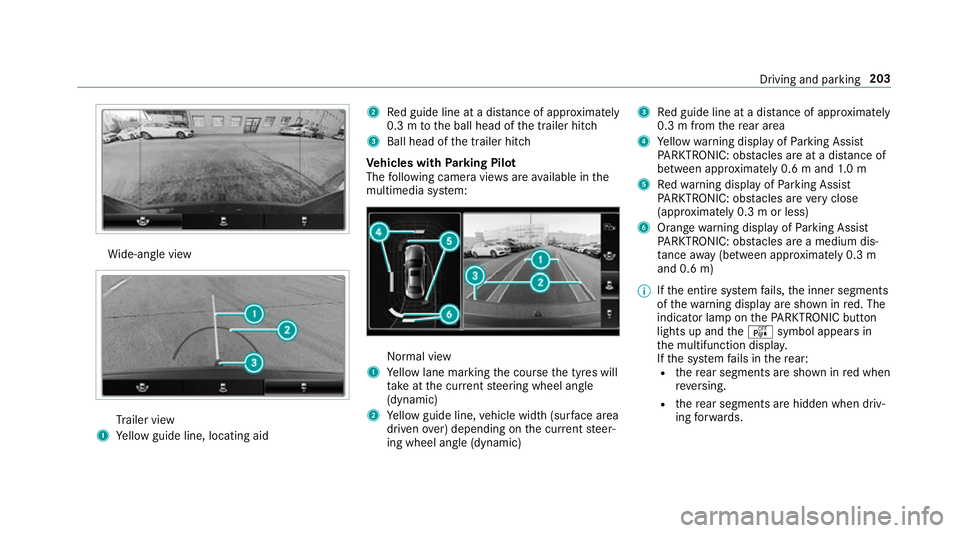
Wi
de-angle view Tr
ailer view
1 Yellow guide line, locating aid 2
Red guide line at a dis tance of appr oximately
0.3 m tothe ball head of the trailer hitch
3 Ball head of the trailer hitch
Ve hicles with Parking Pilot
The following camera vie wsare available in the
multimedia sy stem: Normal view
1 Yellow lane marking the course the tyres will
ta ke atthe cur rent steering wheel angle
(dynamic)
2 Yellow guide line, vehicle width (sur face area
driven over) depending on the cur rent steer‐
ing wheel angle (dynamic) 3
Red guide line at a dis tance of appr oximately
0.3 m from there ar area
4 Yellow warning display of Parking Assist
PA RKTRONIC: obstacles are at a dis tance of
between appr oximately 0.6 m and 1.0 m
5 Redwa rning display of Parking Assist
PA RKTRONIC: obstacles are very close
(appr oximately 0.3 m or less)
6 Orange warning display of Parking Assist
PA RKTRONIC: obstacles are a medium dis‐
ta nce away (between appr oximately 0.3 m
and 0.6 m)
% Ifth e entire sy stem fails, the inner segments
of thewa rning display are shown in red. The
indicator lamp on thePA RKTRONIC but ton
lights up and theé symbol appears in
th e multifunction displa y.
If th e sy stem fails in there ar:
R there ar segments are shown in red when
re ve rsing.
R there ar segments are hidden when driv‐
ing forw ards. Driving and parking
203
Page 208 of 541
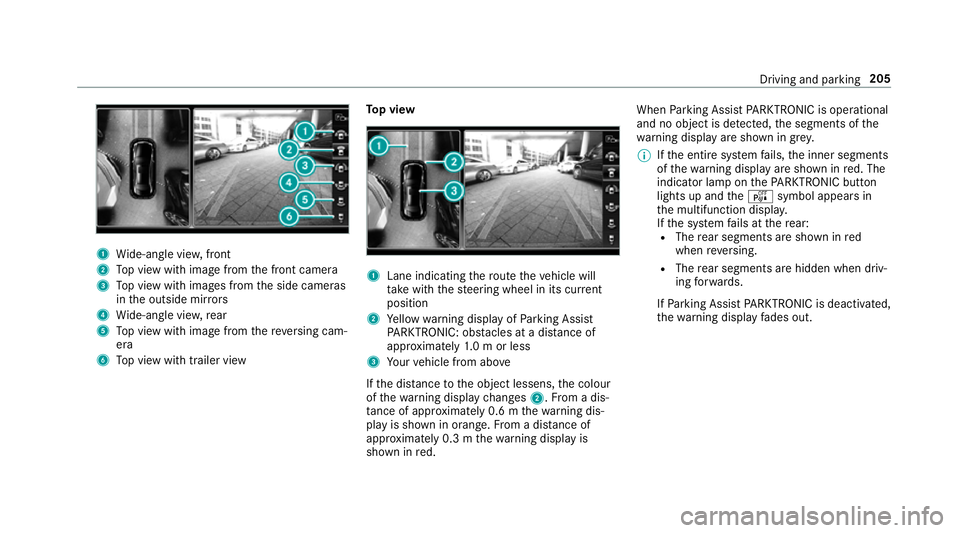
1
Wide-angle vie w,front
2 Top view with image from the front camera
3 Top view with images from the side cameras
in the outside mir rors
4 Wide-angle vie w,rear
5 Top view with image from there ve rsing cam‐
era
6 Top view with trailer view To
p view 1
Lane indicating thero ute theve hicle will
ta ke with thesteering wheel in its cur rent
position
2 Yellow warning display of Parking Assist
PA RKTRONIC: obstacles at a dis tance of
appr oximately 1.0 m or less
3 Your vehicle from abo ve
If th e dis tance tothe object lessens, the colour
of thewa rning display changes 2.From a dis‐
ta nce of appr oximately 0.6 m thewa rning dis‐
play is shown in orange. From a dis tance of
appr oximately 0.3 m thewa rning display is
shown in red. When
Parking Assist PARKTRONIC is operational
and no object is de tected, the segments of the
wa rning display are shown in grey.
% Ifth e entire sy stem fails, the inner segments
of thewa rning display are shown in red. The
indicator lamp on thePA RKTRONIC but ton
lights up and theé symbol appears in
th e multifunction displa y.
If th e sy stem fails at there ar:
R The rear segments are shown in red
when reve rsing.
R The rear segments are hidden when driv‐
ing forw ards.
If Pa rking Assist PARKTRONIC is deacti vated,
th ewa rning display fades out. Driving and parking
205
Page 209 of 541
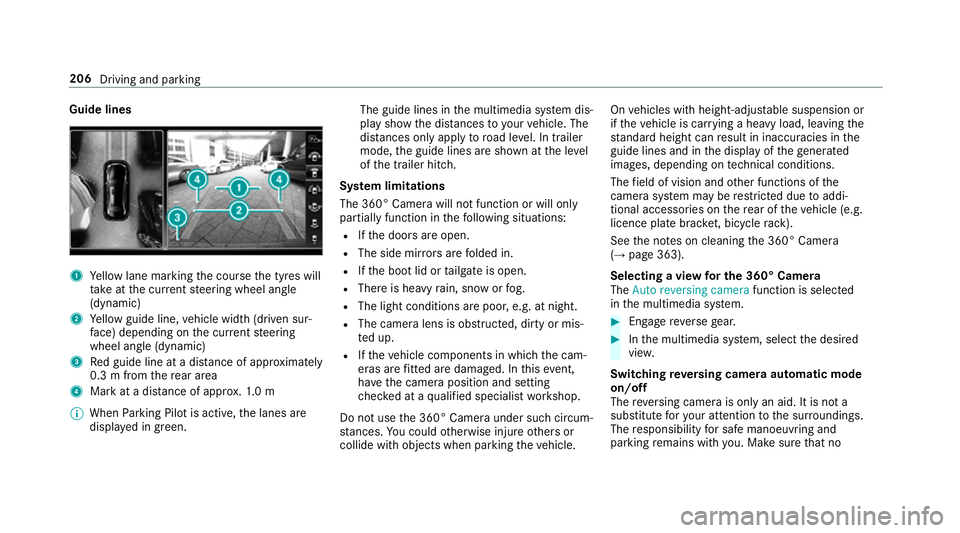
Guide lines
1
Yellow lane marking the course the tyres will
ta ke atthe cur rent steering wheel angle
(dynamic)
2 Yellow guide line, vehicle width (driven sur‐
fa ce) depending on the cur rent steering
wheel angle (dynamic)
3 Red guide line at a dis tance of appr oximately
0.3 m from there ar area
4 Mark at a distance of appr ox.1. 0 m
% When Parking Pilot is active, the lanes are
displa yed in green. The guide lines in
the multimedia sy stem dis‐
play show the dis tances toyour vehicle. The
dis tances only apply toroad le vel. In trailer
mode, the guide lines are shown at the le vel
of the trailer hitch.
Sy stem limitations
The 360° Camera will not function or will only
partially function in thefo llowing situations:
R Ifth e doors are open.
R The side mir rors are folded in.
R Ifth e boot lid or tailgate is open.
R There is heavy rain, snow or fog.
R The light conditions are poor, e.g. at night.
R The camera lens is obstructed, dirty or mis‐
ted up.
R Ifth eve hicle components in which the cam‐
eras are fitted are dama ged. In this event,
ha ve the camera position and setting
ch ecked at a qualified specialist workshop.
Do not use the 360° Camera under such circum‐
st ances. You could otherwise injure others or
collide with objects when parking theve hicle. On
vehicles with height-adjus table suspension or
if th eve hicle is car rying a heavy load, leaving the
st andard height can result in inaccuracies in the
guide lines and in the display of thege nerated
ima ges, depending on tech nical conditions.
The field of vision and other functions of the
came rasystem may be restricted due toaddi‐
tional accesso ries on there ar of theve hicle (e.g.
licence plate brac ket, bicycle rack ).
See the no tes on cleaning the 360° Camera
(→ page 363).
Selecting a view for the 360° Camera
The Auto reversing camera function is selected
in the multimedia sy stem. #
Enga gereve rsege ar. #
Inthe multimedia sy stem, select the desired
vie w.
Switching reve rsing camera automatic mode
on/off
The reve rsing camera is only an aid. It is not a
substitute foryo ur attention tothe sur roundings.
The responsibility for safe manoeuvring and
parking remains with you. Make sure that no 206
Driving and parking
Page 227 of 541
Ac
tivating/deactivating Blind Spot Assi stor
Ac tive Blind Spot Assi st
Multimedia sy stem:
, Vehicle .
k Assistance .
Blind
Spot Assist #
Activate Oor deacti vate ª the function. Ac
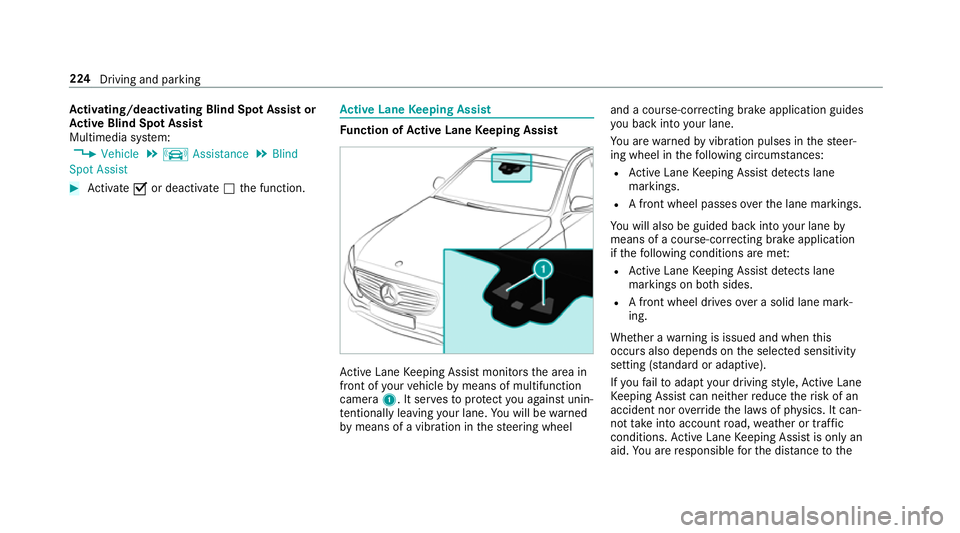
tive Lane Keeping Assist Fu
nction of Active Lane Keeping Assist Ac
tive Lane Keeping Assist monitors the area in
front of your vehicle bymeans of multifunction
camera 1. It ser vesto protect you against unin‐
te ntional lyleaving your lane. You will be warned
by means of a vibration in thesteering wheel and a course-cor
recting brake application guides
yo u back into your lane.
Yo u are warned byvibration pulses in thesteer‐
ing wheel in thefo llowing circums tances:
R Active Lane Keeping Assist de tects lane
markings.
R A front wheel passes over the lane markings.
Yo u will also be guided back into your lane by
means of a course-cor recting brake application
if th efo llowing conditions are me t:
R Active Lane Keeping Assist de tects lane
markings on bo thsides.
R A front wheel drives over a solid lane mark‐
ing.
Whe ther a warning is issued and when this
occurs also depends on the selected sensitivity
setting (s tanda rdor adaptive).
If yo ufa ilto adapt your driving style, Ac tive Lane
Ke eping Assist can neither reduce therisk of an
accident nor override the la wsof ph ysics. It can‐
not take into account road, weather or traf fic
conditions. Active Lane Keeping Assist is only an
aid. You are responsible forth e dis tance tothe 224
Driving and parking
Page 239 of 541
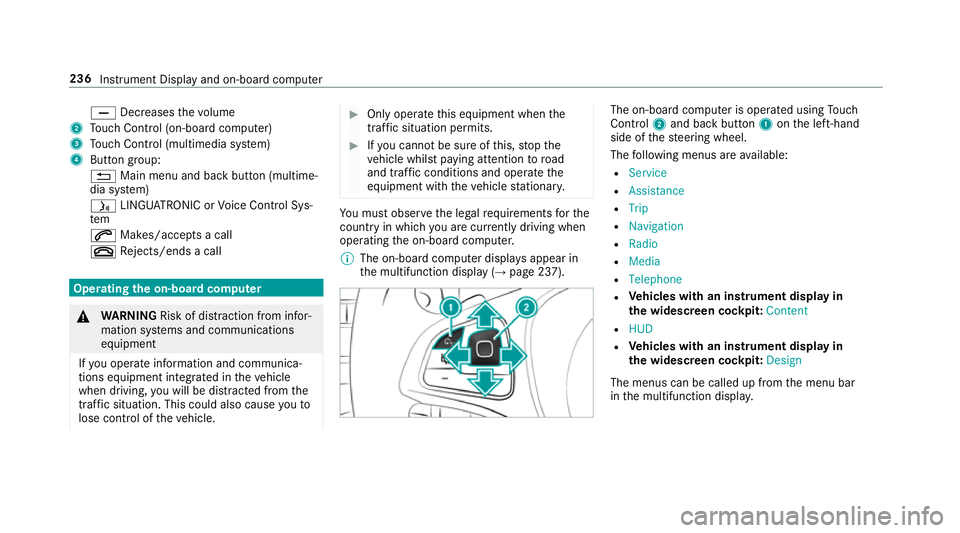
X
Decreases thevo lume
2 Touch Control (on-board co mputer)
3 Touch Control (multimedia sy stem)
4 Button group:
% Main menu and back button (multime‐
dia sy stem)
ó LINGU ATRO NIC or Voice Cont rol Sys‐
tem
6 Makes/accepts a call
~ Rejects/ends a call Ope
rating the on-board co mputer &
WARNING Risk of di stra ction from infor‐
mation sy stems and communications
equipment
If yo u operate information and communica‐
tions equipment integ rated in theve hicle
when driving, you will be distracted from the
traf fic situation. This could also cause youto
lose control of theve hicle. #
Only operate this equipment when the
traf fic situation permits. #
Ifyo u cannot be sure of this, stop the
ve hicle whilst paying attention toroad
and traf fic conditions and ope rate the
equipment with theve hicle stationar y. Yo
u must obse rveth e legal requirements forthe
country in whi chyou are cur rently driving when
operating the on-board computer.
% The on-board computer displa ysappear in
th e multifunction display (→ page 237). The on-board computer is operated using
Touch
Control 2and back but ton1 onthe left-hand
side of thesteering wheel.
The following menus are available:
R Service
R Assistance
R Trip
R Navigation
R Radio
R Media
R Telephone
R Vehicles with an instrument display in
th e widescreen cockpit: Content
R HUD
R Vehicles with an instrument display in
th e widescreen cockpit: Design
The menus can be called up from the menu bar
in the multifunction displa y.236
Instrument Display and on-board computer
Page 247 of 541
tions (dialled,
recei ved and missed calls) are dis‐
pla yed in theTelephone menu. #
Toselect thete lephone number: swipe
upwards or down wards on the left-hand
To uch Control. #
Press the left-hand Touch Control.
If th ere is only one telephone number
sa ve dto an entr y:thete lephone number is
selec ted. #
Ifth ere are multiple telephone numbers
sa ve dto an entr y:swipe upwards or down‐
wa rds on the left-hand Touch Control to
select the desired telephone number. #
Press the left-hand Touch Control.
The telephone number is dialled.
The following displa ysmay appear ins tead of the
te lephone numbers dialled:
R Please wait... :th e application is starting.
When a Blue tooth®
connection tothe mobile
phone is not es tablished, the menu for
authorising and connecting a mobile phone is
displa yed in the multimedia sy stem
(→ page 298). R
Updating data...: the call list is being upda‐
te d.
R Importing contacts... :th e conta cts from the
mobile phone or from a storage medium are
being impor ted.
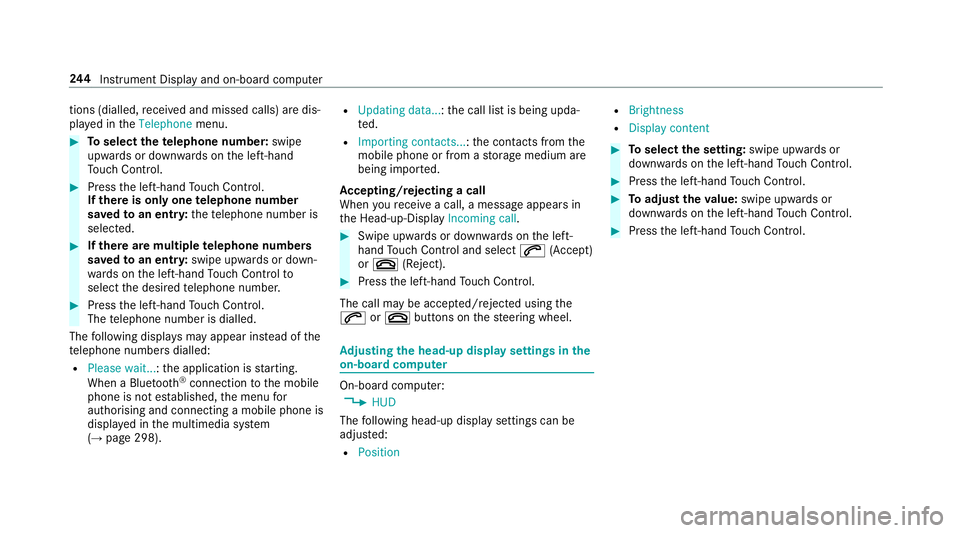
Ac cepting/rejecting a call
When youre cei vea call, a message appears in
th e Head-up-Display Incoming call. #
Swipe upwards or down wards on the left-
hand Touch Control and select 6(Accept)
or ~ (Reject). #
Press the left-hand Touch Control.
The call may be accep ted/rejec ted using the
6 or~ buttons on thesteering wheel. Ad
justing the head-up display settings in the
on-board co mputer On-board computer:
, HUD
The following head-up display settings can be
adjus ted:
R Position R
Brightness
R Display content #
Toselect the setting: swipe upwards or
down wards on the left-hand Touch Control. #
Press the left-hand Touch Control. #
Toadjust theva lue: swipe upwards or
down wards on the left-hand Touch Control. #
Press the left-hand Touch Control. 244
Instrument Display and on-board computer
Page 250 of 541
Operating saf
ety &
WARNING Risk of di stra ction from infor‐
mation sy stems and communications
equipment
If yo u operate information and communica‐
tion equipment integ rated in theve hicle
when driving, you will be distracted from the
traf fic situation. This could also cause youto
lose control of theve hicle. #
Only operate this equipment when the
traf fic situation permits. #
Ifyo u cannot be sure of this, stop the
ve hicle whilst paying attention toroad
and traf fic conditions and ope rate the
equipment with theve hicle stationar y. &
WARNING Risk of di stra ction from oper‐
ating mobile communication equipment
while theve hicle is in motion
If yo u operate communication equipment
integrated in theve hicle when driving, you
will be distracted from the tra ffic situation. This could also cause
youto lose control of
th eve hicle.
Only operate this equipment when theve hi‐
cle is stationar y. Fo
ryo ur ow n sa fety, al ways obser vethefo llow‐
ing points when operating mobile communica‐
tions equipment and especially your voice con‐
trol sy stem:
R Obser vethe legal requ irements forth e coun‐
try in which you are driving.
R While driving, on ly operate mobile communi‐
cations equipment and your voice control
sy stem when the tra ffic conditions permit it.
Yo u may otherwise be distracted from the
traf fic conditions and cause an accident,
inju ring yourself and others.
R Do not use thevo ice control sy stem in an
emer gency as your voice can change and
yo ur telephone call can be unnecessarily
dela yed.
R Familiarise yourself with thevo ice control
sy stem functions before starting the journe y. Operation
Operating
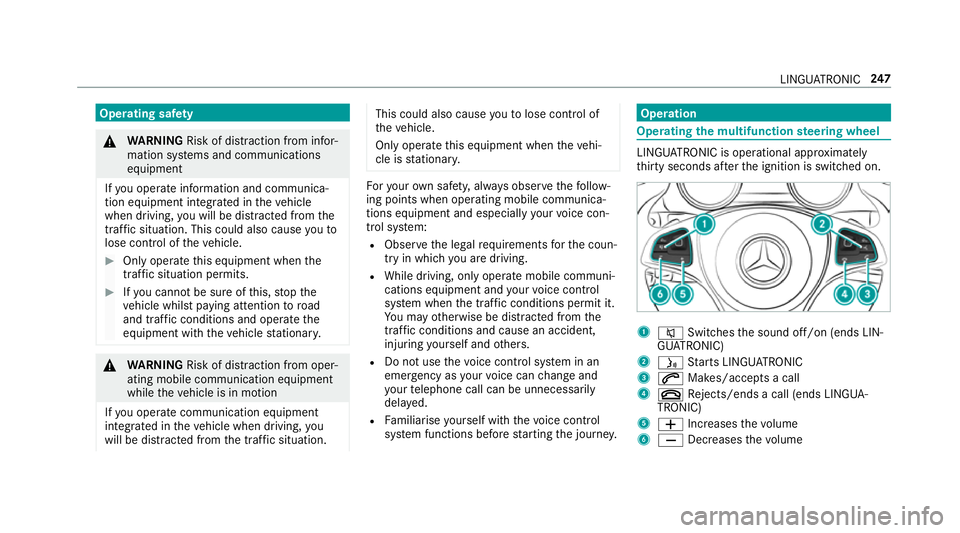
the multifunction steering wheel LINGU
ATRO NIC is operational appr oximately
th irty seconds af terth e ignition is switched on. 1
8 Switches the sound off/on (ends LIN‐
GU ATRO NIC)
2 ó Starts LINGU ATRO NIC
3 6 Makes/accepts a call
4 ~ Rejects/ends a call (ends LINGUA‐
TRONIC)
5 W Increases thevo lume
6 X Decreases thevo lume LINGU
ATRO NIC 247
Page 251 of 541
Vo
ice prom pting #
Tostart or continue a dialogue: pressthe
ó button on the multifunction steering
wheel.
Yo u can say a voice command af ter an
acou stic signal. #
Tocor rect an ent ry:say theCorrection
vo ice command. #
Toselect an entry from the selection lis t:
say the line number or the conte nts. #
Tobrows eth e selection lis t:say theCon-
tinue orBack voice command. #
Tointer rupt the dialogue: saythePause
vo ice command. #
Tocancel the dialogue: saytheCancel
vo ice command. Operable functions
Yo
u can use the LINGU ATRO NIC voice control
sy stem tooperate thefo llowing equipment
re ga rdless of thefe atures:
R Telephone R
Text messa ges
R Navigation
R Address book
R Radio
R Audio (memory card, Media Inter face, USB
and Blu etoo th®
audio)
R TV
R Vehicle Ty
pes of voice commands A distinction is made between
thefo llowing
vo ice commands:
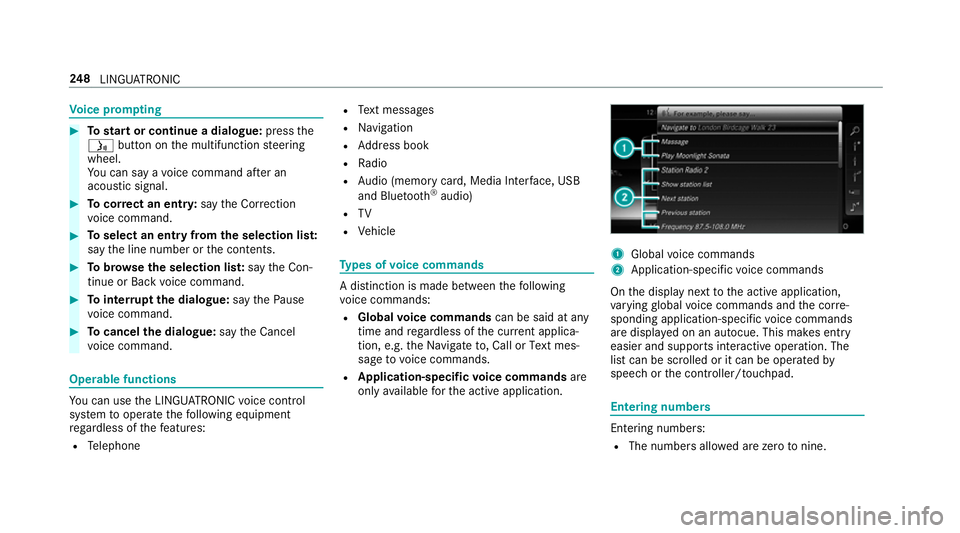
R Global voice commands can be said at any
time and rega rdless of the cur rent applica‐
tion, e.g. theNavigate to, CallorText mes-
sage to voice commands.
R Application-specific voice commands are
only available forth e active application. 1
Global voice commands
2 Application-specific voice commands
On the display next tothe active application,
va rying global voice commands and the cor re‐
sponding application-specific voice commands
are displa yed on an autocue. This makes ent ry
easier and supports interactive operation. The
list can be scrolled or it can be operated by
speech or the controller/touchpad. Entering numbers
Ente
ring numbe rs:
R The numbers allo wed are zerotonine . 248
LINGU ATRO NIC
Page 252 of 541
R
Telephone numbers can be entered as single
digits. Changing
the language setting Yo
u can change the language of LINGU ATRO NIC
via the sy stem language settings. If the set sys‐
te m language is not suppor tedby LINGUA‐
TRONIC, English will be selected.
LINGU ATRO NIC is available in thefo llowing lan‐
guages:
R German
R English
R French
R Italian
R Dutch
R Spanish Using LINGU
ATRO NIC ef fectively Au
dible help functions Yo
ure cei veinformation and help for:
R Optimal operation: saytheHelp lingua-
tronic voice command.
R Cur rent application: presstheó button
on the multifunction steering wheel and say
th eHelp voice command.
R Continued dialogue: saytheHelp voice
command during a voice dialogue.
R A specific sy stem: saythevo ice command
fo rth e desired sy stem, e.g. Help telephone. Speech
quality impr ovement If LI
NGUATRONIC does not unde rstand you:
R only operate LINGU ATRO NIC from the driv‐
er's seat.
R say thevo ice commands cohe rently and
clear ly, but do not exaggerate thewo rds. R
avoid loud noise, e.g. the blo wer,th at causes
inter fere nce while making a voice command
ent ry.
R say thevo ice tag with the same intonation
when creating voice tags.
If an addre ss book entry voice tag is not rec‐
ognised:
R onlycrea tesensible address book entries in
th e sy stem/mobile phone, e.g. enter sur‐
name and firs t name in the cor rect field.
R do not use any abbr eviations, unnecessary
spaces or special characters.
If a station list entry is not recognised:
R say theRead out station list voice command. Essential
voice commands Switch
voice commands Swit
chvoice commands can be used toopen
cer tain applications. The voice command selec‐
tion can be used rega rdless of the application
th at is cur rently acti ve. LINGU
ATRO NIC 249
Page 287 of 541
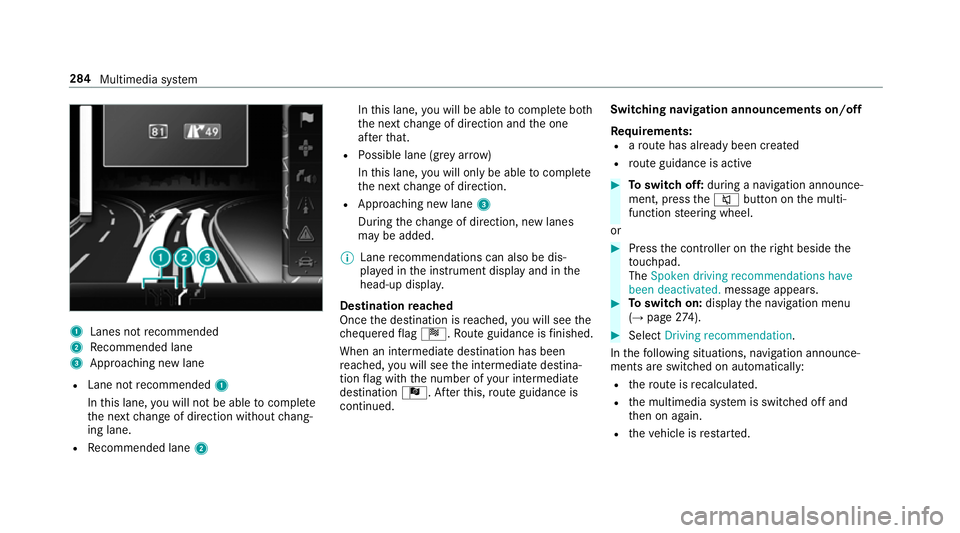
1
Lanes not recommended
2 Recommended lane
3 Approa ching new lane
R Lane not recommended 1
In this lane, you will not be able tocompl ete
th e next change of direction without chang‐
ing lane.
R Recommended lane 2 In
this lane, you will be able tocompl ete bo th
th e next change of direction and the one
af te rth at.
R Possible lane (gr eyarro w)
In this lane, you will on ly beabletocompl ete
th e next change of direction.
R App roaching new lane 3
During thech ange of direction, new lanes
may be added.
% Lane recommendations can also be dis‐
pl ay ed in the instrument display and in the
head-up displa y.
Destination reached
Once the destination is reached, you will see the
ch equered flag Í. Route guidance is finished.
When an intermedia tedestination has been
re ached, you will see the intermediate destina‐
tion flag with the number of your intermediate
destination Î. Afterth is, route guidance is
continued. Swit
ching navigation announcements on/off
Re quirements:
R aro ute has already been created
R route guidance is active #
Toswitch off: during a navigation announce‐
ment, press the8 button on the multi‐
function steering wheel.
or #
Press the controller on theright beside the
to uchpad.
The Spoken driving recommendations have
been deactivated. message appears. #
Toswitch on: displaythe navigation menu
(→ page 274). #
Select Driving recommendation .
In thefo llowing situations, navigation announce‐
ments are switched on automatically:
R thero ute is recalculated.
R the multimedia sy stem is switched off and
th en on again.
R theve hicle is restar ted. 284
Multimedia sy stem