wheel MERCEDES-BENZ E-CLASS COUPE 2018 Repair Manual
[x] Cancel search | Manufacturer: MERCEDES-BENZ, Model Year: 2018, Model line: E-CLASS COUPE, Model: MERCEDES-BENZ E-CLASS COUPE 2018Pages: 593, PDF Size: 10.63 MB
Page 278 of 593
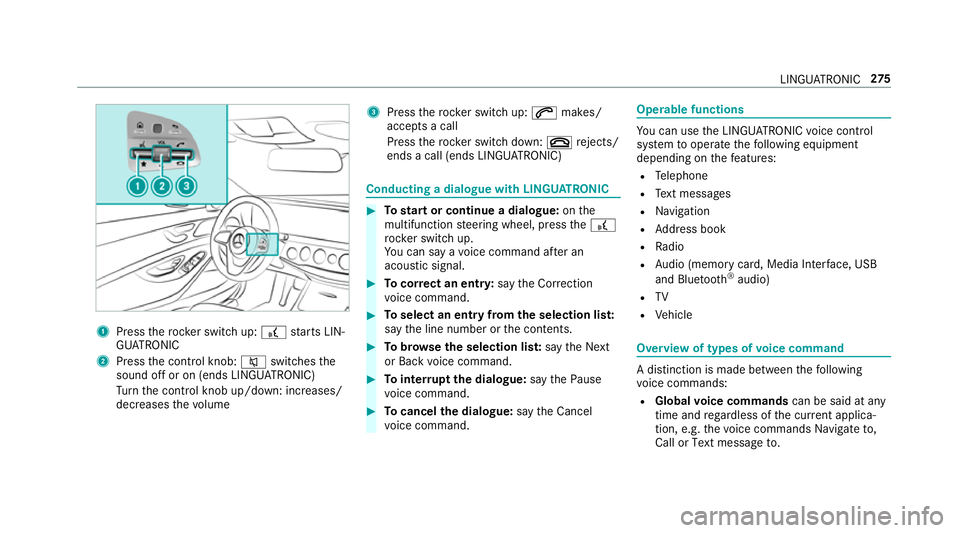
1
Press therock er switch up: £starts LIN‐
GU ATRO NIC
2 Press the control knob: 8switches the
sound off or on (ends LINGU ATRO NIC)
Tu rn the control knob up/down: increases/
decreases thevo lume 3
Press therock er switch up: 6makes/
accepts a call
Press therock er switch down: ~rejects/
ends a call (ends LINGU ATRO NIC) Conducting a dialogue with LINGU
ATRO NIC #
Tostart or continue a dialogue: onthe
multifunction steering wheel, press the£
rock er switch up.
Yo u can say a voice command af ter an
acou stic signal. #
Tocor rect an ent ry:say theCorrection
vo ice command. #
Toselect an entry from the selection lis t:
say the line number or the conte nts. #
Tobrows eth e selection lis t:say theNext
or Back voice command. #
Tointer rupt the dialogue: saythePause
vo ice command. #
Tocancel the dialogue: saytheCancel
vo ice command. Operable functions
Yo
u can use the LINGU ATRO NIC voice control
sy stem tooperate thefo llowing equipment
depending on thefe atures:
R Telephone
R Text messa ges
R Navigation
R Address book
R Radio
R Audio (memory card, Media Inter face, USB
and Blu etoo th®
audio)
R TV
R Vehicle Overview of types of
voice command A distinction is made between
thefo llowing
vo ice commands:
R Global voice commands can be said at any
time and rega rdless of the cur rent applica‐
tion, e.g. thevo ice commands Navigate to,
Call orText message to. LINGU
ATRO NIC 275
Page 279 of 593
R
Application-specific voice commands are
only available forth e active application.
Once Linguatronic is star ted an autocue is
shown. Apart from theav ailable voice com‐
mands forth e application cur rently acti ve,th is
also cites example voice commands forot her
applications which are not active. In this wa y,
yo u will be familiar more quickly with theav aila‐
ble voice commands. The list can be scrolled or
it can be operated byspeech or the controller/
to uchpad. Information on
the language setting Yo
u can change the language of LINGU ATRO NIC
via the sy stem language settings. If the set sys‐
te m language is not suppor tedby LINGUA‐
TRONIC, English will be selected.
LINGU ATRO NIC is available in thefo llowing lan‐
guages:
R German
R English
R French R
Italian
R Dutch
R Polish
R Portuguese
R Russian
R Swedish
R Spanish
R Czech
R Turkish Using LINGU
ATRO NIC ef fectively Fe
atures of audible help functions Yo
ure cei veinformation and help forth efo llow‐
ing topics:
R Optimum operation: saythebrief instruc-
tion voice command.
R Cur rent application: onthe multifunction
st eering wheel, press the£ rocker switch
up and say theHelp voice command.
R Continued dialogue: saytheHelp voice
command during a voice dialogue. R
Specific function: sayvoice commands for
th e desired function, e.g. Help telephone. Note
s on how toimpr ovespeech quality If LINGU
ATRO NIC does not under stand you:
R onlyoperate LINGU ATRO NIC from the driv‐
er's seat.
R say thevo ice commands cohe rently and
clearly, but do not exaggerate thewo rds.
R avoid loud noises that cause inter fere nce
while making a voice command ent ry, e.g.
th e blo wer.
A vo ice tag in the address book is not recog‐
nised:
R only crea tesensible address book entries in
th e sy stem/mobile phone, e.g. enter sur‐
name and firs t name in the cor rect field.
R do not use any abbr eviations, unnecessary
spaces or special characters.
If a station list ent ryis not recognised:
R say theRead out station list voice command. 276
LINGU ATRO NIC
Page 292 of 593
Overview and operation
Overview of
the multimedia sy stem &
WARNING Risk of di stra ction from infor‐
mation sy stems and communications
equipment
If yo u operate information and communica‐
tion equipment integ rated in theve hicle
when driving, you will be distracted from the
traf fic situation. This could also cause youto
lose control of theve hicle. #
Only operate this equipment when the
traf fic situation permits. #
Ifyo u cannot be sure of this, stop the
ve hicle whilst paying attention toroad
and traf fic conditions and ope rate the
equipment with theve hicle stationar y. Yo
u must obse rveth e legal requirements forthe
country in whi chyou are cur rently driving when
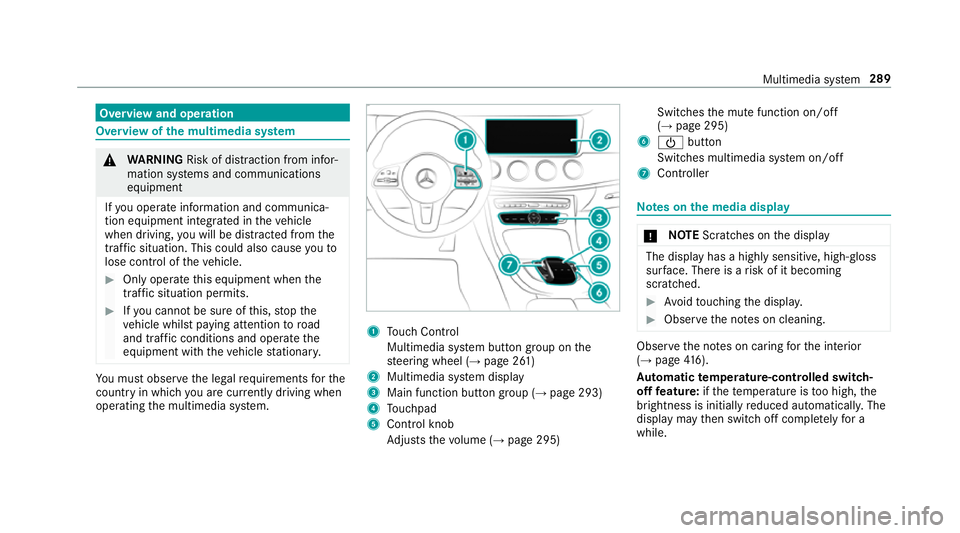
operating the multimedia sy stem. 1
Touch Control
Multimedia sy stem button group on the
st eering wheel (→ page 261)
2 Multimedia sy stem display
3 Main function button group (→ page 293)
4 Touchpad
5 Control knob
Adjusts thevo lume (→ page 295) Swit
ches the mute function on/off
(→ page 295)
6 Ü button
Switches multimedia sy stem on/off
7 Controller Note
s onthe media display *
NO
TEScratches on the display The display has a highly sensitive, high-gloss
sur
face. The reis a risk of it becoming
scratched. #
Avoid touching the displa y. #
Obser vethe no tes on cleaning. Obser
vethe no tes on caring forth e interior
(→ page 416).
Au tomatic temperature-cont rolled switch-
off feature: ifth ete mp erature is too high, the
brightness is initially reduced automatically. The
display may then switch off comple tely for a
while. Multimedia sy
stem 289
Page 298 of 593
Switching
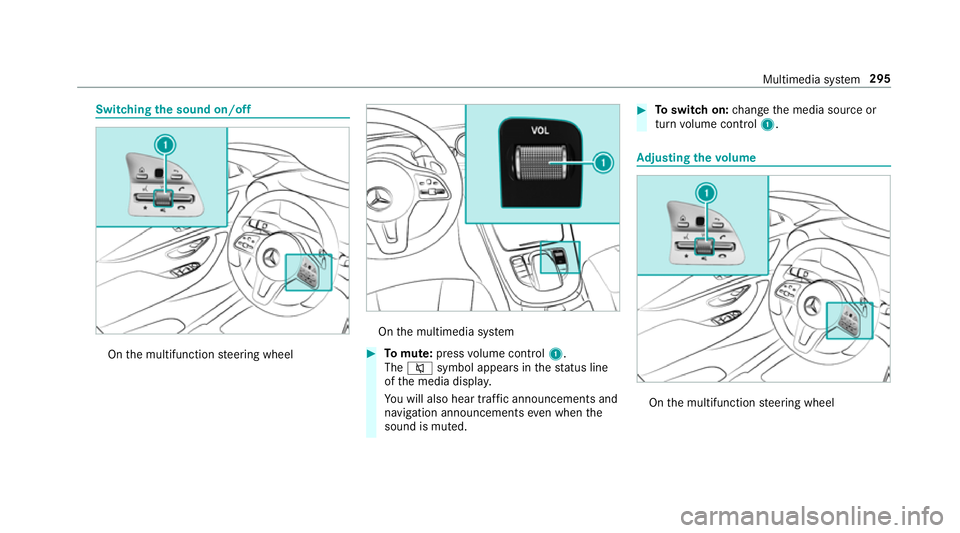
the sound on/off On
the multifunction steering wheel On
the multimedia sy stem #
Tomute: pressvolume control 1.
The 8 symbol appears in thest atus line
of the media displa y.
Yo u will also hear traf fic announcements and
navigation announcements even when the
sound is muted. #
Toswitch on: change the media source or
turn volume control 1. Ad
justing the volume On
the multifunction steering wheel Multimedia sy
stem 295
Page 313 of 593
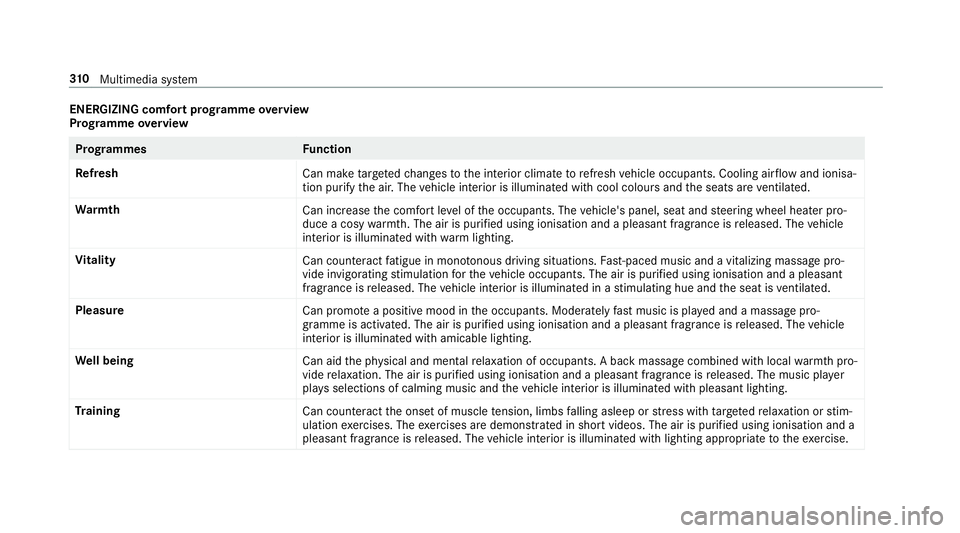
ENERGIZING comfort prog
ramme overview
Prog ramme overview Prog
rammes Function
Re fresh
Can maketargeted changes tothe interior climate torefresh vehicle occupants. Cooling air flow and ionisa‐
tion purify the air. The vehicle interior is illuminated with cool colours and the seats are ventilated.
Wa rmth
Can increase the comfort le vel of the occupants. The vehicle's panel, seat and steering wheel heater pro‐
duce a cosy warmth. The air is pu rified using ionisation and a pleasant fragrance is released. The vehicle
interior is illuminated with warm lighting.
Vi tality
Can countera ct fatigue in mono tonous driving situations. Fast-paced music and a vitalizing massa gepro‐
vide invigorating stimulation forth eve hicle occupants. The air is purified using ionisation and a pleasant
fragrance is released. The vehicle interior is illuminated in a stimulating hue and the seat is ventilated.
Pleasure Can promotea positive mood in the occupants. Moderately fastmusic is pla yed and a massage pro‐
gramme is activated. The air is purified using ionisation and a pleasant fragrance is released. The vehicle
interior is illuminated with amicable lighting.
We ll being
Can aidthe ph ysical and men talre laxation of occupants. A back massage combined with local warmthpro‐
vide relaxation. The air is purified using ionisation and a pleasant fragrance is released. The music pla yer
pla ysselections of calming music and theve hicle interior is illuminated with pleasant lighting.
Tr aining
Can counteractthe onset of muscle tension, limbs falling asleep or stre ss with targeted relaxation or stim‐
ulation exercises. The exercises are demon stra ted in short videos. The air is purified using ionisation and a
pleasant fragrance is released. The vehicle interior is illuminated with lighting appropriate totheex ercise. 310
Multimedia sy stem
Page 328 of 593
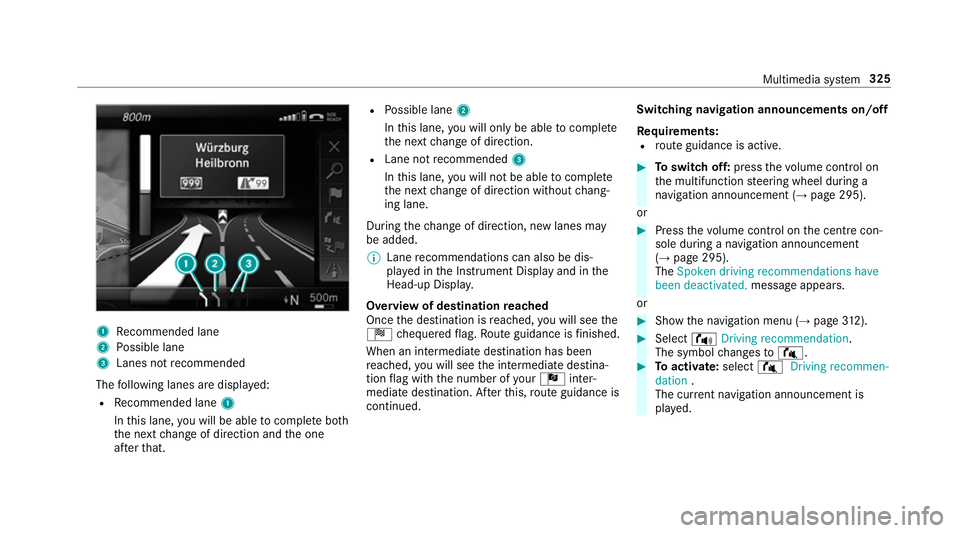
1
Recommended lane
2 Possible lane
3 Lanes not recommended
The following lanes are displa yed:
R Recommended lane 1
In this lane, you will be able tocompl ete bo th
th e next change of direction and the one
af te rth at. R
Possible lane 2
In this lane, you will on lybe able tocompl ete
th e next change of direction.
R Lane not recommended 3
In this lane, you will not be able tocompl ete
th e next change of direction without chang‐
ing lane.
During thech ange of direction, new lanes may
be added.
% Lane recommendations can also be dis‐
pl ay ed in the Instrument Display and in the
Head-up Displa y.
Overview of destination reached
Once the destination is reached, you will see the
Í chequered flag. Route guidance is finished.
When an intermedia tedestination has been
re ached, you will see the intermediate destina‐
tion flag with the number of your Î inter‐
mediate destination. Af terth is, route guidance is
continued. Swit
ching navigation announcements on/off
Re quirements:
R route guidance is active. #
Toswitch off: pressthevo lume control on
th e multifunction steering wheel during a
navigation announcement (→ page 295).
or #
Press thevo lume control on the cent recon‐
sole du ring a navigation announcement
(→ page 295).
The Spoken driving recommendations have
been deactivated. messageappears.
or #
Show the navigation menu (→ page312). #
Select !Driving recommendation .
The symbol changes to# . #
Toactivate: select#Driving recommen-
dation .
The cur rent navigation announcement is
pl ay ed. Multimedia sy
stem 325
Page 329 of 593
%
Inthefo llowing situations, navigation
announcements are switched on automati‐
cally:
R A new route guidance is star ted.
R The route is recalculated.
% You can add and call up this function as a
fa vo urite under Spoken driving recommenda-
tions on/off.
Swit ching navigation announcements on/off
during a phone call #
Select System. #
Select õAudio. #
Select Navigation and traffic announce-
ments. #
Swit chDriving recommendations during
phone call onO or off ª.
Ad justing the volume of navigation
announcements
Re quirements:
R Route guidance is active. #
On the multifunction steering wheel or
on the multimedia sy stem: turn thevo lume
control on the multifunction steering wheel
during a navigation announcement.
or #
Turn thevo lume control on the cent recon‐
sole du ring a navigation announcement
(→ page 295).
% Inthefo llowing situations, thevo lume is
ra ised tothe maximum volume or lo weredto
th e minimum volume:
R A new route guidance is star ted.
R The route is recalculated.
% The minimum volume can be individually set
at a Mercedes-Benz Service Cent re. #
Via sy stem settings: selectSystem. #
Select õAudio. #
Select Navigation and traffic announce-
ments. #
Select Driving recommendation volume. #
Set thevo lume. #
Toswitch audio fadeout on/o ffduring
navigation announcements: selectSystem . #
Select õAudio. #
Select Navigation and traffic announce-
ments . #
Switch Audio fadeout during driving recom-
mendation onO or off ª.
Re peating navigation announcements
Re quirements:
R aro ute has already been created.
R route guidance is active.
Multimedia sy stem:
Navigation #
Select !Driving recommendation . #
Select #Driving recommendation .
The cur rent navigation announcement is
re peated.
% You can add and call up this function as a
fa vo urite under Repeat spoken driving rec-
ommendation .326
Multimedia sy stem
Page 349 of 593
#
Place the NFC area of the mobile phone (see
manufacturer's operating instructions) on
NFC logo 2onthe inside of the co ver.
The mobile phone is connected tothe multi‐
media sy stem. #
Tochange mobile phones: placethe NFC
area of the mobile phone (see manufactur‐
er's operating instructions) on NFC logo 2.
If th e mobile phone has already been author‐
ised on the multimedia sy stem, it is now con‐
nected.
If th e mobile phone is authorised on the mul‐
timedia sy stem forth efirs t time, it is connec‐
te d af ter confirming the mobile phone
instructions (see the manufacturer's operat‐
ing instructions).
Fu rther information can be found at: http://
www.mercedes-benz.com/connect
Setting there ception and transmission vol‐
ume
Re quirements:
R A mobile phone is authorised (→ page 340).Multimedia sy
stem:
Telephone ZOption sTelephone
This function ensures optimal language qualit y. #
Select Reception volume orTransmission
volume. #
Set thevo lume.
Fu rther information on there commended recep‐
tion and transmission volume: http://
www.me rcedes-benz.com/connect
Ad justing the call and ringtone volume
Multimedia sy stem:
System õAudio Telephone #
Select Speech volume orRingtone volume . #
Set thevo lume.
St arting/ stopping mobile phone voice recog‐
nition
Re quirements:
R The mobile phone is connec tedto the multi‐
media sy stem (→ page 340). St
arting mobile phone voice recognition #
Press and hold theó button on the multi‐
function steering wheel for more than one
second.
Yo u can use mobile phone voice recognition.
St opping mobile phone voice recognition #
Press the8 or~ button on the multi‐
function steering wheel. Calls
Te
lephone operation
Multimedia sy stem:
Telephone ªContacts
Making a call #
Select Numerical keypad. #
Ente rth e number. #
Select w.
The call is made.
Ac cepting a call #
Select Accept. 346
Multimedia sy stem
Page 357 of 593
Using Mercedes-Benz Link
Re
quirements:
R The Mercedes-Benz Link control box is con‐
nec ted with the multimedia sy stem using the
ç USB port.
Multimedia sy stem:
Connect #
Select Mercedes-Benz Link. #
Select MB Link.
The mobile phone functions and apps are
av ailable and shown on the media displa y.
Yo u can find more information in the Mercedes-
Benz Link control box operating instructions.
Ending Mercedes-Benz Link
Multimedia sy stem:
Connec tMercedes-Benz Link #
Select Disconnect.
The connection is ended.
The mobile phone continues tobe supplied
with elect ricity.
or #
Disconnect the connecting cable between
th e Mercedes-Benz Link control box and the
multimedia sy stem.
% Mercedes-Benz recommends disconnecting
th e connecting cable only when theve hicle
is stationar y. Apple CarPlay™
Overview of Apple CarPlay™
&
WARNING Risk of di stra ction from infor‐
mation sy stems and communications
equipment
If yo u operate information and communica‐
tion equipment integ rated in theve hicle
when driving, you will be distracted from the
traf fic situation. This could also cause youto
lose control of theve hicle. #
Only operate this equipment when the
traf fic situation permits. #
Ifyo u cannot be sure of this, stop the
ve hicle whilst paying attention toroad and traf
fic conditions and ope rate the
equipment with theve hicle stationar y. Yo
u must obse rveth e legal requirements forthe
country in whi chyou are cur rently driving when
operating the multimedia sy stem.
iPhone ®
functions can be used via the multime‐
dia sy stem using Apple CarPlay™. They are oper‐
ated using the cent ral control element or the
Siri ®
vo ice-operated control sy stem. You can
activate thevo ice-opera ted control sy stem by
pressing and holding theó button on the
multifunction steering wheel.
When using Apple CarPlay™ via thevo ice-oper‐
ated control sy stem, the multimedia sy stem can
st ill be operated via LINGU ATRO NIC
(→ page 274).
On ly one mobile phone at a time can be connec‐
te d via Apple CarPlay™ tothe multimedia sys‐
te m.
The availability of Apple CarPlay™ may vary
according tothe count ry. 354
Multimedia sy stem
Page 358 of 593
The service pr
ovider is responsible forth is appli‐
cation and the services and conte nt connected
to it.
Information on Apple CarPlay™
While using Apple CarPlay™ various functions of
th e multimedia sy stem, e.g. telephony or the
media sources Blue tooth®
audio and iPod ®
, are
una vailable.
Only one route guidance can be active at a time.
If ro ute guidance is active on the multimedia sys‐
te m, it is closed when route guidance is star ted
on the mobile phone.
Connecting an iPhone ®
via Apple CarPlay™
Re quirements:
R Apple ®
operating sy stem version iOS 8.3 or
abo veis ins talled on the iPhone ®
.
R An Internet connection is requiredforth e full
ra nge of functions for Apple CarPlay™.
R The iPhone ®
is connected tothe multimedia
sy stem via the USB port çusing a suita‐
ble cable (→ page376). Multimedia sy
stem:
Connec tApple CarPlay
Setting automatic or manual start
A messa geappears when connec tedfo rth efirst
time. #
Automatic star t:select Automatically.
Start automatically is activatedO.
Apple CarPlay™ will now start immediately
af te rth e iPhone ®
is connected tothe multi‐
media sy stem using a USB cable. #
Manual star t:select Manually . #
Select the iPhone ®
in the device list.
Ac cepting/rejecting the data pr otection reg‐
ulations
A message with the data pr otection regulations
appears. #
Select Accept & Start .
or #
Select Decline & End. Exiting Apple CarPlay™ #
Press theò button on the multifunction
st eering wheel, forex ample.
% If Apple CarPlay™ was not displa yed in the
fo re ground before disconnecting, the appli‐
cation starts in the bac kground when recon‐
nected. You can call up Apple CarPlay™ in
th e main menu.
Calling up Apple CarPlay™ sound settings
Multimedia sy stem:
Connec tApple CarPlay Sound #
Select theto ne menu (→ page 397).
Ending Apple CarPlay™
Multimedia sy stem:
Connec tApple CarPlay #
Select Disconnect.
The connection is ended.
The mobile phone continues tobe supplied
with elect ricity.
or Multimedia sy
stem 355