wheel MERCEDES-BENZ E-CLASS COUPE 2018 Workshop Manual
[x] Cancel search | Manufacturer: MERCEDES-BENZ, Model Year: 2018, Model line: E-CLASS COUPE, Model: MERCEDES-BENZ E-CLASS COUPE 2018Pages: 593, PDF Size: 10.63 MB
Page 232 of 593
To
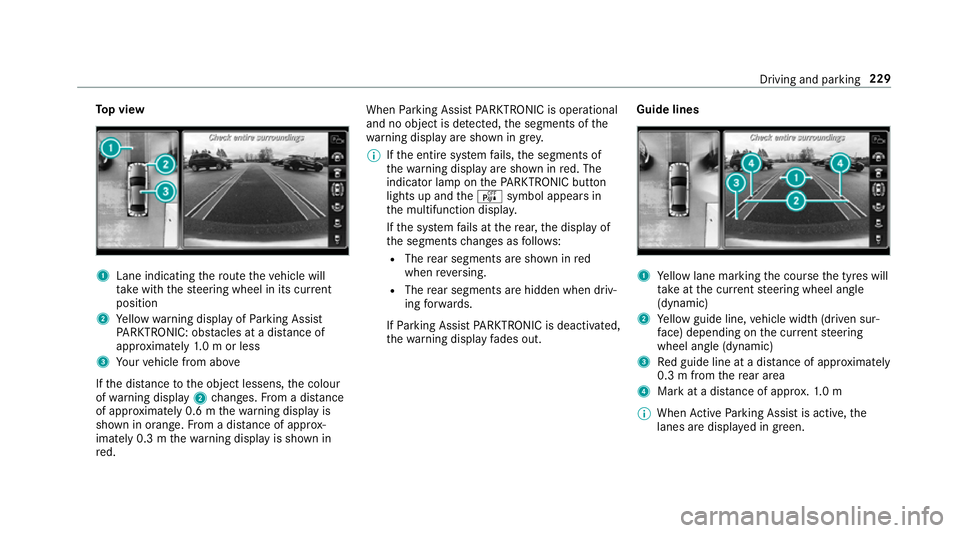
p view 1
Lane indicating thero ute theve hicle will
ta ke with thesteering wheel in its cur rent
position
2 Yellow warning display of Parking Assist
PA RKTRONIC: obstacles at a dis tance of
appr oximately 1.0 m or less
3 Your vehicle from abo ve
If th e dis tance tothe object lessens, the colour
of wa rning display 2changes. From a dis tance
of appr oximately 0.6 m thewa rning display is
shown in orange. From a dis tance of appr ox‐
imately 0.3 m thewa rning display is shown in
re d. When
Parking Assist PARKTRONIC is operational
and no object is de tected, the segments of the
wa rning display are shown in grey.
% Ifth e entire sy stem fails, the segments of
th ewa rning display are shown in red. The
indicator lamp on thePA RKTRONIC but ton
lights up and theé symbol appears in
th e multifunction displa y.
If th e sy stem fails at there ar, the display of
th e segments changes as follo ws:
R The rear segments are shown in red
when reve rsing.
R The rear segments are hidden when driv‐
ing forw ards.
If Pa rking Assist PARKTRONIC is deacti vated,
th ewa rning display fades out. Guide lines 1
Yellow lane marking the course the tyres will
ta ke atthe cur rent steering wheel angle
(dynamic)
2 Yellow guide line, vehicle width (driven sur‐
fa ce) depending on the cur rent steering
wheel angle (dynamic)
3 Red guide line at a dis tance of appr oximately
0.3 m from there ar area
4 Mark at a distance of appr ox.1. 0 m
% When Active Parking Assist is active, the
lanes are displa yed in green. Driving and parking
229
Page 233 of 593
The guide lines in
the multimedia sy stem dis‐
play show the dis tances toyour vehicle. The
dis tances only apply toroad le vel.
In trailer mode, the guide lines are shown at
th e le vel of the trailer hitch.
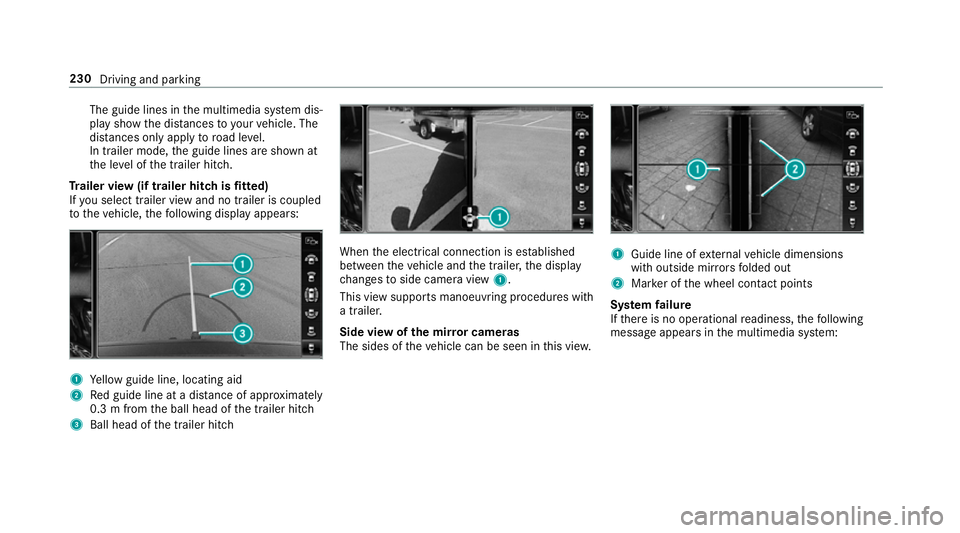
Tr ailer view (if trailer hitch is fitted)
If yo u select trailer view and no trailer is coupled
to theve hicle, thefo llowing display appears: 1
Yellow guide line, locating aid
2 Red guide line at a dis tance of appr oximately
0.3 m from the ball head of the trailer hitch
3 Ball head of the trailer hitch When
the electrical connection is es tablished
between theve hicle and the trailer, the display
ch anges toside camera view 1.
This view supports manoeuvring procedures with
a trailer.
Side view of the mir ror cameras
The sides of theve hicle can be seen in this vie w. 1
Guide line of extern al vehicle dimensions
with outside mir rors folded out
2 Marker of the wheel conta ct points
Sy stem failure
If th ere is no operational readiness, thefo llowing
message appears in the multimedia sy stem: 230
Driving and parking
Page 238 of 593
#
Pay attention toobjects and other road
users. #
Where necessar y,stop theve hicle or
cancel the parking procedure with
Ac tive Parking Assist. #
If,forex ample, thePlease engage reverse
gear message appears in the multimedia sys‐
te m display: select the cor responding trans‐
mission position.
The vehicle drives into the selected parking
space.
On completion of the parking procedure, the
Active Parking Assist finished, take control of
the vehicle. displaymessa geappears. Further
manoeuvring may still be necessar y. #
After completion of the parking procedure,
safeguard theve hicle against rolling away.
When requ ired bylegal requirements or local
conditions: turn the wheels towa rdsth eke rb.
% You can stop theve hicle and change the
transmission position du ring the parking pro‐
cedure. The sy stem then calculates a new ve
hicle path. The parking procedure can
th en be continued. If no new vehicle path is
av ailable, the transmission position will be
ch anged again. If theve hicle has not yet
re ached the parking space, the parking pro‐
cedure will be cancelled, should a gear be
ch anged.
Exiting a pa rking space with Active Parking
Assist
Re quirements:
R The vehicle has been par ked with Active
Pa rking Assist.
% Depending on theve hicle's equipment, the
button may also be located at a dif fere nt
position in the cent reconsole.
Please no tethat you are responsible forth eve hi‐
cle and sur roundings during the entire parking
procedure. #
Start theve hicle. #
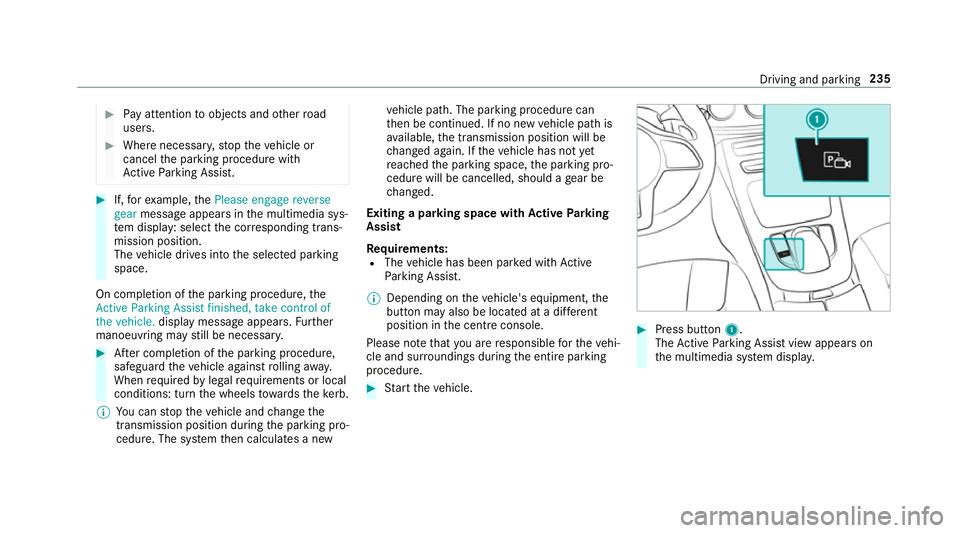
Press button 1.
The Active Parking Assist view appears on
th e multimedia sy stem displa y. Driving and pa
rking 235
Page 243 of 593
#
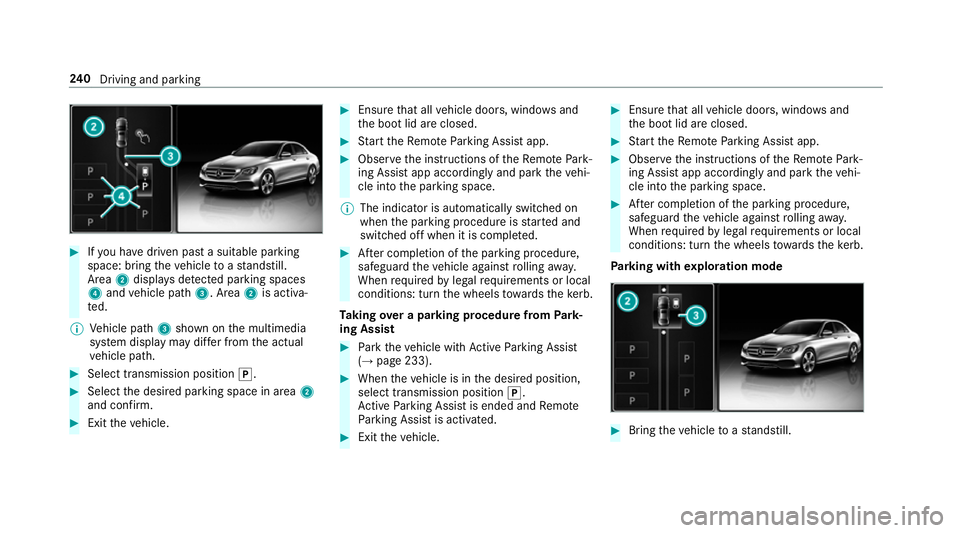
Ifyo u ha vedriven past a suitable parking
space: bring theve hicle toast andstill.
Area 2displa ysdetected pa rking spaces
4 and vehicle path 3. Area2is activa‐
te d.
% Vehicle path 3shown on the multimedia
sy stem display may dif fer from the actual
ve hicle path. #
Select transmission position j.#
Select the desired parking space in area 2
and confi rm. #
Exit theve hicle. #
Ensure that all vehicle doors, windo wsand
th e boot lid are closed. #
Start theRe mo teParking Assist app. #
Obser vethe instructions of theRe mo tePark‐
ing Assist app accordingly and park theve hi‐
cle into the parking space.
% The indicator is automatically switched on
when the parking procedure is star ted and
switched off when it is comple ted. #
After completion of the parking procedure,
safeguard theve hicle against rolling away.
When requ ired bylegal requirements or local
conditions: turn the wheels towa rdsth eke rb.
Ta king over a parking procedu refrom Park‐
ing Assist #
Park theve hicle with Active Parking Assist
(→ page 233). #
When theve hicle is in the desired position,
select transmission position j.
Ac tive Parking Assist is ended and Remo te
Pa rking Assist is activated. #
Exit theve hicle. #
Ensure that all vehicle doors, windo wsand
th e boot lid are closed. #
Start theRe mo teParking Assist app. #
Obser vethe instructions of theRe mo tePark‐
ing Assist app accordingly and park theve hi‐
cle into the parking space. #
After completion of the parking procedure,
safeguard theve hicle against rolling away.
When requ ired bylegal requirements or local
conditions: turn the wheels towa rdsth eke rb.
Pa rking with explo ration mode #
Bring theve hicle toast andstill. 240
Driving and pa rking
Page 244 of 593
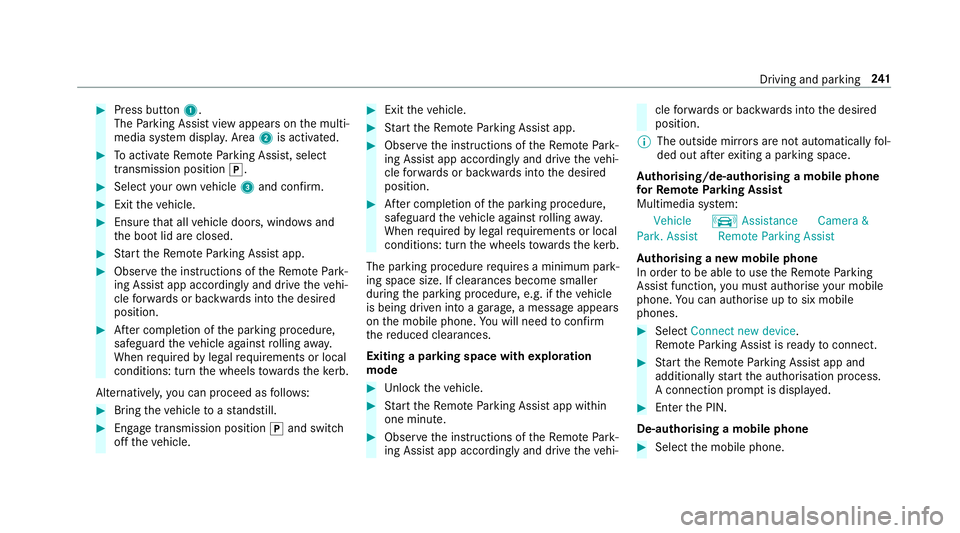
#
Press button 1.
The Parking Assist view appears on the multi‐
media sy stem displa y.Area 2is acti vated. #
Toactivate Remo teParking Assist, select
transmission position j.#
Select your ow nve hicle 3and confirm. #
Exit theve hicle. #
Ensure that all vehicle doors, windo wsand
th e boot lid are closed. #
Start theRe mo teParking Assist app. #
Obser vethe instructions of theRe mo tePark‐
ing Assist app accordingly and drive theve hi‐
cle forw ards or backwards into the desired
position. #
After completion of the parking procedure,
safeguard theve hicle against rolling away.
When requ ired bylegal requirements or local
conditions: turn the wheels towa rdsth eke rb.
Alternatively, you can proceed as follo ws: #
Bring theve hicle toast andstill. #
Engage transmission position jand switch
off theve hicle. #
Exit theve hicle. #
Start theRe mo teParking Assist app. #
Obser vethe instructions of theRe mo tePark‐
ing Assist app accordingly and drive theve hi‐
cle forw ards or backwards into the desired
position. #
After completion of the parking procedure,
safeguard theve hicle against rolling away.
When requ ired bylegal requirements or local
conditions: turn the wheels towa rdsth eke rb.
The parking procedu re requires a minimum park‐
ing space size. If clearances become smaller
during the parking procedure, e.g. if theve hicle
is being driven into a garage , a message appears
on the mobile phone. You will need toconfirm
th ere duced clearances.
Exiting a parking space with explo ration
mode #
Unlock theve hicle. #
Start theRe mo teParking Assist app within
one minute. #
Obser vethe instructions of theRe mo tePark‐
ing Assist app accordingly and drive theve hi‐ cle
forw ards or backwards into the desired
position.
% The outside mir rors are not automatically fol‐
ded out af terex iting a parking space.
Au thorising/de-authorising a mobile phone
fo rRe mo teParking Assist
Multimedia sy stem:
Vehicle kAssistance Camera &
Park. Assist Remote Parking Assist
Au thorising a new mobile phone
In order tobe able touse theRe mo teParking
Assist function, you must authorise your mobile
phone. You can authorise up tosix mobile
phones. #
Select Connect new device .
Re mo teParking Assist is ready toconnect. #
Start theRe mo teParking Assist app and
additionally start the authorisation process.
A connection prom ptis displa yed. #
Ente rth e PIN.
De-authorising a mobile phone #
Select the mobile phone. Driving and parking
241
Page 253 of 593
Ac
tivating/deactivating Blind Spot Assi stor
Ac tive Blind Spot Assi st
Multimedia sy stem:
Vehicle kAssistance Blind Spot
Assist #
Activate Oor deacti vate ª the function. Ac
tive Lane Keeping Assist Fu
nction of Active Lane Keeping Assist Ac
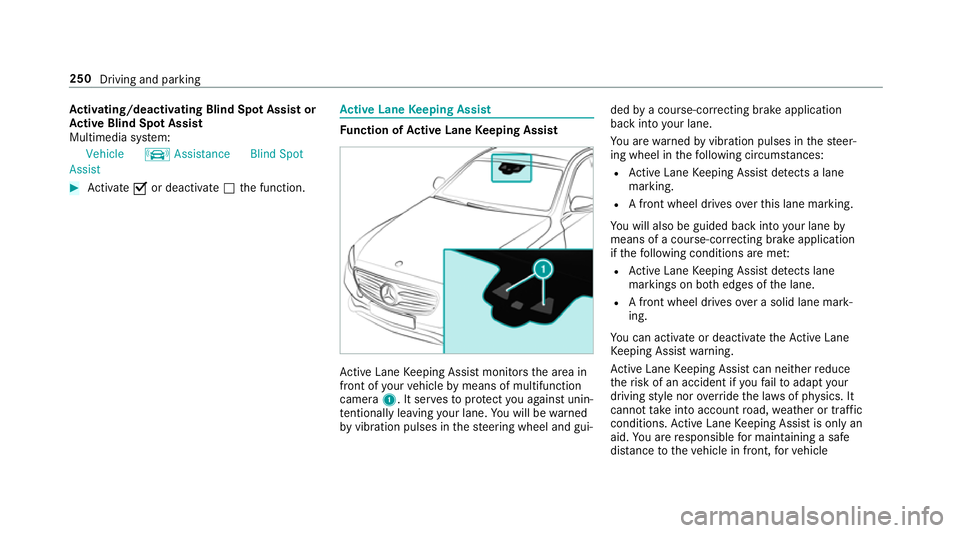
tive Lane Keeping Assist monitors the area in
front of your vehicle bymeans of multifunction
camera 1. It ser vesto protect you against unin‐
te ntional lyleaving your lane. You will be warned
by vibration pulses in thesteering wheel and gui‐ ded
bya course-cor recting brake application
ba ck into your lane.
Yo u are warned byvibration pulses in thesteer‐
ing wheel in thefo llowing circums tances:
R Active Lane Keeping Assist de tects a lane
marking.
R A front wheel drives overth is lane marking.
Yo u will also be guided back into your lane by
means of a course-cor recting brake application
if th efo llowing conditions are me t:
R Active Lane Keeping Assist de tects lane
markings on bo thedges of the lane.
R A front wheel drives over a solid lane mark‐
ing.
Yo u can activate or deactivate theAc tive Lane
Ke eping Assist warning.
Ac tive Lane Keeping Assist can neither reduce
th erisk of an accident if youfa ilto adapt your
driving style nor override the la wsof ph ysics. It
cannot take into account road, weather or traf fic
conditions. Active Lane Keeping Assist is only an
aid. You are responsible for maintaining a safe
dis tance totheve hicle in front, forve hicle 250
Driving and parking
Page 260 of 593
&
WARNING Risk of becoming trapped
when disconnecting the trailer cable
Ve hicles with le vel control sy stem: the
ve hicle lo werswhen the trailer cable is dis‐
connected.
This could result in you or other people
becoming trapped if your or their limbs are
between theve hicle body and the tyres or
underneath theve hicle. #
Make sure nobody is underneath the
ve hicle or in the immediate vicinity of
th e wheel ar ches when you disconnect
th e trailer cable. *
NO
TEDama getothere ar bumper from
ins talling adap ter cables or adapte r plugs The
following parts could be damaged when
re tracting the ball neck:
R bumper
R adap ter cable
R adapte r plug #
Alw aysre mo vethe adap ter cable or
adapte r plug before retracting the ball
nec k. #
Secu rethe trailer against rolling away. #
Disconnect the electrical connection
between theve hicle and the trailer. #
Uncouple the trailer. #
Place the co ver on the ball head. Bicycle
rackfunction &
WARNING Risk of an accident when
using the bicycle rack incor rectly
The bicycle rack may become de tach ed from
th eve hicle in thefo llowing cases:
R the permissible load capacity of the
trailer hitch is exceeded.
R the bicycle rack is used incor rectl y.
R the bicycle rack is secured tothe ball
neck beneath the ball head. Obser
vethefo llowing foryo ur ow n sa fety
and that of other road users: #
always adhere tothe permissible load
capacity of the trailer hitch. #
only use the bicycle rack totranspo rt
bicycles. #
always proper lysecure the bicycle rack
by attaching it tothe ball head. #
only use bicycle rack s appr ovedby
Mercedes-Benz. #
always obser vethe bicycle rack operat‐
ing instructions. *
NO
TEDama geto, or cra cks on, the
trailer hitch due tounsuitable bic ycle
ra ck s or bicycle rack s being used incor‐
re ctly #
use only bicycle rack s appr ovedby
Mercedes-Benz. Driving and parking
257
Page 264 of 593
R
Speed limiter (→ page 202)
R Active Dis tance Assi stDISTRONIC
(→ page 205)
* NO
TEEngine dama gedue toexc essively
high engine speeds The engine will be damaged if
you drive with
th e engine in theov errevving range. #
Do not drive wi th the engine in theove r‐
re vving range. The fuel supply is inter
rupted toprotect the
engine when there d mark on there v counter 3
(o ve rrev ving range) is reached.
During no rmal operating conditions, coolant
te mp erature display 4may rise to120 °C. &
WARNING Danger of bu rns when open‐
ing the bonn et
If yo u open the engine bonn etwhen the
engine has overheated or during a fire inthe
engine compartment, you could come into
contact with hot gases or other escaping
operating fluids. #
Before opening the bonn et, allow the
engine tocool down. #
Intheeve nt of a fire inthe engine com‐
partment, keep the engine bonn et
closed and call thefire service. Ve
hicles with a 48 V on-board electrical sys‐
te m (EQ Boo sttech nology) 1
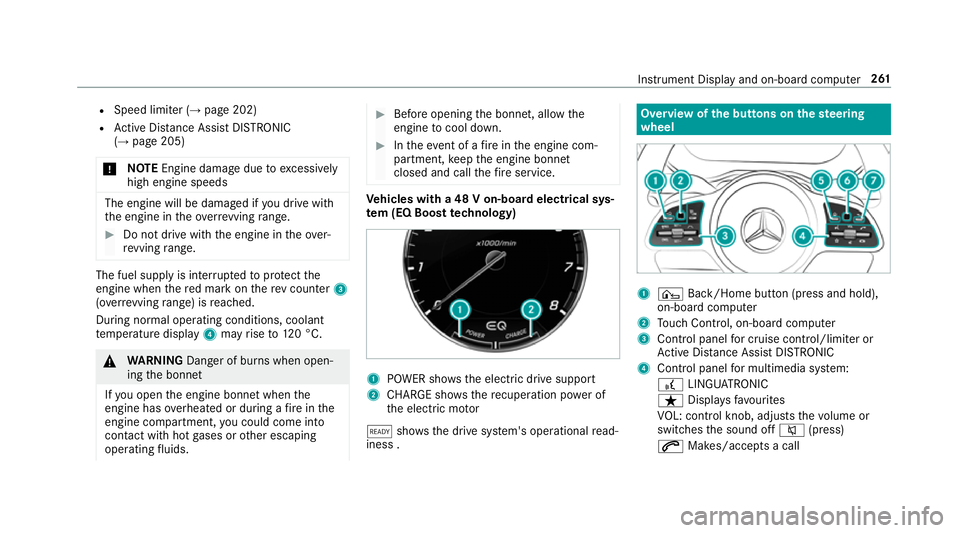
POWER sho wsthe electric drive support
2 CHARGE sho wsthere cuperation po wer of
th e electric mo tor
õ shows th e drive sy stem's operational read‐
iness . Overview of
the but tons on thest eering
wheel 1
¤ Back/Home button (press and hold),
on-board computer
2 Touch Control, on-board co mputer
3 Control panel for cruise control/limiter or
Ac tive Dis tance Assi stDISTRONIC
4 Control panel for multimedia sy stem:
£ LINGU ATRO NIC
ß Displa ysfavo urites
VO L: control knob, adjusts thevo lume or
switches the sound off 8(press)
6 Makes/accepts a call Instrument Display and on-board computer
261
Page 274 of 593
and traf
fic conditions and ope rate the
equipment with theve hicle stationar y. When
telephoning, you must obse rveth e legal
re qu irements forth e count ryin which you are
cur rently driving.
Re quirements:
R The mobile phone is connec tedto the multi‐
media sy stem.
On-board computer: Telephone
Ve hicles with the COMAND Online multime‐
dia sy stem: the most recent telephone calls
(dialled, recei ved and missed calls) are displa yed
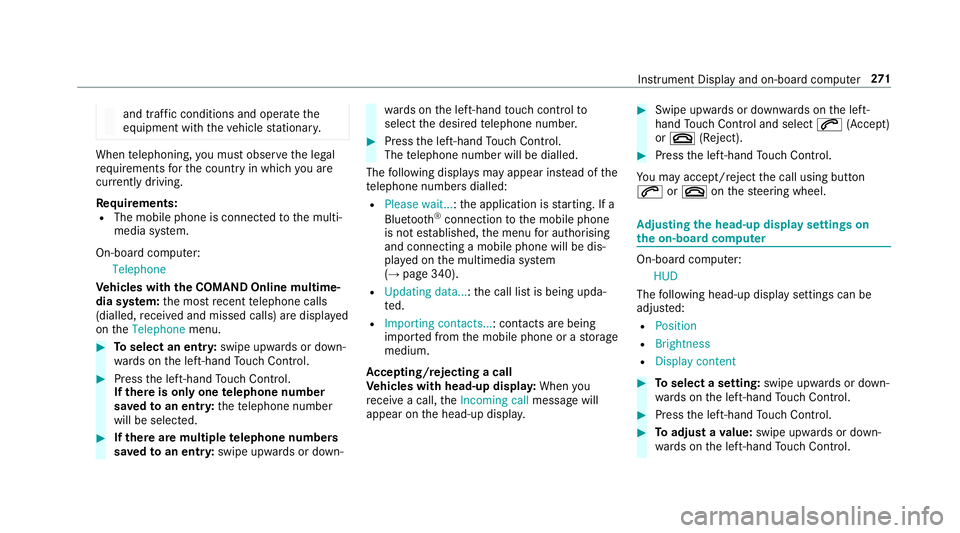
on theTelephone menu. #
Toselect an entr y:swipe upwards or down‐
wa rds on the left-hand Touch Control. #
Press the left-hand Touch Control.
If th ere is only one telephone number
sa ve dto an entr y:thete lephone number
will be selec ted. #
Ifth ere are multiple telephone numbers
sa ve dto an entr y:swipe upwards or down‐ wa
rds on the left-hand touch cont rolto
select the desired telephone number. #
Press the left-hand Touch Control.
The telephone number will be dialled.
The following displa ysmay appear ins tead of the
te lephone numbers dialled:
R Please wait... :th e application is starting. If a
Blue tooth ®
connection tothe mobile phone
is not es tablished, the menu for auth orising
and connecting a mobile phone will be dis‐
pla yed on the multimedia sy stem
(→ page 340).
R Updating data...: the call list is being upda‐
te d.
R Importing contacts... : contacts are being
impor ted from the mobile phone or a storage
medium.
Ac cepting/rejecting a call
Ve hicles with head-up displa y:When you
re cei vea call, theIncoming call message will
appear on the head-up displa y. #
Swipe up wards or down wards on the left-
hand Touch Control and select 6(Accept)
or ~ (Reject). #
Press the left-hand Touch Control.
Yo u may accept/ reject the call using button
6 or~ onthesteering wheel. Ad
justing the head-up display settings on
the on-board co mputer On-board computer:
HUD
The following head-up display settings can be
adjus ted:
R Position
R Brightness
R Display content #
Toselect a setting: swipe upwards or down‐
wa rds on the left-hand Touch Control. #
Press the left-hand Touch Control. #
Toadjust a value: swipe upwards or down‐
wa rds on the left-hand Touch Control. In
stru ment Display and on-board computer 271
Page 277 of 593
Note
s on operating saf ety&
WARNING Risk of di stra ction from infor‐
mation sy stems and communications
equipment
If yo u operate information and communica‐
tion equipment integ rated in theve hicle
when driving, you will be distracted from the
traf fic situation. This could also cause youto
lose control of theve hicle. #
Only operate this equipment when the
traf fic situation permits. #
Ifyo u cannot be sure of this, stop the
ve hicle whilst paying attention toroad
and traf fic conditions and ope rate the
equipment with theve hicle stationar y. &
WARNING Risk of di stra ction from oper‐
ating mobile communication equipment
while theve hicle is in motion
If yo u operate mobile communication equip‐
ment when driving, you will be distracted from
the tra ffic situation. This could also
cause youto lose control of theve hicle. #
Only operate this equipment when the
ve hicle is stationar y. Fo
ryo ur ow n sa fety, al ways obser vethefo llow‐
ing points when operating mobile communica‐
tions equipment and especially your voice con‐
trol sy stem:
R Obser vethe legal requ irements forth e coun‐
try in which you are driving.
R While driving, on ly operate mobile communi‐
cations equipment and your voice control
sy stem when the tra ffic conditions permit it.
Yo u may otherwise be distracted from the
traf fic conditions and cause an accident,
inju ring yourself and others.
R Ifyo u use thevo ice control sy stem in an
emer gency your voice can change and your
te lephone call, e.g. an emer gency call, can
th ereby be unnecessarily dela yed.
R Familiarise yourself with thevo ice control
sy stem functions before starting the journe y. Operation
Overview of operation of LINGU
ATRO NIC on
the multifunction steering wheel LINGU
ATRO NIC is operational appr oximately
th irty seconds af terth e ignition is switched on. 274
LINGU ATRO NIC