change time MERCEDES-BENZ E-CLASS ESTATE 2017 Owner's Manual
[x] Cancel search | Manufacturer: MERCEDES-BENZ, Model Year: 2017, Model line: E-CLASS ESTATE, Model: MERCEDES-BENZ E-CLASS ESTATE 2017Pages: 585, PDF Size: 11.8 MB
Page 323 of 585
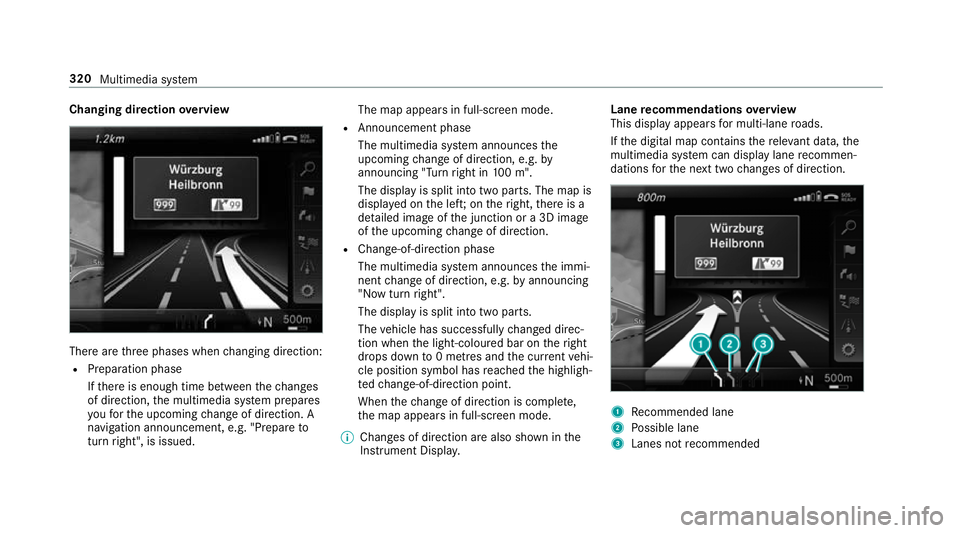
Changing direction
overview Ther
earethre ep hases when changing direction:
R Preparation phase
Ifth er eise nough time between thec hanges
of direction, them ultimedia sy stem prepares
yo uf or theu pcoming chang eofd irection .A
navigatio nannouncement ,e.g." Prepar eto
tur nright", is issued. The map appear
sinfull-screen mode.
R Announcemen tphase
The multimedia sy stem announces the
upcomin gchang eofd irection ,e.g.by
announcin g"Turn right in 100m ".
The displa yissplitint ot wo parts. The map is
displa yedont he left;on ther ight, ther eisa
de tailed imag eofthe junction or a3Dimage
of theu pcoming chang eofd irection.
R Chan ge-of-direction phase
The multimedia sy stem announces thei mmi‐
nentc hangeofd irection ,e.g.bya nnouncing
"N ow turnright".
The displa yissplit int otwo parts.
The vehicle has successfull ychanged direc‐
tion when thel ight-coloured bar on ther ight
drops down to0m etre sa nd thec urrent vehi‐
cle position symbol has reached theh ighligh‐
te dc hange-of-direction point.
When thec hang eofd irection is comple te,
th em ap appear sinfull-screen mode.
% Changes of direction ar ealso shown in the
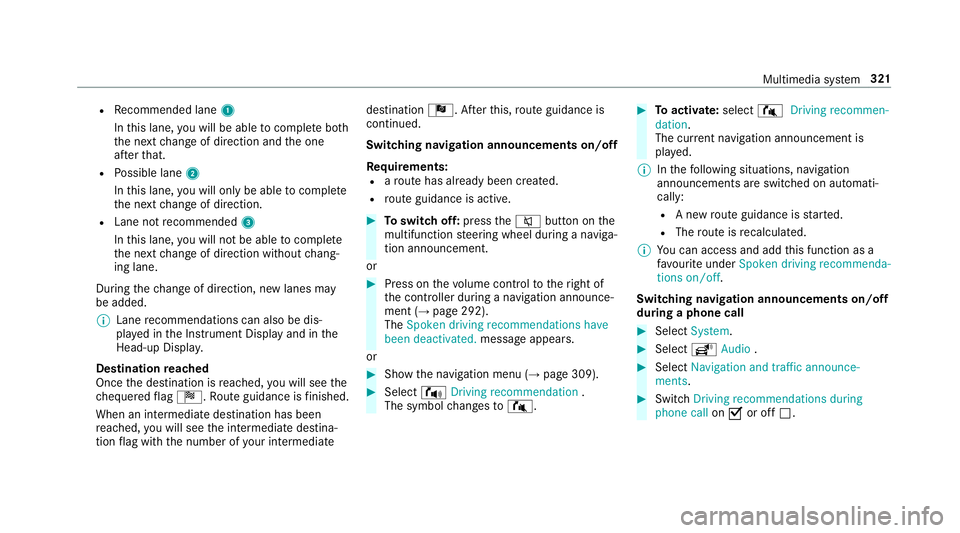
Instrument Displa y. Lane
recommendation soverview
This displa yappear sfor multi-lane roads.
If th ed igital map conta insther ele vant da ta,t he
multimedia sy stem can displa ylane recommen‐
dations fort he next tw ochanges of direction. 1
Recommended lane
2 Possible lane
3 Lanes no trecommended 320
Multimedia sy stem
Page 324 of 585
R
Recommended lane 1
In this lane, youw ill be able tocompl eteb oth
th en extc hang eofd irection and theo ne
af te rt hat.
R Possible lane 2
In this lane, youw ill on lybe able tocompl ete
th en extc hang eofd irection.
R Lan enotrecommended 3
In this lane, youw ill no tbea bletocompl ete
th en extc hang eofd irection without chang‐
ing lane.
During thec hang eofd irection ,new lane smay
be added.
% Lanerecommendations can also be dis‐
pla yedint he Instrument Displa yand in the
Head-up Displa y.
Destination reached
Once thed estination is reached, youw ill see the
ch equered flag Í.R outeguidance is finished.
Whe nani ntermedia tedestination has been
re ached, youw ill see thei ntermediat edestina‐
tion flag wit hthe number of your intermediate destination
Î.After this, routeg uidance is
continued.
Swit ching navigation announcement son/off
Re quirements:
R arout ehas already been created.
R routeg uidance is active. #
Toswitc hoff:press the8 button on the
multifunction steering wheel during anaviga‐
tion announcement.
or #
Press on thev olume control tother ight of
th ec ontroller during anavigation announce‐
ment (→ page292).
The Spoken driving recommendations have
been deactivated. messageappears.
or #
Sho wthe navigation menu (→ page309). #
Select !Drivingrecommendation .
The symbol changes to# . #
Toactivate: select#Driving recommen-
dation.
The cur rent navigation announcement is
pl ay ed.
% Inthef ollowing situations, navigation
announcements ar eswitched on automati‐
cally:
R Anew routeg uidance is star ted.
R The routeisr ecalculated.
% Youc an access and add this function as a
fa vo urit eunder Spoke ndriving recommenda-
tions on/off.
Swit ching navigation announcement son/off
during aphone call #
Select System. #
Select õAudio . #
Select Navigation and traffic announce-
ments. #
Swit chDriving recommendations during
phone call onO or off ª. Multimedia sy
stem 321
Page 327 of 585
St
oring amapposition
Multimedia sy stem:
, Navigation
The map is in full-screen mode. #
Press theT ouc hControl, thec ontroller or the
to uchpad. #
Select "mo vemap" in map menu 2
(→ pag e329). #
Select aposition on them ap.
If multiple entri es areavailable foram ap
position, alista ppears. #
Highlight an entr y.#
Select ¥Store in "Previou sdestina-
tions" .
The map position is sa vedtot he "Pr evious
destinations" memo ry.
Editing thep revious destinations
Multimedia sy stem:
, Navigation .
¬ Previous and other
destinations .
Previous destinations #
Highlight one of thep reviou sdestinations. #
Tosave asafavo urite: select ¥Save
as global favourite .
The favo urites ar edispl ayed. #
Movethef avo uritetot he desired position.
If af avo uritehas already been added at this
position, it will be overwritten. #
Tosave as "Home "address: select¥
Save as "Home "address . #
Tosave as "Work" address: select¥
Save as "Work" address . #
Todel eteas ingle or all destinations:
select ¥Delete orDelete all.
Ap romp tappears. #
Select Yes. #
Todispl aydestinatio ninformation: select
¥ Details. Using intelli
gent destination suggestions
Multimedia sy stem:
, Navigation .
Z Options .
Intelli-
gent destination suggestions
The navigation sy stem learns theu ser habits of
th ed rive r.The mos tprobable destinations are
sugges ted. #
Activate Allow destination suggestions O.
The vehicle can pr ovide destination sugges‐
tion sbased on navigation destination sthat
ha ve been visited.
If th ef unction has been activated, destina‐
tion suggestion sareshown in pr evious desti‐
nations and can be selec tedf or routeg uid‐
ance. #
Select Accept orReject .
Accept allowsdataacquisition and changes
to thel astd ispla y.
Reject rejects da taacquisition and deacti‐
va test he function. #
Todisable the function: deactivateAllow
destination suggestions ª.324
Multimedia sy stem
Page 335 of 585
Av
oiding an area
Yo uc an define areas alon garoutethat you
wo uld lik etoavoid.
Av oiding anew area
Multimedia sy stem:
, Navigation .
À Route and posi-
tion .
Avoid options .
Areas #
Select Avoid new area. #
Tosear chforana reav iathe map: select
Using map. #
Movethem ap
or #
Tosear chforana reau sing an address:
select Addres sentry . #
Enter thea ddress. #
Select Select destination.
The map appears. #
Todispl ayan area: presstheT ouc hControl,
th et ouchpad or thec ontroller.
Ar ed rectangle appea rs.T hisd esignates the
area that shoul dbeavoided. #
Tochang ethe siz eofthe area: swipe up or
down on theT ouc hControl or thet ouchpad.
or #
Slide thec ontroller up or down.
The map scale is enlar gedorr educed and
ch anges thes ize of thea rea. #
Tosetthe area: presstheT ouc hControl,
th et ouchpad or thec ontroller.
The area is entered int othe list.
Changing an area
Multimedia sy stem:
, Navigation .
À Route and posi-
tion .
Avoid options .
Areas #
Highlight an area in thel ist. #
Select ¥Edit.
Moving thea reaont he map #
Swipe in an ydirection on theT ouc hControl
or touchpad.
or #
Slid ethe controller in an ydirection. Changing
thes ize of thea rea #
Tostar t:press theT ouc hControl, thet ouch‐
pad or thec ontroller. #
Tochange: swipe up or down on theT ouch
Control or thet ouchpad.
or #
Slide thec ontroller up or down. #
Tosto p:press theT ouc hControl, thet ouch‐
pad or thec ontroller.
Ta king thea reaf or th erout eintoa ccount #
Avoid Oan area in thel ist.
If ro uteg uidance is active, anew routeisc al‐
culated.
If th er eisnor outeyet,t he setting is car ried
ove rtot he next routeg uidance.
The routec an include an area that is tobe
av oided in thef ollowing cases:
R thed estination is located in an area that
is to be avo ided
R ther eisnos ensible alternativ eroute 332
Multimedia sy stem
Page 363 of 585
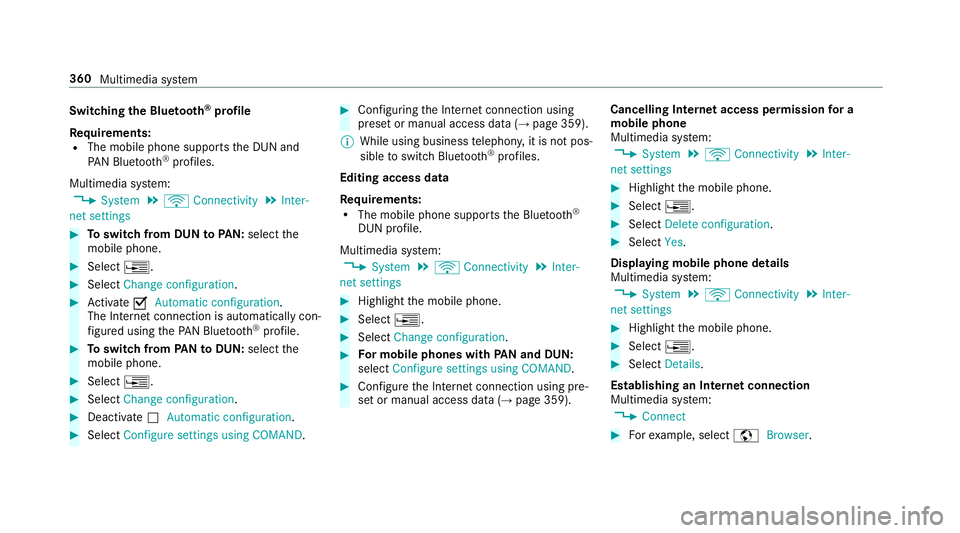
Switching
theB luet oo th®
pr ofile
Re quirements:
R The mobile phon esupports theD UN and
PA NB luetooth ®
profiles.
Multimedia sy stem:
, System .
ö Connectivity .
Inter-
net settings #
Toswitc hfromD UNtoPAN: select the
mobil ephone. #
Select ¥. #
Select Change configuration. #
Activate OAutomatic configuration.
The Interne tconnectio nisa utomatically con‐
fi gured using theP AN Blue tooth®
profile. #
Toswitc hfromP ANtoDUN: select the
mobil ephone. #
Select ¥. #
Select Change configuration. #
Deactivate ªAutomatic configuration. #
Select Configure settings using COMAND . #
Configuri ngtheI nterne tconnection using
prese torm anual access dat a(→pag e359).
% While using business telephon y,it is no tpos‐
sible toswitc hBluetooth ®
profiles.
Editing access data
Requ irements:
R The mobile phon esupports theB luetooth ®
DUN profile.
Multimedia sy stem:
, System .
ö Connectivity .
Inter-
net settings #
Highlight them obile phone. #
Select ¥. #
Select Change configuration . #
Form obil ephone swithP AN an dDUN:
select Configur esettings using COMAND. #
Configur ethe Interne tconnection using pre‐
se torm anual access dat a(→pag e359). Cancelling Interne
taccess permission fora
mobil ephone
Multimedia sy stem:
, System .
ö Connectivity .
Inter-
net settings #
Highlight them obile phone. #
Select ¥. #
Select Deleteconfiguration. #
Select Yes.
Displaying mobile phone details
Multimedia sy stem:
, System .
ö Connectivity .
Inter-
net settings #
Highlight them obile phone. #
Select ¥. #
Select Details.
Establishing an Interne tconnection
Multimedia sy stem:
, Connect #
Fore xamp le, select zBrowser . 360
Multimedia sy stem
Page 365 of 585
#
Touse voice control: select ?Lan-
guage. #
Saythe question or command.
% Voice control is no tavailable in all countries
and languages. We
bbrows er Calling up
aweb page
Multimedia sy stem:
, Con-
nect .
z Browser .
z Enter URL #
Ente raw eb address. #
Tofinish thee ntr yand call up thew eb‐
site: select ¬.
Showing/hiding thew eb br owser menu
If yo uc all up awebsit ebys electing alink ,for
ex ample, thew eb br owser menu is hidden. #
Toshow/hide: pressthe% button.
% The webb row ser supports video playbac k.
% Nowebsites or videos ar edispla yedw hile
th ev ehicle is in motion. We
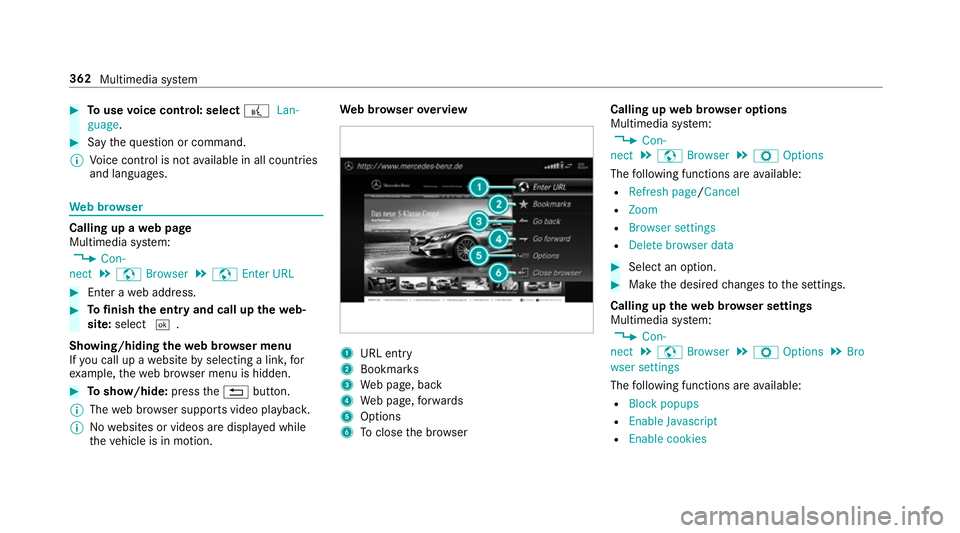
bbrows erove rview 1
URL ent ry
2 Bookma rks
3 Webp age, back
4 Webp age, forw ards
5 Options
6 Toclos ethe br owser Calling up
webb rows er options
Multimedia sy stem:
, Con-
nect .
z Browser .
Z Options
The following function sareavailable:
R Refresh page /Cancel
R Zoom
R Browser settings
R Delet ebrowser data #
Select an option. #
Mak ethe desired changes tothes ettings.
Calling up thew eb br owser settings
Multimedia sy stem:
, Con-
nect .
z Browser .
Z Options .
Bro
wser settings
The following function sareavailable:
R Block popups
R Enable Javascript
R Enable cookies 362
Multimedia sy stem
Page 384 of 585
The
TVtune renables reception of digital chan‐
nel saccordin gtothefollowing standards:
R DVB-T
R DVB-T2
In some countries ,the standards ma ynotbe
av ailable, or ma ynotbe available in all areas.
ACAm odule (Conditional Access Module),
whi chis no tincluded in thes cope of deliver y,is
used todecryp tHDprogramme saccording to
th eC I+standard. In som ecountries, an addi‐
tional smar tcardisr equired, whic hisinserted
int ot he CA module (see them anufacturer's
operating manual).
The TVtune risInt he boot, in ther ear bag on
th er ight-hand side. The CAmodule is inser ted
int ot he TV tune r.
* NO
TEDama getotheCAm odule and
Smar tCard The
CAmodule is designed foru se in the
home. When used on them ove,the CA mod‐
ule ma yoverheat in consis tentl yh igho utside
te mp eratures and ma ybedamaged. #
Mak esuret hat theCAm odule is not
subject tohigh temp eratures fore xten‐
de dp eriods of time.
If th eCAm odule is dama ged, no
enc rypte dchannels can be recei ved. The
TVtune rcan recei veprogrammes in Dolby
Digital Plus. Manufactured under licens
efromD olbyLabora‐
to ries. Dolb y,Dol byAudio and thed ouble-D sym‐
bol ar etrademar ksof Dolb yLaboratories.
The TVtune rautomatically sets theTVs tandard.
TV reception is dependent on thef ollowing fac‐
to rs:
R Speed
R Characteristics of thes elected TVchannel
TV reception ma ybeinfluenced bythef ollowing
fa ctors:
R Electronic device swhich aret aken in tothe
ve hicle ma yimp air TV reception.
R The conditions forr eceptio nmaychange
whils tthe vehicle is in motion.
Po or reception conditions can ha vethef ollowing
ef fect:
R The TVtune rswitche stoana lternativechan‐
nel wit hbette rr eceptio nwhich is digitally
broadcastin gthe same programme content
R The TVtune rmutes thes ound, freezes the
screen or hides it. The tsymbol appears
in thed ispla y. Multimedia sy
stem 381
Page 388 of 585
#
Press theD button on thet ouchpad.
The media menu is called up. #
Navigat eupord own.
The next or pr evious TVchannel is selec ted.
Displaying cur rent prog ramme in form ation
fo rt he selected channe l(EP G)
Multimedi asystem:
, Media .
à Media sour-
ces .
TV .
Z Options #
Select Electronic Program Guide.
EPG displa ys thefollowing information (if
av ailable):
R broadcas ttimes
R then ames of thec urrent and upcoming
programmes #
Select programme informatio nand confirm.
The de tails ar edispla yed. #
Toscroll: swipe up or down on thet ouch‐
pad. #
Toexitth ed etailed displa y:press the%
button. Fu
nction of thec hanne lfix setting
Channel fixiss witched on
The channel is no tchanged. This is useful if, for
ex ample, youd rive thev ehicle thro ugh reception
re gions that ove rlap. It pr events frequent switch‐
ing ba ckand forthb etwe en channels.
The FI Xindicator is displa yeda fter then ame of
th eTVc hannel.
Channel fixiss witched off
Depending on reception qualit y,theTVt uner
au tomatical lyswitches toan alternativ echannel
wit hthe same programme content but better
re ception. Using this function ,the bes tpossible
te levision pictur ecan be found ,regardless of the
re ception qualit y.
Ac tivating/deactivatin gchanne lfix
Multimedia sy stem:
, Media .
à Media sour-
ces .
TV .
Z Options #
Switch Channel fix onO or off ª. Channel lis
toverview The
TVtune rshows thec urrent programme on
th ed igital TVchannels or radio stations with
adequat ereceptio ninitsow nc hannel list.
The order of thec hannel lists is alphabetical or
countr y-specific.
The TVtune rrequires ashor tamount of tim eto
updat ethe information.
The channel lists sho wthe following information:
R recei vable channel names
R programme title
The information is shown unde rthe following
conditions:
R it is broadcas tbythe digital channel
R ther eceptio nconditions ar eadequate Favo
urites Overvie
woffavourites
Yo uc an creat eatotal of 40 digital TVchannel
fa vo urites. Multimedia sy
stem 385
Page 394 of 585
ASS
YSTP LUSs ervice in terv al display Fu
nction of theA SSYSTP LUSs ervice in terv al
display The ASS
YSTP LUSs ervice inter vald ispla yint he
instrument display prov ides informatio nonthe
re maining time or dis tance be fore then ext
service due date.
Yo uc an hide this service messag eusing the
bac kbutton on thel eft-hand side of thes teering
wheel.
Yo uc an obtain fur ther information concerning
th es ervicing of your vehicle from aqualified
specialis tworks hop, e.g. aMercedes-Benz
Service Centre. Displaying
thes ervice du edate On-boa
rdcomputer:
, Service .
ASSYST PLUS
The next service due dat eisdisplayed. #
Toexitth ed ispla y:press theb ackb utton
on thel eft-hand side of thes teering wheel. Mak
esuretoo bservethef ollowing fur ther rela‐
te ds ubjec t:
R Operating theo n-boar dcomputer
(→ pag e262). Car
rying out maintenance workatregular
inter vals *
NO
TEPrematur ewear thro ugh failur eto
obser veservice due dates Service
workwhic hisn otcar ried out at the
ri ght time or incomple tely can lead to
inc reased wear and damag etothevehicle. #
Alw ayso bser vethep rescribed service
inter vals. #
Alw aysh ave thep rescribed service
wo rkcar ried out at aqualified specialist
wo rkshop. Special service
requ irements The prescribed service inter
valisb ased on nor‐
mal operation of thev ehicle. Maintenance work will nee
dtobep erform ed mor eoften than
specified if thev ehicle is operated under ardu‐
ous conditions or increased loads, fore xamp le:
R regular city driving wit hfrequ ent intermedi‐
at es tops.
R ifth ev ehicle is primaril yused fors hort-dis‐
ta nce driving.
R forf requ ent operation in mountainou sterrain
or on poor road sur faces.
R ifth ee ngine is of tenl eftidling forl ong peri‐
ods.
R in particula rlyd usty condition sand/o rifair-
re circulation mod eisfrequently used.
In these or similar operating conditions ,have the
interior filter ,engin eair cleaner ,engin eoil, oil fil‐
te re tc. changed mor efrequ ent ly.T he tyres must
be checkedm oref requ entl yift hevehicle is
operated under increased loads. Further infor‐
mation can be obtained at aqualified specialist
wo rkshop. Maintenance and care
391
Page 445 of 585
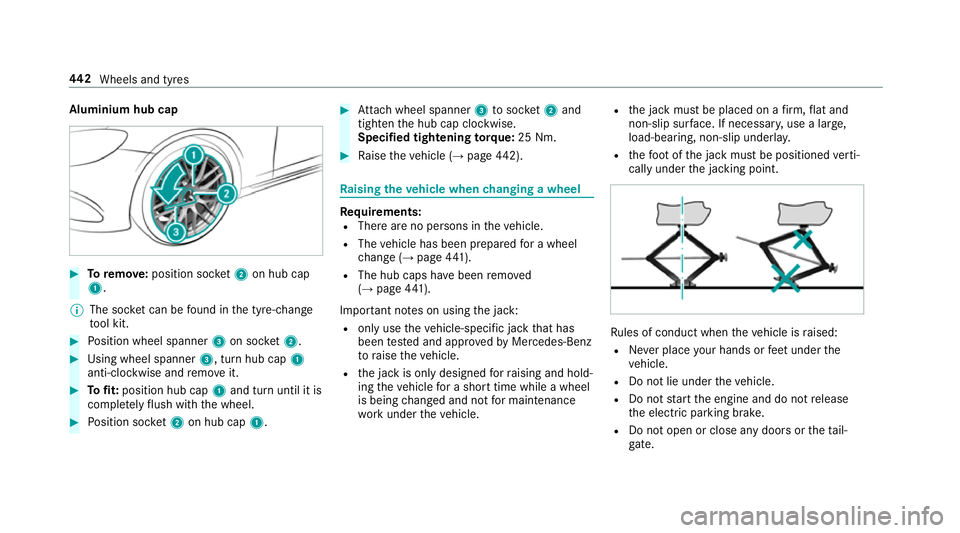
Aluminiu
mhubcap #
Toremo ve: positio nsocket 2on hu bcap
1.
% The soc ketc an be found in thet yre-change
to ol kit. #
Position wheel spanner 3on soc ket2. #
Using whee lspa nner 3,turnh ub cap 1
anti-clo ckwise and remo veit. #
Tofit: position hub cap 1and tur nuntil it is
comple tely flush wit hthe wheel. #
Position soc ket2on hu bcap 1. #
Attach wheel spanner 3tosoc ket 2and
tighten theh ub cap clockwise.
Specified tightening torq ue: 25 Nm. #
Raise thev ehicle (→ page442). Ra
ising thev ehicle when changing awheel Re
quirements:
R Ther eareno persons in thev ehicle.
R The vehicle has been prepared foraw heel
ch ang e(→pag e441).
R Theh ub cap shave been remo ved
( → pag e441).
Impor tant no tesonu singthej ack:
R onlyusethev ehicle-specific jac kthat has
been tested and appr ovedbyM ercedes-Benz
to raise thev ehicle.
R thej ackiso nlyd esigned forr aising and hold‐
ing thev ehicle foras horttime while awheel
is being changed and no tfor maintenance
wo rkunder thev ehicle. R
thej ackm ustbep laced on afirm, flat and
non-slip sur face. If necessar y,use alarge,
load-bearing, non-slip underla y.
R thef ootoft he jac kmustbep ositioned verti‐
call yunder thej acking point. Ru
les of conduct when thev ehicle is raised:
R Neverp lace your hands or feet under the
ve hicle.
R Do no tlie under thev ehicle.
R Do no tstar tthe engine and do no trelease
th ee lectric parking brake.
R Do no topen or close an ydoor sort hetail‐
ga te. 442
Wheels and tyres