phone MERCEDES-BENZ E-CLASS SALOON 2016 Owner's Guide
[x] Cancel search | Manufacturer: MERCEDES-BENZ, Model Year: 2016, Model line: E-CLASS SALOON, Model: MERCEDES-BENZ E-CLASS SALOON 2016Pages: 557, PDF Size: 11.09 MB
Page 257 of 557
R
Updating data...: the call list is being upda‐
te d.
R Importing contacts... :th e conta cts from the
mobile phone or from a storage medium are
impor ted.
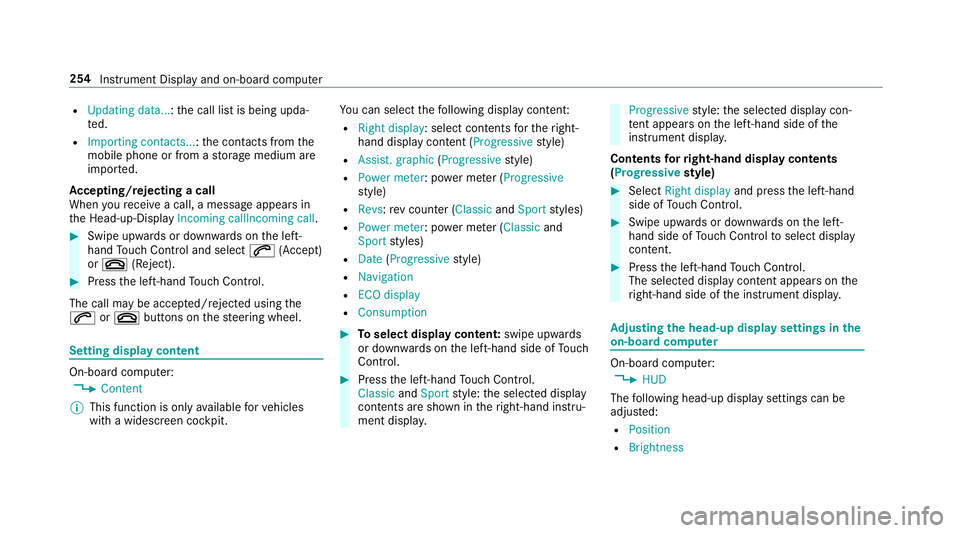
Ac cepting/rejecting a call
When youre cei vea call, a message appears in
th e Head-up-Display Incoming callIncoming call.#
Swipe upwards or down wards on the left-
hand Touch Control and select 6(Accept)
or ~ (Reject). #
Press the left-hand Touch Control.
The call may be accep ted/rejec ted using the
6 or~ buttons on thesteering wheel. Setting display content
On-board computer:
, Content
% This function is only available forve hicles
with a widescreen cockpit. Yo
u can select thefo llowing display con tent:
R Right display: select contents forth eright-
hand display content (Progressive style)
R Assist. graphic (Progressivestyle)
R Power meter : power me ter (Progressive
st yle)
R Revs :re v counter ( ClassicandSport styles)
R Power meter : power me ter (Classic and
Sport styles)
R Date (Progressive style)
R Navigation
R ECO display
R Consumption #
Toselect display content: swipe upwards
or down wards on the left-hand side of Touch
Control. #
Press the left-hand Touch Control.
Classic andSport style: the selected display
conte nts are shown in theright-hand instru‐
ment displa y. Progressive
style: the selected display con‐
te nt appears on the left-hand side of the
instrument displa y.
Contents forri ght-hand display contents
(Progressive style) #
Select Right display and pressthe left-hand
side of Touch Control. #
Swipe upwards or down wards on the left-
hand side of Touch Control toselect display
content. #
Press the left-hand Touch Control.
The selected displ aycontent appea rson the
ri ght-hand side of the instrument displa y. Ad
justing the head-up display settings in the
on-board co mputer On-board computer:
, HUD
The following head-up display settings can be
adjus ted:
R Position
R Brightness 254
Instrument Display and on-board computer
Page 260 of 557
Operating saf
ety &
WARNING Risk of di stra ction from infor‐
mation sy stems and communications
equipment
If yo u operate information and communica‐
tions equipment integ rated in theve hicle
when driving, you will be distracted from the
traf fic situation. This could also cause youto
lose control of theve hicle. #
Only operate this equipment when the
traf fic situation permits. #
Ifyo u cannot be sure of this, stop the
ve hicle whilst paying attention toroad
and traf fic conditions and ope rate the
equipment with theve hicle stationar y. &
WARNING Risk of di stra ction from oper‐
ating mobile communication equipment
while theve hicle is in motion
If yo u operate mobile communication equip‐
ment when driving, you will be distracted from
the tra ffic situation. This could also
cause youto lose control of theve hicle.
Only operate this equipment when theve hi‐
cle is stationar y. Fo
ryo ur ow n sa fety, al ways obser vethefo llow‐
ing points when operating mobile communica‐
tions equipment and especially your voice con‐
trol sy stem:
R Obser vethe legal requ irements forth e coun‐
try in which you are driving.
R While driving, on ly operate mobile communi‐
cations equipment and your voice control
sy stem when the tra ffic conditions permit it.
Yo u may otherwise be distracted from the
traf fic conditions and cause an accident,
inju ring yourself and others.
R Do not use thevo ice control sy stem in an
emer gency as your voice can change and
yo ur telephone call can be unnecessarily
dela yed.
R Familiarise yourself with thevo ice control
sy stem functions before starting the journe y. Operation
Operating
the multifunction steering wheel LINGU
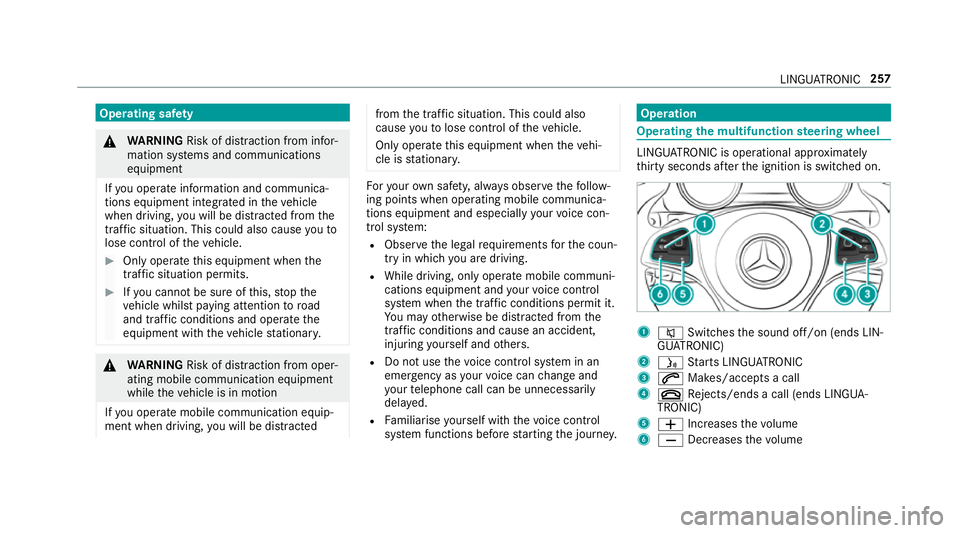
ATRO NIC is operational appr oximately
th irty seconds af terth e ignition is switched on. 1
8 Switches the sound off/on (ends LIN‐
GU ATRO NIC)
2 ó Starts LINGU ATRO NIC
3 6 Makes/accepts a call
4 ~ Rejects/ends a call (ends LINGUA‐
TRONIC)
5 W Increases thevo lume
6 X Decreases thevo lume LINGU
ATRO NIC 257
Page 261 of 557
Vo
ice prom pting #
Tostart or continue a dialogue: pressthe
ó button on the multifunction steering
wheel.
Yo u can say a command af ter an acou stic
signal. #
Tocor rect an ent ry:say theCorrection
command. #
Toselect an entry from the selection lis t:
say the line number or the conte nts. #
Tobrows eth e selection lis t:say theCon-
tinue orBack command. #
Tointer rupt the dialogue: saythePause
command. #
Tocancel the dialogue: saytheCancel
command. Operable functions
Yo
u can use the LINGU ATRO NIC voice control
sy stem tooperate thefo llowing equipment
re ga rdless of thefe atures:
R Telephone R
Text messa ges
R Navigation
R Address book
R Radio
R Audio (memory card, Media Inter face, USB
and Blu etoo th®
audio)
R TV
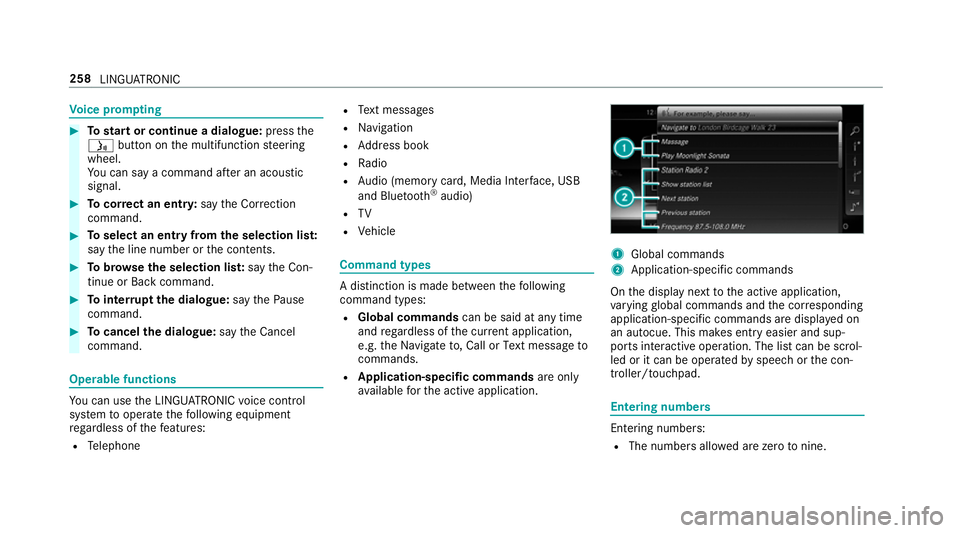
R Vehicle Command types
A distinction is made between
thefo llowing
command types:
R Global commands can be said at any time
and rega rdless of the cur rent application,
e.g. theNavigate to, CallorText message to
commands.
R Application-specific commands are only
av ailable forth e active application. 1
Global commands
2 Application-specific commands
On the display next tothe active application,
va rying global commands and the cor responding
application-specific commands are displa yed on
an autocue. This makes ent ryeasier and sup‐
ports interactive operation. The list can be scrol‐
led or it can be operated byspeech or the con‐
troller/touchpad. Entering numbers
Ente
ring numbe rs:
R The numbers allo wed are zerotonine . 258
LINGUATRONIC
Page 262 of 557
R
Telephone numbers can be entered as single
digits. Changing
the language setting Yo
u can change the language of LINGU ATRO NIC
via the sy stem language settings. If the set sys‐
te m language is not suppor tedby LINGUA‐
TRONIC, English will be selected.
LINGU ATRO NIC is available in thefo llowing lan‐
guages:
R German
R English
R French
R Italian
R Dutch
R Spanish Using LINGU
ATRO NIC ef fectively Au
dible help functions Yo
ure cei veinformation and help for:
R optimal operation: saytheHelp LINGUA-
TRONIC command
R cur rent application: presstheó button
on the multifunction steering wheel and say
th eHelp command
R continued dialogue: saytheHelp command
during a voice dialogue
R specific sy stem: call up the help command
fo rth e desired sy stem, e.g. Help telephone Speech
quality impr ovement If LI
NGUATRONIC does not unde rstand you:
R only operate LINGU ATRO NIC from the driv‐
er's seat.
R say the commands coherently and clearly,
but do not exaggerate thewo rds. R
preve nt loud noises, e.g. the blo wer,from
inter fering while you make an entr y.
R say thevo ice tag with the same intonation
when creating voice tags.
If an addre ss book entry voice tag is not rec‐
ognised:
R only crea tesensible address book entries in
th e sy stem/mobile phone, e.g. surname and
fi rs t name in the cor rect field.
R do not use any abbr eviations, unnecessary
spaces or special characters.
If a station list entry is not recognised:
R say theRead out station list command. Essential commands
Switch commands
Switch commands can be used
toopen cer tain
applications. The command selection can be
used rega rdless of the application that is cur‐
re ntly acti ve. LINGU
ATRO NIC 259
Page 263 of 557

Command
Function
Navigation To
switch tonavigation mode
Map To
switch tomap display
Address book To
switch toaddress book
Telephone To
switch totelephone mode
Text message To
switch totext messa ges
Radio To
switch toradio mode
TV To
switch toTV mode
Media To
switch tomedia mode
USB To
switch toUSB
Memory card To
switch tomemory card
Internet application
start a Mercedes-Benz online application. The application must be called up bytouch once prior
to use.
Mercedes-Benz Apps To
switch toMercedes-Benz Apps
Connect To
switch toInternet mode 260
LINGU ATRO NIC
Page 266 of 557
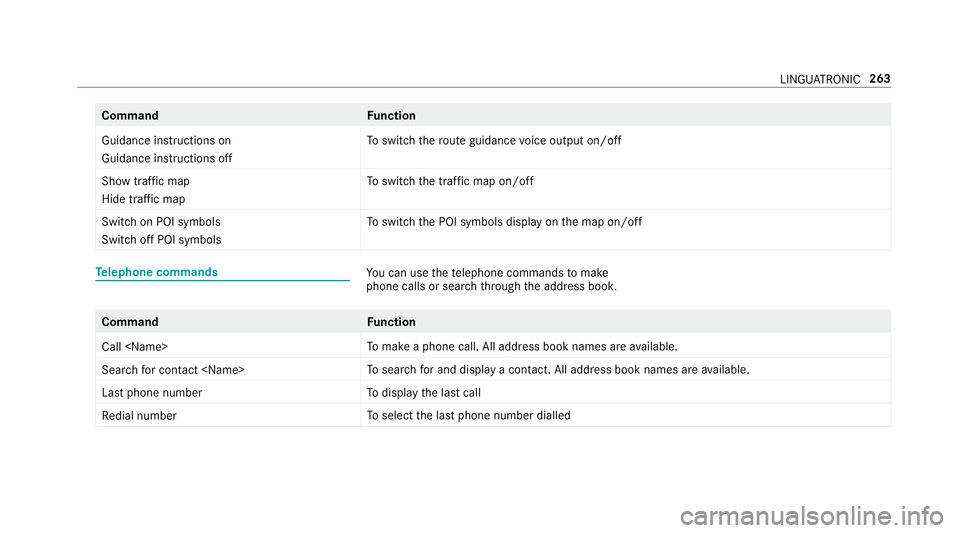
Command
Function
Guidance instructions on
Guidance instructions off To
switch thero ute guidance voice output on/off
Show traffic map
Hide traffic map To
switch the traf fic map on/off
Switch on POI symbols
Switch off POI symbols To
switch the POI symbols display on the map on/off Te
lephone commands Yo
u can use thete lephone commands tomake
phone calls or search thro ugh the address book. Command
Function
Call
make a phone call. All addre ss book names areavailable.
Search for contact
sear chfor and display a contact. All addre ss book names areavailable.
Last phone number To
display the last call
Redial number To
select the last phone number dialled LINGU
ATRO NIC 263
Page 271 of 557
Overview and operation
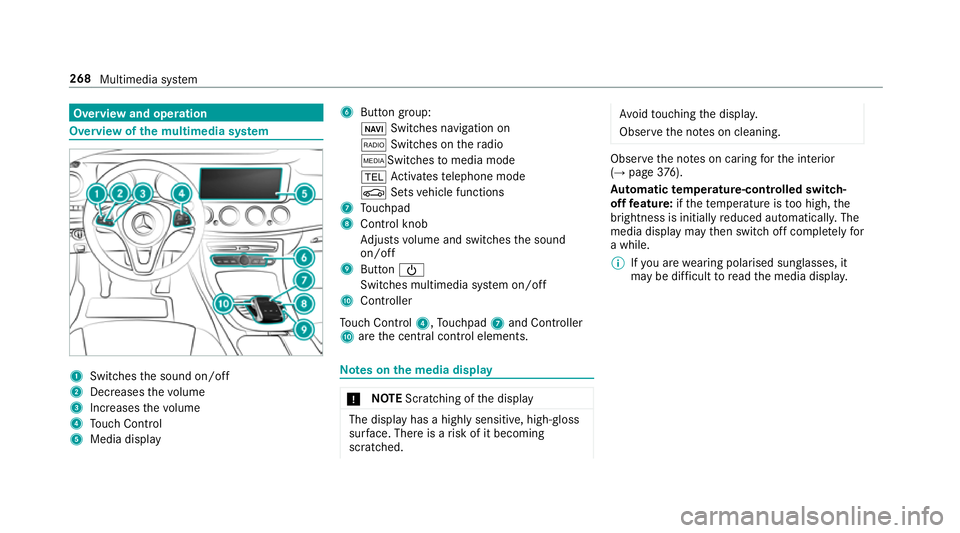
Overview of
the multimedia sy stem 1
Swit ches the sound on/off
2 Decre asesthevo lume
3 Increases thevo lume
4 Touch Control
5 Media displ ay 6
Button group:
ß Switches navigation on
$ Switches on thera dio
ÕSwit ches tomedia mode
% Activates telephone mode
Ø Setsvehicle functions
7 Touchpad
8 Control knob
Adjusts volume and switches the sound
on/off
9 Button Ü
Switches multimedia sy stem on/off
A Controller
To uch Control 4,Touchpad 7and Controller
A are the cent ral control elements. Note
s onthe media display *
NO
TEScratching of the display The display has a highly sensitive, high-gloss
sur
face. The reis a risk of it becoming
scratched. Av
oid touching the displa y.
Obser vethe no tes on cleaning. Obser
vethe no tes on caring forth e interior
(→ page 376).
Au tomatic temperature-cont rolled switch-
off feature: ifth ete mp erature is too high, the
brightness is initially reduced automatically. The
media display may then switch off comple tely for
a while.
% Ifyo u are wearing polarised sun glasses, it
may be dif ficult toread the media displa y.268
Multimedia sy stem
Page 274 of 557
Yo
u can navigate in menus and lists via touch-
sensitive sur face 1 byusing a single-finger
swipe. #
Toselect the menu item: swipe up, down,
left or right. #
Press touchpad 1. #
Toopen or close lists: swipe left orright. #
Tomo vethe digital map: swipe in any
direction.
Use thefo llowing functions with a two-finger
swipe: #
Tocall up main functions and favo urites:
swipe down with two fingers. #
Tozoom in and out of the map: movetwo
fi ngers toget her or apart.
Setting the sensitivity
Multimedia sy stem:
, System .
w Input #
Select Touchpad sensitivity .#
Select Fast,Medium orSlow . Handwriting
recognition: swit ching there ad-
aloud function on/off
Multimedia sy stem:
, System .
õ Audio #
Switch Read out handwriting recognition on
O or off ª.
Handwriting recognition: selecting an input
langua ge #
Select B. #
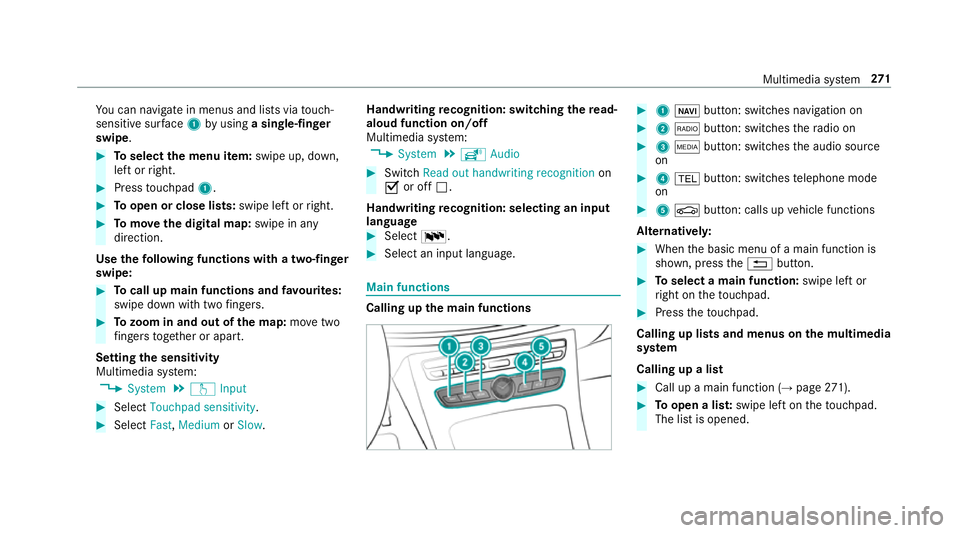
Select an input language. Main functions
Calling up the main functions #
1 ß button: switches navigation on #
2 $ button: switches thera dio on #
3 Õ button: switches the audio source
on #
4 % button: switches telephone mode
on #
5 Ø button: calls up vehicle functions
Alternativel y: #
When the basic menu of a main function is
shown, press the% button. #
Toselect a main function: swipe left or
ri ght on theto uchpad. #
Press theto uchpad.
Calling up lists and menus on the multimedia
sy stem
Calling up a list #
Call up a main function (→ page271). #
Toopen a lis t:swipe left on theto uchpad.
The list is opened. Multimedia sy
stem 271
Page 275 of 557
#
Toselect a menu item: swipe up or down
on theto uchpad. #
Press theto uchpad. Favo
urites Overview of
favo urites
Fa vourites of feryo uqu ick access tofrequently
used applications. It is possible tocrea te20
fa vo urites in tota l.
The following functions are available:
R add pre-defined favo urites fromthefo llow‐
ing categories:
- Navigation
- Entertainment
- Telephone
- Connect
- Vehicle
- System settings
R add your ow nfa vo urites
R rename a favo urite
R moveafa vo urite R
dele teafa vo urite
R restore all favo urites settings
Calling up favo urites #
Press the© button.
The main functions are displa yed. #
Navigate down wards once.
Leaving theFavo urites menu #
Press the© button. Ad
ding a favo urite
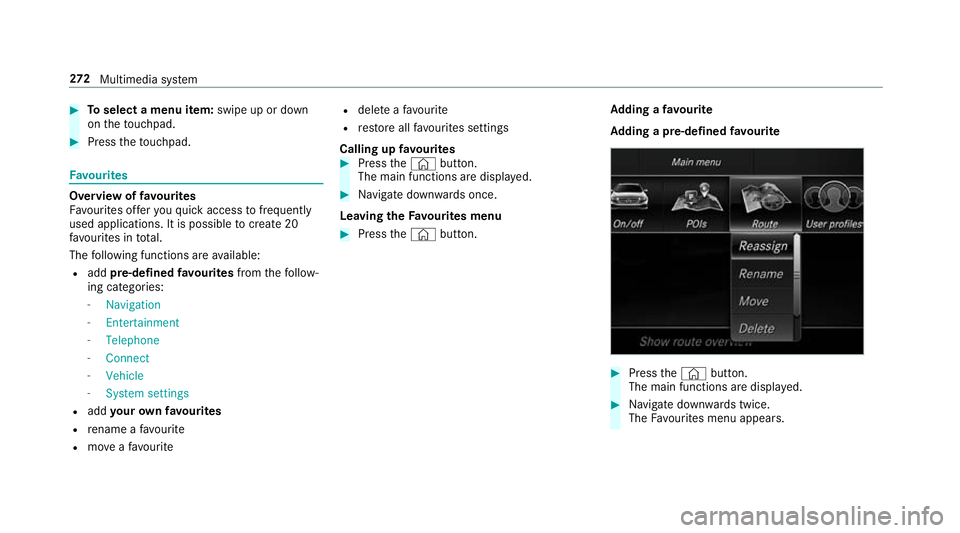
Ad ding a pre-de fined favo urite #
Press the© button.
The main functions are displa yed. #
Navigate down wards twice.
The Favourites menu appears. 272
Multimedia sy stem
Page 277 of 557
#
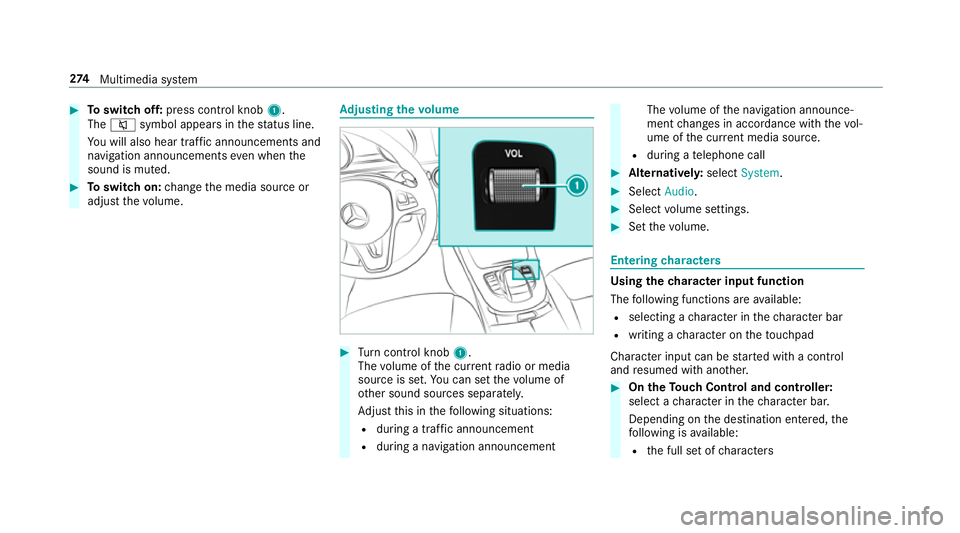
Toswitch off: press control knob 1.
The 8 symbol appears in thest atus line.
Yo u will also hear traf fic announcements and
navigation announcements even when the
sound is muted. #
Toswitch on: change the media source or
adjust thevo lume. Ad
justing the volume #
Turn control knob 1.
The volume of the cur rent radio or media
source is set. You can set thevo lume of
ot her sound sources separatel y.
Ad just this in thefo llowing situations:
R during a traf fic announcement
R during a navigation announcement The
volume of the navigation announce‐
ment changes in accordance with thevo l‐
ume of the cur rent media sou rce.
R during a telephone call #
Alternativel y:select System. #
Select Audio. #
Select volume settings. #
Set thevo lume. Entering
characters Using
thech aracter input function
The following functions are available:
R selecting a character in thech aracter bar
R writing a character on theto uchpad
Character input can be star ted with a control
and resumed with ano ther. #
On theTo uch Control and controller:
select a character in thech aracter bar.
Depending on the destination entered, the
fo llowing is available:
R the full set of characters 274
Multimedia sy stem