phone MERCEDES-BENZ E-CLASS SALOON 2016 Service Manual
[x] Cancel search | Manufacturer: MERCEDES-BENZ, Model Year: 2016, Model line: E-CLASS SALOON, Model: MERCEDES-BENZ E-CLASS SALOON 2016Pages: 557, PDF Size: 11.09 MB
Page 278 of 557
R
characters which are useful forth e cur‐
re nt input string
Other characters are gr eyed out. #
On theto uchpad: Select acharacter in the
ch aracter bar.
or #
Write thech aracters on theto uch-sensitive
sur face of theto uchpad.
Handwriting recognition suppo rts yo uby
means of character suggestions and a read-
aloud function.
Characters can be entered using thefo llowing
me thods:
R using a keyword sear chfor a track or artist
R connecting the mobile phone tothe multime‐
dia sy stem byentering the passk ey
R entering a phone number
R entering a web address Character input using
the controller
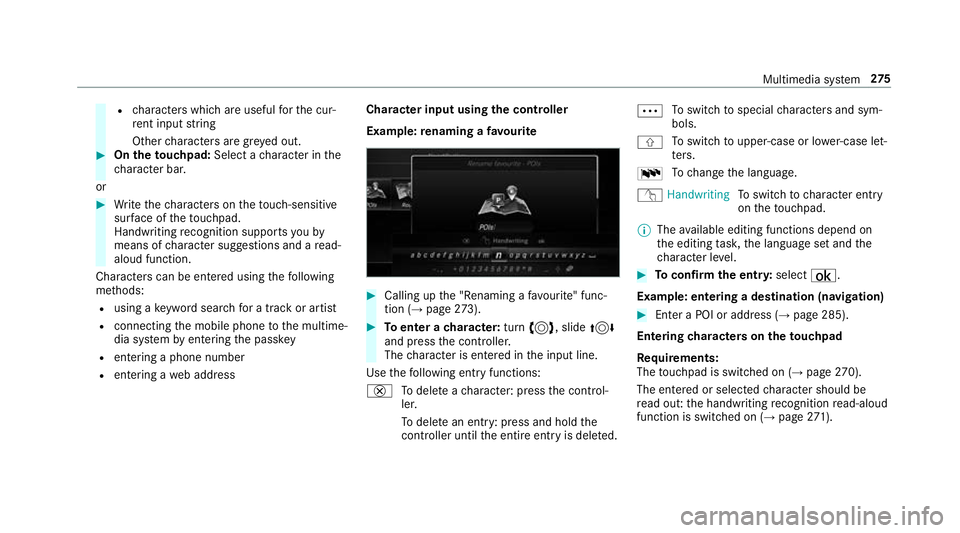
Example: renaming a favo urite #
Calling up the "Renaming a favo urite" func‐
tion (→ page273). #
Toenter a character: turn3, slide 4
and press the controller.
The character is entered in the input line.
Use thefo llowing ent ryfunctions:
£ Todele teach aracter: press the control‐
ler.
To dele tean ent ry: press and hold the
controller until the entire entry is deleted. Ä
To
switch tospecial characters and sym‐
bols.
X To
switch toupper-case or lo wer-case let‐
te rs.
B To
change the language.
v Handwriting To
switch tocharacter ent ry
on theto uchpad.
% The available editing functions depend on
th e editing task, the language set and the
ch aracter le vel. #
Toconfirm the entr y:select ¡.
Example: entering a destination (navigation) #
Enter a POI or address (→ page 285).
Entering characters on theto uchpad
Re quirements:
The touchpad is swit ched on (→ page270).
The en tere d or selected character should be
re ad out: the handwriting recognition read-aloud
function is swit ched on (→ page271). Multimedia sy
stem 275
Page 280 of 557
Time
and date Setting
the time and da teautomatically
Multimedia sy stem:
, System .
Time and date .
Automatic
time setting
The cor rect time is requ ired forth efo llowing
functions:
R route guidance with time-dependent traf fic
guidance
R calculation of expected time of ar rival #
Activate Oor deacti vate ª the function.
Setting the time zone
Multimedia sy stem:
, System .
Time and date .
Time zone:
A list of count ries is displa yed. #
Select a count ry#.
Depending on the count ry, time zones are
displa yed. #
Select a time zone.
The time zone set is displa yed af terTime
zone:. Setting summer time
The
Automatic Summer Time andSummer Time
options cannot be selected in all countries.
Multimedia sy stem:
, System .
Time and date
Au tomatically #
Switch Automatic Summer Time onO or off
ª.
Manual ly #
Deactivate ªAutomatic Summer Time . #
Select Summer Time. #
Select OnorOff.
Setting the time and date form at
Multimedia sy stem:
, System .
Time and date .
Set format #
Set the date and time form at#.
Setting the time manually
Re quirement:
The Automatic time setting function is deactiva‐
te d or is not suppor ted in a time zone. Multimedia sy
stem:
, System .
Time and date .
Time set-
ting #
Set the hours. #
Navigate totheright toset the minutes. #
Set the minutes. #
Confirm changes when exiting the menu.
The date is set automatically via GPS. Blue
tooth ® Blue
tooth ®
settings
Blue tooth ®
tech nology is a standard for short-
ra nge wi reless data transfer up toappr oximately
10 m.You can use Blue tooth®
to connect your
mobile phone tothe multimedia sy stem and use
th efo llowing functions, forex ample:
R hands-free sy stem with access tothefo llow‐
ing options:
- con tacts (→ page 312)
- call lists (→ page314)
- text messa ges (→ page 314) Multimedia sy
stem 277
Page 281 of 557
R
Internet connection (→ page 329)
R listening tomusic via Blue tooth®
audio
(→ page 346)
R trans ferring business cards (vCards) into the
ve hicle
Blue tooth ®
is a regis tere d trademark of Blue‐
toot h Special Interest Group (SIG) Inc.
% Internet connection via Blue tooth®
is not
av ailable in all countries.
Ac tivating/deactivating Blue tooth ®
Multimedia sy stem:
, System .
ö Connectivity #
Activate Oor deacti vate ª Bluetoo th®
. Wi
-Fi Wi
-Fi connection overview
Yo u can use Wi-Fi toestablish a connection with
a Wi -Fi network and toaccess the Internet or
any other network device.
The following connection options are available:
R Wi-Fi connection The
Wi-Fi connection is es tablished with a
Wi -Fi-enabled device, e.g. tothe cus tomer's
mobile phone or tablet PC.
R multimedia sy stem as a Wi-Fi hotspot
Using this function, a tablet PC or no tebook
fo rex ample can be connec ted.
To establish a connection, you can use thefo l‐
lowing me thods:
R WPS PIN
The connection toa secure Wi-Fi network is
made via a PIN.
R WPS PBC
The connection toa secure Wi-Fi network is
made bypressing a button (push button).
R security key
The connection toa secure Wi-Fi network is
made via a secu rity key.
Setting up Wi-Fi
Re quirement:
The device tobe connec ted supports one of the
th re e means of connection described. Multimedia sy
stem:
, System .
ö Connectivity
Ac tivating/deactivating Wi-Fi #
Switch Wi-FionO or off ª.
If Wi-Fi is deactivated ª, communication via
Wi -Fi toall devices is inter rupte d. This also
means that a connection tothe HERMES
communication module cann otbe es tab‐
lished. Functions su chas dynamic route
guidance with Live Traf fic Information are
th en una vailable.
Connecting the multimedia sy stem with a
device via Wi-Fi
This function is available if a HERMES communi‐
cation module is not ins talled.
The type of connection es tablished must be
selected on the multimedia sy stem and on the
device tobe connec ted.
% The connection procedure may dif fer
depending on the device. Follow the instruc‐
tions that are shown in the displa y.Fu rther
information (see the manufacturer's operat‐
ing instructions). 278
Multimedia sy stem
Page 287 of 557
The cur
rent status of the updates is dis‐
pla yed.
The automatic software update is not availa‐
ble in all countries.
Manually #
Deactivate ªthe automatic software
update. #
Select an update from the list and start the
update.
Ac tivating the so ftwa reupdate #
Restart the sy stem. Re
set function Multimedia sy
stem:
, System .
Reset
The multimedia sy stem is reset tothefa ctory
settings.
Pe rsonal data is dele ted, forex ample:
R station presets
R connec ted mobile phones #
Select Yes.
A prom ptappears asking whe ther you wish
to reset.
No selected: the process is cancelled. #
Select Yes.
The multimedia sy stem is reset tofactory
settings and restar ted. Na
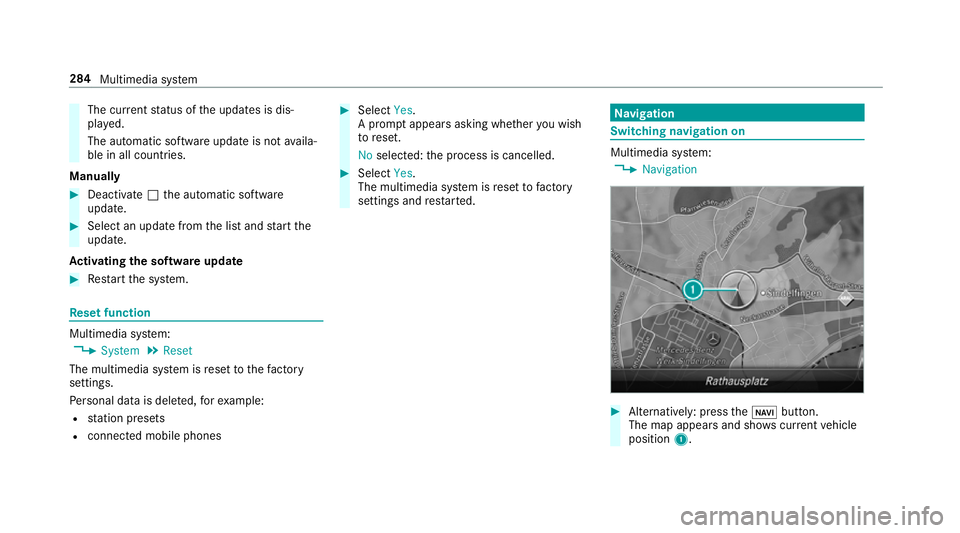
vigation Switching navigation on
Multimedia sy
stem:
, Navigation #
Alternatively: press theß button.
The map appears and sho wscurrent vehicle
position 1. 284
Multimedia sy stem
Page 291 of 557
#
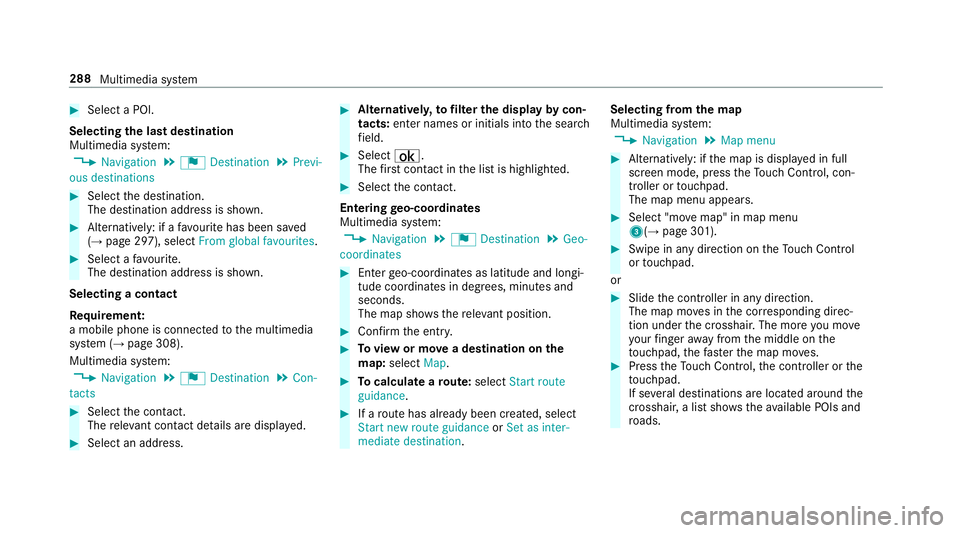
Select a POI.
Selecting the last destination
Multimedia sy stem:
, Navigation .
¬ Destination .
Previ-
ous destinations #
Select the destination.
The destination address is shown. #
Alternatively: if a favo urite has been sa ved
( → page 297), select From global favourites .#
Select a favo urite.
The destination address is shown.
Selecting a contact
Re quirement:
a mobile phone is connec tedto the multimedia
sy stem (→ page 308).
Multimedia sy stem:
, Navigation .
¬ Destination .
Con-
tacts #
Select the conta ct.
The releva nt contact de tails are displa yed. #
Select an address. #
Alternativel y,to filter the display bycon‐
tacts: enter names or initials into the sear ch
fi eld. #
Select ¡.
The firs t contact in the list is highlighted. #
Select the conta ct.
En tering geo-coordina tes
Multimedia sy stem:
, Navigation .
¬ Destination .
Geo-
coordinates #
Ente rge o-coordinates as latitude and longi‐
tude coordinates in degrees, minutes and
seconds.
The map sho ws there leva nt position. #
Confirm the entry. #
Toview or mo vea destination on the
map: select Map. #
Tocalculate a route: select Start route
guidance. #
If a route has already been created, select
Start new route guidance orSet as inter-
mediate destination . Selecting from
the map
Multimedia sy stem:
, Navigation .
Map menu #
Alternatively: if the map is displa yed in full
screen mode, press theTo uch Control, con‐
troller or touchpad.
The map menu appears. #
Select "mo vemap" in map menu
3(→ page 301). #
Swipe in any direction on theTo uch Control
or touchpad.
or #
Slide the controller in any direction.
The map mo ves in the cor responding direc‐
tion under the crosshair. The more you mo ve
yo ur finger away from the middle on the
to uchpad, thefast erthe map mo ves. #
Press theTo uch Control, the controller or the
to uchpad.
If se veral destinations are located around the
crosshair, a li stsho wstheav ailable POIs and
ro ads. 288
Multimedia sy stem
Page 294 of 557
#
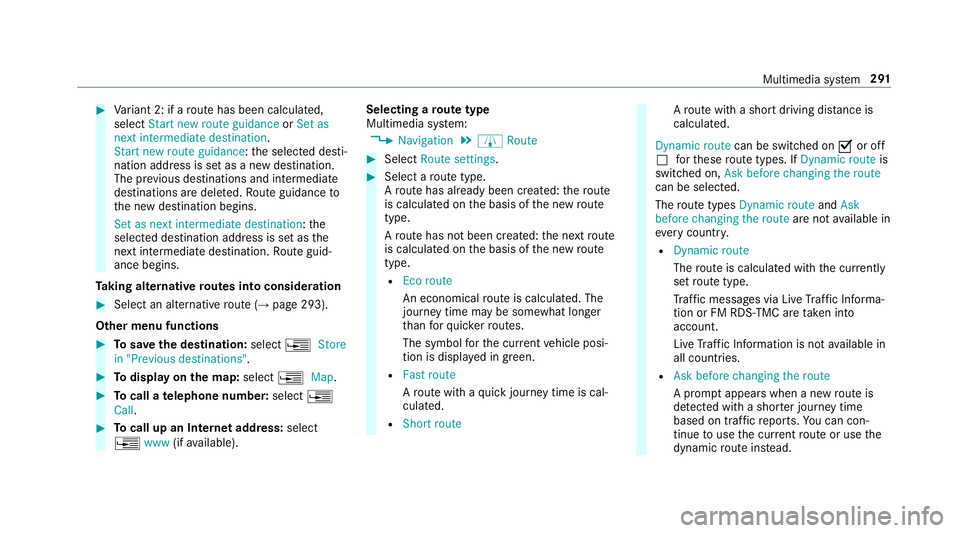
Variant 2: if a route has been calculated,
select Start new route guidance orSet as
next intermediate destination.
Start new route guidance: the selected desti‐
nation address is set as a new destination.
The pr evious destinations and intermediate
destinations are dele ted. Ro ute guidance to
th e new destination begins.
Set as next intermediate destination :the
selected destination address is set as the
next intermedia tedestination. Route guid‐
ance begins.
Ta king alternative routes into conside ration #
Select an al tern ative route (→ page 293).
Other menu functions #
Tosave the destination: select¥Store
in "Previous destinations". #
Todispl ayon the map: select¥Map. #
Tocall a telephone number: select¥
Call . #
Tocall up an Internet address: select
¥ www(ifavailable). Selecting a
route type
Multimedia sy stem:
, Navigation .
À Route #
Select Route settings. #
Select a route type.
A ro ute has already been created: thero ute
is calculated on the basis of the new route
type.
A ro ute has not been created: the next route
is calculated on the basis of the new route
type.
R Eco route
An economical route is calculated. The
journey time may be som ewhat longer
th an forqu icke rro utes.
The symbol forth e cur rent vehicle posi‐
tion is displa yed in green.
R Fast route
Aro ute with a quick journey time is cal‐
culated.
R Short route A
ro ute with a sho rtdriving dis tance is
calculated.
Dynamic route can be switched on Oor off
ª forth ese route types. If Dynamic route is
swit ched on, Ask before changing the route
can be selected.
The route types Dynamic route andAsk
before changing the route are notavailable in
eve rycountr y.
R Dynamic route
The route is calculated with the cur rently
set route type.
Tr af fic messages via Live Traf fic Informa‐
tion or FM RDS-TMC are take n into
account.
Live Traf fic Information is not available in
all countries.
R Ask before changing the route
A prom ptappears when a new route is
de tected wi tha shor ter journey time
based on traf fic re ports. You can con‐
tinue touse the cur rent route or use the
dynamic route ins tead. Multimedia sy
stem 291
Page 298 of 557
In
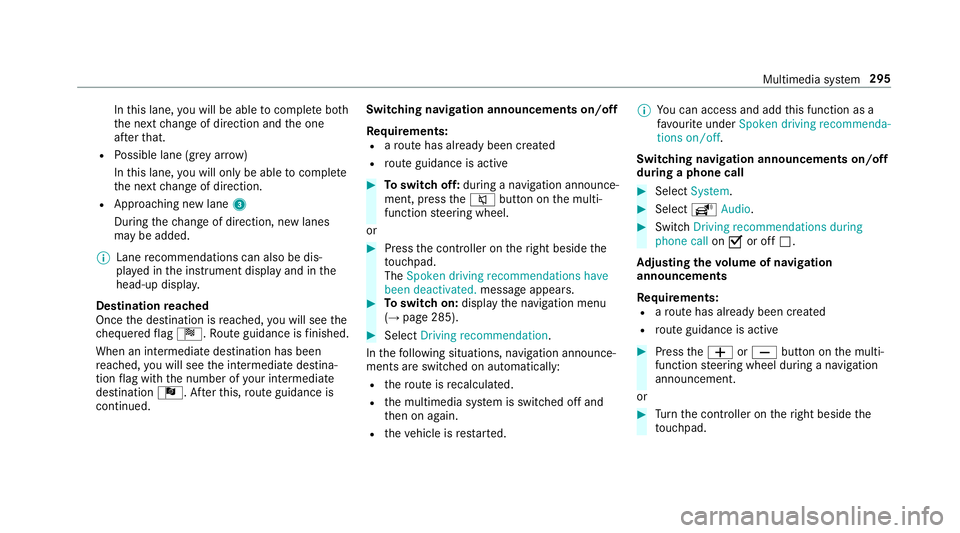
this lane, you will be able tocompl ete bo th
th e next change of direction and the one
af te rth at.
R Possible lane (gr eyarro w)
In this lane, you will on ly beabletocompl ete
th e next change of direction.
R App roaching new lane 3
During thech ange of direction, new lanes
may be added.
% Lane recommendations can also be dis‐
pl ay ed in the instrument display and in the
head-up displa y.
Destination reached
Once the destination is reached, you will see the
ch equered flag Í. Route guidance is finished.
When an intermedia tedestination has been
re ached, you will see the intermediate destina‐
tion flag with the number of your intermediate
destination Î. Afterth is, route guidance is
continued. Swit
ching navigation announcements on/off
Re quirements:
R aro ute has already been created
R route guidance is active #
Toswitch off: during a navigation announce‐
ment, press the8 button on the multi‐
function steering wheel.
or #
Press the controller on theright beside the
to uchpad.
The Spoken driving recommendations have
been deactivated. message appears. #
Toswitch on: displaythe navigation menu
(→ page 285). #
Select Driving recommendation .
In thefo llowing situations, navigation announce‐
ments are switched on automatically:
R thero ute is recalculated.
R the multimedia sy stem is switched off and
th en on again.
R theve hicle is restar ted. %
You can access and add this function as a
fa vo urite under Spoken driving recommenda-
tions on/off.
Swit ching navigation announcements on/off
during a phone call #
Select System. #
Select õAudio. #
Swit chDriving recommendations during
phone call onO or off ª.
Ad justing the volume of navigation
announcements
Re quirements:
R aro ute has already been created
R route guidance is active #
Press theW orX button on the multi‐
function steering wheel during a navigation
announcement.
or #
Turn the controller on theright beside the
to uchpad. Multimedia sy
stem 295
Page 310 of 557
Te
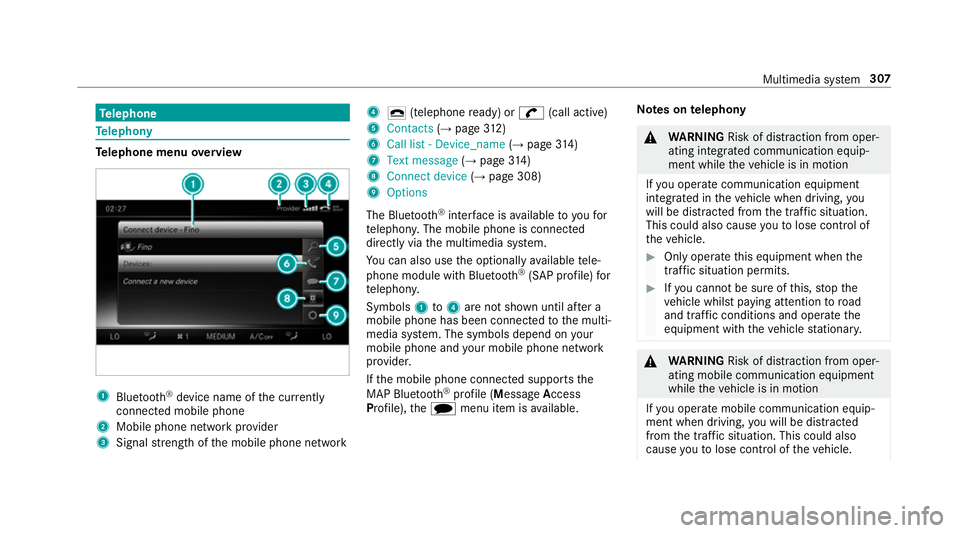
lephone Te
lephony Te
lephone menu overview 1
Blue tooth ®
device name of the cur rently
connected mobile phone
2 Mobile phone network pr ovider
3 Signal stre ngth of the mobile phone network 4
¢ (telephone ready) or w(call active)
5 Contacts (→page 312)
6 Call list - Device_name (→page 314)
7 Text message (→page 314)
8 Con nect device (→page 308)
9 Options
The Blue tooth®
inter face is available toyoufor
te lephon y.The mobile phone is connected
directly via the multimedia sy stem.
Yo u can also use the optionally available tele‐
phone module with Blue tooth®
(SAP profile) for
te lephon y.
Symbols 1to4 are not shown until af ter a
mobile phone has been connected tothe multi‐
media sy stem. The symbols depend on your
mobile phone and your mobile phone network
pr ov ider.
If th e mobile phone connected supports the
MAP Blue tooth®
profile (M essageAccess
Pro file), thei menu item is available. Note
s ontelephony &
WARNING Risk of di stra ction from oper‐
ating integrated communication equip‐
ment while theve hicle is in motion
If yo u operate communication equipment
integ rated in theve hicle when driving, you
will be distracted from the tra ffic situation.
This could also cause youto lose control of
th eve hicle. #
Only operate this equipment when the
traf fic situation permits. #
Ifyo u cannot be sure of this, stop the
ve hicle whilst paying attention toroad
and traf fic conditions and ope rate the
equipment with theve hicle stationar y. &
WARNING Risk of di stra ction from oper‐
ating mobile communication equipment
while theve hicle is in motion
If yo u operate mobile communication equip‐
ment when driving, you will be distracted
from the tra ffic situation. This could also
cause youto lose control of theve hicle. Multimedia sy
stem 307
Page 311 of 557
Only operate
this equipment when theve hi‐
cle is stationar y. Yo
u must obse rveth e legal requ irements forthe
country in whi chyou are cur rently driving when
operating mobile communication equipment in
th eve hicle.
Te lephony is possible via:
R the Blue tooth®
inter face
R thete lephone module with Blue tooth®
(SAP
profile)
Blue tooth ®
profile overview Blue
tooth ®
profile
of the mobile phone Fu
nction
PBAP (Phone Book
Access Profile) Contacts are auto‐
matically displa
yed in
th e multimedia sys‐
tem
MAP (Message
Access Profile) Message functions
can be used Fu
rther information can be obtained from a
Mercedes-Benz service centre or at: http://
www.mercedes-benz.com/connect.
HD Voice ®
R Toimpr ove vo icequalit y,the multimedia sys‐
te m supports telephone calls in HD Voice ®
.
R In order touse this function, the mobile
phones and the mobile phone network pro‐
vider of the person you are calling must sup‐
port HD Voice ®
.
Depending on thequ ality of the connection, the
vo ice quality may fluctuate.
The following situations can lead tothe call
being disconnected while theve hicle is in
motion:
R there is insuf ficient network co verage inthe
area
R you mo vefrom one GSM or UMTS transmit‐
te r/receiver area (cell) into ano ther and no
communication channels are free
R the SIM card used is not compatible with the
network available R
a mobile phone with "Twincard" is logged into
the network with the second SIM card at the
same time
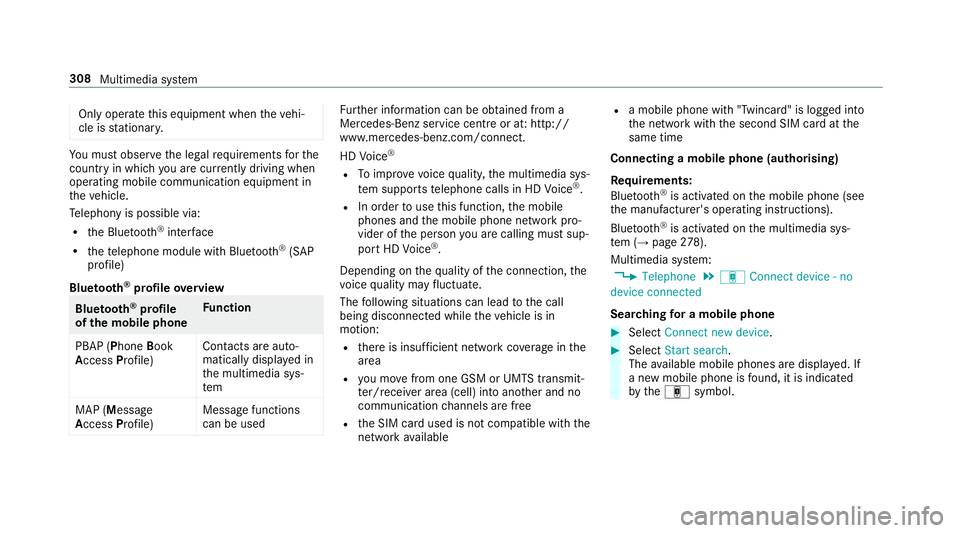
Connecting a mobile phone (authorising)
Re quirements:
Blue tooth ®
is activated on the mobile phone (see
th e manufacturer's operating instructions).
Blue tooth ®
is activated on the multimedia sys‐
te m (→ page278).
Multimedia sy stem:
, Telephone .
á Connect device - no
device connected
Sear ching for a mobile phone #
Select Connect new device . #
Select Start search .
The available mobile phones are displa yed. If
a new mobile phone is found, it is indicated
by theá symbol. 308
Multimedia sy stem
Page 312 of 557
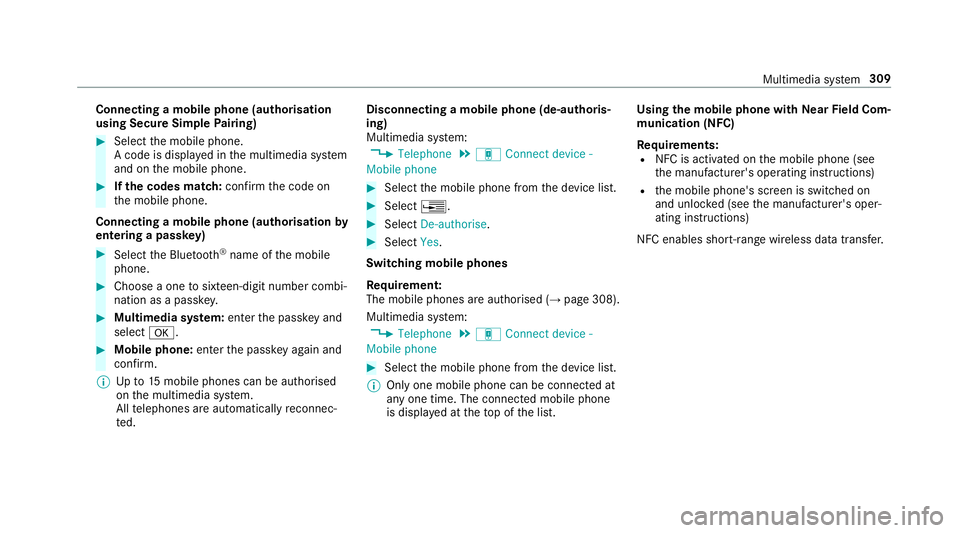
Connecting a mobile phone (au
thorisation
using Secure Simple Pairing) #
Select the mobile phone.
A code is displa yed in the multimedia sy stem
and on the mobile phone. #
Ifth e codes match: confirm the code on
th e mobile phone.
Connecting a mobile phone (authorisation by
entering a passk ey) #
Select the Blue tooth®
name of the mobile
phone. #
Choose a one tosixteen-digit number combi‐
nation as a passk ey. #
Multimedia sy stem: enter the passk eyand
select a. #
Mobile phone: enterthe passk eyagain and
con firm.
% Upto15 mobile phones can be auth orised
on the multimedia sy stem.
All telephones are automatically reconnec‐
te d. Disconnecting a mobile phone (de-au
thoris‐
ing)
Multimedia sy stem:
, Telephone .
á Connect device -
Mobile phone #
Select the mobile phone from the device list. #
Select ¥. #
Select De-authorise. #
Select Yes.
Switching mobile phones
Re quirement:
The mobile phones are authorised (→ page 308).
Multimedia sy stem:
, Telephone .
á Connect device -
Mobile phone #
Select the mobile phone from the device list.
% Only one mobile phone can be connected at
any one time. The connected mobile phone
is displa yed at theto p of the list. Using
the mobile phone with NearField Com‐
munication (NFC)
Re quirements:
R NFC is activated on the mobile phone (see
th e manufacturer's operating instructions)
R the mobile phone's screen is switched on
and unloc ked (see the manufacturer's oper‐
ating instructions)
NFC enables short-ra nge wireless data transfer. Multimedia sy
stem 309