light MERCEDES-BENZ E-Class SEDAN 2010 W212 Comand Manual
[x] Cancel search | Manufacturer: MERCEDES-BENZ, Model Year: 2010, Model line: E-Class SEDAN, Model: MERCEDES-BENZ E-Class SEDAN 2010 W212Pages: 224, PDF Size: 7.4 MB
Page 68 of 224
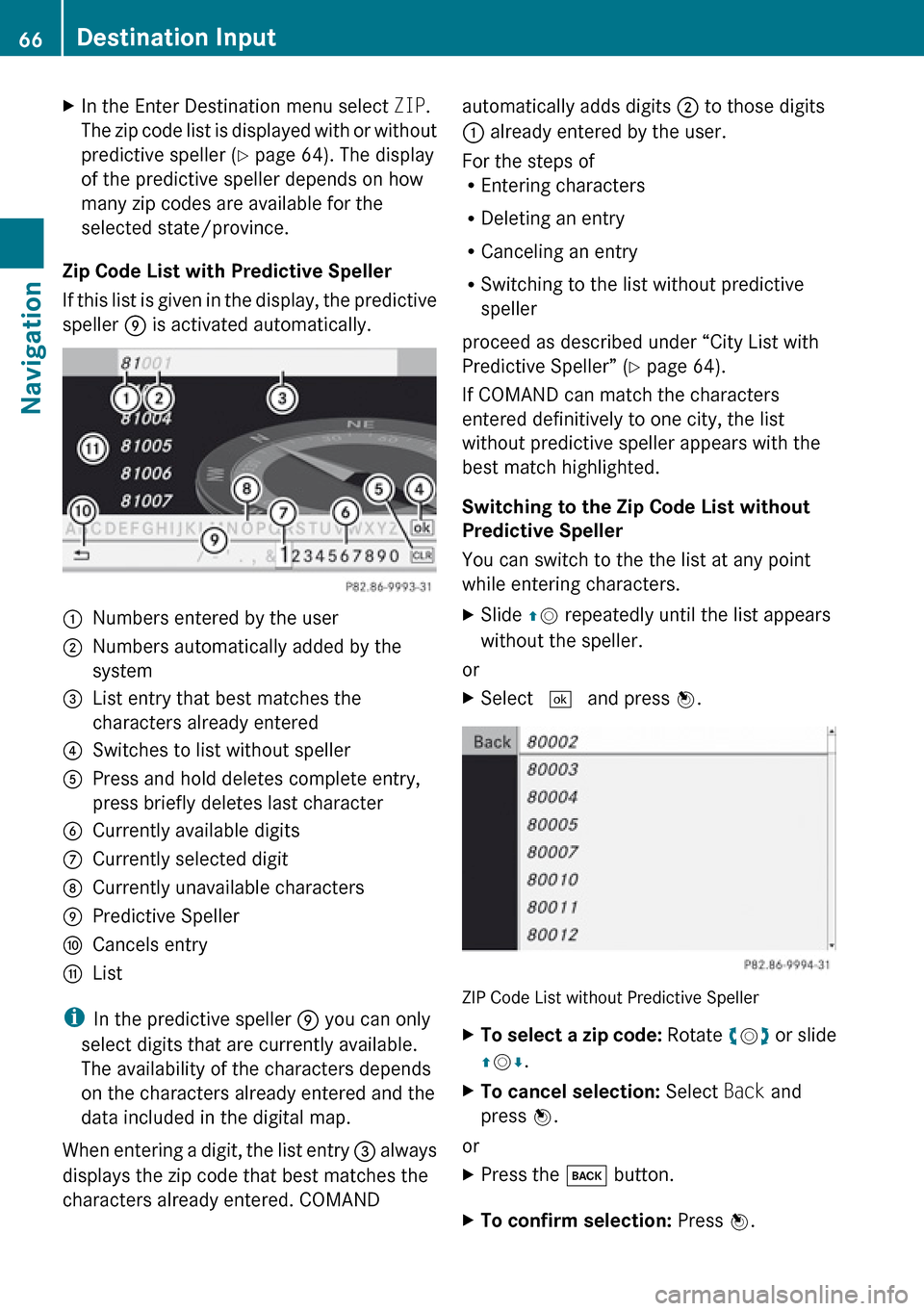
XIn the Enter Destination menu select ZIP.
The zip code list is displayed with or without
predictive speller ( Y page 64). The display
of the predictive speller depends on how
many zip codes are available for the
selected state/province.
Zip Code List with Predictive Speller
If this list is given in the display, the predictive
speller 9 is activated automatically.
1Numbers entered by the user2Numbers automatically added by the
system3List entry that best matches the
characters already entered4Switches to list without speller5Press and hold deletes complete entry,
press briefly deletes last character6Currently available digits7Currently selected digit8Currently unavailable characters9Predictive SpelleraCancels entrybList
i In the predictive speller 9 you can only
select digits that are currently available.
The availability of the characters depends
on the characters already entered and the
data included in the digital map.
When entering a digit, the list entry 3 always
displays the zip code that best matches the
characters already entered. COMAND
automatically adds digits 2 to those digits
1 already entered by the user.
For the steps of
R Entering characters
R Deleting an entry
R Canceling an entry
R Switching to the list without predictive
speller
proceed as described under “City List with
Predictive Speller” ( Y page 64).
If COMAND can match the characters
entered definitively to one city, the list
without predictive speller appears with the
best match highlighted.
Switching to the Zip Code List without
Predictive Speller
You can switch to the the list at any point
while entering characters.XSlide qm repeatedly until the list appears
without the speller.
or
XSelect d and press n.
ZIP Code List without Predictive Speller
XTo select a zip code: Rotate ym z or slide
q m r.XTo cancel selection: Select Back and
press n.
or
XPress the k button.XTo confirm selection: Press n.66Destination InputNavigation
Page 81 of 224
iIn the predictive speller 3 you can only
select characters that are currently
available. The set of characters that is
available depends on those already entered
and the data included in the digital map.
For the steps of
R Entering characters
R Deleting an entry
R Accepting first list entry
R Canceling an entry
proceed as described under “Main category
list with predictive speller” ( Y page 76).
Selecting a POI
To accept first list entry:XPress and hold n until the list appears
without speller.
or
If COMAND can match the characters
entered definitively to one entry, the list is
displayed without predictive speller with the
matching entry highlighted.( Y page 78).
You can switch to the list at any point while
entering characters.
XSlide qm repeatedly until the list appears
without the speller.
or
XSelect d and press n.XTo display the full address of the POI:
Select ? and press n.XTo cancel selection: Press the k
button.
or
XSelect Back.
The POI list appears.XTo start route calculation: Select Start.
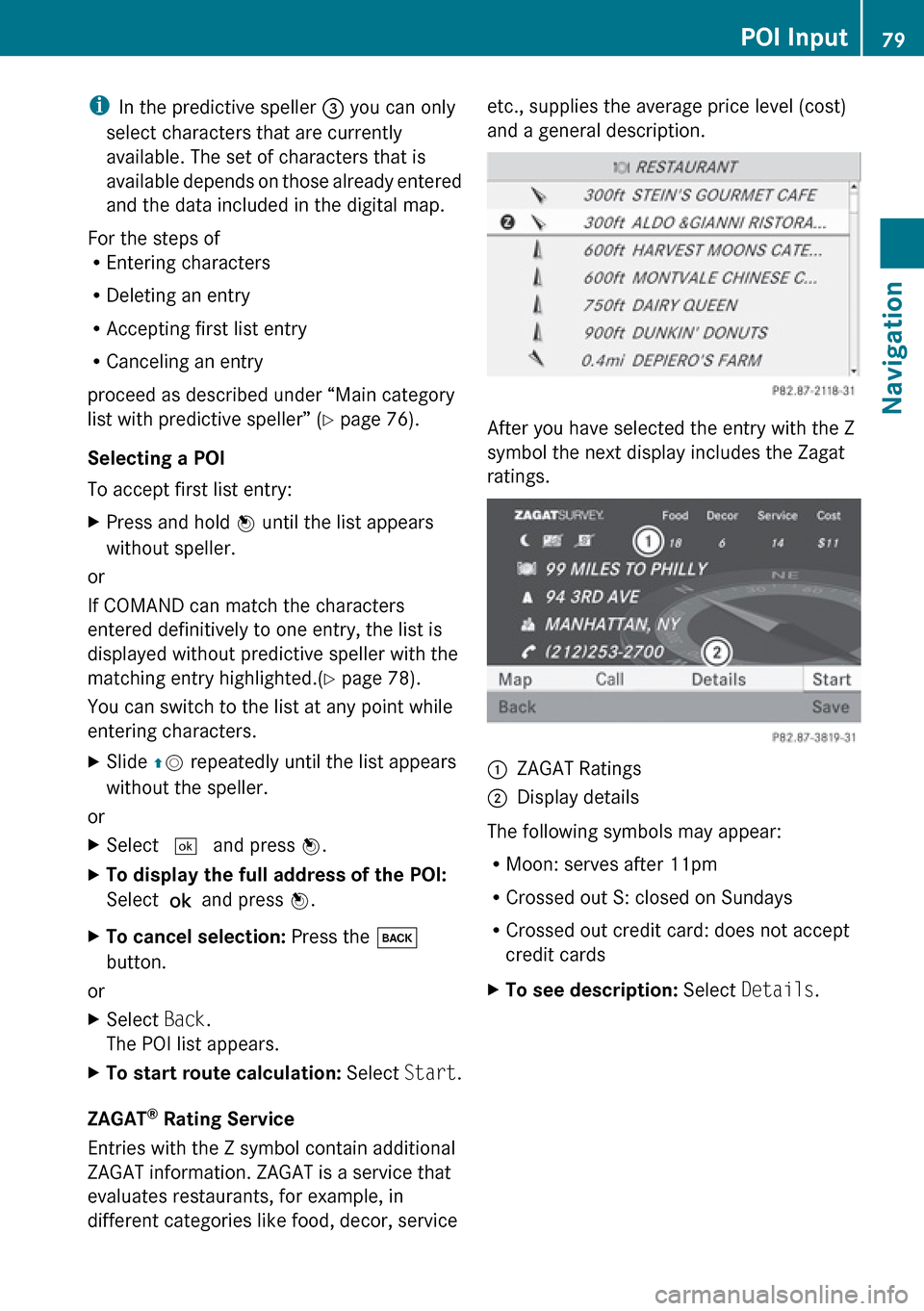
ZAGAT ®
Rating Service
Entries with the Z symbol contain additional
ZAGAT information. ZAGAT is a service that
evaluates restaurants, for example, in
different categories like food, decor, service
etc., supplies the average price level (cost)
and a general description.
After you have selected the entry with the Z
symbol the next display includes the Zagat
ratings.
1ZAGAT Ratings2Display details
The following symbols may appear:
R Moon: serves after 11pm
R Crossed out S: closed on Sundays
R Crossed out credit card: does not accept
credit cards
XTo see description: Select Details .POI Input79NavigationZ
Page 82 of 224
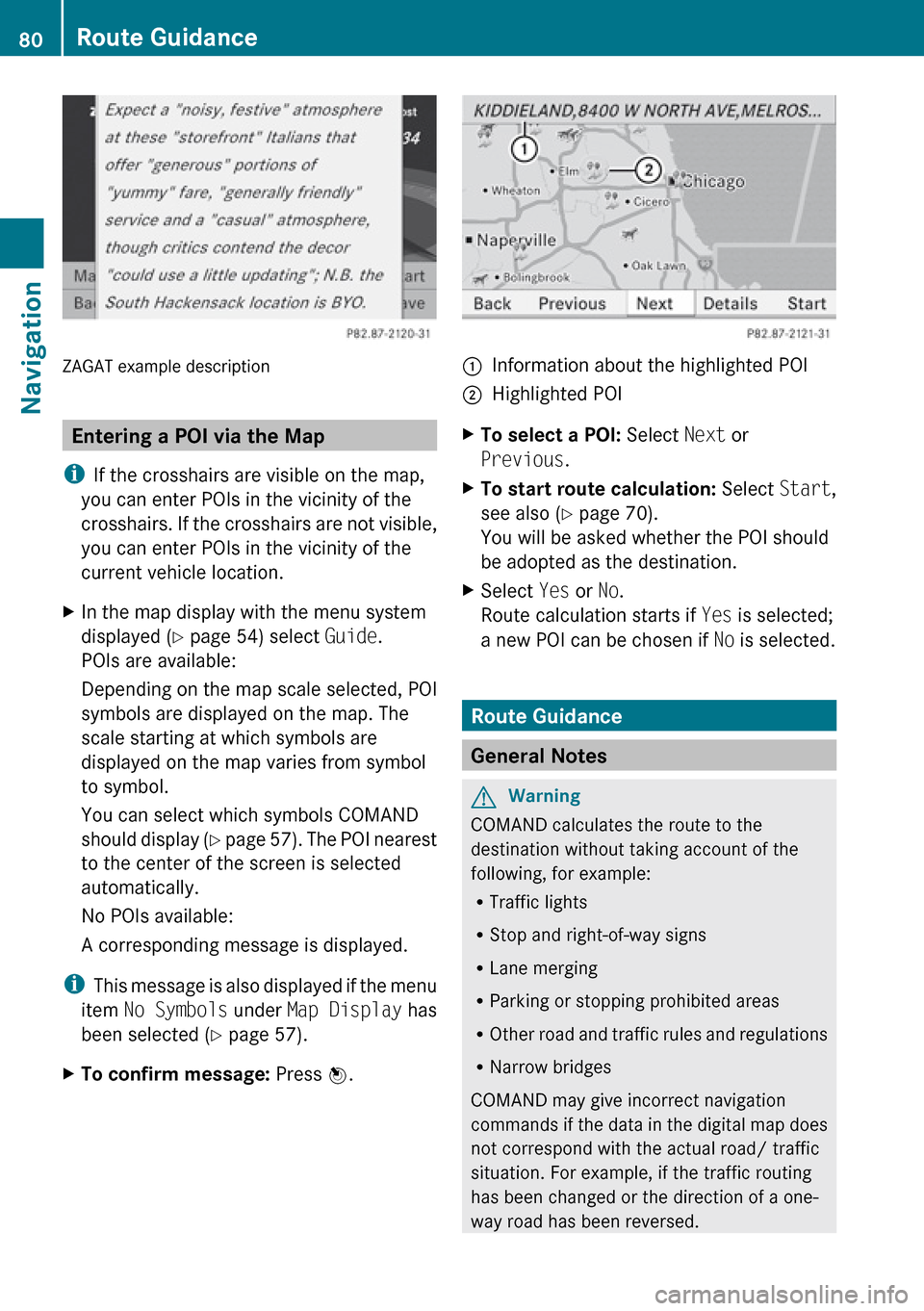
ZAGAT example description
Entering a POI via the Map
i If the crosshairs are visible on the map,
you can enter POIs in the vicinity of the
crosshairs. If the crosshairs are not visible,
you can enter POIs in the vicinity of the
current vehicle location.
XIn the map display with the menu system
displayed ( Y page 54) select Guide.
POIs are available:
Depending on the map scale selected, POI
symbols are displayed on the map. The
scale starting at which symbols are
displayed on the map varies from symbol
to symbol.
You can select which symbols COMAND
should display (Y page 57). The POI nearest
to the center of the screen is selected
automatically.
No POIs available:
A corresponding message is displayed.
i This message is also displayed if the menu
item No Symbols under Map Display has
been selected ( Y page 57).
XTo confirm message: Press n.1Information about the highlighted POI2Highlighted POIXTo select a POI: Select Next or
Previous .XTo start route calculation: Select Start,
see also ( Y page 70).
You will be asked whether the POI should
be adopted as the destination.XSelect Yes or No.
Route calculation starts if Yes is selected;
a new POI can be chosen if No is selected.
Route Guidance
General Notes
GWarning
COMAND calculates the route to the
destination without taking account of the
following, for example:
R Traffic lights
R Stop and right-of-way signs
R Lane merging
R Parking or stopping prohibited areas
R Other road and traffic rules and regulations
R Narrow bridges
COMAND may give incorrect navigation
commands if the data in the digital map does
not correspond with the actual road/ traffic
situation. For example, if the traffic routing
has been changed or the direction of a one-
way road has been reversed.
80Route GuidanceNavigation
Page 85 of 224
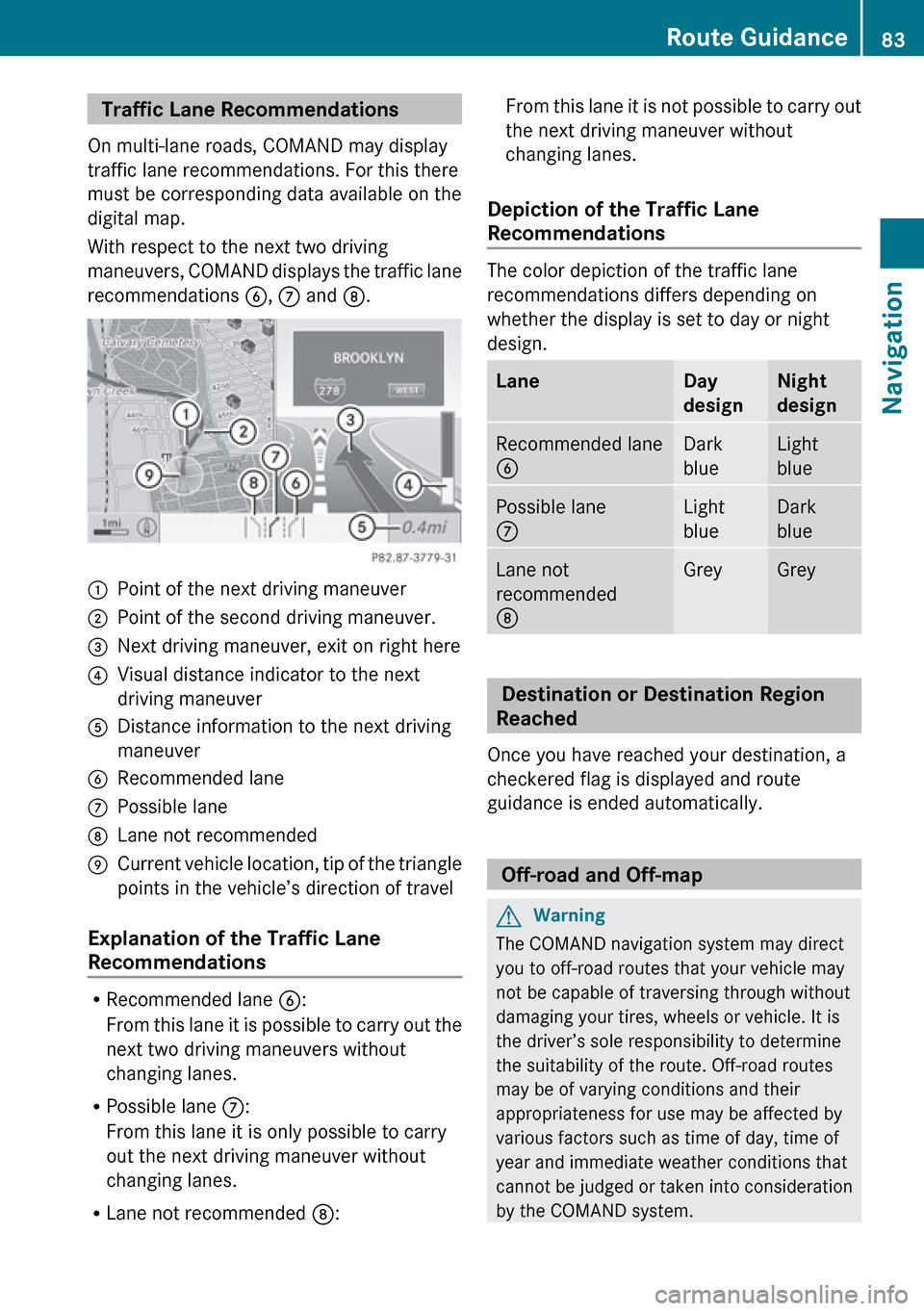
Traffic Lane Recommendations
On multi-lane roads, COMAND may display
traffic lane recommendations. For this there
must be corresponding data available on the
digital map.
With respect to the next two driving
maneuvers, COMAND displays the traffic lane
recommendations 6, 7 and 8.1Point of the next driving maneuver2Point of the second driving maneuver.3Next driving maneuver, exit on right here4Visual distance indicator to the next
driving maneuver5Distance information to the next driving
maneuver6Recommended lane7Possible lane8Lane not recommended9Current vehicle location, tip of the triangle
points in the vehicle’s direction of travel
Explanation of the Traffic Lane
Recommendations
R Recommended lane 6:
From this lane it is possible to carry out the
next two driving maneuvers without
changing lanes.
R Possible lane 7:
From this lane it is only possible to carry
out the next driving maneuver without
changing lanes.
R Lane not recommended 8:
From this lane it is not possible to carry out
the next driving maneuver without
changing lanes.
Depiction of the Traffic Lane
Recommendations
The color depiction of the traffic lane
recommendations differs depending on
whether the display is set to day or night
design.
LaneDay
designNight
designRecommended lane
6Dark
blueLight
bluePossible lane
7Light
blueDark
blueLane not
recommended
8GreyGrey
Destination or Destination Region
Reached
Once you have reached your destination, a
checkered flag is displayed and route
guidance is ended automatically.
Off-road and Off-map
GWarning
The COMAND navigation system may direct
you to off-road routes that your vehicle may
not be capable of traversing through without
damaging your tires, wheels or vehicle. It is
the driver’s sole responsibility to determine
the suitability of the route. Off-road routes
may be of varying conditions and their
appropriateness for use may be affected by
various factors such as time of day, time of
year and immediate weather conditions that
cannot be judged or taken into consideration
by the COMAND system.
Route Guidance83NavigationZ
Page 87 of 224
As soon as the vehicle location is found again,
route guidance continues in the usual
manner.
Navigation Announcements
GWarning
Navigation announcements are intended to
direct you while driving without diverting your
attention from the road and driving.
Please always use this feature instead of
consulting the map display for directions.
Consulting the symbols or map display for
directions may cause you to divert your
attention from driving and increase your risk
of an accident.
i During an active telephone call, the
navigation announcements are
suppressed.
If you have missed an announcement, you can
call up the current announcement at any
time.
XTo request current announcement: In
map view with the menu system
( Y page 54) displayed, select RPT.XTo switch off navigation
announcements: During the
announcement, press the B button.
You will briefly see the message: The
driving instructions have been
muted .XTo switch navigation announcements
back on manually: In map view with the
menu system (Y page 54) displayed, select
RPT .
or
XStart a new route calculation ( Y page 70).
or
XIf COMAND is switched on again or the
engine is restarted.XTo set the volume of the
announcements: Set the volume during
the automatic announcement ( Y page 35).
or
XCall up an announcement manually by
selecting RPT in map view with the menu
system displayed.XAdjust the volume.
Audio Fadeout
The Audio Fadeout function, if activated,
lowers the volume of the current audio source
when a navigation announcement is issued.
As soon as the navigation announcement has
ended, the audio source will be played with
the previous volume ( Y page 60).
Canceling Route Guidance
XIn the map display with the menu system
displayed ( Y page 54) select Destination
£ Cancel Route Guidance .
Resuming Route Guidance
XSelect Destination £Continue Route
Guidance in map view with the menu
system displayed.
COMAND calculates the route.
Detour Function
i The Detour function blocks a route
segment ahead. You can set the length of
the block. COMAND calculates a detour
route if possible.
XSelect Route£Detour in map view with
the menu system displayed.XTo set the length of block: Select
Longer or Shorter repeatedly until the
required length is set.
The blocked segment is highlighted in red/
white on the map. Shown at the top of the
display is the length of the blockedRoute Guidance85NavigationZ
Page 88 of 224
segment and the route segment to which
the block goes.XTo cancel the function: Select Back.XTo start route calculation: Select Start,
see also ( Y page 70).XTo delete block: In map view with the
menu system displayed, select Route
£ Detour £Delete .
Alternative Route
i You can have other routes calculated for
the original route guidance using the
Alternative Route function.
XIn the map display with the menu system
displayed ( Y page 54) select Route
£ Alternative Route .
The display is split into two halves. On the
left is the map, which displays one or more
alternative routes between the start and
the destination. The current route is
highlighted in dark blue, other alternative
routes are light blue (day mode). If the
display is in night mode, the representation
is inverse.
The right side of the display shows
information on the active alternative route,
e.g. length of the segment and the
estimated time of arrival.XTo select next or previous alternative
route: Select Next or Previous .
The selected route is now highlighted in
dark blue.XTo return to the original route guidance:
Select Back.XTo start route guidance with the
selected alternative route guidance:
Select Start.
Route Browser
i The route browser provides an overview
of the route. You can move along the route
segment by segment using the route
browser and view information and details
about the route segments.XIn the map display with the menu system
displayed, select Route£Route
Browser .
The route browser is in the display.
The top of the display shows information on
the highlighted route segment, e.g. the
road name or number and the segment
length of the road to be driven.
The highlighted route segment is identified
on the map by its white color and red edge.XTo display next or previous route
segment: Select Next or Previous .XTo enlarge or reduce the map display:
Select ; or :.XTo close route browser: Select Back.
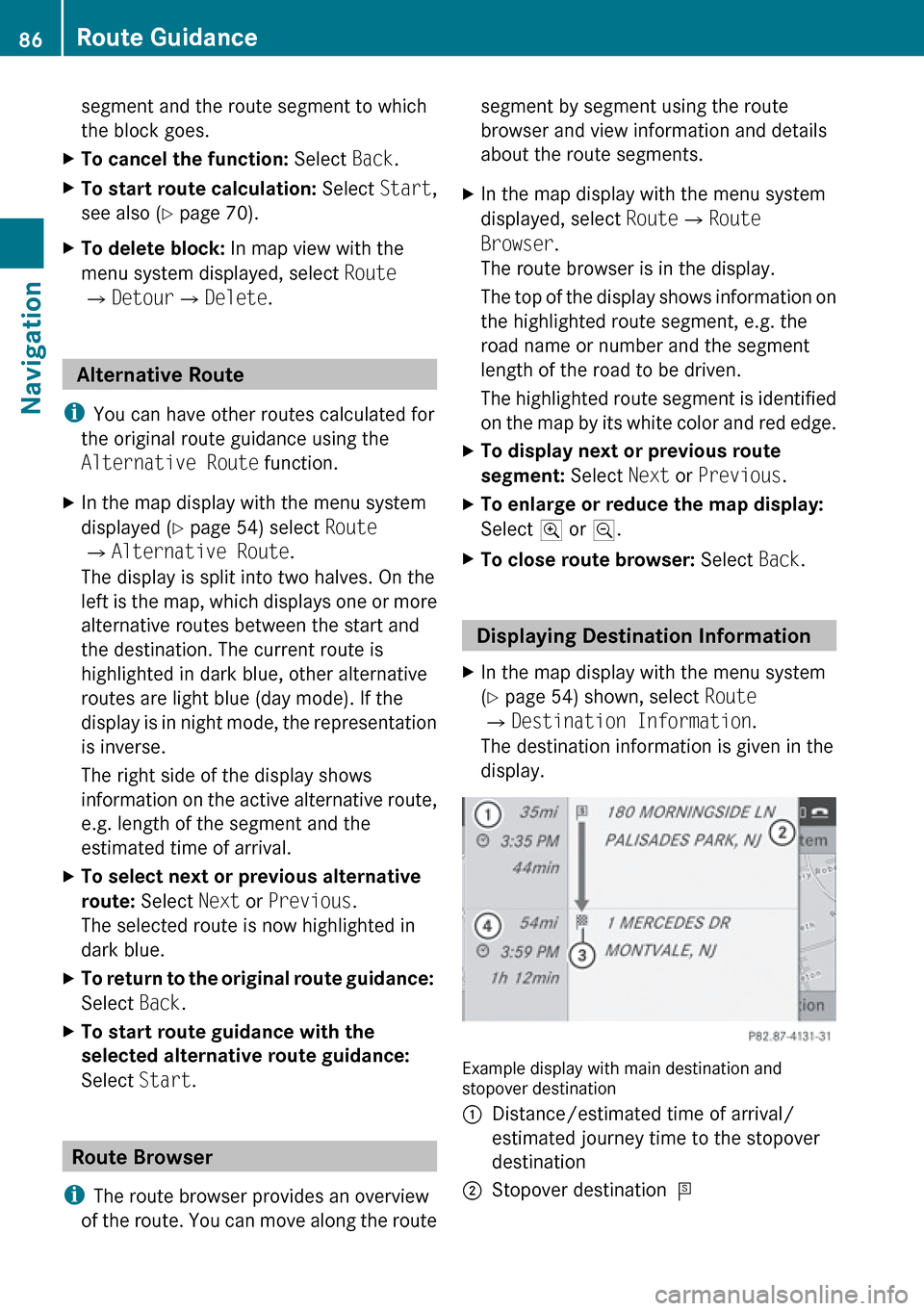
Displaying Destination Information
XIn the map display with the menu system
( Y page 54) shown, select Route
£ Destination Information .
The destination information is given in the
display.
Example display with main destination and
stopover destination
1Distance/estimated time of arrival/
estimated journey time to the stopover
destination2Stopover destination =86Route GuidanceNavigation
Page 92 of 224
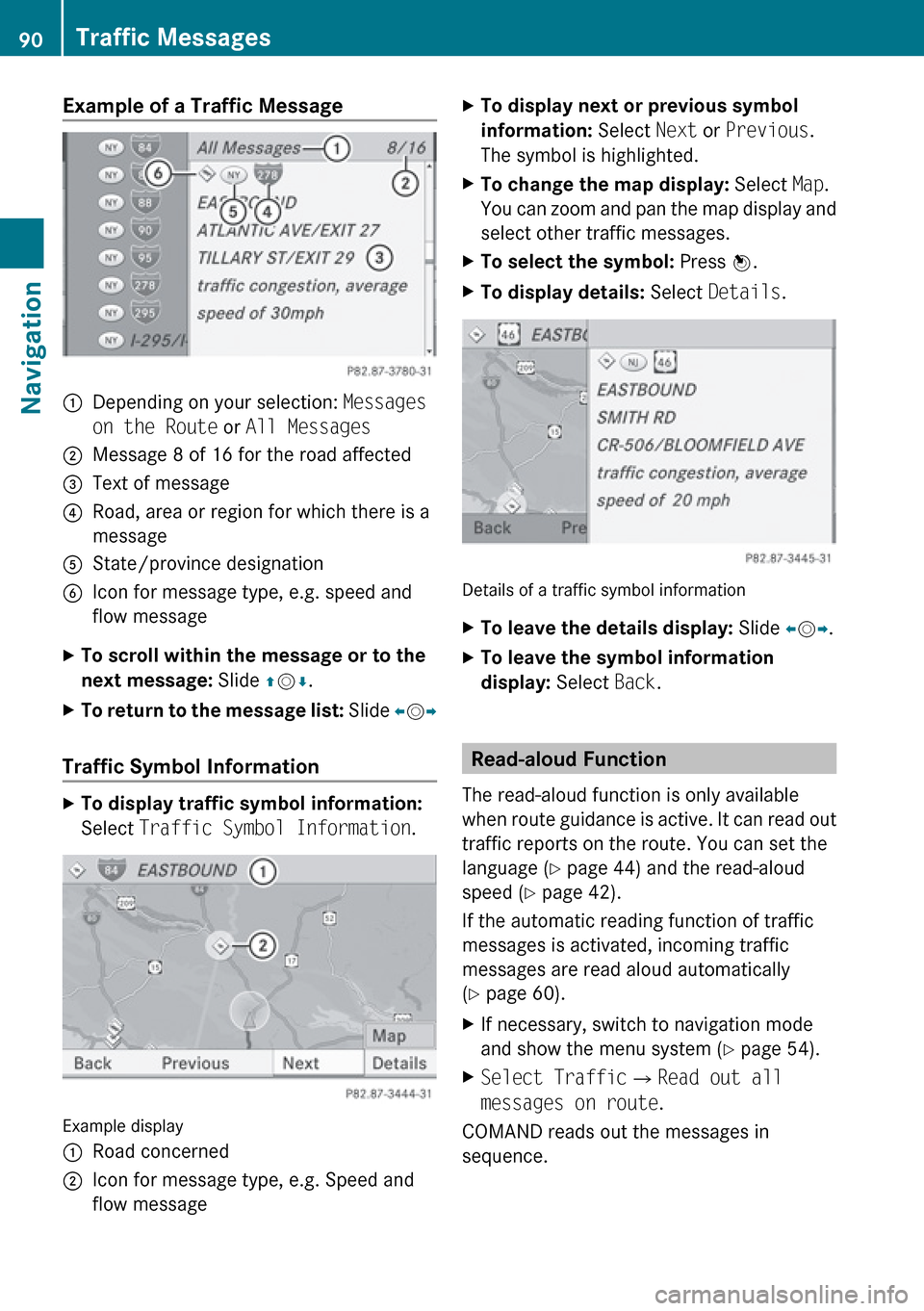
Example of a Traffic Message 1Depending on your selection: Messages
on the Route or All Messages2Message 8 of 16 for the road affected3Text of message4Road, area or region for which there is a
message5State/province designation6Icon for message type, e.g. speed and
flow messageXTo scroll within the message or to the
next message: Slide qm r.XTo return to the message list: Slide om p
Traffic Symbol Information
XTo display traffic symbol information:
Select Traffic Symbol Information .
Example display
1Road concerned2Icon for message type, e.g. Speed and
flow messageXTo display next or previous symbol
information: Select Next or Previous .
The symbol is highlighted.XTo change the map display: Select Map.
You can zoom and pan the map display and
select other traffic messages.XTo select the symbol: Press n.XTo display details: Select Details .
Details of a traffic symbol information
XTo leave the details display: Slide om p.XTo leave the symbol information
display: Select Back.
Read-aloud Function
The read-aloud function is only available
when route guidance is active. It can read out
traffic reports on the route. You can set the
language ( Y page 44) and the read-aloud
speed ( Y page 42).
If the automatic reading function of traffic
messages is activated, incoming traffic
messages are read aloud automatically
( Y page 60).
XIf necessary, switch to navigation mode
and show the menu system ( Y page 54).XSelect Traffic £Read out all
messages on route .
COMAND reads out the messages in
sequence.
90Traffic MessagesNavigation
Page 93 of 224
iThe Messages on the Route menu item
has no function if there are no messages
relating to the route.XTo cancel read-out of current message:
Select Cancel Read-aloud Function .
or
XPress the F button.
COMAND reads the current message aloud
and then ends the read-aloud function.
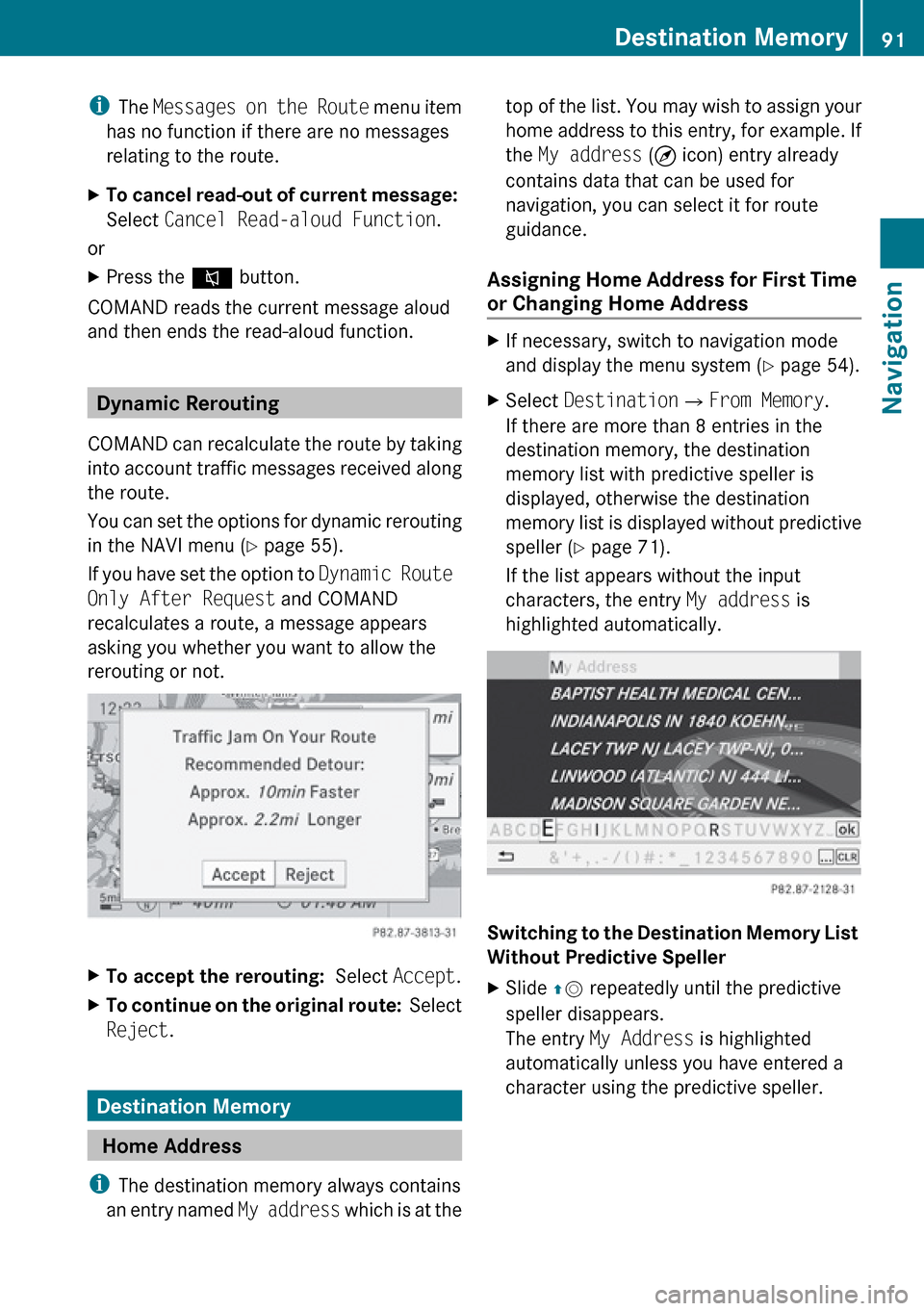
Dynamic Rerouting
COMAND can recalculate the route by taking
into account traffic messages received along
the route.
You can set the options for dynamic rerouting
in the NAVI menu ( Y page 55).
If you have set the option to Dynamic Route
Only After Request and COMAND
recalculates a route, a message appears
asking you whether you want to allow the
rerouting or not.
XTo accept the rerouting: Select Accept.XTo continue on the original route: Select
Reject .
Destination Memory
Home Address
i The destination memory always contains
an entry named My address which is at the
top of the list. You may wish to assign your
home address to this entry, for example. If
the My address (¤ icon) entry already
contains data that can be used for
navigation, you can select it for route
guidance.
Assigning Home Address for First Time
or Changing Home Address XIf necessary, switch to navigation mode
and display the menu system ( Y page 54).XSelect Destination £From Memory .
If there are more than 8 entries in the
destination memory, the destination
memory list with predictive speller is
displayed, otherwise the destination
memory list is displayed without predictive
speller ( Y page 71).
If the list appears without the input
characters, the entry My address is
highlighted automatically.
Switching to the Destination Memory List
Without Predictive Speller
XSlide qm repeatedly until the predictive
speller disappears.
The entry My Address is highlighted
automatically unless you have entered a
character using the predictive speller.Destination Memory91NavigationZ
Page 94 of 224
If characters have been entered using the
predictive speller:XRotate ym z or qm slide in the list until the
My Address entry is highlighted.
or
XTo assign an address for the first time:
Press and hold n until the speller
disappears.
The entry My Address is highlighted
automatically in the list.XTo exit the menu: Select Back.
Subsequent operation depends on whether
you enter the address or wish to use an
address book entry that can be used for
navigation as My address.
Entering or Changing Your Address
XIf necessary, change to the destination list
without speller.XTo enter the address for the first time:
Press n and select New Entry.XTo change the existing address: Select
Options £ New Entry .
In both cases, the address input menu
appears.XEnter the address. Proceed in the same way
as you would enter a destination as
described in the “Entering a destination by
address” section ( Y page 63).XSelect Save after you have entered the
address.
COMAND then stores the entry. You will
see a message and then the address menu
with the selected address. Start is
highlighted automatically.
Using an Address Book Entry as Home
Address
XIf necessary, change to the destination list
without speller ( Y page 91).XTo assign an address for the first time:
Press n and select Assign to Address
Book Entry .XSelect Home or Work if applicable.XTo change home address: Select
Options £ Assign to Address Book
Entry .XSelect Home or Work if applicable.XIn both cases you will see a list with or
without predictive speller depending on the
number of address book entries.XSelect the desired address book entry.
Proceed as described in the “Searching for
an address book entry” section
( Y page 113).
i
Information on how to link address book
entries with navigation data can be found
in “Assigning a destination to an address
book entry” ( Y page 94).
XTo confirm your selection: Press n.
An address is assigned for the first time:
COMAND then stores the entry. You will
see a message and then the address menu
with the selected address. Start is
highlighted automatically.
The address is changed:
A prompt appears, asking if you really wish
to overwrite My Address.XSelect Yes or No.
If you select Yes, COMAND overwrites the
destination. You will see a message and
then the address menu with the selected
address. Start is highlighted
automatically.
If you select No, the list will reappear.
Selecting Home Address for Route
Guidance
i If the My Address (¤ icon) entry already
contains data that can be used for
navigation, you can select it for route
92Destination MemoryNavigation
Page 95 of 224
guidance. If not, then first assign a
destination to this entry ( Y page 91).XIf necessary, switch to navigation mode
and display the menu system ( Y page 54).XSelect Destination £From Memory .
You will see a list with or without predictive
speller depending on how many entries
exist in the address book.XDestination memory with predictive
speller: Slide qm repeatedly until the list
appears without the predictive speller.
or
XSelect d at the bottom right in the
predictive speller.XDestination memory list without input
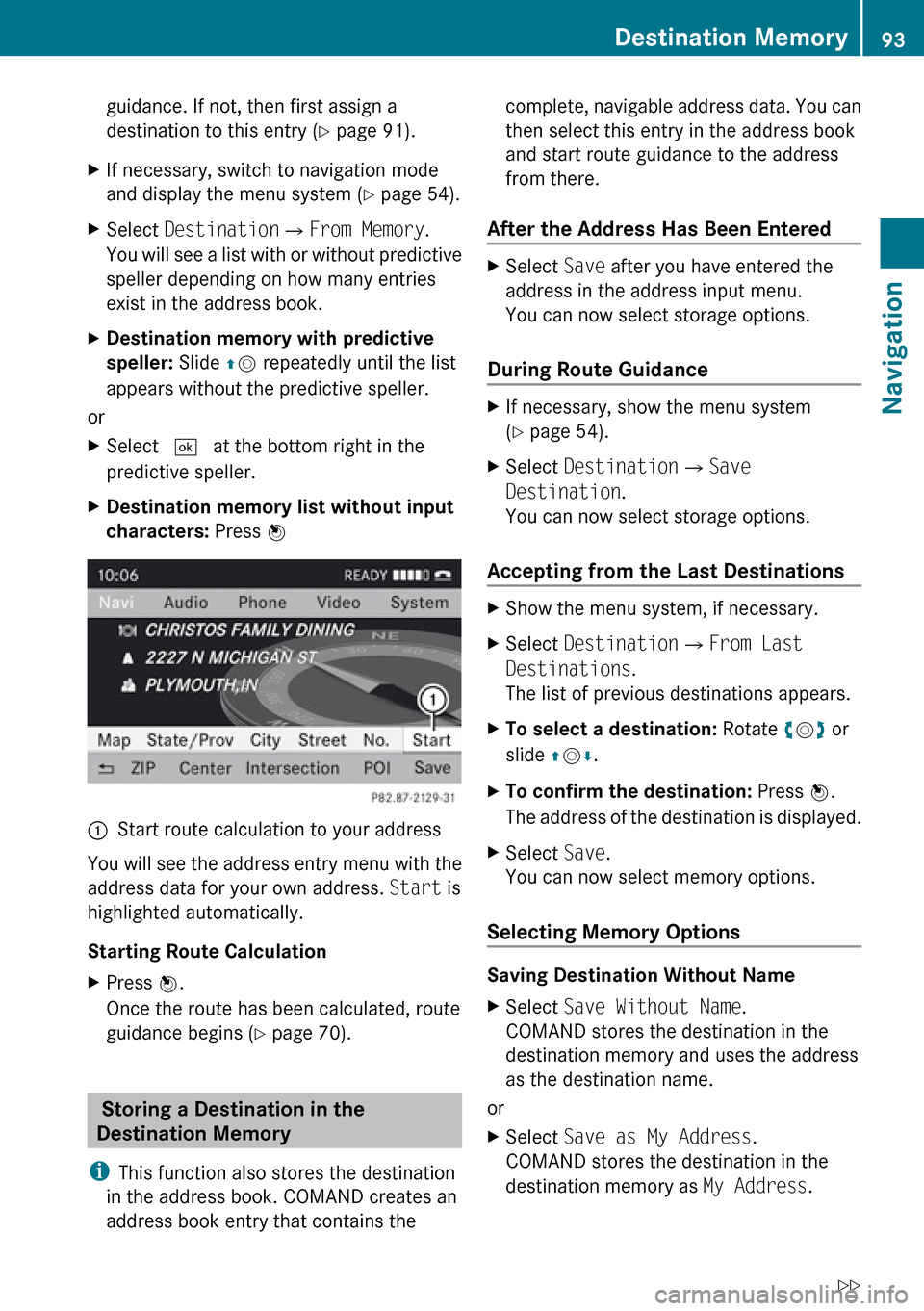
characters: Press n1Start route calculation to your address
You will see the address entry menu with the
address data for your own address. Start is
highlighted automatically.
Starting Route Calculation
XPress n.
Once the route has been calculated, route
guidance begins ( Y page 70).
Storing a Destination in the
Destination Memory
i This function also stores the destination
in the address book. COMAND creates an
address book entry that contains the
complete, navigable address data. You can
then select this entry in the address book
and start route guidance to the address
from there.
After the Address Has Been EnteredXSelect Save after you have entered the
address in the address input menu.
You can now select storage options.
During Route Guidance
XIf necessary, show the menu system
( Y page 54).XSelect Destination £Save
Destination .
You can now select storage options.
Accepting from the Last Destinations
XShow the menu system, if necessary.XSelect Destination £From Last
Destinations .
The list of previous destinations appears.XTo select a destination: Rotate ym z or
slide qm r.XTo confirm the destination: Press n.
The address of the destination is displayed.XSelect Save.
You can now select memory options.
Selecting Memory Options
Saving Destination Without Name
XSelect Save Without Name .
COMAND stores the destination in the
destination memory and uses the address
as the destination name.
or
XSelect Save as My Address .
COMAND stores the destination in the
destination memory as My Address.Destination Memory93NavigationZ