light MERCEDES-BENZ E-Class SEDAN 2010 W212 Comand Manual
[x] Cancel search | Manufacturer: MERCEDES-BENZ, Model Year: 2010, Model line: E-Class SEDAN, Model: MERCEDES-BENZ E-Class SEDAN 2010 W212Pages: 224, PDF Size: 7.4 MB
Page 147 of 224
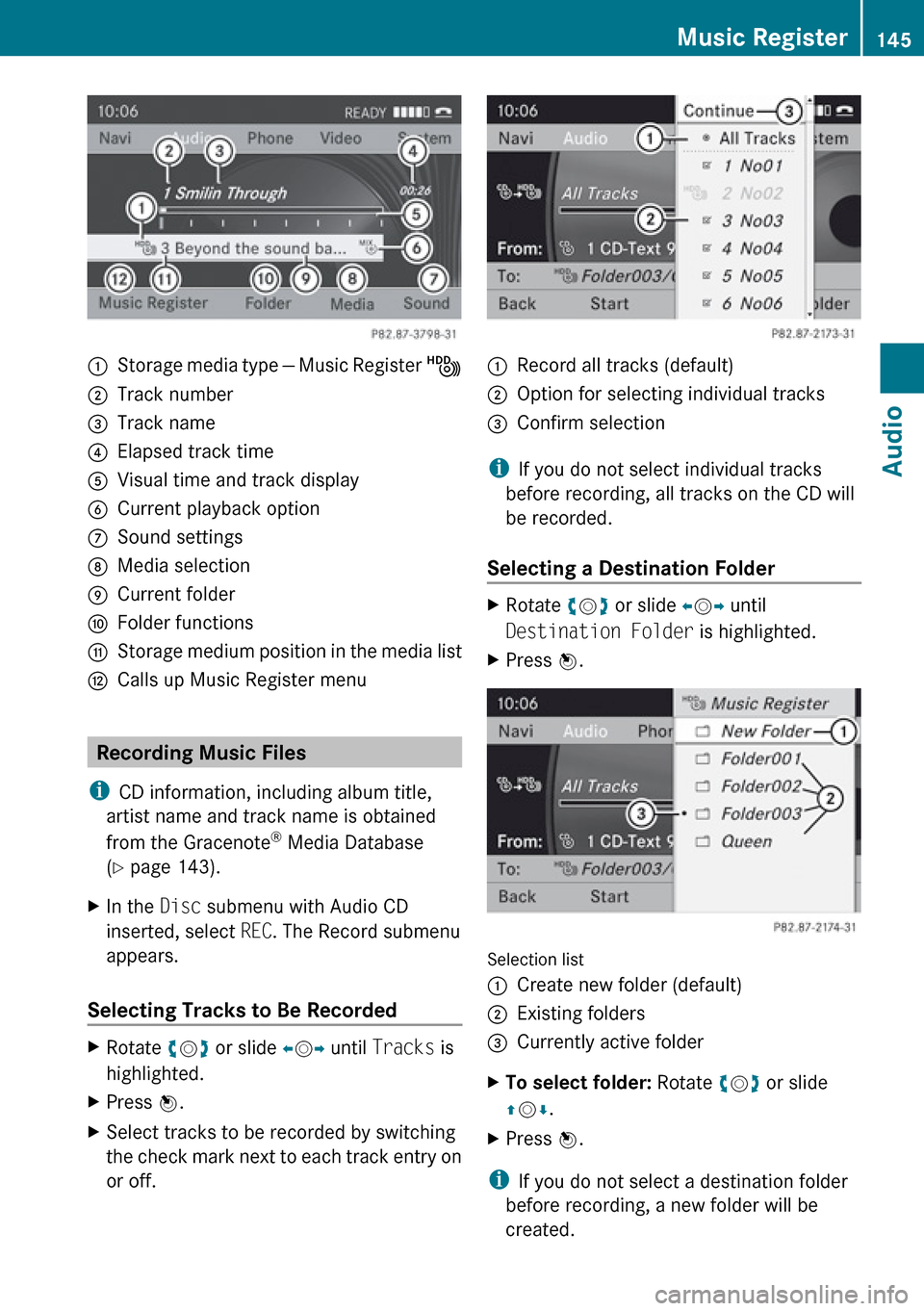
1Storage media type — Music Register Ñ2Track number3Track name4Elapsed track time5Visual time and track display6Current playback option7Sound settings8Media selection9Current folderaFolder functionsbStorage medium position in the media listcCalls up Music Register menu
Recording Music Files
i CD information, including album title,
artist name and track name is obtained
from the Gracenote ®
Media Database
( Y page 143).
XIn the Disc submenu with Audio CD
inserted, select REC. The Record submenu
appears.
Selecting Tracks to Be Recorded
XRotate ym z or slide om p until Tracks is
highlighted.XPress n.XSelect tracks to be recorded by switching
the check mark next to each track entry on
or off.1Record all tracks (default);Option for selecting individual tracks=Confirm selection
i If you do not select individual tracks
before recording, all tracks on the CD will
be recorded.
Selecting a Destination Folder
XRotate ym z or slide om p until
Destination Folder is highlighted.XPress n.
Selection list
1Create new folder (default)2Existing folders3Currently active folderXTo select folder: Rotate ym z or slide
q m r.XPress n.
i
If you do not select a destination folder
before recording, a new folder will be
created.
Music Register145AudioZ
Page 148 of 224
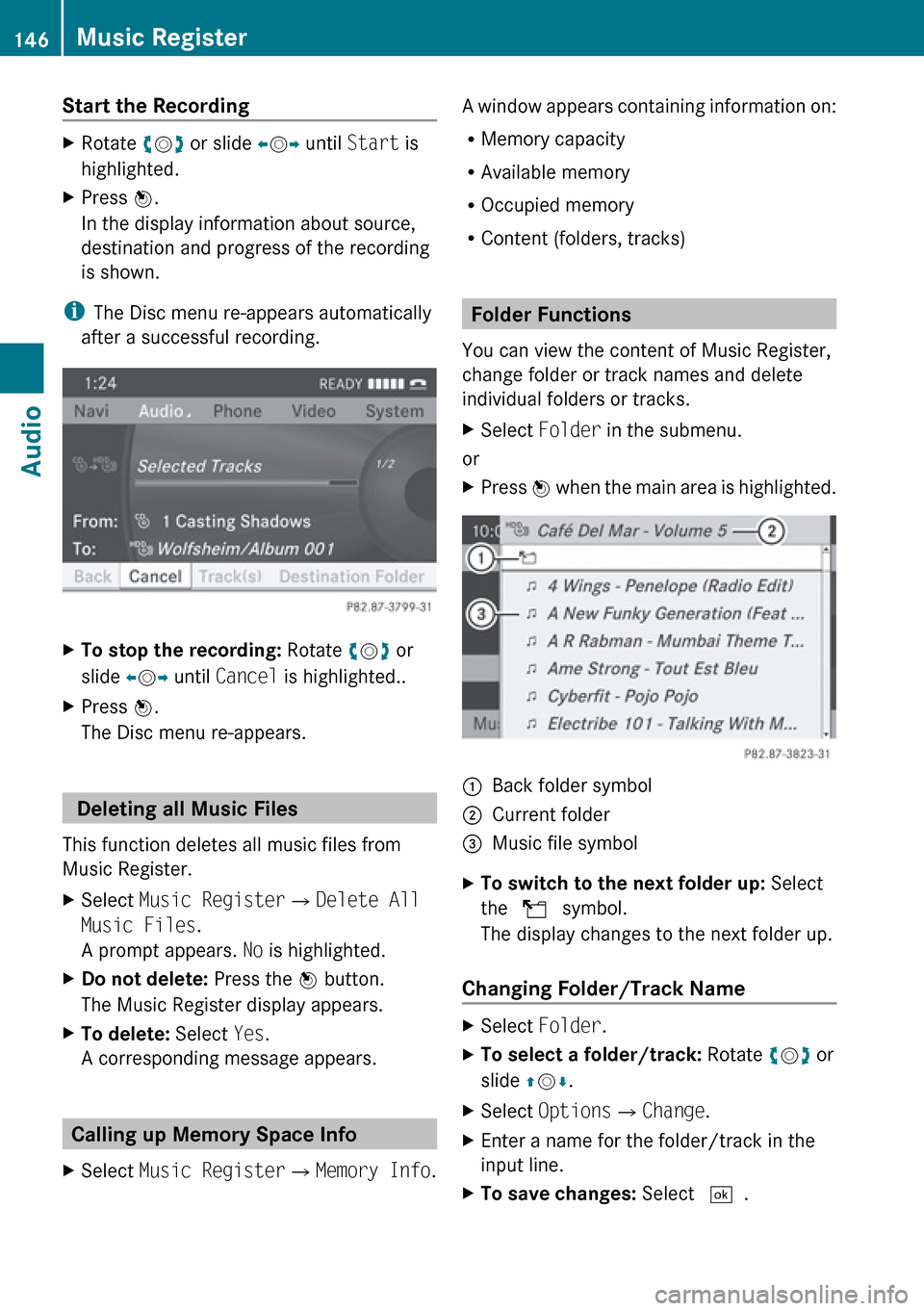
Start the RecordingXRotate ym z or slide om p until Start is
highlighted.XPress n.
In the display information about source,
destination and progress of the recording
is shown.
i The Disc menu re-appears automatically
after a successful recording.
XTo stop the recording: Rotate ym z or
slide om p until Cancel is highlighted..XPress n.
The Disc menu re-appears.
Deleting all Music Files
This function deletes all music files from
Music Register.
XSelect Music Register £Delete All
Music Files .
A prompt appears. No is highlighted.XDo not delete: Press the n button.
The Music Register display appears.XTo delete: Select Yes.
A corresponding message appears.
Calling up Memory Space Info
XSelect Music Register £Memory Info .A window appears containing information on:
R Memory capacity
R Available memory
R Occupied memory
R Content (folders, tracks)
Folder Functions
You can view the content of Music Register,
change folder or track names and delete
individual folders or tracks.
XSelect Folder in the submenu.
or
XPress n when the main area is highlighted.1Back folder symbol2Current folder3Music file symbolXTo switch to the next folder up: Select
the Q symbol.
The display changes to the next folder up.
Changing Folder/Track Name
XSelect Folder .XTo select a folder/track: Rotate ym z or
slide qm r.XSelect Options £Change .XEnter a name for the folder/track in the
input line.XTo save changes: Select d.146Music RegisterAudio
Page 149 of 224
Deleting Folders/TrackXSelect Folder .XTo select a folder/track: Rotate ym z or
slide qm r.XSelect Options £Delete .
A query appears. No is highlighted.XDo not delete: Press the n button.XTo delete: Select Yes and press n.
A message appears.
Playback Options
The following options are available:
R Normal Track Sequence
You will hear the tracks in the normal
sequence (e.g. track 1, 2, 3 etc.).
R Random Tracks:
You hear the tracks in random order.
R Random Folder
The tracks of the currently active folder and
any subfolders are heard in random order.
XTo select an option: Switch to Music
Register ( Y page 144).XSelect Music Register in the submenu.
The option list appears. A R dot indicates
the activated option.XSelect an option.
The option is activated. A corresponding
display will appear in the main area for all
options except Normal Track Sequence .
i
The option Normal Track Sequence is
automatically activated if you change the
medium which is currently being played or
if you select another medium. An activated
option remains active after COMAND is
switched on or off.
Media Interface
Important Notes
Connection Options
Via the UCI connection (Universal Consumer
Interface) you can connect the following
media to COMAND:
R iPods
R MP3 player
R USB devices
Supported iPod ®
Versions
The following iPod ®
versions are fully
supported:
R iPod ®
mini
R iPod ®
nano
R iPod ®
classic
R iPod ®
touch
Supported USB Devices
The following USB devices are supported:
R USB sticks (flash memory)
R USB hard drives (1-inch, 1.8-inch and
2.5-inch drives) with a starting/continuous
current rating of maximum 800 mA
(otherwise a separate power supply will be
necessary)
i The Media Interface supports USB
storage media of "USB Device Subclass 6".
You can obtain information about the "USB
Device Subclass 6" from the manufacturer.
Further Information on Supported
Devices
Further information on compatible
multimedia devices is available via the
Internet at www.mbusa-mobile.com. Or call
the Mercedes-Benz Customer Assistance
Center at 1-800-FOR-MERCedes
(1-800-367-6372) (US), or Customer
Relations at 1-800-387-0100 (Canada).
Media Interface147AudioZ
Page 150 of 224
Supported Data Formats (USB devices)
The following data types are supported:
R MP3: CBR, VBR (up to 320 kbit/s)
R WMA: CBR, VBR (up to 320 kbit/s)
In order to display the metadata during
playback, ID3 tags (version 1.x, 2.3, 2.4) and
WMA tags in ASCII and UTF16 coding are
supported.
Notes on USB Devices
R In order to keep the initialisation time short,
do not store data other than music files on
the USB device.
R Up to eight directory levels with up to 1,000
tracks are supported.
R Do not use a USB extension cable or
adapter. These may impair functionality.
R Playlists are searched for in the
background on the USB device and, if
available, are offered beside folders in a
separate category.
R You can only use USB devices formatted
with the file system format FAT (File
Allocation Table).
i Files protected with DRM (Digital Rights
Management) are not supported by the
Media Interface.
Connecting External Devices
You will find the connection sockets in the
glove compartment.
Never connect more than one device at a
time. Please consult a Mercedes-Benz
Service Center for further information.
i Do not leave external devices in the
vehicle, as functionality cannot be
guaranteed above certain temperatures
(such as inside a vehicle in direct sunlight).
Mercedes-Benz does not take
responsibility for any damage to external
devices.
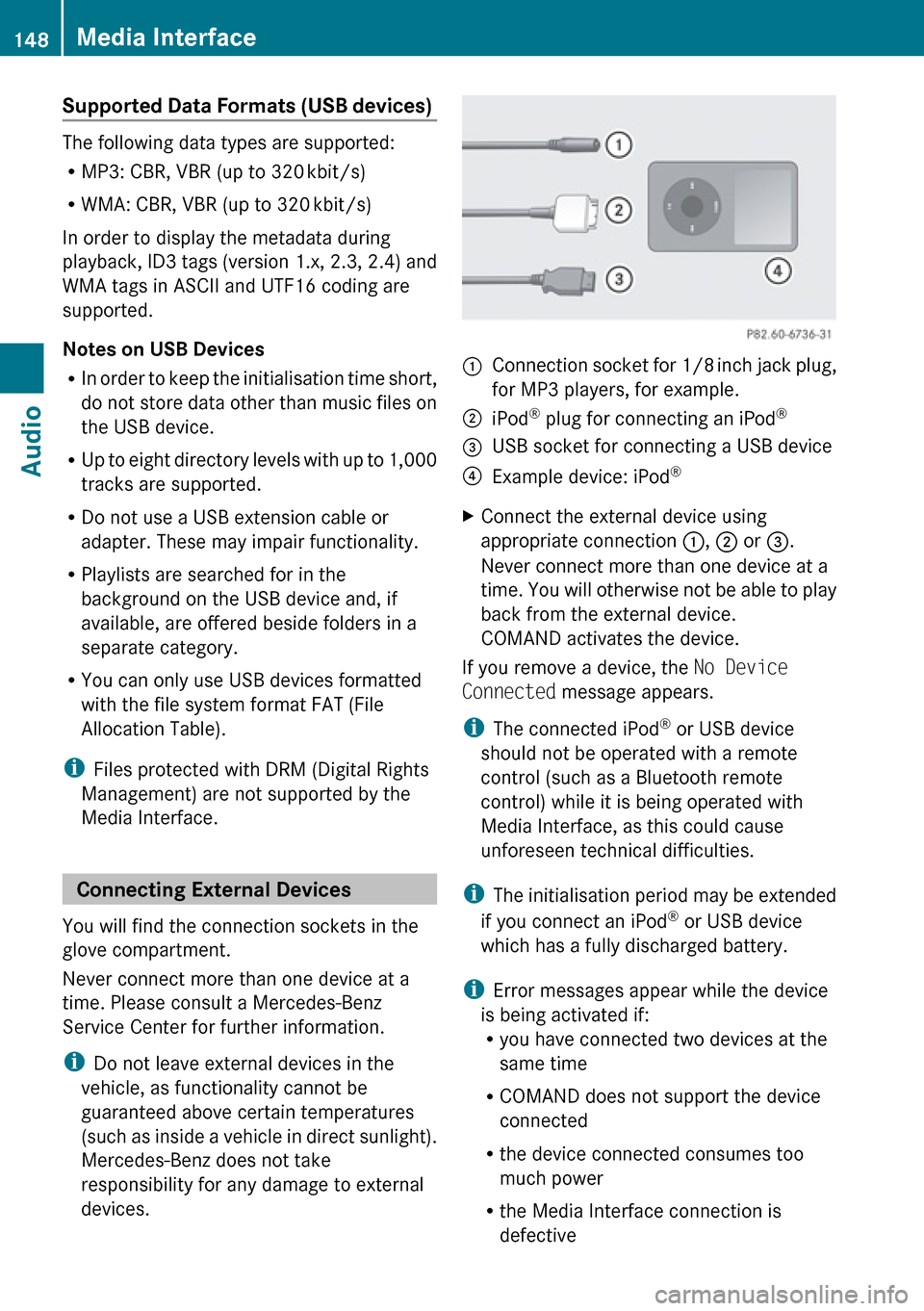
1Connection socket for 1/8 inch jack plug,
for MP3 players, for example.2iPod ®
plug for connecting an iPod ®3USB socket for connecting a USB device4Example device: iPod®XConnect the external device using
appropriate connection 1, 2 or 3.
Never connect more than one device at a
time. You will otherwise not be able to play
back from the external device.
COMAND activates the device.
If you remove a device, the No Device
Connected message appears.
i The connected iPod ®
or USB device
should not be operated with a remote
control (such as a Bluetooth remote
control) while it is being operated with
Media Interface, as this could cause
unforeseen technical difficulties.
i The initialisation period may be extended
if you connect an iPod ®
or USB device
which has a fully discharged battery.
i Error messages appear while the device
is being activated if:
R you have connected two devices at the
same time
R COMAND does not support the device
connected
R the device connected consumes too
much power
R the Media Interface connection is
defective
148Media InterfaceAudio
Page 151 of 224
If necessary, consult a Mercedes-Benz
Service Center.
Switching to Media Interface
From Another Main Function
XSelect Audio£Audio £Media
Interface in the audio menu display.
i
If you previously selected operation with
Media Interface, you need only select
Audio .
or
XPress the h function button.
Switch on the previous disc operating
mode.
i If you previously selected operation with
Media Interface, it will now be switched on.
XSelect Media.
The media list appears. The R dot
indicates the current medium being played.XRotate ym z or slide qm r until the position
of Media Interface is highlighted in the
media list.
i If no device is connected, you will see the
entry Media Interface instead of a
device name.
XPress n.
COMAND activates the connected device
(only for iPods and USB devices). You will
see a corresponding message. The basic
display then appears.
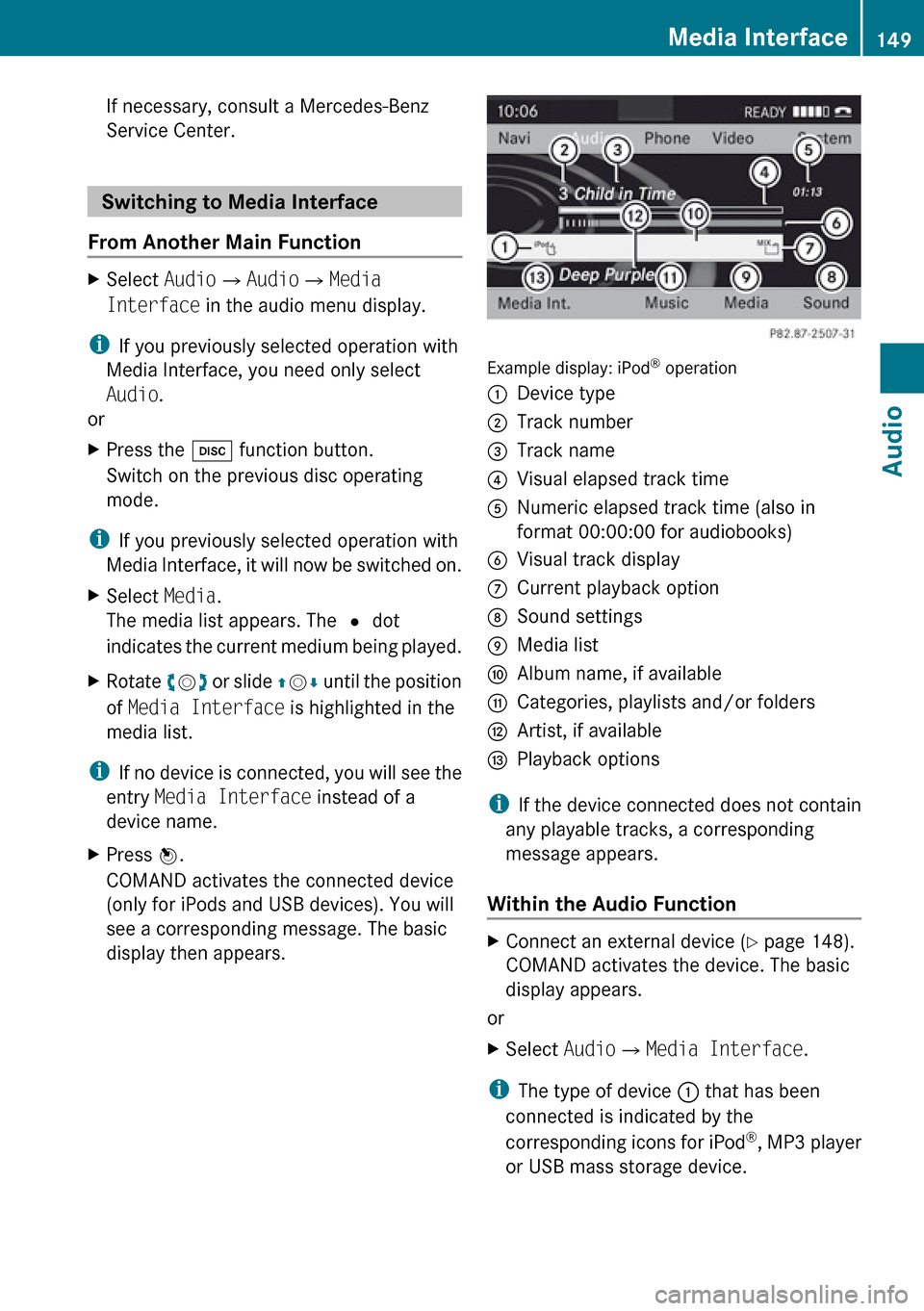
Example display: iPod ®
operation
1Device type2Track number3Track name4Visual elapsed track time5Numeric elapsed track time (also in
format 00:00:00 for audiobooks)6Visual track display7Current playback option8Sound settings9Media listaAlbum name, if availablebCategories, playlists and/or folderscArtist, if availabledPlayback options
i If the device connected does not contain
any playable tracks, a corresponding
message appears.
Within the Audio Function
XConnect an external device ( Y page 148).
COMAND activates the device. The basic
display appears.
or
XSelect Audio£Media Interface .
i
The type of device 1 that has been
connected is indicated by the
corresponding icons for iPod ®
, MP3 player
or USB mass storage device.
Media Interface149AudioZ
Page 152 of 224
Selecting Music Files
i COMAND displays the data stored on the
iPod ®
, MP3 player or USB mass storage
device in the storage structure used in the
medium in question.
Selecting by Skipping to a TrackXTo skip forwards or backwards to a
track: Slide om p.
or
XPress the F or E button.
i
Skipping forwards skips to the next track.
Skipping backwards skips to the beginning
of the current track if the track has been
playing for more than 8 seconds. If the
track has been playing for less than 8
seconds, it skips to the start of the previous
track. If you have selected a playback
option other than Normal Track
Sequence , the track sequence is random.
Selecting by Manual Track Number
Entry
XTo make an entry: Press the l button.
An input menu appears. The number of
possible input places depends on the
number of tracks stored.XTo enter a track number: Press a number
key, such as s.
The number is entered in the first position
in the input line.
i If an invalid number is entered, COMAND
will ignore it and it will not be displayed.
XEnter more numbers if desired.XTo confirm your entry: Press the n
button.
The selected track is played.Fast forward/rewindXWhen the main area is highlighted, slide
and hold om p until the desired position has
been reached.
or
XPress and hold the F or E button
until the desired position has been
reached.
Selecting a Category/Playlist/Folder
iPods and MP3 Players
You can select tracks by category for iPods
and by folder for MP3 players.
Depending on the connected device, the
categories may include:
R Current track list
R Playlists (e.g. All, My top 25 or Music
videos )
R Artists
R Albums
R Podcasts
R Audiobooks
R Genres
R Composers
i Some playback categories contain the
All entry. Further entries of this type can
follow depending on the hierarchy level.
After selecting a title at the track level, the
entire content of the category selected will
be played.
USB Devices
For USB mass storage devices, you can select
folders and also playlists (if available).
COMAND can also display the album name
and artist (“metadata”) during playback, if
this information has previously been entered.
Playlists are shown in the display with a
particular icon. When you open the playlist,
150Media InterfaceAudio
Page 153 of 224
the selected tracks are opened and playback
begins.
For USB mass storage devices, you can
determine whether metadata from the tags in
the coded music data should be displayed or
whether the file name and directory should be
displayed during playback.XSelect Media Interface £ Display
Metadata .
Selecting a Category and Opening a
Folder
XTo open a category list/folder: Press n
when the main area is highlighted.
or
XSelect Music.
You will see the available categories or the
folder content (e.g. other folders).
i The Music menu item is not available until
the device has been activated.
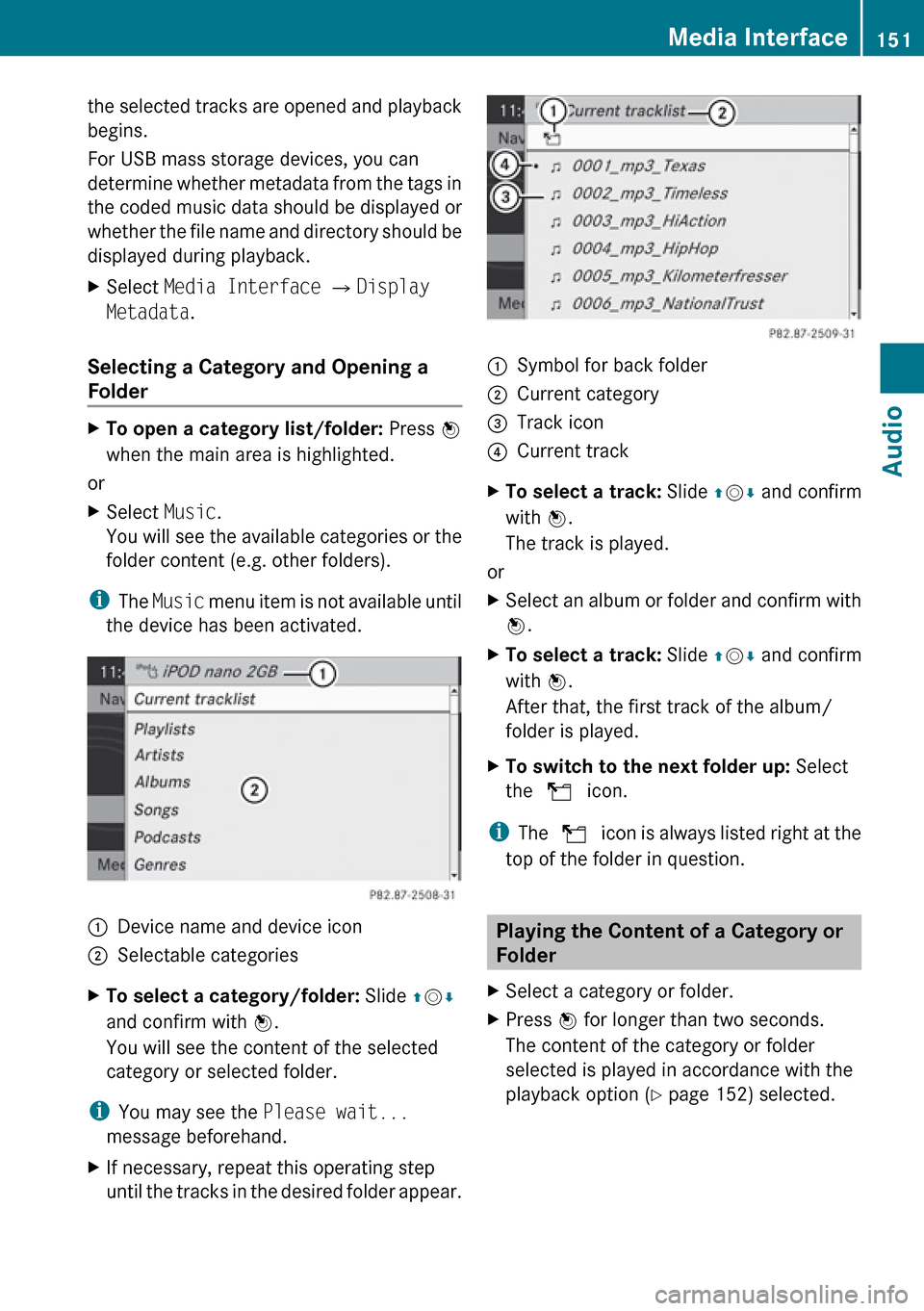
1Device name and device icon2Selectable categoriesXTo select a category/folder: Slide qm r
and confirm with n.
You will see the content of the selected
category or selected folder.
i You may see the Please wait...
message beforehand.
XIf necessary, repeat this operating step
until the tracks in the desired folder appear.1Symbol for back folder2Current category3Track icon4Current trackXTo select a track: Slide qm r and confirm
with n.
The track is played.
or
XSelect an album or folder and confirm with
n .XTo select a track: Slide qm r and confirm
with n.
After that, the first track of the album/
folder is played.XTo switch to the next folder up: Select
the Q icon.
i
The Q icon is always listed right at the
top of the folder in question.
Playing the Content of a Category or
Folder
XSelect a category or folder.XPress n for longer than two seconds.
The content of the category or folder
selected is played in accordance with the
playback option ( Y page 152) selected.Media Interface151AudioZ
Page 154 of 224
Alphabetical Track Selection
iPods and MP3 Players
i This function is available for categories
which are arranged in alphabetical order.
This function is not available within
playlists, for example.
XSelect a category, e.g. artists.
The available artists appear.XPress the corresponding number key once
or repeatedly to select the initial letter of
the desired artist. For example, to select an
artist whose name begins with C, press the
number key "2" three times.
You see the available letters at the bottom
edge of the display.
After a message, the first entry in the list
which matches the letter entered is
highlighted.
i If there is no entry which matches the
letter which has been entered, the last
entry in the list which matches a previous
letter is highlighted.
USB Devices
i This function is available for directories
which are arranged in alphabetical order.
This function is not available within
playlists.
XPress the number key in question once or
repeatedly in a directory to select the initial
letter of the desired artist.
For example, to select an artist whose
name begins with C, press the number key
“2” three times.
You see the available letters at the bottom
edge of the display.
If the directory only contains folders,
COMAND searches for folders. The first
entry in the list that matches the letter is
highlighted.
If this does not happen, COMAND searches
for tracks. After a message, the first entryin the list which matches the letter entered
is highlighted.
i If there is no entry which matches the
letter which has been entered, the last
entry in the list which matches a previous
letter is highlighted.
Selecting the Active Partition (USB
Devices Only)
You can select this function for USB devices
when the storage device is partitioned. Up to
four partitions (primary or logical and FAT-
formatted) are supported.
i The Windows formatting program
supports FAT partitions with either FAT16
or FAT32.
XSelect Media Interface £Select
Active partition .
Playback Options
The following options are available to you:
R Normal Track Sequence:
You hear the tracks in their normal order
(numerical or alphabetical).
R Random Tracks:
You hear all tracks in random order.
R Random Categories or Random Folder
(in the case of USB devices when Folder
has been selected):
You hear the tracks in the current active
category or folder and any subfolders in
random order.
XTo select an option: Select Media
Interface in the basic display.
The option list appears. A R dot indicates
the option selected.XSelect an option.152Media InterfaceAudio
Page 159 of 224
RThe discs must only be labelled using pens
specially designed for this purpose.
R After use, replace the discs into the sleeve.
R Protect the discs from heat and direct
sunlight.
DVD Playback Conditions
Some DVDs may not comply with the NTSC
or PAL TV playback standards. Sound, picture
and other playback problems may occur
when you play such DVDs.
As standard, COMAND can play video DVDs
which meet the following criteria:
R Region code 1 or region code 0 (all regions)
i With a video DVD having another region
code, a corresponding message will be
displayed.
R PAL or NTSC TV standard
Information on this can usually be found
either on the DVD itself or on the DVD sleeve.
i The factory setting for COMAND is region
code 1. An authorized Mercedes-Benz
Center can change this setting up to five
times. This will enable you to play video
DVDs with other region codes, provided
that they have been made to the PAL or
NTSC TV standard.
Functional Restrictions
It may be the case that some functions or
actions may not be possible at certain times,
or may not be possible in general, depending
on the DVD.
When you activate such functions or actions,
this is indicated by the 7 in the display.
Loading a DVD
XProceed as described in the “Loading CDs
and DVDs” section ( Y page 134).
Ejecting a DVD
XProceed as described in the “Ejecting CDs
and DVDs” section ( Y page 136).
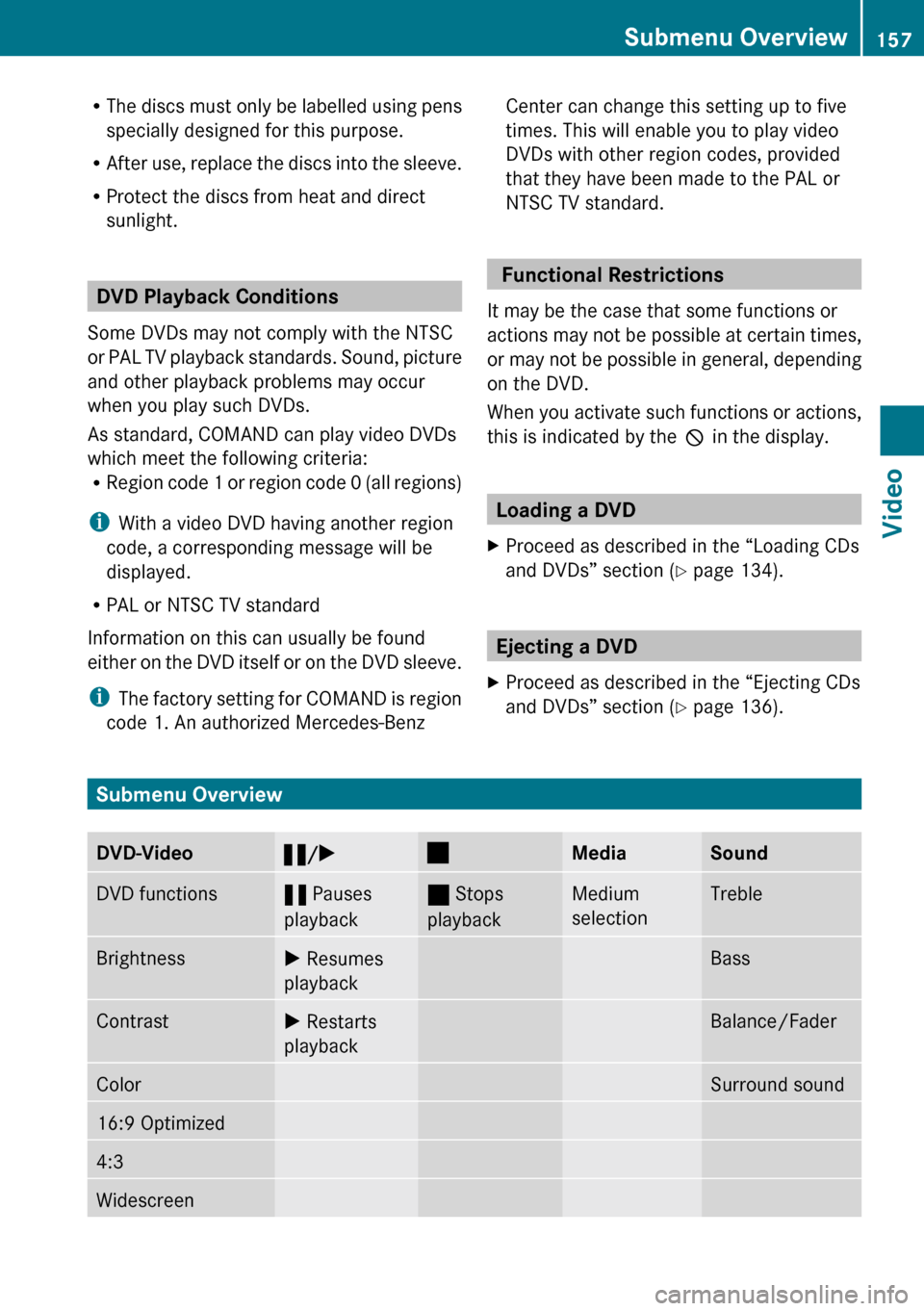
Submenu Overview
DVD-Video« /X±MediaSoundDVD functions« Pauses
playback± Stops
playbackMedium
selectionTrebleBrightnessX Resumes
playbackBassContrastX Restarts
playbackBalance/FaderColorSurround sound16:9 Optimized4:3WidescreenSubmenu Overview157VideoZ
Page 164 of 224
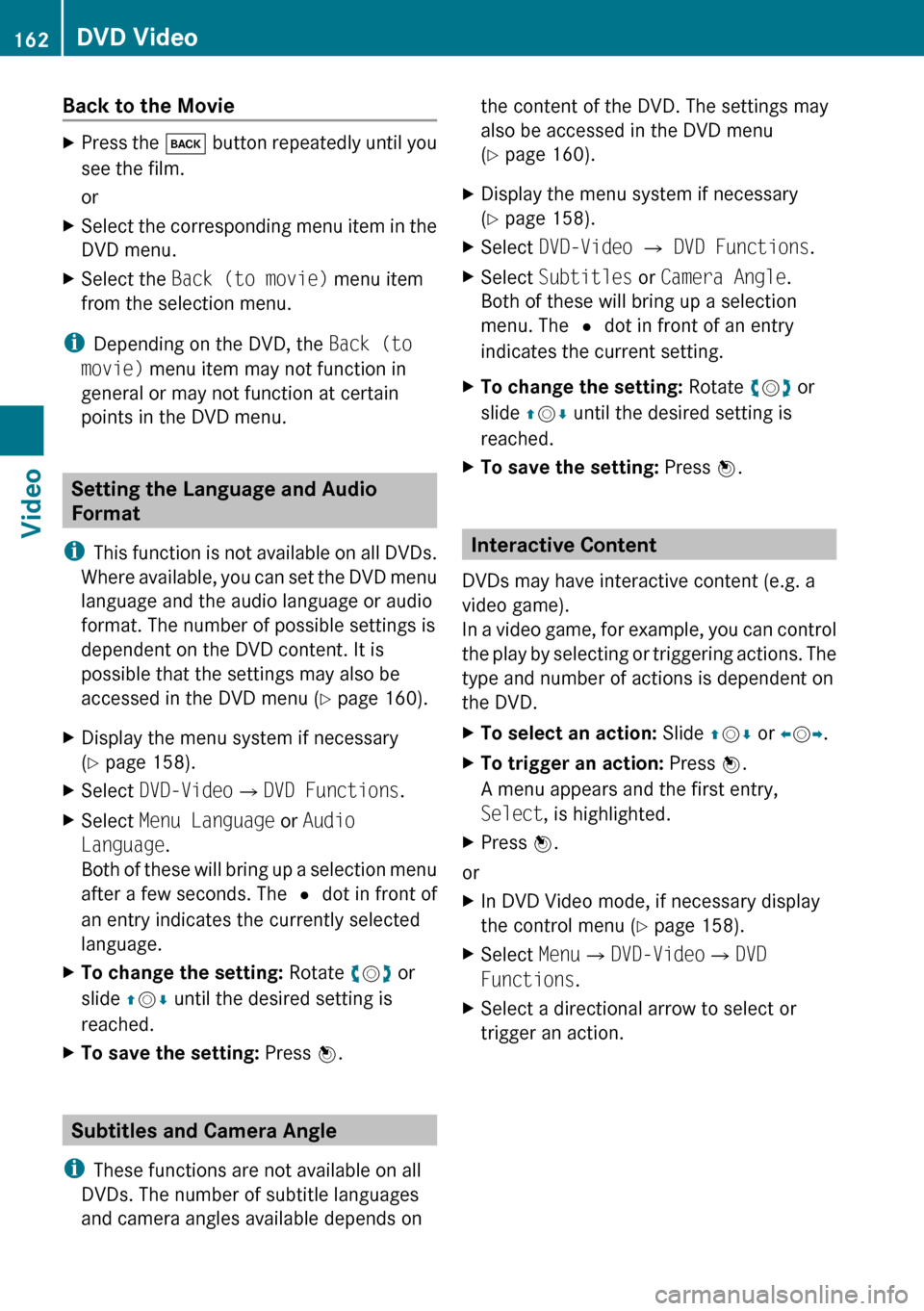
Back to the MovieXPress the k button repeatedly until you
see the film.
orXSelect the corresponding menu item in the
DVD menu.XSelect the Back (to movie) menu item
from the selection menu.
i Depending on the DVD, the Back (to
movie) menu item may not function in
general or may not function at certain
points in the DVD menu.
Setting the Language and Audio
Format
i This function is not available on all DVDs.
Where available, you can set the DVD menu
language and the audio language or audio
format. The number of possible settings is
dependent on the DVD content. It is
possible that the settings may also be
accessed in the DVD menu ( Y page 160).
XDisplay the menu system if necessary
( Y page 158).XSelect DVD-Video £DVD Functions .XSelect Menu Language or Audio
Language .
Both of these will bring up a selection menu
after a few seconds. The R dot in front of
an entry indicates the currently selected
language.XTo change the setting: Rotate ym z or
slide qm r until the desired setting is
reached.XTo save the setting: Press n.
Subtitles and Camera Angle
i These functions are not available on all
DVDs. The number of subtitle languages
and camera angles available depends on
the content of the DVD. The settings may
also be accessed in the DVD menu
( Y page 160).XDisplay the menu system if necessary
( Y page 158).XSelect DVD-Video £ DVD Functions .XSelect Subtitles or Camera Angle .
Both of these will bring up a selection
menu. The R dot in front of an entry
indicates the current setting.XTo change the setting: Rotate ym z or
slide qm r until the desired setting is
reached.XTo save the setting: Press n.
Interactive Content
DVDs may have interactive content (e.g. a
video game).
In a video game, for example, you can control
the play by selecting or triggering actions. The
type and number of actions is dependent on
the DVD.
XTo select an action: Slide qm r or om p.XTo trigger an action: Press n.
A menu appears and the first entry,
Select , is highlighted.XPress n.
or
XIn DVD Video mode, if necessary display
the control menu ( Y page 158).XSelect Menu£DVD-Video £DVD
Functions .XSelect a directional arrow to select or
trigger an action.162DVD VideoVideo