use MERCEDES-BENZ E-Class SEDAN 2010 W212 Comand Manual
[x] Cancel search | Manufacturer: MERCEDES-BENZ, Model Year: 2010, Model line: E-Class SEDAN, Model: MERCEDES-BENZ E-Class SEDAN 2010 W212Pages: 224, PDF Size: 7.4 MB
Page 29 of 224
The road you are currently driving on only
appears if it is in the map software.
Route Guidance Active
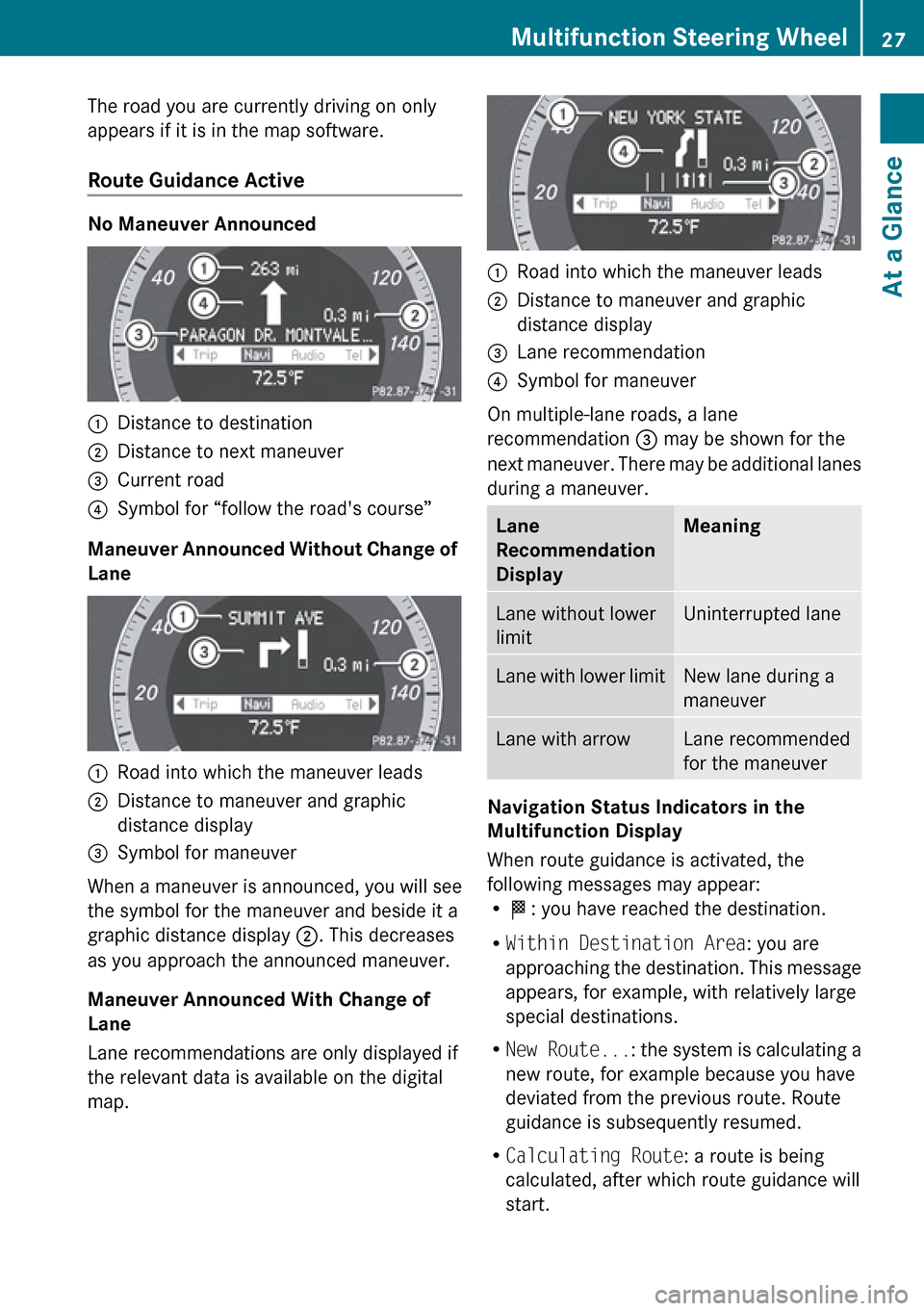
No Maneuver Announced
1Distance to destination2Distance to next maneuver3Current road4Symbol for “follow the road's course”
Maneuver Announced Without Change of
Lane
1Road into which the maneuver leads2Distance to maneuver and graphic
distance display3Symbol for maneuver
When a maneuver is announced, you will see
the symbol for the maneuver and beside it a
graphic distance display 2. This decreases
as you approach the announced maneuver.
Maneuver Announced With Change of
Lane
Lane recommendations are only displayed if
the relevant data is available on the digital
map.
1Road into which the maneuver leads2Distance to maneuver and graphic
distance display3Lane recommendation4Symbol for maneuver
On multiple-lane roads, a lane
recommendation 3 may be shown for the
next maneuver. There may be additional lanes
during a maneuver.
Lane
Recommendation
DisplayMeaningLane without lower
limitUninterrupted laneLane with lower limitNew lane during a
maneuverLane with arrowLane recommended
for the maneuver
Navigation Status Indicators in the
Multifunction Display
When route guidance is activated, the
following messages may appear:
R < : you have reached the destination.
R Within Destination Area : you are
approaching the destination. This message
appears, for example, with relatively large
special destinations.
R New Route... : the system is calculating a
new route, for example because you have
deviated from the previous route. Route
guidance is subsequently resumed.
R Calculating Route : a route is being
calculated, after which route guidance will
start.
Multifunction Steering Wheel27At a GlanceZ
Page 30 of 224
ROff Map : the vehicle is outside the range
of the digital map. The vehicle is in an off-
map position.
R Off Mapped Road : the vehicle is on a road
which is not in the digital map, or is away
from the road, for example in a car park.
R No Route : no route to the selected
destination could be calculated.
Audio Menu
Use the functions in the Audio menu to
operate the audio equipment. If no audio
equipment is switched on, the multifunction
display shows the message Audio Off.
XTo adjust the volume: Press the W or
X button.
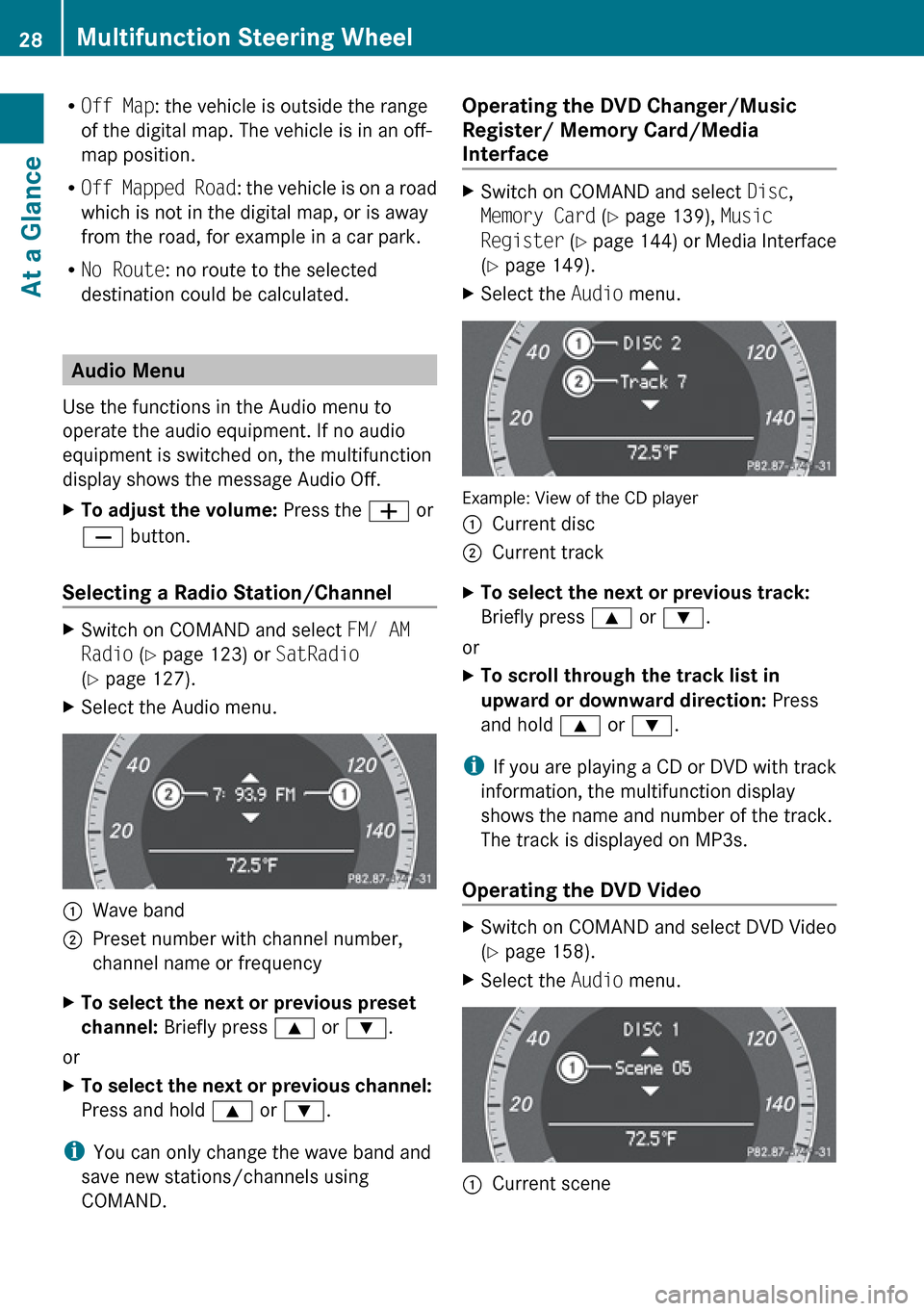
Selecting a Radio Station/Channel
XSwitch on COMAND and select FM/ AM
Radio (Y page 123) or SatRadio
( Y page 127).XSelect the Audio menu.1Wave band2Preset number with channel number,
channel name or frequencyXTo select the next or previous preset
channel: Briefly press 9 or : .
or
XTo select the next or previous channel:
Press and hold 9 or : .
i
You can only change the wave band and
save new stations/channels using
COMAND.
Operating the DVD Changer/Music
Register/ Memory Card/Media
Interface XSwitch on COMAND and select Disc,
Memory Card (Y page 139), Music
Register (Y page 144) or Media Interface
( Y page 149).XSelect the Audio menu.
Example: View of the CD player
1Current disc2Current trackXTo select the next or previous track:
Briefly press 9 or : .
or
XTo scroll through the track list in
upward or downward direction: Press
and hold 9 or : .
i
If you are playing a CD or DVD with track
information, the multifunction display
shows the name and number of the track.
The track is displayed on MP3s.
Operating the DVD Video
XSwitch on COMAND and select DVD Video
( Y page 158).XSelect the Audio menu.1Current scene28Multifunction Steering WheelAt a Glance
Page 31 of 224
XTo select the next or previous scene:
Briefly press 9 or : .XTo search for the next or previous
scene: Press and hold 9 or : .
Tel Menu
GWarning
Some jurisdictions prohibit the driver from
using a cellular telephone while driving.
Whether or not prohibited by law, for safety
reasons, the driver should not use the cellular
telephone while the vehicle is in motion. Stop
the vehicle in a safe location before placing or
answering a call.
If you nonetheless choose to use the mobile
phone while driving, please use the handsfree
feature and be sure to pay attention to the
traffic situation at all times. Use the mobile
phone only when road, weather and traffic
conditions permit. Otherwise, you may not be
able to observe traffic conditions and could
endanger yourself and others.
Bear in mind that at a speed of just 30 mph
(approximately 50 km/h), your vehicle is
covering a distance of 44 feet (approximately
14 m) every second.
You can use the functions in the Tel menu to
operate your mobile phone.
XSwitch on COMAND ( Y page 34).XSelect the Tel menu ( Y page 102).
Mobile Phone Status
R
If the mobile phone has not yet been
authorized, the message in the
multifunction display is:
Ready for Bluetooth Telephony...
( Y page 99).
R If the mobile phone is switched on and
authorized, the message Phone READY
appears in the multifunction display.
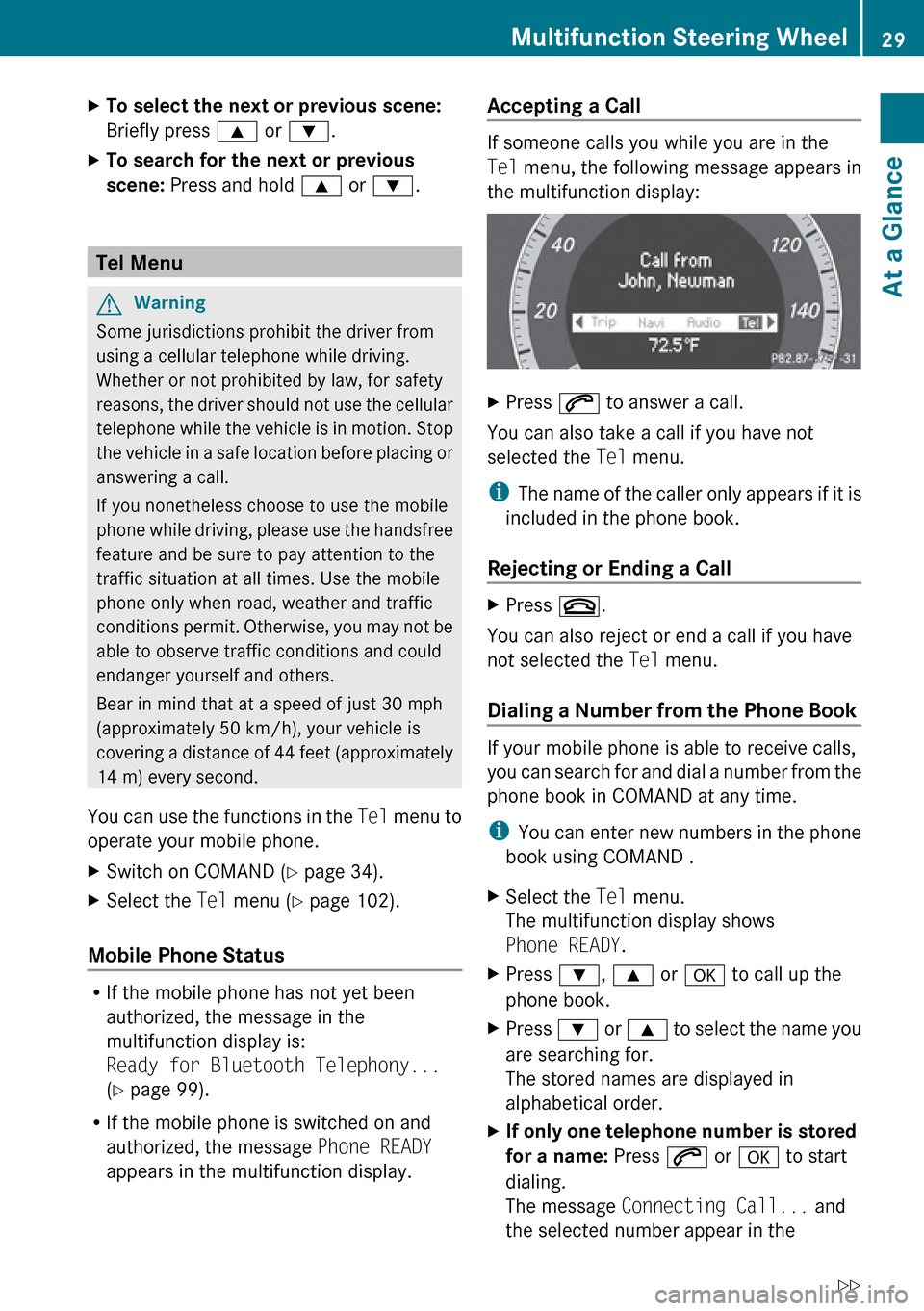
Accepting a Call
If someone calls you while you are in the
Tel menu, the following message appears in
the multifunction display:
XPress 6 to answer a call.
You can also take a call if you have not
selected the Tel menu.
i The name of the caller only appears if it is
included in the phone book.
Rejecting or Ending a Call
XPress ~.
You can also reject or end a call if you have
not selected the Tel menu.
Dialing a Number from the Phone Book
If your mobile phone is able to receive calls,
you can search for and dial a number from the
phone book in COMAND at any time.
i You can enter new numbers in the phone
book using COMAND .
XSelect the Tel menu.
The multifunction display shows
Phone READY .XPress :, 9 or a to call up the
phone book.XPress : or 9 to select the name you
are searching for.
The stored names are displayed in
alphabetical order.XIf only one telephone number is stored
for a name: Press 6 or a to start
dialing.
The message Connecting Call... and
the selected number appear in theMultifunction Steering Wheel29At a GlanceZ
Page 33 of 224
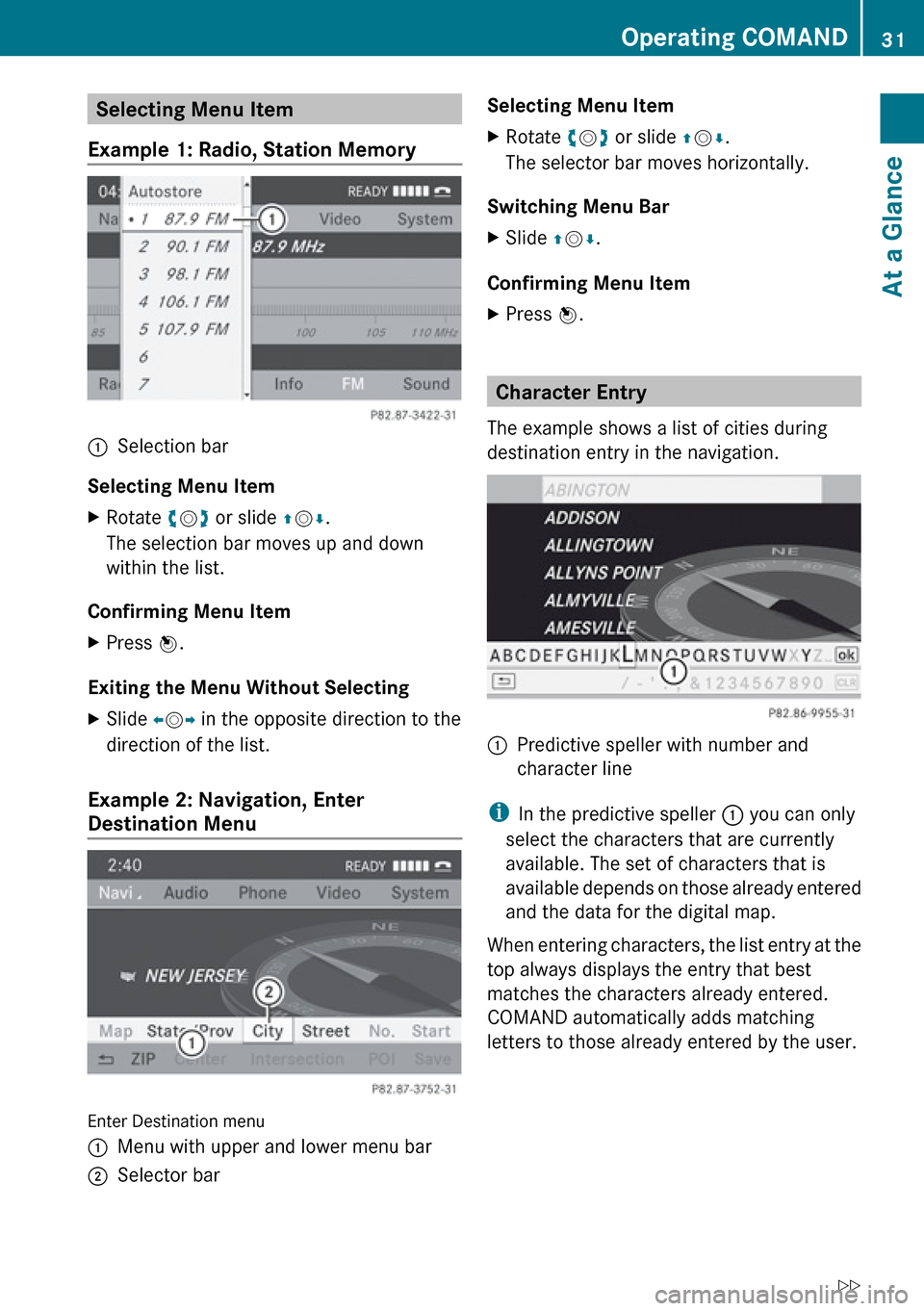
Selecting Menu Item
Example 1: Radio, Station Memory1Selection bar
Selecting Menu Item
XRotate ym z or slide qm r.
The selection bar moves up and down
within the list.
Confirming Menu Item
XPress n.
Exiting the Menu Without Selecting
XSlide om p in the opposite direction to the
direction of the list.
Example 2: Navigation, Enter
Destination Menu
Enter Destination menu
1Menu with upper and lower menu bar2Selector barSelecting Menu ItemXRotate ym z or slide qm r.
The selector bar moves horizontally.
Switching Menu Bar
XSlide qm r.
Confirming Menu Item
XPress n.
Character Entry
The example shows a list of cities during
destination entry in the navigation.
1Predictive speller with number and
character line
i In the predictive speller 1 you can only
select the characters that are currently
available. The set of characters that is
available depends on those already entered
and the data for the digital map.
When entering characters, the list entry at the
top always displays the entry that best
matches the characters already entered.
COMAND automatically adds matching
letters to those already entered by the user.
Operating COMAND31At a GlanceZ
Page 39 of 224
Dolby Digital
DTS
MLP
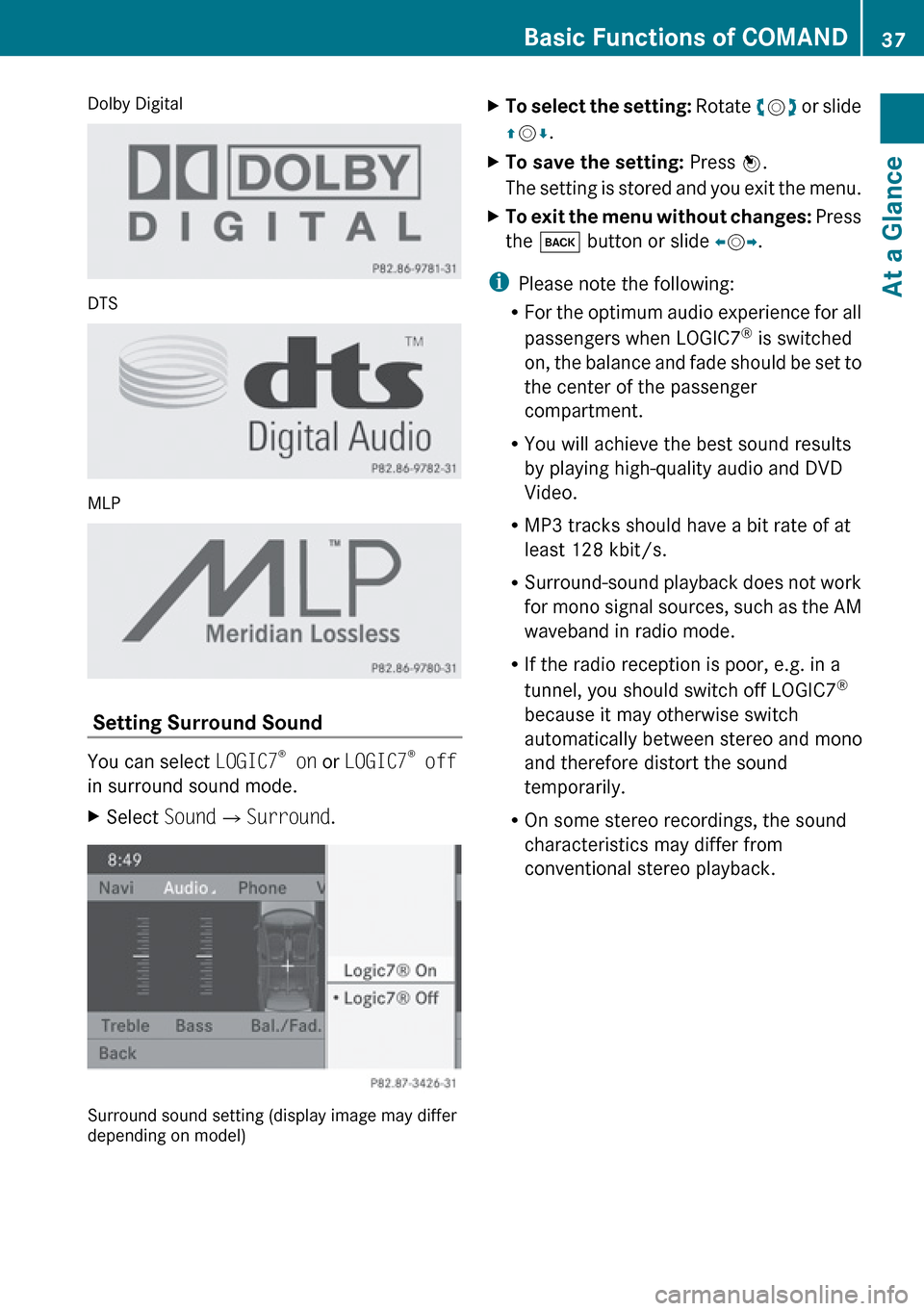
Setting Surround Sound
You can select LOGIC7®
on or LOGIC7 ®
off
in surround sound mode.
XSelect Sound£Surround .
Surround sound setting (display image may differ
depending on model)
XTo select the setting: Rotate ym z or slide
q m r.XTo save the setting: Press n.
The setting is stored and you exit the menu.XTo exit the menu without changes: Press
the k button or slide om p.
i
Please note the following:
R For the optimum audio experience for all
passengers when LOGIC7 ®
is switched
on, the balance and fade should be set to
the center of the passenger
compartment.
R You will achieve the best sound results
by playing high-quality audio and DVD
Video.
R MP3 tracks should have a bit rate of at
least 128 kbit/s.
R Surround-sound playback does not work
for mono signal sources, such as the AM
waveband in radio mode.
R If the radio reception is poor, e.g. in a
tunnel, you should switch off LOGIC7 ®
because it may otherwise switch
automatically between stereo and mono
and therefore distort the sound
temporarily.
R On some stereo recordings, the sound
characteristics may differ from
conventional stereo playback.
Basic Functions of COMAND37At a GlanceZ
Page 42 of 224
System Menu Overview
Vehicle Equipment
i This Operator’s Manual describes all
features, standard or optional, potentially
available for your vehicle at the time of
purchase. Please be aware that your
vehicle might not be equipped with all
features described in this manual.
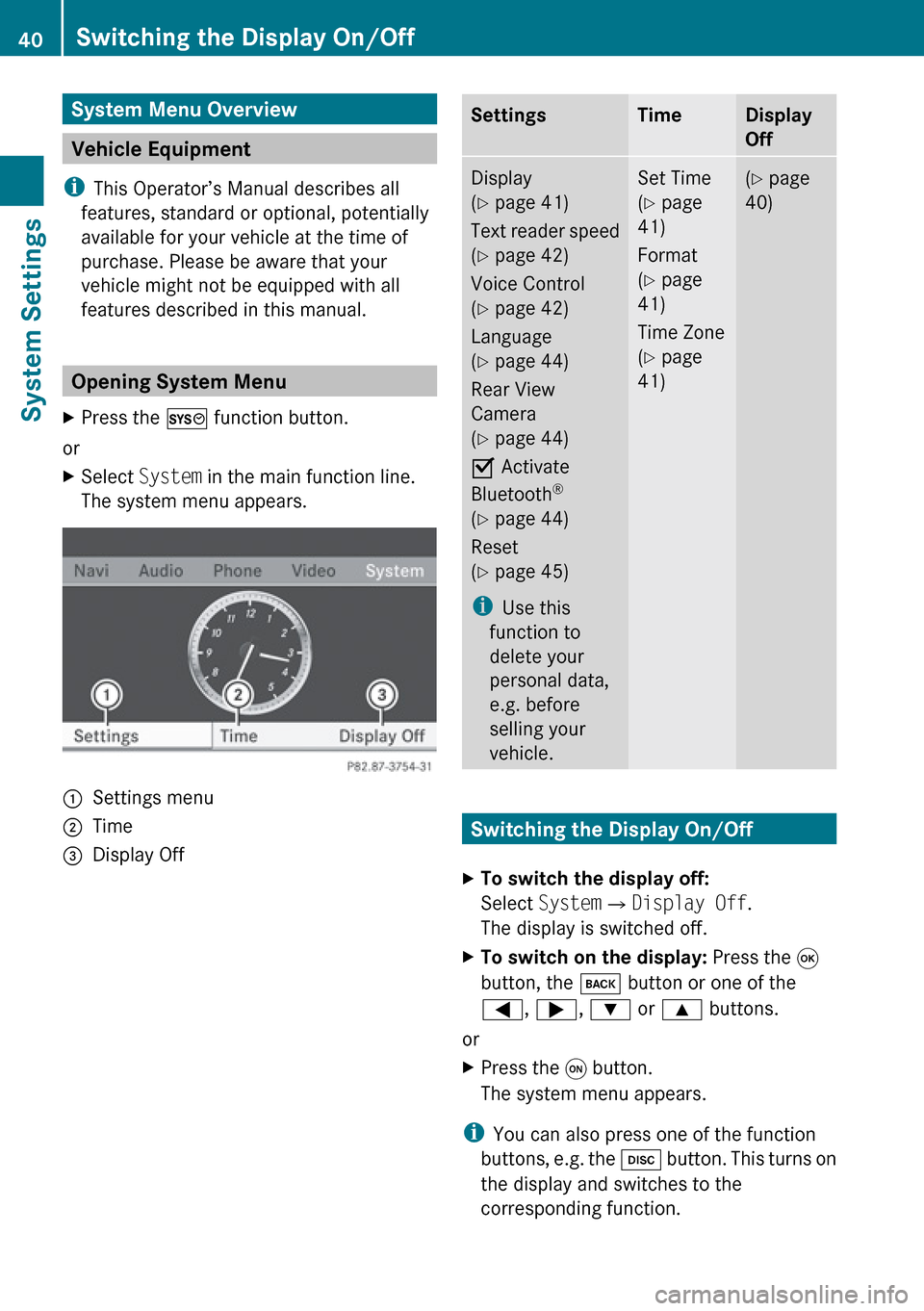
Opening System Menu
XPress the W function button.
or
XSelect System in the main function line.
The system menu appears.1Settings menu2Time=Display OffSettingsTimeDisplay
OffDisplay
( Y page 41)
Text reader speed
( Y page 42)
Voice Control
( Y page 42)
Language
( Y page 44)
Rear View
Camera
( Y page 44)
O Activate
Bluetooth ®
( Y page 44)
Reset
( Y page 45)
i Use this
function to
delete your
personal data,
e.g. before
selling your
vehicle.Set Time
( Y page
41)
Format
( Y page
41)
Time Zone
( Y page
41)( Y page
40)
Switching the Display On/Off
XTo switch the display off:
Select System £Display Off .
The display is switched off.XTo switch on the display: Press the 9
button, the k button or one of the
= , ; , : or 9 buttons.
or
XPress the q button.
The system menu appears.
i You can also press one of the function
buttons, e.g. the h button. This turns on
the display and switches to the
corresponding function.
40Switching the Display On/OffSystem Settings
Page 44 of 224
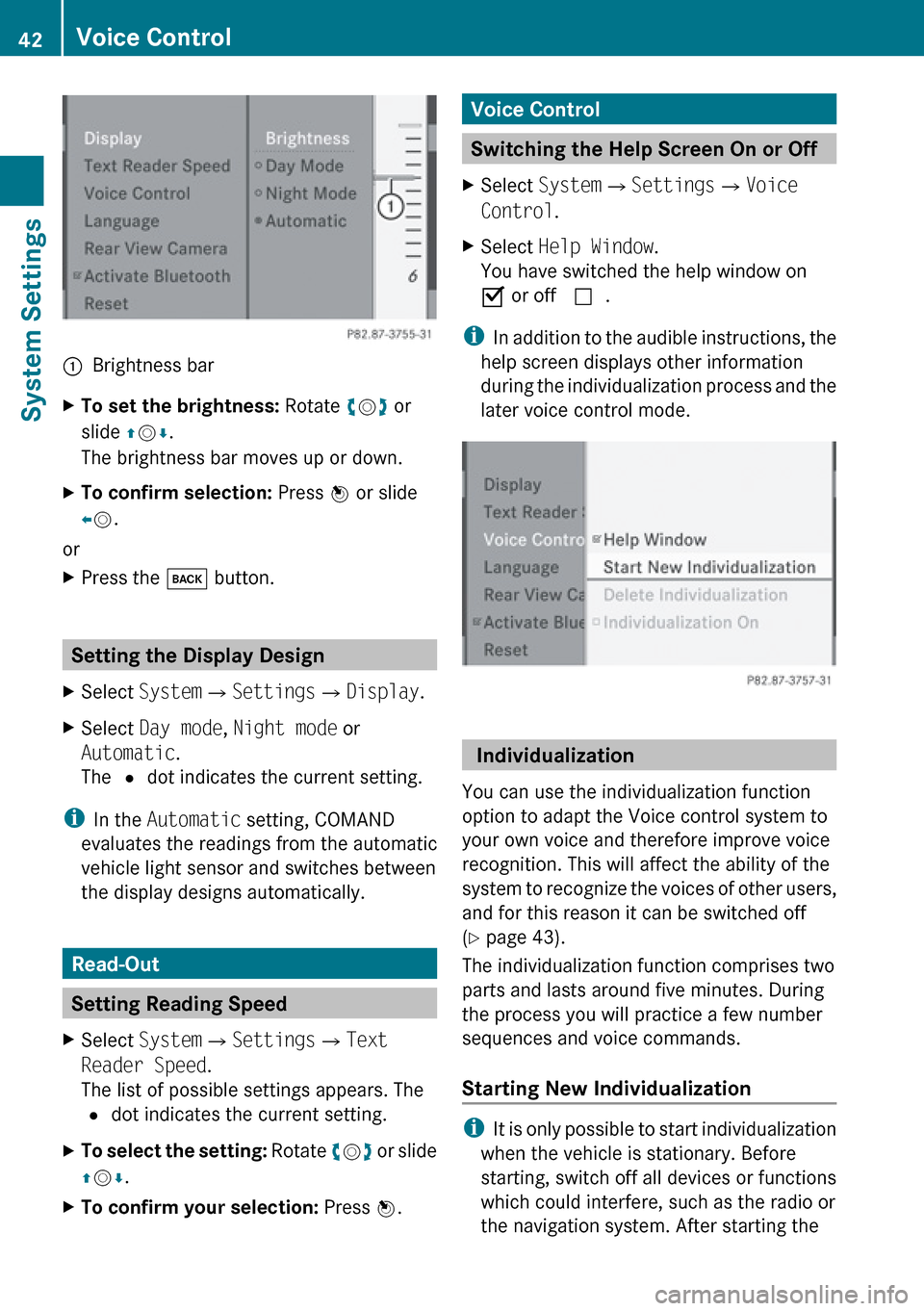
1Brightness barXTo set the brightness: Rotate ym z or
slide qm r.
The brightness bar moves up or down.XTo confirm selection: Press n or slide
o m .
or
XPress the k button.
Setting the Display Design
XSelect System £Settings £Display .XSelect Day mode , Night mode or
Automatic .
The R dot indicates the current setting.
i
In the Automatic setting, COMAND
evaluates the readings from the automatic
vehicle light sensor and switches between
the display designs automatically.
Read-Out
Setting Reading Speed
XSelect System £Settings £Text
Reader Speed .
The list of possible settings appears. The
R dot indicates the current setting.XTo select the setting: Rotate ym z or slide
q m r.XTo confirm your selection: Press n.Voice Control
Switching the Help Screen On or Off
XSelect System £Settings £Voice
Control .XSelect Help Window .
You have switched the help window on
Ç or off c.
i
In addition to the audible instructions, the
help screen displays other information
during the individualization process and the
later voice control mode.
Individualization
You can use the individualization function
option to adapt the Voice control system to
your own voice and therefore improve voice
recognition. This will affect the ability of the
system to recognize the voices of other users,
and for this reason it can be switched off
( Y page 43).
The individualization function comprises two
parts and lasts around five minutes. During
the process you will practice a few number
sequences and voice commands.
Starting New Individualization
i It is only possible to start individualization
when the vehicle is stationary. Before
starting, switch off all devices or functions
which could interfere, such as the radio or
the navigation system. After starting the
42Voice ControlSystem Settings
Page 46 of 224
Language Setting
This function allows you to determine the
language for the menu displays and the
navigation messages. The language selection
affects the input options in the editing and
smart speller.XSelect System £Setting £Language .
The list of languages appears. The R dot
indicates the current setting.XTo select a language: Rotate ym z or slide
q m r.
The selection moves up and down.XTo confirm the language selection:
Press n.
COMAND loads the selected language and
sets it.
Rear View Camera
COMAND shows the camera picture on the
display when
R the function is switched on in the System
Settings menu and
R the vehicle is shifted into reverse gear
As soon as you shift out of reverse gear, the
previous display is shown.
i In vehicles equipped with a rear view
camera, the Video Aux connection cannot
be used for external video sources.
Switching On/Off the Display of the
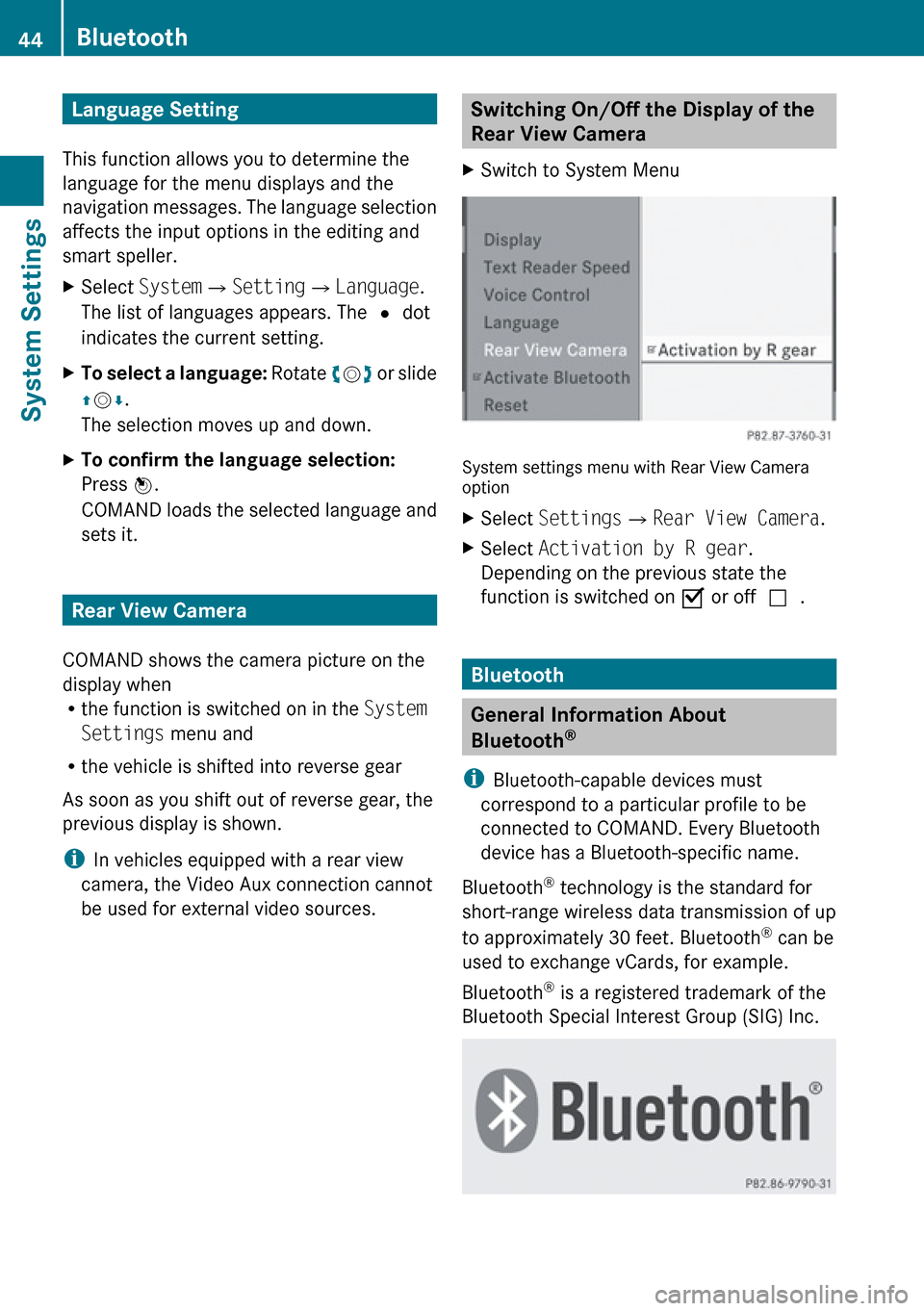
Rear View Camera XSwitch to System Menu
System settings menu with Rear View Camera
option
XSelect Settings £Rear View Camera .XSelect Activation by R gear .
Depending on the previous state the
function is switched on Ç or off c.
Bluetooth
General Information About
Bluetooth ®
i Bluetooth-capable devices must
correspond to a particular profile to be
connected to COMAND. Every Bluetooth
device has a Bluetooth-specific name.
Bluetooth ®
technology is the standard for
short-range wireless data transmission of up
to approximately 30 feet. Bluetooth ®
can be
used to exchange vCards, for example.
Bluetooth ®
is a registered trademark of the
Bluetooth Special Interest Group (SIG) Inc.
44BluetoothSystem Settings
Page 50 of 224
Introduction
Vehicle Equipment
i This Operator’s Manual describes all
features, standard or optional, potentially
available for your vehicle at the time of
purchase. Please be aware that your
vehicle might not be equipped with all
features described in this manual.
Safety Instructions
GWarning
For safety reasons, only enter a destination
when the vehicle is stationary. When the
vehicle is in motion, a passenger should enter
the destination. Study manual and select
route before driving.
Bear in mind that at a speed of just 30 mph
(approximately 50 km/h), your vehicle is
covering a distance of 44 feet (approximately
14 m) every second.
COMAND calculates the route to the
destination without taking account of the
following:
R Traffic lights
R Stop and right-of-way-signs
R Lane merging
R Parking or stopping prohibited areas
R Other road and traffic rules and regulations
R Narrow bridges
GWarning
COMAND may give incorrect navigation
commands if the data in the digital map does
not correspond with the actual road/traffic
situation. Digital maps do not cover all areas
nor all routes within an area. For example, if
the traffic routing has been changed or the
direction of a one-way road has been
reversed.
For this reason, you must always observe
applicable road and traffic rules and
regulations during your journey. Road and
traffic rules and regulations always have
priority over the navigation commands
generated by the system.GWarning
Navigation announcements are intended to
direct you while driving without diverting your
attention from the road and driving.
Please always use this feature instead of
consulting the map display for directions.
Consulting the symbols or map display for
directions may cause you to divert your
attention from driving and increase your risk
of an accident.
Updating the Map Software
The digital data for the map software will
become obsolete, just like conventional road
maps. Optimum route guidance by the
navigation system is only achieved with up-
to-date map software. Information on new
map software versions is available from an
authorized Mercedes-Benz Center.
You can have the map software updated there
by means of a DVD or perform the update
process yourself.
Notes on DVD Discs
R Only touch the discs at the edges.
R Handle the discs with care in order to
prevent reading errors.
R Avoid scratching, leaving fingerprints and
dust on the discs.
R Use a commercially available cleaning cloth
to clean discs. Always wipe in a straight line
from the inside outwards, never in a circular
motion.
R After use, put the discs back into the box.
R Protect the discs from heat and direct
sunlight.
48IntroductionNavigation
Page 52 of 224
XRemove the DVD from the slot.XHave the system software updated by an
authorized Mercedes-Benz Center.
i It will only be possible to update the map
software once the system software has
been updated.
Map Software matches the Navigation
System and the current System Software
COMAND checks whether the DVD's map
data has already been installed.
Map Data Is already installed
The version release and a corresponding
message will be given on the display.
XTo confirm message: Press n.
COMAND ejects the DVD.
Map Data is not yet installed
The version release and a query as to whether
the update should be carried out will be given
on the display.
XSelect Yes or No.
If No is selected, COMAND ejects the DVD
automatically and the map data is not
updated.XRemove the DVD from the slot.
If Yes is selected, the map data is updated.
Updating the Map Data
While the update is in progress, a
corresponding message and a progress bar
are displayed. The progress bar fills from left
to right over the course of the update. The
navigation system is not functional until the
update is complete.
You cannot eject the DVD during the update.
If you switch COMAND off during the update,
this will interrupt the update and the update
will resume at the point of interruption when
the system is restarted.
While updating, COMAND may prompt you to
change the DVD. A corresponding message
is then displayed.
XPress the Load button V.
The magazine menu appears. The magazine
compartment containing the current disc is
highlighted.XPress 9.
COMAND ejects the DVD.XRemove the DVD from the slot.XInsert the DVD requested by COMAND.
If the update has been completed
successfully, a corresponding message is
displayed.XTo confirm message: Press n.
COMAND ejects the DVD.XRemove the DVD from the slot.
The update is complete.
If the update has not been completed
successfully, a message is displayed
indicating that the map update is not
possible.
XTo confirm message: Press n.
COMAND ejects the DVD.XRemove the DVD from the slot.
An unsucessful update may be caused by one
of the following:
R DVD dirty or scratched.
XClean the DVD.
Please refer to the “Notes on DVD
discs” section ( Y page 48).XRestart the update.
R
Overheating as a result of excessively high
temperatures in the passenger
compartment.
XWait until the passenger compartment
has cooled down.XRestart the update.
Input Restriction
There is an input restriction for vehicles in
certain countries.
The restriction is active for vehicle speeds
above approx. 3 mph. The restriction is
50IntroductionNavigation