use MERCEDES-BENZ E-Class SEDAN 2010 W212 Comand Manual
[x] Cancel search | Manufacturer: MERCEDES-BENZ, Model Year: 2010, Model line: E-Class SEDAN, Model: MERCEDES-BENZ E-Class SEDAN 2010 W212Pages: 224, PDF Size: 7.4 MB
Page 53 of 224
deactivated as soon as the speed falls below
approx. 2 mph.
Certain entries cannot be made when the
restriction is active, e.g. a city or road entry.
This is indicated by the fact that certain menu
items cannot be selected.
General Information
Operational Readiness of the
Navigation System after the System
Software Update
Sometimes the installed map software is no
longer compatible following a system
software update by an authorized Mercedes-
Benz Center. In this case, the navigation
system is not operational.
XTo update map software: Proceed as
described in the “Update Process” section
( Y page 49). Use map software compatible
with the system software.
i Please note that in this case the update
must run through right to the end. If you
cancel beforehand, the navigation system
will still not be ready for operation.
After start-up or initial start-up, the navigation
system must perform a position finding
operation. As a result, you may have to drive
for some time until precise route guidance
takes place.
GPS Reception
The correct functioning of the navigation
system is also dependent on the GPS
reception. In certain situations, the GPS
reception may be impaired, distorted or even
impossible, e.g. in tunnels, multi-storey car
parks or due to snow on the GPS antenna. If
there is snow on the GPS antenna, you should
remove it. The GPS antenna is at the rear on
the vehicle's roof.
Route Guidance after Vehicle Transport
After vehicle transport (e.g. by ferry, car train
or by towing) COMAND must determine the
vehicle location again.
Position finding takes place automatically
when the vehicle is driven off again, even if
COMAND is switched off. The actual length of
time may vary from case to case.
While the vehicle is determining its position,
route guidance is subject to the following
restrictions:
R Navigation announcements, route
guidance displays and displayed street
names do not match the actual location.
R COMAND does not issue any navigation
announcements.
R The message Off Mapped Road and a
direction arrow are displayed instead of the
route guidance displays. The arrow
indicates the direction of the destination.
i Direction arrow accuracy is also
dependent on correct vehicle position
and/or direction.
Once the position finding operation has been
completed, route guidance takes place again
via navigation announcements and route
guidance displays.
Interrupting Journey during Route
Guidance
i An interruption in the journey means
parking the vehicle and switching off the
vehicle.
The continuation of the journey means
switching the vehicle on again and
continuing to drive.
Introduction51NavigationZ
Page 61 of 224
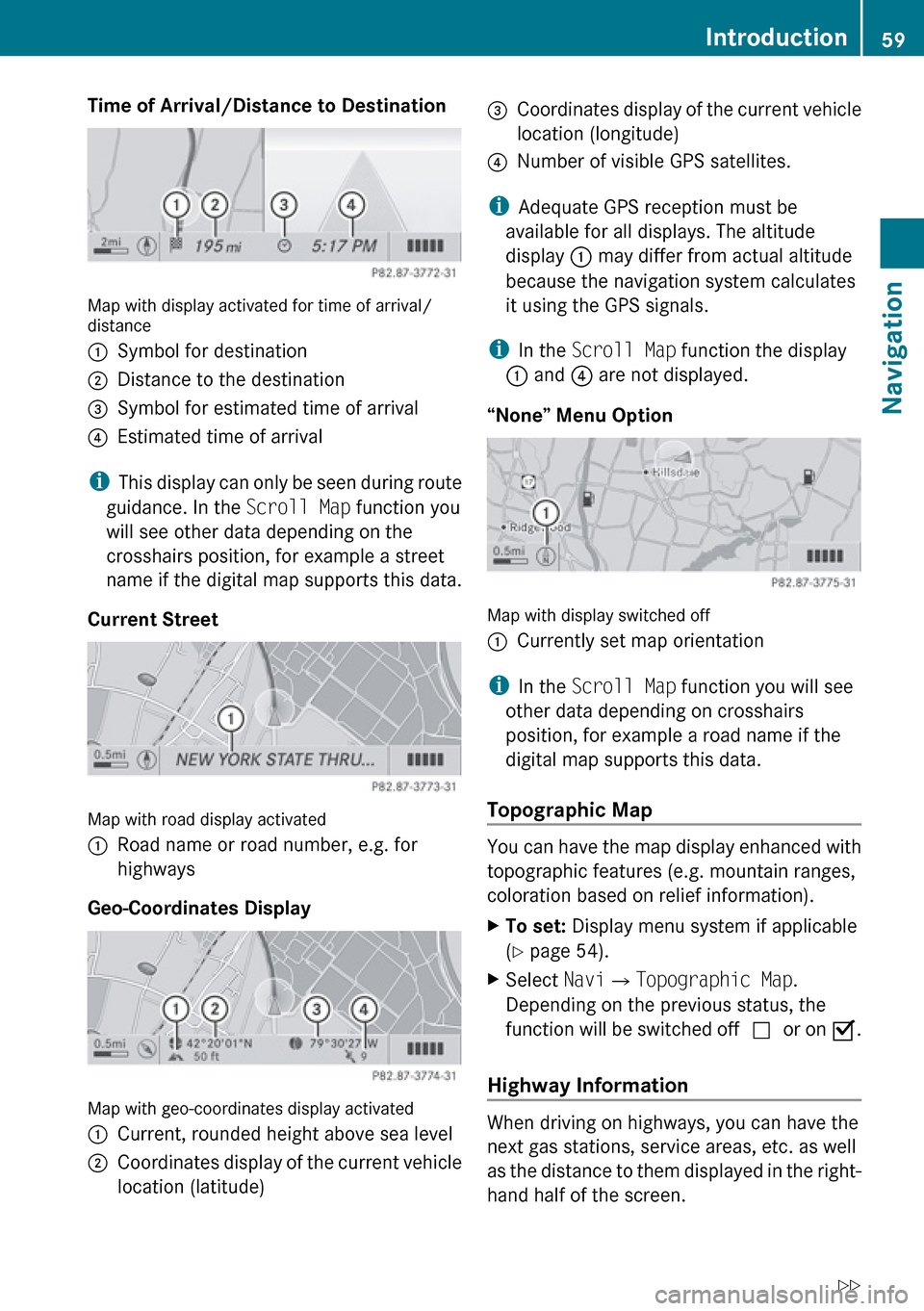
Time of Arrival/Distance to Destination
Map with display activated for time of arrival/
distance
1Symbol for destination2Distance to the destination3Symbol for estimated time of arrival4Estimated time of arrival
i This display can only be seen during route
guidance. In the Scroll Map function you
will see other data depending on the
crosshairs position, for example a street
name if the digital map supports this data.
Current Street
Map with road display activated
1Road name or road number, e.g. for
highways
Geo-Coordinates Display
Map with geo-coordinates display activated
1Current, rounded height above sea level2Coordinates display of the current vehicle
location (latitude)3Coordinates display of the current vehicle
location (longitude)4Number of visible GPS satellites.
i Adequate GPS reception must be
available for all displays. The altitude
display 1 may differ from actual altitude
because the navigation system calculates
it using the GPS signals.
i In the Scroll Map function the display
1 and 4 are not displayed.
“None” Menu Option
Map with display switched off
1Currently set map orientation
i In the Scroll Map function you will see
other data depending on crosshairs
position, for example a road name if the
digital map supports this data.
Topographic Map
You can have the map display enhanced with
topographic features (e.g. mountain ranges,
coloration based on relief information).
XTo set: Display menu system if applicable
( Y page 54).XSelect Navi£Topographic Map .
Depending on the previous status, the
function will be switched off cor on Ç.
Highway Information
When driving on highways, you can have the
next gas stations, service areas, etc. as well
as the distance to them displayed in the right-
hand half of the screen.
Introduction59NavigationZ
Page 62 of 224
XTo set: Display menu system if applicable
( Y page 54).XSelect Navi£Highway Information .
Depending on the previous status, the
function will be switched off cor on Ç.
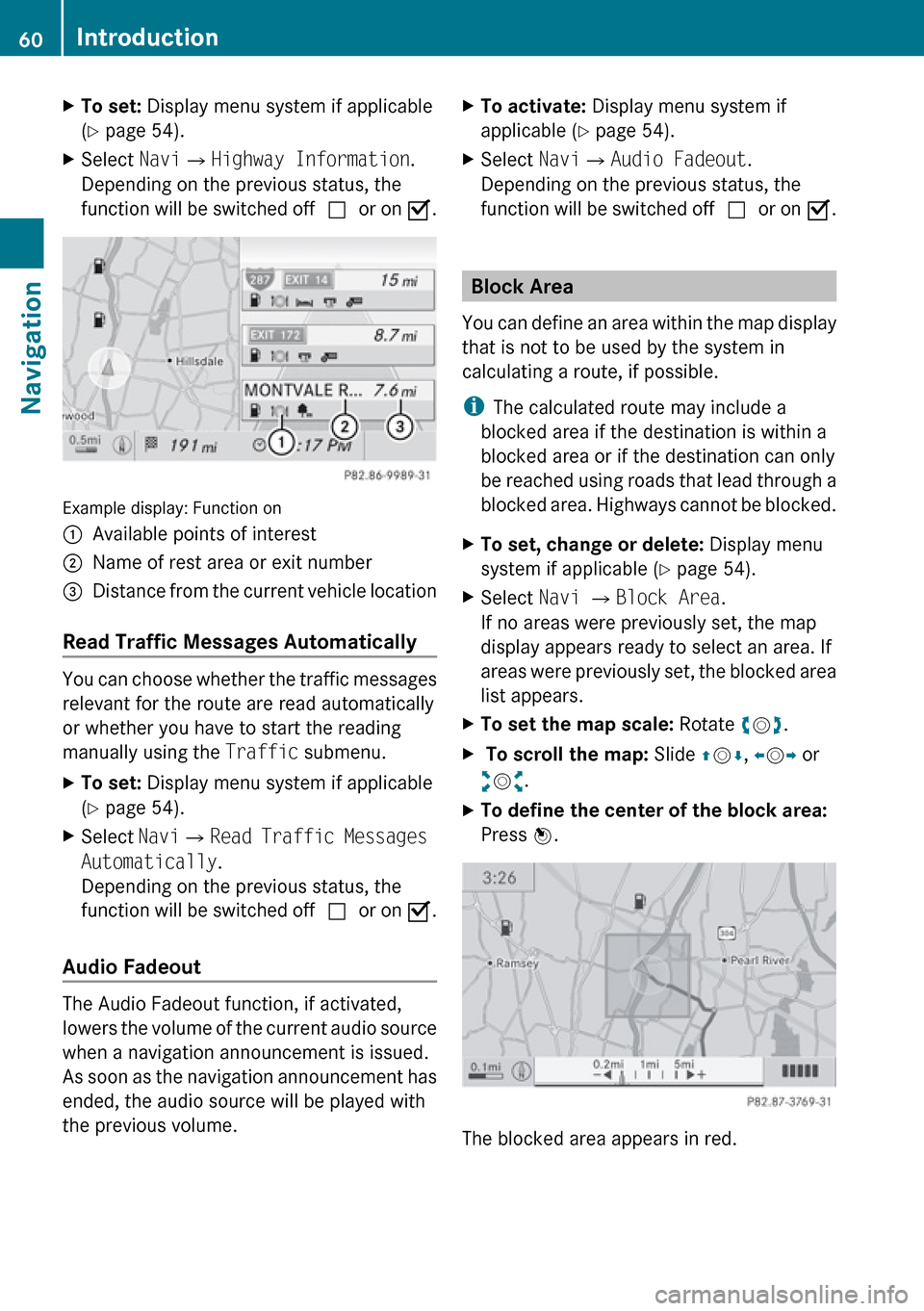
Example display: Function on
1Available points of interest2Name of rest area or exit number3Distance from the current vehicle location
Read Traffic Messages Automatically
You can choose whether the traffic messages
relevant for the route are read automatically
or whether you have to start the reading
manually using the Traffic submenu.
XTo set: Display menu system if applicable
( Y page 54).XSelect Navi£Read Traffic Messages
Automatically .
Depending on the previous status, the
function will be switched off cor on Ç.
Audio Fadeout
The Audio Fadeout function, if activated,
lowers the volume of the current audio source
when a navigation announcement is issued.
As soon as the navigation announcement has
ended, the audio source will be played with
the previous volume.
XTo activate: Display menu system if
applicable ( Y page 54).XSelect Navi£Audio Fadeout .
Depending on the previous status, the
function will be switched off cor on Ç.
Block Area
You can define an area within the map display
that is not to be used by the system in
calculating a route, if possible.
i The calculated route may include a
blocked area if the destination is within a
blocked area or if the destination can only
be reached using roads that lead through a
blocked area. Highways cannot be blocked.
XTo set, change or delete: Display menu
system if applicable ( Y page 54).XSelect Navi £ Block Area .
If no areas were previously set, the map
display appears ready to select an area. If
areas were previously set, the blocked area
list appears.XTo set the map scale: Rotate ym z.X To scroll the map: Slide qm r, o m p or
w m x.XTo define the center of the block area:
Press n.
The blocked area appears in red.
60IntroductionNavigation
Page 65 of 224
REntering a POI ( Y page 74)
R Entering a destination via the map
( Y page 72)
R Entering a stopover destination
( Y page 73)
R Entering a destination via “Search & Send”
( Y page 217)
Entering a Destination via the
Address
i In some countries it is not possible to
enter addresses at vehicle speeds above
approx. 3 mph. The function becomes
available again as soon as the speed falls
below approx. 2 mph.
The following options are available for
entering a destination via an address:
R Entering state/province, city/zip code and
street
R Entering state/province, city and city
center
R Entering state/province, city/zip code and
street and house number
R Entering state/province, city/zip code and
street and junction
R Entering street, state/province, city/zip
code and house number
Route calculation can then be started
( Y page 70).
Opening Enter Destination Menu
XIf necessary switch to navigation mode and
display menu system ( Y page 54).XSelect Destination £Address Entry .
The Enter Destination menu appears.
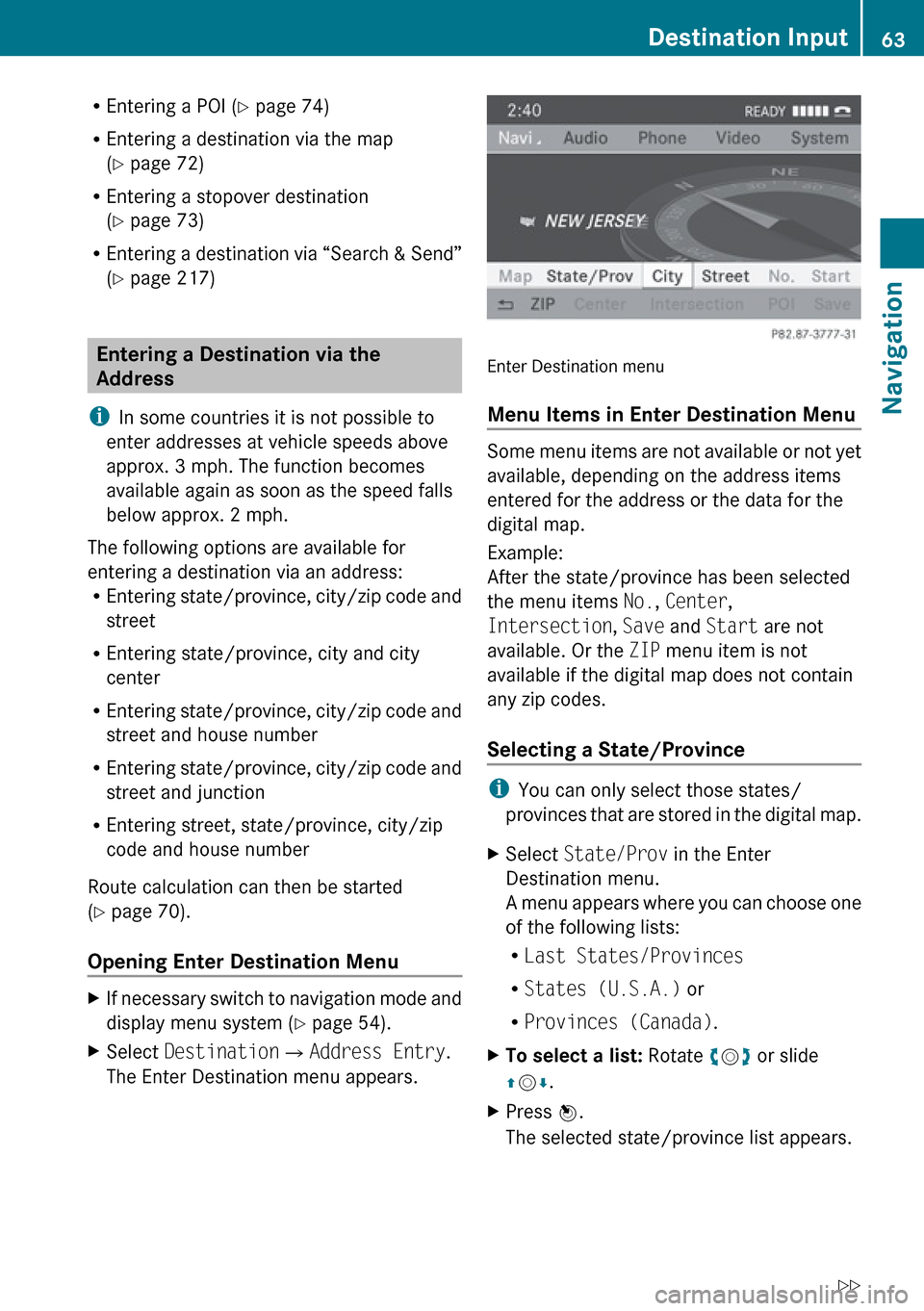
Enter Destination menu
Menu Items in Enter Destination Menu
Some menu items are not available or not yet
available, depending on the address items
entered for the address or the data for the
digital map.
Example:
After the state/province has been selected
the menu items No., Center ,
Intersection , Save and Start are not
available. Or the ZIP menu item is not
available if the digital map does not contain
any zip codes.
Selecting a State/Province
i You can only select those states/
provinces that are stored in the digital map.
XSelect State/Prov in the Enter
Destination menu.
A menu appears where you can choose one
of the following lists:
R Last States/Provinces
R States (U.S.A.) or
R Provinces (Canada) .XTo select a list: Rotate ym z or slide
q m r.XPress n.
The selected state/province list appears.Destination Input63NavigationZ
Page 66 of 224
XTo selected a state/province: Rotate
y m z or slide qm r.XPress n.
The Enter Destination menu appears again.
The selected state/province has been
entered automatically.
Entering a City
i You can only enter those cities that are
stored in the digital map. Any zip code that
has already been entered is deleted when
a city is entered.
XIn the Enter Destination menu, select
City .
The city list is displayed with or without
predictive speller. The display of the
predictive speller depends on how many
cities are available for the selected state/
province.
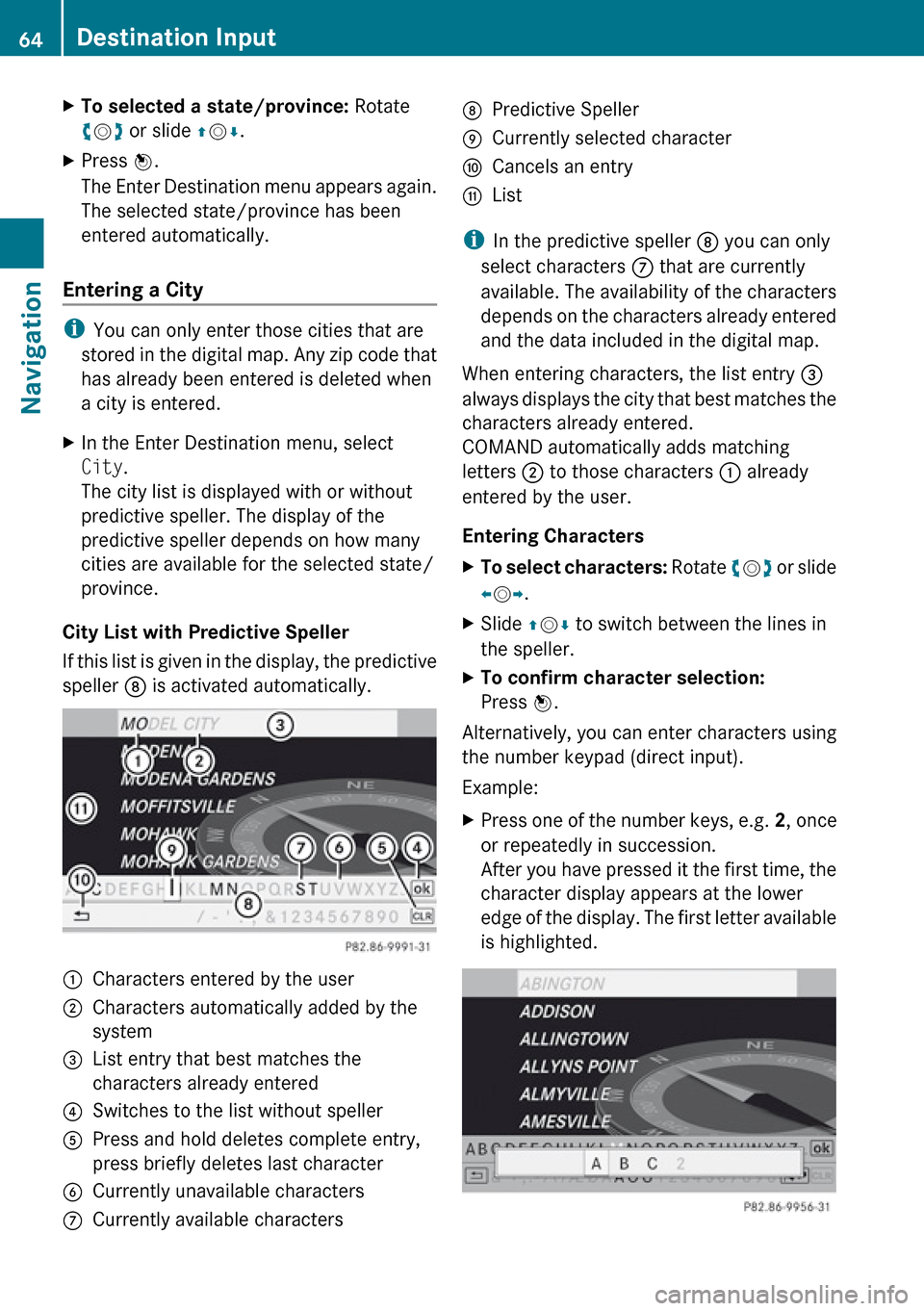
City List with Predictive Speller
If this list is given in the display, the predictive
speller 8 is activated automatically.
1Characters entered by the user2Characters automatically added by the
system3List entry that best matches the
characters already entered4Switches to the list without speller5Press and hold deletes complete entry,
press briefly deletes last character6Currently unavailable characters7Currently available characters8Predictive Speller9Currently selected characteraCancels an entrybList
i In the predictive speller 8 you can only
select characters 7 that are currently
available. The availability of the characters
depends on the characters already entered
and the data included in the digital map.
When entering characters, the list entry 3
always displays the city that best matches the
characters already entered.
COMAND automatically adds matching
letters 2 to those characters 1 already
entered by the user.
Entering Characters
XTo select characters: Rotate ym z or slide
o m p.XSlide qm r to switch between the lines in
the speller.XTo confirm character selection:
Press n.
Alternatively, you can enter characters using
the number keypad (direct input).
Example:
XPress one of the number keys, e.g. 2, once
or repeatedly in succession.
After you have pressed it the first time, the
character display appears at the lower
edge of the display. The first letter available
is highlighted.64Destination InputNavigation
Page 68 of 224
XIn the Enter Destination menu select ZIP.
The zip code list is displayed with or without
predictive speller ( Y page 64). The display
of the predictive speller depends on how
many zip codes are available for the
selected state/province.
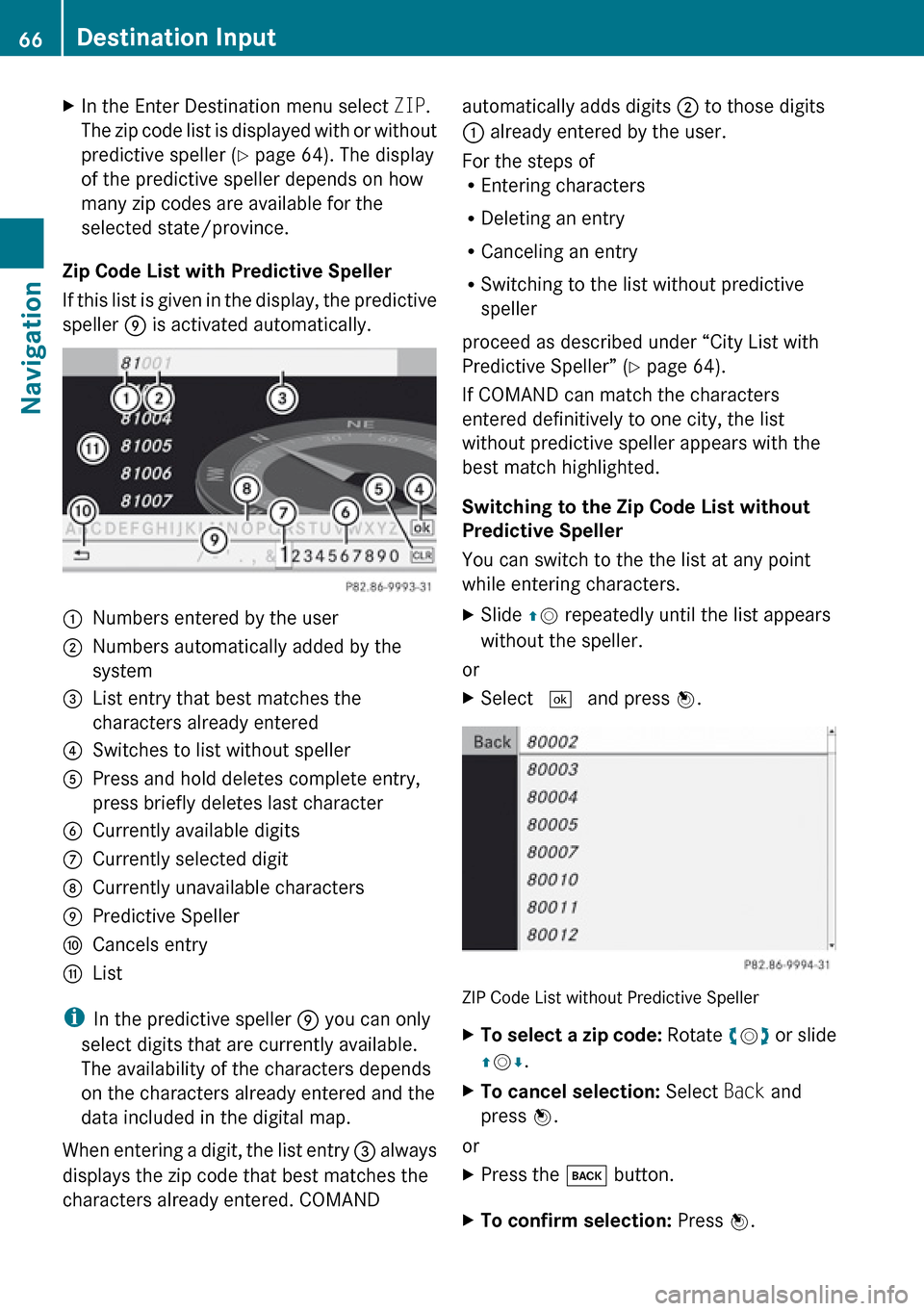
Zip Code List with Predictive Speller
If this list is given in the display, the predictive
speller 9 is activated automatically.
1Numbers entered by the user2Numbers automatically added by the
system3List entry that best matches the
characters already entered4Switches to list without speller5Press and hold deletes complete entry,
press briefly deletes last character6Currently available digits7Currently selected digit8Currently unavailable characters9Predictive SpelleraCancels entrybList
i In the predictive speller 9 you can only
select digits that are currently available.
The availability of the characters depends
on the characters already entered and the
data included in the digital map.
When entering a digit, the list entry 3 always
displays the zip code that best matches the
characters already entered. COMAND
automatically adds digits 2 to those digits
1 already entered by the user.
For the steps of
R Entering characters
R Deleting an entry
R Canceling an entry
R Switching to the list without predictive
speller
proceed as described under “City List with
Predictive Speller” ( Y page 64).
If COMAND can match the characters
entered definitively to one city, the list
without predictive speller appears with the
best match highlighted.
Switching to the Zip Code List without
Predictive Speller
You can switch to the the list at any point
while entering characters.XSlide qm repeatedly until the list appears
without the speller.
or
XSelect d and press n.
ZIP Code List without Predictive Speller
XTo select a zip code: Rotate ym z or slide
q m r.XTo cancel selection: Select Back and
press n.
or
XPress the k button.XTo confirm selection: Press n.66Destination InputNavigation
Page 70 of 224
XIn the Enter Destination menu select
Center .
The city center list is displayed.XTo select a city center: Rotate ym z or
slide qm r.XTo cancel selection: Select Back and
press n.
or
XPress the k button.XTo confirm selection: Press n.
After the confirmation, the Enter
Destination menu appears again. COMAND
has accepted the selected city center and
entered it automatically in the Enter
Destination menu.
Now you can start the route calculation
( Y page 70).
Entering a House Number
i
It is not possible to enter house numbers
until a street has been entered. You can
only enter house numbers that are stored
in the digital map. The digital map does not
contain all house numbers for all streets.
XIn the Enter Destination menu select No..
The house number list is displayed with or
without predictive speller. The display of
the predictive speller depends on how
many house numbers are available for the
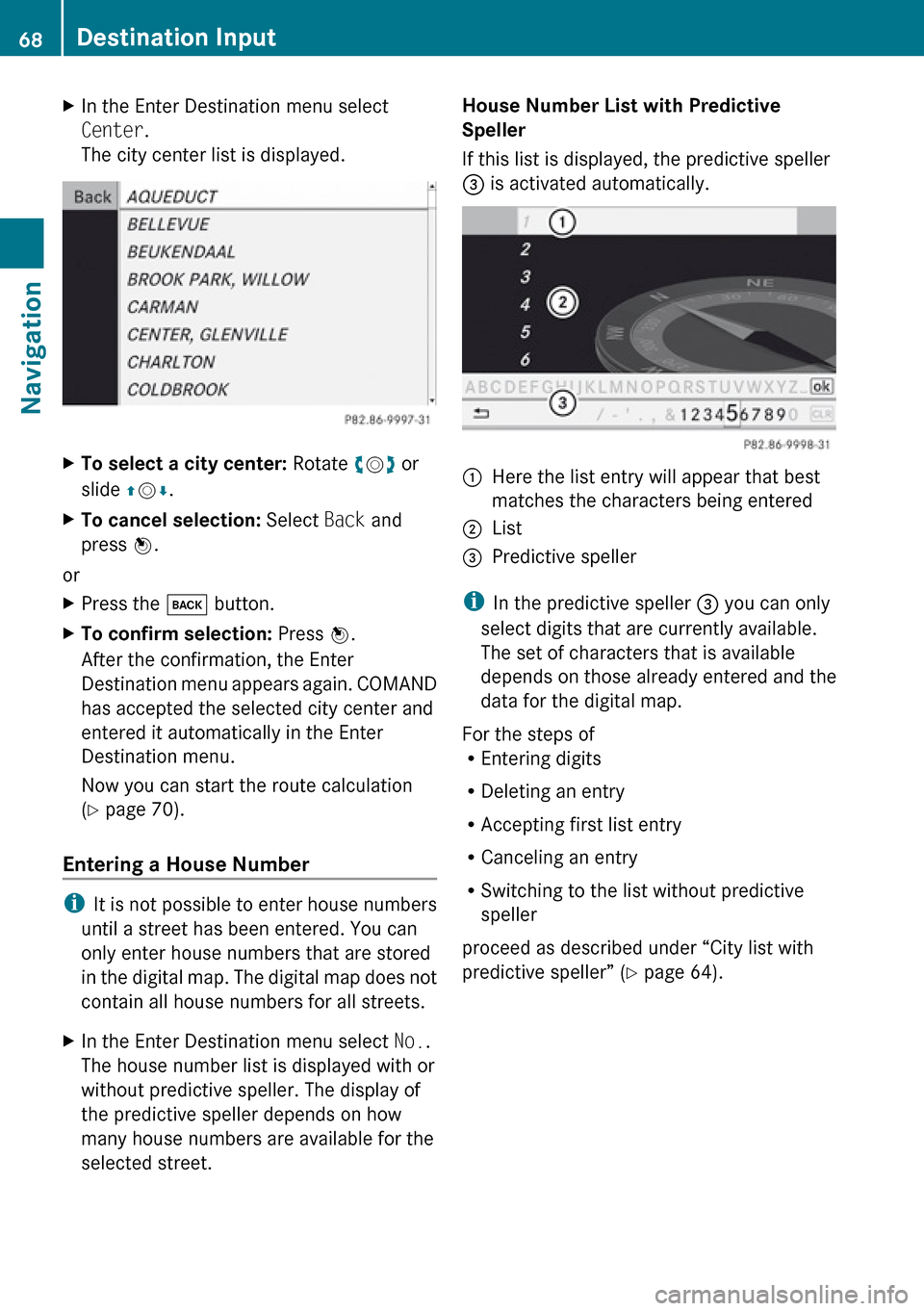
selected street.House Number List with Predictive
Speller
If this list is displayed, the predictive speller
3 is activated automatically.1Here the list entry will appear that best
matches the characters being entered2List3Predictive speller
i In the predictive speller 3 you can only
select digits that are currently available.
The set of characters that is available
depends on those already entered and the
data for the digital map.
For the steps of
R Entering digits
R Deleting an entry
R Accepting first list entry
R Canceling an entry
R Switching to the list without predictive
speller
proceed as described under “City list with
predictive speller” ( Y page 64).
68Destination InputNavigation
Page 71 of 224
House Number List Without Predictive
SpellerXTo select a house number: Rotate ym z
or slide qm r.XTo cancel selection: Select Back and
press n.
or
XPress the k button.XTo confirm selection: Press n.
After the confirmation, the Enter
Destination menu appears again. COMAND
has accepted the selected house number
and entered it automatically in the Enter
Destination menu.
Now you can start the route calculation
( Y page 70).
Entering a Junction
i
A junction can be entered once you have
entered a street ( Y page 67). You can only
enter those juntions that are stored in the
digital map.
XIn the Enter Destination menu select
Intersection .
The junction list is displayed with or without
predictive speller. The display of the
predictive speller depends on how many
junctions are available for the selected
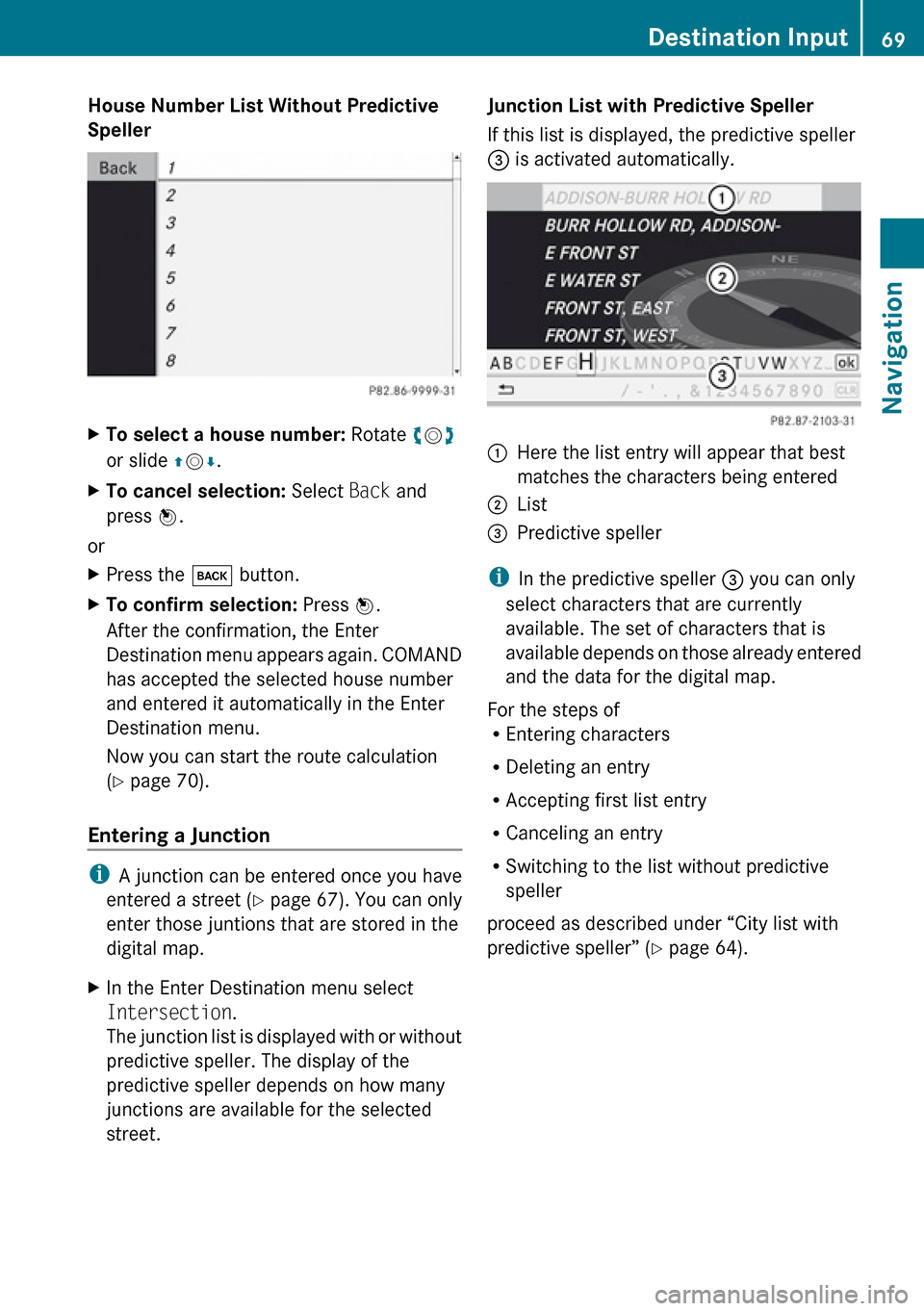
street.Junction List with Predictive Speller
If this list is displayed, the predictive speller
3 is activated automatically.1Here the list entry will appear that best
matches the characters being entered2List3Predictive speller
i In the predictive speller 3 you can only
select characters that are currently
available. The set of characters that is
available depends on those already entered
and the data for the digital map.
For the steps of
R Entering characters
R Deleting an entry
R Accepting first list entry
R Canceling an entry
R Switching to the list without predictive
speller
proceed as described under “City list with
predictive speller” ( Y page 64).
Destination Input69NavigationZ
Page 73 of 224
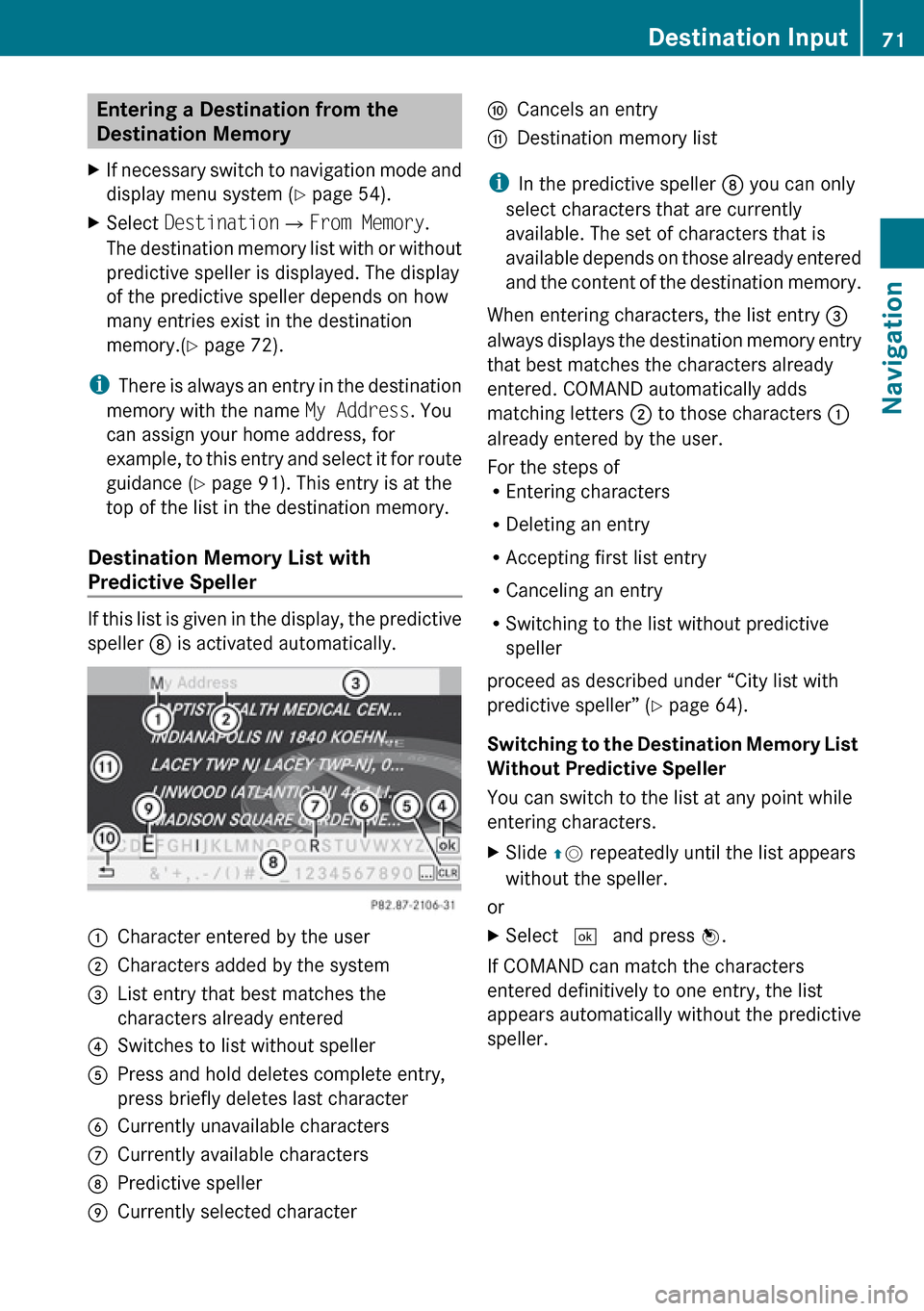
Entering a Destination from the
Destination Memory XIf necessary switch to navigation mode and
display menu system ( Y page 54).XSelect Destination £From Memory .
The destination memory list with or without
predictive speller is displayed. The display
of the predictive speller depends on how
many entries exist in the destination
memory.( Y page 72).
i
There is always an entry in the destination
memory with the name My Address. You
can assign your home address, for
example, to this entry and select it for route
guidance ( Y page 91). This entry is at the
top of the list in the destination memory.
Destination Memory List with
Predictive Speller
If this list is given in the display, the predictive
speller 8 is activated automatically.
1Character entered by the user2Characters added by the system3List entry that best matches the
characters already entered4Switches to list without speller5Press and hold deletes complete entry,
press briefly deletes last character6Currently unavailable characters7Currently available characters8Predictive speller9Currently selected characteraCancels an entrybDestination memory list
i In the predictive speller 8 you can only
select characters that are currently
available. The set of characters that is
available depends on those already entered
and the content of the destination memory.
When entering characters, the list entry 3
always displays the destination memory entry
that best matches the characters already
entered. COMAND automatically adds
matching letters 2 to those characters 1
already entered by the user.
For the steps of
R Entering characters
R Deleting an entry
R Accepting first list entry
R Canceling an entry
R Switching to the list without predictive
speller
proceed as described under “City list with
predictive speller” ( Y page 64).
Switching to the Destination Memory List
Without Predictive Speller
You can switch to the list at any point while
entering characters.
XSlide qm repeatedly until the list appears
without the speller.
or
XSelect d and press n.
If COMAND can match the characters
entered definitively to one entry, the list
appears automatically without the predictive
speller.
Destination Input71NavigationZ
Page 78 of 224
If you have entered more than the country
and the city, alphabetically sorted
categories and POIs sorted by distance in
the vicinity of the address entered are
available.
R POI via name search:
An alphabetically sorted list of all POIs is
available.
R POIs via phone number:
A numerically sorted list is available.
Selecting a Category
Depending on the number of available
categories, the main category list is displayed
either with or without predictive speller
( Y page 77).
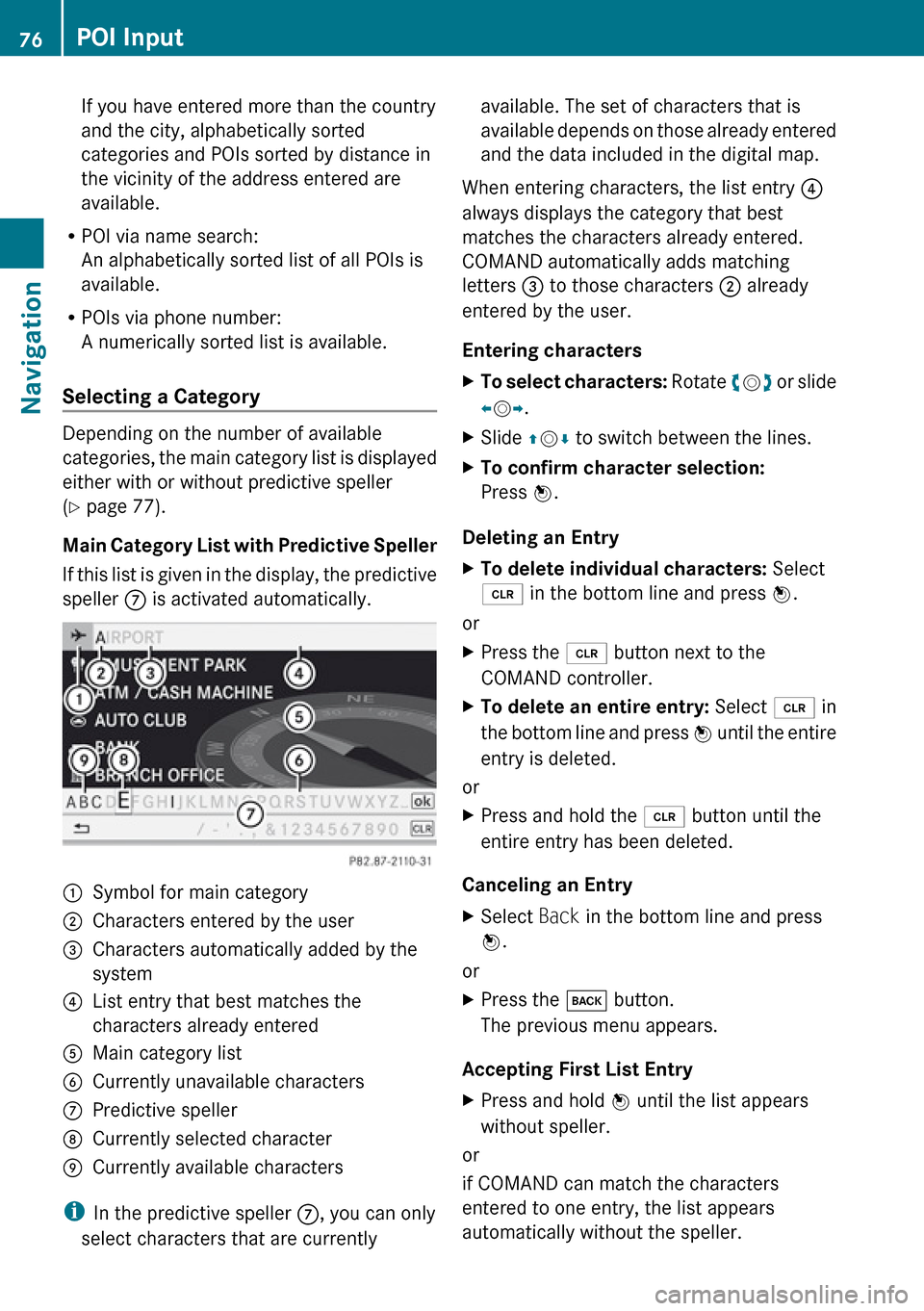
Main Category List with Predictive Speller
If this list is given in the display, the predictive
speller 7 is activated automatically.
1Symbol for main category2Characters entered by the user3Characters automatically added by the
system4List entry that best matches the
characters already entered5Main category list6Currently unavailable characters7Predictive speller8Currently selected character9Currently available characters
i In the predictive speller 7, you can only
select characters that are currently
available. The set of characters that is
available depends on those already entered
and the data included in the digital map.
When entering characters, the list entry 4
always displays the category that best
matches the characters already entered.
COMAND automatically adds matching
letters 3 to those characters 2 already
entered by the user.
Entering charactersXTo select characters: Rotate ym z or slide
o m p.XSlide qm r to switch between the lines.XTo confirm character selection:
Press n.
Deleting an Entry
XTo delete individual characters: Select
õ in the bottom line and press n.
or
XPress the 2 button next to the
COMAND controller.XTo delete an entire entry: Select õ in
the bottom line and press n until the entire
entry is deleted.
or
XPress and hold the 2 button until the
entire entry has been deleted.
Canceling an Entry
XSelect Back in the bottom line and press
n .
or
XPress the k button.
The previous menu appears.
Accepting First List Entry
XPress and hold n until the list appears
without speller.
or
if COMAND can match the characters
entered to one entry, the list appears
automatically without the speller.
76POI InputNavigation