Side MERCEDES-BENZ E-Class SEDAN 2010 W212 Comand Manual
[x] Cancel search | Manufacturer: MERCEDES-BENZ, Model Year: 2010, Model line: E-Class SEDAN, Model: MERCEDES-BENZ E-Class SEDAN 2010 W212Pages: 224, PDF Size: 7.4 MB
Page 3 of 224
Welcome to COMAND!
Please make yourself familiar with your
COMAND control unit and read the
instructions in this manual before operating
the COMAND system. This will help you derive
a greater benefit from the system. Please also
follow the instructions and warnings
contained in this manual. Ignoring them could
result in damage to the vehicle or personal
injury to you or others.
Depending on model, version and
configuration, your COMAND system
equipment may differ. Therefore, you may
find explanations for optional equipment not
installed in your vehicle. If you have any
questions about the operation of any
equipment, your authorized Mercedes-Benz
Center will be glad to demonstrate the proper
procedures.
We continuously strive to improve our
product and ask for your understanding that
we reserve the right to make changes in
design and equipment. Therefore,
information, illustrations and descriptions in
this manual might differ from the equipment
installed in your vehicle. As such, the
information, illustrations and descriptions
contained in this manual may not be
reasonably relied upon in making any claims
with respect to the actual performance of the
product.
These operating instructions form an integral
part of the vehicle and should therefore
always be kept inside the vehicle and passed
on to the new owner if the vehicle is sold.
We extend our best wishes for many miles of
safe, pleasurable driving.
Mercedes-Benz USA, LLC
A Daimler Company
Page 13 of 224
switching to ................................... 123
voice control with ..................201, 209
Random track playback .................... 144
rear seat entertainment system .....176
Read-aloud announcements ............... 87
navigation ........................................ 85
settings for ...................................... 42
see Navigation announcements
see Traffic messages
Read CD Database function .............. 143
Reading out address book ................ 200
Real-time traffic notifications ............ 87
Rear audio option .............................. 122
Rear compartment socket ................ 169
Rear seat entertainment
active source from COMAND .........182
Rear seat entertainment
system ................................................ 166
audio operation .............................. 173
Aux operation ................................ 181
basic functions .............................. 170
system settings ............................. 172
video operation .............................. 177
Rear view camera, switching on/
off ......................................................... 44
Received calls, list of ........................ 106
Receive volume (phone) ................... 101
Recommended lane, defined .............. 83
Redialing telephone ............................ 30
voice control for ............................ 191
Registering mobile phones ................. 99
Rejecting incoming calls ............ 29, 109
Remote control, rear seat
entertainment .................................... 167
batteries for ................................... 170
Removing discs and memory
cards ................................................... 136
Rewind (reverse)
main audio playback ......................142
rear seat entertainment system .....175
video playback ....................... 159, 178
Roadside assistance ......................... 216
Route calculation ................................ 70
history of, saving .............................. 95
points of interest (POIs) .............79, 80
with home address ..........................92
see Last Destinations Route guidance .............................. 60, 80
after vehicle transport .....................51
blocked areas .................................. 60
canceling or resuming ...................... 85
detours and alternative routes .........85
driving maneuvers ........................... 80
lane recommendations ....................83
navigation
announcements ...........34, 81, 85, 186
off-map routes ................................. 83
off-road routes ................................. 83
Route browser ................................. 86
saving calculations for .....................95
stopover destinations ......................73
traffic lane recommendations ..........83
traffic messages .............................. 87
voice control for ............................ 196
with home address ..........................92
see Last Destinations
Route mode .......................................... 55
S
Satellite radio .................................... 127
category selection .................129, 202
Displaying information ...................131
Memory functions ..........................130
Selecting a channel .......................129
selecting channels .........................202
Switching on .................................. 128
Updating channels .........................131
voice control with ..................201, 209
Saving route calculations
see Last Destinations
Scale of navigation map, setting ....... 54
Scene selection
main system .................................. 160
rear seat entertainment system .....179
Scrolling navigation map .................... 54
Search & Send ................................... 217
Search & Send service ...................... 217
Searching (See also Predictive speller)
address book ......................... 199, 200
audio tracks ................................... 141
for mobile phones ............................ 99
phone book ...................................... 29
points of interest (POIs) ...................76
see Track selection (audio)
Index11
Page 29 of 224
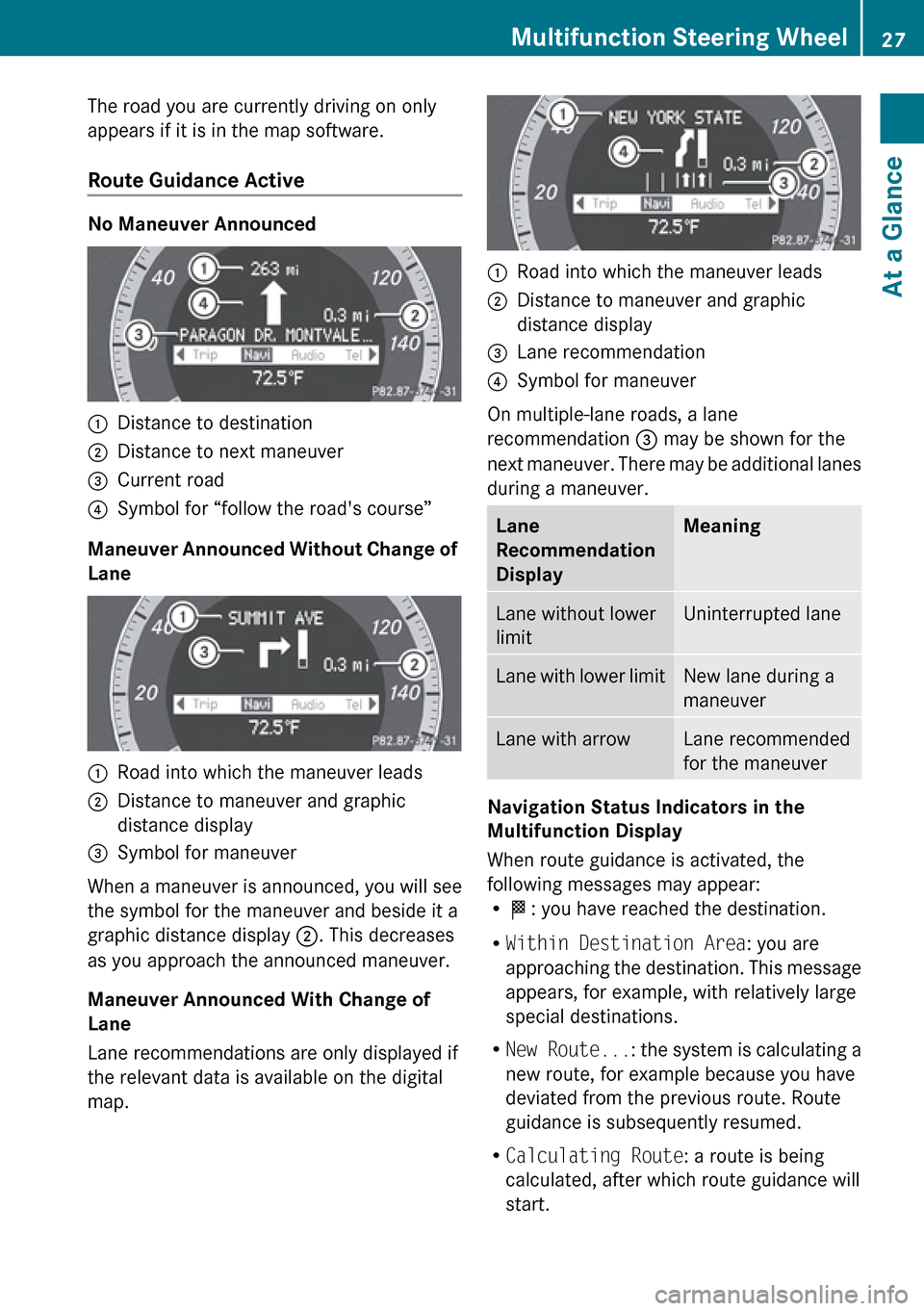
The road you are currently driving on only
appears if it is in the map software.
Route Guidance Active
No Maneuver Announced
1Distance to destination2Distance to next maneuver3Current road4Symbol for “follow the road's course”
Maneuver Announced Without Change of
Lane
1Road into which the maneuver leads2Distance to maneuver and graphic
distance display3Symbol for maneuver
When a maneuver is announced, you will see
the symbol for the maneuver and beside it a
graphic distance display 2. This decreases
as you approach the announced maneuver.
Maneuver Announced With Change of
Lane
Lane recommendations are only displayed if
the relevant data is available on the digital
map.
1Road into which the maneuver leads2Distance to maneuver and graphic
distance display3Lane recommendation4Symbol for maneuver
On multiple-lane roads, a lane
recommendation 3 may be shown for the
next maneuver. There may be additional lanes
during a maneuver.
Lane
Recommendation
DisplayMeaningLane without lower
limitUninterrupted laneLane with lower limitNew lane during a
maneuverLane with arrowLane recommended
for the maneuver
Navigation Status Indicators in the
Multifunction Display
When route guidance is activated, the
following messages may appear:
R < : you have reached the destination.
R Within Destination Area : you are
approaching the destination. This message
appears, for example, with relatively large
special destinations.
R New Route... : the system is calculating a
new route, for example because you have
deviated from the previous route. Route
guidance is subsequently resumed.
R Calculating Route : a route is being
calculated, after which route guidance will
start.
Multifunction Steering Wheel27At a GlanceZ
Page 30 of 224
ROff Map : the vehicle is outside the range
of the digital map. The vehicle is in an off-
map position.
R Off Mapped Road : the vehicle is on a road
which is not in the digital map, or is away
from the road, for example in a car park.
R No Route : no route to the selected
destination could be calculated.
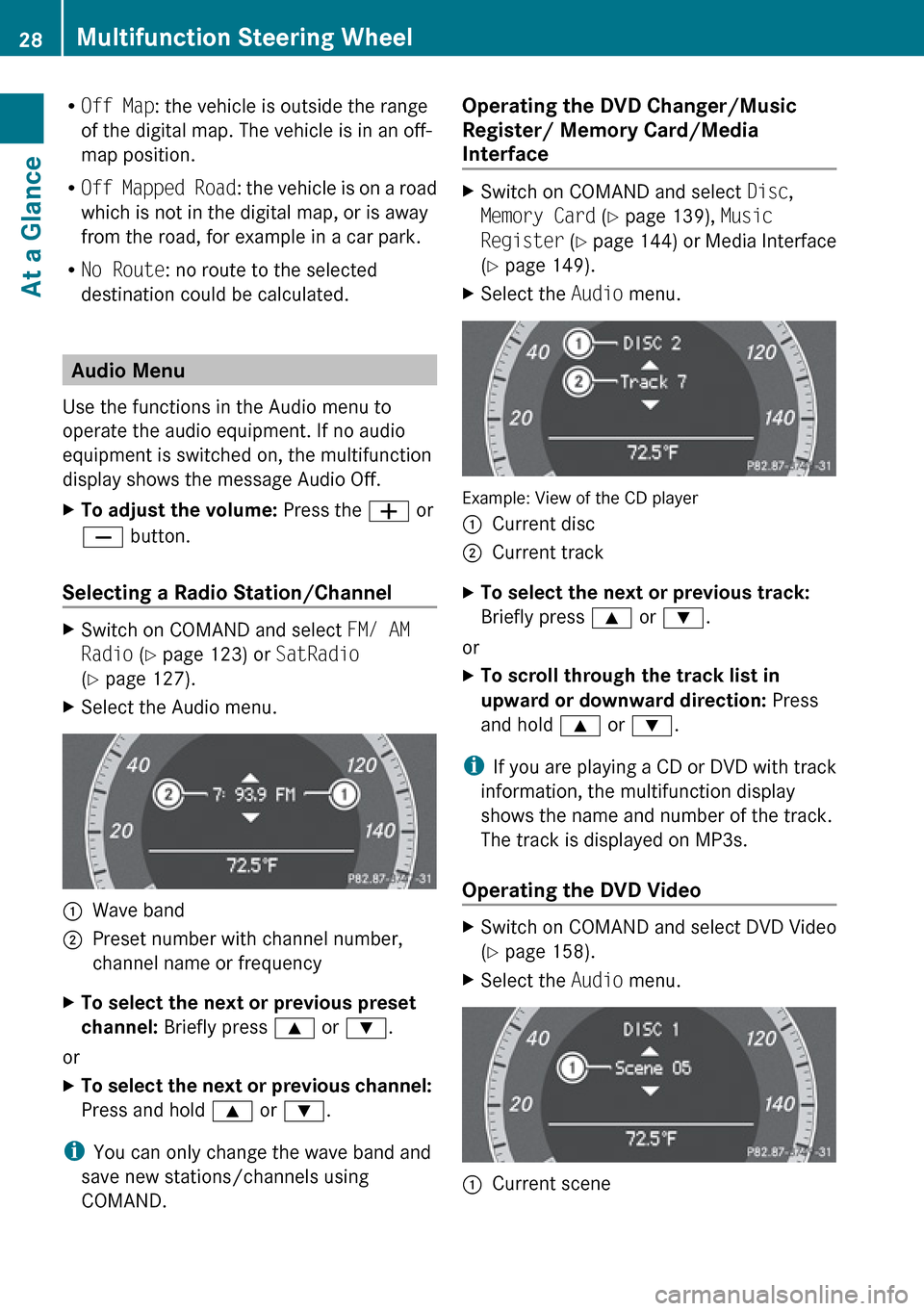
Audio Menu
Use the functions in the Audio menu to
operate the audio equipment. If no audio
equipment is switched on, the multifunction
display shows the message Audio Off.
XTo adjust the volume: Press the W or
X button.
Selecting a Radio Station/Channel
XSwitch on COMAND and select FM/ AM
Radio (Y page 123) or SatRadio
( Y page 127).XSelect the Audio menu.1Wave band2Preset number with channel number,
channel name or frequencyXTo select the next or previous preset
channel: Briefly press 9 or : .
or
XTo select the next or previous channel:
Press and hold 9 or : .
i
You can only change the wave band and
save new stations/channels using
COMAND.
Operating the DVD Changer/Music
Register/ Memory Card/Media
Interface XSwitch on COMAND and select Disc,
Memory Card (Y page 139), Music
Register (Y page 144) or Media Interface
( Y page 149).XSelect the Audio menu.
Example: View of the CD player
1Current disc2Current trackXTo select the next or previous track:
Briefly press 9 or : .
or
XTo scroll through the track list in
upward or downward direction: Press
and hold 9 or : .
i
If you are playing a CD or DVD with track
information, the multifunction display
shows the name and number of the track.
The track is displayed on MP3s.
Operating the DVD Video
XSwitch on COMAND and select DVD Video
( Y page 158).XSelect the Audio menu.1Current scene28Multifunction Steering WheelAt a Glance
Page 37 of 224
Volume of Navigation Announcements
You can set the volume for navigation
announcements independently of the volume
for the active audio or video source.
During a navigation announcement:
XTurn the q rotary/push button.
or
XPress the W or X button on the multi-
function steering wheel.
Audio Fadeout
The Audio Fadeout function, if activated,
lowers the volume of the current audio source
when a navigation announcement is issued.
As soon as the navigation announcement has
ended, the audio source will be played at the
previous volume ( Y page 60).
Setting Volume for Phone Calls
You can adjust the volume for hands-free
mode during a telephone call.
During a telephone call:
XTurn the q rotary/push button.
or
XPress the W or X button on the multi-
function steering wheel.
Sound Settings
You can select different sound settings for
each audio and video source. The sound
menu can be opened from the submenu of the
desired operating mode.
Examples:
R Audio £ FM/AM Radio £Sound
R Audio £Disc £Sound
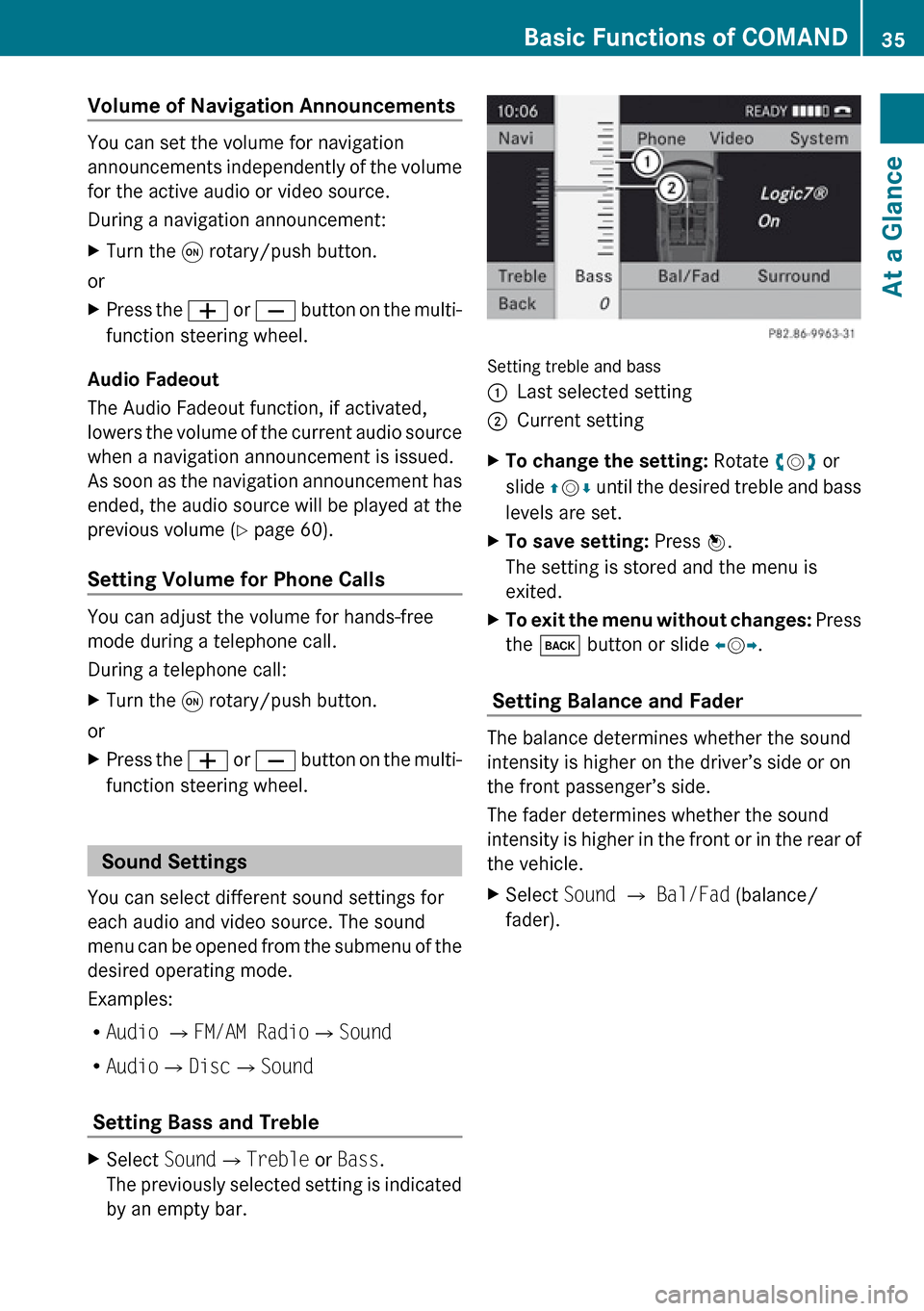
Setting Bass and Treble
XSelect Sound£Treble or Bass .
The previously selected setting is indicated
by an empty bar.
Setting treble and bass
1Last selected setting2Current settingXTo change the setting: Rotate ym z or
slide qm r until the desired treble and bass
levels are set.XTo save setting: Press n.
The setting is stored and the menu is
exited.XTo exit the menu without changes: Press
the k button or slide om p.
Setting Balance and Fader
The balance determines whether the sound
intensity is higher on the driver’s side or on
the front passenger’s side.
The fader determines whether the sound
intensity is higher in the front or in the rear of
the vehicle.
XSelect Sound £ Bal/Fad (balance/
fader).Basic Functions of COMAND35At a GlanceZ
Page 50 of 224
Introduction
Vehicle Equipment
i This Operator’s Manual describes all
features, standard or optional, potentially
available for your vehicle at the time of
purchase. Please be aware that your
vehicle might not be equipped with all
features described in this manual.
Safety Instructions
GWarning
For safety reasons, only enter a destination
when the vehicle is stationary. When the
vehicle is in motion, a passenger should enter
the destination. Study manual and select
route before driving.
Bear in mind that at a speed of just 30 mph
(approximately 50 km/h), your vehicle is
covering a distance of 44 feet (approximately
14 m) every second.
COMAND calculates the route to the
destination without taking account of the
following:
R Traffic lights
R Stop and right-of-way-signs
R Lane merging
R Parking or stopping prohibited areas
R Other road and traffic rules and regulations
R Narrow bridges
GWarning
COMAND may give incorrect navigation
commands if the data in the digital map does
not correspond with the actual road/traffic
situation. Digital maps do not cover all areas
nor all routes within an area. For example, if
the traffic routing has been changed or the
direction of a one-way road has been
reversed.
For this reason, you must always observe
applicable road and traffic rules and
regulations during your journey. Road and
traffic rules and regulations always have
priority over the navigation commands
generated by the system.GWarning
Navigation announcements are intended to
direct you while driving without diverting your
attention from the road and driving.
Please always use this feature instead of
consulting the map display for directions.
Consulting the symbols or map display for
directions may cause you to divert your
attention from driving and increase your risk
of an accident.
Updating the Map Software
The digital data for the map software will
become obsolete, just like conventional road
maps. Optimum route guidance by the
navigation system is only achieved with up-
to-date map software. Information on new
map software versions is available from an
authorized Mercedes-Benz Center.
You can have the map software updated there
by means of a DVD or perform the update
process yourself.
Notes on DVD Discs
R Only touch the discs at the edges.
R Handle the discs with care in order to
prevent reading errors.
R Avoid scratching, leaving fingerprints and
dust on the discs.
R Use a commercially available cleaning cloth
to clean discs. Always wipe in a straight line
from the inside outwards, never in a circular
motion.
R After use, put the discs back into the box.
R Protect the discs from heat and direct
sunlight.
48IntroductionNavigation
Page 51 of 224
Update Sequence
The sequence includes the following stages:
R Loading DVD into the DVD changer
R Update process
i The update process may take between 60
and 150 minutes, depending on the size of
the map software.
If possible, perform the update when the
vehicle is stationary. The DVD read speed
is faster when the vehicle is stationary than
when the vehicle is moving and the update
therefore takes less time. If you perform
the update with the engine off and the
vehicle battery is no longer powerful
enough, COMAND may shut off
automatically during the process to protect
the battery. In this case, restart the update
with the engine running.
You can interrupt the update process and
continue it at later time. If you cancel the
update process, the navigation system is
not ready for operation.
GWarning
Never leave the engine running in an enclosed
space. The exhaust gases contain carbon
monoxide. Inhaling exhaust gases constitutes
a health hazard and could lead to loss of
consciousness or even death.
Loading DVDs into DVD Changer
The DVD changer is a magazine with six built-
in compartments.
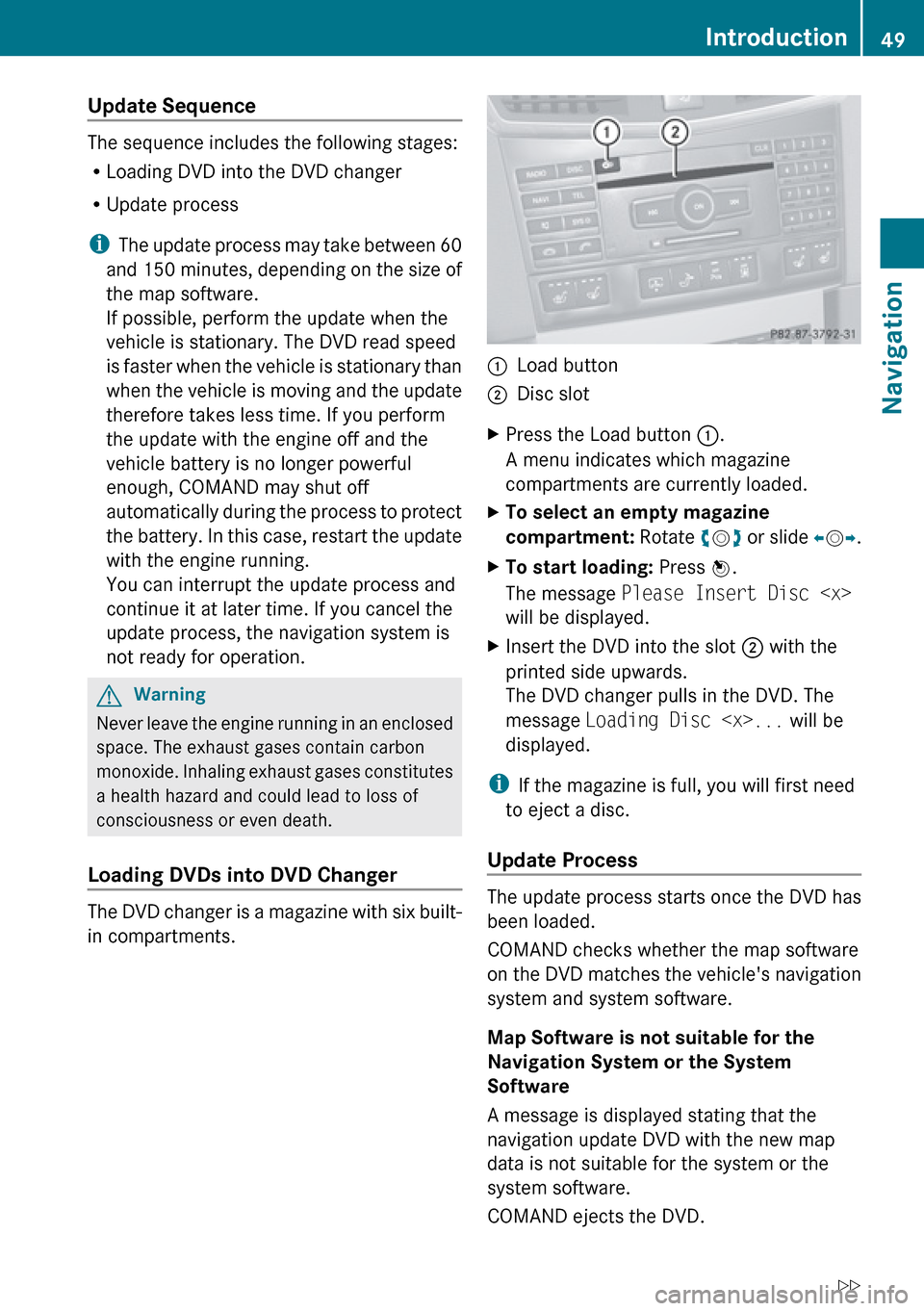
1Load button2Disc slotXPress the Load button 1.
A menu indicates which magazine
compartments are currently loaded.XTo select an empty magazine
compartment: Rotate ym z or slide om p.XTo start loading: Press n.
The message Please Insert Disc
will be displayed.XInsert the DVD into the slot 2 with the
printed side upwards.
The DVD changer pulls in the DVD. The
message Loading Disc
displayed.
i If the magazine is full, you will first need
to eject a disc.
Update Process
The update process starts once the DVD has
been loaded.
COMAND checks whether the map software
on the DVD matches the vehicle's navigation
system and system software.
Map Software is not suitable for the
Navigation System or the System
Software
A message is displayed stating that the
navigation update DVD with the new map
data is not suitable for the system or the
system software.
COMAND ejects the DVD.
Introduction49NavigationZ
Page 83 of 224
For this reason, you must always observe
applicable road and traffic rules and
regulations during your journey. Road and
traffic rules and regulations always have
priority over the navigation commands
generated by the system.
COMAND guides you to the destination by
means of driving recommendations in the
form of navigation announcements or route
guidance displays.
i The route guidance displays only appear
if the display has been switched to
navigation mode.
If, for some reason, you do not follow the
navigation announcements or if you leave the
calculated route, COMAND automatically
calculates a new route to the destination.
If the map data contains corresponding
information during route guidance, COMAND
tries to avoid roads with limited passability,
e.g. roads that are blocked for through-traffic
and are for residents only.
Driving Maneuver
Driving maneuvers are given in three phases:
R Preparation phase
R Announcement phase
R Maneuver phase
Preparation Phase
COMAND prepares you for the next driving
maneuver. Based on the example display
shown below, the announcement is made
using Prepare to turn right . The display
is not split and displays the map over the
entire width.
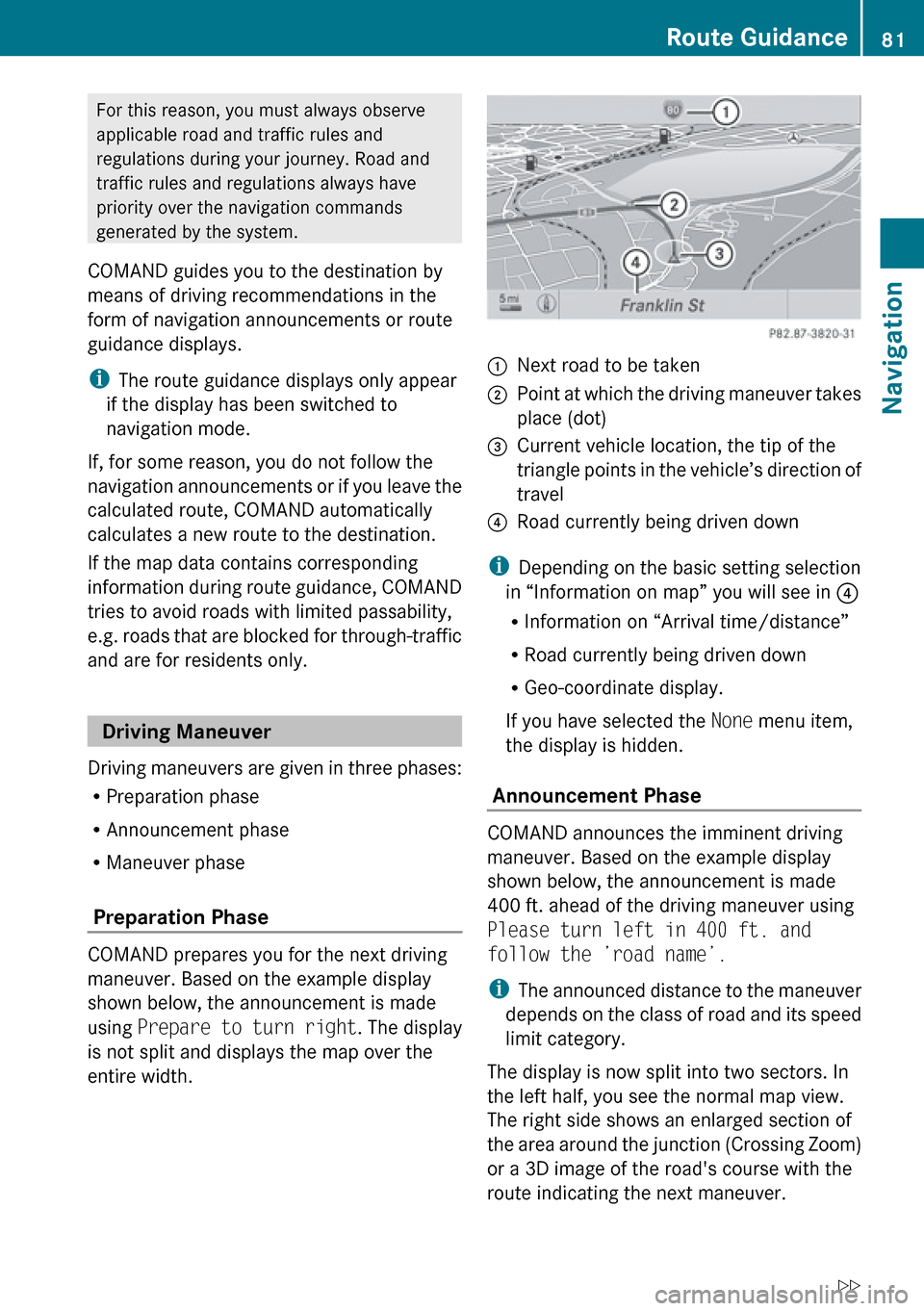
1Next road to be taken2Point at which the driving maneuver takes
place (dot)3Current vehicle location, the tip of the
triangle points in the vehicle’s direction of
travel4Road currently being driven down
i Depending on the basic setting selection
in “Information on map” you will see in 4
R Information on “Arrival time/distance”
R Road currently being driven down
R Geo-coordinate display.
If you have selected the None menu item,
the display is hidden.
Announcement Phase
COMAND announces the imminent driving
maneuver. Based on the example display
shown below, the announcement is made
400 ft. ahead of the driving maneuver using
Please turn left in 400 ft. and
follow the ’road name’.
i The announced distance to the maneuver
depends on the class of road and its speed
limit category.
The display is now split into two sectors. In
the left half, you see the normal map view.
The right side shows an enlarged section of
the area around the junction (Crossing Zoom)
or a 3D image of the road's course with the
route indicating the next maneuver.
Route Guidance81NavigationZ
Page 85 of 224
Traffic Lane Recommendations
On multi-lane roads, COMAND may display
traffic lane recommendations. For this there
must be corresponding data available on the
digital map.
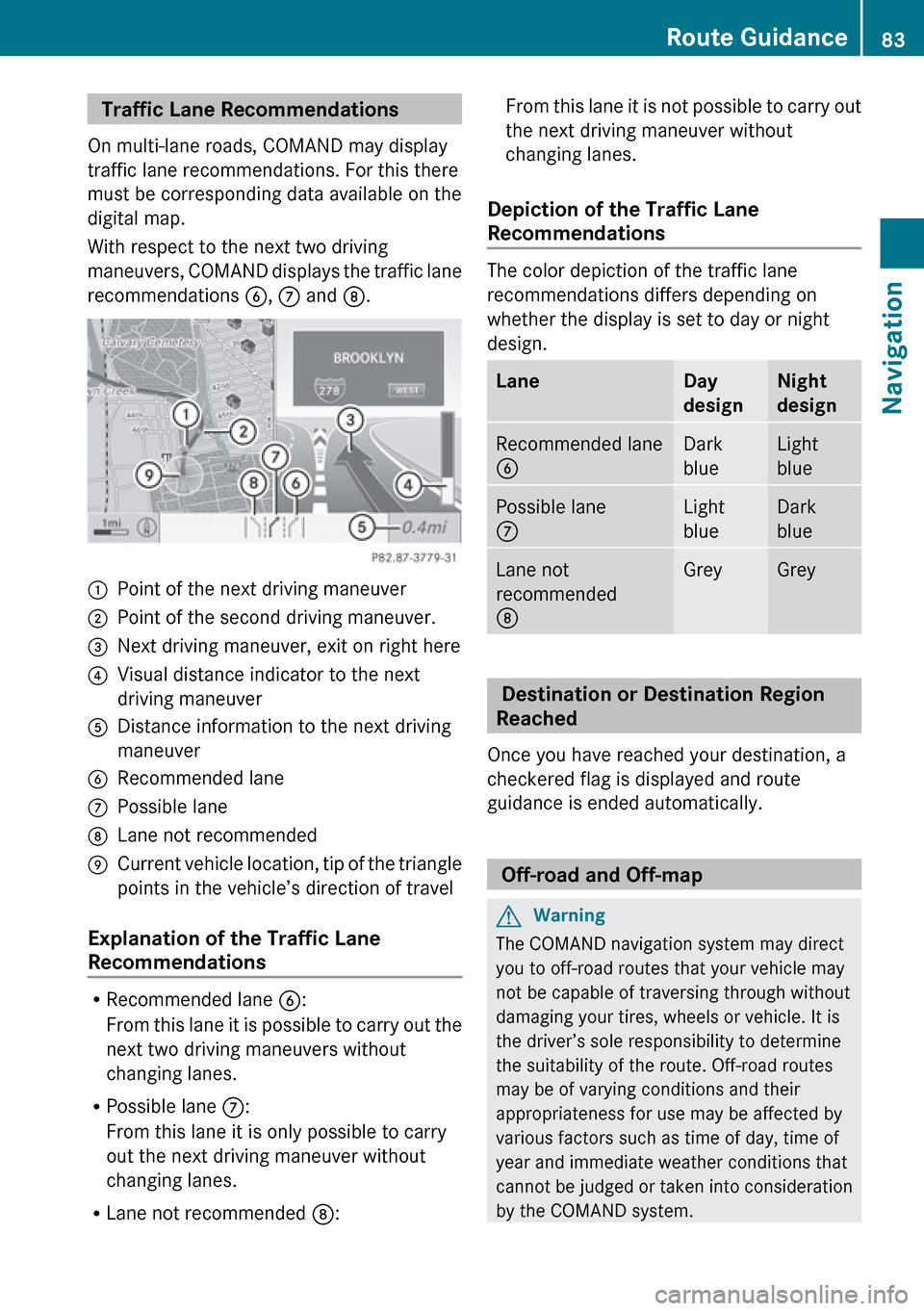
With respect to the next two driving
maneuvers, COMAND displays the traffic lane
recommendations 6, 7 and 8.1Point of the next driving maneuver2Point of the second driving maneuver.3Next driving maneuver, exit on right here4Visual distance indicator to the next
driving maneuver5Distance information to the next driving
maneuver6Recommended lane7Possible lane8Lane not recommended9Current vehicle location, tip of the triangle
points in the vehicle’s direction of travel
Explanation of the Traffic Lane
Recommendations
R Recommended lane 6:
From this lane it is possible to carry out the
next two driving maneuvers without
changing lanes.
R Possible lane 7:
From this lane it is only possible to carry
out the next driving maneuver without
changing lanes.
R Lane not recommended 8:
From this lane it is not possible to carry out
the next driving maneuver without
changing lanes.
Depiction of the Traffic Lane
Recommendations
The color depiction of the traffic lane
recommendations differs depending on
whether the display is set to day or night
design.
LaneDay
designNight
designRecommended lane
6Dark
blueLight
bluePossible lane
7Light
blueDark
blueLane not
recommended
8GreyGrey
Destination or Destination Region
Reached
Once you have reached your destination, a
checkered flag is displayed and route
guidance is ended automatically.
Off-road and Off-map
GWarning
The COMAND navigation system may direct
you to off-road routes that your vehicle may
not be capable of traversing through without
damaging your tires, wheels or vehicle. It is
the driver’s sole responsibility to determine
the suitability of the route. Off-road routes
may be of varying conditions and their
appropriateness for use may be affected by
various factors such as time of day, time of
year and immediate weather conditions that
cannot be judged or taken into consideration
by the COMAND system.
Route Guidance83NavigationZ
Page 86 of 224
Route Guidance to an Off-road
Destination
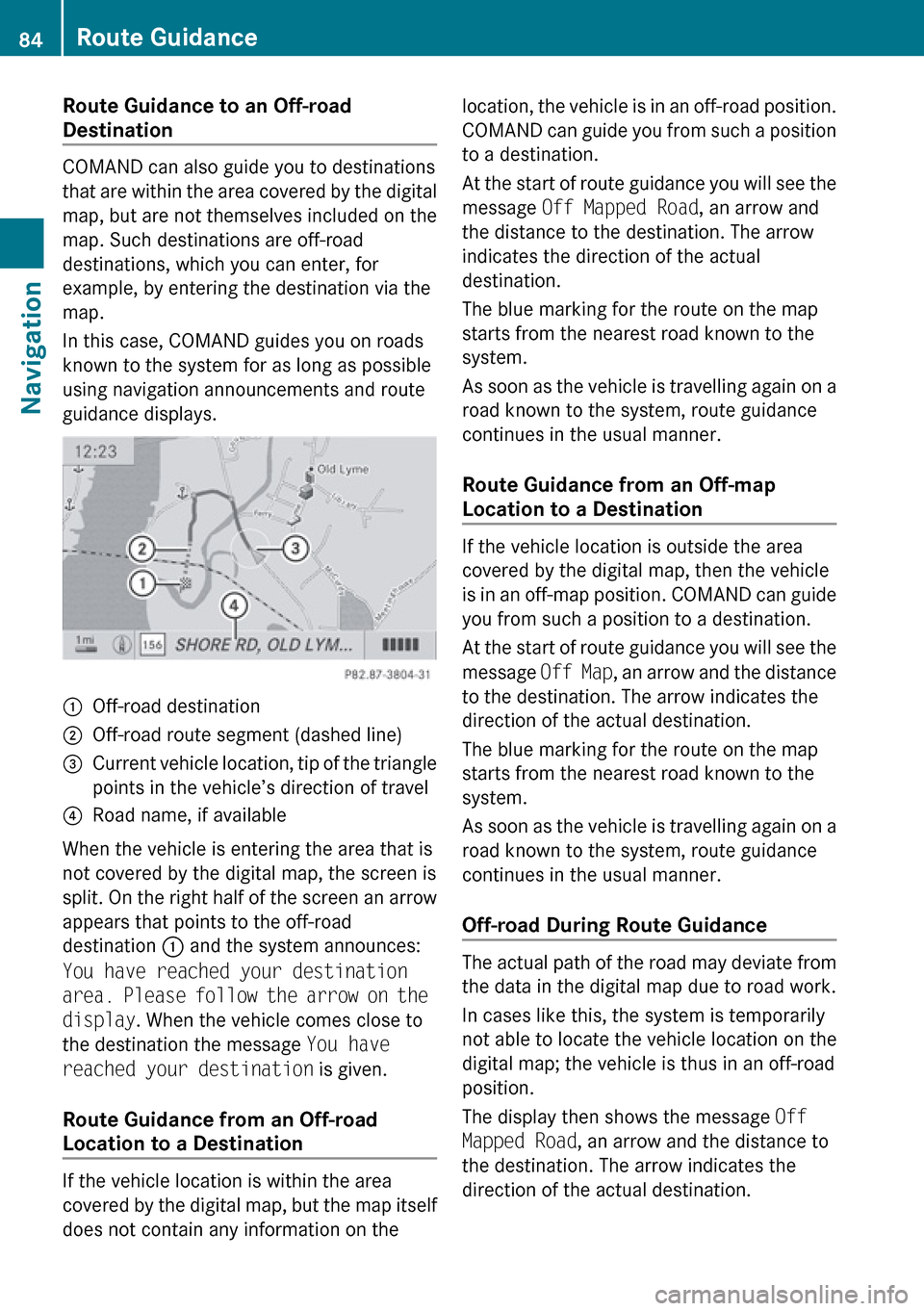
COMAND can also guide you to destinations
that are within the area covered by the digital
map, but are not themselves included on the
map. Such destinations are off-road
destinations, which you can enter, for
example, by entering the destination via the
map.
In this case, COMAND guides you on roads
known to the system for as long as possible
using navigation announcements and route
guidance displays.
1Off-road destination2Off-road route segment (dashed line)3Current vehicle location, tip of the triangle
points in the vehicle’s direction of travel4Road name, if available
When the vehicle is entering the area that is
not covered by the digital map, the screen is
split. On the right half of the screen an arrow
appears that points to the off-road
destination 1 and the system announces:
You have reached your destination
area. Please follow the arrow on the
display . When the vehicle comes close to
the destination the message You have
reached your destination is given.
Route Guidance from an Off-road
Location to a Destination
If the vehicle location is within the area
covered by the digital map, but the map itself
does not contain any information on the
location, the vehicle is in an off-road position.
COMAND can guide you from such a position
to a destination.
At the start of route guidance you will see the
message Off Mapped Road , an arrow and
the distance to the destination. The arrow
indicates the direction of the actual
destination.
The blue marking for the route on the map
starts from the nearest road known to the
system.
As soon as the vehicle is travelling again on a
road known to the system, route guidance
continues in the usual manner.
Route Guidance from an Off-map
Location to a Destination
If the vehicle location is outside the area
covered by the digital map, then the vehicle
is in an off-map position. COMAND can guide
you from such a position to a destination.
At the start of route guidance you will see the
message Off Map, an arrow and the distance
to the destination. The arrow indicates the
direction of the actual destination.
The blue marking for the route on the map
starts from the nearest road known to the
system.
As soon as the vehicle is travelling again on a
road known to the system, route guidance
continues in the usual manner.
Off-road During Route Guidance
The actual path of the road may deviate from
the data in the digital map due to road work.
In cases like this, the system is temporarily
not able to locate the vehicle location on the
digital map; the vehicle is thus in an off-road
position.
The display then shows the message Off
Mapped Road , an arrow and the distance to
the destination. The arrow indicates the
direction of the actual destination.
84Route GuidanceNavigation