navigation MERCEDES-BENZ E-Class WAGON 2011 S212 Comand Manual
[x] Cancel search | Manufacturer: MERCEDES-BENZ, Model Year: 2011, Model line: E-Class WAGON, Model: MERCEDES-BENZ E-Class WAGON 2011 S212Pages: 234, PDF Size: 8.64 MB
Page 91 of 234

1
Icon delimiting thesection ofthe route
affected
2 Icon indicating anincident onthe route
(traffic flow)
3 Destination
4 Map scale Tra
ffic reports
89Navigation Z
Page 93 of 234

Icon Descr
iption Tr
affic rep ortsint he ma pd ispla y List
of
tr af fic
rep orts Tr
affic
rep orts Gree
n
lin ew ith
arr ows Un
impe ded
tr aff icflo w No
delays
On lyappear sonthe side ofther oad
(dir ection oftravel) onwhic htraffic
flo wi su nim peded (Not
availab le) (Not
availab le) Red
line
wit h
arr ows Warn
ing
mes sage In
cid ento nr oad
Ap pear sonthe side ofther oad
affect ed(direction oftravel) (Not
availa ble) (Not
availa ble) Displaying
real-timetraffic repor ts
X To switch onnavigation mode:pressthe
Ø functionbutton .
X To show themenu: pressWthe COMAND
cont roller.
X Select Traffic by
turnin gcVd the
COMAND controller andpress Wto
conf irm.
If the dialog fieldshows theNoTraffic Messages message,
thismeans that:
R no traffic reports havebeen received yet.
R no traffic reports areavaila ble.
X To cancel thesearch: selectCancel and
press Wtoconf irm.
X To close thereport window: selectOK and
press Wtoconf irm.
If traffic reports exist,alist isshown.
The cont entofthe listvaries depending on
whether routeguidance isactive ornot .
List when routeguidance isnot active The
listshows allthe roads, areasorregions
for which reports areavaila ble. At
raffic report mayrefer toan area ora
region, e.g.ifvisibility isimpaired duetofog.
X To read atraffic report :select aroad,
area orregion byturnin gcVd the
COMAND controller andpress Wto
conf irm.
List when routeguidance isactive The
first listshows theroads, areasand
regions thatliealong theroute andforwhich
traffic reports areavaila ble. Tr
affic repor ts
91Navigation Z
Page 94 of 234

X
Show allmessages: selectAll Messages by
turnin gcVd theCOMAND
cont roller andpress Wtoconf irm.
You seealist ofall roads, areasandregions
for which traffic reports areavaila ble,even
if the reports donot affect yourroute. X
To show atraffic report :select aroad,
area orregion andpress Wtoconf irm.
X To close thelist: slide XVY theCOMAND
cont roller.
Example: traffic report 1
Depending onyour selection: Messages On
Route or
All Messages 2
Report 8of16for the road affected
3 Report text
4 Road, areaorregion affected bytraffic
reports
5 Icon forstate/pr ovince
6 Icon forreport type,e.g.traffic flow
message X
To scroll within arepor tortoa ccess
th en ext report:tur ncVd theC OMA ND
con troller .
X To returnt othe rep ort:slide XVY the
COMA NDcontroller .
Displa yingtraf fic rep ortso nthe ma p X
Sele ctTra fficS ymbol Inform ati on by
tur nin gcVd theC OMA NDcontroller and
pres sW tocon firm. Traf
ficsymbo linf orm ationonthe map (example)
: Affec tedroads withindication ofdirection
; Icon forreport type,e.g.traffic flow
message
X Select Next or
Previous by
turning cVd
the COMAND controller andpress Wto
confirm inorder tocont inue highlighting
traffic icons.
X To change themap scale: selectMap by
sliding ZVtheCOMAND controller and
press Wtoconfirm .
You cannow zoom inor out ofthe map.
X To show thedetailed view:select
Details and
press Wtoconfirm . 92
Tr
affic report sNavigation
Page 95 of 234

Deta
ilso ntraffics ymbo linform ation (examp le)
X To clos et he detai ledv iew: slide XVY the
COMAN Dcontroller. Read
ingout traff icrep ortso nthe
rou te
Intr oduct ion The
read- aloud functionisonly available while
rout eguidanc eisa ctive. Itreads outtraffic
repor tsaffec tingt he curr entrout e.You can
set the language (Y page 45)and thetext
reader speed(Ypage 42).
You canstartthe tex treader function
manually orset itto automat ic.
Sta rting thet ext reader funct ion
ma nually X
To switch onnaviga tionmod e:press the
Ø function button.
X To show them enu :press Wthe COMAN D
con troller.
X Selec tTMC by
turn ingcVd theCOMAN D
con troller andpress Wtocon firm .
X Selec tRead outall messa geson route and
press Wtocon firm .
COMAN Dreads outthereport sins equence.
i Ifther eareno report sfor the route, the
Read out all message
s on route menu
item isshown ingray andcann otbe
select ed. X
To switch offthe read -aloud function:
select Cancel Read-Al
oud Functio
n and
press Wtocon firm orpress the8
button .
COMAND readsthecurren treport aloud
and then exitsthe read-aloud function.
Autom aticread -aloud function X
To switch onnavigat ionmode: pressthe
Ø function button .
X To show themenu: pressWthe COMAND
con troller.
X Select Navi by
sliding ZVandturning
cVd theCOMAND controller andpress
W tocon firm.
X Select ReadTraffic Messages Automat
ically and
press Wtocon firm.
Depen dingonthe previous state,switch
the option onO oroff ª. Recalculat
ingthe rout edyna mically
The route types Dynamic Route and
Dynamic RouteOnlyAfter Request (Y
page 52)take allrelevant traffic
messages intoa ccoun twhen calculating a
route.
If you have setthe route typeDynamic Route ,C
OMAND guidesyouonthe updated
route toyour destination.
If you have setthe route typeDynamic Route
OnlyAfter Request ,ap
rompt
appea rs.You candecide whether toaccept
the route suggested byCOMAND, orcont inue
with theoriginal route. Tr
affic report s
93Navigation Z
Page 96 of 234

X
To acc ept the suggeste droute :pre ss
W the COMAND controller.
X To conti nue along the original route :
sel ect Reject by
turning cVd the
CO MAND controller and pressW to
confi rm. De
stinati onmemo ry Home
addres s(My addres s)
En teri ngthe home addres sviaaddres s
en try X
Initi ally pro cee dasdescri bedint he
"Adopting anaddress bookentryasah ome
address" andconfirm MyAddress by
pressing W.
X To enter thehome addressforthe first
time: confirm NewEntry by
pressing W.
X To change thehome address: select
Change in
the menu showing thehome
address byturning cVdtheCOMAND
cont roller andpress Wtoconfirm .
X Confirm NewEntry by
pressing W.
X In both cases, enterthehome address asa
destination, e.g.asac ity, street andhouse
number (Ypage 54).Then, savethehome
address (Ypage 57).
Adopting anadd ress book entry asa
home address X
To switch onnavigation mode:pressthe
Ø functionbutton. X
To show themenu: pressWthe COMAND
cont roller.
X Select Dest. in
the navigation system
menu barbyturning cVdtheCOMAND
cont roller andpressing Wtoconfirm .
X Select FromMemory and
press Wto
confirm .
You willsee thedestination memorylist
either withthecharacter bar(option 1)or
as as election list(option 2).
Option 1:destination memorylistwith
character bar X
Slide ZVtheCOMAND controller
repeatedly untilthedestination memory
list appea rsas as election list.
Option 2:destination memorylistas
selec tionlist The
MyAddress entr
yisl isted asthe first
entr yint he destination memory.
X Select MyAddress by
turning cVdthe
COMAND controller andpress Wto
confirm . 94
Des
tination memoryNavigation
Page 98 of 234

X
Sel ect Destin ation in
the navi gation
sy stem menu barb yturning cVd the
COMA NDcontro ller and pressing W to
co nfirm .
X Se lec tSav e Des
tination and
pressW to
co nfirm .
You cannows electstorage options
(Y page 96).
Fro mt helisto fprev ious des tinations X
To sho wthemen u:pre ssW the COMAND
contr oller.
X Sel ect Destination in
the navigati on
sy ste mm enubarbyturn ingcVd the
COMAND controller andpressing Wto
con firm.
X Select FromLastDestina tions and
press Wtocon firm.
The listoflast destin ations appears.
X Select adestin ation byturn ingcVd the
COMAND controller andpress Wto
con firm.
The destin ationaddress isshown.
X Select Save and
press Wtocon firm.
You cannow select storage option s.
Selecting storingoptions X
To save thedestina tionwithout a
name: selectSaveWithout Name and
press Wtocon firm.
COMAND storesthe destin ationinthe
destin ationmemory anduses theaddress
as the destin ationname.
X To save thedestina tionasMy
Addr ess:select Saveas"My Address " and
press Wtocon firm.
COMAND storesthe destin ationinthe
destin ationmemory asMy Address .I
ft he
select edaddress bookentryalready
con tains address datathatcanbeused for
navigation (Licon), aprompt willappear asking
whether youwish tooverwrit ethe
exist ingdata.
X Select Yes or
No and
press Wtocon firm.
If you select Yes ,t
he ent ryisoverwrit ten.
If you select No ,t
he process willbeaborted.
X To save thedestina tionwith aname:
select SaveWithName and
press Wto
con firm.
X Select acategor y,e.g. Home ,a
nd press W
to con firm.
The input menu appears withdata fields
and thecharact erbar. Ex
ample: savingadestin ation withaname
: Select eddata fieldwithcursor
; Character bar
X Proceed asdescribed under"Entering
charact ersusing thecharact erbar" inthe
"Ent ering charact ersinnavigation mode
(ent ering acity)" section(Ypage 31).
X Then, select ¬andpress Wtocon firm.
COMAND storesthe destin ationunder the
name entered.
Assigning adesti nation toan address
book entry An
address withcompleteaddre ssdata that
is suit able fornav igat ioncan beassign edto
ap re-exi sting address bookentry.You can
th en late rstar troute guidance tothis address
straight fromtheaddress book
(Y page 139).
X Select Assign toAddress BookEntry and
press Wtoconf irm. 96
Destination
memoryNavigation
Page 100 of 234

Storing
thevehicle position inthe list
of previous destinations
X To switch onnavigation mode:pressthe
Ø functionbutton.
X To show themenu: pressWthe COMAND
cont roller.
X Select Position in
the navigation system
menu barbyturnin gcVd theCOMAND
cont roller andpress Wtoconf irm.
X Select Save vehicle position and
press
W toconf irm.
COMAND storesthecurrent vehicle
position asad estination inthe listof
previous destinations . Storing
thecrosshair positioninthe
list ofprevious destinations
Ac rossha irapp ears onthe map ifyou have
moved themap manua lly.Y ou can store the
crosshair positionasad estinat ioninthe list
of previous destinations.
X To show themenu: pressWthe COMAND
cont roller.
X Select Position in
the navigation system
menu barbyturnin gcVd theCOMAND
cont roller andpress Wtoconf irm.
X Select Savecrosshair position and
press Wtoconf irm. Dele
ting oneofthe previous
destinat ions
X To switch onnavigation mode:pressthe
Ø functionbutton .
X To show themenu: pressWthe COMAND
cont roller.
X Select Destination in
the navigation
system menubarbyturnin gcVd the
COMAND controller andpressing Wto
conf irm. X
Select Fromlast destinations and
press Wtoconf irm.
The listoflast destination sappears.
X Select thedesired destinationandpress
W tocon firm.
The destin ationaddress appears.
X Select Delete and
press Wtocon firm.
Ap rompt appears asking whethe rthe entr y
should bedeleted.
X Select Yes or
No and
press Wtoconfirm .
If you select Yes ,t
he entr yisd eleted.
If you select No ,t
he process willbeaborted. Map
operation andsettings Note
Company logosdisplayedonthe map are
trademarks ofthe respective companies and
used solely forthe purpose ofindicating the
location ofthese companies. Theuseofsuch
logos onthe map does notindicate approval
of, support ofor advertising bythese
companies forthe navigation systemitself. Setting
themap scale
X To hide themenu: slideZVtheCOMAND
cont roller and,when theFull Screen menu
itemisshown, pressW.
X To call upthe scale bar:assoon asyou
turn cVd theCOMAND controller, scale
bar =appea rs.
X Turn cVd untilthedesired scaleisset. 98
Map
operat ionand settingsNavigation
Page 101 of 234

:
Set map scaleas an umb erwith uni t
; Currentl ysetmap scaleas ind icated by
the need leon the scaleba r
= Mapscale
Unit ofmea sureme nt: inthe COMAND
di spl aydepe nds onthe selecti onmad efor the
instr umentclu ster (seethe veh icle
Ope rator'sManua l). Mov
ingt he map
Sho wing the crossh air X
To hide themen u:slide ZV theCOMAND
control lera nd, when the FullScreen menu
itemi sshown, pressW.
X To scroll themap: slideXVY, ZVÆor
aVb theCOMAND controller.
Ac rossha irapp ears onthe map. Ifyou slide
it aga in,the map moves inthe
correspo ndingdirection under the
crossha ir. Map
withcrossha ir
: Current vehicl eposition
; Cross hair
= Detail softhe crossha irposi tion
? Map scale selected Displ
ay= may bethe name ofas treet, for
exampl e,provid edthe digitalmap contains
the necessary data.Alter natively, itmay show
the geo- coor dinat eposit ion ofthe crosshair
if the Geo- coordinates display
isswitc hed
on (Ypage 102).
Hid ing thec rossh airand center ingthe
ma ponthe vehicle position or
destina tion X
Press the% backbutton twice.
The cross hairdisappears andthemap is
set tothe vehicle position .
or
X Set themap tothe vehicle position ;see the
explanat ionbelow. Centering
themap onthe vehicle or
destina tionposition
Centering themap onthe vehicle
position X
To show themenu: pressWthe COMAND
con troller.
X Select Positio n in
the navigation system
menu barbysliding VÆandturningcVd
the COMAND controller andpress Wto
con firm.
X Select Vehicle PositionMap and
press
W tocon firm or,ifthe cross hairisshown,
press the% backbutton .
This hides thecross hair.
Centering onthe destina tion This
function requires thataroute toa
destin ationhasbeen calculated. Ifthe route
includes waypoints andanintermediate stop,
the map canalso beset tothese position s.
X To show themenu: pressWthe COMAND
con troller.
X Select Positio n in
the navigation system
menu barbysliding VÆandturningcVd Map
opera tionandsettings
99Navigation Z
Page 102 of 234
the
COMAND controllera nd pre ssW to
confi rm.
X Sel ect Destination Position Map and
pre ssW toconfi rm.
The cros shairpo sitio niss etto the relevant
destination. Map
settings
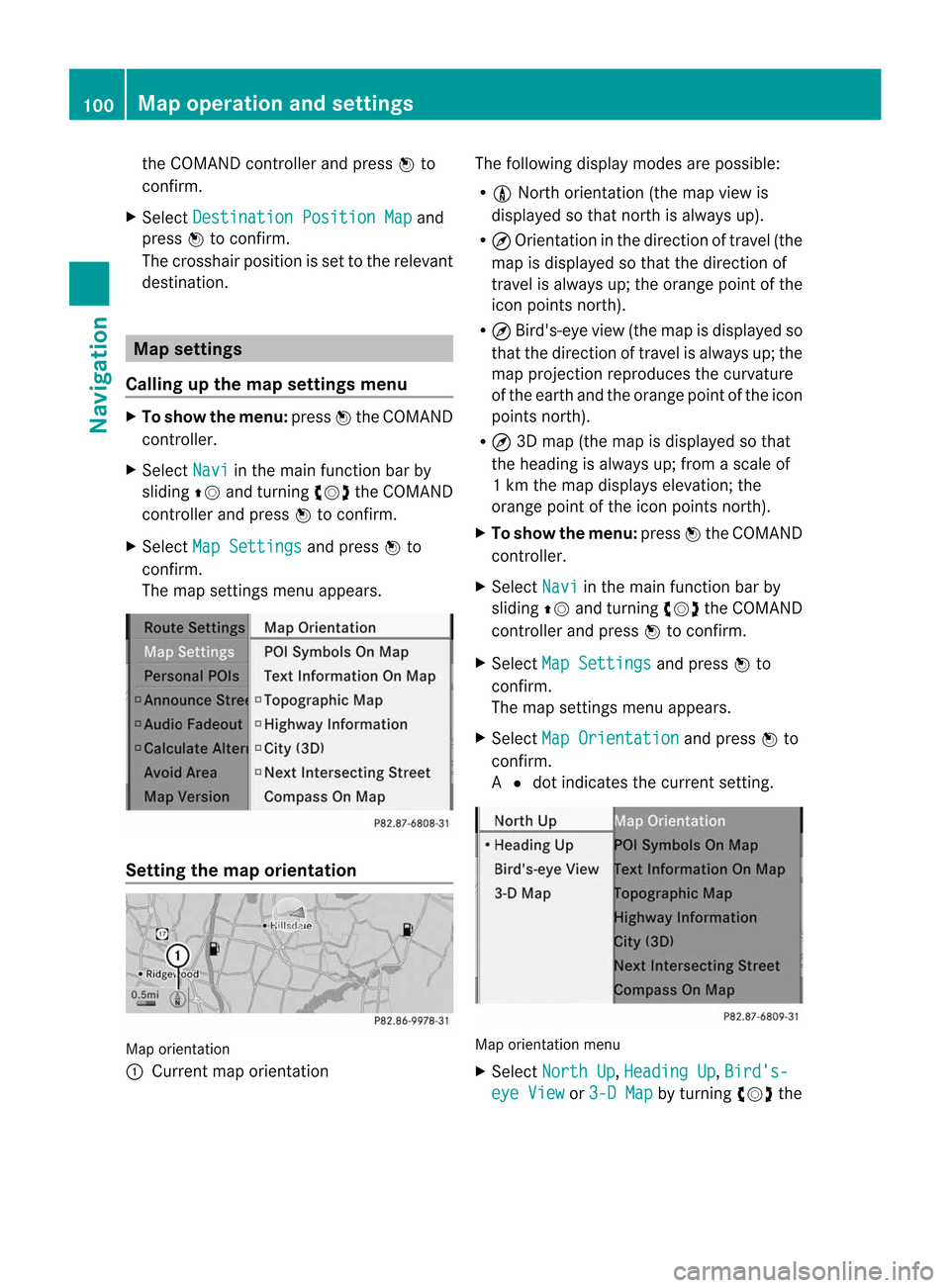
Callin gupthe map settings menu X
To show themenu: pressWthe COMAND
cont roller.
X Select Navi in
the main function barby
sliding ZVandturning cVdtheCOMAND
cont roller andpress Wtoconfirm.
X Select MapSettings and
press Wto
confirm.
The map settings menuappears. Setting
themap orientation Map
orientation
: Current maporientation The
followi ngdispla ymodes arepossible :
R 0 North orientation (themap view is
displa yedsothat north isalwa ysup).
R ¤ Orientation inthe direction oftravel (the
map isdispla yedsothat thedirection of
travel isalwa ysup; the orange pointofthe
icon points north).
R ¤ Bird's-eye view(themap isdispla yedso
that thedirection oftravel isalwa ysup; the
map project ionreproduces thecurvature
of the earth andtheorange pointofthe icon
points north).
R ¤ 3D map (themap isdispla yedsothat
the heading isalwa ysup; from ascale of
1k mt hemap displa yselevation; the
orange pointofthe icon points north).
X To show themenu: pressWthe COMAND
cont roller.
X Select Navi in
the main functionbar by
sliding ZVandturning cVdtheCOMAND
cont roller andpress Wtoconfirm .
X Select MapSettings and
press Wto
confirm .
The map settin gsmenu appears.
X Select MapOrientation and
press Wto
confirm .
A # dot indicates thecurrent setting. Map
orientation menu
X Select North Up ,
Heading Up ,
Bird's- eye
View or
3-D Map by
turning cVdthe 100
Map
operat ionand settingsNavigation
Page 104 of 234
Map
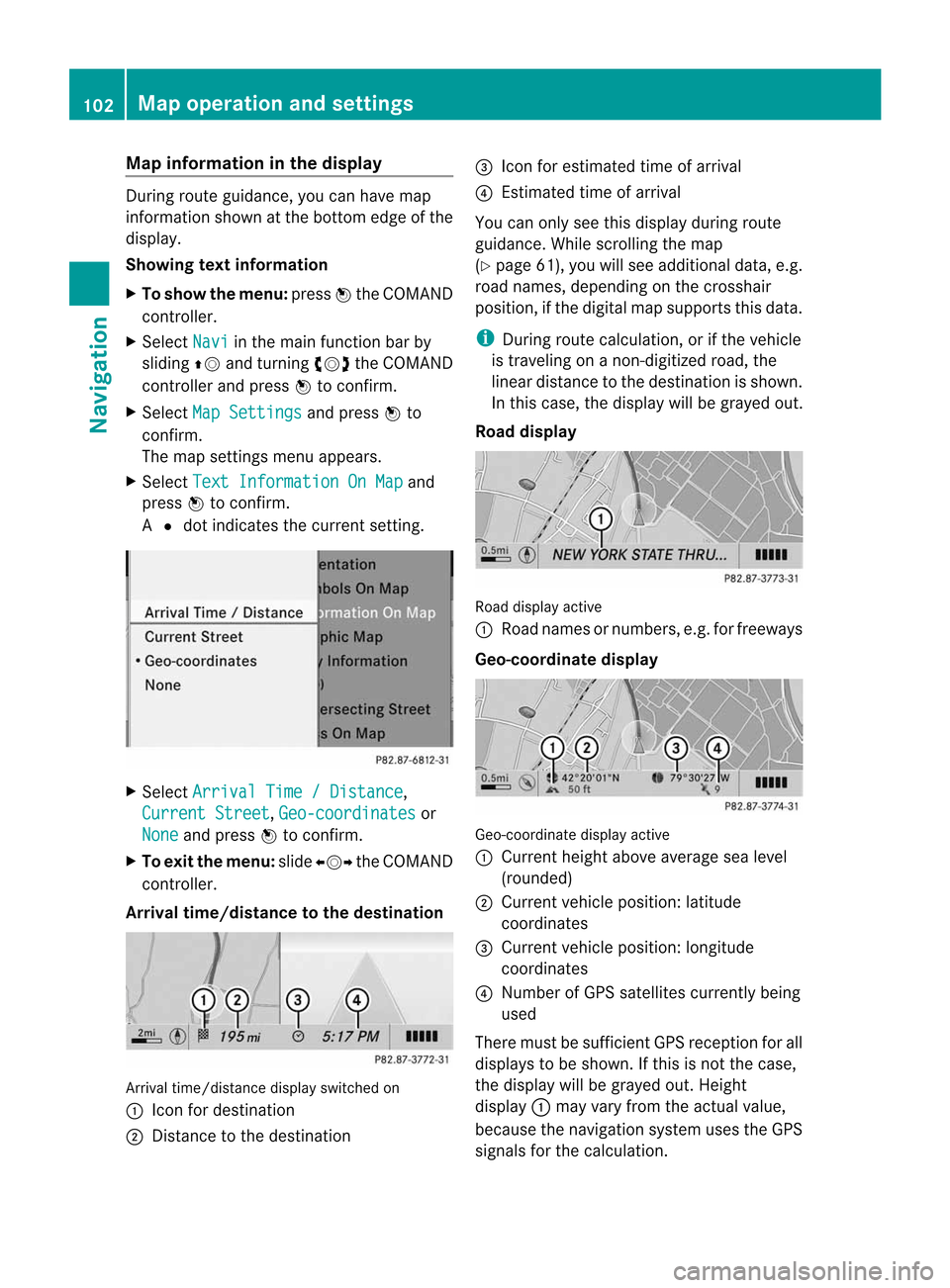
information inthe display During
routeguidance, youcan have map
informati onshow natthe bottom edgeofthe
displa y.
Showing textinformat ion
X To show themenu: pressWthe COMAND
cont roller.
X Select Navi in
the main functionbar by
sliding ZVandturning cVdtheCOMAND
cont roller andpress Wtoconfirm .
X Select MapSettings and
press Wto
confirm .
The map settin gsmenu appears.
X Select TextInformation OnMap and
press Wtoconfirm .
A # dot indicates thecurrent setting. X
Select Arrival Time/Distance ,
Current Street ,
Geo-coordinates or
None and
press Wtoconfirm .
X To exit themenu: slideXVY theCOMAND
cont roller.
Arrival time/distance tothe destination Arrival
time/distanc edisplay switched on
: Icon fordestination
; Distanc etot he destination =
Icon forestimated timeofarrival
? Estimated timeofarrival
You canonly seethis displa yduring route
guida nce.While scrolling themap
(Y page 61),youwillsee additional data,e.g.
road names, depending onthe crosshair
position, ifthe digital mapsupports thisdata.
i During routecalculation, orifthe vehicle
is traveling onanon- digitized road,the
linear distance tothe destination isshown.
In this case, thedispla ywillbe grayed out.
Road display Road
display active
: Road names ornumbers, e.g.forfreeways
Geo-coo rdinatedisplay Geo-coordinate
displayactive
: Current heightaboveaverage sealevel
(rounded)
; Current vehicleposition: latitude
coordinates
= Current vehicleposition: longitude
coordinates
? Number ofGPS satellites currentlybeing
used
There mustbesufficient GPSreception forall
displa ystobe shown. Ifthis isnot thecase,
the displa ywillbe grayed out.Height
displa y: may varyfrom theactual value,
because thenavigation systemusestheGPS
signals forthe calculation. 102
Map
operat ionand settingsNavigation