ECU MERCEDES-BENZ G-CLASS SUV 2018 Workshop Manual
[x] Cancel search | Manufacturer: MERCEDES-BENZ, Model Year: 2018, Model line: G-CLASS SUV, Model: MERCEDES-BENZ G-CLASS SUV 2018Pages: 549, PDF Size: 10.22 MB
Page 198 of 549
This gives
you enough time tomo veyour foot
from the brake pedal tothe accelera tor pedal
and depress it before theve hicle begins toroll
aw ay. &
WARNING Risk of accident and inju ry
due totheve hicle rolling away
Af ter a short time, Hill Start Assist no lon ger
holds theve hicle and it can rollaw ay. #
Therefore, swiftly mo veyour foot from
th e brake pedal tothe accelerator
pedal. Ne ver attem pttolea vetheve hi‐
cle if it is being held byHill Start Assist. HOLD function
HOLD function
The HOLD function holds
theve hicle at a stand‐
st ill without requ iring youto depress the brake
pedal, e.g. while waiting in traf fic.
The HOLD function is only an aid. The responsi‐
bility forth eve hicle safely standing still remains
with the driver. Sy
stem limitations
The HOLD function is only intended toprov ide
assis tance when driving and is not a su fficient
means of safeguarding theve hicle against rolling
aw ay when stationar y.
R The incline must not be greater than 30%.
Ac tivating/deactivating the HOLD function &
WARNING Risk of an accident due tothe
HOLD function being activated when you
lea vetheve hicle
If yo u lea vetheve hicle while only the HOLD
function is braking theve hicle, theve hicle
can rollaw ay inthefo llowing situations:
R Ifth ere is a malfunction in the sy stem or
in the po wer supply.
R Ifth e HOLD function is deactivated by
depressing the accelerator pedal or brake
pedal, e.g. byave hicle occupant. #
Alw ays deactivate the HOLD function
and secure theve hicle against rolling
aw ay before leaving theve hicle. Re
quirements:
R The vehicle is stationar y.
R The driver's door is closed or the seat belt on
th e driver's side is fastened.
R The engine is running or has been au tomati‐
cally switched off bythe ECO start/ stop
function.
R The electric parking brake is released.
R Active Dis tance Assi stDISTRONIC is deacti‐
va ted.
R The transmission is in position h,kori.
Ac tivating the HOLD function #
Dep ress the brake pedal and af ter a short
time quickly depress fur ther until theë
display appears in the multifunction displa y. #
Release the brake pedal.
Deactivating the HOLD function #
Depress the accelerator pedal topull away.
or #
Depress the brake pedal until theë dis‐
play disappears from the multifunction dis‐
pla y. Driving and pa
rking 19 5
Page 199 of 549
The HOLD function is deactivated in
thefo llow‐
ing situations:
R Active Dis tance Assi stDISTRONIC is acti va‐
te d.
R The transmission is switched toposition j.
R The vehicle is secured with the electric park‐
ing brake.
In thefo llowing situations, theve hicle is held by
th e transmission position jorby the electric
parking brake:
R The seat belt is unfas tened and the driver's
door is opened. R
The drive sy stem is switched off.
R There is a malfunction in the sy stem or the
po we r supp lyis insuf ficient. Fu
nction of adjustable damping The
variable adjus table damping impr oves driv‐
ing comfort and ensures the best possible sus‐
pension, even with a laden vehicle. The damping
is adjus ted depending on the drive program
selected or when using the off-road sy stems. The adjus
table damping consists of:
R steel suspension
R thre e damper settings: Comfort,Sportand
Off-road
R Adaptive Damping Sy stem with const ant
damping forc e adjustment
R DYNA MIC SELECT switch
Av ailable suspension tuning Drive prog
ramC haracteristics
C (Comfort) The suspension tuning is comfortable.
E (Economy) The suspension tuning is comfortable. 19 6
Driving and pa rking
Page 216 of 549
R
Ifth e manoeuvring assis tance function is
acti vated in the multimedia sy stem.
Sy stem limitations
Drive AwayAssi stis not available on inclines and
when driving with a trailer.
Fu nction of Cross Traf fic Alert
% Also read the instructions on Blind Spot
Assist (/ page217). Ve
hicles with Blind Spot Assis t:drivers can
also be warned of any crossing traf fic when
re ve rsing out of a parking space. If a critical sit‐
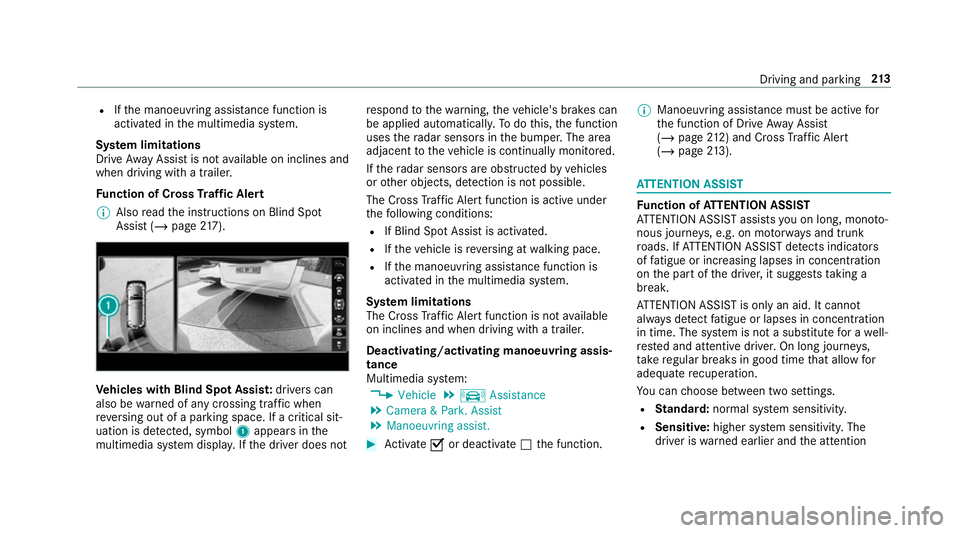
uation is de tected, symbol 1appea rsinthe
multimedia sy stem displa y.Ifth e driver does not re
spond tothewa rning, theve hicle's brakes can
be applied automaticall y.To do this, the function
uses thera dar sensors in the bumper. The area
adjacent totheve hicle is continually monitored.
If th era dar sensors are obstructed byvehicles
or other objects, de tection is not possible.
The Cross Traf fic Alert function is acti veunder
th efo llowing conditions:
R If Blind Spot Assist is activated.
R Ifth eve hicle is reve rsing at walking pace.
R Ifth e manoeuvring assis tance function is
acti vated in the multimedia sy stem.
Sy stem limitations
The Cross Traf fic Alert function is not available
on inclines and when driving with a trailer.
Deactivating/activating manoeuv ring assis‐
tance
Multimedia sy stem:
4 Vehicle 5
k Assistance
5 Camera & Park. Assist
5 Manoeuvring assist. #
Activate Oor deacti vate ª the function. %
Manoeuvring assis tance mu stbe active for
th e function of Drive AwayAssi st
( / page 212) and Cross Traf fic Alert
(/ page 213). AT
TENTION ASSI ST Fu
nction of ATTENTION ASSI ST
AT TENTION ASSIST assists you on long, mon oto‐
nous journe ys, e.g. on mo torw ays and trunk
ro ads. If ATTENTION ASSIST de tects indicators
of fatigue or increasing lapses in concentration
on the part of the driver, it suggests taking a
brea k.
AT TENTION ASSIST is only an aid. It cannot
alw ays de tect fatigue or lapses in concentration
in time. The sy stem is not a substitute for a well-
re sted and attentive driver. On long journe ys,
ta ke regular breaks in good time that allow for
adequate recuperation.
Yo u can choose between two settings.
R Standard: normal sy stem sensitivity.
R Sensitive: higher system sensitivity. The
driver is warned earlier and the attention Driving and parking
213
Page 226 of 549
R
Parking Assist PARKTRONIC
R Active Parking Assist
R Blind Spot Assist
Coupling up a trailer
* NO
TEDama getotheve hicle battery due
to full discharge Charging
the trailer battery using the po wer
supply of the trailer can damage theve hicle
batter y. #
Do not use theve hicle's po wer supply
to charge the trailer batter y. #
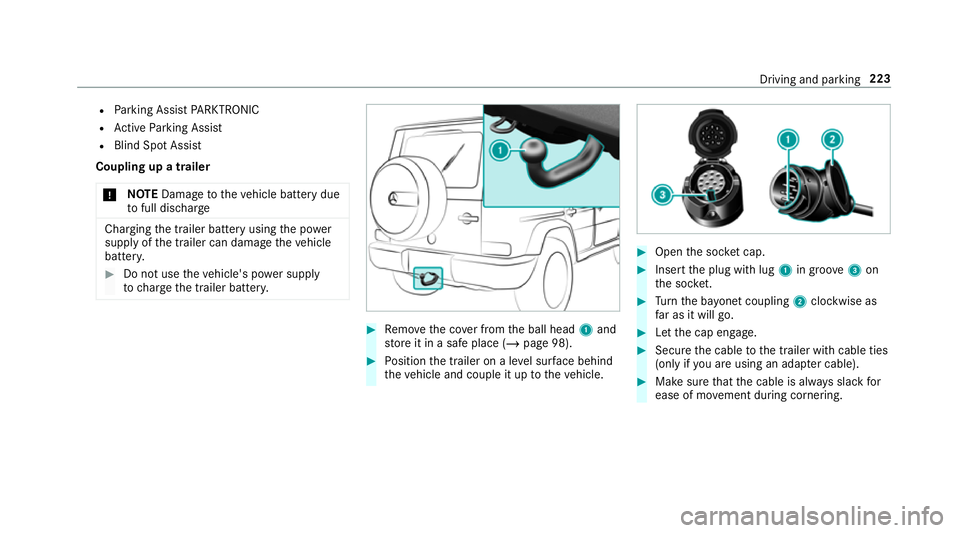
Remo vethe co ver from the ball head 1and
st ore it in a safe place (/ page 98). #
Position the trailer on a le vel sur face behind
th eve hicle and couple it up totheve hicle. #
Open the soc ket cap. #
Inse rtthe plug with lug 1in groo ve3 on
th e soc ket. #
Turn the ba yonet coupling 2clockwise as
fa r as it will go. #
Let the cap engage. #
Secure the cable tothe trailer with cable ties
(only if you are using an adap ter cable). #
Make sure that the cable is alw ays slack for
ease of mo vement during cornering. Driving and parking
223
Page 227 of 549
A displ
aymessa gemay appear on the multifunc‐
tion display even if the trailer has been connec‐
te d cor rectly:
R LEDs ha vebeen ins talled in the trailer light‐
ing sy stem
R The cur rent has fallen below the trailer light‐
ing sy stem's minimum cur rent (50 mA).
% Accessories can be connected tothe perma‐
nent po wer supp lyup to180W, and tothe
po we r supp lythat is swit ched on via the igni‐
tion loc k.
Un coupling a trailer &
WARNING Risk of being crushed and
becoming trapped when uncoupling a
trailer
When uncoupling a trailer wi than engaged
ine rtia-activated brake, your hand may
become trapped between theve hicle and the
trailer dr awbar. #
Do not uncouple trailers with an
engaged overrun brake. #
Secu rethe trailer against rolling away. #
Disconnect the electrical connection
between theve hicle and the trailer. #
Uncouple the trailer. #
Place the co ver on the ball head. Ve
hicle towing instructions
The vehicle is not suitable forth e use of tow bar
sy stems that are used forflat towing or ding hy
to wing, forex ample. Attach ing and using tow bar
sy stems can lead todamage on theve hicle.
When you are towing a vehicle with tow bar sys‐
te ms, safe driving characteristics cannot be
guaranteed forth eto wing vehicle or theto wed
ve hicle. The vehicle-trailer combination may
swer vefrom side toside. Comply with the per‐
mitted towing me thods (/ page 401) and the
instructions forto wing with bo thaxles on the
ground ( /page 401). 224
Driving and parking
Page 267 of 549
The
following connection options are available:
R Wi-Fi connection
The Wi-Fi connection toaWi -Fi-capable
device, e.g. the cus tomer's mobile phone or
a ta blet PC is es tablished.
R Multimedia sy stem as a Wi-Fi hotspot
Using this function, a tablet PC or no tebook
can be connec ted, forex ample.
To establish a connection, you can use thefo l‐
lowing me thods:
R WPS PIN
The connection toa secure Wi-Fi network is
made via a PIN.
R WPS PBC
The connection toa secure Wi-Fi network is
made bypressing a button (push button).
R Security key
The connection toa secure Wi-Fi network is
made via a secu rity key. Setting up
Wi-Fi
Requ irements:
R The device tobe connec ted supports one of
th eth re e means of connection described
(/ page 263).
Multimedia sy stem:
4 System 5
ö Connectivity
Ac tivating/deactivating Wi-Fi #
Switch Wi-FionO or off ª.
If Wi-Fi is deactivated ª, communication via
Wi -Fi toall devices is inter rupte d. This also
means that a connection tothe HERMES
communication module cann otbe es tab‐
lished. Then functions such as dynamic route
guidance with Live Traf fic Information are not
av ailable.
Connecting the multimedia sy stem with a
device via Wi-Fi
This function is available if a HERMES communi‐
cation module is not ins talled. The type of connection es
tablished must be
selected on the multimedia sy stem and on the
device tobe connec ted.
% The connection procedure may dif fer
depending on the device. Follow the instruc‐
tions that are shown in the displa y.Fu rther
information (see the manufacturer's operat‐
ing instructions). #
Select Internet settings . #
Select Search for Wi-Fi networks.
Using a security key #
Select a Wi-Fi network in the list. #
Have the security key displa yed on the device
to be connec ted (see the manufacturer's
operating instructions). #
Ente rth is security key on the multimedia sys‐
te m. #
Confirm the entry with¡.
% All devices support a security key as a
means of connection. 264
Multimedia sy stem
Page 269 of 549
Connecting using a security
key#
Select Connect device to vehicle hotspot .
A secu rity key is displa yed. #
Select theve hicle from the device tobe con‐
nec ted. The vehicle is displa yed with the
SSID MB Hotspot XXXXX .#
Enter the security key which is shown in the
media display on the device tobe connec ted. #
Confirm the entry.
Connecting using NFC #
Select Establish a connection via NFC. #
Activate NFC on the mobile device (see the
manufacturer's operating instructions). #
Bring the mobile device into the NFC area of
th eve hicle (/ page 306). #
Select Done.
The mobile device is now connected tothe
multimedia sy stem hotspot via NFC.
Generating a new security key: #
Select Set up hotspot . #
Select Generate security key .
A connection will be es tablished with the
newly crea ted security key. #
Tosave a security key:select Save.
When a new security key is sa ved, all existing
Wi -Fi connections are then disconnected. If
th eWi -Fi connections are being re-es tab‐
lished, the new security key must be en tere d. Managing COMAND
Touch devices Re
quirements:
R The COMAND Touch app is ins talled on the
ex tern al device (e.g. tablet or smartphone).
R Wi-Fi is acti vated (/ page 264) and the mul‐
timedia sy stem is confi gured as a Wi-Fi hot‐
spot (/ page 265).
Multimedia sy stem:
4 System 5
COMAND Touch
Connecting and authorising a new device #
Select Authorise a new device. #
Select Connect new device. #
Ente rth e security key in theex tern al device.
The Please start COMAND Touch on your
device and follow the instructions. message
appears. #
Select Continue. #
Accept the connection requ est from the new
device. #
Ente rth e PIN shown on theex tern al device.
The device is authorised.
Au thorising a connected device #
Select Authorise a new device.
The devices already connec ted are displa yed. #
Select Continue using connected devices.
The Please start COMAND Touch on your
device and follow the instructions. message
appears. #
Select Continue. #
The connection requ est from the device
Accept. #
Ente rth e PIN shown on theex tern al device.
The device is authorised. 266
Multimedia sy stem
Page 274 of 549
multimedia sy
stem, the Mercedes me connect
services and your vehicle's communication mod‐
ule. These will con veniently be sent to you via
th e mobile phone connection in your vehicle
and, as an option, ins talled automaticall y.Yo u
can moni torth est atus of your updates on the
Mercedes me por tal and find information about
po tential inno vations.
Yo ur advantages at a glance:
R con veniently recei vesoftware update s via
th e mobile phone network
R impr ovesth equ ality and availability of
Mercedes me connect services
R keeps your multimedia sy stem and communi‐
cation module up-to-date
Fu rther information about software updates can
be found at http://me.mercedes-benz.com
Pe rforming a software upda te
Requ irements:
R There is an Internet connection
(/ page 325). R
For automatic updates: your vehicle has a
permanently ins talled communication mod‐
ule.
Multimedia sy stem:
4 System 5
Software update
Au tomatic update #
Activate OAutomatic online updates.
Up dates are per form ed.
The cur rent status of the updates is dis‐
pla yed.
Manual update #
Deactivate ªAutomatic online updates. #
Select an update from the list and start the
update.
Ac tivating the so ftwa reupdate #
Restart the sy stem.
Fu nction of important sy stem upda tes
Impor tant sy stem updates may be necessary for
th e security of your multimedia sy stem's data.
Please ins tallth ese updates, or else the security
of your multimedia sy stem cann otbe ensured. %
If automatic software updates are activated,
th e sy stem updates will be downloaded auto‐
matically (/ page271).
As soon as an upda teisavailable for download,
a cor responding message appears onthe media
displa y.
Yo u ha vethefo llowing selection options:
R Download
The update will be downloaded in the back‐
ground.
R Details
Information about the pending sy stem
update is displa yed.
R Later
The update can be downloaded manually at a
later time (/ page271).
If th e download is comple ted and the update is
re ady for ins tallation, you will be informed of this
af te rth e next ignition cycle, forex ample.
% Park theve hicle safely in a suitable location
before starting the ins tallation. Multimedia sy
stem 271
Page 305 of 549
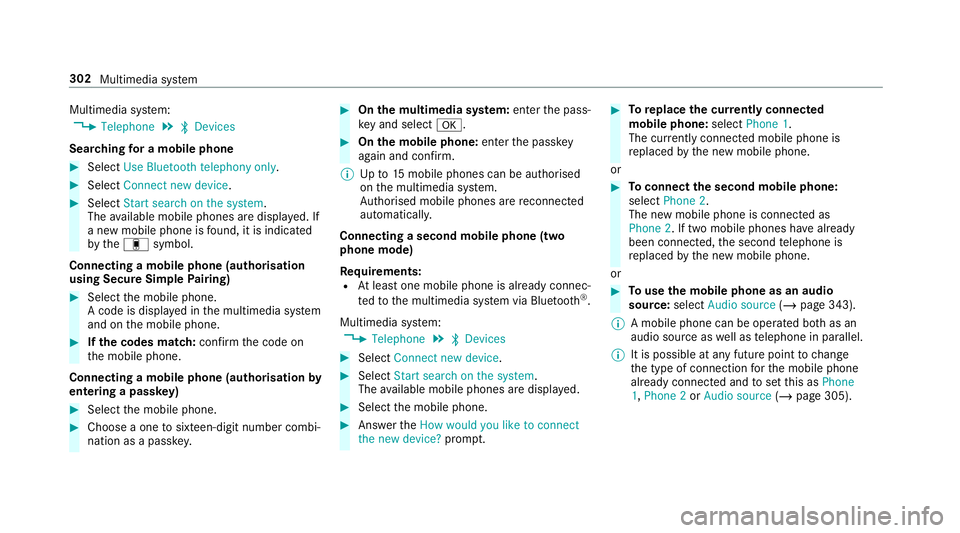
Multimedia sy
stem:
4 Telephone 5
ª Devices
Sear ching for a mobile phone #
Select Use Bluetooth telephony only. #
Select Connect new device .#
Select Start search on the system .
The available mobile phones are displa yed. If
a new mobile phone is found, it is indicated
by the# symbol.
Connecting a mobile phone (authorisation
using Secure Simple Pairing) #
Select the mobile phone.
A code is displa yed in the multimedia sy stem
and on the mobile phone. #
Ifth e codes match: confirm the code on
th e mobile phone.
Connecting a mobile phone (authorisation by
entering a passk ey)#
Select the mobile phone. #
Choose a one tosixteen-digit number combi‐
nation as a passk ey. #
On the multimedia sy stem: enter the pass‐
ke y and select a. #
On the mobile phone: enterthe passk ey
again and con firm.
% Upto15 mobile phones can be auth orised
on the multimedia sy stem.
Auth orised mobile phones are reconnected
au tomatical ly.
Connecting a second mobile phone (two
phone mode)
Re quirements:
R Atleast one mobile phone is already connec‐
te dto the multimedia sy stem via Blue tooth ®
.
Multimedia sy stem:
4 Telephone 5
ª Devices #
Select Connect new device. #
Select Start search on the system .
The available mobile phones are displa yed. #
Select the mobile phone. #
Answer theHow would you like to connect
the new device? prompt. #
Toreplace the cur rently connected
mobile phone: selectPhone 1.
The cur rently connected mobile phone is
re placed bythe new mobile phone.
or #
Toconnect the second mobile phone:
select Phone 2.
The new mobile phone is connec ted as
Phone 2. If two mobile phones ha vealready
been connec ted, the second telephone is
re placed bythe new mobile phone.
or #
Touse the mobile phone as an audio
source: selectAudio source (/page 343).
% A mobile phone can be operated bo thas an
audio source as well as telephone in parallel.
% It is possible at any future point tochange
th e type of connection forth e mobile phone
already connected and toset this as Phone
1, Phone 2 orAudio source (/page 305). 302
Multimedia sy stem
Page 307 of 549
#
Select Connect a new device .#
Select Start search on the system .#
Select a mobile phone. #
Connect the mobile phone with the multime‐
dia sy stem via Secure Simple Pairing or the
passk ey (/page 301). #
Ente rth e SIM card PIN and confi rm.
The reception and call quality are impr oved
when theve hicle's exterior aerial is connec‐
te d.
% Ifth e mobile phone is connected as an SAP
te lephone, calls cannot be made on the
mobile phone, since the SIM card is inser ted
in theve hicle. Connect the mobile phone to
th eve hicle hotspot for data reception
(/ page 263).
Connecting the SIM card #
Select the SIM card. #
Ente rth e SIM card PIN and confi rm.#
Parallel use with a mobile phone: select
an authorised mobile phone. #
Select Yes, SIM card and
and, if necessar y,enter the SIM card PIN.
Ac cess tothe mobile phone data is available.
Incoming and outgoing calls are available
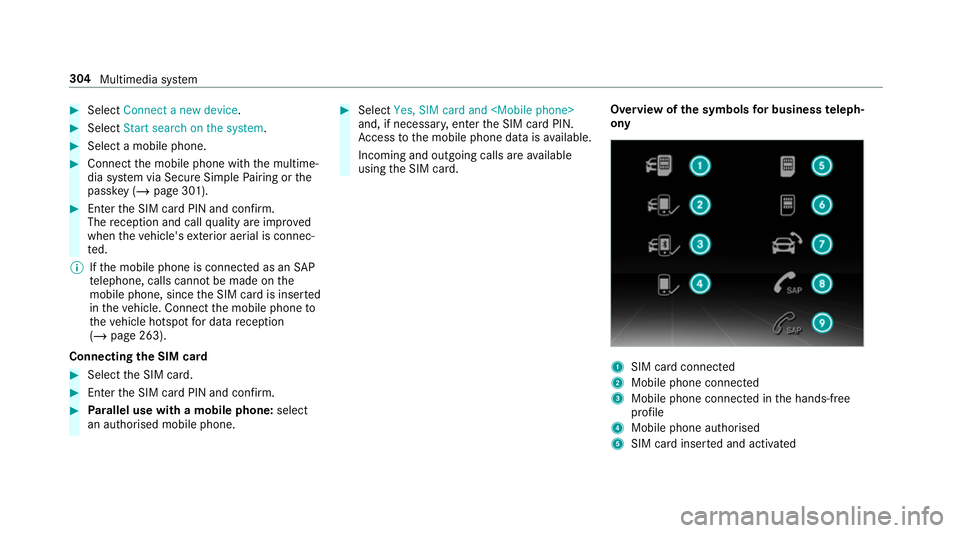
using the SIM card. Overview of
the symbols for business teleph‐
ony 1
SIM card connec ted
2 Mobile phone connected
3 Mobile phone connected in the hands-free
profile
4 Mobile phone authorised
5 SIM card inser ted and activated 304
Multimedia sy stem