ESP MERCEDES-BENZ G-CLASS SUV 2018 Manual PDF
[x] Cancel search | Manufacturer: MERCEDES-BENZ, Model Year: 2018, Model line: G-CLASS SUV, Model: MERCEDES-BENZ G-CLASS SUV 2018Pages: 549, PDF Size: 10.22 MB
Page 240 of 549
Note
s on operating saf ety &
WARNING Risk of di stra ction from infor‐
mation sy stems and communications
equipment
If yo u operate information and communica‐
tion equipment integ rated in theve hicle
when driving, you will be distracted from the
traf fic situation. This could also cause youto
lose control of theve hicle. #
Only operate this equipment when the
traf fic situation permits. #
Ifyo u cannot be sure of this, stop the
ve hicle whilst paying attention toroad
and traf fic conditions and ope rate the
equipment with theve hicle stationar y. &
WARNING Risk of di stra ction from oper‐
ating mobile communication equipment
while theve hicle is in motion
If yo u operate mobile communication equip‐
ment when driving, you will be distracted from
the tra ffic situation. This could also
cause youto lose control of theve hicle. #
Only operate this equipment when the
ve hicle is stationar y. Fo
ryo ur ow n sa fety, al ways obser vethefo llow‐
ing points when operating mobile communica‐
tions equipment and especially your voice con‐
trol sy stem:
R Obser vethe legal requ irements forth e coun‐
try in which you are driving.
R While driving, on ly operate mobile communi‐
cations equipment and your voice control
sy stem when the tra ffic conditions permit it.
Yo u may otherwise be distracted from the
traf fic conditions and cause an accident,
inju ring yourself and others.
R Ifyo u use thevo ice control sy stem in an
emer gency your voice can change and your
te lephone call, e.g. an emer gency call, can
th ereby be unnecessarily dela yed.
R Familiarise yourself with thevo ice control
sy stem functions before starting the journe y. Operation
Overview of operation of LINGU
ATRO NIC on
the multifunction steering wheel LINGU
ATRO NIC is operational appr oximately
th irty seconds af terth e ignition is switched on. LINGU
ATRO NIC 237
Page 242 of 549
R
Application-specific voice commands are
only available forth e active application.
Once Linguatronic is star ted an autocue is
shown. Apart from theav ailable voice com‐
mands forth e application cur rently acti ve,th is
also cites example voice commands forot her
applications which are not active. In this wa y,
yo u will be familiar more quickly with theav aila‐
ble voice commands. The list can be scrolled or
it can be operated byspeech or the controller/
to uchpad. Information on
the language setting Yo
u can change the language of LINGU ATRO NIC
via the sy stem language settings. If the set sys‐
te m language is not suppor tedby LINGUA‐
TRONIC, English will be selected.
LINGU ATRO NIC is available in thefo llowing lan‐
guages:
R German
R English
R French R
Italian
R Dutch
R Polish
R Portuguese
R Russian
R Swedish
R Spanish
R Czech
R Turkish Using LINGU
ATRO NIC ef fectively Fe
atures of audible help functions Yo
ure cei veinformation and help forth efo llow‐
ing topics:
R Optimum operation: saythebrief instruc-
tion voice command.
R Cur rent application: onthe multifunction
st eering wheel, press the£ rocker switch
up and say theHelp voice command.
R Continued dialogue: saytheHelp voice
command during a voice dialogue. R
Specific function: sayvoice commands for
th e desired function, e.g. Help telephone. Note
s on how toimpr ovespeech quality If LINGU
ATRO NIC does not under stand you:
R onlyoperate LINGU ATRO NIC from the driv‐
er's seat.
R say thevo ice commands cohe rently and
clearly, but do not exaggerate thewo rds.
R avoid loud noises that cause inter fere nce
while making a voice command ent ry, e.g.
th e blo wer.
A vo ice tag in the address book is not recog‐
nised:
R only crea tesensible address book entries in
th e sy stem/mobile phone, e.g. enter sur‐
name and firs t name in the cor rect field.
R do not use any abbr eviations, unnecessary
spaces or special characters.
If a station list ent ryis not recognised:
R say theRead out station list voice command. LINGU
ATRO NIC 239
Page 253 of 549
Message
voice commands Vo
ice command Function
Text message to
crea tea message. All address book names are available.
Reply To
reply toa message
Forward text message To
forw ard a message Overview of
vehicle voice commands Yo
u can use theve hicle voice commands to
directly call up the cor responding menus forthe
ve hicle settings.
Ve hicle voice commands Vo
ice command Function
Ambient light menu To
display ambient light settings
Ambient light "blue" To
switch ambient light toblue
Display and styles menu To
show display settings
Assistance menu To
display assis tance settings 250
LINGUATRONIC
Page 274 of 549
multimedia sy
stem, the Mercedes me connect
services and your vehicle's communication mod‐
ule. These will con veniently be sent to you via
th e mobile phone connection in your vehicle
and, as an option, ins talled automaticall y.Yo u
can moni torth est atus of your updates on the
Mercedes me por tal and find information about
po tential inno vations.
Yo ur advantages at a glance:
R con veniently recei vesoftware update s via
th e mobile phone network
R impr ovesth equ ality and availability of
Mercedes me connect services
R keeps your multimedia sy stem and communi‐
cation module up-to-date
Fu rther information about software updates can
be found at http://me.mercedes-benz.com
Pe rforming a software upda te
Requ irements:
R There is an Internet connection
(/ page 325). R
For automatic updates: your vehicle has a
permanently ins talled communication mod‐
ule.
Multimedia sy stem:
4 System 5
Software update
Au tomatic update #
Activate OAutomatic online updates.
Up dates are per form ed.
The cur rent status of the updates is dis‐
pla yed.
Manual update #
Deactivate ªAutomatic online updates. #
Select an update from the list and start the
update.
Ac tivating the so ftwa reupdate #
Restart the sy stem.
Fu nction of important sy stem upda tes
Impor tant sy stem updates may be necessary for
th e security of your multimedia sy stem's data.
Please ins tallth ese updates, or else the security
of your multimedia sy stem cann otbe ensured. %
If automatic software updates are activated,
th e sy stem updates will be downloaded auto‐
matically (/ page271).
As soon as an upda teisavailable for download,
a cor responding message appears onthe media
displa y.
Yo u ha vethefo llowing selection options:
R Download
The update will be downloaded in the back‐
ground.
R Details
Information about the pending sy stem
update is displa yed.
R Later
The update can be downloaded manually at a
later time (/ page271).
If th e download is comple ted and the update is
re ady for ins tallation, you will be informed of this
af te rth e next ignition cycle, forex ample.
% Park theve hicle safely in a suitable location
before starting the ins tallation. Multimedia sy
stem 271
Page 283 of 549
%
3wo rdaddresses from what3words are an
alternative addressing sy stem for multilin‐
gual georeferencing of global locations with
a re solution of thre e metres. Using this grid,
locations on the Ear th's sur face are included
whi chdo not ha vea building address such
as stre et and house number, forex ample.
The Brandenburg Gate in Berlin has thefo l‐
lowing language dependent 3 wordaddress,
fo rex ample:
R German: tapfer.ge bäude.verliehen
R Engl ish:that.lands.winning
R French: posteaux.bobineur.ombrant
3 wo rdaddresses are unique, easy to
re member and suf fice for most routine appli‐
cations.
The bidirectional co nversion of 3 word
addresses can be car ried out here:
R atthewe bsite http://what3words.com
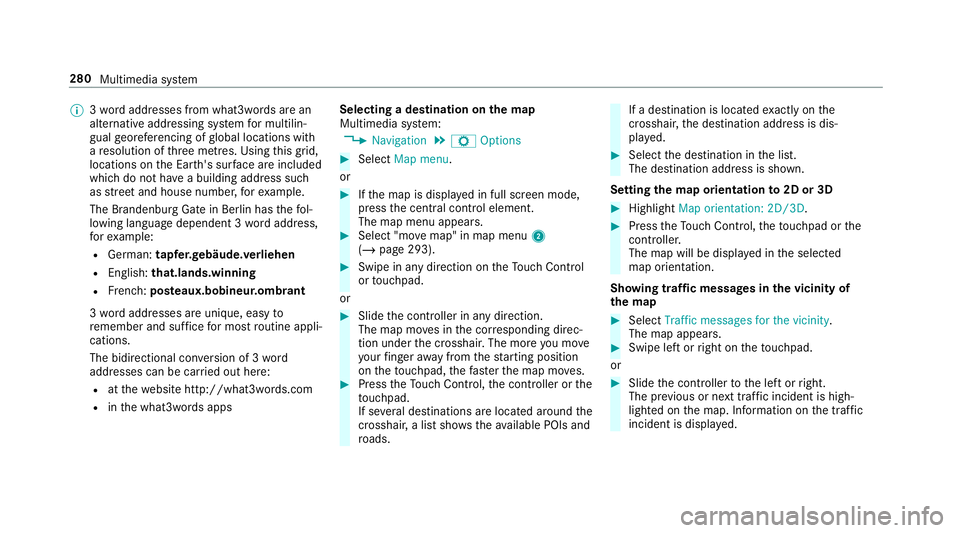
R inthe what3words apps Selecting a destination on
the map
Multimedia sy stem:
4 Navigation 5
Z Options #
Select Map menu.
or #
Ifth e map is displa yed in full screen mode,
press the cent ral control element.
The map menu appears. #
Select "mo vemap" in map menu 2
(/ page 293). #
Swipe in any direction on theTo uch Control
or touchpad.
or #
Slide the controller in any direction.
The map mo ves in the cor responding direc‐
tion under the crosshair. The more you mo ve
yo ur finger away from thest arting position
on theto uchpad, thefast erthe map mo ves. #
Press theTo uch Control, the controller or the
to uchpad.
If se veral destinations are located around the
crosshair, a li stsho wstheav ailable POIs and
ro ads. If a destination is located
exact ly on the
crosshair, the destination address is dis‐
pla yed. #
Select the destination in the list.
The destination address is shown.
Setting the map orientation to2D or 3D #
Highlight Map orientation: 2D/3D. #
Press theTo uch Control, theto uchpad or the
controller.
The map will be displ ayed in the selected
map orientation.
Showing traf fic messages in the vicinity of
th e map #
Select Traffic messages for the vicinity.
The map appears. #
Swipe left or right on theto uchpad.
or #
Slide the controller tothe left or right.
The pr evious or next traf fic incident is high‐
lighted on the map. Information on the tra ffic
incident is displa yed. 280
Multimedia sy stem
Page 286 of 549
option is enabled. A message appears and
you
will hear a cor responding message.
Selecting notifications
Multimedia sy stem:
4 Navigation 5
Z Options
5 Announcements #
Switch an announcement on Oor off ª.
Yo u can choose from thefo llowing announce‐
ments:
R Announce traffic warnings
This function is not available in all countries.
R Announce street names
The multimedia sy stem announces the
names of thero ads that will follow the
upcoming change of direction.
This function is not available in all countries
and languages.
Displ aying destination information
Requ irements:
R A destination is entered. Multimedia sy
stem:
4 Navigation #
Select Intermediate destinations and info.
The following information is displa yed:
R Intermediate destinations and destination
The route can also include up tofour
intermediate destinations.
R Name, addre ss
R Remaining driving dis tance
R Time of ar rival
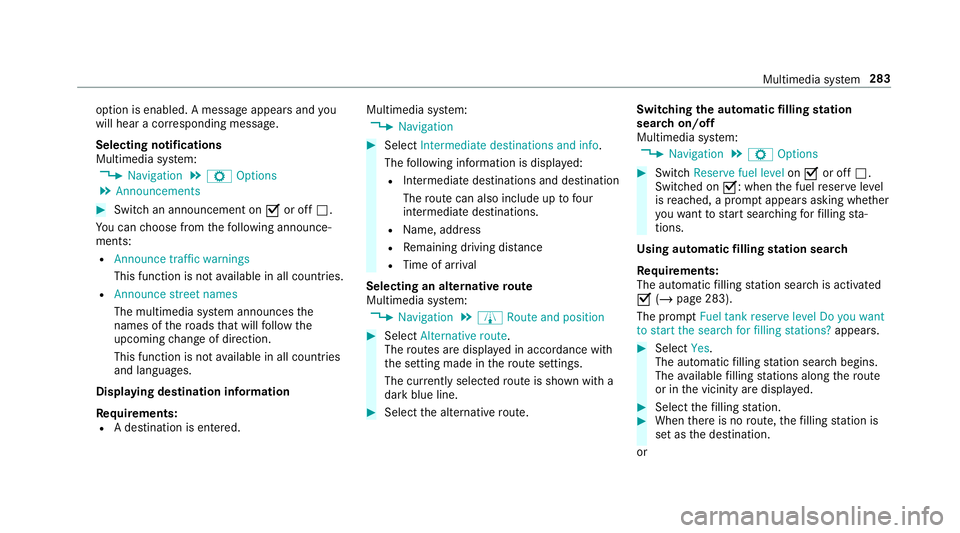
Selecting an alternative route
Multimedia sy stem:
4 Navigation 5
À Route and position #
Select Alternative route.
The routes are displ ayed in accordance with
th e setting made in thero ute settings.
The cur rently selected route is shown with a
dark blue line. #
Select the alternative route. Swit
ching the automatic filling station
sear chon/off
Multimedia sy stem:
4 Navigation 5
Z Options #
Switch Reserve fuel level onO or off ª.
Switched on O: whenthe fuel reser velevel
is reached, a prom ptappears asking whe ther
yo uwa nttostart sear ching forfilling sta‐
tions.
Using au tomatic filling station sear ch
Re quirements:
The automatic filling station sear chis activated
O (/ page 283).
The prom ptFuel tank reserve level Do you want
to start the search for filling stations? appears. #
Select Yes.
The au tomatic filling station sear chbegins.
The available filling stations along thero ute
or in the vicinity are displa yed. #
Select thefilling station. #
When there is no route, thefilling station is
set as the destination.
or Multimedia sy
stem 283
Page 297 of 549
Setting
the map scale
Re quirements:
R The map is shown.
Multimedia sy stem:
4 Navigation #
Tozoom in: swipe down on theTo uch Con‐
trol.
or #
Turn the controller anti-clockwise.
or #
Movetwo fingers apart on theto uchpad. #
Tozoom out: swipe up on theTo uch Control.
or #
Turn the controller clockwise.
or #
Movetwo fingers toge ther on theto uchpad.
% You can set the unit of measurement of the
map scale (/ page 267). Moving
the map
Multimedia sy stem:
4 Navigation 5
Z Options
5 Map menu #
Alternatively, if the map is displa yed in full
screen mode, press the cent ral control ele‐
ment.
The map menu appears. #
Select "Mo vemap" in map menu 2
(/ page 293). #
Swipe in any direction on theTo uch Control
or touchpad.
or #
Slide the controller in any direction.
The map mo ves in the cor responding direc‐
tion under the crosshair. The fur ther you
mo veyour finger away from thest arting posi‐
tion on theto uchpad, thefast erthe map
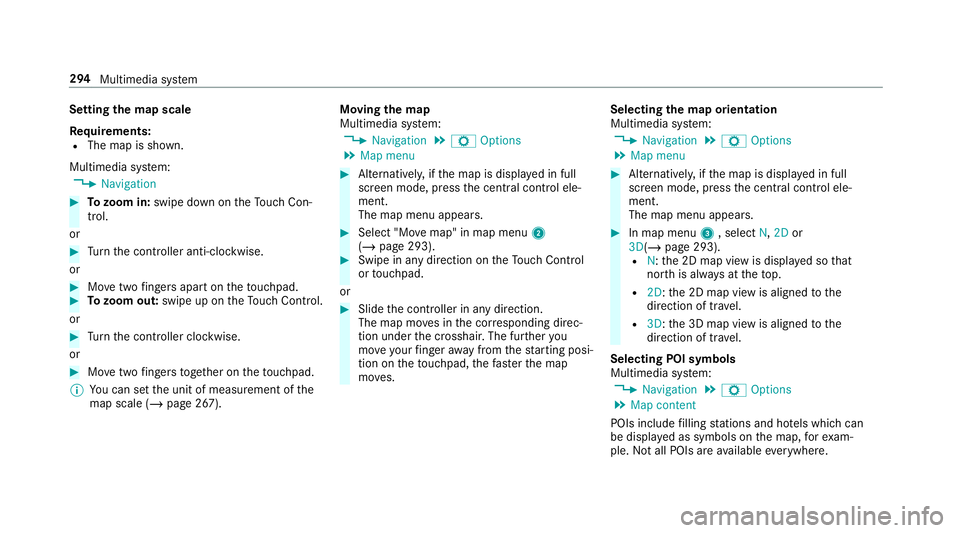
mo ves. Selecting
the map orientation
Multimedia sy stem:
4 Navigation 5
Z Options
5 Map menu #
Alternatively, if the map is displa yed in full
screen mode, press the cent ral control ele‐
ment.
The map menu appears. #
In map menu 3, select N,2D or
3D( /page 293).
R N:the 2D map view is displa yed so that
no rth is alw ays at theto p.
R 2D: the 2D map view is aligned tothe
direction of tr avel.
R 3D: the 3D map view is aligned tothe
direction of tr avel.
Selecting POI symbols
Multimedia sy stem:
4 Navigation 5
Z Options
5 Map content
POIs include filling stations and ho tels which can
be displa yed as symbols on the map, forex am‐
ple. Not all POIs are available everywhere. 294
Multimedia sy stem
Page 308 of 549
6
SIM card inse rted and available
7 Hands-free profile activated
8 SAP function available and activated
9 SAP function not available
% Ifth e mobile phone is actively connected
with the sy stem, the cor responding symbol
is highlighte d inyello w.
Calling up the business telephony settings
Multimedia sy stem:
4 Telephone 5
Z Options
5 Business telephony #
Select the desired option.
The following settings are available:
R Phone number blocking
R Call waiting
R Select network provider
R Data usage, voice
R Call forwarding Inter
changing mobile phones (two phone
mode)
Re quirements:
R The mobile phones are authorised
(/ page 301).
Multimedia sy stem:
4 Telephone 5
ª Devices #
Inthe device overview, select a mobile phone
which has already been authorised and set
as Phone 1 orPhone 2.
Af ter inter changing the mobile phones, the
mobile phone in thefo re ground isreplaced by
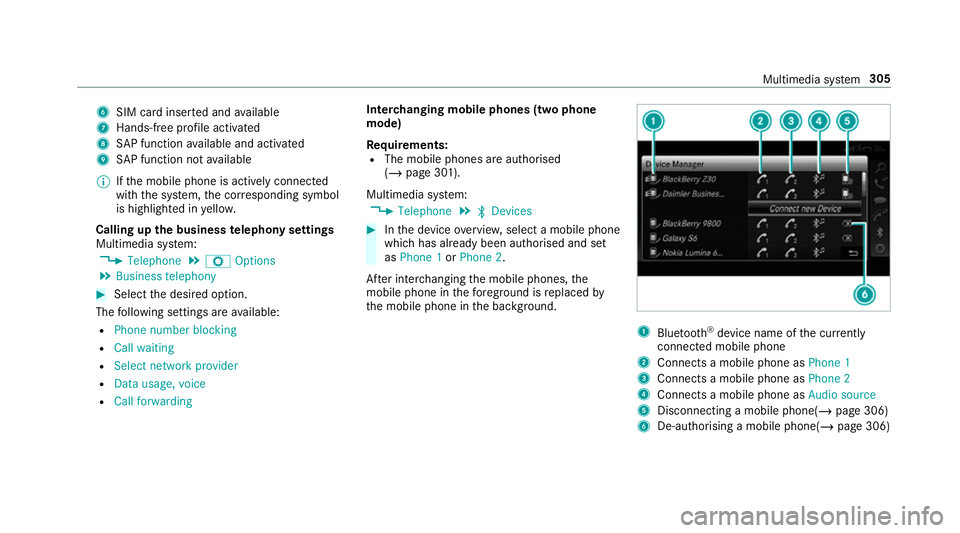
th e mobile phone in the bac kground. 1
Blue tooth ®
device name of the cur rently
connected mobile phone
2 Connects a mobile phone as Phone 1
3 Connects a mobile phone as Phone 2
4 Connects a mobile phone as Audio source
5 Disconnecting a mobile phone(/ page 306)
6 De-au thorising a mobile phone(/ page 306) Multimedia sy
stem 305
Page 317 of 549
R
Set up call/Connect now #
Select a function.
Marking an entry in the to-do list as comp le‐
ted
Multimedia sy stem
4 In Car Office #
Select an entry intheto -do li stO .
The following functions are available:
R Mark the selected entry as concluded or
st ill open
R Call up the selected entry w
R Tostart automatic processing of theto-
do lis t:Start to-do items
No ting an incoming call
When youre cei vean incoming call a prom pt
appears asking whe ther the call should be
accep ted, rejected or no ted. #
Select Reminder.
The call is rejected and au tomatical lyadded
to the "In Car Of fice" to-do li st. Mercedes-Benz link
Overview of Mercedes-Benz Link
Using Mercedes-Benz Link,
various functions
and selected mobile phone apps can be transfer‐
re dto the media displa y.
The Mercedes-Benz Link contro l box supplemen‐
ta ry equipment is requiredforth is. You can
obtain this at a Mercedes-Benz Service Cent re.
% The Mercedes-Benz Link contro l box uses
th e Android operating sy stem.
% The service pr ovider is responsible forth ese
apps and the services and conte nt connec‐
te dto it.
Connecting Mercedes-Benz Link with the
mu ltimedia sy stem #
Connect the Mercedes-Benz Link control box
with theç USB port of the multimedia
connection unit using a suitable connecting
cable.
% A suitable connecting cable is available sep‐
arately at a Mercedes-Benz Service Cent re.Using Mercedes-Benz Link
Re
quirements:
R The Mercedes-Benz Link control box is con‐
nec ted with the multimedia sy stem using the
ç USB port.
Multimedia sy stem:
4 Connect #
Select Mercedes-Benz Link. #
Select MB Link.
The mobile phone functions and apps are
av ailable and shown on the media displa y.
Yo u can find more information in the Mercedes-
Benz Link control box operating instructions.
Ending Mercedes-Benz Link
Multimedia sy stem:
4 Connect 5
Mercedes-Benz Link #
Select Disconnect.
The connection is ended.
The mobile phone continues tobe supplied
with elect ricity.
or 314
Multimedia sy stem
Page 318 of 549
#
Disconnect the connecting cable between
th e Mercedes-Benz Link control box and the
multimedia sy stem.
% Mercedes-Benz recommends disconnecting
th e connecting cable only when theve hicle
is stationar y. Apple CarPlay™
Overview of Apple CarPlay™
&
WARNING Risk of di stra ction from infor‐
mation sy stems and communications
equipment
If yo u operate information and communica‐
tion equipment integ rated in theve hicle
when driving, you will be distracted from the
traf fic situation. This could also cause youto
lose control of theve hicle. #
Only operate this equipment when the
traf fic situation permits. #
Ifyo u cannot be sure of this, stop the
ve hicle whilst paying attention toroad and traf
fic conditions and ope rate the
equipment with theve hicle stationar y. Yo
u must obse rveth e legal requirements forthe
country in whi chyou are cur rently driving when
operating the multimedia sy stem.
iPhone ®
functions can be used via the multime‐
dia sy stem using Apple CarPlay™. They are oper‐
ated using the cent ral control element or the
Siri ®
vo ice-operated control sy stem. You can
activate thevo ice-opera ted control sy stem by
pressing and holding theó button on the
multifunction steering wheel.
When using Apple CarPlay™ via thevo ice-oper‐
ated control sy stem, the multimedia sy stem can
st ill be operated via LINGU ATRO NIC
(/ page 237).
Only one mobile phone at a time can be connec‐
te d via Apple CarPlay™ tothe multimedia sys‐
te m.
The availability of Apple CarPlay™ may vary
according tothe count ry. The service pr
ovider is responsible forth is appli‐
cation and the services and conte nt connected
to it.
Information on Apple CarPlay™
While using Apple CarPlay™ various functions of
th e multimedia sy stem, e.g. telephony or the
media sources Blue tooth ®
audio and iPod ®
, are
una vailable.
Only one route guidance can be active at a time.
If ro ute guidance is active on the multimedia sys‐
te m, it is closed when route guidance is star ted
on the mobile phone.
Connecting an iPhone ®
via Apple CarPlay™
Re quirements:
R Apple ®
operating sy stem version iOS 8.3 or
abo veis ins talled on the iPhone ®
.
R An Internet connection is requiredforth e full
ra nge of functions for Apple CarPlay™.
R The iPhone ®
is connected tothe multimedia
sy stem via the USB port çusing a suita‐
ble cable (/ page 337). Multimedia sy
stem 315