SD card MERCEDES-BENZ GL-Class 2011 X164 Comand Manual
[x] Cancel search | Manufacturer: MERCEDES-BENZ, Model Year: 2011, Model line: GL-Class, Model: MERCEDES-BENZ GL-Class 2011 X164Pages: 214, PDF Size: 4.69 MB
Page 143 of 214

X
Sel ect CopyMus icFiles and
pressthe
9 button toconfi rm.
The med ialist appe ars .Ad atamedi um
fr om whic hfile scan becopied isselec ted
auto maticall y. :
Datamedi umselec ted
X Sel ect adat amedi umusin gth e:
9 buttons and pres sth e9 buttonto
co nfirm .
The datamedi umisloaded .
If th edat amedi umcontains music filesth at
can becopied, youseeamen u. :
Toselec tanindi vidualfol der
; Tocop yal lmu sicf iles
= Tocon firm your selec tion
2. Selecting music files Selecting
allmu sic files
X Selec tAll MusicFile s .
This function copie sall music filesonthe
selec teddata carrier.The icon infro ntof
All MusicFile s ;
isfilled inand all followin
gent ries have atic kO beside
the m.
Selecting foldersor tracks
X Press the: or9 buttonand press
the 9butt ontocon firm .
Selec tion:isindic ated bythe Otickin
fro ntofthe folder ortrack entry.
3. Confir mingyourselection X
Selec tCont inue and
press the9butt on
to con firm .
The copyin gmen uappears.
4. Sta rting thecopying process :
Tocopy fromamemo rycard
; Tocopy tothe MUS ICREGIS TER
= Memor yrequire ment;see "Calling up
memo ryspace info" (Y page 142)
? Todete rmin edest inationfolder
A Name ofthe data medium fromw hich files
are being copied
B Tostart thecopying process
C Data medium positioninthe media list
D Tocancel copying ofmusic files
X To selec tadestination fold er:selec t
Des tinationFolder and
pres sth e9
butt ontocon firm.
X Pres sth e: or9 buttonand pres s
th e9 butt ontocon firm.
X Conf irmStart by
pres singth e9 butt on.
Copying begins.The prog ress barindicates
th est atus ofthecop ying procedure.
! Under nocircum stanc esshould you
rem ove themem orycardwhile youare
cop ying data fromi t.Doi ngsowillge nera te
unu sable da ta inthe MUS ICREG ISTER. MUS
ICREG ISTER
141Aud io Z
Page 147 of 214
i
Con necting aco mple tely disc harg ediPod
or MP3 player canresult inan extend ed
ini tializ ation per iod.
Er ror mes sage sappear whilethedev iceis
bein gact ivat edif:
R COMA NDdoes notsuppor tthe device
conn ected (External Device Unavailable ).
R two devices areconn ected simultaneously
(Please makesurethatonlyone device
isconnected ).
R the conn ected device consumes toomuch
power.
R the Media Interface connection isfaulty.
i Ifnecessary, consultanauthorized
Mercedes-Ben zCent er. Switches
onMedia Interfa cemode
General notes In
ext reme cases, startingupindividual
func tionscan take uptoseveral minutes–
this depends onthe external device andits
con tent(e.g. video podcasts ).
Only usetheoriginal software tostor edata
on your iPods andMP3 players. Otherwise,
some orall func tionsmay notbeavailable.
Opt ions forswitching on Opt
ion 1
X Connec tan ext ernal device (Ypage 144).
COMAND activatesthe device. Thebasic
display thenappears.
Opt ion 2
X Press theh functionbutton oneormore
times.
By pressing theh function button
repeatedly, youcan change theoperatin g
mode inthe following order:
R audio CD/DVD/MP3 (disc)
R SD memory cardmode R
MUSIC REGISTE R
R Media Interface mode
Opt ion 3
X Press thex number key.
This direct lyselect sthe con nected external
audio equipment.
Opt ion 4
X Use the9: buttonsto select the
ent ryunder position 0int he media list
(Y page 134)andpress the9button to
confirm .
COMAND activatestheconn ected device.
You willsee amessage tothis effect .The
basic displa ythen appea rs.
If no device isconn ected, youwillsee the
Media Int. entr
yinstead ofadevice
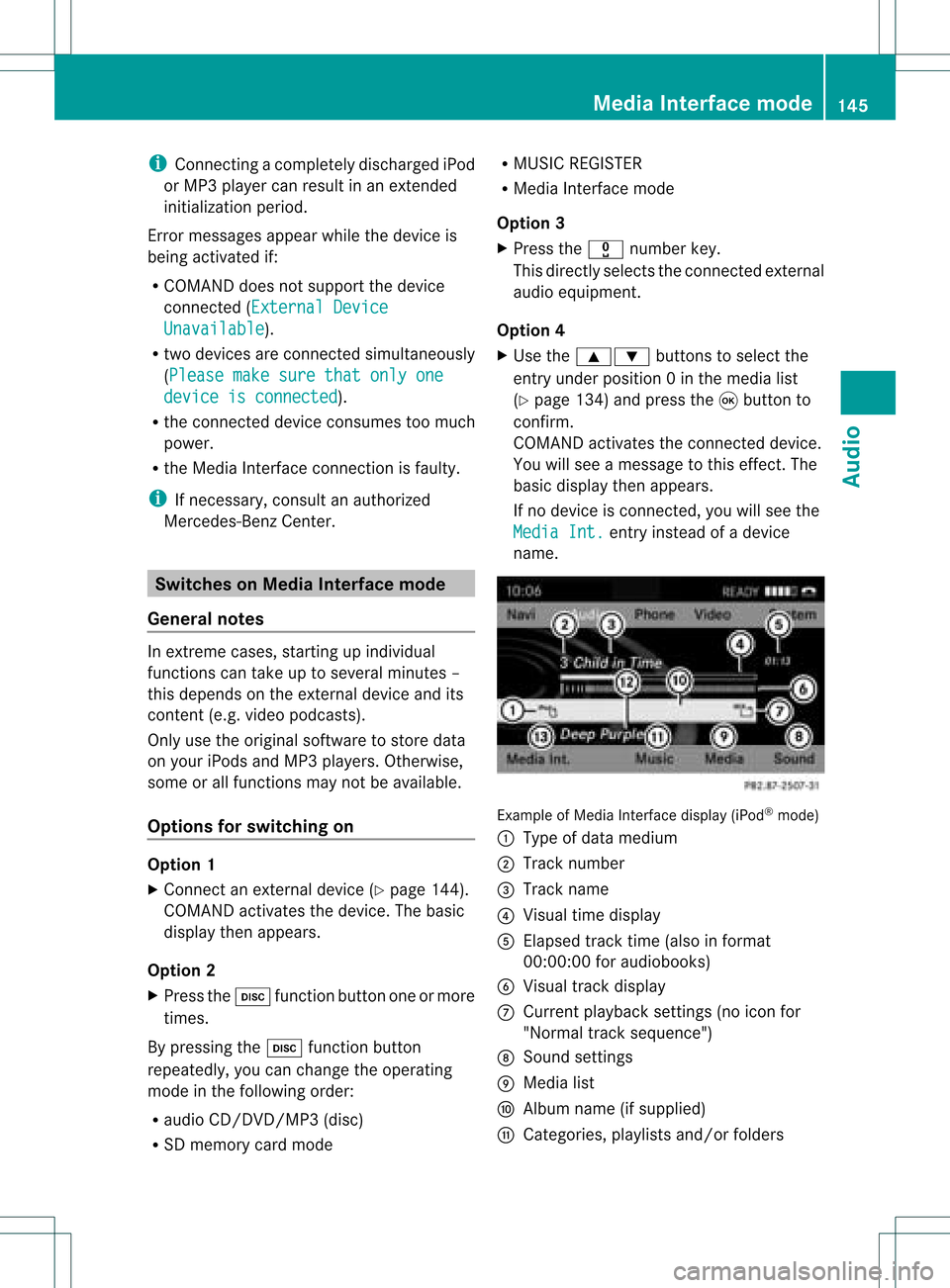
name. Example
ofMedia Interface display (iPod®
mode)
: Type ofdata medium
; Track number
= Track name
? Visual timedispla y
A Elapsed tracktime(also informat
00:0 0:00 foraudi obooks)
B Visual trackdispla y
C Current playback settin gs(no icon for
"Normal tracksequence")
D Sound settings
E Media list
F Album name(ifsuppli ed)
G Categories, playlists and/or folders Media
Interface mode
145Audio Z
Page 182 of 214

Vehi
cle equi pmen t
i Thisma nua lde scri besal lthe standa rd
and optio nal equipme ntofyour veh icle
wh ich wasava ilab leat the time of
pu rcha se.Country -specificd iffe ren ces are
possible .Bear inmind thatyour vehicle
may notfeature allfunc tionsdescribed
here. Thisalso refers tosafety- related
systems andfunc tions. Overview
Opera
tingSafet y G
War
ning!
Please devote youratten tionfirst and
foremo stto the traff icsituation youarein.
While thesystem permitshands- freephone
operation ,atten tiontotraff icmay bedivert ed
not only byphysical operation ofaphone, but
also bythe distrac tionofaphone
con versat ionwhile driving. Assuch, forsafety
reasons, weenco urage thedriver tostop the
vehicle inasafe place before answering or
placing aphone call.
For safety reasons, youshould onlyselect a
destin ationwhen thevehicle isstat ionary.
While thenavigation systemprovides
direct ionalassistanc e,the driver mustremain
focused onsafe driving behavior, especially
pay atten tiontotraff icand street signs, and
should utilizethesystem' saudio cueswhile
driving.
The navigation systemdoesnotsupply any
infor mation onstop signs, yieldsigns, traffic
regulations ortraff icsafety rules.Their
observan cealway sremains inthe driver's
person alrespon sibility. DVDmaps donot
cover allareas norallroutes withinanarea.
Traffic regulations alwayshave priority over
any route recom mendat ionsgiven.
Bear inmind thatataspeed ofjust 30mph
(approximat ely50km/ h),your vehicle is
cover ingadistanc eof 44 feet (approximat ely
14 m)every second. G
War
ning
Navigation announcementsare intended to
direct youwhile driving without divertingyour
atten tionfrom theroad anddriving.
Please alwaysuse this feature instead of
con sulting themap display fordirect ions.
Consultin gthe symbols ormap display for
direct ionsmay cause youtodivert your
atten tionfrom driving andincrease yourrisk
of an acciden t. G
War
ning!
Please donot use theVoice ControlSystem
in an emergen cy,asthe toneof your voice
may change inastr essful situation .This could
cause adelay incompleting yourphone call
in atimely manner. Thiscould distract youin
an emergency situationandcause youtobe
involved inan accident. Symbols
OnlyUsed inthis Chapter
The following symbolsindicate:
s thatyouhave tosay something
t thatthere isavoice output fromthe
voice control
u thatthesystem showsinformation on
the displa y. Usage
You canusethevoice controlsystem to
operate thefollowing systemsdepending on
the equipment inyour vehicle:
R Phone
R Navigation
R Address book
R Audio (radio, satellite radio,DVDchanger,
memory card,music register)
Say thecommands withoutpausingbetween
individua lwords. Ifyou enter acommand that
does notexist orisincorrec t,the voice
cont rolsystem asksyouforanew command
with “Please repeat”or“Please repeatyour 180
OverviewVoice
Control
Page 203 of 214

“Group
1”to“Group 9” With
the“Group 1”to“Group 9”comman ds,
you can select agroup onaninsert edaudio
DVD .
“Next Group”/“Previous Group” With
the“Next group”/“Previous group”
comman ds,you can select thenext or
previous grouponthe insert edaudio DVD.
“Next <003E000F000C00040005001200180022004800470012000500160009000F0015
0013F Folder”With
the“Next <0006000F000C00040005001200180024005400530012000500160009000F0015
0013> folder”
comman ds,you can select afolder onthe
insert edCD/D VDinMP3 mode.
“Memory Card” With
the“Memory card”comman d,you can
switch tothe SDcard onthe COMAND
system.
“DVD Video” With
the“DVD video” comman d,you can start
a video DVDonthe COMAND system.
“Har dDisk” With
the“Hard disk”comman d,you can
change tothe inter nalhard disk(Music
Register) ofCOMAND . External
Equipment(Aux) “Audio
Aux”
You canusethe“Audio Aux”comman dto
activate theAux input. Command
List
In the Command listsection ,you willfind all
the main comman dsfor operating voice
cont rol.The comman dsavaila bletoyou
depend onthe vehicle’s equipment. i
Some functionshave several voice
comman dstofacilitate operation. These
are grouped togetherbetween the
separator linesinthe listand canbeused
inter changeably.
Some comman dsare enclosed inangular
bracket s<>. This signifies thatthe
enclosed commandis avoice name, which
you can determin eyourself andattach to
address bookentries, radio station s,
program categories etc. General
Command s R
Yes
R Correct
R Okay R
Cancel R
No R
Pause R
Address book R
MP3 R
CD changer R
CD R
Navigation
R Route guidance
R Nav R
DVD video R
DVD audio R
Radio R
Satellite radio/Sirius R
Phon e R
Message s R
Video Comm
andList
201Voice Control Z
Page 208 of 214

R
Previous track
R Last track
R Repeat/replay track R
CD 1to CD 6
R CD number 1to CD number 6 R
Track 1to Track 99
R Track number 1to Track number 99 MP3
R
MP3
R MP3 changer (on) R
Next MP3
R Other MP3 R
Previous MP3
R Last MP3
R Repeat/replay MP3 R
Next directo ry
R Other directo ry R
Previous directory
R Last directo ry R
Next track
R Other track R
Previous track
R Last track
R Repeat/replay track R
Track 1to Track 99
R Track number 1to Track number 99 R
MP3 1to MP3 6
R MP3 number 1to MP3 number 99 Har
dDisk R
Hard disk
R Music register Memory
Card R
Memory card DVD
Audio R
DVD audio
R DVD audio changer on R
Next DVDaudio
R Other DVDaudio R
Previous DVDaudio
R Last DVD audio R
Next directo ry
R Other directo ry R
Previous directory
R Last directo ry R
Next group
R Other group R
Previous group
R Last group R
Group 1to 9
R Group number 1to 9 R
Next track
R Other track R
Previous track
R Last track
R Repeat/replay track R
Track 1to Track 99
R Track number 1to Track number 99 R
DVD audio 1to DVD audio 6
R DVD audio number 1to DVD audio
number 6 Aux
Audio
Aux 206
Comma
ndListVoice Control