Sts MERCEDES-BENZ GLA-Class 2016 X156 Comand Manual
[x] Cancel search | Manufacturer: MERCEDES-BENZ, Model Year: 2016, Model line: GLA-Class, Model: MERCEDES-BENZ GLA-Class 2016 X156Pages: 246, PDF Size: 6.73 MB
Page 178 of 246
sage, you will be informed. A window appears
with the respective information.
Setting a music alert
XTo selectOptionsin the radio menu bar:
turn and press the controller.
XTo select Alert for Artist, Track &
SportsEvent: turn and press the control-
ler.
A menu appears.
XSelect Add New Alert.
A window with a prompt appears.
XSelect ArtistorTrack.
The alert is set for the current artist or
track.
Setting a sports alert
XTo select Optionsin the menu bar: turn
and press the controller.
XTo select Alert for Artist, Track &
SportsEvent: turn and press the control-
ler.
A menu appears.
XSelect Manage Sports Alerts.
A menu appears.
XSelect Select New Alerts.
A menu appears.
XSelect the desired team from a league, e.g.
college, NBA, NHL, NFL or MLB.
The alert function for the sports team is
added.
A window with music and sport alerts
appears
XTo select Change ToorIgnore: turn and
press the controller.
If you select Change To
, the channel is
changed and the favorite artist or track is
played.
If you select Ignore
, the current channel
will continue playing.
Editing music and sports alerts
XSelect Edit Alert.
A list of set sports alerts appears.
XSelect Manage Music Alerts.
A list of set artists and tracks (artist)
appears.
Switching music and sport alerts on/off
XWith Oorª in front of ActivateMusic
Alertsyou can determine whether music
alerts should be switched on or off.
XWith Oorª in front of Activate
Sports Alertsyou can determine
whether sport alerts should be switched on
or off.
Tagging music tracks
This function allows you to transfer the music
track currently playing to an Apple®device
and then purchase it in the iTunes store®.
XTo select Optionsin the radio menu bar:
turn and press the controller.
XTo select TagThisTrack: turn and press
the controller.
A message about saving this music track on
the Apple
®device appears.
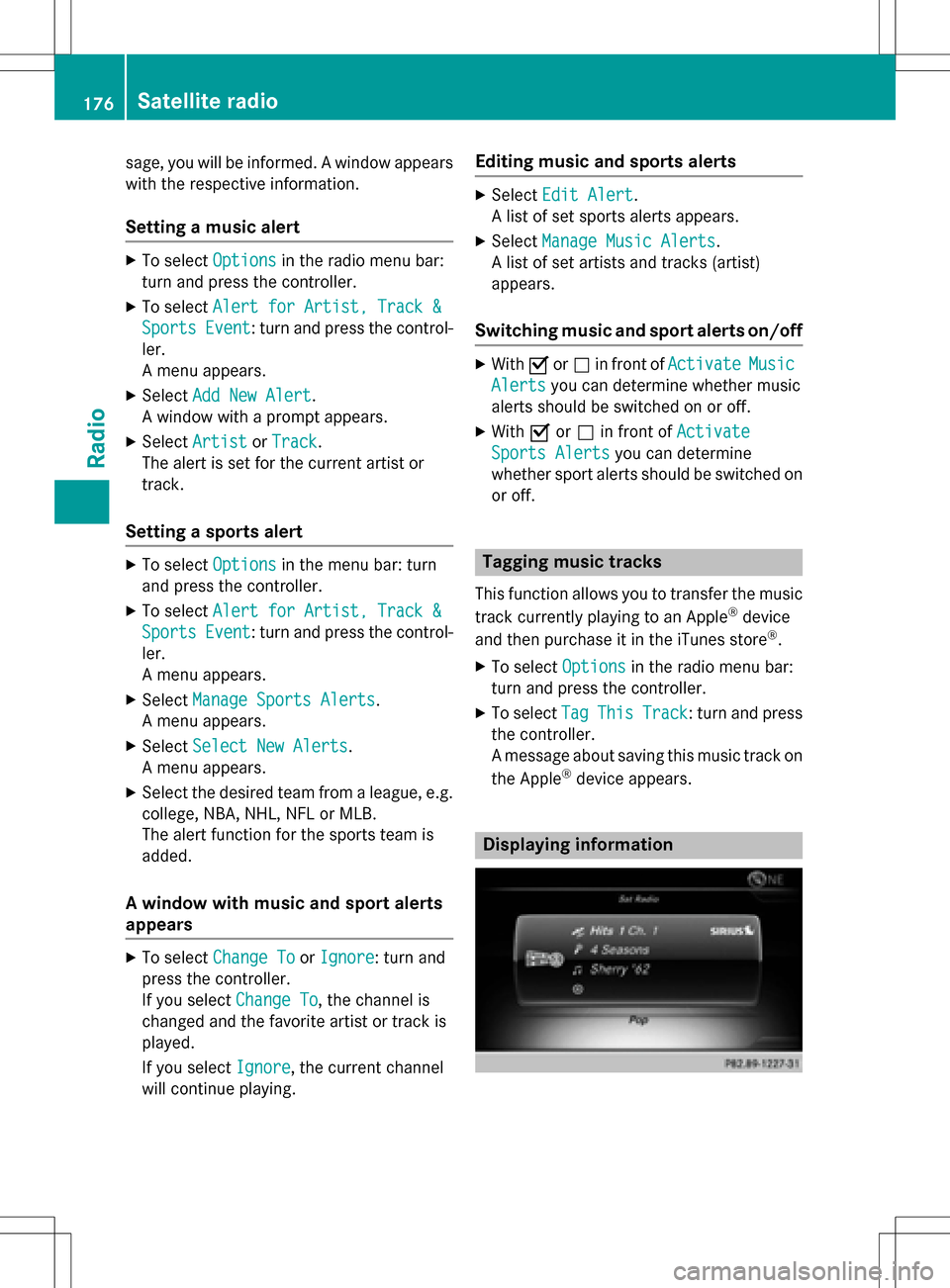
Displaying information
176Satellite radio
Radio
Page 191 of 246
XIn media mode, slide6the controller.
The media menu bar appears.
XTo select Options: turn and press the con-
troller.
XTo select Delete Stored Audio CDs:
press the controller.
A selection list for the stored audio CDs is
displayed.
XTo select the desired audio CD: turn and
press the controller.
The audio CD is deleted.
Media search
General notes
COMAND plays back files from the following
data media:
RDisc (CD/DVD)
RMemory card
RUSB storage device
RApple®devices (folder, year and photos are
not available)
The categories are shown according to the
data available, whereby a database is created
for iPod
®and for all the other media sources
(CD, USB, SD card) respectively. During the
search the relevant database is accessed
depending on the active media source.
Starting the media search
XIn Media mode, slide 6the controller.
The media menu bar appears.
XTo select Search: turn and press the con-
troller.
The category list appears.
Category list
XIn Media mode, slide 6the controller.
The media menu bar is shown.
XTo select Search: turn and press the con-
troller.
The category list is shown.
Depending on the connected media sources
and files, the following categories are listed:
RCurrent Tracklist
RFolder
RSelect By Cover
RKeyword Search
RPlaylists
RArtists
RAlbums
RTracks
RGenres
RYear
RComposers
RStored Audio CDs
RVideos
RPhotos
iThe categories are available as soon as
the entire media content has been read and
analyzed.
If the same device is reconnected with
unchanged media content, these catego-
ries are available more quickly.
When connecting Apple
®devices, the cat-
egories “Folder”, “Year” and “Photos” are
not available.
Media search189
Media
Z
Page 193 of 246
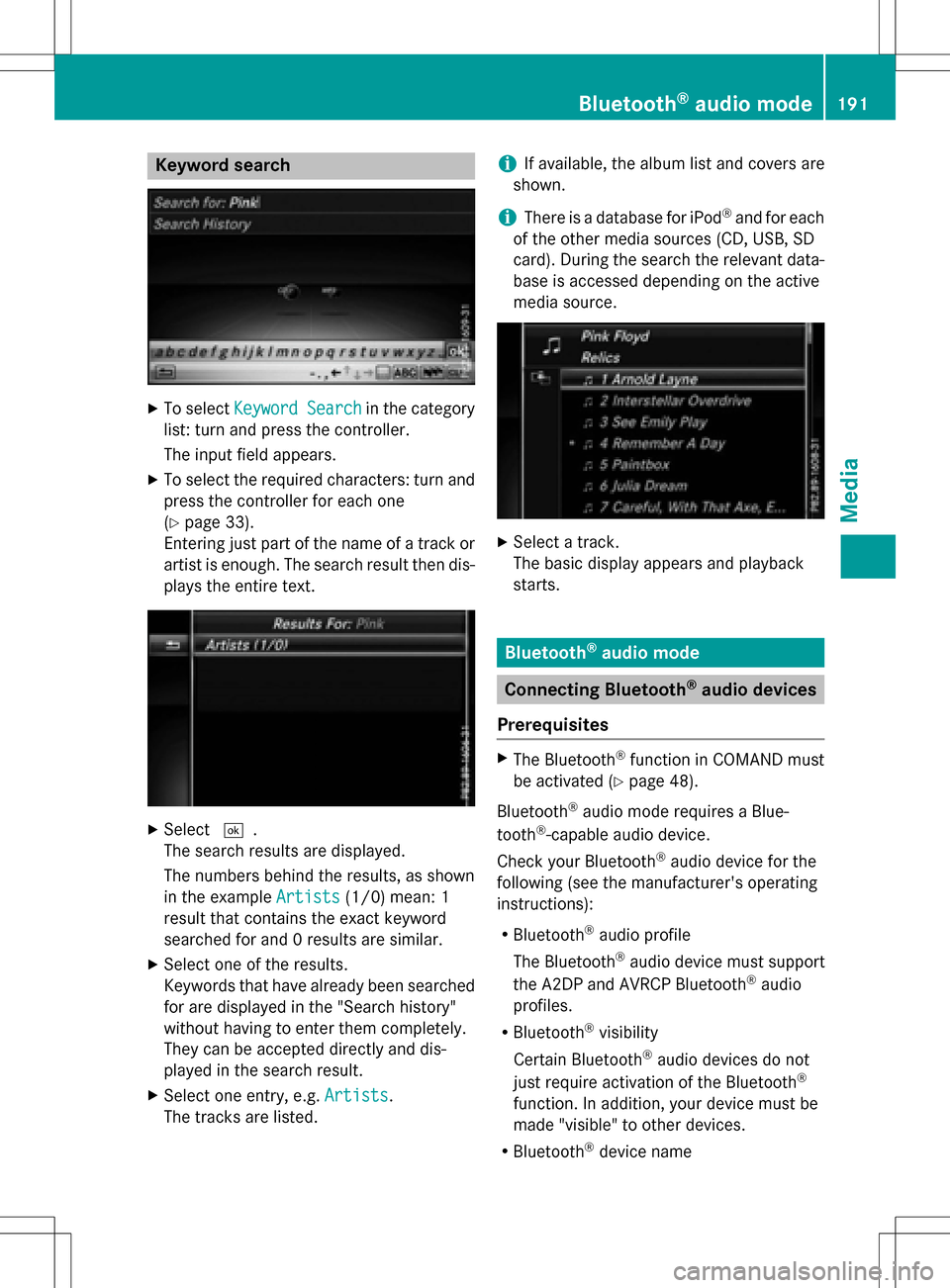
Keyword search
XTo selectKeywordSearchin th ecategor y
list :tur nand press th econtroller .
The input field appears.
XTo select th erequire dcharacters :tur nand
press th econtroller for eac hon e
(
Ypage 33).
Enterin gjus tpart of th enam eof atrack or
artist is enough .The search result then dis-
plays th eentire te xt.
XSelect¬.
The search result sare displayed.
The number sbehind th eresults, as shown
in th eexampl eArtist s
(1/0) mean : 1
result that contain sth eexact keywor d
searched for and 0result sare similar.
XSelec ton eof th eresults.
Keywords that hav ealready been searched
for are displayed in th e"Searc hhistory"
without having to ente rthem completely.
The ycan be accepted directl yand dis-
played in th esearch result .
XSelecton eentry, e.g. Artists.
The track sare listed.
iIf available, th ealbum list and cover sare
shown.
iThere is adatabase for iPod®and for eac h
of th eother media source s(CD ,USB, SD
card). Durin gth esearch th erelevan tdata-
base is acc essed dependin gon th eactive
media source .
XSelect atrack .
The basic display appear sand playbac k
starts.
Bluet ooth®audio mode
Connecting Bluet ooth®audio devices
Prerequisites
XThe Bluetoot h®function in COMAND mus t
be activated (
Ypage 48).
Bluetoot h
®audio mod erequire s aBlue -
toot h®-capable audio device .
Chec kyour Bluetoot h
®audio device for th e
followin g(see th emanufacturer' soperating
instruction s):
RBluetooth®audio profile
The Bluetoot h
®audio device mus tsupport
th eA2DP and AVRCP Bluetoot h®audio
profile s.
RBluetoot h®visibility
Certain Bluetoot h
®audio devicesdo no t
jus trequire activation of th eBluetoot h®
function.In addition ,your device mus tbe
made "visible" to other devices.
RBluetoot h®device nam e
Bluetooth®audio mode191
Media
Z
Page 200 of 246
iiPod®, iPhone®and iPad®are registered
trademarks of Apple Inc., Cupertino, Cali-
fornia, USA.
iAudio files, photos and video files can be
played back.
For details and a list of supported devices,
visit our website at http://www.mercedes-
benz-mobile.com/ . Then follow the instruc-
tions in the "Media Interface" section.
Or call the Mercedes-Benz Customer Assis-
tance Center at 1-800-FOR-MERCedes
(1-800-367-6372) (for the USA) or Customer
Relations at 1-800-387-0100 (for Canada).
Supported data formats
Musicmp3, wma, aac
Videompeg, wmv, mov,
avi, mp4
Imagesjpg, jpeg, bmp, png
Selecting a music file
Selecting with the controller
XTo display the current track list: press
the controller in the basic display.
The track list for the active data medium
appears.
XTo select a track: turn the controller and
press to confirm.
XTo skip forwards or backwards to a
track: turn the controller in the basic dis-
play.
The selected track is played.
Fast forward/rewind
XWith the media source active in the basic
display, slide 1the controller and hold
it until the desired position has been
reached.
Search function
Selecting Search using media menu bar
XSlide 6the controller.
The media menu bar appears.
XTo select Search: turn and press the con-
troller.
The category list appears.
Overview
The following categories are listed:
RCurrent Tracklist
RFolder
RSelect By Cover
RKeyword Search
RPlaylists
RArtists
RAlbums
RTracks
RGenres
RYear
RComposers
RVideos
RPhotos
RAudiobooks
RPodcasts
RiTunes U
RGenius Mixes
iThe functions are available as soon as the
entire media content has been read and
analyzed.
If the same device is reconnected with
unchanged media content, these functions
are available more quickly.
The categories Audio Books, Podcasts,
iTunes U
®and Genius Mixes®are only
available for Apple®devices.
When connecting Apple
®devices, the cat-
egories “Folder”, “Year”, "Videos" and
“Photos” are not available.
198Operation with the Media Interface
Media
Page 205 of 246
XTo hide:select%in the DVD overlay
menu by turning and pressing the control-
ler
XTo show the DVD basic display: select
ò in the DVD overlay menu by turning
and pressing the controller.
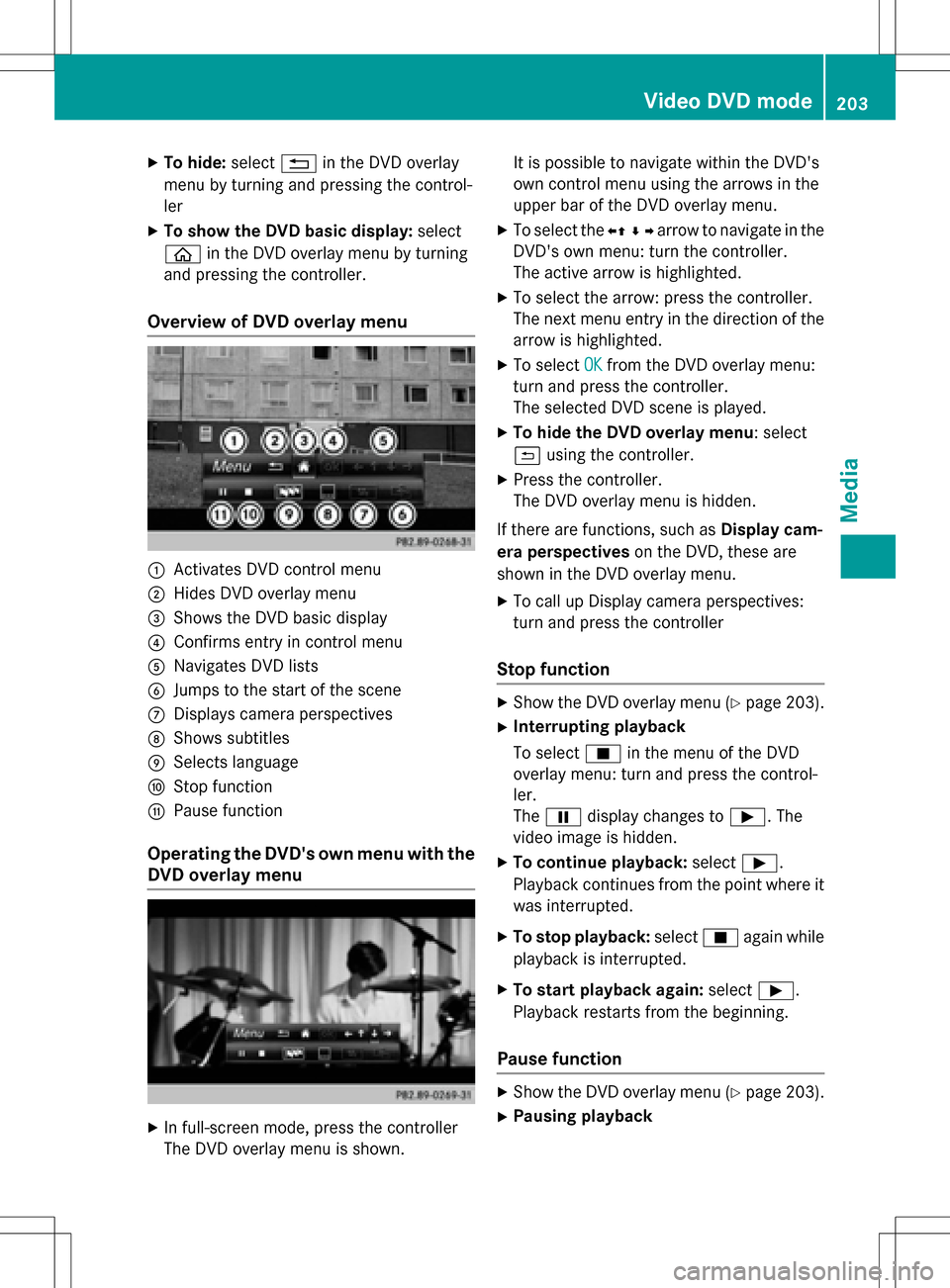
Overview of DVD overlay menu
:Activates DVD control menu
;Hides DVD overlay menu
=Shows the DVD basic display
?Confirms entry in control menu
ANavigates DVD lists
BJumps to the start of the scene
CDisplays camera perspectives
DShows subtitles
ESelects language
FStop function
GPause function
Operating the DVD's own menu with the
DVD overlay menu
XIn full-screen mode, press the controller
The DVD overlay menu is shown. It is possible to navigate within the DVD's
own control menu using the arrows in the
upper bar of the DVD overlay menu.
XTo select the
XZ¬Yarrow to navigate in the
DVD's own menu: turn the controller.
The active arrow is highlighted.
XTo select the arrow: press the controller.
The next menu entry in the direction of the
arrow is highlighted.
XTo select OKfrom the DVD overlay menu:
turn and press the controller.
The selected DVD scene is played.
XTo hide the DVD overlay menu: select
& using the controller.
XPress the controller.
The DVD overlay menu is hidden.
If there are functions, such as Display cam-
era perspectives on the DVD, these are
shown in the DVD overlay menu.
XTo call up Display camera perspectives:
turn and press the controller
Stop function
XShow the DVD overlay menu (Ypage 203).
XInterrupting playback
To select Éin the menu of the DVD
overlay menu: turn and press the control-
ler.
The Ë display changes to Ì. The
video image is hidden.
XTo continue playback: selectÌ.
Playback continues from the point where it was interrupted.
XTo stop playback: selectÉagain while
playback is interrupted.
XTo start playback again: selectÌ.
Playback restarts from the beginning.
Pause function
XShow the DVD overlay menu (Ypage 203).
XPausing playback
Video DVD mode203
Media
Z
Page 212 of 246
Overview of harman/kardon®Logic7®sur-
round sound system
FunctionOptions
EqualizerSets treble, mid-
range and bass
Balance/faderAdjusts the volume:
right/left and
front/rear
Logic 7Optimizes the sound
playback
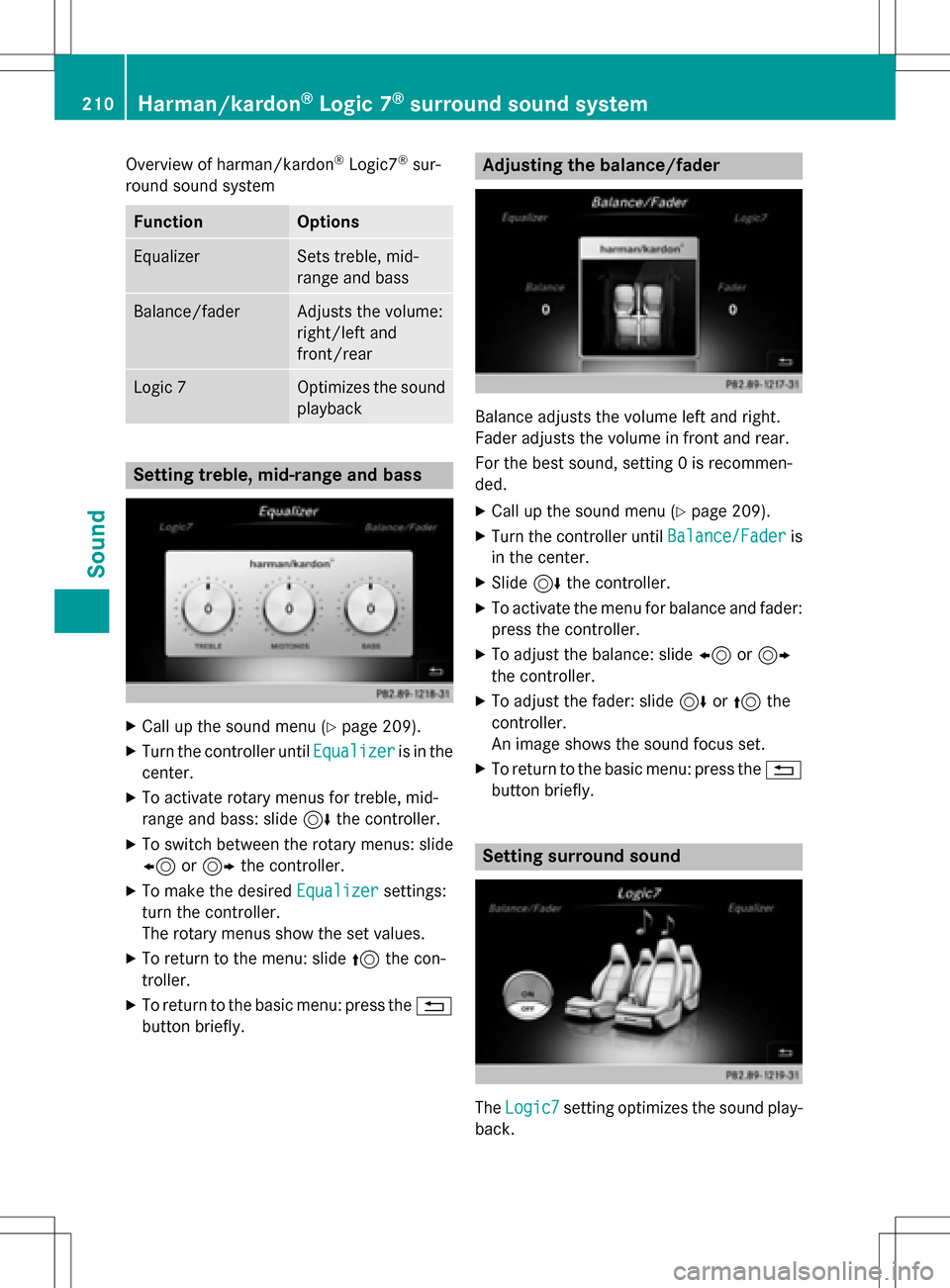
Setting treble, mid-range and bass
XCall up the sound menu (Ypage 209).
XTurn the controller until Equalizeris in the
center.
XTo activate rotary menus for treble, mid-
range and bass: slide 6the controller.
XTo switch between the rotary menus: slide
8 or9 the controller.
XTo make the desired Equalizersettings:
turn the controller.
The rotary menus show the set values.
XTo return to the menu: slide 5the con-
troller.
XTo return to the basic menu: press the %
button briefly.
Adjusting the balance/fader
Balance adjusts the volume left and right.
Fader adjusts the volume in front and rear.
For the best sound, setting 0 is recommen-
ded.
XCall up the sound menu (Ypage 209).
XTurn the controller until Balance/Faderis
in the center.
XSlide 6the controller.
XTo activate the menu for balance and fader:
press the controller.
XTo adjust the balance: slide 8or9
the controller.
XTo adjust the fader: slide 6or5 the
controller.
An image shows the sound focus set.
XTo return to the basic menu: press the %
button briefly.
Setting surround sound
The Logic7setting optimizes the sound play-
back.
210Harman/kardon®Logic 7®surround sound system
Sound
Page 214 of 246
XTo switch to the menu bar: slide6the
controller.
XTo select à: turn and press the control-
ler.
The menu appears with the last setting
accessed, e.g. Balance/Fader
.
Bang & Olufsen BeoSound AMG sound sys-
tem
FunctionOptions
EqualizerSets treble, mid-
range and bass
Balance/faderAdjusts the volume:
right/left and
front/rear
True ImageSets a sound profile
in the vehicle
Sound ModeOptimizes the sound
playback
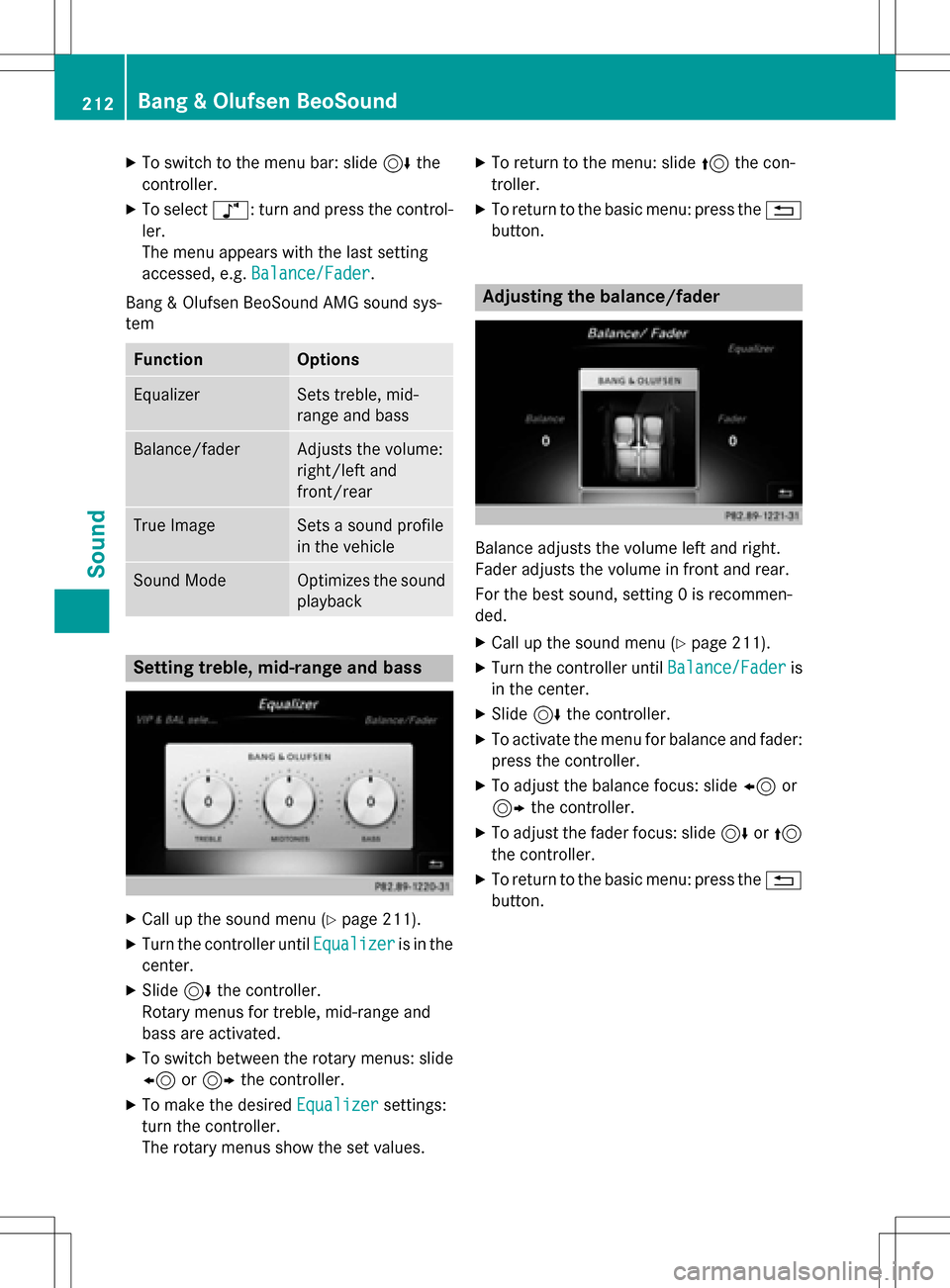
Setting treble, mid-range and bass
XCall up the sound menu (Ypage 211).
XTurn the controller until Equalizeris in the
center.
XSlide 6the controller.
Rotary menus for treble, mid-range and
bass are activated.
XTo switch between the rotary menus: slide
8 or9 the controller.
XTo make the desired Equalizersettings:
turn the controller.
The rotary menus show the set values.
XTo return to the menu: slide 5the con-
troller.
XTo return to the basic menu: press the %
button.
Adjusting the balance/fader
Balance adjusts the volume left and right.
Fader adjusts the volume in front and rear.
For the best sound, setting 0 is recommen-
ded.
XCall up the sound menu (Ypage 211).
XTurn the controller until Balance/Faderis
in the center.
XSlide 6the controller.
XTo activate the menu for balance and fader:
press the controller.
XTo adjust the balance focus: slide 8or
9 the controller.
XTo adjust the fader focus: slide 6or5
the controller.
XTo return to the basic menu: press the %
button.
212Bang & Olufsen BeoSound
Sound
Page 217 of 246
Your COMAND equipment................216
Weather forecasts ............................216
215
SIRIUS Weather
Page 218 of 246
Your COMANDequipment
These operatin ginstruction sdescribe all th e
standar dan doptional equipmen tof your
COMAN Dsystem, as available at th etime of
going to print .Country-specifi cdifference s
are possible. Bear in min dthat your vehicle
may no tfeature all function sdescribed here.
Thi salso applies to safety-relevan tsystems
an dfunctions.
Read th einformation on qualified specialis t
workshop sin th evehicle Operator's Manual.
Weather forecasts
Introduction
Thi sfunction is currentl yno tavailable fo r
Canada.
Fo rth ereception of weather forecast svia
satellite radio, you will need aSIRIU SXM Sat -
ellite Weather subscription .
If th emessage: Please call SIRIUS to
activate the system at :
888-539-7474 ESN: SIRIUS IDappears
alon gwit hth eID number of th eSIRIU S
device, you will need to hav eth eweather ser -
vic eactivated first .
XTo selectCal lorCancel:turn an dpress
th econtroller .
If amobile phone is connecte dto COMAN D
(
Ypage 114), when you selec tCalla cal lis
placed to amember of th eSIRIU Sservic e
staff .The ID number of th eSIRIU Sdevic e
will be transferred to th etelephon edisplay.
XThi swill be followed by instruction sfrom
th eservic eemployee.
COMAN Dcan receiv eweather forecast svia
satellite radio fo rth eentire US A(includin g
Alask aan dHawaii).
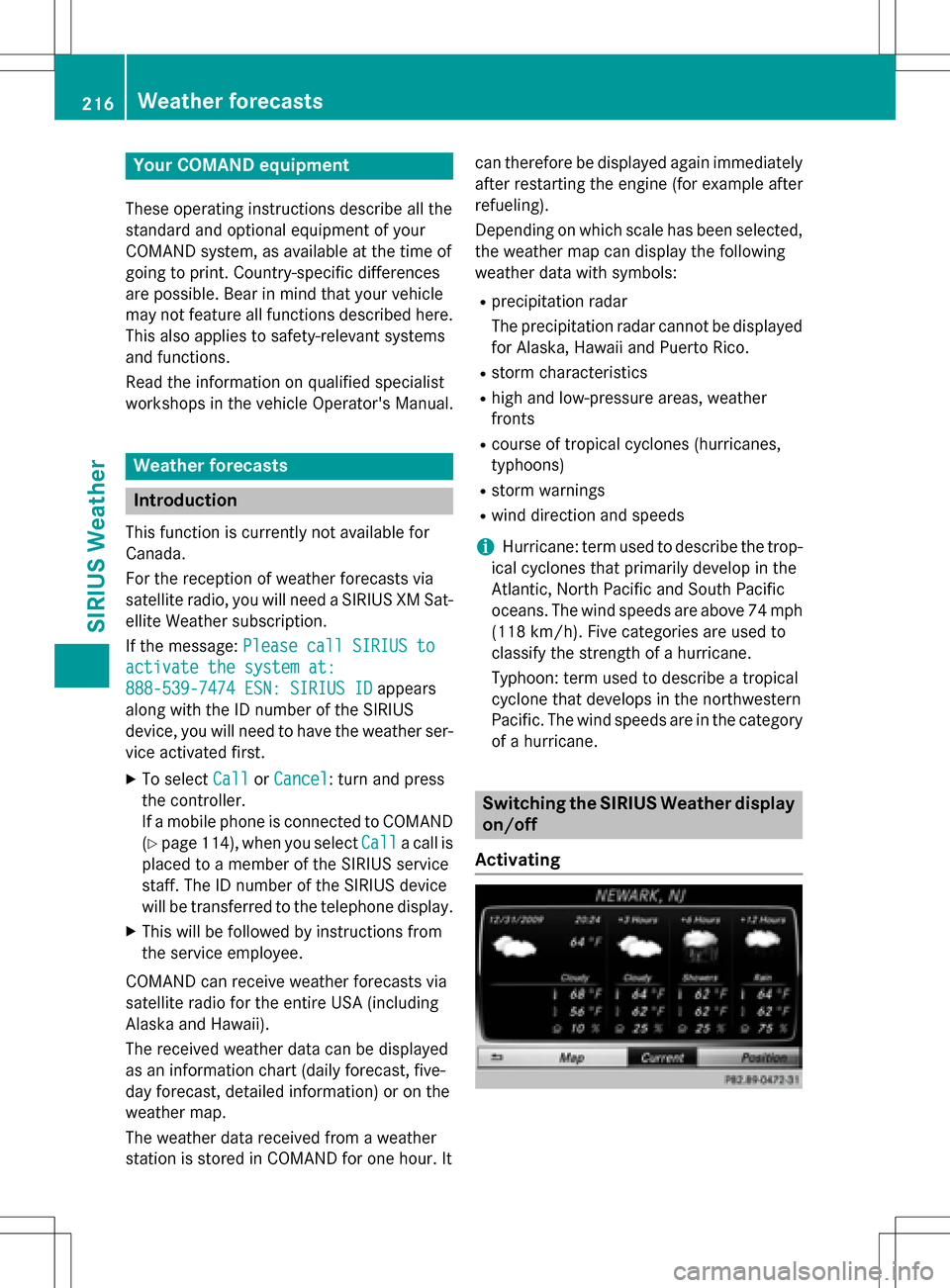
The received weather dat acan be displaye d
as an information chart (dail yforecast ,five-
day forecast ,detailed information )or on th e
weather map .
The weather dat areceived from aweather
station is stored in COMAN Dforon ehour .It can therefore be displaye
dagain immediately
after restartin gth eengin e(fo rexample after
refueling).
Dependin gon whic hscale has bee nselected,
th eweather map can display th efollowin g
weather dat awit hsymbols :
Rprecipitation radar
The precipitation radar canno tbe displaye d
fo rAlaska, Hawaii an dPuerto Rico.
Rstor mcharacteristics
Rhig han dlow-pressure areas, weather
fronts
Rcours eof tropical cyclones (hurricanes,
typhoons )
Rstormwarnings
Rwin ddirection an dspeeds
iHurricane: term used to describe th etrop-
ical cyclones that primarily develop in th e
Atl
antic, North Pacifi can dSout hPacifi c
oceans. The win dspeeds are abov e74 mph
(11 8km/ h). Five categories are used to
classify the strength of a hurricane.
Typhoon: term used to describe a tropical
cyclone that develops in the northwestern
Pacific. The wind speeds are in the category
of a hurricane.
Switching the SIRIUS Weather display
on/off
Activating
216Weather forecasts
SIRIUS Weather
Page 219 of 246
XPress the%button.
XTo select Tel/®in the main function bar:
slide 5, turn and press the controller.
A menu appears.
XTo select SIRIUS Weather: turn and press
the controller.
The information chart shows the daily fore- cast at the current vehicle position.
You see the following information:
Rthe date and time of the weather message
received last
Rinformation on the current weather (tem-
perature, cloud cover) and forecast for the
next 3, 6, 12 hours
Rthe current highest temperature and fore-
casts
Rthe current lowest temperature and fore-
casts
Rthe probability of rain
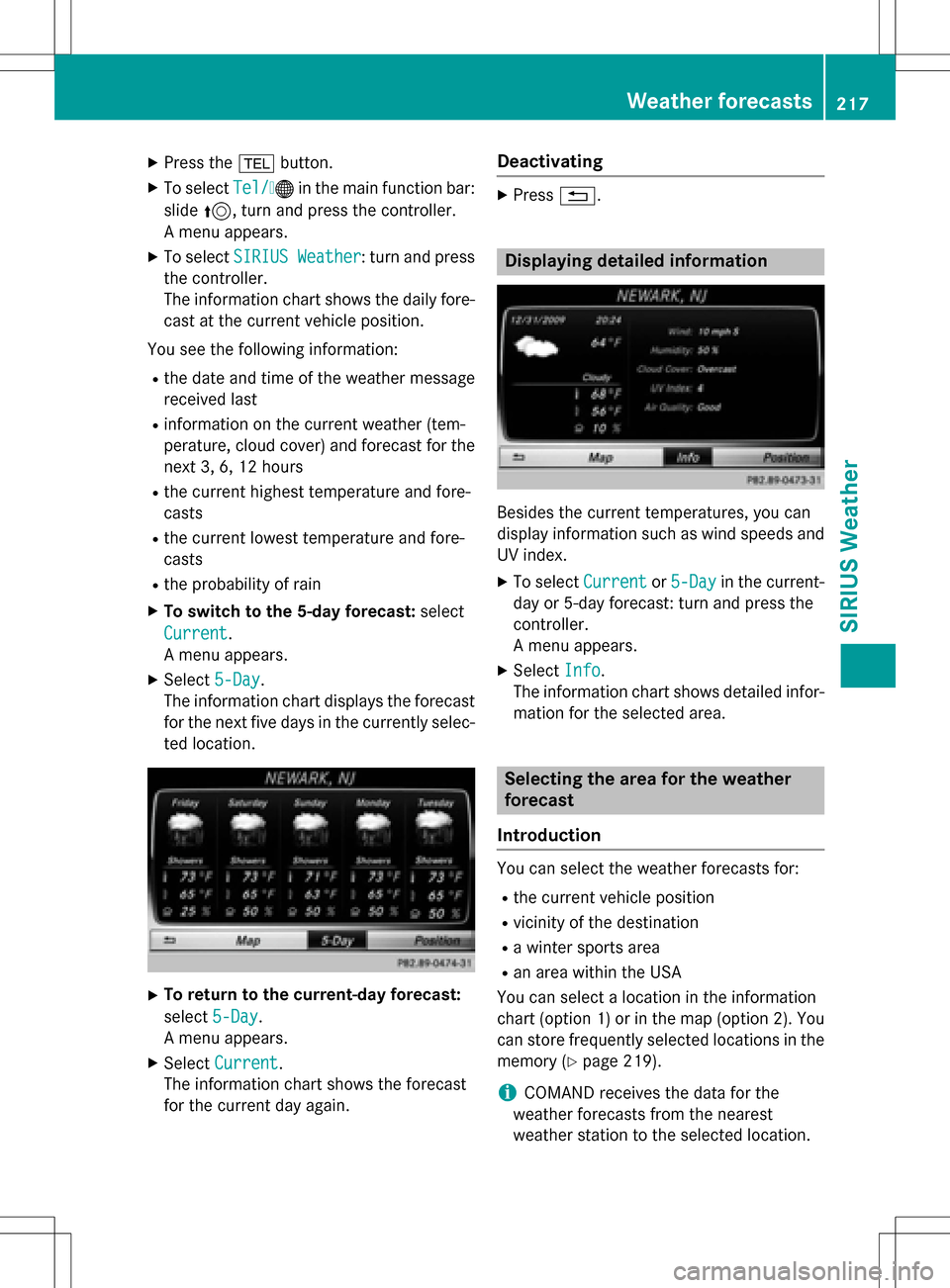
XTo switch to the 5-day forecast: select
Current
.
A menu appears.
XSelect 5-Day.
The information chart displays the forecast
for the next five days in the currently selec-
ted location.
XTo return to the current-day forecast:
select 5-Day
.
A menu appears.
XSelect Current.
The information chart shows the forecast
for the current day again.
Deactivating
XPress %.
Displaying detailed information
Besides the current temperatures, you can
display information such as wind speeds and
UV index.
XTo select Currentor5-Dayin the current-
day or 5-day forecast: turn and press the
controller.
A menu appears.
XSelect Info.
The information chart shows detailed infor-
mation for the selected area.
Selecting the area for the weather
forecast
Introduction
You can select the weather forecasts for:
Rthe current vehicle position
Rvicinity of the destination
Ra winter sports area
Ran area within the USA
You can select a location in the information
chart (option 1) or in the map (option 2). You
can store frequently selected locations in the
memory (
Ypage 219).
iCOMAND receives the data for the
weather forecasts from the nearest
weather station to the selected location.
Weather forecasts217
SIRIUS Weather