Sts MERCEDES-BENZ GLA-Class 2016 X156 Comand Manual
[x] Cancel search | Manufacturer: MERCEDES-BENZ, Model Year: 2016, Model line: GLA-Class, Model: MERCEDES-BENZ GLA-Class 2016 X156Pages: 246, PDF Size: 6.73 MB
Page 61 of 246
The camera cover closes automatically if:
Rthe ignition is switched off
Rthe vehicle exceeds a moderate speed
Rear view camera
General notes
The rear view camera covers the immediate
surroundings of the vehicle and assists you
when parking.
The rear view camera is only an aid. It is not a
replacement for your attention to your imme-
diate surroundings. You are always responsi-ble for safe maneuvering and parking. When
maneuvering or parking, make sure that there
are no persons, animals or objects in the area in which you are maneuvering.
There may be fewer settings depending on
your vehicle's equipment.
You can find further information about the
rear view camera in the vehicle Operator's
Manual.
Switching the rear view camera auto-
matic mode on/off
This function activates the rear view camera
when reverse gear is engaged.
XPress the Øbutton on the COMAND
control panel.
or
XPress Vehiclein the main function bar.
The vehicle menu is displayed.
XSlide 6the controller.
XTo select System Settings: turn and
press the controller.
XSelect Rear View Camera.
The Rear View Camera
menu appears.
XSelect Activation by R gear.
The function is switched on Oor off ª,
depending on the previous status.
When you start the vehicle and engage
reverse gear, the area behind the vehicle is shown with guide lines in the display. For
further information on the rear view camera
(see the vehicle Operator's Manual).
Opening the camera cover for clean-
ing
XTo select
Open Camera Coverin the rear
view camera menu: turn and press the con-
troller.
The Please
Wait...message appears for
approximately three seconds.
The camera cover opens.
The camera cover closes automatically if:
Rthe ignition is switched off
Rthe vehicle pulls away
DYNAMIC SELECT
General notes
Press DYNAMIC SELECTto configure the fol-
lowing settings and values for the Individual
drive program:
RDrive system
RSuspension
RSteering
RClimate control
RECO start/stop function
iIn a few countries, the ECO start/stop
function is deactivated at the factory due to
the available fuel grade. In this case, the
ECO start/stop function is not available
regardless of the display in the COMAND
display.
For Mercedes-AMG GLE vehicles, you can
configure the following settings and adjust-
ment values for the Individual drive program:
RDrive system
RSuspension
RTransmission
RESP®(Electronic Stability Program)
DYNAMIC SELECT59
Vehicle functions
Z
Page 79 of 246
SelectionInstructions
Search By Name
Searches for all POIs on
the digital map or around
one of the three previ-
ously specified positions
XCall up the POI menu (Ypage 75).
XTo selectSearch By Name: turn and press the controller.
XSelectAll POIsor one of the three previously selected posi-
tions.
The POI list with character bar appears.
XEnter a name.
or
XTo select Mercedes-Benz Service: turn and press the con-
troller.
SearchByPhoneNum‐
ber
All POIs with a telephone
number can be selected.
XCall up the POI menu (Ypage 75).
XTo select SearchByPhoneNumber: turn and press the con-
troller.
You will see a list of phone numbers.
XEnter the telephone number.
The telephone number consists of:
Rthe country code (international dialing code)
Rthe area code
When entering the area code, omit the leading "0"
Rthe telephone number of the participating caller
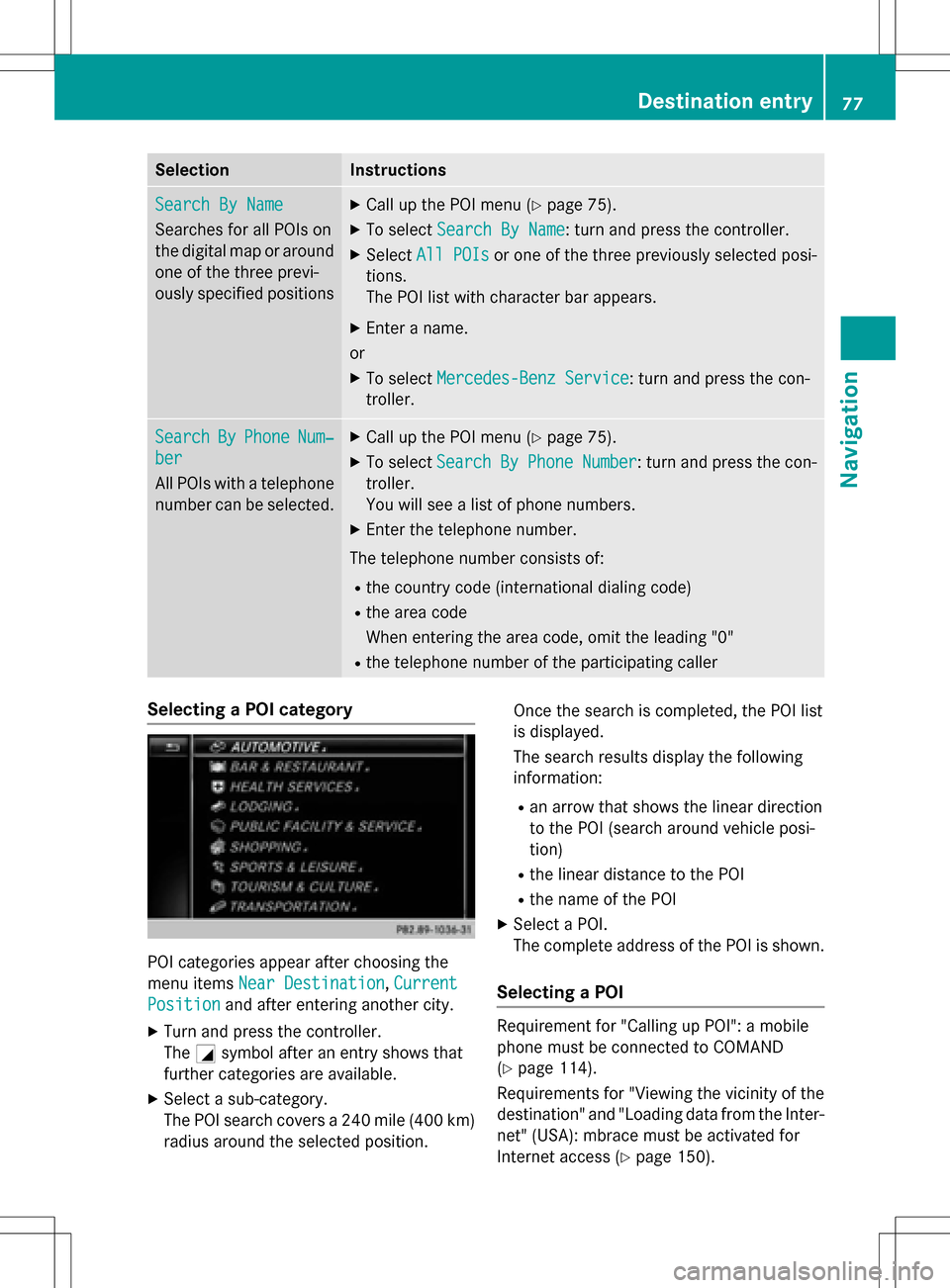
Selecting a POI category
POI categories appear after choosing the
menu items Near Destination
,Current
Positionand after entering another city.
XTurn and press the controller.
The Gsymbol after an entry shows that
further categories are available.
XSelect a sub-category.
The POI search covers a 240 mile (400 km)
radius around the selected position. Once the search is completed, the POI list
is displayed.
The search results display the following
information:
Ran arrow that shows the linear direction
to the POI (search around vehicle posi-
tion)
Rthe linear distance to the POI
Rthe name of the POI
XSelect a POI.
The complete address of the POI is shown.
Selecting a POI
Requirement for "Calling up POI": a mobile
phone must be connected to COMAND
(
Ypage 114).
Requirements for "Viewing the vicinity of the
destination" and "Loading data from the Inter- net" (USA): mbrace must be activated for
Internet access (
Ypage 150).
Destination entry77
Navigation
Z
Page 116 of 246
Calling up the telephone menu
XPress%.
Showing the menu bar
XSlide 6the controller.
If the mobile phone connected supports the
MAP Bluetooth
®profile ( Message Access
Profile), the 1menu item is available. Fur-
ther information on text messages and e-mail
(
Ypage 137).
If you have an unread text message or e-mail,
the 0 mail symbol is displayed in the sta-
tus bar. The symbol disappears once you have
read the text message or e-mail. The ú
symbol is displayed as soon as the message
memory on the connected mobile phone is
full. The symbol disappears once you delete
at least one message.
Connecting/disconnecting a mobile
phone
Requirements
For telephony via the Bluetooth®interface,
you require a Bluetooth®-capable mobile
phone. The mobile phone must support
Hands-Free Profile 1.0 or above.
On COMAND
XActivate Bluetooth®(Ypage 48).
On the mobile phone
XSwitch on the mobile phone and enter the
PIN when prompted to do so (see the man- ufacturer's operating instructions).
XActivate Bluetooth®and, if necessary,
Bluetooth®visibility for other devices (see
the manufacturer's operating instructions).
This visibility is for restricted periods of
time on some mobile phones (see the man-
ufacturer's operating instructions).
XSet the Bluetooth®device name for the
mobile phone if necessary.
The device names for all of one manufactur-
er's products might be identical. To make it possible to clearly identify your mobile phone,
change the device name (see the manufac-
turer's operating instructions). The name can
be freely selected.
If the mobile phone supports the PBAP
( Phone Book Access Profile) and MAP
( Message AccessProfile) Bluetooth
®pro-
files, the following information will be trans-
mitted after you connect:
RPhone book
RCall lists
RText messages and e-mails
Further information on allowing or suppress-
ing the automatic download of the phone
book (
Ypage 132).
The battery of the mobile phone should
always be kept sufficiently charged in order to
prevent malfunctions.
iNot all mobile phones available on the
market are equally suitable. You can obtain
more detailed information about suitable
mobile phones and about the connection
between the mobile phone and COMAND
on the Internet at www.mercedes-benz-
mobile.com .
You can also obtain more information by
calling.
In the USA, you can get in touch with the
Mercedes-Benz Customer Assistance Cen-
ter on 1-800-FOR-MERCedes
(1-800-367-6372 ).
In Canada, you can get in touch with the
Customer Relations Center on
1-800-387-0100.
iSome displays (e.g. the signal strength)
depend on the supported version of the
Hands-Free Profile.
114Connecting/disconnecting a mobile phone
Telephone
Page 122 of 246
Using call lists
XTo call up the telephone menu: press the
%button.
XTo switch to the menu bar: slide 6the
controller.
XTo select Call Lists: turn and press the
controller.
XTo select Calls ReceivedorCalls
Dialed: turn and press the controller.
The relevant list is displayed.
XTo select an entry and make a call: turn and
press the controller.
Further information about ending a call
(
Ypage 123).
Using the phone book
XTo call up the telephone menu: press the
% button.
XTo select Namein the telephone menu: turn
and press the controller.
XSearch for and call a contact (Ypage 124).
Further information about ending a call
(
Ypage 123).
Using speed dial
Option 1
XTo call up the telephone menu: press the
% button.
XTo highlight a number from the character
bar: turn the controller.
XPress the controller for longer than two
seconds.
The telephone menu displays the selected
entry. The number is dialed.
Option 2
XTo call up the telephone menu: press the
% button.
XTo switch to the menu bar: slide 6the
controller.
XTo select Call Lists: turn and press the
controller.
XTo select Speed Dial Preset List: turn
and press the controller.
The speed dial list is displayed.
XTo select an entry and make a call: turn and
press the controller.
The telephone menu displays the selected
entry. The number is dialed.
Further information on setting up speed dial
(
Ypage 137).
Further information about ending a call
(
Ypage 123).
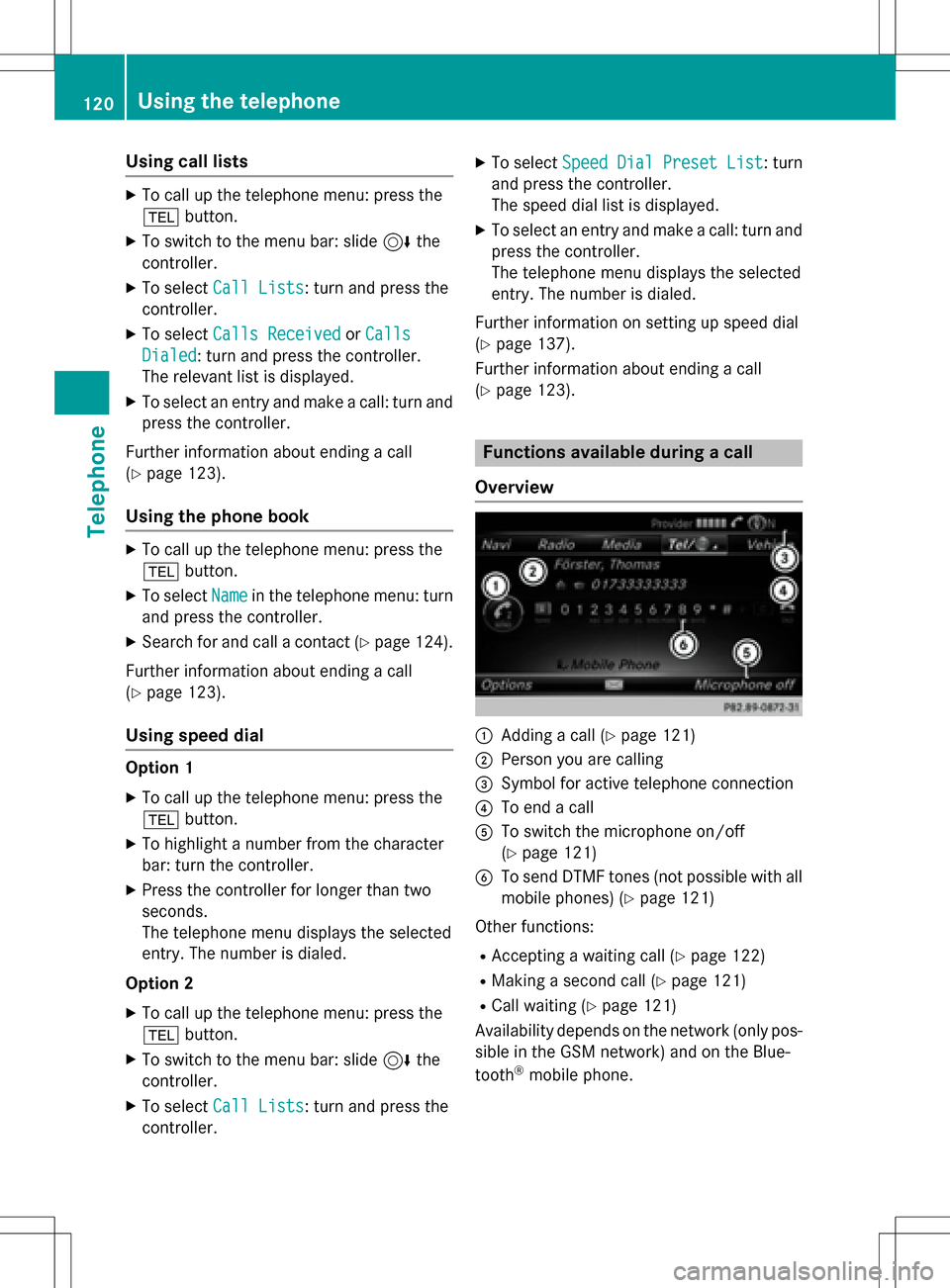
Functions available during a call
Overview
:Adding a call (Ypage 121)
;Person you are calling
=Symbol for active telephone connection
?To end a call
ATo switch the microphone on/off
(
Ypage 121)
BTo send DTMF tones (not possible with all
mobile phones) (
Ypage 121)
Other functions:
RAccepting a waiting call (Ypage 122)
RMaking a second call (Ypage 121)
RCall waiting (Ypage 121)
Availability depends on the network (only pos- sible in the GSM network) and on the Blue-
tooth
®mobile phone.
120Using the telephone
Telephone
Page 137 of 246
Call lists
Introduction
If your mobile phone supports the PBAP Blue-
tooth®profile, the call lists from the mobile
phone are displayed in COMAND.
If the mobile phone call lists cannot be dis-
played, COMAND generates its own call lists. These are not the same as the call lists in your
mobile phone.
The Call list option is not available unless a
mobile phone is connected to COMAND.
If the contact for an incoming call is not saved
in the address book, you can use the call list
to save the telephone number. You can save
this telephone number as a new contact in the
address book or add it to an existing contact
(
Ypage 136).
iIf you connect a different mobile phone to
COMAND, the call lists from the new mobile
phone are displayed.
Opening the call list and selecting an
entry
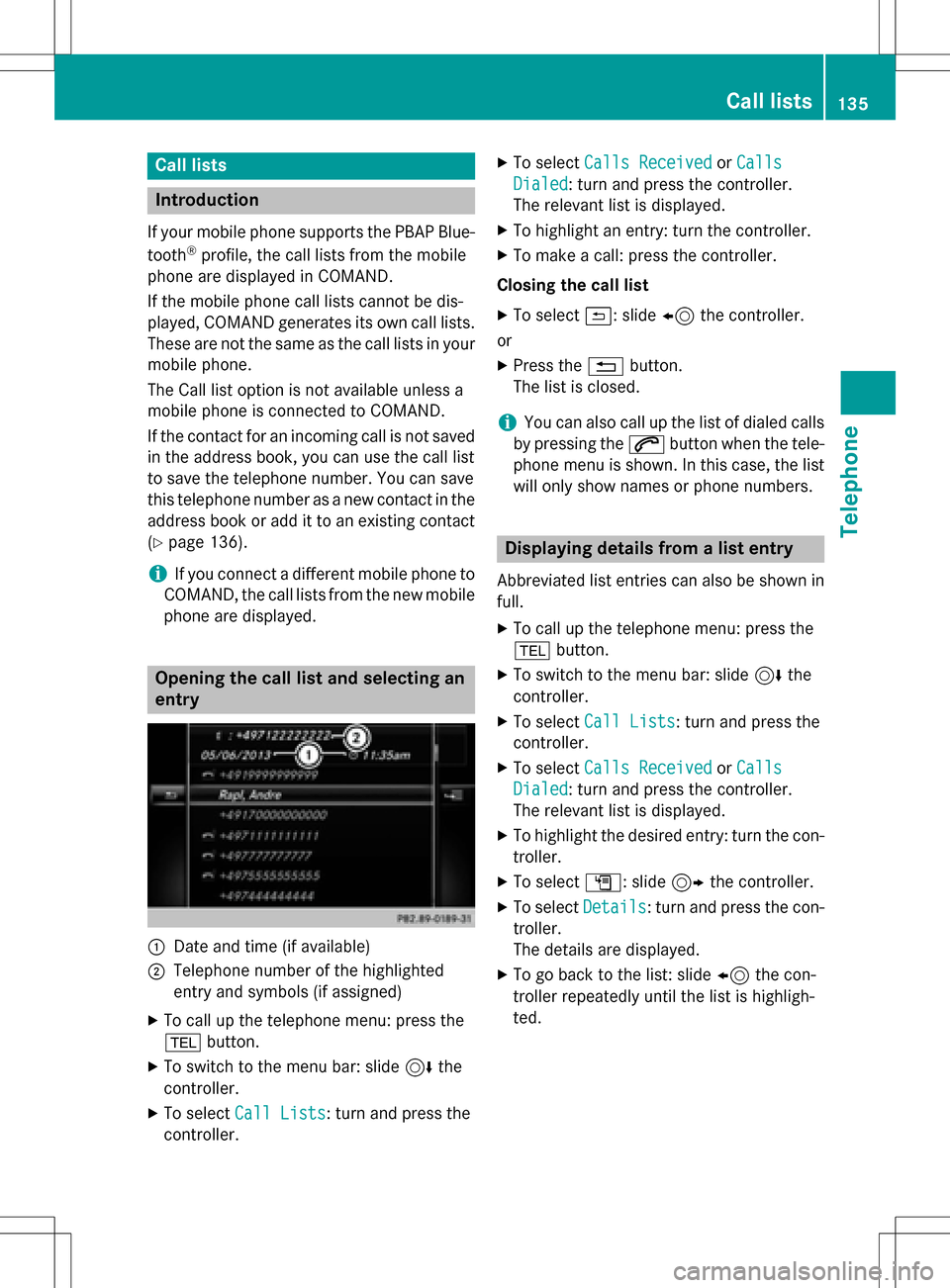
:Date and time (if available)
;Telephone number of the highlighted
entry and symbols (if assigned)
XTo call up the telephone menu: press the
% button.
XTo switch to the menu bar: slide 6the
controller.
XTo select Call Lists: turn and press the
controller.
XTo select Calls ReceivedorCalls
Dialed: turn and press the controller.
The relevant list is displayed.
XTo highlight an entry: turn the controller.
XTo make a call: press the controller.
Closing the call list
XTo select &: slide 8the controller.
or
XPress the %button.
The list is closed.
iYou can also call up the list of dialed calls
by pressing the 6button when the tele-
phone menu is shown. In this case, the list
will only show names or phone numbers.
Displaying details from a list entry
Abbreviated list entries can also be shown in
full.
XTo call up the telephone menu: press the
% button.
XTo switch to the menu bar: slide 6the
controller.
XTo select Call Lists: turn and press the
controller.
XTo select Calls ReceivedorCalls
Dialed: turn and press the controller.
The relevant list is displayed.
XTo highlight the desired entry: turn the con-
troller.
XTo select G: slide 9the controller.
XTo select Details: turn and press the con-
troller.
The details are displayed.
XTo go back to the list: slide 8the con-
troller repeatedly until the list is highligh-
ted.
Call lists135
Telephone
Z
Page 138 of 246
Saving telephone numbers
Adding new entries to the address book
XTo call up the telephone menu: press the
% button.
XTo switch to the menu bar: slide 6the
controller.
XTo select Call Lists: turn and press the
controller.
XTo select Calls ReceivedorCalls
Dialed: turn and press the controller.
The relevant list is displayed.
XTo highlight the desired telephone number:
turn the controller.
XTo select G: slide 9the controller.
XTo select Save: turn and press the control-
ler.
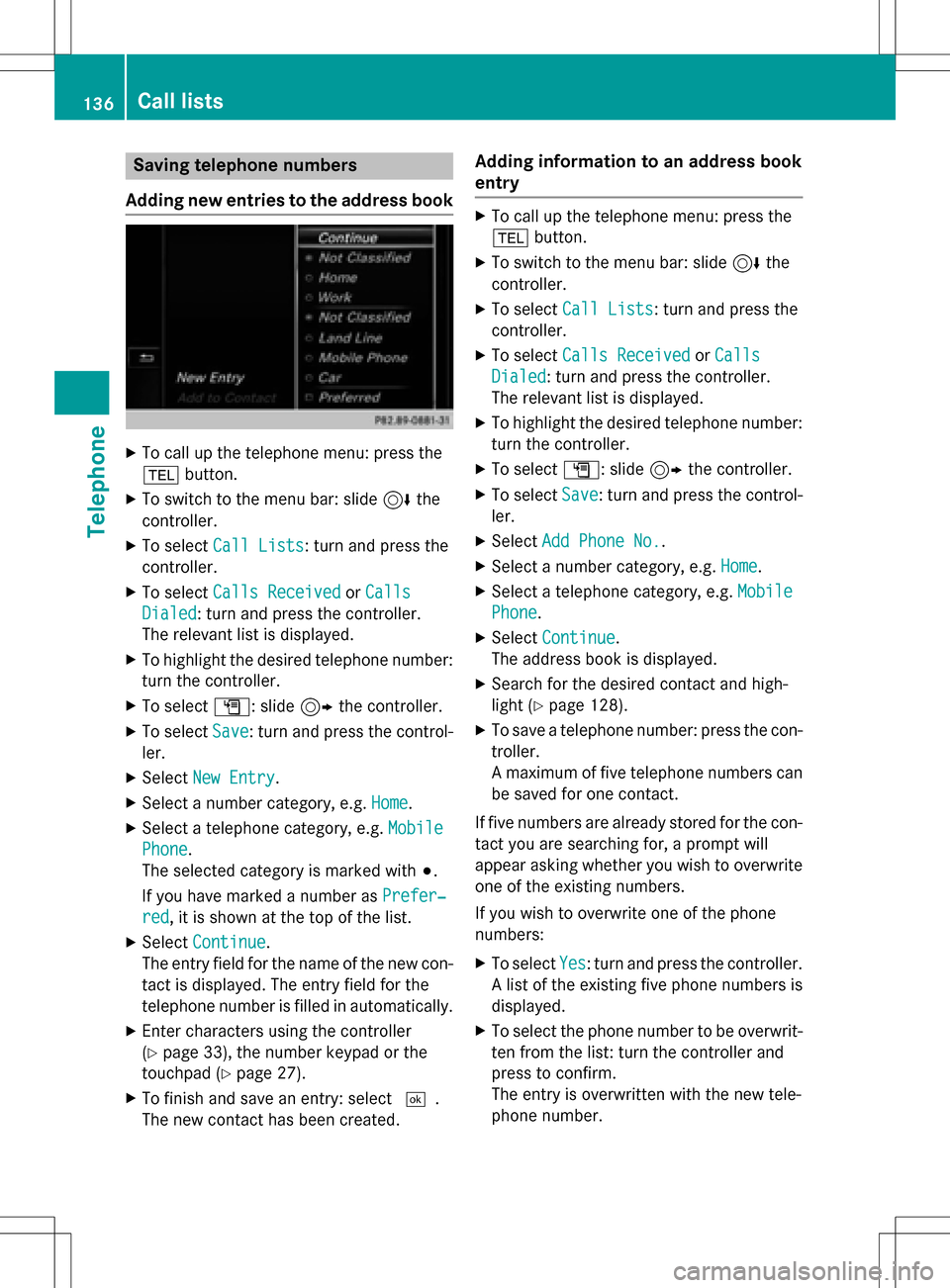
XSelect New Entry.
XSelect a number category, e.g. Home.
XSelect a telephone category, e.g. Mobile
Phone.
The selected category is marked with #.
If you have marked a number as Prefer‐
red, it is shown at the top of the list.
XSelectContinue.
The entry field for the name of the new con-
tact is displayed. The entry field for the
telephone number is filled in automatically.
XEnter characters using the controller
(
Ypage 33), the number keypad or the
touchpad (
Ypage 27).
XTo finish and save an entry: select ¬.
The new contact has been created.
Adding information to an address book
entry
XTo call up the telephone menu: press the
% button.
XTo switch to the menu bar: slide 6the
controller.
XTo select Call Lists: turn and press the
controller.
XTo select Calls ReceivedorCalls
Dialed: turn and press the controller.
The relevant list is displayed.
XTo highlight the desired telephone number:
turn the controller.
XTo select G: slide 9the controller.
XTo select Save: turn and press the control-
ler.
XSelect Add Phone No..
XSelect a number category, e.g. Home.
XSelect a telephone category, e.g. Mobile
Phone.
XSelectContinue.
The address book is displayed.
XSearch for the desired contact and high-
light (
Ypage 128).
XTo save a telephone number: press the con-
troller.
A maximum of five telephone numbers can
be saved for one contact.
If five numbers are already stored for the con-
tact you are searching for, a prompt will
appear asking whether you wish to overwrite
one of the existing numbers.
If you wish to overwrite one of the phone
numbers:
XTo select Yes: turn and press the controller.
A list of the existing five phone numbers is
displayed.
XTo select the phone number to be overwrit-
ten from the list: turn the controller and
press to confirm.
The entry is overwritten with the new tele-
phone number.
136Call lists
Telephone
Page 139 of 246
If you do not wish to overwrite any of the
phone numbers:
XTo selectNo: turn and press the controller.
The process is canceled.
Speed dial lists
Setting up
XTo call up the telephone menu: press the
% button.
XTo call up the menu bar: slide 6the con-
troller.
XTo select Call Lists: turn and press the
controller.
XSelect Speed Dial Preset List.
The speed dial list is displayed.
XTo highlight a memory position for the
speed dial: turn the controller.
If you highlight an entry that already exists
in the speed dial list, this is overwritten with
the new entry.
XTo select G: slide 9the controller.
XSelect Assign Speed Dial Preset.
The phone book is displayed.
XSearch for a contact (Ypage 124).
XTo select a contact: turn and press the con-
troller.
The phone number has been saved as a
speed dial.
Deleting
Deleting a speed dial preset
XTo call up the telephone menu: press the
% button.
XTo call up the menu bar: slide 6the con-
troller.
XTo select Call Lists: turn and press the
controller.
XSelect Speed Dial Preset List.
The speed dial list is displayed.
XTo highlight the memory position you want
to delete: turn the controller.
XTo select G: slide 9the controller.
XTo select Delete Speed Dial Preset:
turn and press the controller.
XTo select Yes: turn and press the controller.
The speed dial preset has been deleted.
or
XTo select No: turn and press the controller.
The process is canceled.
Deleting all speed dial presets
XTo call up the telephone menu: press the
% button.
XTo call up the menu bar: slide 6the con-
troller.
XTo select Call Lists: turn and press the
controller.
XSelect Speed Dial Preset List.
The speed dial list is displayed.
XTo select G: slide 9the controller.
XTo select Delete All Speed Dial Pre‐
sets: turn and press the controller.
XTo selectYes: turn and press the controller.
All speed dials are deleted.
or
XTo select No: turn and press the controller.
The process is canceled.
Messages (text messages and e-
mails)
General notes
New messages are identified by an audible
signal and the /symbol in the COMAND
display. Once you have read all the messages,
the symbol is no longer displayed.
COMAND displays the 100 newest text mes-
sages and e-mails.
The ú symbol is displayed when the
mobile phone's message memory is full. The
symbol is no longer displayed if you delete
messages.
Messages (text messages and e-mails)137
Telephone
Z
Page 153 of 246
Canada:a mobile phone must be connected
via Bluetooth®(Ypage 114) with COMAND.
Furthermore, you need a valid mobile service
contract with a data option, which is used to
calculate the associated connection costs.
Conditions for a Bluetooth
®connection:
RThe mobile phone supports at least one of
the Bluetooth®profiles DUN ( Dial-Up
N etworking) or PAN (Personal Area
N etwork).
The Bluetooth
®profiles DUN and PAN ena-
ble the Internet connection of the mobile
phone to be made available to the system.
The terms of use are shown when the system
is used for the first time and then once a year
thereafter. Only read and accept the terms of
use when the vehicle is stationary.
The driver is not permitted to call up websites
while driving and use of the Mercedes-Benz
Apps is restricted.
iThe availability of individual Mercedes-
Benz Apps may vary depending on the
country.
Setting up an Internet connection
(Canada)
Procedure and general information
USA: to use Mercedes-Benz Apps and Inter-
net access, mbrace must be activated and
operational. Furthermore, mbrace must be
activated for Mercedes-Benz Apps and Inter-
net access. No further settings are required.
Canada: in order to set up a mobile phone for
Internet access, the mobile phone must be
connected via Bluetooth
®(Ypage 114) with
COMAND. If you are using Internet access for
the first time, you must enable the connected
mobile phone for Internet access
(
Ypage 151). If the connected mobile phone
supports the Bluetooth®PAN profile, you do
not need to make additional settings. The
Internet connection is established. If the con-
nected mobile phone does not support the named Bluetooth
®profile, predefined
(
Ypage 152) or manual access data
(
Ypage 152) must be set.
Enabling the mobile phone for Inter-
net access
XTo call up the telephone menu: press the
% button.
XTo switch to the main function bar: slide
5the controller.
XTo select Tel/®: press the controller.
XTo selectInternet: turn and press the
controller.
The menu with the Internet functions is dis-
played.
XTo switch to the menu bar: slide 6the
controller.
XTo select Settings: turn and press the
controller.
XTo select Configure Internet Set‐
tings: turn and press the controller.
The device list is displayed.
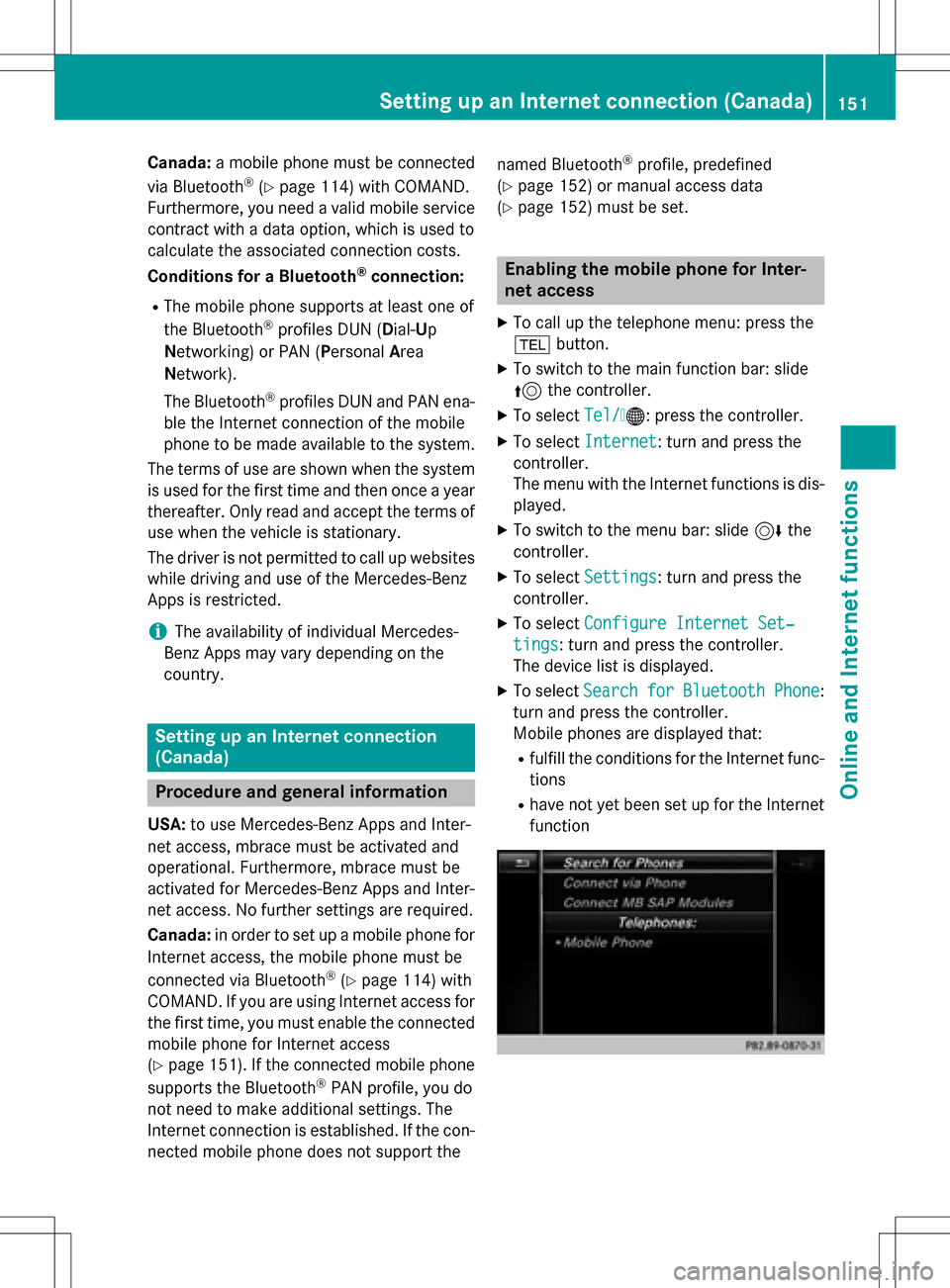
XTo select SearchforBluetoothPhone:
turn and press the controller.
Mobile phones are displayed that:
Rfulfill the conditions for the Internet func-
tions
Rhave not yet been set up for the Internet
function
Setting up an Internet connection (Canada)151
Online and Internet functions
Z
Page 176 of 246
channels. Only this category enables you to
browse all available stations.
Selecting a channel
Changing channels
XWhen the display/selection window in the
satellite radio display is selected, slide
1 or turn the controller.
COMAND switches to the next available
channel.
Entering channel numbers directly
XTo select Optionsin the radio menu bar:
turn and press the controller.
The satellite radio menu appears.
XTo select Enter Channel: turn and press
the controller.
An input menu appears.
XEnter the frequency of the desired station
in the entry field.
or
XPress the gkey on the number keypad.
An input menu appears.
XEnter the frequency of the desired station
in the entry field.
XFor the channel number, press the corre-
sponding number keys on the control panel
one after the other.
XPress the zkey on the number keypad.
COMAND sets the selected channel.
iYou can only select currently permitted
digits.
Selecting a channel via the satellite
radio station list
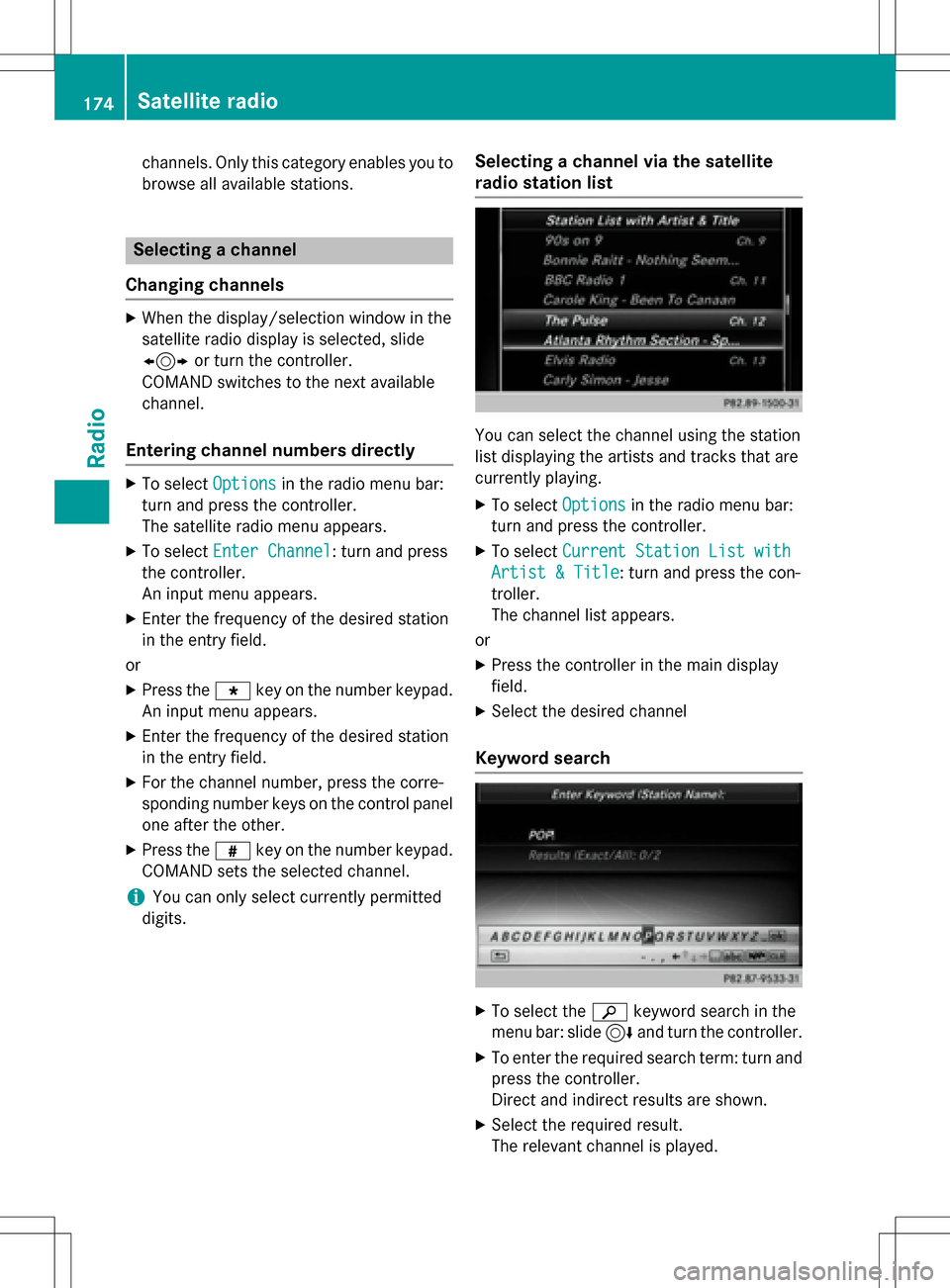
You can select the channel using the station
list displaying the artists and tracks that are
currently playing.
XTo select Optionsin the radio menu bar:
turn and press the controller.
XTo select Current Station List with
Artist & Title: turn and press the con-
troller.
The channel list appears.
or
XPress the controller in the main display
field.
XSelect the desired channel
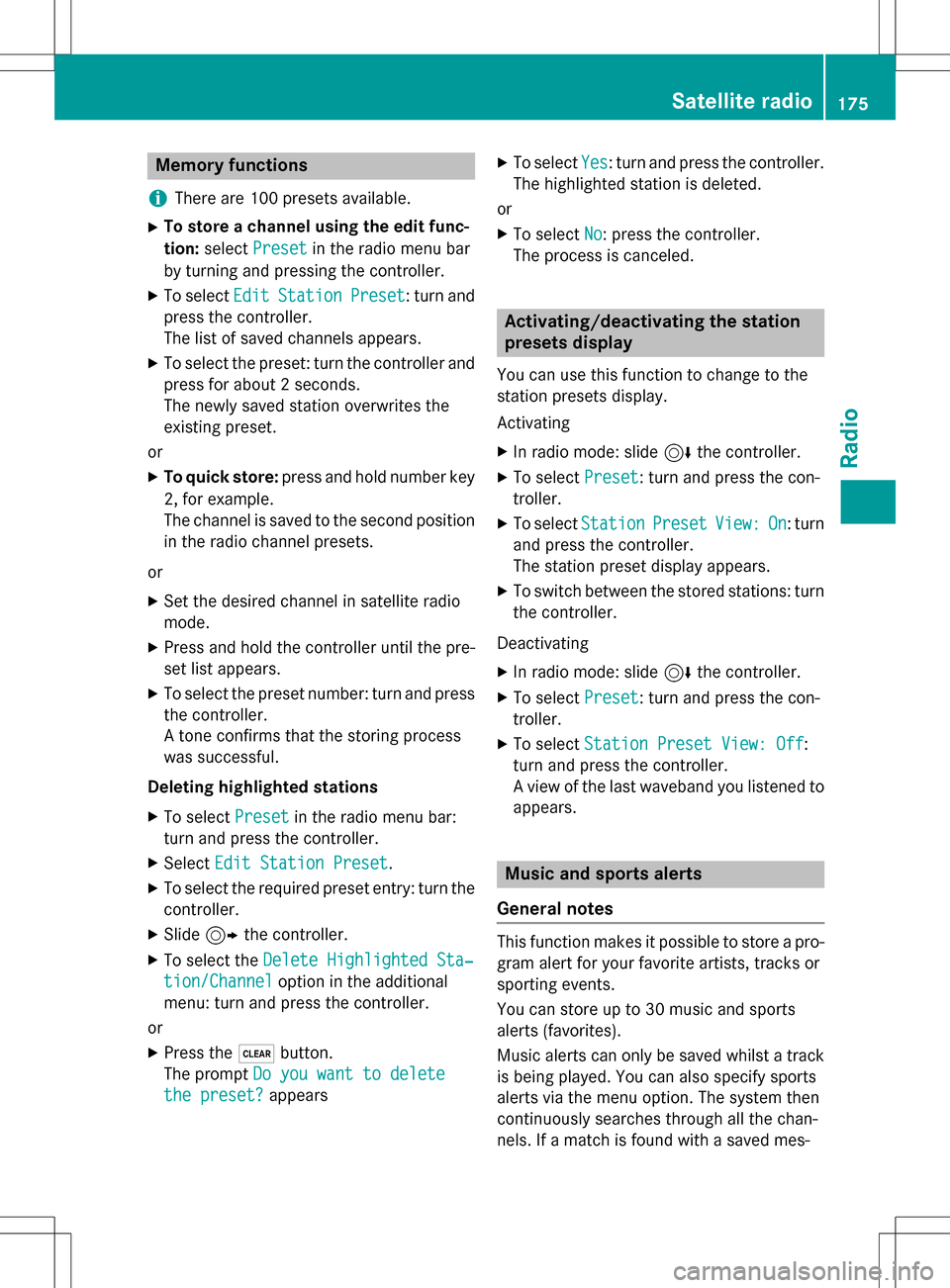
Keyword search
XTo select the èkeyword search in the
menu bar: slide 6and turn the controller.
XTo enter the required search term: turn and
press the controller.
Direct and indirect results are shown.
XSelect the required result.
The relevant channel is played.
174Satellite radio
Radio
Page 177 of 246
Memory functions
i
There are 100 presets available.
XTo store a channel using the edit func-
tion: select Preset
in the radio menu bar
by turning and pressing the controller.
XTo select EditStationPreset: turn and
press the controller.
The list of saved channels appears.
XTo select the preset: turn the controller and
press for about 2 seconds.
The newly saved station overwrites the
existing preset.
or
XTo quick store: press and hold number key
2, for example.
The channel is saved to the second position
in the radio channel presets.
or
XSet the desired channel in satellite radio
mode.
XPress and hold the controller until the pre-
set list appears.
XTo select the preset number: turn and press
the controller.
A tone confirms that the storing process
was successful.
Deleting highlighted stations
XTo select Presetin the radio menu bar:
turn and press the controller.
XSelect Edit Station Preset.
XTo select the required preset entry: turn the
controller.
XSlide9the controller.
XTo select the Delete Highlighted Sta‐
tion/Channeloption in the additional
menu: turn and press the controller.
or
XPress the $button.
The prompt Do you want to delete
the preset?appears
XTo selectYes: turn and press the controller.
The highlighted station is deleted.
or
XTo select No: press the controller.
The process is canceled.
Activating/deactivating the station
presets display
You can use this function to change to the
station presets display.
Activating
XIn radio mode: slide 6the controller.
XTo select Preset: turn and press the con-
troller.
XTo select StationPresetView:On: turn
and press the controller.
The station preset display appears.
XTo switch between the stored stations: turn
the controller.
Deactivating
XIn radio mode: slide 6the controller.
XTo select Preset: turn and press the con-
troller.
XTo select Station Preset View: Off:
turn and press the controller.
A view of the last waveband you listened to
appears.
Music and sports alerts
General notes
This function makes it possible to store a pro-
gram alert for your favorite artists, tracks or
sporting events.
You can store up to 30 music and sports
alerts (favorites).
Music alerts can only be saved whilst a track
is being played. You can also specify sports
alerts via the menu option. The system then
continuously searches through all the chan-
nels. If a match is found with a saved mes-
Satellite radio175
Radio