lock MERCEDES-BENZ GLA SUV 2018 COMAND Manual
[x] Cancel search | Manufacturer: MERCEDES-BENZ, Model Year: 2018, Model line: GLA SUV, Model: MERCEDES-BENZ GLA SUV 2018Pages: 190, PDF Size: 4.48 MB
Page 87 of 190
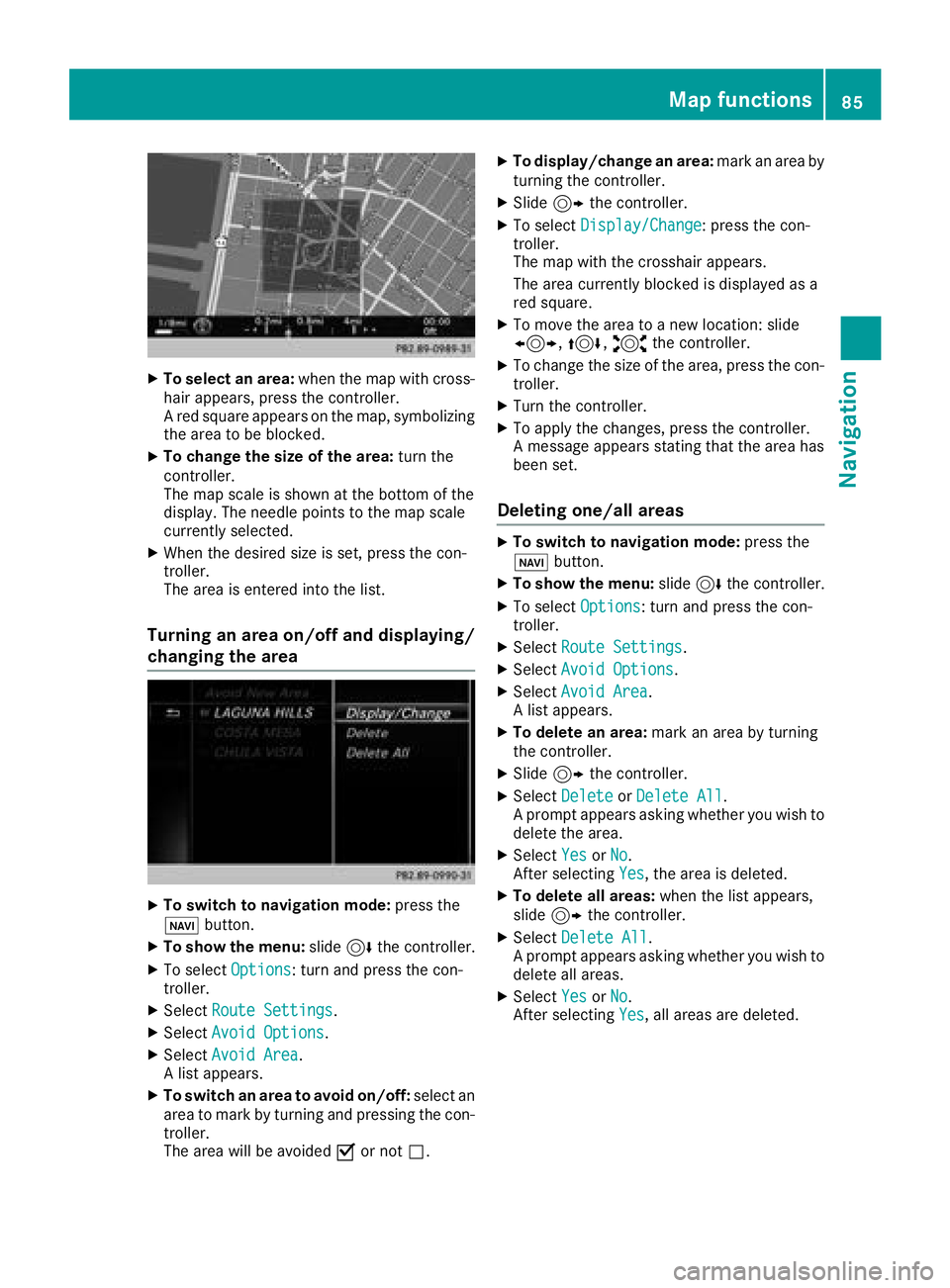
XTo select an area:when the map with cross-
hair appears, press the controller.
A red square appears on the map, symbolizing
the area to be blocked.
XTo change the size of the area: turn the
controller.
The map scale is shown at the bottom of the
display. The needle points to the map scale
currently selected.
XWhen the desired size is set, press the con-
troller.
The area is entered into the list.
Turning an area on/off and displaying/
changing the area
XTo switch to navigation mode: press the
ß button.
XTo show the menu: slide6the controller.
XTo select Options: turn and press the con-
troller.
XSelect Route Settings.
XSelectAvoid Options.
XSelectAvoid Area.
A list appears.
XTo switch an area to avoid on/off: select an
area to mark by turning and pressing the con-
troller.
The area will be avoided Oor not ª.
XTo display/change an area: mark an area by
turning the controller.
XSlide 9the controller.
XTo select Display/Change: press the con-
troller.
The map with the crosshair appears.
The area currently blocked is displayed as a
red square.
XTo move the area to a new location: slide
1, 4,2the controller.
XTo change the size of the area, press the con-
troller.
XTurn the controller.
XTo apply the changes, press the controller.
A message appears stating that the area has
been set.
Deleting one/all areas
XTo switch to navigation mode: press the
ß button.
XTo show the menu: slide6the controller.
XTo select Options: turn and press the con-
troller.
XSelect Route Settings.
XSelectAvoid Options.
XSelectAvoid Area.
A list appears.
XTo delete an area: mark an area by turning
the controller.
XSlide 9the controller.
XSelect DeleteorDelete All.
A prompt appears asking whether you wish to
delete the area.
XSelect YesorNo.
After selecting Yes, the area is deleted.
XTo delete all areas: when the list appears,
slide 9 the controller.
XSelect Delete All.
A prompt appears asking whether you wish to
delete all areas.
XSelect YesorNo.
After selecting Yes, all areas are deleted.
Map functions85
Navigation
Z
Page 113 of 190
An e-mail account must be set up on the mobile
phone for the e-mail function (see the manufac-
turer’s operating instructions).
To read and write e-mails in the multimedia sys-tem, the e-mail account first needs to be con-
figured (
Ypage 112).
Some mobile phones with the MAP Bluetooth®
profile:
Ronly show new text messages
Rdo not support the deleting or editing of text
messages
Rdo not support the drafts folder for text mes- sages
Rdo not support the sending of text messages
Rdo not support the e-mail function
Rdo not send messages when in a locked sta-
tus
Not all mobile phones available on the market
are equally suitable. Further information about
settings and supported functions of Bluetooth
®-
capable mobile phones can be found on the
Internet at
http://www.mercedes-benz.com/connect .
You can also obtain more information by calling.
In the USA, you can get in touch with the
Mercedes-Benz Customer Assistance Center on
1-800 FOR-MERCEDES (1-800-367-6372).
In Canada, you can get in touch with the Cus-
tomer Relations Center on 1-800-387-0100.
Settings
Calling up the settings menu for mes-
sages
XTo call up the telephone menu: press the
% button.
XTo switch to the menu bar: slide 6the con-
troller.
XTo select 1: turn and press the controller.
The message menu is displayed.
XTo switch to the menu bar: slide 6the con-
troller.
XTo select Settings: turn and press the con-
troller.
The text message settings and the available e-
mail accounts of the connected mobile phone
will be displayed.
Configuring the text messages dis-
played
XCall up the settings menu for messages
(Ypage 111).
XTo highlight Text Message: turn the control-
ler.
XTo select G: slide 9the controller.
A menu with the following options is shown:
RAll Messages
All the messages are displayed.
RNew Messages
Only the messages that are new on the
mobile phone are displayed.
ROff
The messages are not displayed automati-
cally. You can display the 100 newest text
messages from the mobile phone using the
Download
option in the message menu.
XTo select the required option: turn and press
the controller.
Configuring the e-mails displayed
XCall up the settings menu for messages
(Ypage 111).
XTo highlight an e-mail account: turn the con-
troller.
XTo select G: slide 9the controller.
XTo select Automatic Download: turn and
press the controller.
A menu with the following options is shown:
RAll Messages
All the messages are displayed.
RNew Messages
Only the messages that are new on the
mobile phone are displayed.
ROff
The messages are not displayed automati-
cally. You can display the 100 newest e-
mails from the mobile phone using the
Download
option in the message menu.
XTo select the required option: turn and press
the controller.
Messages (text messages and e-mails)111
Telephone
Z
Page 119 of 190
Some mobile phones with the MAP Bluetooth®
profile:
Rdo not support the deleting or editing of text
messages
Rdo not support the drafts folder for text mes-sages
Rdo not support the sending of text messages
Rdo not support the e-mail function
Rdo not send messages when in a locked sta-
tus
iThe availability of the dictation function is
country-dependent.
Calling up text messages or e-mails in
the message menu
XTo call up the telephone menu: press the
% button.
XTo switch to the menu bar: slide 6the con-
troller.
XTo select 1: turn and press the controller.
The message menu is displayed.
XTo switch to the menu bar: slide 6the con-
troller.
XTo select New: turn and press the controller.
XTo selectText MessageorE-Mail: turn and
press the controller.
The input menu for the message is displayed.
Calling up and using the dictation
function
XSelect the omicrophone.
The app for the dictation function is loaded.
If there was no prior Internet connection, a
connection is now established.
XTo start the dictation function: press the
controller.
XSay your message.
The dictation ends automatically after you
have finished speaking.
After the spoken message has been pro-
cessed, it is shown as text on the display.
XTo select words: turn and press the control-
ler.
XIn the correction menu, you can:
Radjust capitalization of words (if supported
by the character set)
Radd words
Rdelete words
Rreplace the dictated message with a new
one
XTo exit the menu: selectDone.
Send message
The dictated text is displayed in the message
input window.
XEnter the telephone number or e-mail address
into the addressee line.
XTo send the message: select OK.
iThe availability of the dictation function may
vary according to the country and vehicle
equipment.
Apple CarPlay™
Introduction
iPhone®functions can be used via the multime-
dia system using Apple CarPlay™. Apple Car-
Play™ can be operated using the controller or
Siri
®voice-operated control system. Whether
selected buttons are supported in the vehicle
depends on the iOS version of the mobile phone
and the apps available. You will find an overview
of the multimedia system's control panel and
available buttons here (
Ypage 18).
To activate voice-operated control, press and
hold the óbutton on the multifunction steer-
ing wheel (
Ypage 98). Apple CarPlay™ is only
available for Apple®mobile phones (see the
manufacturer's operating instructions). The
availability of Apple CarPlay™ may vary by coun-
try and depending on vehicle equipment.
While using Apple CarPlay™, various multimedia
system functions, such as navigation, are not
available.
The respective provider is responsible for the
application and the associated services and
content.
Apple CarPlay™117
Telephone
Z
Page 129 of 190
XTo navigate on the web page: slide1,
4 or2 the controller.
XTo zoom in on the web page: turn the control-
ler.
Jumping from link to link
You can use this function to skip from one link to
the next on a website.
XTo show the menu: press the%button.
XTo select 3: turn and press the controller.
A menu appears. The #dot indicates the cur-
rent setting.
XSelect Jump From Link To Link.
If a website has been called up and the con-
troller is turned, the cursor jumps from link to
link.
Directional scrolling
You can use this function to scroll up and down
on the web page.
XTo show the menu: press the%button.
XTo select 3: turn and press the controller.
A menu appears. The #dot indicates the cur-
rent setting.
XSelect Directional Scrolling.
If a website has been called up and the con-
troller is turned, the cursor moves up or down
depending on the direction of the turn.
Settings
Overview
XTo show the menu: press the%button.
XTo select 3: turn and press the controller.
A menu appears.
XSelect Settings.
You can activate or deactivate the following set-
tings:
RDownload Images Automatically
It may take some time to download the con-
tents of websites that contain a large amount
of images. Therefore, it may be useful to deac-
tivate this option.
RBlock Pop-Ups
Pop-ups are windows (usually with advertise-
ments) which are displayed automatically when you call up a website. You can block
these displays.
RActivate Javascript
JavaScript makes it possible to display and
interact with dynamic content on the website.
RAllow Cookies
Some websites save information in small text
files (cookies) on your system. You can deter-
mine whether cookies may be stored.
REnable Internet Audio
You can switch the browser's audio playback
on or off here.
RHide Scroll Bars
You can show or hide the scroll bar here.
RShow Link Target
You can display the link's URL here.
RCharacter Size
You can select the font size which is used
when displaying the website.
RCharacter Code
You can select a different character set here,
e.g. if the characters of a website appear dis-
torted.
Changing settings
XTo select the desired setting: turn and press
the controller.
Switch the setting on Oor off ª.
Changing the character size or character
code
XSelect CharacterSizeorCharacterCode.
XTo select the setting you require: turn and
press the controller.
iIf you change the settings, the websites may
not be displayed correctly.
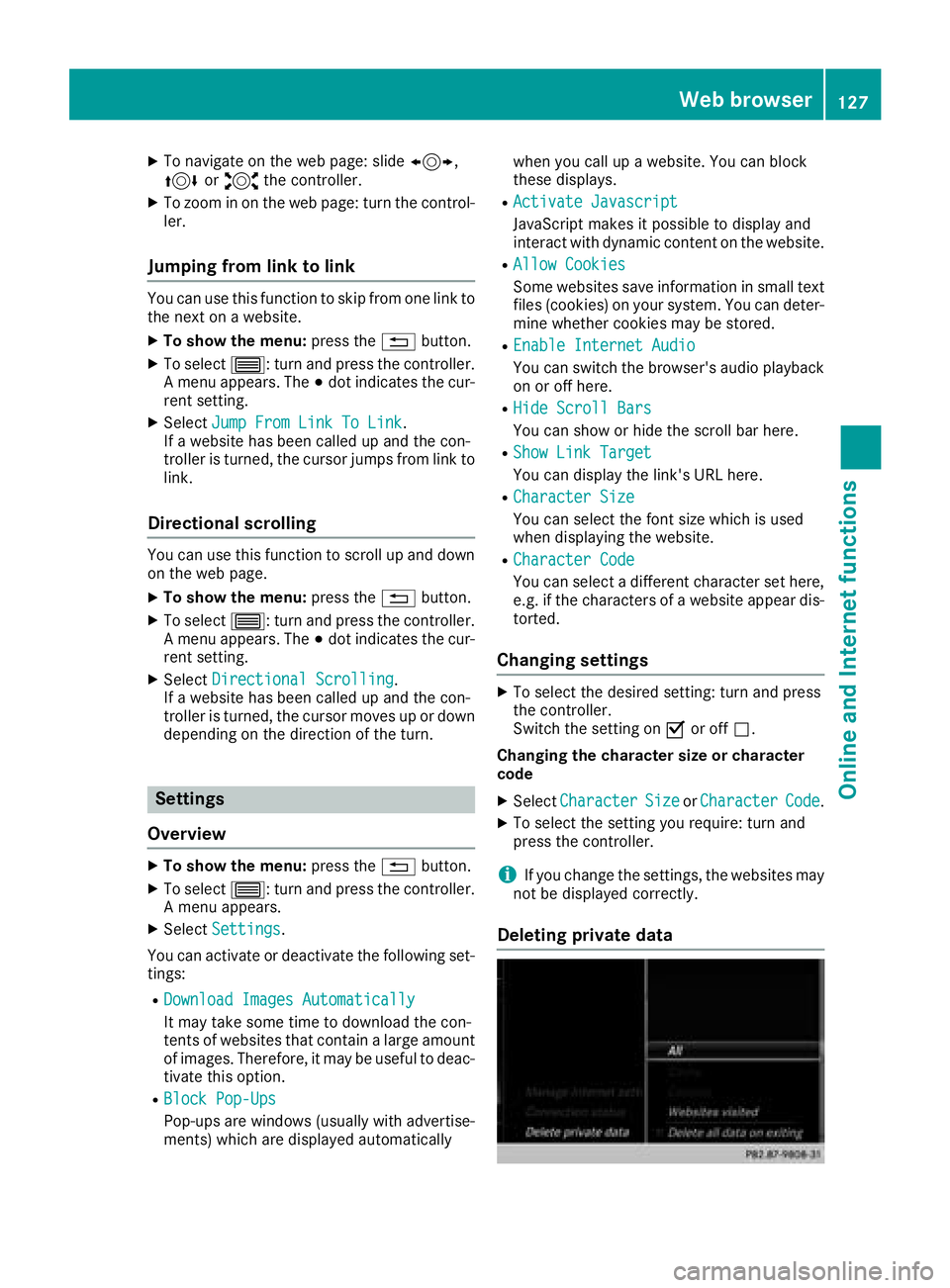
Deleting private data
Web browser127
Online and Internet functions
Z
Page 135 of 190
Rthe channel abbreviation
Rthe logo of the station or Artist Experience®
Returning to the radio menu:
XTo selectInformation: slide6and press
the controller.
or
XPress the %button.
Satellite radio
General notes
The satellite radio mode requires satellite radio
equipment and registration with a satellite radio
provider.
Note that the categories and channels shown in
the illustrations depend on the program content
offered by the provider. The illustrations and
descriptions in these operating instructions may
therefore differ from the channels and catego-
ries offered by the provider.
Satellite radio mode may be temporarily unavail-
able or interrupted for a variety of reasons.
These include environmental or topographical
conditions as well as other factors beyond the
control of Mercedes-Benz USA, LLC. This means
operation may not be possible in certain areas.
These include:
Rtunnels
Rparking garages
Rlocations inside or next to buildings
Rlocations in the vicinity of other structures
Sirius XM®Satellite Radio offers more than 140
digital-quality radio channels, providing 100%
commercial-free music, sports, news and enter-
tainment.
Sirius XM
®Satellite Radio uses a fleet of high-
performance satellites to broadcast around the
clock throughout the USA and Canada.
The satellite radio program is available for a
monthly fee. De
tails are available from the SIR-
IUS XM®Service Center and at
http://www.siriusxm.com (USA) or
http://www.siriusxm.ca (Canada).
Your new Mercedes-Benz vehicle comes with
Sirius XM
®Satellite Radio pre-installed at the
factory. This service is free for a six-month trial
period. About a month before the trial period
ends, information will be provided on how to
extend this subscription. An acoustic signal sounds and a message is shown, describing how
the subscription can be extended.
iSirius, XM and all related marks and logos
are trademarks of Sirius XM Radio Inc. and its
subsidiaries. All other marks, channel names
and logos are the property of their respective owners. All rights reserved.
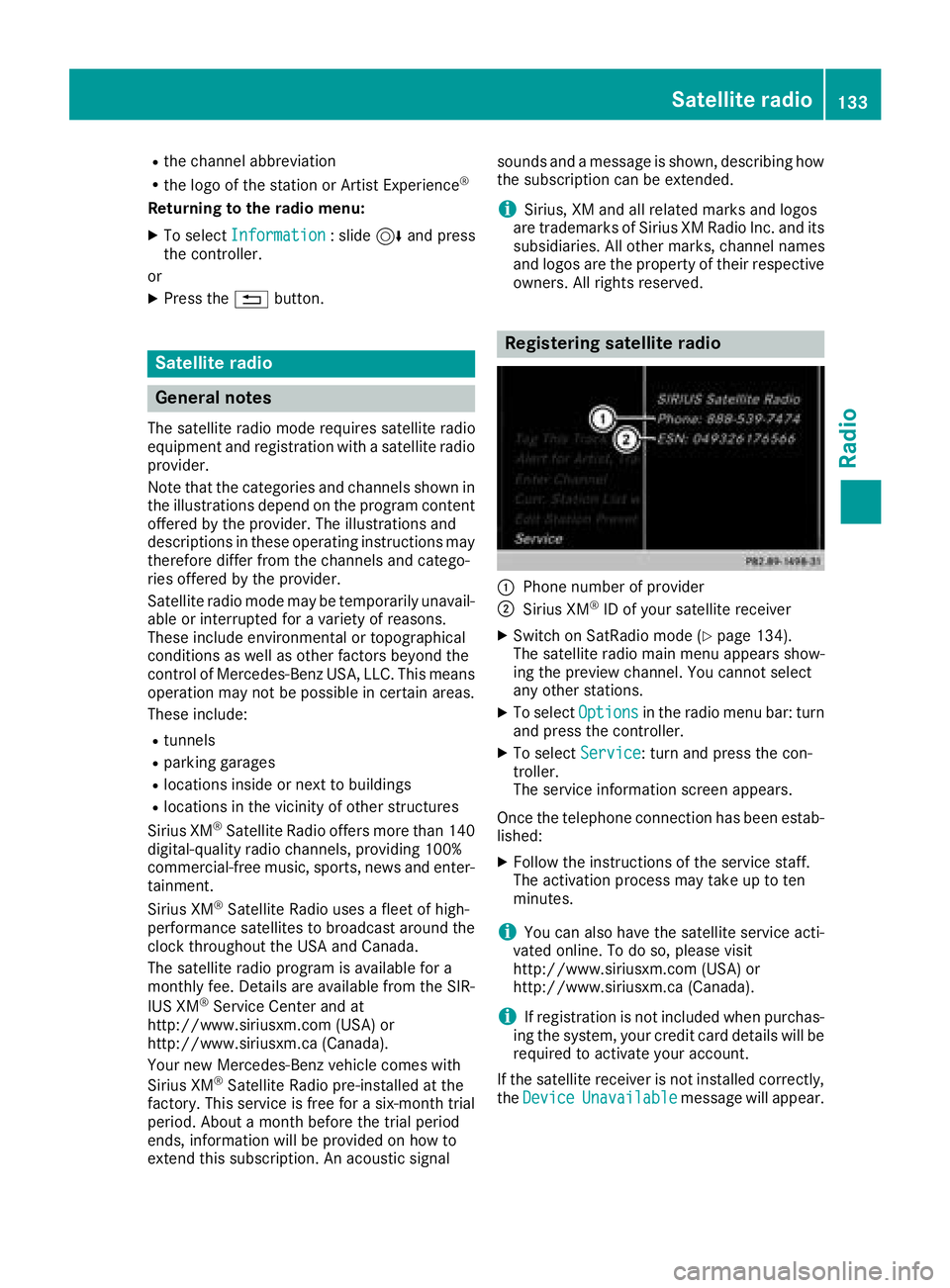
Registering satellite radio
:Phone number of provider
;Sirius XM®ID of your satellite receiver
XSwitch on SatRadio mode (Ypage 134).
The satellite radio main menu appears show-
ing the preview channel. You cannot select
any other stations.
XTo select Optionsin the radio menu bar: turn
and press the controller.
XTo select Service: turn and press the con-
troller.
The service information screen appears.
Once the telephone connection has been estab-
lished:
XFollow the instructions of the service staff.
The activation process may take up to ten
minutes.
iYou can also have the satellite service acti-
vated online. To do so, please visit
http://www.siriusxm.com (USA) or
http://www.siriusxm.ca (Canada).
iIf registration is not included when purchas-
ing the system, your credit card details will be
required to activate your account.
If the satellite receiver is not installed correctly, the Device
Unavailablemessage will appear.
Satellite radio133
Radio
Page 158 of 190
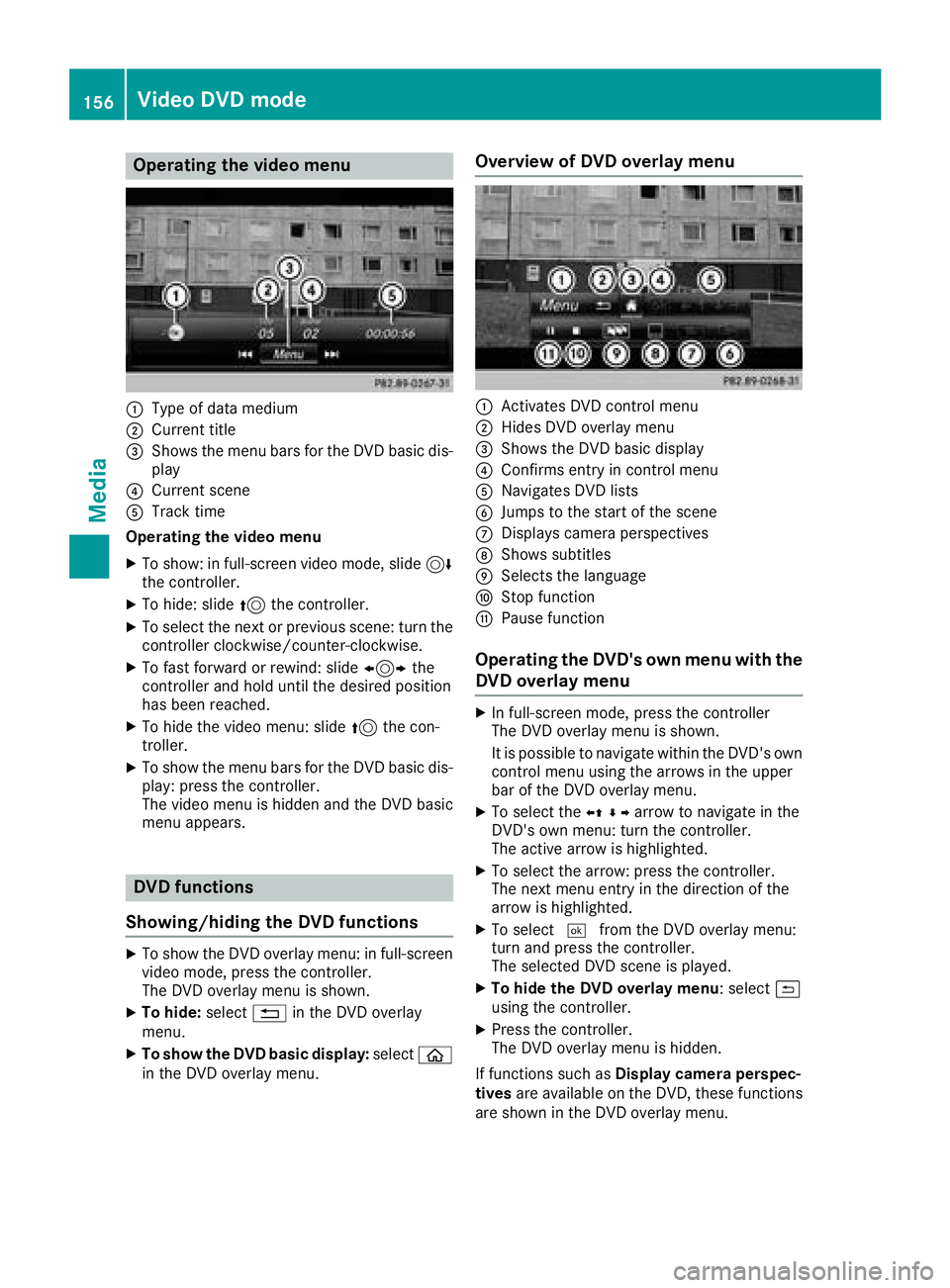
Operating the video menu
:Type of data medium
;Current title
=Shows the menu bars for the DVD basic dis-play
?Current scene
ATrack time
Operating the video menu
XTo show: in full-screen video mode, slide 6
the controller.
XTo hide: slide 5the controller.
XTo select the next or previous scene: turn the
controller clockwise/counter-clockwise.
XTo fast forward or rewind: slide 1the
controller and hold until the desired position
has been reached.
XTo hide the video menu: slide 5the con-
troller.
XTo show the menu bars for the DVD basic dis- play: press the controller.
The video menu is hidden and the DVD basic
menu appears.
DVD functions
Showing/hiding the DVD functions
XTo show the DVD overlay menu: in full-screen
video mode, press the controller.
The DVD overlay menu is shown.
XTo hide: select%in the DVD overlay
menu.
XTo show the DVD basic display: selectò
in the DVD overlay menu.
Overview of DVD overlay menu
:Activates DVD control menu
;Hides DVD overlay menu
=Shows the DVD basic display
?Confirms entry in control menu
ANavigates DVD lists
BJumps to the start of the scene
CDisplays camera perspectives
DShows subtitles
ESelects the language
FStop function
GPause function
Operating the DVD's own menu with the
DVD overlay menu
XIn full-screen mode, press the controller
The DVD overlay menu is shown.
It is possible to navigate within the DVD's own
control menu using the arrows in the upper
bar of the DVD overlay menu.
XTo select the XZ¬Yarrow to navigate in the
DVD's own menu: turn the controller.
The active arrow is highlighted.
XTo select the arrow: press the controller.
The next menu entry in the direction of the
arrow is highlighted.
XTo select ¬from the DVD overlay menu:
turn and press the controller.
The selected DVD scene is played.
XTo hide the DVD overlay menu : select&
using the controller.
XPress the controller.
The DVD overlay menu is hidden.
If functions such as Display camera perspec-
tives are available on the DVD, these functions
are shown in the DVD overlay menu.
156Video DVD mode
Media
Page 159 of 190
Stopping playback
XIn full-screen mode, press the controller
The DVD overlay menu is shown.
XTo stop playback:selectÉ.
XTo start playback again: selectÌ.
Playback restarts from the beginning.
Pausing playback
XIn full-screen mode, press the controller
The DVD overlay menu is shown.
XTo pause playback
Select Ë.
The Ë display changes to Ì.
XTo continue playback: selectÌ.
Selecting a scene/chapter
If the film is divided into scenes and chapters,
you can select these directly while the film is
running or you can skip progressively through
them. This is not possible at certain points for
some DVDs (e.g. during the opening credits).
It may also be possible to select the scene and
chapter from the functions stored on the DVD.
XTo skip forward or back: in the video menu,
turn the controller.
or
XPress the EorF button.
The next or previous scene in the film is skip-
ped to.
Picture viewer
General notes
If pictures are stored on a connected medium
(except on Apple®devices), you can view these
on the multimedia system.
The following data media and picture formats
are supported:
RData media: CD, DVD, USB devices, SD cards
RPicture formats: jpeg, jpg, bmp, png
The maximum image resolution is
20 megapixels for JPEG, JPG and 1.5 megapixels
for BMP, PNG.
Displaying pictures
XIn media mode, slide 6the controller.
XTo select Search: turn and press the control-
ler.
The category list appears.
XTo select Photos: turn and press the control-
ler.
A directory list appears. Folders and picture
files can be shown.
XSelect a folder or picture.
If there is no picture on the data medium, an
empty list is shown.
Searching for pictures on other data media
XYou can search for pictures on other data
media.
In the directory list, slide 8the controller.
The device list appears.
XTo select a data medium with picture files:
turn the controller and press to confirm.
A directory list appears. Folders and picture
files can be shown.
XSelect a folder or picture.
Starting a slide show
XWhile viewing a picture, press the controller.
The image menu appears.
XTo select Start Slideshow: turn and press
the controller.
The slide show starts.
XTo end the slide show: press the controller.
The image menu appears.
XSelect End Slide Show.
Changing the picture view
XPress the controller.
The image menu appears.
XTo select Turn Clockwise: turn and press
the controller.
The picture rotates 90 degrees clockwise.
XSelect Turn Counterclockwise.
The picture rotates 90 degrees counter-clock-
wise.
XSelect Zoom In.
The size of the picture increases.
Picture viewer157
Media
Z
Page 173 of 190

Your multimediasyste mequipment
These operatin ginstruction sdescribe all th e
standar dan doptional equipment of your multi-
media system, as available at th etime of going
to press. Country-specifi cdifference sare pos -
sible. Bear in min dthat your vehicle may no t
feature all function sdescribed here. Thi salso
applies to safety-relevan tsystems an dfunc-
tions.
Read th einformation on qualifie dspecialis t
workshop sin th evehicle Operator's Manual.
Overview
Important safet ynotes
GWARNING
The CD/DVD drive is aclass 1lase rproduct.
If you ope nth ehousin gof th eCD/DVD drive,
there is aris kof exposure to invisible lase r
radiation .Thi slase rradiation could damage
your retina. There is aris kof injury.
Never ope nth ehousing. Always hav emain -
tenanc ean drepair wor kcarrie dout at aquali -
fie dspecialis tworkshop .
GWARNING
If objects suc has headphones/headset sor
external audio/video sources are no tsecure d
in th epassenger compartment, they can be
flun garound an dhit vehicle occupants .There
is aris kof injury, fo rexample in th eevent of
sudden braking or asudden change in direc -
tion .
Always stow these items or similar objects
carefully so that they canno tbe flung around ,
fo rexample in alockable vehicle stowag e
compartment.
Equipment
Observ ethat arange of Rear Seat Entertain -
men tSystems are available fo rMercedes-Ben z
vehicles .In this Operator's Manual, th eRear
Seat Entertainmen tSyste mCode 86 4is used
fo rillustration purposes. If you hav e adifferen t
Rear Seat Entertainmen tSyste min your vehicle,
please refer to th emanufacturer's operatin g
instructions.
Component s
The Rear Seat Entertainmen tSyste mincludes :
Rtwoscreens fo rth erea rbehin dth efront-seat
head restraints
Rtw oremot econtrols
Rasingle drive (rear-compartmen tdrive)
RAU Xjack son bot hrea rscreens (AUX display)
RAU Xjack son th erea rdrive (AUX drive)
Rheadphone sfo reac hrea rscree n
Rtwoset sof cordless headphone s
Rear-compartment screens
:AUXjack s(AUX display)
;Display
Overview171
Rear Seat Entertainment System
Z
Page 174 of 190
The same AUX jacks (AUX drive) can be found in the rear-compartment drive (Ypage 173).
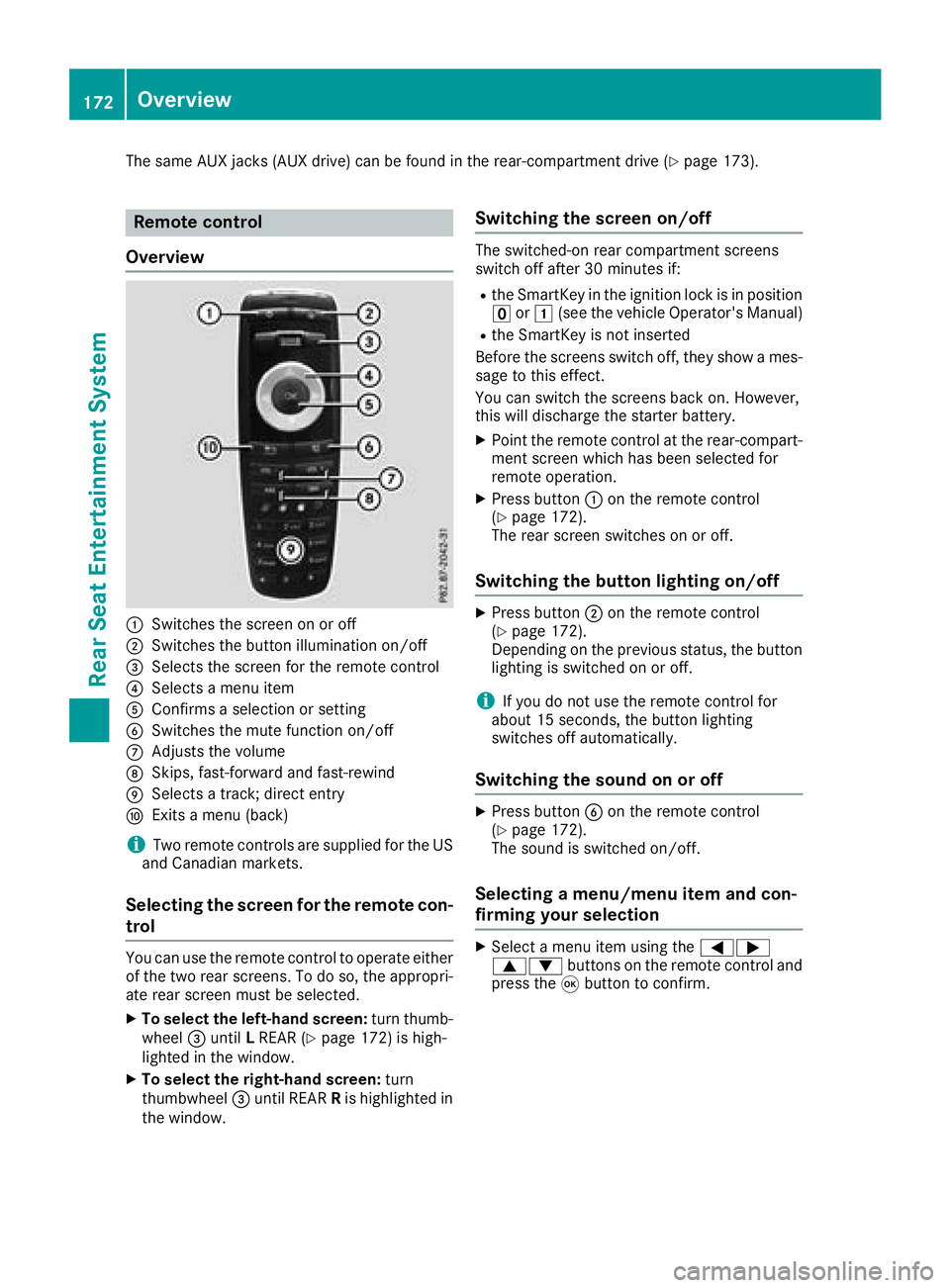
Remote control
Overview
:Switches the screen on or off
;Switches the button illumination on/off
=Selects the screen for the remote control
?Selects a menu item
AConfirms a selection or setting
BSwitches the mute function on/off
CAdjusts the volume
DSkips, fast-forward and fast-rewind
ESelects a track; direct entry
FExits a menu (back)
iTwo remote controls are supplied for the US
and Canadian markets.
Selecting the screen for the remote con-
trol
You can use the remote control to operate either
of the two rear screens. To do so, the appropri-
ate rear screen must be selected.
XTo select the left-hand screen: turn thumb-
wheel =until LREAR (Ypage 172) is high-
lighted in the window.
XTo select the right-hand screen: turn
thumbwheel =until REAR Ris highlighted in
the window.
Switching the screen on/off
The switched-on rear compartment screens
switch off after 30 minutes if:
Rthe SmartKey in the ignition lock is in position u or1 (see the vehicle Operator's Manual)
Rthe SmartKey is not inserted
Before the screens switch off, they show a mes-
sage to this effect.
You can switch the screens back on. However,
this will discharge the starter battery.
XPoint the remote control at the rear-compart-
ment screen which has been selected for
remote operation.
XPress button :on the remote control
(Ypage 172).
The rear screen switches on or off.
Switching the button lighting on/off
XPress button ;on the remote control
(Ypage 172).
Depending on the previous status, the button
lighting is switched on or off.
iIf you do not use the remote control for
about 15 seconds, the button lighting
switches off automatically.
Switching the sound on or off
XPress button Bon the remote control
(Ypage 172).
The sound is switched on/off.
Selecting a menu/menu item and con-
firming your selection
XSelect a menu item using the =;
9: buttons on the remote control and
press the 9button to confirm.
172Overview
Rear Seat Entertainment System
Page 177 of 190
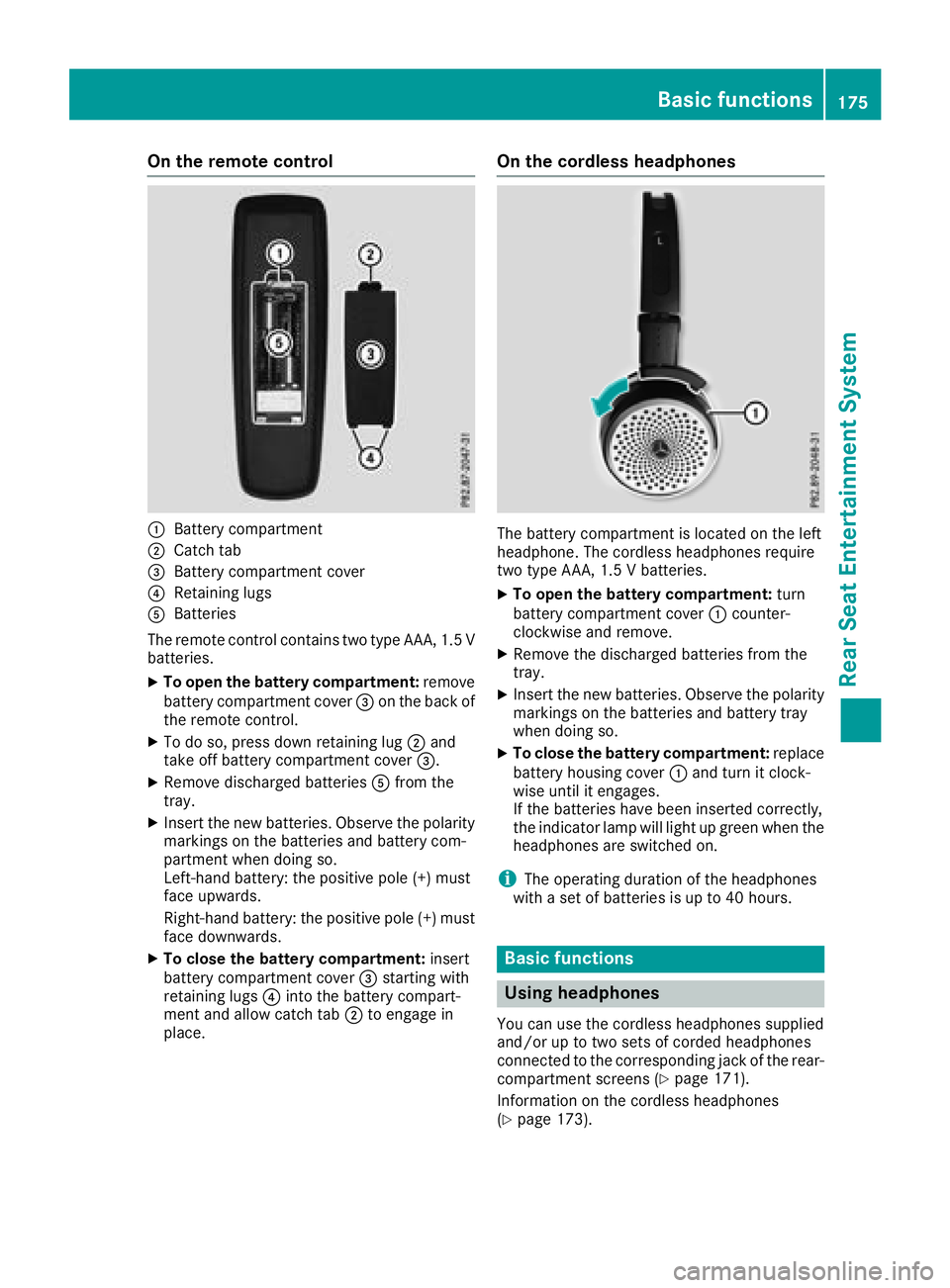
On the remote control
:Battery compartment
;Catch tab
=Battery compartment cover
?Retaining lugs
ABatteries
The remote control contains two type AAA, 1.5 V
batteries.
XTo open the battery compartment: remove
battery compartment cover =on the back of
the remote control.
XTo do so, press down retaining lug ;and
take off battery compartment cover =.
XRemove discharged batteriesAfrom the
tray.
XInsert the new batteries. Observe the polarity markings on the batteries and battery com-
partment when doing so.
Left-hand battery: the positive pole (+) must
face upwards.
Right-hand battery: the positive pole (+) must
face downwards.
XTo close the battery compartment: insert
battery compartment cover =starting with
retaining lugs ?into the battery compart-
ment and allow catch tab ;to engage in
place.
On the cordless headphones
The battery compartment is located on the left
headphone. The cordless headphones require
two type AAA, 1.5 V batteries.
XTo open the battery compartment: turn
battery compartment cover :counter-
clockwise and remove.
XRemove the discharged batteries from the
tray.
XInsert the new batteries. Observe the polarity markings on the batteries and battery tray
when doing so.
XTo close the battery compartment: replace
battery housing cover :and turn it clock-
wise until it engages.
If the batteries have been inserted correctly,
the indicator lamp will light up green when the
headphones are switched on.
iThe operating duration of the headphones
with a set of batteries is up to 40 hours.
Basic functions
Using headphones
You can use the cordless headphones supplied
and/or up to two sets of corded headphones
connected to the corresponding jack of the rear-
compartment screens (
Ypage 171).
Information on the cordless headphones
(
Ypage 173).
Basic functions175
Rear Seat Entertainment System
Z