display MERCEDES-BENZ GLB SUV 2019 Owners Manual
[x] Cancel search | Manufacturer: MERCEDES-BENZ, Model Year: 2019, Model line: GLB SUV, Model: MERCEDES-BENZ GLB SUV 2019Pages: 689, PDF Size: 11.39 MB
Page 417 of 689
R
None option
The media display showsnotext information
in the bottom bar.
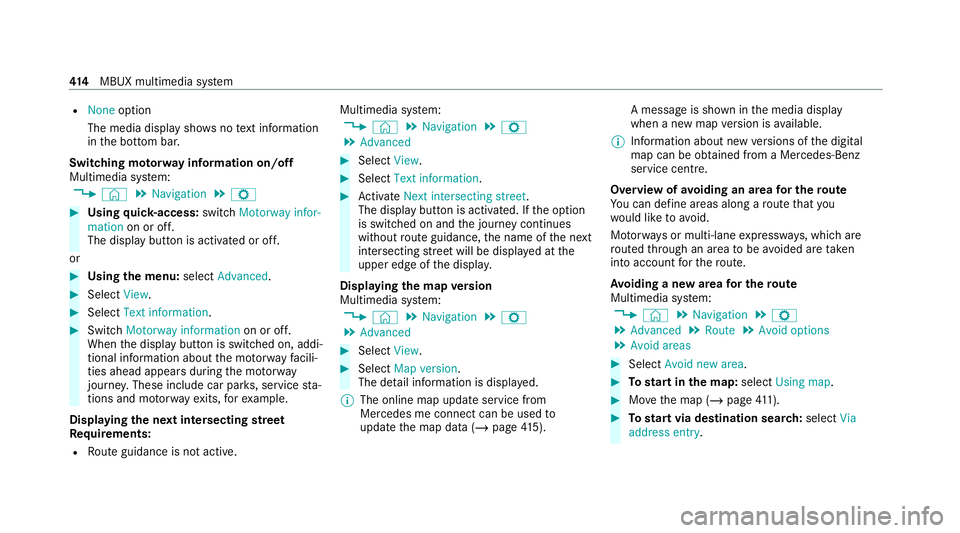
Switching mo torw ay information on/off
Multimedia sy stem:
4 © 5
Navigation 5
Z #
Using quick- access: switchMotorway infor-
mation on or off.
The display button is activated or off.
or #
Using the menu: selectAdvanced. #
Select View. #
Select Text information. #
Swit chMotorway information on or off.
When the display button is switched on, addi‐
tional information about the mo torw ay facili‐
ties ahead appea rsduring the mo torw ay
jou rney . These include car pa rks, service sta‐
tions and mo torw ay ex its,forex ample.
Displ aying the next intersecting stre et
Re quirements:
R Route guidance is not active. Multimedia sy
stem:
4 © 5
Navigation 5
Z
5 Advanced #
Select View. #
Select Text information. #
Activate Next intersecting street .
The display button is acti vated. If the option
is switched on and the journey continues
without route guidance, the name of the next
intersecting stre et will be displa yed at the
upper edge of the displa y.
Displaying the map version
Multimedia sy stem:
4 © 5
Navigation 5
Z
5 Advanced #
Select View. #
Select Map version .
The de tail information is displa yed.
% The online map update service from
Mercedes me connect can be used to
update the map data (/ page415). A messa
geis shown in the media display
when a new map version is available.
% Info rm ation about new versions of the digital
map can be obtained from a Mercedes-Benz
service cent re.
Overview of avoiding an area for the route
Yo u can define areas along a route that you
wo uld like toavoid.
Mo torw ays or multi-lane expressw ays, which are
ro uted thro ugh an area tobe avo ided are taken
into account forth ero ute.
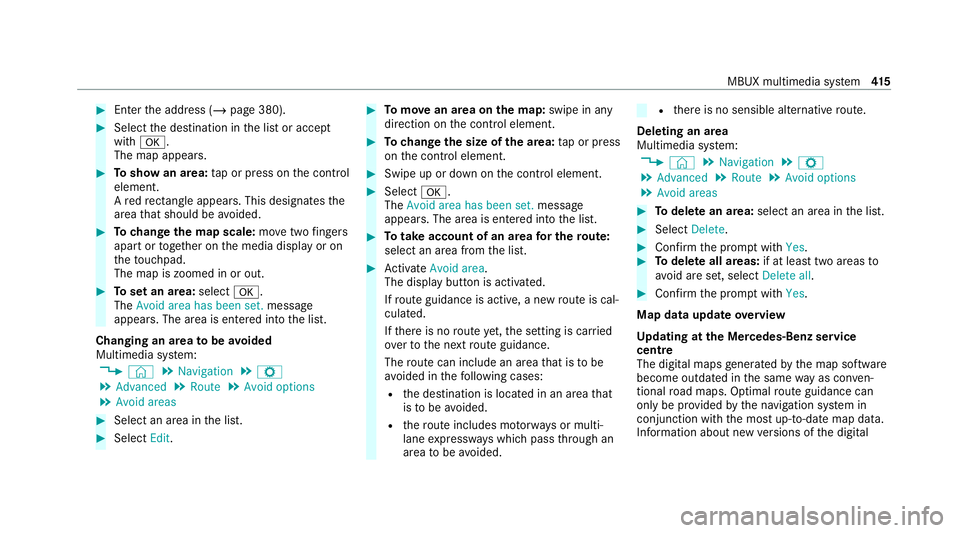
Av oiding a new area for the route
Multimedia sy stem:
4 © 5
Navigation 5
Z
5 Advanced 5
Route 5
Avoid options
5 Avoid areas #
Select Avoid new area. #
Tostart in the map: selectUsing map. #
Movethe map (/ page411). #
Tostart via destination sear ch:select Via
address entry. 414
MBUX multimedia sy stem
Page 418 of 689
#
Enter the address (/ page 380). #
Select the destination in the list or accept
with a.
The map appears. #
Toshow an area: tap or press on the control
element.
A redre ctangle appea rs. This designates the
area that should be avoided. #
Tochange the map scale: movetwo fingers
apart or toget her on the media display or on
th eto uchpad.
The map is zoomed in or out. #
Toset an area: selecta.
The Avoid area has been set. message
appears. The area is entered into the list.
Changing an area tobe avo ided
Multimedia sy stem:
4 © 5
Navigation 5
Z
5 Advanced 5
Route 5
Avoid options
5 Avoid areas #
Select an area in the list. #
Select Edit. #
Tomo vean area on the map: swipe in any
direction on the control element. #
Tochange the size of the area: tap or press
on the control element. #
Swipe up or down on the control element. #
Select a.
The Avoid area has been set. message
appears. The area is entered into the list. #
Totake account of an area for the route:
select an area from the list. #
Activate Avoid area.
The display button is acti vated.
If ro ute guidance is active, a new route is cal‐
culated.
If th ere is no route yet,th e setting is car ried
ove rto the next route guidance.
The route can include an area that is tobe
av oided in thefo llowing cases:
R the destination is located in an area that
is to be avo ided.
R thero ute includes mo torw ays or multi-
lane expressw ays which pass thro ugh an
area tobe avo ided. R
there is no sensible alternative route.
Deleting an area
Multimedia sy stem:
4 © 5
Navigation 5
Z
5 Advanced 5
Route 5
Avoid options
5 Avoid areas #
Todel ete an area: select an area in the list. #
Select Delete. #
Confirm the prom ptwith Yes. #
Todel ete all areas: if at least two areas to
av oid are set, select Delete all. #
Confirm the prom ptwith Yes.
Map data upda teoverview
Up dating at the Mercedes-Benz se rvice
centre
The digital maps generated bythe map software
become outdated in the same way as co nven‐
tional road maps. Optimal route guidance can
on ly be pr ovided bythe navigation sy stem in
conjunction with the most up-to-date map data.
Information about new versions of the digital MBUX multimedia sy
stem 415
Page 420 of 689
Displaying
the compass
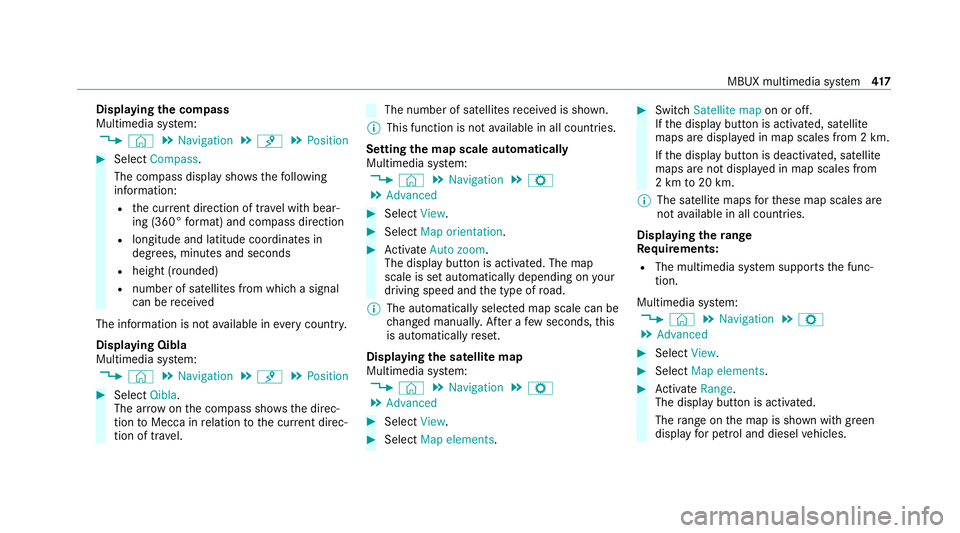
Multimedia sy stem:
4 © 5
Navigation 5
¡ 5
Position #
Select Compass.
The compass display sho wsthefo llowing
information:
R the cur rent di rection of tr avel with bear‐
ing (360° form at) and compass direction
R longitude and latitude coo rdinates in
degrees, minutes and seconds
R height (rounded)
R number of satellites from which a signal
can be recei ved
The information is not available in every count ry.
Displaying Qibla
Multimedia sy stem:
4 © 5
Navigation 5
¡ 5
Position #
Select Qibla.
The ar rowonthe compass sho wsthe direc‐
tion toMecca in relation tothe cur rent di rec‐
tion of tr avel. The number of satellites
recei ved is shown.
% This function is not available in all countries.
Setting the map scale automatically
Multimedia sy stem:
4 © 5
Navigation 5
Z
5 Advanced #
Select View. #
Select Map orientation. #
Activate Auto zoom.
The display button is acti vated. The map
scale is set automatically depending on your
driving speed and the type of road.
% The automatically selec ted map scale can be
ch anged manuall y.After a few seconds, this
is automatically reset.
Displaying the satellite map
Multimedia sy stem:
4 © 5
Navigation 5
Z
5 Advanced #
Select View. #
Select Map elements. #
Switch Satellite map on or off.
If th e display button is activated, satellite
maps are displa yed in map scales from 2 km.
If th e display button is deactivated, satellite
maps are not displa yed in map scales from
2 km to20 km.
% The satellite maps forth ese map scales are
not available in all countries.
Displ aying thera nge
Re quirements:
R The multimedia sy stem supports the func‐
tion.
Multimedia sy stem:
4 © 5
Navigation 5
Z
5 Advanced #
Select View. #
Select Map elements. #
Activate Range.
The display button is acti vated.
The range on the map is shown with green
display for petrol and diesel vehicles. MBUX multimedia sy
stem 417
Page 421 of 689
When
the lo werre ser vecapacity is reached then
th era nge displ ayon the map is switched off.
% The range displ ayon the map is not available
in all countries.
Displ aying weather information and other
map contents
Re quirements:
R Mercedes me connect is available.
R You ha vea user account forth e Mercedes
me por tal.
R The service is available.
R The service has been activated.
Multimedia sy stem:
4 © 5
Navigation 5
Z
5 Advanced #
Select View. #
Select Map elements. #
Scroll up and show theONLINE MAP CON-
TENTS categor y.
The available services are displa yed. The
services are pr ovided byMercedes me con‐
nect. #
Switch on a service, e.g. Weather.
Cur rent we ather information is displa yed on
th e navigation map, e.g. temp erature or
cloud co ver.The service information is not
shown in all map scales, e.g. weather sym‐
bols.
Fu rther information about available services and
about displaying information in the map scales
can be found in the Mercedes me Portal:
https://me.secure.mercedes-benz.com
% Weather information is not available in all
countries.
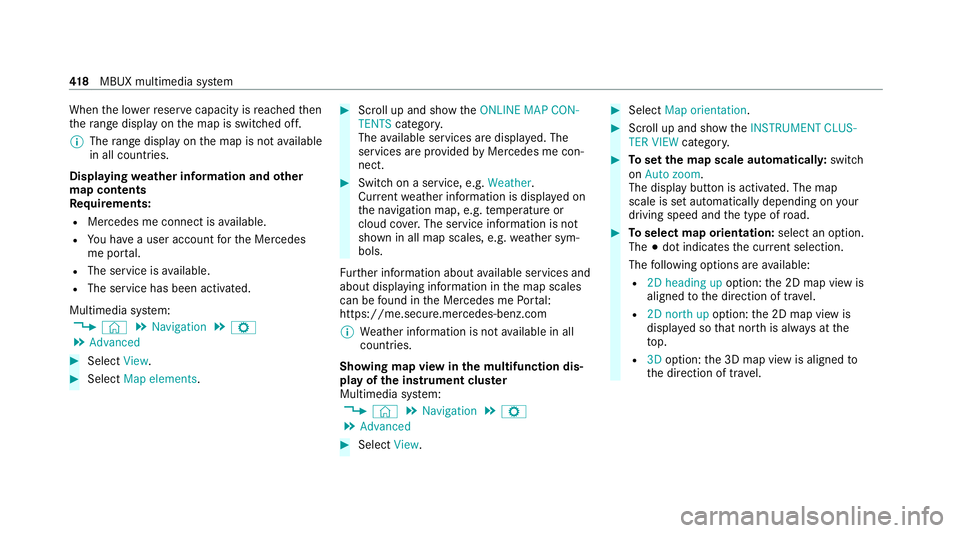
Showing map view in the multifunction dis‐
play of the instrument clus ter
Multimedia sy stem:
4 © 5
Navigation 5
Z
5 Advanced #
Select View. #
Select Map orientation. #
Scroll up and show theINSTRUMENT CLUS-
TER VIEW category. #
Toset the map scale automaticall y:switch
on Auto zoom.
The display button is activated. The map
scale is set automatically depending on your
driving speed and the type of road. #
Toselect map orientation: select an option.
The #dot indicates the cur rent selection.
The following options are available:
R 2D heading up option:the 2D map view is
aligned tothe direction of tra vel.
R 2D north up option:the 2D map view is
displa yed so that no rth is alw ays at the
to p.
R 3Doption: the 3D map view is aligned to
th e direction of tra vel. 41 8
MBUX multimedia sy stem
Page 423 of 689
R
Telephone number #
Calculate thero ute (/ page 388).
The following functions can also be selec ted (if
av ailable):
R Sear chfor POIs in the vicinit y.
R Save the destination.
R Place a call at the destination.
R Share the destination using NFC or QR code.
R Call up thewe b address.
R Show the destination on the map.
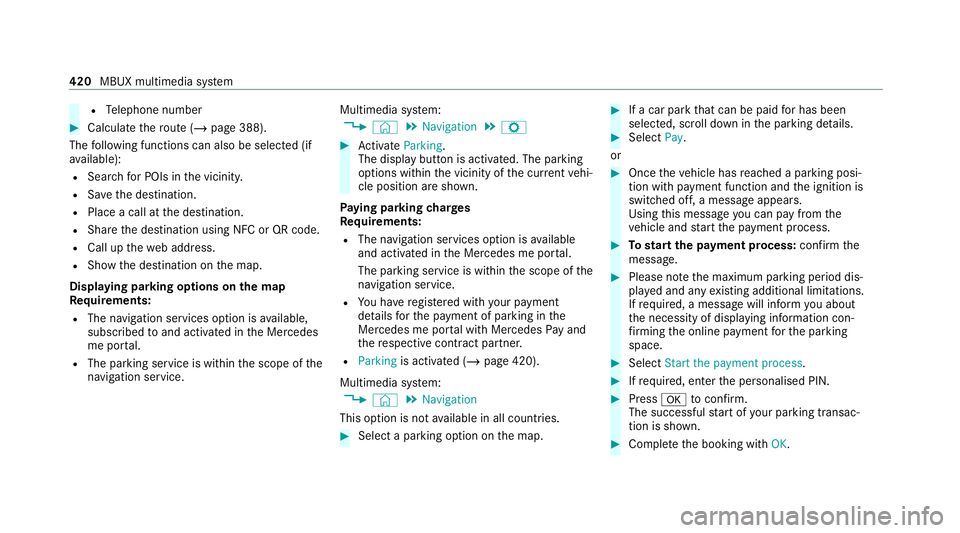
Displaying parking options on the map
Requ irements:
R The navigation services option is available,
subsc ribed toand activated in the Mercedes
me por tal.
R The parking service is within the scope of the
navigation service. Multimedia sy
stem:
4 © 5
Navigation 5
Z #
Activate Parking.
The display button is acti vated. The parking
options within the vicinity of the cur rent vehi‐
cle position are shown.
Pa ying parking charges
Re quirements:
R The navigation services option is available
and activated in the Mercedes me por tal.
The parking service is within the scope of the
navigation service.
R You ha veregis tere d with your payment
de tails forth e payment of parking in the
Mercedes me por tal with Mercedes Pay and
th ere spective contra ct partner.
R Parking is activated (/ page 420).
Multimedia sy stem:
4 © 5
Navigation
This option is not available in all countries. #
Select a parking option on the map. #
If a car park that can be paid for has been
selected, scroll down in the parking de tails. #
Select Pay.
or #
Once theve hicle has reached a parking posi‐
tion with payment function and the ignition is
switched off, a message appears.
Using this message you can pay from the
ve hicle and start the payment process. #
Tostart the payment process: confirm the
messa ge. #
Please no tethe maximum parking period dis‐
pla yed and any existing additional limitations.
If re qu ired, a message will inform you about
th e necessity of displaying information con‐
fi rm ing the online payment forth e parking
space. #
Select Start the payment process. #
Ifre qu ired, enter the personalised PIN. #
Press atoconfirm.
The successful start of your parking transac‐
tion is shown. #
Comple tethe booking with OK.420
MBUX multimedia sy stem
Page 426 of 689
Multimedia sy
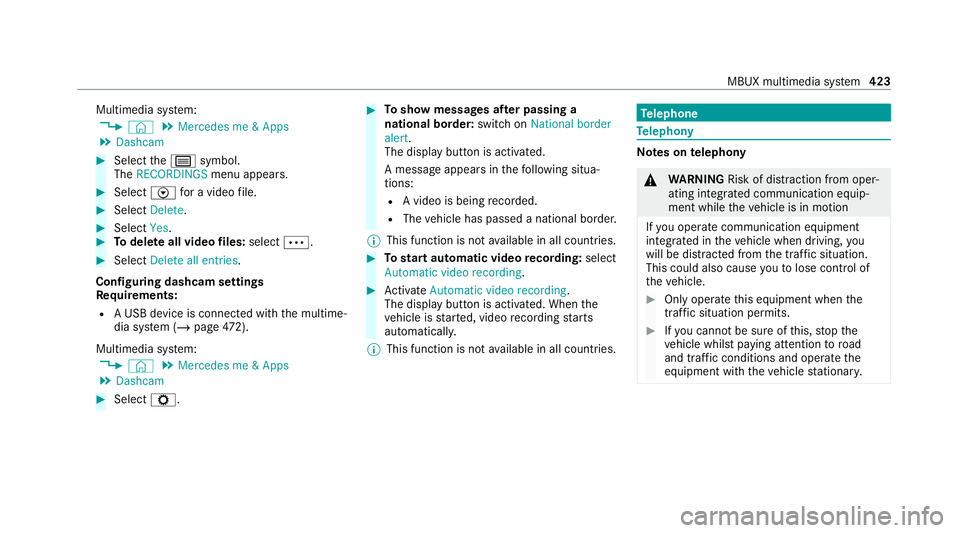
stem:
4 © 5
Mercedes me & Apps
5 Dashcam #
Select thep symbol.
The RECORDINGS menu appears. #
Select Vfor a video file. #
Select Delete. #
Select Yes. #
Todel ete all video files: select Ä. #
Select Delete all entries.
Configuring dashcam settings
Re quirements:
R A USB device is connec ted with the multime‐
dia sy stem (/ page472).
Mul timedia sy stem:
4 © 5
Mercedes me & Apps
5 Dashcam #
Select Z. #
Toshow messages af ter passing a
national bo rder: swit chon National border
alert.
The display button is activated.
A message appears in thefo llowing situa‐
tions:
R A video is being recorded.
R The vehicle has passed a national border.
% This function is not available in all countries. #
Tostart automatic video recording: select
Automatic video recording . #
Activate Automatic video recording .
The display button is acti vated. When the
ve hicle is star ted, video recording starts
automaticall y.
% This function is not available in all countries. Te
lephone Te
lephony Note
s ontelephony &
WARNING Risk of di stra ction from oper‐
ating integrated communication equip‐
ment while theve hicle is in motion
If yo u operate communication equipment
integrated in theve hicle when driving, you
will be distracted from the tra ffic situation.
This could also cause youto lose control of
th eve hicle. #
Only operate this equipment when the
traf fic situation permits. #
Ifyo u cannot be sure of this, stop the
ve hicle whilst paying attention toroad
and traf fic conditions and ope rate the
equipment with theve hicle stationar y. MBUX multimedia sy
stem 423
Page 432 of 689
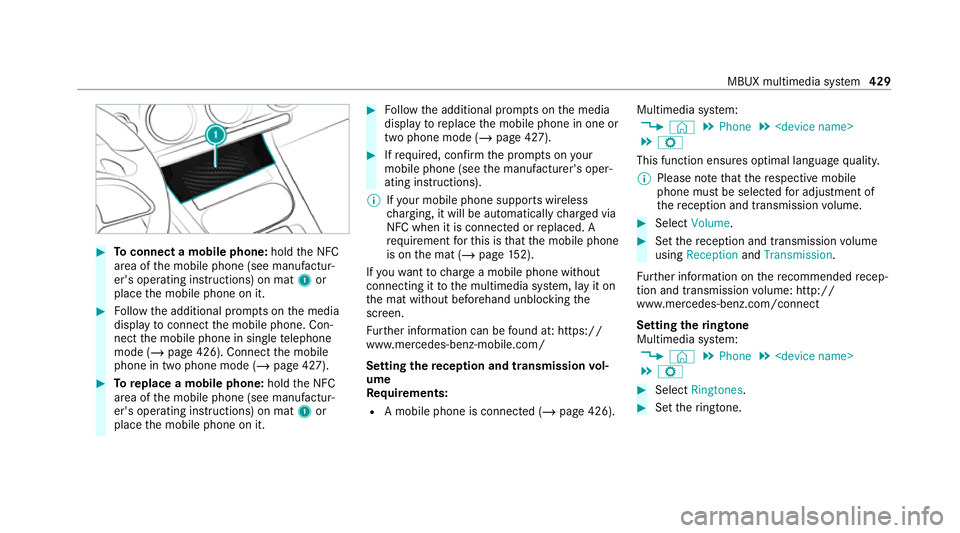
#
Toconnect a mobile phone: holdthe NFC
area of the mobile phone (see manufactur‐
er's operating instructions) on mat 1or
place the mobile phone on it. #
Follow the additional prom pts on the media
display toconnect the mobile phone. Con‐
nect the mobile phone in single telephone
mode (/ page 426). Connect the mobile
phone in two phone mode (/ page 427).#
Toreplace a mobile phone: holdthe NFC
area of the mobile phone (see manufactur‐
er's operating instructions) on mat 1or
place the mobile phone on it. #
Follow the additional prom pts on the media
display toreplace the mobile phone in one or
two phone mode (/ page 427). #
Ifre qu ired, con firm the prom pts on your
mobile phone (see the manufacturer's oper‐
ating instructions).
% Ifyo ur mobile phone suppo rts wireless
ch arging, it will be automatically charge d via
NFC when it is connec ted or replaced. A
re qu irement forth is is that the mobile phone
is on the mat (/ page152).
If yo uwa nttocharge a mobile phone without
connecting it tothe multimedia sy stem, lay it on
th e mat without beforehand unblocking the
screen.
Fu rther information can be found at: https://
www.mercedes-benz-mobile.com/
Setting there ception and transmission vol‐
ume
Requ irements:
R A mobile phone is connec ted (/ page 426). Multimedia sy
stem:
4 © 5
Phone 5
5 Z
This function ensures optimal language qualit y.
% Please no tethat there spective mobile
phone must be selected for adju stment of
th ere ception and transmission volume. #
Select Volume. #
Set there ception and transmission volume
using Reception andTransmission.
Fu rther information on there commended recep‐
tion and transmission volume: http://
www.me rcedes-benz.com/connect
Setting theringtone
Multimedia sy stem:
4 © 5
Phone 5
5 Z #
Select Ringtones. #
Set theringtone. MBUX multimedia sy
stem 429
Page 435 of 689
Au
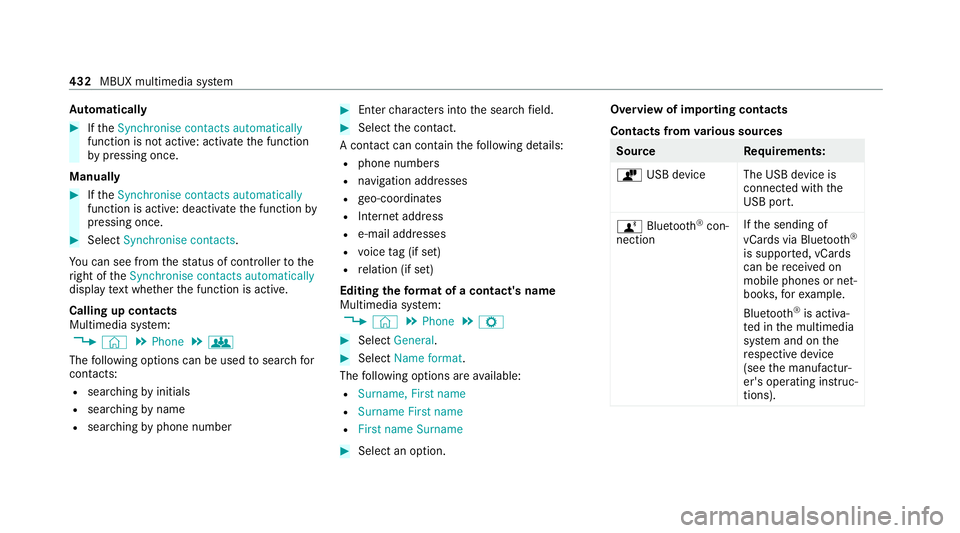
tomatically #
Ifth eSynchronise contacts automatically
function is not active: activate the function
by pressing once.
Manually #
Ifth eSynchronise contacts automatically
function is active: deactivate the function by
pressing once. #
Select Synchronise contacts .
Yo u can see from thest atus of controller tothe
ri ght of theSynchronise contacts automatically
display text wh ether the function is active.
Calling up contacts
Multimedia sy stem:
4 © 5
Phone 5
g
The following options can be used tosear chfor
contacts:
R searching byinitials
R sear ching byname
R searching byphone number #
Ente rch aracters into the sear chfield. #
Select the conta ct.
A contact can contain thefo llowing de tails:
R phone numbers
R navigation addresses
R geo-coordinates
R Internet address
R e-mail addresses
R voice tag (if set)
R relation (if set)
Editing thefo rm at of a contact's name
Multimedia sy stem:
4 © 5
Phone 5
Z #
Select General. #
Select Name format.
The following options are available:
R Surname, First name
R Surname First name
R First name Surname #
Select an option. Overview of importing contacts
Contacts from
various sources Source
Requirements:
ò USB device The USB device is
connected with the
USB port.
ñ Bluetooth ®
con‐
nection If
th e sending of
vCards via Blue tooth®
is suppor ted, vCards
can be recei ved on
mobile phones or net‐
books, forex ample.
Blue tooth ®
is activa‐
te d in the multimedia
sy stem and on the
re spective device
(see the manufactur‐
er's operating instruc‐
tions). 432
MBUX multimedia sy stem
Page 439 of 689
service centre
or at: https://www.mercedes-
benz-mobile.com/
Some mobile phones requ ire fur ther settings
af te r being connected tothe multimedia sy stem
(see manufacturer's operating instructions).
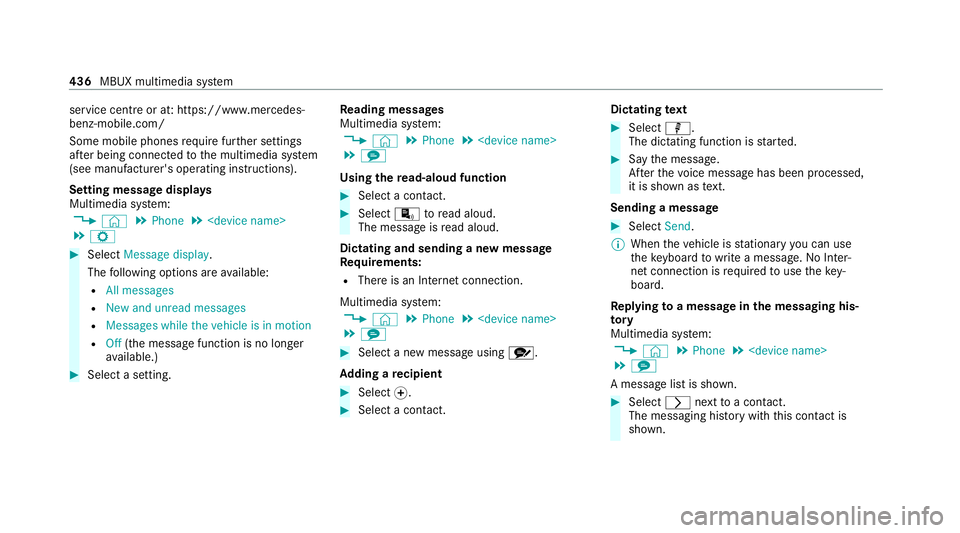
Setting message displa ys
Multimedia sy stem:
4 © 5
Phone 5
5 Z #
Select Message display .
The following options are available:
R All messages
R New and unread messages
R Messages while the vehicle is in motion
R Off (the message function is no lon ger
av ailable.) #
Select a setting. Re
ading messages
Multimedia sy stem:
4 © 5
Phone 5
5 l
Using there ad-aloud function #
Select a contact. #
Select ¬toread aloud.
The message is read aloud.
Dictating and sending a new message
Re quirements:
R There is an Internet connection.
Multimedia sy stem:
4 © 5
Phone 5
5 l #
Select a new message using r.
Ad ding a recipient #
Select f. #
Select a con tact. Dictating
text #
Select p.
The dictating function is star ted. #
Say the message.
Af terth evo ice message has been processed,
it is shown as text.
Sending a message #
Select Send.
% When theve hicle is stationary you can use
th eke yboard towrite a message. No In ter‐
net connection is requ ired touse theke y‐
board.
Re plying toa message in the messaging his‐
to ry
Multimedia sy stem:
4 © 5
Phone 5
5 l
A message list is shown. #
Select rnexttoa con tact.
The messaging his tory with this con tact is
shown. 436
MBUX multimedia sy stem
Page 441 of 689
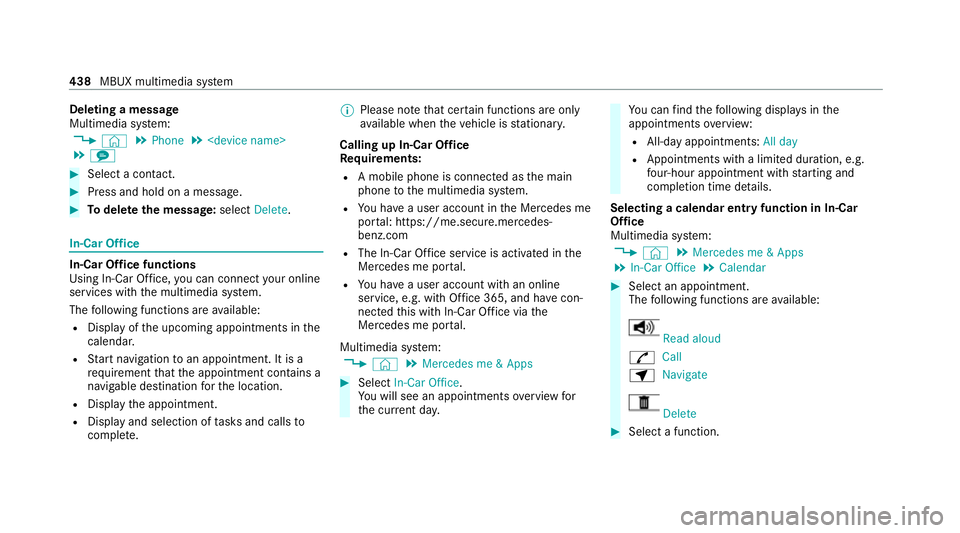
Deleting a message
Multimedia sy
stem:
4 © 5
Phone 5
5 l #
Select a conta ct.#
Press and hold on a message. #
Todel eteth e message: selectDelete. In-Car Of
fice In-Car Of
fice functions
Using In-Car Of fice, you can connect your online
services with the multimedia sy stem.
The following functions are available:
R Display of the upcoming appointments in the
calenda r.
R Start navigation toan appointment. It is a
re qu irement that the appointment conta ins a
navigable destination forth e location.
R Display the appointment.
R Display and selection of tasks and calls to
compl ete. %
Please no tethat cer tain functions are only
av ailable when theve hicle is stationar y.
Calling up In-Car Of fice
Re quirements:
R A mobile phone is connec ted as the main
phone tothe multimedia sy stem.
R You ha vea user account in the Mercedes me
por tal: https://me.secure.mercedes-
benz.com
R The In-Car Of fice service is acti vated in the
Mercedes me por tal.
R You ha vea user account with an online
service, e.g. with Of fice 365, and ha vecon‐
nected this with In-Car Of fice via the
Mercedes me por tal.
Multimedia sy stem:
4 © 5
Mercedes me & Apps #
Select In-Car Office.
Yo u will see an appointments overview for
th e cur rent da y. Yo
u can find thefo llowing displa ysinthe
appointments overview:
R All-day appointments: All day
R Appointments with a limited duration, e.g.
four-hour appointment with starting and
completion time de tails.
Selecting a calendar entry function in In-Car
Of fice
Multimedia sy stem:
4 © 5
Mercedes me & Apps
5 In-Car Office 5
Calendar #
Select an appointment.
The following functions are available: Read aloud
R Call
Z Navigate Delete
#
Select a function. 438
MBUX multimedia sy stem