display MERCEDES-BENZ GLB SUV 2019 Owners Manual
[x] Cancel search | Manufacturer: MERCEDES-BENZ, Model Year: 2019, Model line: GLB SUV, Model: MERCEDES-BENZ GLB SUV 2019Pages: 689, PDF Size: 11.39 MB
Page 447 of 689
Multimedia sy
stem:
4 © 5
Mercedes me & Apps
5 Smartphone 5
Apple CarPlay
5 Start Apple CarPlay #
Alternative: If an Apple CarPlay ®
application
is active (e.g. when music is being pla yed or
ro ute guidance is active), you can call up the
active application using the|, zor
% application buttons (/ page 342).
% Control using the application buttons can be
switched on or off (/ page444).
Ac cepting/rejecting the data pr otection reg‐
ulations
Fo rth e initial start of the application: a message
with the data pr otection pr ovisions appears. #
Select Accept & start .
Exiting Apple CarPlay ®#
Press theò button.
% Apple CarPlay ®
starts automatically when
th e iPhone ®
is connected with the sy stem
using a cable. If Apple CarPlay ®
wa s not dis‐
pla yed in thefo re ground be fore disconnect‐ ing,
the application starts in the bac kground
when reconnected. You can call up Apple
CarPlay ®
in the main menu.
Calling up Apple CarPlay ®
to ne settings
Multimedia sy stem:
4 © 5
Mercedes me & Apps
5 Smartphone 5
Apple CarPlay 5
Z #
Select sound settings.
Setting control of the application but tons
(Apple CarPlay ®
)
Multimedia sy stem:
4 © 5
Mercedes me & Apps
5 Smartphone 5
Apple CarPlay 5
Z
5 General #
Toswitch on Control via application buttons :
activate the display button. #
Toswitch off Control via application buttons :
deactivate the display button.
Ending Apple CarPlay ® #
Toend the connection of Apple Car‐
Play ®
(with cable): disconnectthe connec‐ tion via
the connecting cable between the
mobile phone and multimedia sy stem.
% Mercedes-Benz recommends disconnecting
th e connecting cable only when theve hicle
is stationar y. Android
Auto Android
Autoove rview &
WARNING Risk of di stra ction from infor‐
mation sy stems and communications
equipment
If yo u operate information and communica‐
tion equipment integ rated in theve hicle
when driving, you will be distracted from the
traf fic situation. This could also cause youto
lose control of theve hicle. #
Only operate this equipment when the
traf fic situation permits. #
Ifyo u cannot be sure of this, stop the
ve hicle whilst paying attention toroad
and traf fic conditions and ope rate the
equipment with theve hicle stationar y. 444
MBUX multimedia sy stem
Page 449 of 689
Ac
cepting/rejecting the data pr otection reg‐
ulations
Fo rth e initial start of the application: a message
with the data pr otection pr ovisions appears. #
Select Accept & start .
Exiting Android Auto #
Press theò button.
% Android Autostarts automatically when the
mobile phone is connected with the sy stem
using a cable. If Android Autowa s not dis‐
pla yed in thefo re ground before disconnect‐
ing, the application starts in the bac kground
when reconnected. You can call up Android
Au tointhe main menu.
Calling up the Android Autosound settings
Multimedia sy stem:
4 © 5
Mercedes me & Apps
5 Smartphone 5
Android Auto 5
Z #
Select sound settings. Setting control of
the application but tons
(Android Auto)
Multimedia sy stem:
4 © 5
Mercedes me & Apps
5 Smartphone 5
Android Auto 5
Z
5 General #
Toswitch on Control via application buttons :
activate the display button. #
Toswitch off Control via application buttons :
deactivate the display button.
Ending Android Auto #
Toend the connection of Android Auto
(with cable): disconnectthe connection via
th e connecting cable between the mobile
phone and multimedia sy stem.
% Mercedes-Benz recommends disconnecting
th e connecting cable only when theve hicle
is stationar y. Tr
ansfer redve hicle data with Android Auto
and Apple CarPlay ® Overview of transfer
redve hicle data
When using Android Autoor Apple CarPlay ®
, cer‐
ta in vehicle data is transfer redto the mobile
phone. This enables youto getth e best out of
selected mobile phone services. Vehicle data is
not directly accessible.
The following sy stem information is transmit ted:
R Software release of the multimedia sy stem
R System ID (anonymised)
The transfer of this data is used tooptimise
communication between theve hicle and the
mobile phone.
To do this, and toassign se veralve hicles tothe
mobile phone, a vehicle identifier is randomly
ge nerated.
This has no connection totheve hicle identifica‐
tion number (VIN) and is dele ted when the multi‐
media sy stem is reset (/ page372).
The following driving status data is transmit ted:
R Transmission position engaged 446
MBUX multimedia sy stem
Page 456 of 689
Yo
u can find more information on there gional
av ailability of the Mercedes-Benz emer gency call
sy stem at: https://www.mercedes-benz-
mobile.com/extra /ecall/
The reisthe option of deactivating the
Mercedes-Benz emer gency call sy stem and
using only the11 2 emer gency call sy stem (EU
eCall). Contact address for car rying out deacti‐
va tion of the Mercedes-Benz emer gency call sys‐
te m are the local dealers.
Mercedes-Benz recommends the activation of
th e Mercedes-Benz emer gency call sy stem for
th efo llowing reasons:
R In emer gency situations when ab road, you
can also get support in a language you
speak.
R Several transmission tech nologies are used
to accelerate the transfer of the accident
data and impr overe liability of the transmis‐
sion.
R The Mercedes-Benz emer gency call sy stem is
permanently logged in tothe mobile phone
networ k,which ensures faster placement of th
e emer gency call and faster transfer of the
accident data.
Measures forre scue, reco very or towing
aw ay can then be initiated in quickl y.
R With a Mercedes-Benz emer gency call, the
accident data is on lytrans ferred tothe pub‐
lic coordination cent rewith the appr oval of
th e cus tomer.
In theeve nt of an au tomatical lytrig gered
emer gency call in which there is no voice
con tact, the accident data is transmit ted
immediately tothe public emer gency call
centre.
R Should the Mercedes-Benz emer gency call
centre not be available, the11 2 emer gency
call is car ried out automaticall y.
Overview of emer gency call sy stems
Bo th th e Mercedes-Benz emer gency call sy stem
as well as the11 2 emer gency call sy stem (EU
eCall) can help toreduce the time between an
accident and the ar riva l of emer gency services
at the site of the accident. They help locate an
accident site in places that are dif ficult to
access. Bo
th emer gency call sy stems can initiate an
emer gency call au tomatically (/ page 454) or
manually .
Only make emergency calls if you or others are
in need of rescue. Do not make an emergency
call in theeve nt of a breakdown or a similar sit‐
uation.
Messages on the display
The following messages appear in the media dis‐
play of bo themer gency call sy stems:
R SOS NOT READY :th e ignition is not on or
th ere is a malfunction with the emer gency
call sy stem. This does not necessarily indi‐
cate comple tefailure of the emer gency call
sy stem. Emer gency calls call still be trans‐
mit ted.
The display only refers to theve hicle and
does not take account of theav ailability of
mobile phone networ ksand the Mercedes-
Benz emer gency call centre.
The functional readiness of the emer gency
call sy stem on theve hicle can be seen when MBUX multimedia sy
stem 453
Page 457 of 689
th
eSOS NOT READY display disappears once
th e ignition is switched on.
R G: The icon appears in the display during
an active emer gency call.
% Ifth ere is a malfunction in the emer gency
call sy stem (e.g. a fault with the speaker,
microphone, airbag, SOS button), a cor re‐
sponding message appears inthe multifunc‐
tion display of the instrument clus ter.
Tr iggering an automatic emer gency call
Re quirements:
R The ignition is switched on.
R The star ter battery is suf ficiently charge d.
Bo th th e Mercedes-Benz emer gency call sy stem
as well as the11 2 emergency call sy stem (EU
eCall) automatically initiate an emer gency call in
th efo llowing situations:
R After activation of there stra int sy stems such
as airbags or seat belt tensioners af ter an
accident.
R After an auto maticallyinitiated emer gency
st op byActive Emergency Stop Assist. The emer
gency call has been made:
R Avo ice connection is es tablished with the
emer gency call centre.
R A messa gewith accident data is transmit ted
to the emer gency call centre.
The SOS button in theov erhead control panel
fl ashes until the emer gency call is finished.
If no connection can be made tothe public
emer gency services, a cor responding message
appears inthe displa y. #
Dial the11 2 emer gency number or an appro‐
pria telocal emer gency call number on your
mobile phone.
If an eme rgency call has been initiated:
R Remain in theve hicle if thero ad and traf fic
conditions permit youto do so until a voice
connection is es tablished with the emer‐
ge ncy call centre.
R Onthe basis of the call, the emer gency call
centre decides wh ether it is necessary tocall
re scue teams and/or the police tothe acci‐
dent site. R
If no vehicle occupant answers, an ambu‐
lance is sent totheve hicle immediatel y.
Tr iggering a manual emer gency call #
Touse the SOS but ton in theov erhead
control panel: pressthe SOS button at least
one second long (/ page447). #
Touse voice control: usethe LINGUA‐
TRONIC voice commands (/ page319).
The emer gency call has been made:
R Avo ice connection is es tablished with an
emer gency call centre.
R Remain in theve hicle if thero ad and traf fic
conditions permit youto do so until a voice
connection is es tablished with the emer‐
ge ncy call centre.
R Onthe basis of the call, the emer gency call
centre decides wh ether it is necessary tocall
re scue teams and the police tothe accident
site.
R A message with accident data is transmit ted
to the emer gency call centre. 454
MBUX multimedia sy stem
Page 460 of 689
Fo
r accident clarification purposes, thefo llowing
measures can be take n up toan hour af terthe
emer gency call has been initia ted:
R The cur rent vehicle position can be called up.
R Avo ice connection totheve hicle occupants
can be es tablished.
R Emer gency call da taas desc ribed abo vecan
be called up.
% ForRu ssia: various functions, e.g. receiving
traf fic information, cannot be per form ed for
up totwo hou rsafte r sending an emer gency
call.
Fu nction of the emer gency call sy stem self-
diagnosis (Russia)
Yo ur car verifies the operability of the emer‐
ge ncy call sy stem each time the ignition is ON.
In case of sy stem failure, you will be informed
with text messa geon the instrument clus ter and
with red indicator SOS NOT READY onthe media
displa y.
Please, make sure, that during 30 seconds af ter
switching ignition ON there d indicator SOS
NOT READY inthe upper right corner of themedia display is switched OFF,
this means the
emer gency call sy stem passed diagnostics suc‐
cessfully. If necessar y,switch ON the media dis‐
pla y,if it was switched OFF before.
St arting/ending ERA-GLONASS test mode
(Russia)
Re quirements:
R The star ter battery is suf ficiently charge d.
R The ignition is switched on.
R The vehicle has been stationary for at least
one minute. #
Tostart thete st mode: press and hold the
~ button on the multifunction steering
wheel for at least five seconds.
The test mode is star ted and automatically
ends af terth e language test has been per‐
fo rm ed. #
Toend thete st mode manuall y:switch off
th e ignition.
The test mode is ended. Information on data processing
Processing of personal data via
the
Mercedes-Benz emer gency call sy stem
All processing of personal data via the
Mercedes-Benz emer gency call sy stem cor re‐
sponds with the specifications in the EU Regula‐
tion 20 16/679 "on the pr otection of individuals
with rega rd tothe processing of personal data
(GDPR)".
The data is solely used bythe Mercedes-Benz
emer gency call sy stem forre scue and reco very
in theeve nt of an accident.
The owner of a vehicle, that is equipped with a
Mercedes-Benz emer gency call sy stem in addi‐
tion tothe11 2 emer gency call sy stem (EU eCall),
has theright touse the11 2 emer gency call sys‐
te m ins tead of the Mercedes-Benz emer gency
call sy stem.
Contact address for car rying out deactivation of
th e Mercedes-Benz emer gency call sy stem are
th e local dealers. MBUX multimedia sy
stem 457
Page 464 of 689
R
the mobile phone is connected a an addi‐
tional mobile phone
R the mobile phone network co verage is insuf‐
fi cient
R mobile da tause is deactivated on the mobile
phone
R the Blue tooth®
function on the multimedia
sy stem is switched off and the mobile phone
is to be connec ted via Blue tooth®
R the Blue tooth®
function is switched off on
th e mobile phone and the mobile phone is to
be connec ted via Blue tooth®
R neither the mobile phone network nor the
mobile phone allow simultaneous use of a
te lephone and an Internet connection
R the mobile phone has not been enabled for
Internet access via Blue tooth® Establishing an au
tomatic In tern et connec‐
tion
Multimedia sy stem:
4 © 5
Settings 5
System
5 Wi-Fi & Bluetooth 5
Internet settings #
Highlight the mobile phone. #
Select r. #
Activate Permanent Internet connection
D.
Cancelling In ternetaccess permission for a
mobile phone
Multimedia sy stem:
4 © 5
Settings 5
System
5 Wi-Fi & Bluetooth 5
Internet settings #
Select rinthe line of the mobile phone. #
Select Delete configuration. #
Select Yes. Displaying mobile phone details
Multimedia sy
stem:
4 © 5
Settings 5
System
5 Wi-Fi & Bluetooth 5
Internet settings #
Select rinthe line of the mobile phone. #
Select Details.
Establishing an Internet connection
Multimedia sy stem:
4 © 5
Mercedes me & Apps #
Forex ample, select zBrowser .
% The multimedia sy stem usually es tablishes
th e Internet connection automaticall y.Ifthe
multimedia sy stem is not connected tothe
Internet, the Internet connection is es tab‐
lished when an Internet application is used.
% The availability of the function is dependent
on the count ry. MBUX multimedia sy
stem 461
Page 465 of 689
Setting automatic disconnection of
the Inter‐
net connection
Multimedia sy stem:
4 © 5
Settings 5
System
5 Wi-Fi & Bluetooth 5
Internet settings #
Select rinthe line of the mobile phone. #
Select Disconnect when inactive .
The following options are available:
R 5 minutes
R 10 minutes
R 20 minutes
R Unlimited #
Select an option. Connection
status Connection
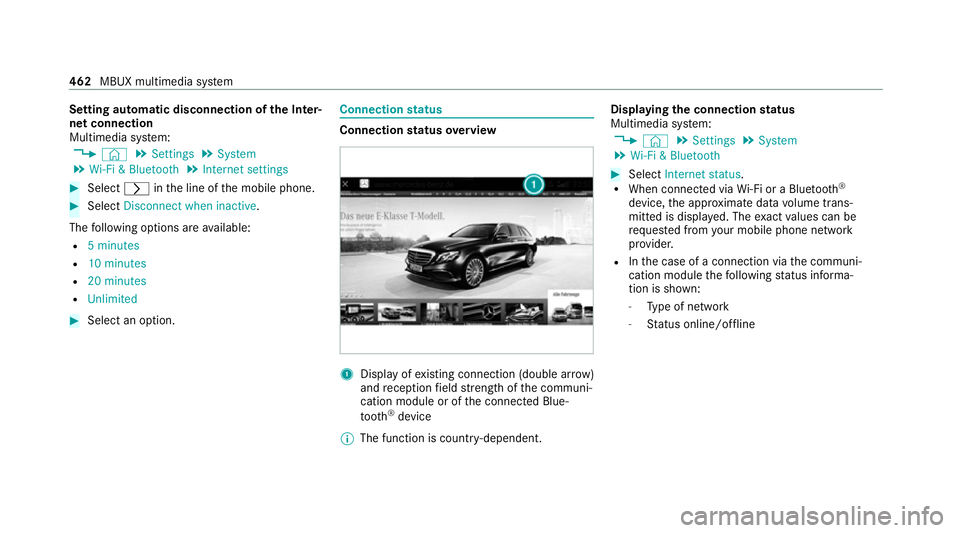
status overview 1
Display of existing connection (double ar row)
and reception field stre ngth of the communi‐
cation module or of the connected Blue‐
tooth ®
device
% The function is count ry-dependent. Displ
aying the connection status
Multimedia sy stem:
4 © 5
Settings 5
System
5 Wi-Fi & Bluetooth #
Select Internet status .
R When connected via Wi-Fi or a Blu etoo th®
device, the appr oximate data volume trans‐
mit ted is displa yed. The exact values can be
re qu ested from your mobile phone network
pr ov ider.
R Inthe case of a connection via the communi‐
cation module thefo llowing status informa‐
tion is shown:
- Type of network
- Status online/of fline 462
MBUX multimedia sy stem
Page 470 of 689
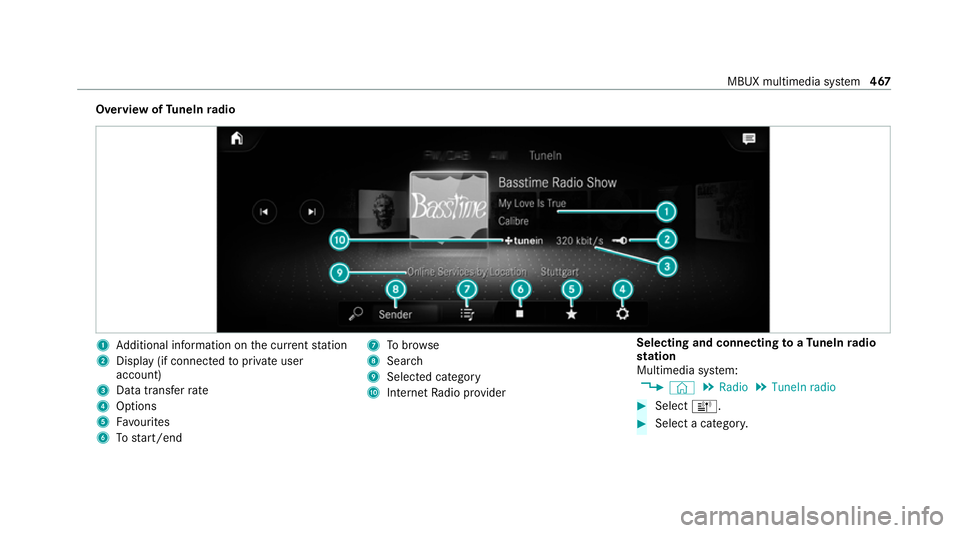
Overview of
TuneIn radio 1
Additional information on the cur rent station
2 Display (if connec tedto private user
account)
3 Data transfer rate
4 Options
5 Favourites
6 Tostart/end 7
Tobrow se
8 Sear ch
9 Selected catego ry
A Internet Radio pr ovider Selecting and connecting
toaTu neIn radio
st ation
Multimedia sy stem:
4 © 5
Radio 5
TuneIn radio #
Select =. #
Select a categor y. MBUX multimedia sy
stem 467
Page 480 of 689
Making video settings
Multimedia sy
stem:
4 © 5
Media 5
Z 5
General #
Select Video settings. #
Select an aspect ratio.
Setting full sc reen #
Select G. Ra
dio Switching on the
radio Multimedia sy
stem:
4 © 5
Radio #
Alternatively: press the| button.
The radio display appears. You will hear the
last station pla yed on the last frequency
band selected. MBUX multimedia sy
stem 477
Page 483 of 689
Ac
tivating/deactivating traf fic announce‐
ments Multimedia sy
stem:
4 © 5
Radio 5
Z 5
General #
Switch Traffic announcements (TA) on or off.Setting
the traf fic information service vol‐
ume increase Multimedia sy
stem:
4 © 5
Settings 5
Audio #
Select Navigation and traffic announce-
ments. #
Select Traffic announc. vol. increase. #
Set a le vel between 0 and 10.#
Accept theva lue with q. Displaying
radio text Multimedia sy
stem:
4 © 5
Radio 5
Z 5
General #
Switch Radio text information on or off. Sound
To
ne settings Information about
the sound sy stem
The sound sy stem has a total output of 100 W
and is equipped with six spea kers. It is available
fo r all functions in thera dio and media modes.
Calling up the sound menu
Multimedia sy stem:
4 © 5
Media 5
Z 5
Sound
The following functions are available:
R Equaliser
R Balance and Fader
R Volume #
Select a function.
Ad justing treble, mid- range and bass set‐
tings
Multimedia sy stem:
4 © 5
Media 5
Z 5
Sound
5 Equaliser #
Set TREBLE, MIDorBASS . Ac
tivating/deactivating automatic volume
adjustment
Multimedia sy stem:
4 © 5
Media 5
Z 5
Sound
5 Volume
Au tomatic volume adjustment compensates for
dif fering volumes when changing between audio
sources and within an audio source. #
Swit chAutomatic adjustment on or off.
Ad justing the balance/ fader
Multimedia sy stem:
4 © 5
Media 5
Z 5
Sound
5 Balance and Fader
Ad justing the balance #
Movethevo lume distribution between the
ri ght and left sides of theve hicle in the grid
shown.
The volume is distributed between the speak‐
ers on the left and right sides in theve hicle. 480
MBUX multimedia sy stem