trailer MERCEDES-BENZ GLC 2019 Owner's Manual
[x] Cancel search | Manufacturer: MERCEDES-BENZ, Model Year: 2019, Model line: GLC, Model: MERCEDES-BENZ GLC 2019Pages: 370, PDF Size: 19.55 MB
Page 189 of 370
Object detection only works in wide-angle view.
To ensure that you can use the function, it mustbe switched on in the multimedia system (seethe Digital Operator's Manual).
360° Camera
General notes
The 360° camera is a system consisting of fourcameras.
The system processes images from the follow-ing cameras:
RRear view camera
RFront camera
RTwo side cameras in the exterior mirrors
The cameras cover the immediate surroundingsof the vehicle. The system supports you, forexample when parking or if vision is restricted atan exit.
You can show images from the 360° camera infull-screen mode or in seven different split-screen views on the multimedia system. A split-screen view also includes a top view of the vehi-cle. This view is calculated from the data sup-plied by the installed cameras (virtual camera).
The seven split-screen views are:
RTop view and picture from the rear view cam-era (130° viewing angle)
RTop view and image from the front camera(130° viewing angle without displaying themaximum steering wheel angle)
RTop view and enlarged rear view
RTop view and enlarged front view
RTop view and trailer view (vehicles with trailertow hitch)
RTop view and images from the rear-facing sidecameras (rear wheel view)
RTop view and images from the forward-facingside cameras (front wheel view)
When the function is active and you shift thetransmission from[or^to\\, the guidelines on the multimedia system are hidden.
When you shift between transmission positions[and^, you see the previously selected frontor rear view.
Distances measured by Parking AssistPARKTRONIC will also be optically displayed:
Rin split screen view as red or yellow bracketsaround the vehicle icon in the top view, or
Rat the bottom right as red or yellow bracketsaround the vehicle symbol in full-screen mode
The line thickness and color of the bracketsshow how far the vehicle is from an object.
Ryellow brackets with thin lines: Parking AssistPARKTRONIC is active
Ryellow brackets with normal lines: an object ispresent in close range of the vehicle
Rred line: an object is present in the immediateclose range of the vehicle
Important safety notes
The 360°camera is only an aid and may show adistorted view of obstacles, show them incor-rectly or not at all. The 360°camera is not asubstitute for attentive driving.
You are always responsible for safe maneuver-ing and parking. Make sure that there are nopersons, animals or objects in the maneuveringarea while maneuvering and parking in parkingspaces.
You are always responsible for safety, and mustalways pay attention to your surroundings whenparking and maneuvering. This applies to theareas behind, in front of and beside the vehicle.You could otherwise endanger yourself and oth-ers.
The 360° camera will not function or will func-tion in a limited manner:
Rif the doors are open
Rif the exterior mirrors are folded in
Rif the tailgate is open
Rin heavy rain, snow or fog
Rat night or in very dark places
Rif the cameras are exposed to very bright light
Rif the area is lit by fluorescent bulbs or LEDlighting (the display may flicker)
Rif the camera lenses fog up, e.g. when drivinginto a heated garage in winter, causing a rapidchange in temperature
Rif the camera lenses are dirty or covered
Rif the vehicle components in which the cam-eras are installed are damaged. In this case,have the camera position and setting checkedat a qualified specialist workshop
Driving systems187
Driving and parking
Z
Page 190 of 370
Do not use the 360° camera in this case. Youcan otherwise injure others or cause damage toobjects or the vehicle.
The guide lines in the multimedia system displayshow the distances to your vehicle. The distan-ces only apply to road level.
In trailer mode, the guide lines are shown at thelevel of the trailer tow hitch.
The camera in the rear area is protected bymeans of a flap. This flap opens when the 360°camera is activated. Observe the notes oncleaning (Ypage 309). For technical reasons,the flap may remain open briefly after the 360°camera has been deactivated.
The field of vision and other functions of thecamera system may be restricted due to addi-tional attachments (e.g. license plate holder,rear bicycle carrier).
On vehicles with height-adjustable chassis,depending on technical conditions, leaving thestandard height can result in:
Rinaccuracies in the guide lines
Rinaccuracies in the display of generatedimages (top view)
Activation conditions
The image from the 360° camera appears if:
Rthe multimedia system is switched on
Rthe360° Camera360° Camerafunction is switched on
If you are driving faster than at a moderatespeed and you turn on the 360° camera, a warn-ing message appears.
The warning message disappears if:
Ryou are again driving at a moderate speed The360° camera is then activated
Rthe message is confirmed with the8but-ton
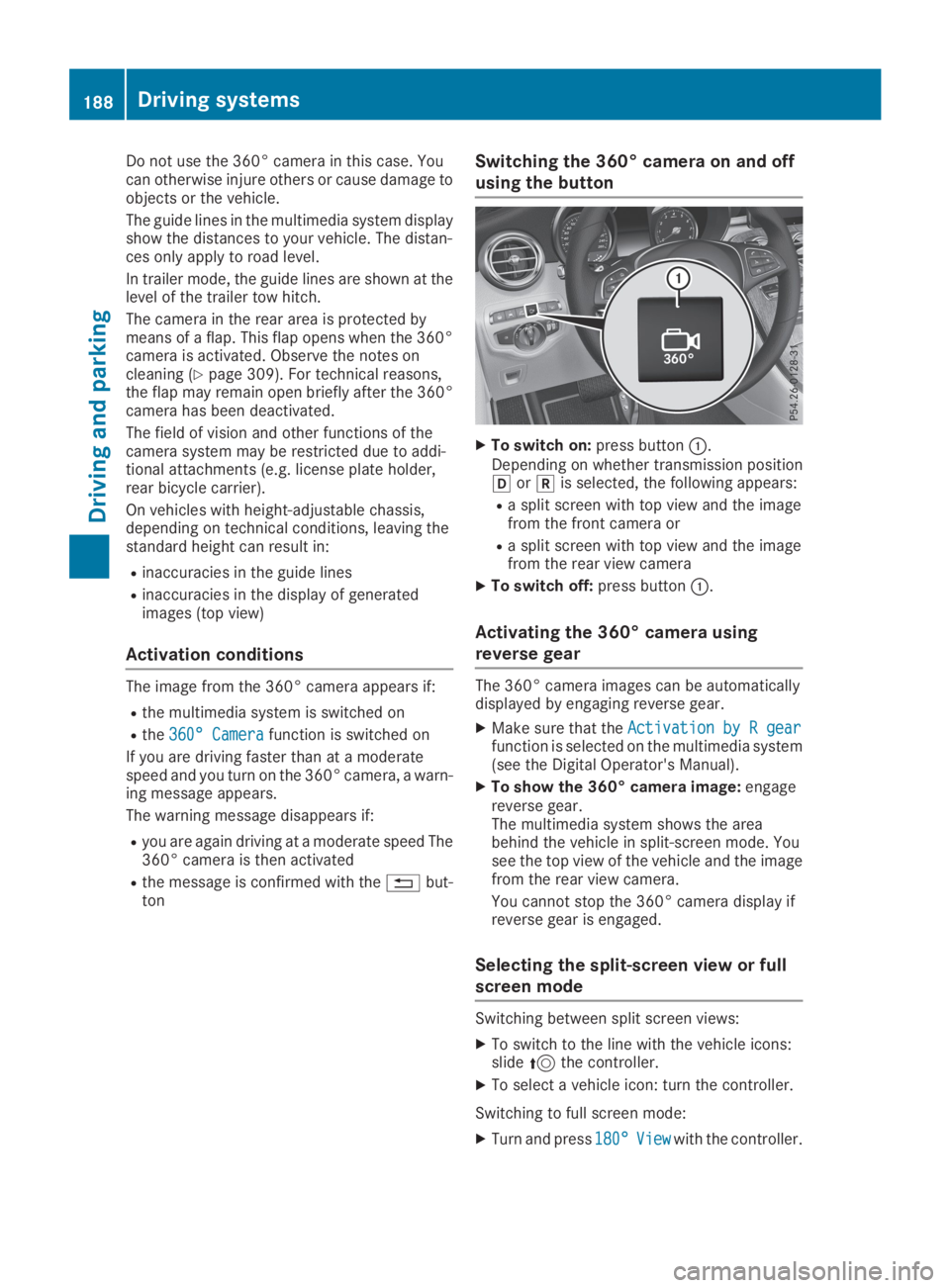
Switching the 360° camera on and off
using the button
XTo switch on:press buttonC.Depending on whether transmission position[or^is selected, the following appears:
Ra split screen with top view and the imagefrom the front camera or
Ra split screen with top view and the imagefrom the rear view camera
XTo switch off:press buttonC.
Activating the 360° camera using
reverse gear
The 360° camera images can be automaticallydisplayed by engaging reverse gear.
XMake sure that theActivation by R gearActivation by R gearfunction is selected on the multimedia system(see the Digital Operator's Manual).
XTo show the 360° camera image:engagereverse gear.The multimedia system shows the areabehind the vehicle in split-screen mode. Yousee the top view of the vehicle and the imagefrom the rear view camera.
You cannot stop the 360° camera display ifreverse gear is engaged.
Selecting the split-screen view or full
screen mode
Switching between split screen views:
XTo switch to the line with the vehicle icons:slide5the controller.
XTo select a vehicle icon: turn the controller.
Switching to full screen mode:
XTurn and press180°180°ViewViewwith the controller.
188Driving systems
Driving an d parking
Page 191 of 370
The full screen option is only available in the fol-lowing views:
RTop view with picture from the rear view cam-era
RTop view with picture from the front camera
Multimedia display
Important safety notes
The camera system may show a distorted viewof obstacles, show them incorrectly or not at all.Obstacles are not shown by the system in thefollowing locations:
Runder the front and rear bumpers
Rvery close to the front and rear bumpers
Rin the area immediately above the tailgatehandle
Rvery close to the exterior mirrors
Rin the transitional areas between the variouscameras in the virtual top view
!Objects not at ground level may appear tobe further away than they actually are, e.g.:
Rthe bumper of a parked vehicle
Rthe drawbar of a trailer
Rthe ball coupling of a trailer tow hitch
Rthe rear section of an HGV
Ra slanted post
Use the guidelines only for orientation.Approach objects no further than the bottom-most guideline.
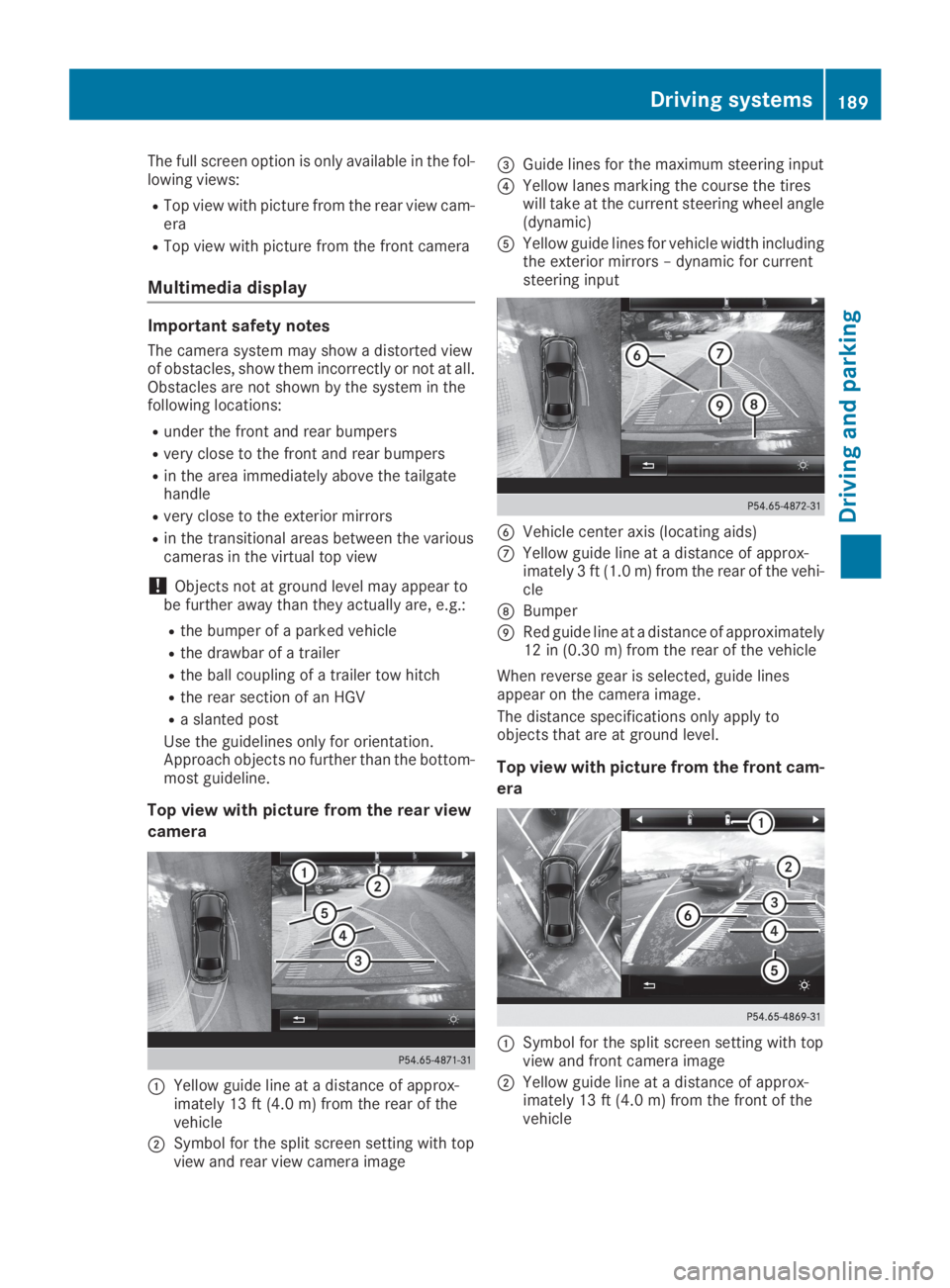
Top view with picture from the rear view
camera
CYellow guide line at a distance of approx-imately 13 ft (4.0 m) from the rear of thevehicle
DSymbol for the split screen setting with topview and rear view camera image
Page 197 of 370
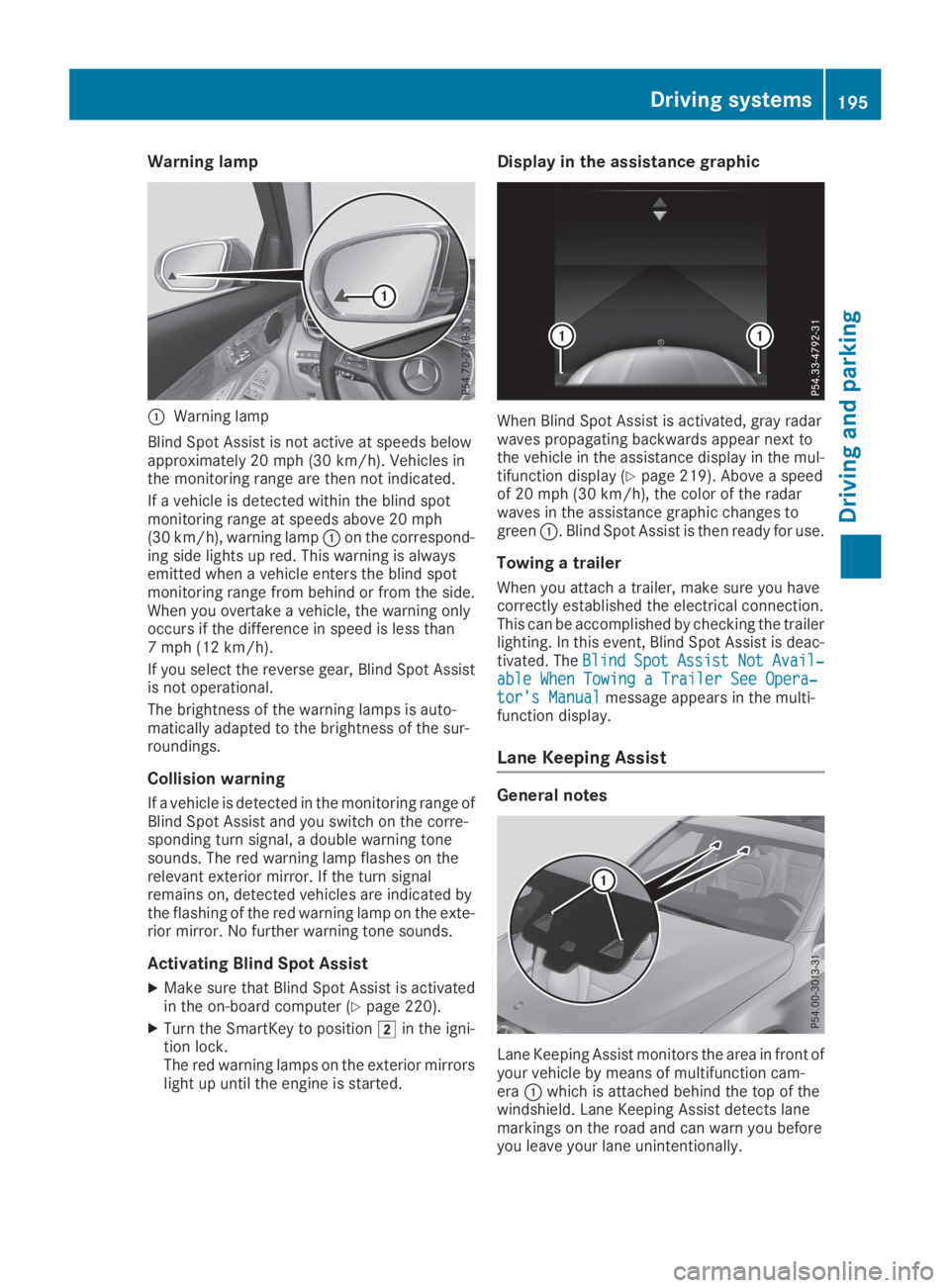
Warning lamp
CWarning lamp
Blind Spot Assist is not active at speeds belowapproximately 20 mph (30 km/h). Vehicles inthe monitoring range are then not indicated.
If a vehicle is detected within the blind spotmonitoring range at speeds above 20 mph(30 km/h), warning lampCon the correspond-ing side lights up red. This warning is alwaysemitted when a vehicle enters the blind spotmonitoring range from behind or from the side.When you overtake a vehicle, the warning onlyoccurs if the difference in speed is less than7 mph (12 km/h).
If you select the reverse gear, Blind Spot Assistis not operational.
The brightness of the warning lamps is auto-matically adapted to the brightness of the sur-roundings.
Collision warning
If a vehicle is detected in the monitoring range ofBlind Spot Assist and you switch on the corre-sponding turn signal, a double warning tonesounds. The red warning lamp flashes on therelevant exterior mirror. If the turn signalremains on, detected vehicles are indicated bythe flashing of the red warning lamp on the exte-rior mirror. No further warning tone sounds.
Activating Blind Spot Assist
XMake sure that Blind Spot Assist is activatedin the on-board computer (Ypage 220).
XTurn the SmartKey to positionHin the igni-tion lock.The red warning lamps on the exterior mirrorslight up until the engine is started.
Display in the assistance graphic
When Blind Spot Assist is activated, gray radarwaves propagating backwards appear next tothe vehicle in the assistance display in the mul-tifunction display (Ypage 219). Above a speedof 20 mph (30 km/h), the color of the radarwaves in the assistance graphic changes togreenC. Blind Spot Assist is then ready for use.
Towing a trailer
When you attach a trailer, make sure you havecorrectly established the electrical connection.This can be accomplished by checking the trailerlighting. In this event, Blind Spot Assist is deac-tivated. TheBlindBlindSpotSpotAssistAssistNotNotAvail‐Avail‐able When Towing a Trailer See Opera‐able When Towing a Trailer See Opera‐tor's Manualtor's Manualmessage appears in the multi-function display.
Lane Keeping Assist
General notes
Lane Keeping Assist monitors the area in front ofyour vehicle by means of multifunction cam-eraCwhich is attached behind the top of thewindshield. Lane Keeping Assist detects lanemarkings on the road and can warn you beforeyou leave your lane unintentionally.
Driving systems195
Driving and parking
Z
Page 201 of 370
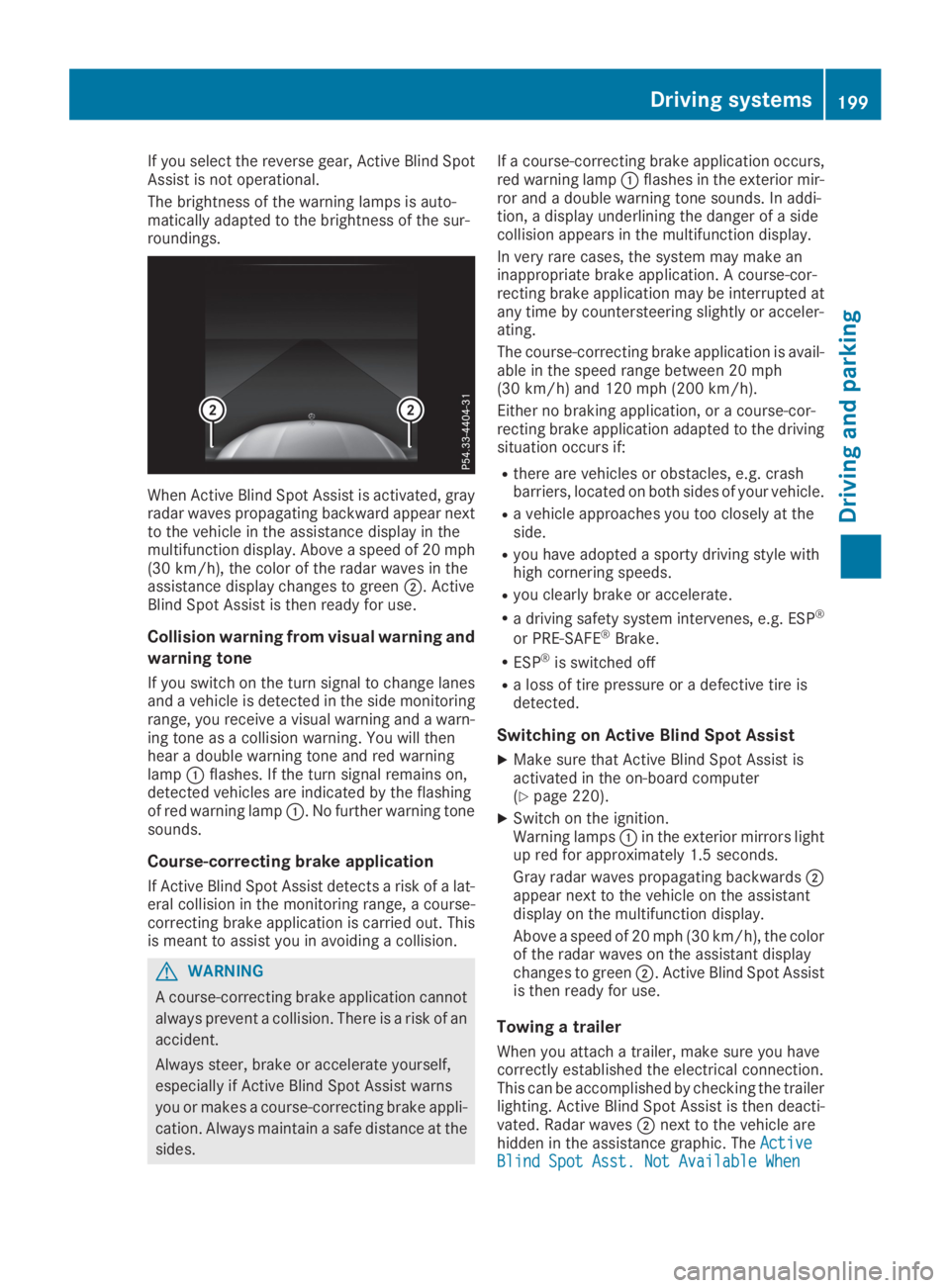
If you select the reverse gear, Active Blind SpotAssist is not operational.
The brightness of the warning lamps is auto-matically adapted to the brightness of the sur-roundings.
When Active Blind Spot Assist is activated, grayradar waves propagating backward appear nextto the vehicle in the assistance display in themultifunction display. Above a speed of 20 mph(30 km/h), the color of the radar waves in theassistance display changes to greenD. ActiveBlind Spot Assist is then ready for use.
Collision warning from visual warning and
warning tone
If you switch on the turn signal to change lanesand a vehicle is detected in the side monitoringrange, you receive a visual warning and a warn-ing tone as a collision warning. You will thenhear a double warning tone and red warninglampCflashes. If the turn signal remains on,detected vehicles are indicated by the flashingof red warning lampC. No further warning tonesounds.
Course-correcting brake application
If Active Blind Spot Assist detects a risk of a lat-eral collision in the monitoring range, a course-correcting brake application is carried out. Thisis meant to assist you in avoiding a collision.
GWARNING
A course-correcting brake application cannot
always prevent a collision. There is a risk of an
accident.
Always steer, brake or accelerate yourself,
especially if Active Blind Spot Assist warns
you or makes a course-correcting brake appli-
cation. Always maintain a safe distance at the
sides.
If a course-correcting brake application occurs,red warning lampCflashes in the exterior mir-ror and a double warning tone sounds. In addi-tion, a display underlining the danger of a sidecollision appears in the multifunction display.
In very rare cases, the system may make aninappropriate brake application. A course-cor-recting brake application may be interrupted atany time by countersteering slightly or acceler-ating.
The course-correcting brake application is avail-able in the speed range between 20 mph(30 km/h) and 120 mph (200 km/h).
Either no braking application, or a course-cor-recting brake application adapted to the drivingsituation occurs if:
Rthere are vehicles or obstacles, e.g. crashbarriers, located on both sides of your vehicle.
Ra vehicle approaches you too closely at theside.
Ryou have adopted a sporty driving style withhigh cornering speeds.
Ryou clearly brake or accelerate.
Ra driving safety system intervenes, e.g. ESP®
or PRE-SAFE®Brake.
RESP®is switched off
Ra loss of tire pressure or a defective tire isdetected.
Switching on Active Blind Spot Assist
XMake sure that Active Blind Spot Assist isactivated in the on-board computer(Ypage 220).
XSwitch on the ignition.Warning lampsCin the exterior mirrors lightup red for approximately 1.5 seconds.
Gray radar waves propagating backwardsDappear next to the vehicle on the assistantdisplay on the multifunction display.
Above a speed of 20 mph (30 km/h), the colorof the radar waves on the assistant displaychanges to greenD. Active Blind Spot Assistis then ready for use.
Towing a trailer
When you attach a trailer, make sure you havecorrectly established the electrical connection.This can be accomplished by checking the trailerlighting. Active Blind Spot Assist is then deacti-vated. Radar wavesDnext to the vehicle arehidden in the assistance graphic. TheActiveActiveBlind Spot Asst. Not Available WhenBlind Spot Asst. Not Available When
Driving systems199
Driving and parking
Z
Page 202 of 370
TowingTowingaaTrailerTrailerSeeSeeOperator'sOperator'sManualManualmessage appears in the multifunction display.
Active Lane Keeping Assist
General notes
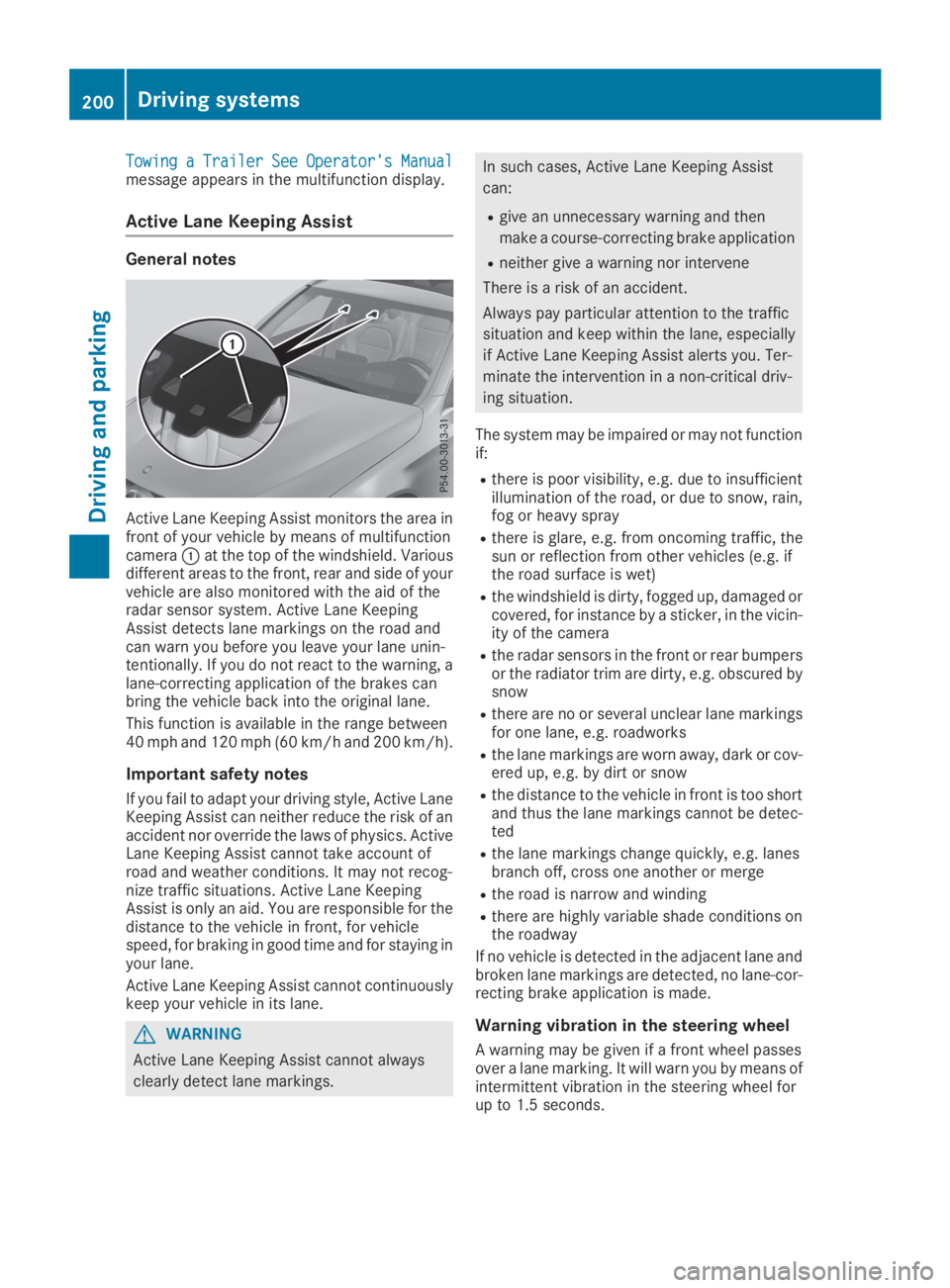
Active Lane Keeping Assist monitors the area infront of your vehicle by means of multifunctioncameraCat the top of the windshield. Variousdifferent areas to the front, rear and side of yourvehicle are also monitored with the aid of theradar sensor system. Active Lane KeepingAssist detects lane markings on the road andcan warn you before you leave your lane unin-tentionally. If you do not react to the warning, alane-correcting application of the brakes canbring the vehicle back into the original lane.
This function is available in the range between40 mph and 120 mph (60 km/h and 200 km/h).
Important safety notes
If you fail to adapt your driving style, Active LaneKeeping Assist can neither reduce the risk of anaccident nor override the laws of physics. ActiveLane Keeping Assist cannot take account ofroad and weather conditions. It may not recog-nize traffic situations. Active Lane KeepingAssist is only an aid. You are responsible for thedistance to the vehicle in front, for vehiclespeed, for braking in good time and for staying inyour lane.
Active Lane Keeping Assist cannot continuouslykeep your vehicle in its lane.
GWARNING
Active Lane Keeping Assist cannot always
clearly detect lane markings.
In such cases, Active Lane Keeping Assist
can:
Rgive an unnecessary warning and then
make a course-correcting brake application
Rneither give a warning nor intervene
There is a risk of an accident.
Always pay particular attention to the traffic
situation and keep within the lane, especially
if Active Lane Keeping Assist alerts you. Ter-
minate the intervention in a non-critical driv-
ing situation.
The system may be impaired or may not functionif:
Rthere is poor visibility, e.g. due to insufficientillumination of the road, or due to snow, rain,fog or heavy spray
Rthere is glare, e.g. from oncoming traffic, thesun or reflection from other vehicles (e.g. ifthe road surface is wet)
Rthe windshield is dirty, fogged up, damaged orcovered, for instance by a sticker, in the vicin-ity of the camera
Rthe radar sensors in the front or rear bumpersor the radiator trim are dirty, e.g. obscured bysnow
Rthere are no or several unclear lane markingsfor one lane, e.g. roadworks
Rthe lane markings are worn away, dark or cov-ered up, e.g. by dirt or snow
Rthe distance to the vehicle in front is too shortand thus the lane markings cannot be detec-ted
Rthe lane markings change quickly, e.g. lanesbranch off, cross one another or merge
Rthe road is narrow and winding
Rthere are highly variable shade conditions onthe roadway
If no vehicle is detected in the adjacent lane andbroken lane markings are detected, no lane-cor-recting brake application is made.
Warning vibration in the steering wheel
A warning may be given if a front wheel passesover a lane marking. It will warn you by means ofintermittent vibration in the steering wheel forup to 1.5 seconds.
200Driving systems
Driving and parking
Page 203 of 370
Lane-correcting brake application
If you leave your lane, under certain circumstan-ces the vehicle will brake briefly on one side.This is meant to assist you in bringing the vehicleback to the original lane.
GWARNING
A lane-correcting brake application cannot
always bring the vehicle back into the original
lane. There is a risk of an accident.
Always steer, brake or accelerate yourself,
especially if Active Lane Keeping Assist warns
you or makes a lane-correcting brake appli-
cation.
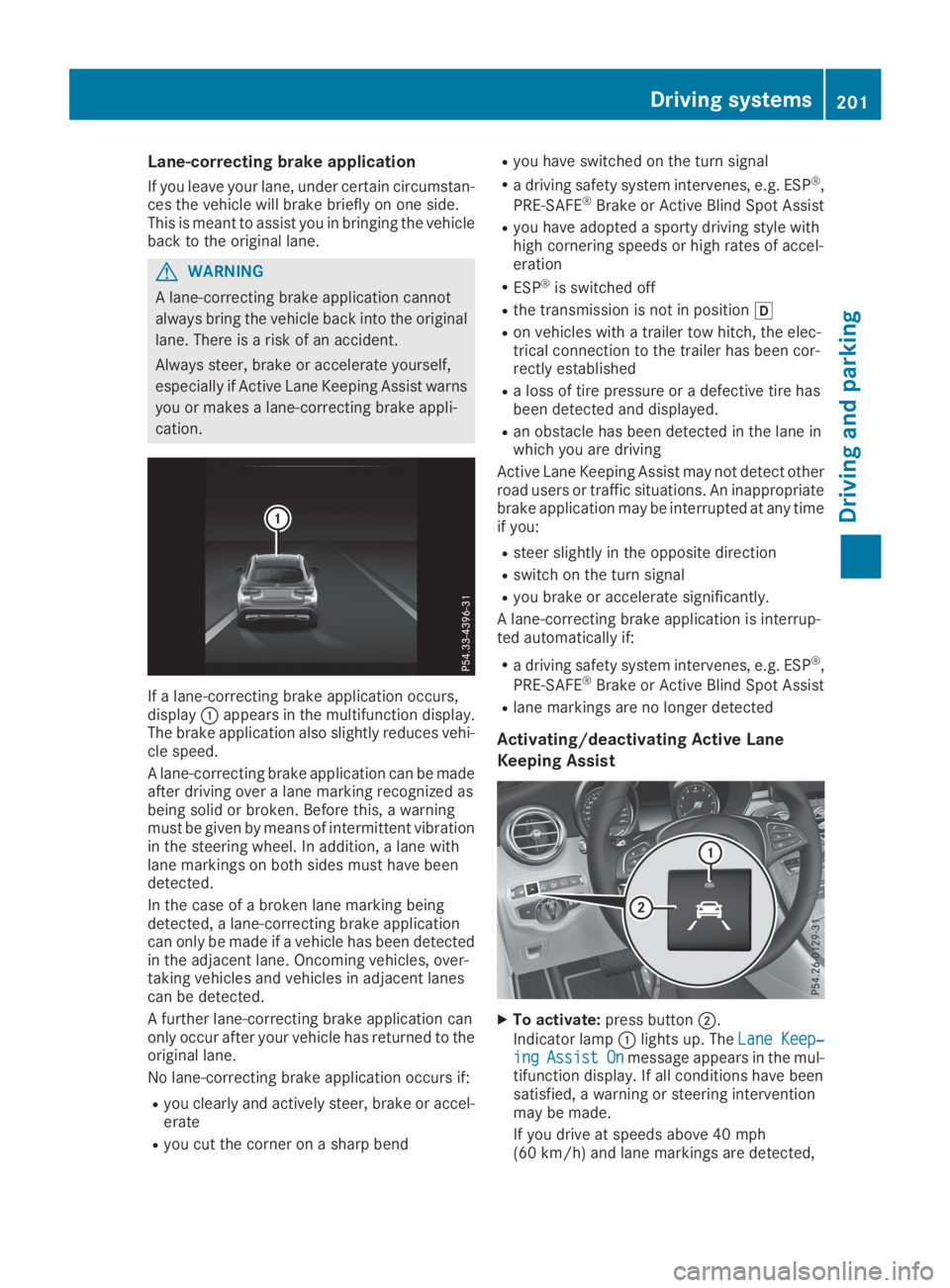
If a lane-correcting brake application occurs,displayCappears in the multifunction display.The brake application also slightly reduces vehi-cle speed.
A lane-correcting brake application can be madeafter driving over a lane marking recognized asbeing solid or broken. Before this, a warningmust be given by means of intermittent vibrationin the steering wheel. In addition, a lane withlane markings on both sides must have beendetected.
In the case of a broken lane marking beingdetected, a lane-correcting brake applicationcan only be made if a vehicle has been detectedin the adjacent lane. Oncoming vehicles, over-taking vehicles and vehicles in adjacent lanescan be detected.
A further lane-correcting brake application canonly occur after your vehicle has returned to theoriginal lane.
No lane-correcting brake application occurs if:
Ryou clearly and actively steer, brake or accel-erate
Ryou cut the corner on a sharp bend
Ryou have switched on the turn signal
Ra driving safety system intervenes, e.g. ESP®,
PRE-SAFE®Brake or Active Blind Spot Assist
Ryou have adopted a sporty driving style withhigh cornering speeds or high rates of accel-eration
RESP®is switched off
Rthe transmission is not in position[
Ron vehicles with a trailer tow hitch, the elec-trical connection to the trailer has been cor-rectly established
Ra loss of tire pressure or a defective tire hasbeen detected and displayed.
Ran obstacle has been detected in the lane inwhich you are driving
Active Lane Keeping Assist may not detect otherroad users or traffic situations. An inappropriatebrake application may be interrupted at any timeif you:
Rsteer slightly in the opposite direction
Rswitch on the turn signal
Ryou brake or accelerate significantly.
A lane-correcting brake application is interrup-ted automatically if:
Ra driving safety system intervenes, e.g. ESP®,
PRE-SAFE®Brake or Active Blind Spot Assist
Rlane markings are no longer detected
Activating/deactivating Active Lane
Keeping Assist
XTo activate:press buttonD.
Indicator lampClights up. TheLane Keep‐Lane Keep‐ingingAssistAssistOnOnmessage appears in the mul-tifunction display. If all conditions have beensatisfied, a warning or steering interventionmay be made.
If you drive at speeds above 40 mph(60 km/h) and lane markings are detected,
Driving systems201
Driving and parking
Z
Page 204 of 370
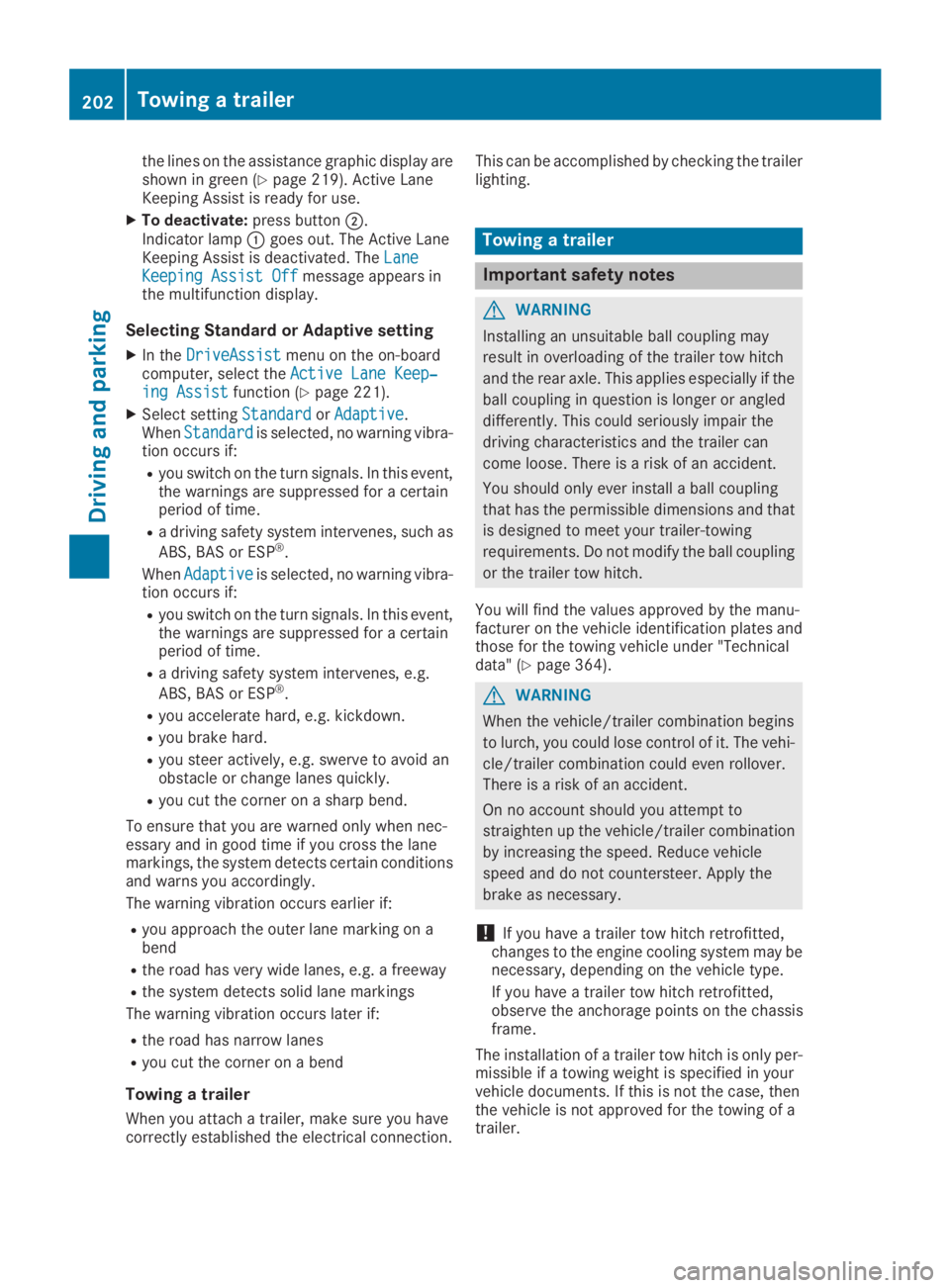
the lines on the assistance graphic display areshown in green (Ypage 219). Active LaneKeeping Assist is ready for use.
XTo deactivate:press buttonD.Indicator lampCgoes out. The Active LaneKeeping Assist is deactivated. TheLaneLaneKeeping Assist OffKeeping Assist Offmessage appears inthe multifunction display.
Selecting Standard or Adaptive setting
XIn theDriveAssistDriveAssistmenu on the on-boardcomputer, select theActive Lane Keep‐Active Lane Keep‐ing Assisting Assistfunction (Ypage 221).
XSelect settingStandardStandardorAdaptiveAdaptive.WhenStandardStandardis selected, no warning vibra-tion occurs if:
Ryou switch on the turn signals. In this event,the warnings are suppressed for a certainperiod of time.
Ra driving safety system intervenes, such as
ABS, BAS or ESP®.
WhenAdaptiveAdaptiveis selected, no warning vibra-tion occurs if:
Ryou switch on the turn signals. In this event,the warnings are suppressed for a certainperiod of time.
Ra driving safety system intervenes, e.g.
ABS, BAS or ESP®.
Ryou accelerate hard, e.g. kickdown.
Ryou brake hard.
Ryou steer actively, e.g. swerve to avoid anobstacle or change lanes quickly.
Ryou cut the corner on a sharp bend.
To ensure that you are warned only when nec-essary and in good time if you cross the lanemarkings, the system detects certain conditionsand warns you accordingly.
The warning vibration occurs earlier if:
Ryou approach the outer lane marking on abend
Rthe road has very wide lanes, e.g. a freeway
Rthe system detects solid lane markings
The warning vibration occurs later if:
Rthe road has narrow lanes
Ryou cut the corner on a bend
Towing a trailer
When you attach a trailer, make sure you havecorrectly established the electrical connection.
This can be accomplished by checking the trailerlighting.
Towing a trailer
Important safety notes
GWARNING
Installing an unsuitable ball coupling may
result in overloading of the trailer tow hitch
and the rear axle. This applies especially if the
ball coupling in question is longer or angled
differently. This could seriously impair the
driving characteristics and the trailer can
come loose. There is a risk of an accident.
You should only ever install a ball coupling
that has the permissible dimensions and that
is designed to meet your trailer-towing
requirements. Do not modify the ball coupling
or the trailer tow hitch.
You will find the values approved by the manu-facturer on the vehicle identification plates andthose for the towing vehicle under "Technicaldata" (Ypage 364).
GWARNING
When the vehicle/trailer combination begins
to lurch, you could lose control of it. The vehi-
cle/trailer combination could even rollover.
There is a risk of an accident.
On no account should you attempt to
straighten up the vehicle/trailer combination
by increasing the speed. Reduce vehicle
speed and do not countersteer. Apply the
brake as necessary.
!If you have a trailer tow hitch retrofitted,changes to the engine cooling system may benecessary, depending on the vehicle type.
If you have a trailer tow hitch retrofitted,observe the anchorage points on the chassisframe.
The installation of a trailer tow hitch is only per-missible if a towing weight is specified in yourvehicle documents. If this is not the case, thenthe vehicle is not approved for the towing of atrailer.
202Towing a trailer
Driving an d parking
Page 205 of 370
For more information, please contact a qualifiedspecialist workshop.
Please observe the manufacturer's operatinginstructions for the trailer coupling if a detach-able trailer coupling is used.
Couple and uncouple the trailer carefully. If youdo not couple the trailer to the towing vehiclecorrectly, the trailer could become detached.
Make sure that the following values are notexceeded:
Rthe permissible trailer drawbar noseweight
Rthe permissible trailer load
Rthe permissible rear axle load of the towingvehicle
Rthe maximum permissible gross vehicleweight of both the towing vehicle and thetrailer
The applicable permissible values, which mustnot be exceeded, can be found:
Rin the vehicle documents
Ron the type plate for the trailer
Ron the vehicle identification plate
If the values differ, the lowest value applies.
When towing a trailer, your vehicle's handlingcharacteristics will be different in comparisonwith when driving without a trailer.
The vehicle/trailer combination:
Ris heavier
Ris restricted in its acceleration and gradient-climbing capability
Rhas an increased braking distance
Ris affected more by strong crosswinds
Rdemands more sensitive steering
Rhas a larger turning circle
This could impair the handling characteristics.
When towing a trailer, always adjust your speedto the current road and weather conditions. Donot exceed the maximum permissible speed foryour vehicle/trailer combination.
Notes on towing a trailer
General notes
RDo not exceed the maximum permissiblespeed for vehicle/trailer combinations in therelevant country.
This lowers the risk of an accident.
ROnly install an approved trailer coupling onyour vehicle.
Further information on availability and oninstallation is available from any authorizedMercedes-Benz Center.
RThe bumpers of your vehicle are not suitablefor installing detachable trailer couplings.
RDo not install hired trailer couplings or otherdetachable trailer couplings on the bumpersof your vehicle.
RIf you no longer need the ball coupling,remove it from the ball coupling recess. Thiswill reduce the risk of damage to the ball cou-pling.
When towing a trailer, set the tire pressure onthe rear axle of the towing vehicle for a maxi-mum load; see the tire pressure table in the fuelfiller flap (Ypage 348).
Please note that when towing a trailer, the fol-lowing driving systems have limited availabilityor are not available at all:
RPARKTRONIC (Ypage 179)
RBlind Spot Assist (Ypage 193)
RActive Lane Keeping Assist (Ypage 200)
On vehicles without level control, the height ofthe ball coupling will alter according to the loadplaced on the vehicle. If necessary, use a trailerwith a height-adjustable drawbar.
You will find permissible trailer loads under"Technical data" (Ypage 364).
Driving tips
Observe the information on ESP®trailer stabili-zation (Ypage 71) and on pulling away with atrailer (Ypage 135).
The maximum permissible speed for vehicle/trailer combinations depends on the type oftrailer. Before beginning the journey, check thetrailer's documents to see what the maximumpermitted speed is. Observe the maximum per-missible speed in the relevant country.
For certain Mercedes-Benz vehicles, the maxi-mum permissible rear axle load is increasedwhen towing a trailer. See the "Technical data"section to find out whether this applies to yourvehicle (Ypage 365). In the event of increasedrear axle load, the vehicle/trailer combinationmay not exceed a maximum speed of 60 mph(100 km/h) for reasons concerning the operat-ing permit. This also applies in countries in
Towing a trailer203
Driving and parking
Z
Page 206 of 370
which the maximum permissible speed for vehi-cle/trailer combinations is above 60 mph(100 km/h).
When towing a trailer, your vehicle's handlingcharacteristics will be different in comparison towhen driving without a trailer and it will con-sume more fuel.
Shift to a lower gear on long and steep downhillgradients.
This also applies to:
Ractivated DISTRONIC PLUS
Ractivated cruise control
This will use the braking effect of the engine, sothat less braking will be required to maintain thespeed. This relieves the load on the brake sys-tem and prevents the brakes from overheatingand wearing too quickly. If you need additionalbraking, depress the brake pedal repeatedlyrather than continuously.
Driving tips
If the trailer swings from side to side:
XDo not accelerate.
XDo not counter-steer.
XBrake if necessary.
RMaintain a greater distance from the vehiclein front than when driving without a trailer.
RAvoid braking abruptly. If possible, brake gen-tly at first to allow the trailer to run on. Then,increase the braking force rapidly.
RThe values given for gradient-climbing capa-bilities from a standstill refer to sea level.When driving in mountainous areas, note thatthe power output of the engine and, conse-quently, the vehicle's gradient-climbing capa-bility, decreases with increasing altitude.
Installing the ball coupling
GWARNING
If the ball coupling is not correctly installed
and secured, it could come loose while driving
and endanger other road users. There is a risk
of an accident and injury.
Install and secure the ball coupling as descri-
bed in the ball coupling manufacturer's instal-
lation instructions. Make sure that the ball
coupling is correctly installed and secured
before every journey.
GWARNING
If the ball coupling is not installed and secured
correctly the trailer may come loose. There is
a risk of an accident.
Install and secure the ball coupling as descri-
bed in the ball coupling installation instruc-
tions. Make sure that the ball coupling is
installed and secured correctly before every
journey.
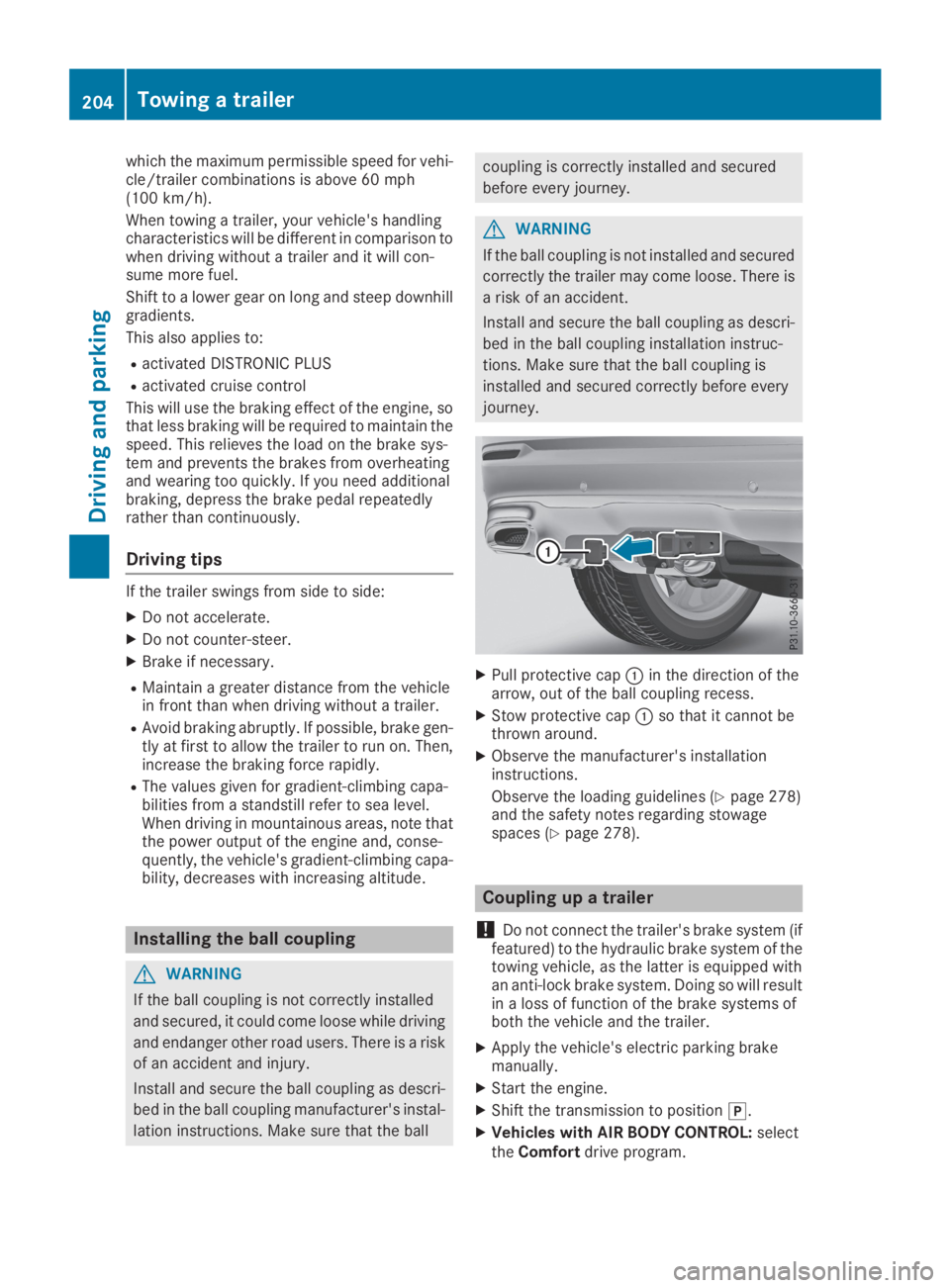
XPull protective capCin the direction of thearrow, out of the ball coupling recess.
XStow protective capCso that it cannot bethrown around.
XObserve the manufacturer's installationinstructions.
Observe the loading guidelines (Ypage 278)and the safety notes regarding stowagespaces (Ypage 278).
Coupling up a trailer
!Do not connect the trailer's brake system (iffeatured) to the hydraulic brake system of thetowing vehicle, as the latter is equipped withan anti-lock brake system. Doing so will resultin a loss of function of the brake systems ofboth the vehicle and the trailer.
XApply the vehicle's electric parking brakemanually.
XStart the engine.
XShift the transmission to position].
XVehicles with AIR BODY CONTROL:selecttheComfortdrive program.
204Towing a trailer
Driving and parking