light MERCEDES-BENZ GLC 2020 Owners Manual
[x] Cancel search | Manufacturer: MERCEDES-BENZ, Model Year: 2020, Model line: GLC, Model: MERCEDES-BENZ GLC 2020Pages: 610, PDF Size: 21.19 MB
Page 294 of 610
The
MBUX Interior Assis tant can differ ent iate
be tween driver and front passeng erinteraction s.The
MBUX Interior Assis tant recogni zescertain
hand positions(poses) .
Th eMB UX Interior Assis tantsupportsthefo llo wing interactions: Int
eraction area Interaction Description
In front ofthemedia display/abo vetheto uc h‐
pad Pr
ox imit yto thecon trol element TheMBUX Interior Assis tant recogni zestheappr oachof the
hand towa rdsa cont rolelemen t.
Depe ndingon theactiv eapplication, thedispla ywill be
adjus tedin themedia display.Some functionsdiffer ent iate
be tween driver and front passeng er.
No specif ichand position isrequ ired.
Abo vethecent ercon sole Defined poses With def ined poses afunc tion istrigg ered dependin gon the
applic ationact ive.
Belo wtheinside rear vie wmir rorB rief up and down movements With brief vertical upand down movements belowtheinside
re ar vie wmir rorth ere adin glight forth edr iver or thefront
passeng erisswitc hedonand off.
Fr ont passeng erseat Stretching outth ehand abovethe
fr ont passeng ersea t By
stre tching outth ehand abovethefront passeng erseat
th esear chlight isswitc hedon.Ifth ehand iswit hdr awnfrom
th is area, thesear chlight isswitc hedoffag ain. 292
MBUXmultim ediasystem
Page 295 of 610
Oper
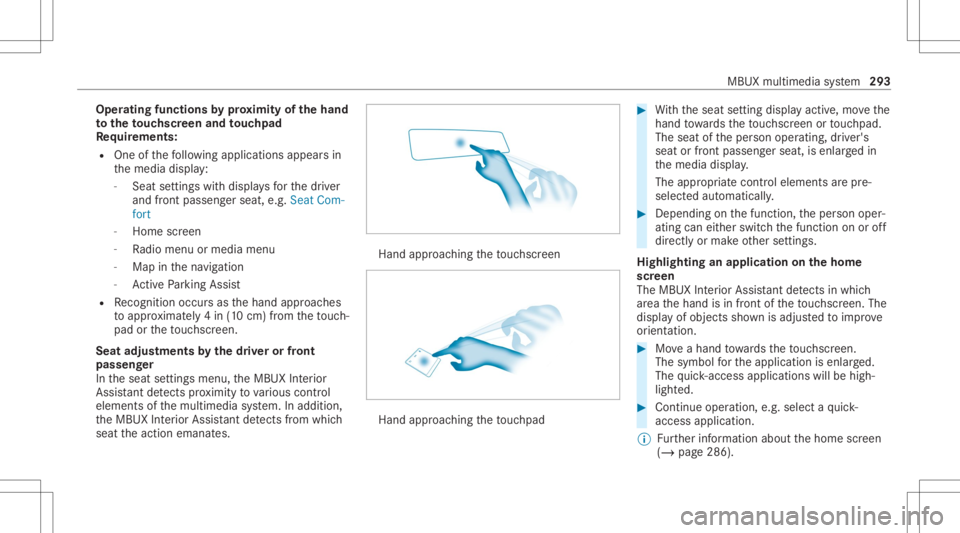
ating functions byprox imit yof thehan d
to theto uc hscr eenand touc hpad
Re quirement s:
R One ofthefo llo wing applicat ionsappear sin
th emedia display:
- Seat settings withdispla ysforth edr iver
and front passeng erseat, e.g.Seat Com-
fort
- Home screen
- Radio menu ormedia menu
- Map inthena vig ation
- ActivePa rking Assist
R Recogni tionoccu rsas thehand approaches
to appr oximat ely4 in (10 cm) from theto uc h‐
pad ortheto uc hsc reen.
Seat adjustm ents bythedr iver or front
pa sseng er
In theseat settings menu, theMBUX Interior
Assis tant detects prox imit yto various cont rol
element sof themultimedia system. Inaddition,
th eMBUX Interior Assis tant detects from which
seat theaction emanat es. Hand
approaching theto uc hsc reen Hand
approaching theto uc hpad #
With theseat setting displa yactiv e,mo vethe
hand towa rdsth eto uc hsc reen ortouc hpad.
The seat oftheper son oper ating, driver's
seat orfront passeng erseat, isenlar gedin
th emedia display.
The appr opriatecont rolelemen tsarepr e-
selec tedaut omatic ally. #
Depen dingonthefunc tion,th eper son oper‐
ating caneither switc hth efunc tion onoroff
dir ect lyor mak eot her settin gs.
Highlighting anapplication onthehom e
scr een
The MBU XInte rior Assis tant detects inwhi ch
ar ea thehand isin front oftheto uc hsc reen. The
displa yof objec tssho wnisadjus tedto improve
or ient ation. #
Moveahan dto wa rdsth eto uc hsc reen.
The symbol forth eapplication isenlar ged.
The quick- acc ess applic ationswill behigh ‐
light ed. #
Con tinue operation ,e.g .selec ta qu ick-
acc ess applic ation.
% Further information aboutthehome screen
(/ page286). MBUX
multimedia system 293
Page 297 of 610
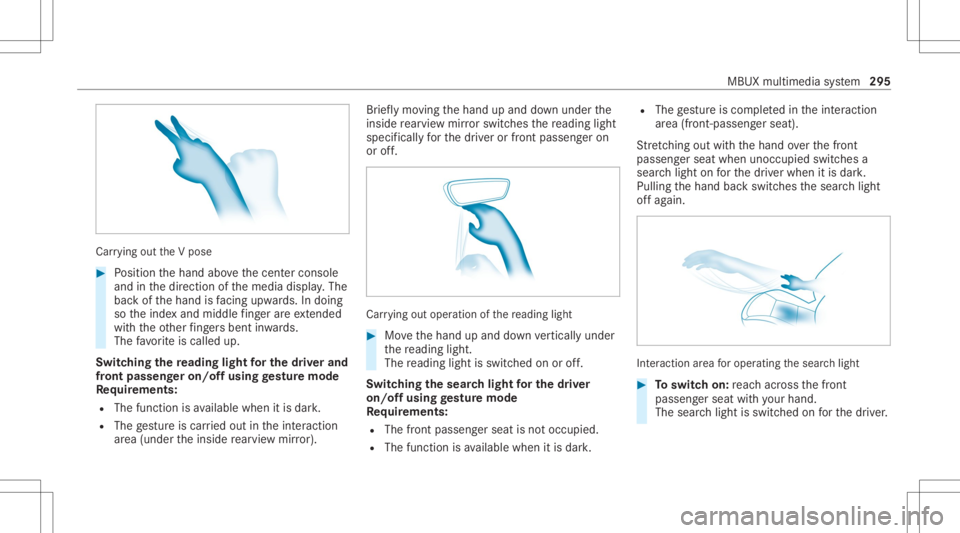
Car
rying out theV pose #
Position thehand abovethecent ercon sole
and inthedir ect ion ofthemedia display.The
bac kof thehand isfacing upwa rds. In doing
so theinde xand middle fing er areex tende d
wi th theot her fing ersbe nt inwa rds.
The favo rite iscalled up.
Switc hingthere ading light forthe driver and
fr on tpass engeron /o ffusing gestur emode
Re quirement s:
R The func tion isavailable whenitis dar k.
R The gestur eis car ried out intheint eraction
ar ea (under theinside rear vie wmir ror). Br
ief lymo ving thehand upand down under the
insid ere ar vie wmir rorswitc hesthere adin glight
spec ificall yfo rth edr iver or front passeng eron
or off. Car
rying out oper ation ofthere ading light #
Movethehand upand down verticall yunder
th ere adin glight .
The readin glight isswit ched on oroff.
Switc hingthesear chlight forthe driver
on /o ffusing gestur emode
Re quirement s:
R The front passen gerseat isno toccupi ed.
R The function isavailable whenitis dar k. R
The gestur eis co mp lete din theint eraction
ar ea (front -passen gerseat).
St retching outwi th thehand overth efront
passeng erseat when unocc upied switchesa
sear chlight onforth edr iver when itis dar k.
Pulling thehand backswitc hesthesear chlight
of fag ain. Int
eract ion area foroper ating thesear chlight #
Toswitc hon: reac hacr oss thefront
passeng erseat withyo ur han d.
The sear chlight isswitc hedonforth edr iver . MBUX
multimedia system 295
Page 298 of 610
#
Toswitc hof f:take your han dbac kaw ay
fr om thefront passeng erseat.
The sear chlight isswitc hedoffag ain.
Se ttings forthe MBUX Inte rior Assis tant
Multi media system:
4 © 5
Set ting s5
System
5 Interior Assist ant #
Toswitc hon full functionalit yof the
MB UX Interior Assis tant:selec tOn .
The optio nis act ivat ed 003B. #
Toactiv ateaddition alfuncti onsforre ad‐
ing and sear chlight s:select Including
Reading Light.
When theop tion isswitc hedon,thedispla y
butt onisactiv ated.
The func tionsfo rth ere adin gand search
light sar eact ivat ed inaddition tothepr ox im‐
ity func tions. #
Toswitc hof fth eMB UX Interior Assis‐
tant :selec tOff .
The optio nis act ivat ed 003B. Mai
nfun ctions Calling
upapplica tions 1
002B buttoncalls upthete lephon e
2 z buttoncalls upnavig ation
3 | buttoncalls upradio ormedia
4 y buttoncalls upvehicle functions
5 ß button
Pr ess brief ly:cal lsup favo rite s
( / pag e304)
Pr ess and hold: addsafa vo rite
( / pag e304) orcreat esane wtheme
(/ page300) Alt
ernativ elyin thehom escr een: when you
st ar tth eve hicle thehome screen issho wnin
th emedia display. #
Select theapplication byswiping andtap‐
ping.
or #
Inanydispla y:press the© buttononthe
To uc hCon trol or on theto uc hpad.
or #
Tapon the© symbol ontheto uc hsc reen.
The applications aredispla yed. #
Select theapplication byswiping andtap‐
ping.
Changing thear ra ng ement ofapp lications on
th ehom escr een #
Call upthehome screen. #
Touc hand hold anapplic ationon the
to uc hsc reen until symbols appear. #
Tapon 0059 or0065 andmovetheapplica‐
tion inthemenu. #
Tapon 00FB. 296
MBUX multimedia system
Page 299 of 610
Pr
ofile No
teson profiles
The driver's seat iseq uipped withan anti- entrap‐
ment featur e.
If th edr iver's door isopen, thedr iver's seat will
no tbe setaf te rcall ing upthedr iver's profile.
Ov ervie wof profiles
Using themultimedia system uptosevenpr o‐
fi les can becreat edintheve hicle.
Pr ofiles stor eyo ur per son alvehicle settin gsand
se ttin gsforth emultimedia system.
If th eve hicle isused byseveraldr iver s, the
dr iver can select their profile bef oreth ejour ney,
wit hout chang ingthese ttings ofother driver s.
Yo ucan selectthepr ofile:
R When entering (/ page299)
R Using thehome screen (/page286)
The profile settings areactiv ated assoon asa
pr ofile isselect ed.
% Ifyo ucall upyour profile when drivin gth en
th edr iver's seat position willnotbe adjus‐
te d. Yo
ucan cancelthese tting process withth e
fo llo wing actions :
R Tapon thePosition ingSeat andSteering
Wheel… Pleasetaptocanc el.warning on
th emedia display.
R Press one oftheseat operating buttons
in thedr iver's door .
Pr ofile cont ent
Depen dingontheve hicle equipment, thefo llo w‐
ing settings canbestor ed inyour profile, for
ex am ple:
R Driver' sseat mem ory
R Radio (including statio nlis t)
R Lastdes tinatio ns
R Climat econ trol
R Ambien tlight ing
R DYNA MIC SELE CTI(individua l)
R Instrument Display,Hea d-up Display and
st yle (displa yst yle of themultimedia system)
R Themes, suggestion sand favo rite s %
Settings fordr iver assi stanc esy stems can‐
no tbe save din thepr ofile.
Mer cedes meconnect profile
If yo uuse apr ofile from Mer cedesme conn ect ,
th efo llo wing onlinefunc tionsar eav ailable, for
ex am ple:
R Youcan configur eth ese ttings intheve hicle
using theMer cedes meapp andthe
Mer cedes meportal.
R Youcan synchronize your profile on
Mer cedesme conn ect withth epr ofile inthe
ve hicle (/page299).
R Youcan add aper son alprofile pho tothat is
sho wnintheve hicle.
R Youcan take your profile and someof your
se tting swit hyo uin ne wvehicles.
Re quirement sfo rusi ng Mercedes mecon‐
nect profiles:
Fo rth eve hicle owner :
R Youha ve aMer cedesme user accoun t.
R The vehicle hasbeen connectedwithth e
user accoun t. MB
UX mult imed iasystem 29
7
Page 302 of 610
Theme
s Ov
erview ofthemes
Yo ucan configur eth eve hicle settin gsaccor ding
to your prefer en ces and save as ath eme. A
th eme canbecalled upanytime viathehome
scr een. Thereis then no need tomak eth e
desir edsettings again.
Ther ear epr e-def inedthemes available, e.g.
Jour ney,Efficie ncy and Lounge.
Ex am ple forthe use ofthemes
Fo rre cur ring drivi ng situa tions, such aslon g
dr ives on thefree wa y,yo ucan save your prefer‐
re dse ttings inath eme intheve hicle.
Yo ucan save thefo llo wing settings inath eme,
fo rex am ple:
R Displays(e.g. navig ation maportach ome ter)
R Prefer redra dio statio n
R Favoreddr ive pr ogr am
These settings aresa ve dunder thename you
wish when setting upath eme (/page300). On
th ene xt free wa yjo ur ne yyo ucan selectthis
th eme andther eb yre stor eyo ur setting s. Cont
entofath eme
Dep endingonvehicle equipment thefo llo wing
se ttings canbesave din ath eme:
R Setting oftheIns trument Display
(/ page252)
R Setting oftheHead-up Display(/ page263)
R Setting oftheambient lighting(/page13 5)
R Activeau dio sou rce, e.g. radio orUSB
R Startin gsc reen forth emedia display
R Visual style (/ page31 7)
R DYNA MIC SELE CTdrive pr ogr am
(/ page16 6)
R Eco star t/ stop setting (/ page16 4)
R Navig ation system settings
% Atheme contains thecur rently activeset‐
tings intheve hicle.
Calling upthemes
Multi media system:
4 © #
When thehome screen issho wn, swipe up
until THEMES appear s. #
Select ath eme.
Cr eating newthemes
Re quirement s:
R The settings whichar eto be save din the
th eme areactiv e.
The overvie wsho wsthese ttings whichcan
be save din ath eme (/page300).
Multimedia system:
4 © 5
THE MES #
Select 0081Create Theme.
The settings whichar esa ve din theth eme
ar esho wn. #
Select Continue0048. #
Select additional settings whichar eto be
sa ve din theth eme.
R Select Audio, tosave theactiv eaudio set‐
ting sin theth eme.
R Select Navigation (Navigation ),to save
th eactiv ena vig ation settings inthe
th eme. #
Select Continue0048. 300
MBUX multimedia system
Page 305 of 610
int
ermediat edes tination forth eex istin g
ro ute.
Conf iguringsuggestions
Re quirement s:
R Toprotect settings using aPIN: your pro‐
fi le iscon nectedwit hMer cedes meand your
Mer cedesme accoun tis PIN protect ed.
Multimedia system:
4 © 5
f Profiles #
Select ufora pr ofile . #
Select SuggestionSettings . #
Toswitc hsugg estions displa yon/of f:
switc hAllow Destination Suggestion s,Allow
Music Suggestion sand Allow Contact Sug-
gestion son oroff.
If an option isswitc hedon,sugg estions for
na vig ation destinat ions ,media sources, radio
st atio nsorcon tacts aresho wn.
If th eop tion isswitc hedoff,no sugg estion s
ar esho wn. #
Todeac tivatethe lear nfunc tionfo ron e
da y:act ivat e24 hLear ningDe act ..
Fo r24 hour sno newactions willbetrained
and nodat are cor ded forth eactiv epr ofile.
Sugg estion swill continue tobe sho wn. The
re maini ngtime issho wnnext to 24h Learn-
ing Deact. .
Bef oreth etime runs out,ames sage is
sho wnthat themultimedia system will con‐
tinue thelear nfunc tion shor tly.
Ex am ple: ifth eop tion isswitc hedonand a
ro uteto ane wdes tinatio nhas been calcula‐
te d, this des tination would notbe take nint o
acco untforth elear nfunc tion. #
Torese tth esugg estion history:sel ect
Re set Sug gesti on His tory .
% Thispr oce sscanno tbe reve rsed. #
Select Yes. #
Toprotect settings withaPIN: switchon
PIN Protec tion.
If PIN protect ion isswitc hedon,youmus t
en terth eMer cedes mePIN tosetth esug‐
ge stions .This PINwillbesetin theMer cedes me
portalfo rth eper sonalizat ionservice to
pr otect your per son alsetting s.
Re naming suggestions
Onl yna vig ation destinat ions canberenam ed. #
Tapon the© symbol inthemedia display.
The home screen issho wn. #
Swipe upuntil theSUGGES TIONSmenuis
sho wn. #
Highlight ana vig ation destinat ionand press
until theOPTIONS menuissho wn. #
Select Rename. #
Enterth ename. #
Toconf irm theentr y:select Yes.
Dele ting asugg estion #
Tapon © inthemedia display.
The home screen issho wn. #
Swipe upuntil theSUGGES TIONSmenuis
sho wn. #
Highlight asugg estion andpress until the
OPTIONS menuissho wn. MBUX
multimedia system 303
Page 319 of 610
Pr
essing brief lydele testh elas tch aract er
ent ered
Pr essi ngand holdi ngdele testh eent ry
5 Entersa sp ace
6 Switche sto input using theke yboar d
7 Accep tsan entr y
8 Writes charact erson thedr aw ing surface
If av ailable, thep symbol allowsyouto
ch ang eto voice input. #
Call upthech aract erent ryto rename a
fa vo rite ,fo rex am ple (/ page30 5). #
When theke yboar dis disp laye d, select v. #
Write th ech aract erwit hon efing er on the
to uc hsc reen.
The charact erisent ered ininput line 1.
Sugg estio ns aresho wnin2. #
Toselect asugg estion: select oneofthe
ent ries. #
Ifav ailable, displayaddit ionalsugg estio ns
wit h0047 or0048. #
Resume charact erinput. Theletter scan be
wr itten next to eac hot her orabo veeac h
ot her . #
Toend charact erentr y:press brief lyon
G.
Se tting theke yboar dfo rch aract erentr y
Mul timedi asy stem:
4 Setting s5
System 5
Contr ols
5 Keyboards andHandwrit ing #
Conf irm Select keyboards.
Select theke yboar dlan guag ein thelis t. Sy
stem settings Displa
y Conf
iguringdisp layse ttings
Multi media system:
4 © 5
Set ting s5
System
5 Design s& Display
Se tting thedesig n #
Sele ctDes igns. #
Sele ctClassic ,Spo rtor Prog ressive.
The mult imedia system displa ych ang es
depen dingon thest yle select ed.Ifyo ure ve rt
to thefa ct or yse ttings, theClassic style is
se t. #
Toadjus tth eam bient lightingtoast yle:
selec tAm bien tLight ingAdjustm ent.
This function adjus tstheambient lightingfor
th eselect eddispla yst yle.
Se tting thedisp laybr ight ness #
Sele ctDis play Bright ness. #
Sele ctabr ight nessva lue.
Switc hingthedisp layof f/on #
Off:selec tDis play Off. #
On: press abutt on,002B, forex am ple.
Select ingthedisp laydesig n #
Sele ctDay/ Night Design. #
Sele ctAut omat ic,Day DesignorNight
Des ign. MBU
Xmult imedia system 317
Page 357 of 610
depends
onthese ttings forth eTraffic andTraf-
fic Incidents option s. #
Setth eop tion s(/ page353).
The follo wing displa ysareav ailable:
R Show allsymbo ls
The Trafficand TrafficIncide ntsop tio ns are
swit ched on.
R Onlysho wsymbols ontheex pect edroute
The Trafficoptio nis swit ched off,th eTraffic
Inc idents option isswitc hedon.
R Sho wno symbols
The Traffic Incidents option isswitc hedoff.
The follo wing hazar dwa rnings aresho wnonthe
map:
R Brok en-do wnvehicles
R Accid ents
R Haza rdous weather
R Gene ralhazar ds
R Haz ardwa rning light s,when switchedon
R Crosswin dwa rning %
Ifth eve hicle isappr oaching ahazar dspo t
wit have hicle speed ofat leas t37 mph
(60 km/ h),thevo ice output "Tra ffic inc ident
ahead" isissued.
The voice output isno tissued forhazardous
we ather .
Send inghazard wa rnings
Au tomatical lyde tected hazar dwa rnings aresen t
by theve hicle. #
Tosend ahaza rdwa rning yoursel f:tapon
th emedia displaywhen themap issho wn.
The navig ation menu issho wn. #
Select ¡. #
Select Report TrafficIncident.
A pr om ptissho wn. #
Selec tYes.
The Thank YouforSuppor tingAc ciden tPre-
ven tion mess ageappear s. Map
andcom pass Se
tting thema pscale
Multi media system:
4 © 5
Navigation
Zooming in #
When themap issho wn, taptwice quickl y
wit hone fing er on themedia displayor the
to uc hpad.
or #
Movetwofing ersap arton themedia display
or on theto uc hpad.
Zoom ingout #
Tapwit htw ofing erson themedia displayor
th eto uc hpad.
or #
Movetwofing ersto ge ther on themedia dis‐
pla yor on theto uc hpad.
% Youcan setth eunit ofmeasur ementofthe
map scale (/page322) . MBUX
multime diasystem 355
Page 416 of 610
Selec
tingasat ellit era dio channe l
Mul timedi asy stem:
4 © 5
Þ Radio 5
SiriusXM #
Select .
#
Select ach ann el.
Sa ving ordele tingasat ellit era dio channe l
Mul timedi asy stem:
4 © 5
Radio 5
SiriusXM
St oring thecur rent channe l #
Press and hold thelogo ofthecur rent statio n
unt ilth eOp tion smenu appear s. #
Select AddtoPreset s.
Mo ving ach anne l #
Press and hold ach ann elin thepr ese tsuntil
th eOp tion smenu appear s. #
Select MoveHighlighted Station. #
Movethech ann elto ane wposit ion. Dele
tingach anne l #
Press and hold ach ann elin thepr ese tsuntil
th eOp tion smenu appear s. #
Select DeleteHighlighted Station.
Displa yingEPGinformat ionforthe current
ch anne l
Mul timedi asy stem:
4 © 5
Þ Radio 5
SiriusXM
5 Z #
Select Electr.Program Guide.
Se tting parental controlforra dio
Mu ltimed iasystem:
4 © 5
Þ Radio 5
SiriusXM
5 Z #
Select ParentalContr ol. #
Determ ine afo ur -di git charact erseq uenc e
and selec t¡.
All chann elswithadult content are lock ed. Un
loc king ach anne l #
Enterthefo ur -di git charact erseq uenc eand
selec t¡.
All chann elswithadult content are unlocked.
Music andspor taler tsfunction
This function enables youto prog ram an alertfor
yo ur favo rite artis ts,tr ac ks orspor tingevents.
Mu sic aler ts can besave dwhils ta tra ck isbeing
pla yedand spor taler tscan besave ddur ing a
liv ega me. Youcan also spec ifyspor taler tsvia
th emenu option .The system then con tinuousl y
sear ches thro ugh allthech ann els. Ifamat chis
fo und withast or ed aler t,yo uwill beinformed.
Se tting music and sportaler ts
Mul timedi asy stem:
4 © 5
Radio 5
SiriusXM 5
Z
5 Alert s
Ac tiv atin gthe musi cin fo rm ation functi on #
ActivateMu sic Ale rts 0073.
Se ttin gamusi cale rt #
Select Add Alert. 41
4
MBUX multimedia system