phone MERCEDES-BENZ GLC-Class 2016 X253 Comand Manual
[x] Cancel search | Manufacturer: MERCEDES-BENZ, Model Year: 2016, Model line: GLC-Class, Model: MERCEDES-BENZ GLC-Class 2016 X253Pages: 222, PDF Size: 6.39 MB
Page 37 of 222
Displaying andselecting favorites
XTo display th efavorites overview: press
th efavorites butto non th econtroller .
XTo callup favorites: turn and press th e
controller .
Adding favorites
Adding predefined favorites
XPress th efavorites butto non th econtroller .
XTo showthemen ubar ,slid e6 thecon-
troller.
XTo selec tReassign:turn and press th e
controller .
The categorie sfo rfavorites are displayed .
RNavigation
REntertainmen t
RPhone
RVehicle
RClimateContro l
R®
XTo selec t acategory: turn thecontroller
and press to confirm .
The available favorites are displayed .
XTo select afavorite: turn and press th e
controller .
XAddingafavorit eat th edesired posi-
tion: turn and press th econtroller .
If afavorit eis stored over another favorite,
th efavorit eunderneat his deleted.
Adding you rown favorites
You can stor ephone number sfrom th ephone
book, radio station sor destination sas favor -
ites.
A phone number from th ephone boo kis used
as an example.
XCall up th ephone boo k (Ypage 121).
XSearchfo rth econtact and display th e
phone number : (
Ypage 122).
XTo add atelephon enumber as afavorit e
at th edesired position: press and holdth
efavorites butto non th econtroller until
th efavorites are displayed .
XTurnand press th econtroller .
If afavorit eis stored over another favorite,
th efavorit eunderneat his deleted.
Renaming favorites
XPress th efavorites butto non th econtroller .
The favorites are displayed .
XTo selectth efavorit eto be renamed:
turn th econtroller .
XTo show th emenu bar: slide6 thecon-
troller.
XTo selec tRename:turn and press th econ-
troller.
XEnte rcharacters usin gth econtroller
(
Ypage 31) or th etouchpad (Ypage 27).
XTo finish th eentry :selec tOK.
The favorit ehas been renamed.
Moving favorites
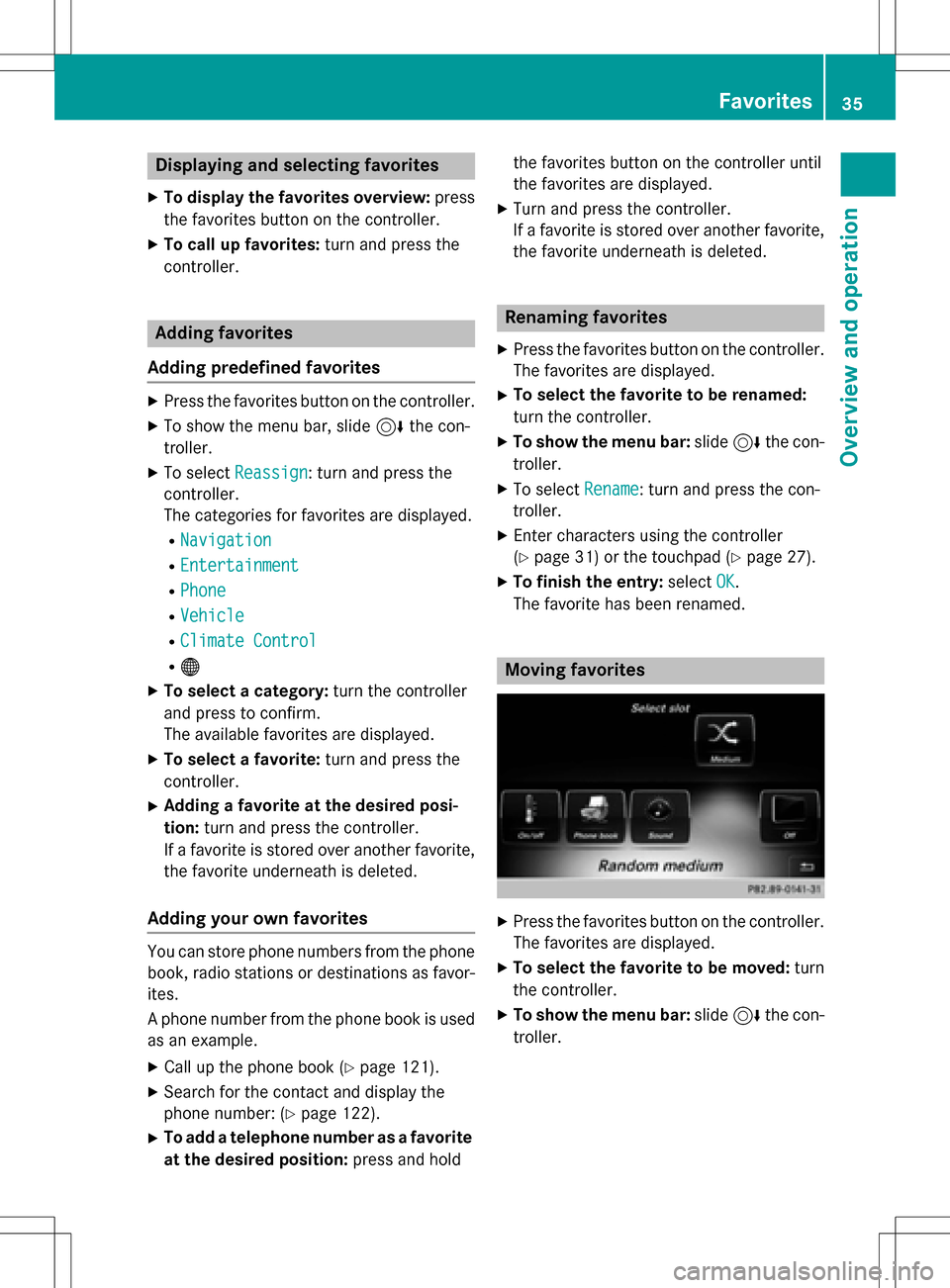
XPress th efavorites butto non th econtroller .
The favorites are displayed .
XTo selectth efavorit eto be moved :turn
th econtroller .
XTo show th emenu bar: slide6 thecon-
troller.
Favorites35
Overview and operation
Page 44 of 222
Individualization
Using individualization, you can fine-tune the
Voice Control System to your own voice. This
will help improve voice recognition (see the
separate operating instructions).
WiFi
Overview
Condit ions:
To establish a WiFi connection between
COMAND and a WiFi-enabled device, such as
a tablet computer or smartphone:
RWiFi must beactivated at COMAND and at
the device to be connected.
If COMAND isto be used as a WiFi hotspot:
RCOMAND must beconnected to an Inter-
net-enabled mobile phone via Bluetooth®
or USB.
RThe Internet access data for the mobile
phone network provider must beselected
or set for COMAND.
RThere must beanInternet connection to
COMAND.
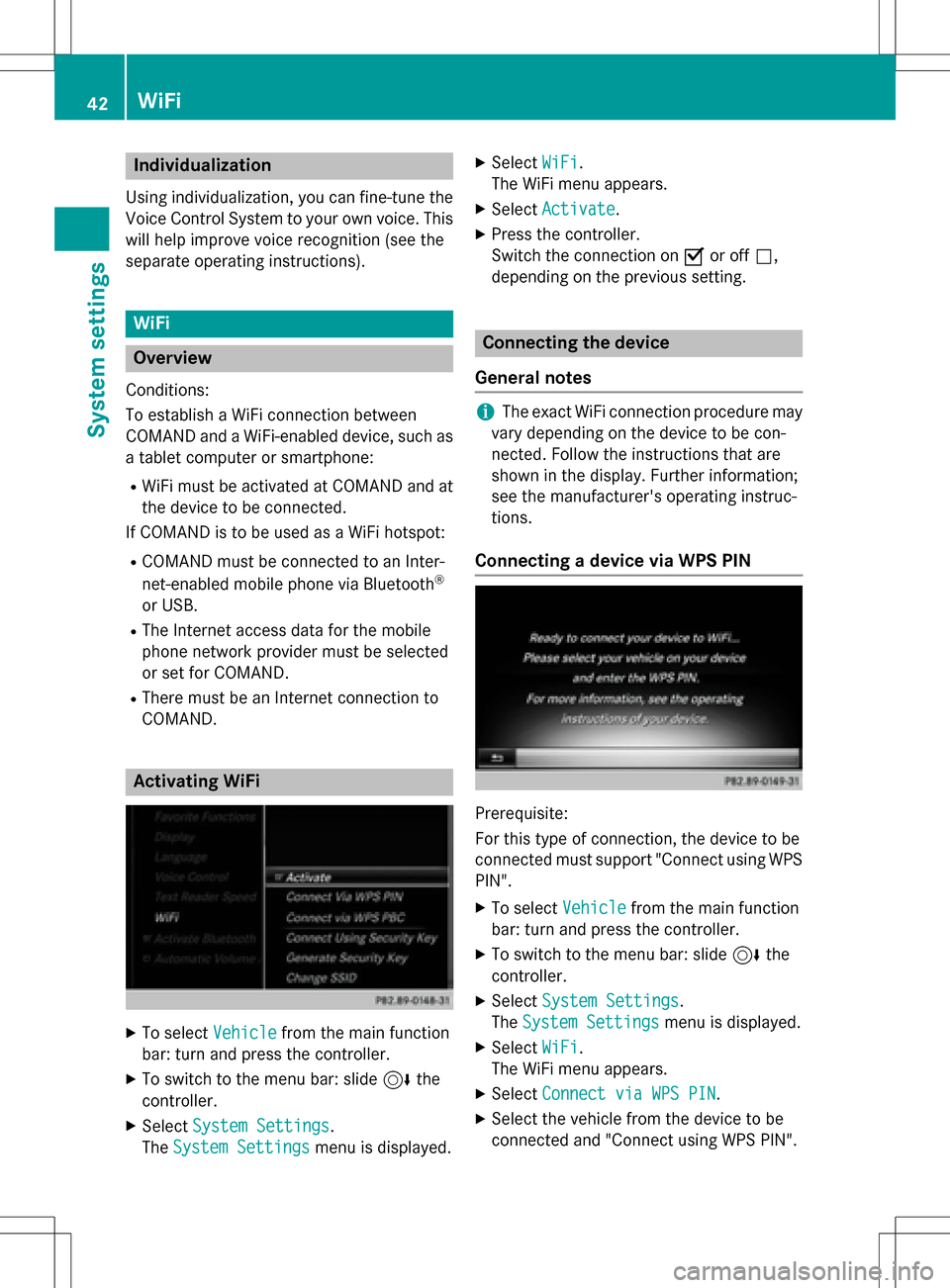
Activating WiFi
XTo select Vehiclefrom the main function
bar: turn and press the controller.
XTo swit ch to the menu bar: slide 6the
controller.
XSe lect System Settings.
The System Settings
menu isdisplayed.
XSe lect WiFi.
The WiFi menu appears.
XSe lect Activate.
XPress the controller.
Switch the connection on Oor off ª,
depending on the previo us setting.
Connecting the device
General notes
iThe exact WiFi connection procedure may
vary depe nding on the device to becon-
nected. Fo llowthe instructions that are
shown in the display. Further information;
see the manufacturer's operating instruc-
tions.
Connecting a device via WPS PIN
Prerequisite:
For th istype of connection, the device to be
connected must support "Connect using WPS
PIN ".
XTo select Vehiclefrom the main function
bar: turn and press the controller.
XTo switch to the menu bar: slide 6the
controller.
XSe lect System Settings.
The System Settings
menu is disp layed.
XSelect WiFi.
The WiFi menu appears.
XSe lect Connect via WPS PIN.
XSelect the vehicle from the device to be
connected and "Connect using WPS PIN ".
42WiFi
System settings
Page 46 of 222
XTo selectVehiclefrom the main function
bar: turn and press the controller.
XTo switch to the menu bar: slide 6the
controller.
XSelect System Settings.
The System Settings
menu appears.
XSelect WiFi.
The WiFi menu appears.
XSelect Generate Security Key.
XSelectRegenerate.
A new security key is generated.
XTo save the security key: turn the controller
and select Save
.
The WiFi menu appears. The new security
key will now be displayed and verified when
a connection is established via the security
key. The connection must be re-estab-
lished with the newly created security key.
iDevice connections established using the
previous security key will no longer work
after the security key is changed. You have
to reconnect these devices (
Ypage 42).
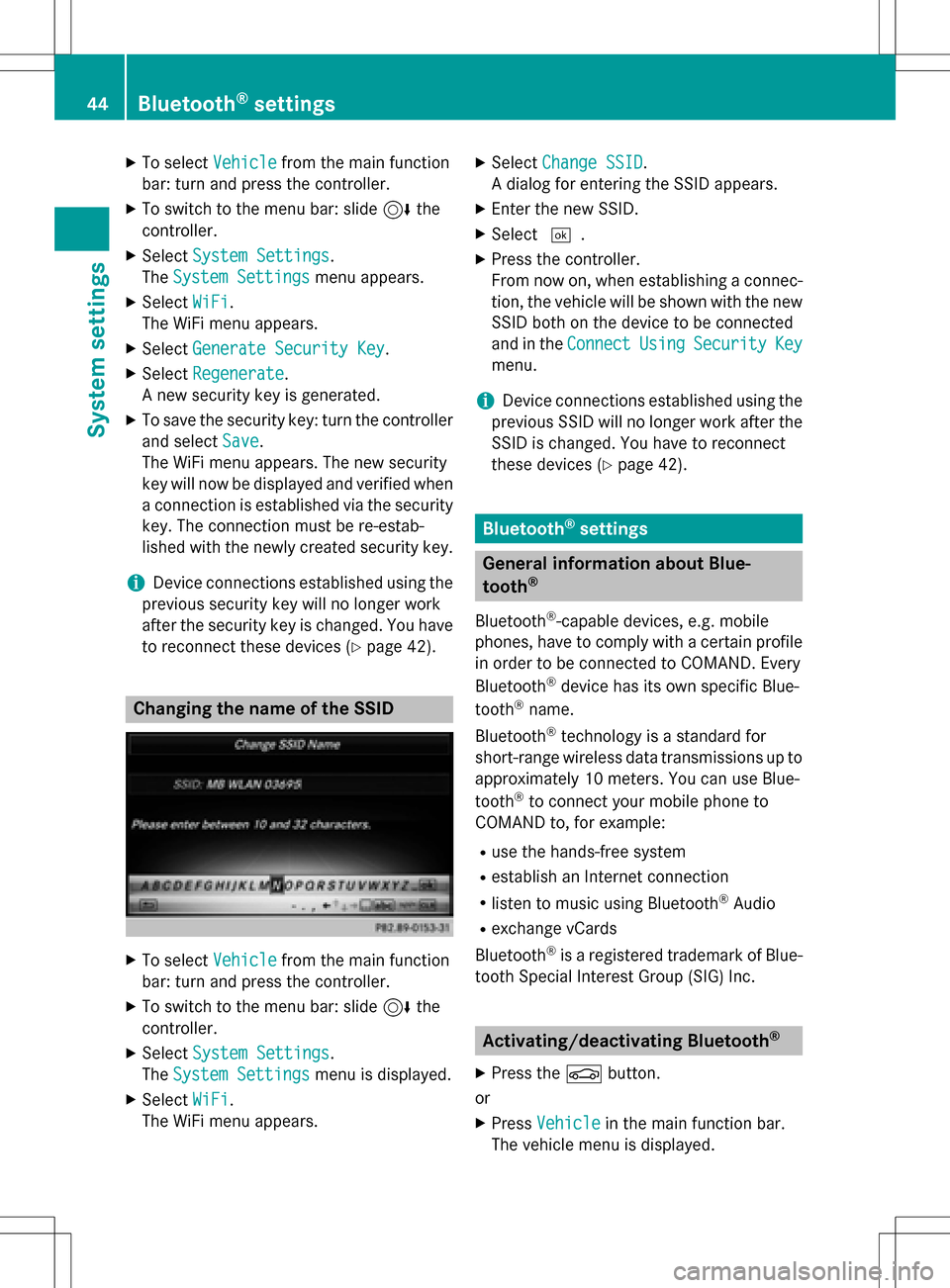
Changing the name of the SSID
XTo select Vehiclefrom the main function
bar: turn and press the controller.
XTo switch to the menu bar: slide 6the
controller.
XSelect System Settings.
The System Settings
menu is displayed.
XSelect WiFi.
The WiFi menu appears.
XSelect Change SSID.
A dialog for entering the SSID appears.
XEnter the new SSID.
XSelect ¬.
XPress the controller.
From now on, when establishing a connec-
tion, the vehicle will be shown with the new
SSID both on the device to be connected
and in the Connect
UsingSecurityKey
menu.
iDevice connections established using the
previous SSID will no longer work after the
SSID is changed. You have to reconnect
these devices (
Ypage 42).
Bluetooth®settings
General information about Blue-
tooth®
Bluetooth®-capable devices, e.g. mobile
phones, have to comply with a certain profile
in order to be connected to COMAND. Every
Bluetooth
®device has its own specific Blue-
tooth®name.
Bluetooth
®technology is a standard for
short-range wireless data transmissions up to
approximately 10 meters. You can use Blue-
tooth
®to connect your mobile phone to
COMAND to, for example:
Ruse the hands-free system
Restablish an Internet connection
Rlisten to music using Bluetooth®Audio
Rexchange vCards
Bluetooth
®is a registered trademark of Blue-
tooth Special Interest Group (SIG) Inc.
Activating/deactivating Bluetooth®
X
Press the Øbutton.
or
XPress Vehiclein the main function bar.
The vehicle menu is displayed.
44Bluetooth®settings
System settings
Page 48 of 222
Calling up the Favorites function via the
system menu:
XPress theØbutton.
or
XPress Vehiclein the main function bar.
The vehicle menu is displayed.
XTo select SystemSettings: slide6and
press the controller.
A menu appears.
XTo select Favorite Functions: press the
controller.
The favorites are displayed.
XTo select the desired function, e.g. Phone‐
book: turn and press the controller.
Calling up the Favorites function via the
controller or touchpad:
XPress the Favorites button on the controller
or touchpad.
The favorites are displayed.
XTo select the desired function, e.g. Phone‐
book: turn and press the controller.
The Favorites function can be exited at any
time. To exit the Favorites function:
XPress the Favorites button again
or
XPress the %button on the controller
or
XPress the %button on the touchpad
or
XTo select %in the display: turn and
press the controller.
Further information on favorites (
Ypage 34).
Importing/exporting data
General notes
!
Never remove the stick or card when writ-
ing data to the USB stick or the memory
card. You may otherwise lose data. Using this function, you can do the following
with your personal COMAND data:
Rtransfer from one system or vehicle to
another system or vehicle.
Rmake a backup copy (export data) and load
it again (import data).
Rprotect your data from unwanted export by
activating a PIN prompt (presetting: deac-
tivated
ª).
You can either use an SD memory card or a
USB storage device (e.g. a USB stick) as tem-
porary storage.
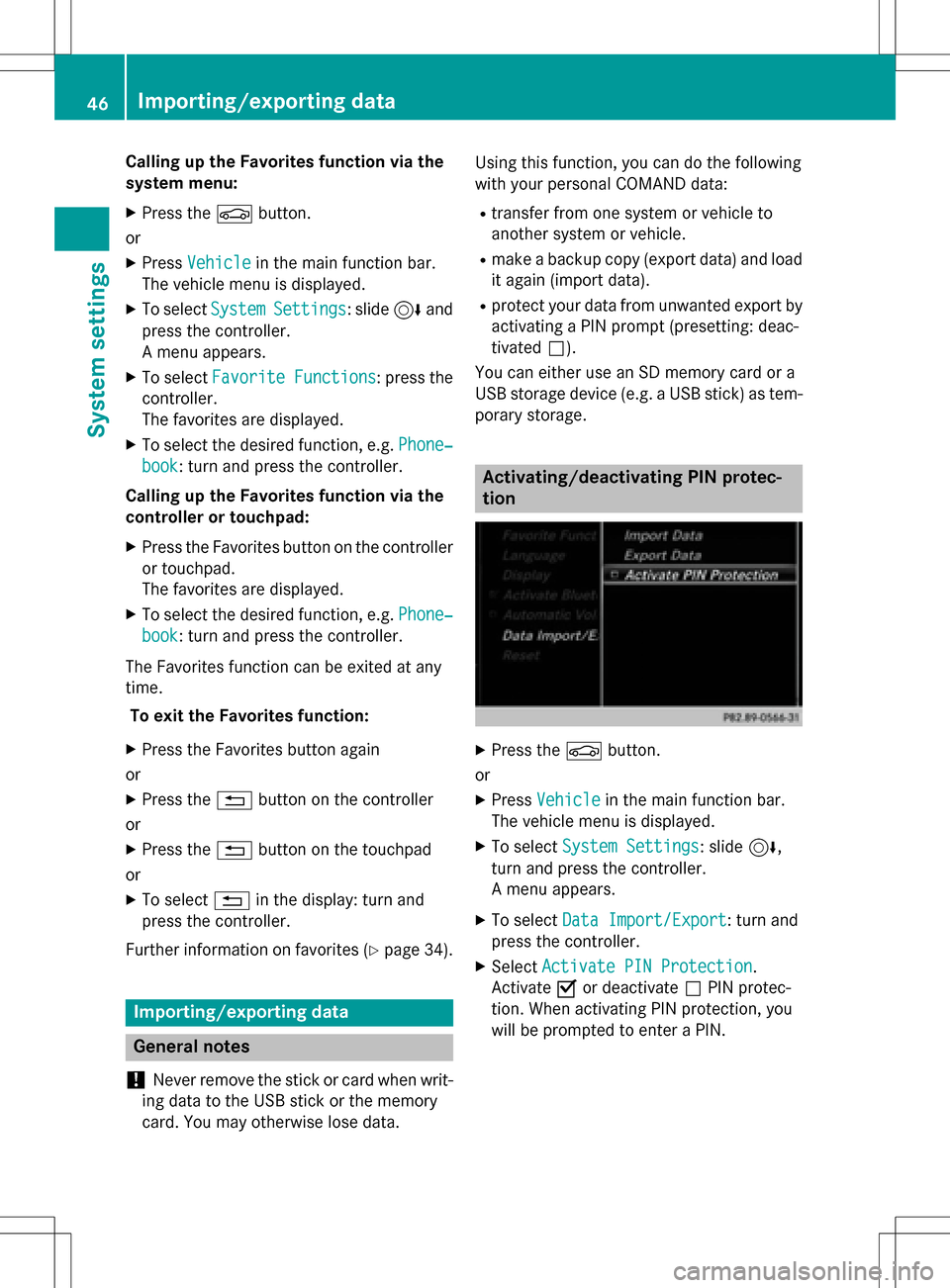
Activating/deactivating PIN protec-
tion
XPress the Øbutton.
or
XPress Vehiclein the main function bar.
The vehicle menu is displayed.
XTo select System Settings: slide6,
turn and press the controller.
A menu appears.
XTo select Data Import/Export: turn and
press the controller.
XSelect Activate PIN Protection.
Activate Oor deactivate ªPIN protec-
tion. When activating PIN protection, you
will be prompted to enter a PIN.
46Importing/exporting data
System settings
Page 50 of 222
Reset function
You can reset COMAND to the factory set-
tings. Amongst other things, this will delete all
personal COMAND data. Example:
RStation presets
REntries in the destination memory
REntries in the list of previous destinations in
the navigation system
REntries in the address book
RAuthorized telephone
In addition, an activated PIN protection,
which you have used to protect your data
against unwanted export, will be deactivated.
Resetting is recommended before selling or
transferring ownership of your vehicle, for
example.
Data on the internal hard drive, e.g. music
files in the MEDIA REGISTER, will be deleted.
Mercedes-Benz is not liable for any loss of
data.
XPress the Øbutton.
or
XPress Vehiclein the main function bar.
The vehicle menu is displayed.
XTo select System Settings: slide6,
turn and press the controller to confirm.
A menu appears.
XTo select Reset: turn and press the con-
troller.
A prompt appears asking whether you wish
to reset.
XSelect YesorNo.
If you select No
the process is canceled.
If you select Yes
a prompt will appear again
asking whether you really wish to reset.
XSelect YesorNo.
If you select Yes
a message will be shown.
COMAND is reset to the factory settings
and restarted.
If you select No
the process is canceled.
48Reset function
System settings
Page 64 of 222
Your COMANDequipment
i
These operatin ginstruction sdescribe all
th estandar dan doptional equipmen tof
your COMAN Dsystem, as available at th e
time of going to print .Country-specifi cdif -
ference sare possible. Bear in min dthat
your vehicle may no tfeature all function s
described here. Thi salso applies to safety-
relevant systems an dfunctions.
iRead th einformation on qualified special-
ist workshop sin th evehicle Operator's
Manual.
Introduction
Important safet ynotes
GWARNING
If you operat einformation systems an dcom-
munication equipment integrated in th evehi-
cl e whil edriving, you will be distracted from
traffic conditions. You could also los econtro l
of th evehicle. There is aris kof an accident.
Only operat eth eequipment when th etraffic
situation permits. If you are no tsur ethat this
is possible, par kth evehicle payin gattention
to traffic condition san doperat eth eequip-
men twhen th evehicle is stationary.
You mus tobserv eth elega lrequirements fo r
th ecountry in whic hyou are currentl ydrivin g
when operatin gCOMAND.
COMAN Dcalculates th erout eto th edestina -
tion without taking accoun tof th efollowing,
fo rexample:
Rtraffic lights
Rstop an dyield signs
Rmergin glanes
Rparking or stoppin gin ano parking/n o
stoppin gzone
Rother road an dtraffic rule san dregulation s
Rnarrow bridge s
COMAN Dcan giv eincorrec tnavigation com-
mands if th eactual street/traffic situation doe
sno tcorrespon dwit hth edigita lmap's
data. Fo rexample, arout emay hav ebee n
diverted or th edirection of aon
e-w
ay stree t
may hav echanged .
Fo rthis reason ,you mus talways observ e
road an dtraffic rule san dregulation sdurin g
your journey. Road an dtraffic rule san dreg -
ulation salways hav epriorit yover th esys -
tem' sdrivin grecommendations.
Navigation announcement sare intended to
direc tyou whil edrivin gwithout divertin gyour
attention from th eroad an ddriving.
Please always use this feature instead of con-
sultin gth emap display fo rdirections. Look -
in g at th eicon sor map display can distract
you from traffic condition san ddriving, an d
increase th eris kof an accident.
General notes
Operationa lreadines sof th enavigation
syste m
The navigation syste mmus tdetermin eth e
position of th evehicle befor efirst use or
wheneve roperational status is restored .
Therefore, you may hav eto drive fo r awhil e
befor eprecise rout eguidance is possible.
GP Sreception
Amon gother things, correc tfunctionin gof
th enavigation syste mdepend son GPS recep-
tion .In certain situations, GPS reception may
be impaired, there may be interferenc eor
there may be no reception at all, e.g. in tun-
nels or parking garages .
iUsing roof carriers may impair th ecorrec t
functionin gof aroof antenn a(phone, sat -
ellite radio, GPS).
Entry restriction
Fo rvehicles in certain countries, there is a
dat aentr yrestriction .
The restriction is active from avehicle speed
of abov eapproximately 3mph (5 km/h). As
62Introduction
Navigation
Page 71 of 222
XAsthe home address: selectAs "My
Address".
COMAND stores your home address under
My Address
in the list of contacts.
XAs a contact: selectAs New Contact.
XSelect Not Classified,Homeor Work.
XEnter a surname and first name
(
Ypage 31).
XTo select OK: turn and press the controller.
The destination addressissaved inthe
addr ess book as a navigable contact.
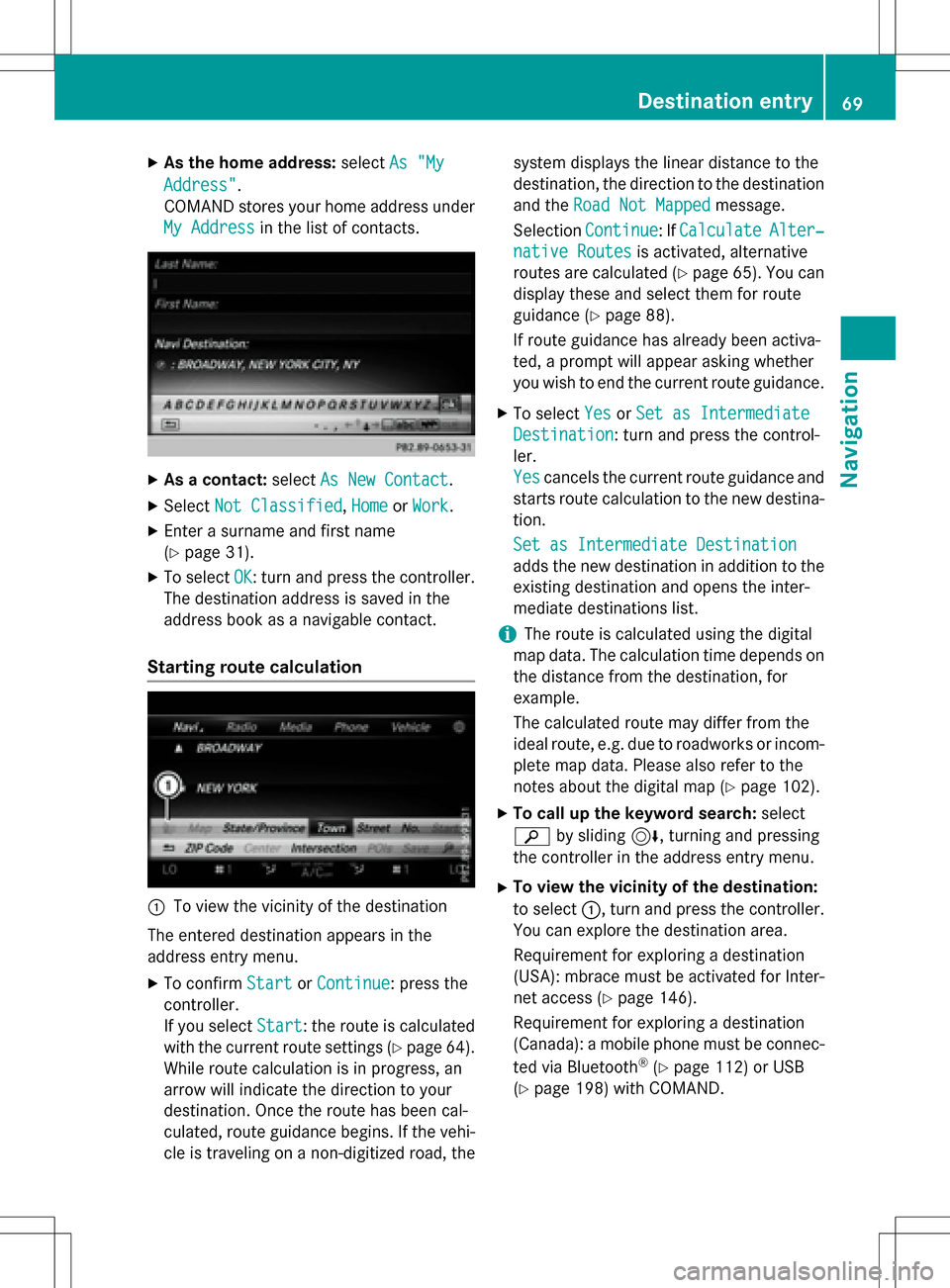
Starting route calculation
:To view the vicinity of the destination
The entered destination appears inthe
addr ess entry menu.
XTo confirm StartorContinue: press the
controller.
If you select Start
: the route is calculated
wit h the current route settings (
Ypage 64).
While route calculation is inprogress, an
arrow willindicate the direction to your
destination. Once the route has been cal-
culated, route guidance begins. Ifthe veh i-
cle istraveling on a non-digitized road, the system displays the linear
distance to the
destination, the direction to the destination
and the Road Not Mapped
message.
Se lection Continue
:If CalculateAlter‐
native Routesis act ivat ed, alternati ve
routes are calculated (
Ypage 65). You can
disp lay these and select them for route
guidance (
Ypage 88).
If route guidance has already been act iva-
te d, a prompt willappear asking whether
you wish to end the current route guidance.
XTo select YesorSet as Intermediate
Destination: turn and press the control-
ler.
Yes
cancels the current route guidance and
starts route calculation to the new destina-
tion.
Set as Intermediate Destination
adds the new destination inaddition to the
existing destination and opens the inter-
mediate destinations list.
iThe route iscalculated using the digital
map data. The calculation time depends on the distance from the destination, for
example.
The calculated route may differ from the
ideal route, e.g. due to roadworks or incom-
plet e map data. Please also refer to the
notes about the digital map (
Ypage 102).
XTo call up the keyword search: select
è bysliding 6, turning and pressing
the controller inthe address entry menu.
XTo view the vicinity of the destination:
to select :, turn and press the controller.
You can explor e the destination area.
Requir ement for explor ing a destination
(USA): mbrace must beact ivat ed for Inter-
net access (
Ypage 146).
Requirement for explor ing a destination
(Can ada): a mobile phone must beconnec-
ted via Bluetooth
®(Ypage 112) or USB
(
Ypage 198) with COMAND.
Destination entry69
Navigation
Z
Page 73 of 222
XTo select a POI:selectPOIs in the
VicinityorAll POIsby turning and
pressing the controller.
A list appears. The search results are dis-
played according to the linear distance,
starting with those closest.
XSelect a POI.
The POI is shown.
XTo start route calculation: select Start.
XTo use online search:selectOnline
Searchby turning and pressing the con-
troller.
The search switches to the online func-
tions.
Online search requirement (USA): mbrace
must be activated for Internet access
(
Ypage 146).
Requirement for the online search (Can-
ada): a mobile phone must be connected
via Bluetooth
®(Ypage 112) or USB
(
Ypage 198) with COMAND.
Selecting search options
XTo switch to navigation mode: press the
Ø button.
XTo show the menu: slide6the control-
ler.
XTo select Destination: turn and press the
controller.
XSelect Keyword Search.
XTo select SearchOptions: slide5, turn
and press the controller.
XSelect Fuzzy SearchorPOI Search.
Switch the setting on Oor off ª.
The error-tolerant search is useful if parts
of the address are incomplete or the spell-
ing is unclear.
The POI search takes into account points of interest in the search.
Selecting a state/province
XTo switch to navigation mode: press the
Ø button.
XTo show the menu: slide6the control-
ler.
XTo select Destination: turn and press the
controller.
XSelect Keyword Search.
XTo select State/Province: slide5, turn
and press the controller.
States/provinces are sorted alphabeti-
cally.
XTo select a state/province: turn and press
the controller.
Searching via COMAND
Requirement (USA): mbrace must be activa-
ted for Internet access (
Ypage 146).
Requirement (Canada): a mobile phone must be connected via Bluetooth
®(Ypage 112) or
USB (
Ypage 198) with COMAND.
XTo switch to navigation mode: press the
Ø button.
XTo show the menu: slide6the control-
ler.
XTo select Destination: turn and press the
controller.
XSelect Keyword Search.
XTo select Online Search: slide5, turn
and press the controller.
The search switches to the online func-
tions.
Destination entry71
Navigation
Z
Page 76 of 222
SelectionInstructions
Search By Name
Searches for all POIs on
the digital map or around
one of the three previ-
ously specified positions
XCall up the POI menu (Ypage 72).
XTo selectSearch By Name: turn and press the controller.
XSelectAll POIsor one of the three previously selected posi-
tions.
The POI list with character bar appears.
XEnter a name.
or
XTo select Mercedes-Benz Service: turn and press the con-
troller.
SearchByPhoneNum‐
ber
All POIs with a telephone number can be selected.
XCall up the POI menu (Ypage 72).
XTo select Search By Phone Number: turn and press the con-
troller.
You will see a list of phone numbers.
XEnter the telephone number.
The telephone number consists of:
Rthe country code (international dialing code)
Rthe area code
When entering the area code, omit the leading "0"
Rthe telephone number of the participating caller
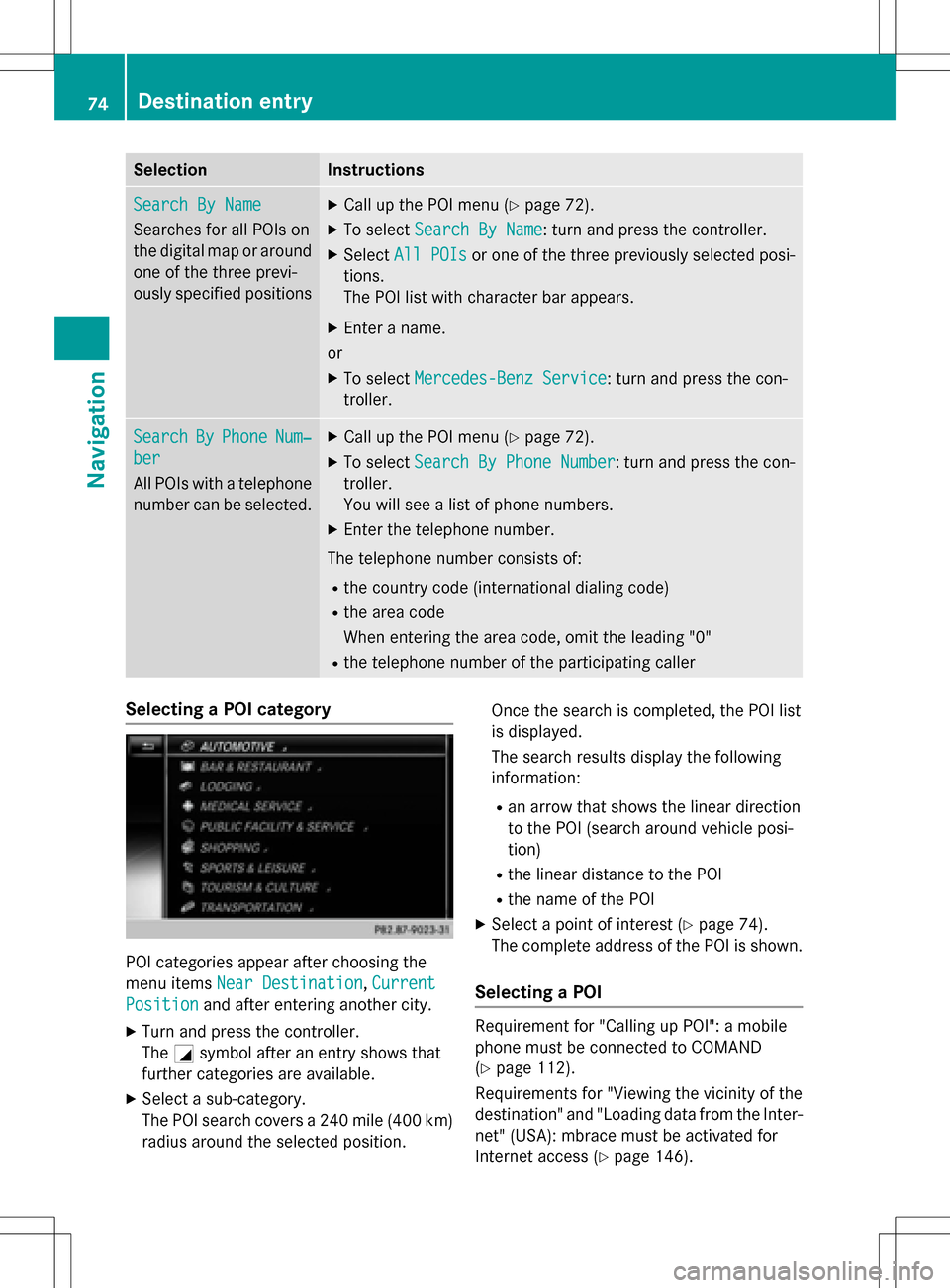
Selecting a POI category
POI categories appear after choosing the
menu items Near Destination
,Current
Positionand after entering another city.
XTurn and press the controller.
The Gsymbol after an entry shows that
further categories are available.
XSelect a sub-category.
The POI search covers a 240 mile (400 km)
radius around the selected position. Once the search is completed, the POI list
is displayed.
The search results display the following
information:
Ran arrow that shows the linear direction
to the POI (search around vehicle posi-
tion)
Rthe linear distance to the POI
Rthe name of the POI
XSelect a point of interest (Ypage 74).
The complete address of the POI is shown.
Selecting a POI
Requirement for "Calling up POI": a mobile
phone must be connected to COMAND
(
Ypage 112).
Requirements for "Viewing the vicinity of the
destination" and "Loading data from the Inter- net" (USA): mbrace must be activated for
Internet access (
Ypage 146).
74Destination entry
Navigation
Page 77 of 222
Requirementsfor "Viewin gth evicinit yof th e
destination "and "Loadin gdat afrom th eInter-
net" (Canada): amobile phone mus tbe con-
nected via Bluetoot h
®(Ypage 112) or USB
(
Ypage 198) wit hCOMAND .
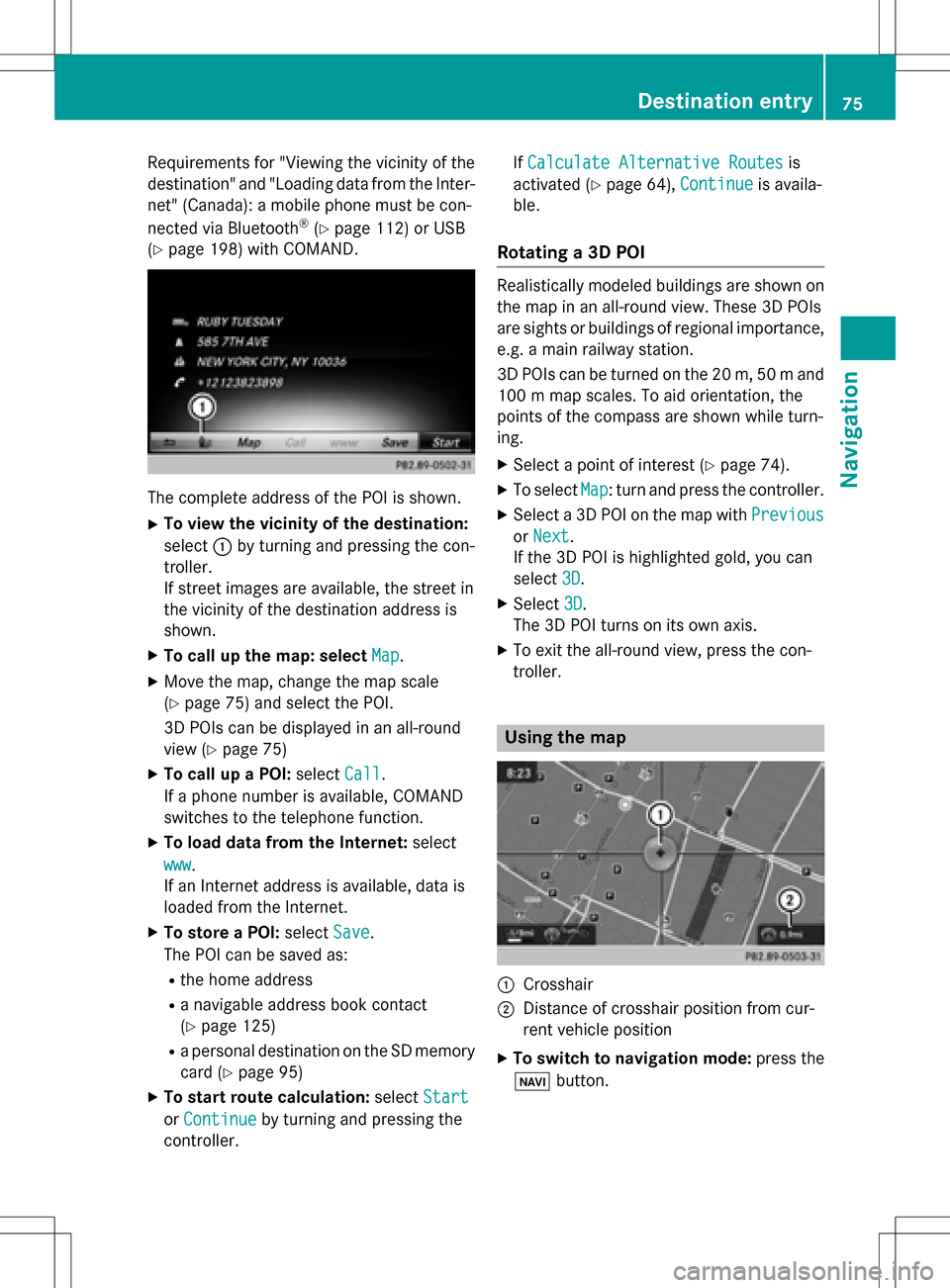
The complet eaddress of th ePOI is shown.
XTo view th evicinit yof th edestination:
select :by turning and pressing th econ-
troller.
If stree timages are available, th estree tin
th evicinit yof th edestination address is
shown.
XTo call up th emap: select Map.
XMoveth emap, chang eth emap scale
(
Ypage 75) and select th ePOI .
3D POI scan be displayed in an all-roun d
vie w (
Ypage 75 )
XTo call up aPOI: select Call.
If aphone number is available, COMAND
switches to th etelephon efunction .
XTo load data from th eInternet :select
www
.
If an Internet address is available, dat ais
loade dfrom th eInternet .
XTo store aPOI: select Save.
The POI can be saved as:
Rth ehom eaddress
Ranavigabl eaddress boo kcontact
(
Ypage 125)
Ra personal destination on th eSD memory
car d (
Ypage 95)
XTo star trout ecalculation: selectStart
orContinueby turning and pressing th e
controller . If
Calculate Alternative Routes
is
activated (
Ypage 64), Continueis availa-
ble.
Rotating a3D POI
Realisticall ymodeled building sare shown on
th emap in an all-roun dview. These 3D POI s
are sights or building sof regional importance,
e.g. amain railway station .
3D POI scan be turne don th e20 m, 50 mand
10 0 m map scales. To aid orientation ,th e
points of th ecompas sare shown while turn-
ing.
XSelec t apoin tof interes t (Ypage 74).
XTo selectMap:tur nand press th econtroller .
XSelect a3D POI on th emap wit hPrevious
or Nex t.
If th e3D POI is highlighte dgold ,you can
select 3D
.
XSelect3D.
The 3D POI turns on it sown axis.
XTo exit th eall-roun dview, press th econ-
troller.
Usin gth ema p
:Crosshai r
;Distanceof crosshair position from cur -
ren tvehicl eposition
XTo switch to navigation mode: press the
ß button.
Destination entry75
Navigation
Z