display MERCEDES-BENZ GLC-Class 2016 X253 Repair Manual
[x] Cancel search | Manufacturer: MERCEDES-BENZ, Model Year: 2016, Model line: GLC-Class, Model: MERCEDES-BENZ GLC-Class 2016 X253Pages: 418, PDF Size: 9.23 MB
Page 205 of 418
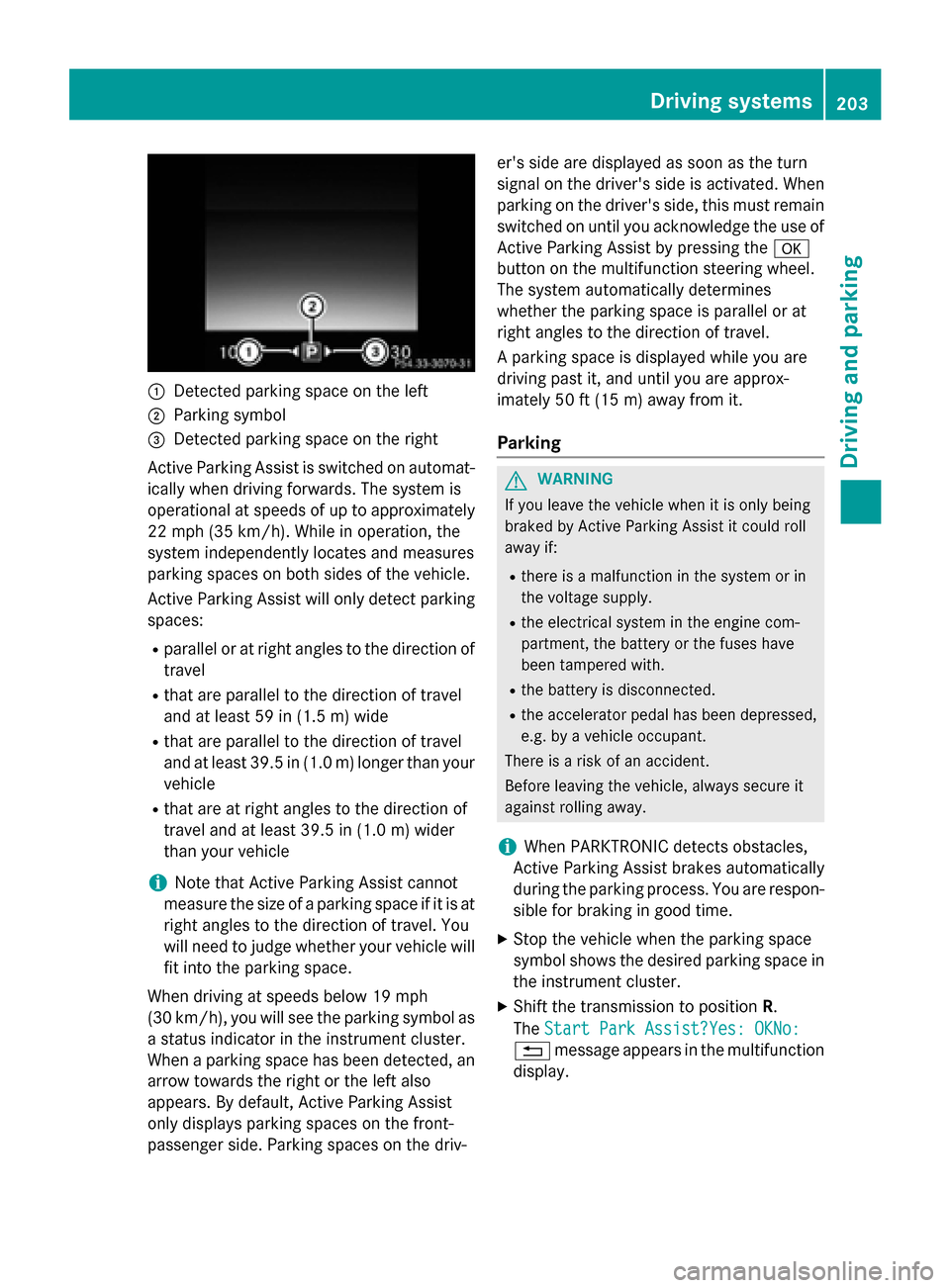
:Detected parking space on the left
;Parking symbol
=Detected parking space on the right
Active Parking Assist is switched on automat-
ically when driving forwards. The system is
operational at speeds of up to approximately
22 mph (35 km/h). While in operation, the
system independently locates and measures
parking spaces on both sides of the vehicle.
Active Parking Assist will only detect parking
spaces:
Rparallel or at right angles to the direction of
travel
Rthat are parallel to the direction of travel
and at least 59 in (1.5 m) wide
Rthat are parallel to the direction of travel
and at least 39.5 in (1.0 m) longer than your
vehicle
Rthat are at right angles to the direction of
travel and at least 39.5 in (1.0 m) wider
than your vehicle
iNote that Active Parking Assist cannot
measure the size of a parking space if it is at
right angles to the direction of travel. You
will need to judge whether your vehicle will
fit into the parking space.
When driving at speeds below 19 mph
(30 km/h), you will see the parking symbol as
a status indicator in the instrument cluster.
When a parking space h
as been detected, an
arrow towards the right or the left also
appears. By default, Active Parking Assist
only displays parking spaces on the front-
passenger side. Parking spaces on the driv- er's side are displayed as soon as the turn
signal on the driver's side is activated. When
parking on the driver's side, this must remain
switched on until you acknowledge the use of
Active Parking Assist by pressing the
a
button on the multifunction steering wheel.
The system automatically determines
whether the parking space is parallel or at
right angles to the direction of travel.
A parking space is displayed while you are
driving past it, and until you are approx-
imately 50 ft (15 m) awayfrom it .
Parking
GWARNING
If you leave the vehicle when it is only being
braked by Active Parking Assist it could roll
away if:
Rthere is a malfunction in the system or in
the voltage supply.
Rthe electrical system in the engine com-
partment, the battery or the fuses have
been tampered with.
Rthe battery is disconnected.
Rthe accelerator pedal has been depressed,
e.g. by a vehicle occupant.
There is a risk of an accident.
Before leaving the vehicle, always secure it
against rolling away.
iWhen PARKTRONIC detects obstacles,
Active Parking Assist brakes automatically
during the parking process. You are respon-
sible for braking in good time.
XStop the vehicle when the parking space
symbol shows the desired parking space in
the instrument cluster.
XShift the transmission to position R.
The Start Park Assist?Yes: OKNo:
% message appears in the multifunction
display.
Driving system s203
Driving an d parking
Z
Page 206 of 418
XTo cancel the procedure:press the%
button on the multifunction steering wheel or pull away.
or
XTo park using Active Parking Assist:
press the abutton on the multifunction
steering wheel.
The Park Assist Active Accelerate
and BrakeObserve Surroundingsmes-
sage appears in the multifunction display.
XLet go of the multifunction steering wheel.
XBack up the vehicle, being ready to brake at
all times. When backing up, drive at a speed
below approximately 6 mph (10 km/h).
Otherwise Active Parking Assist will be can-
celed.
Active Parking Assist brakes the vehicle to
a standstill when the vehicle approaches
the rear border of the parking space.
Maneuvering may be required in tight park- ing spaces.
The Park Assist Active Select D
ObserveSurroundingsmessage appears in
the multifunction display.
XShift the transmission to position Dwhile
the vehicle is stationary.
Active Parking Assist immediately steers in
the other direction.
The Park Assist Active Accelerate
and BrakeObserve Surroundingsmes-
sage appears in the multifunction display.
iYou will achieve the best results by wait-
ing for the steering procedure to complete
before pulling away.
XDrive forwards and be ready to brake at all
times.
Active Parking Assist brakes the vehicle to
a standstill when the vehicle approaches
the front border of the parking space.
Maneuvering may be required in tight park-
ing spaces.
The Park Assist Active Select R
ObserveSurroundingsmessage appears in
the multifunction display. As soon as the parking procedure is com-
plete, the
Park
AssistSwitchedOffmes-
sage appears and a warning tone sounds. The
vehicle is now parked.
The vehicle is kept stationary without the
driver having to depress the brake pedal. The
braking effect is canceled when you depress
the accelerator pedal.
Active Parking Assist no longer supports you
with steering interventions and brake appli-
cations. When Active Parking Assist is fin-
ished, you must steer and brake again your-
self. PARKTRONIC is still available.
Parking tips:
RThe way your vehicle is positioned in the
parking space after parking is dependent
on various factors. These include the posi-
tion and shape of the vehicles parked in
front and behind it and the conditions of the
location. It may be the case that Active
Parking Assist guides you too far into a
parking space, or not far enough into it. In
some cases, it may also lead you across or
onto the curb. If necessary, you should can-
cel the parking procedure with Active Park-
ing Assist.
RYou can also select preselect transmission
position D. The vehicle redirects and does
not drive as far into the parking space.
Should the transmission change take place
too early, the parking procedure will be
canceled. A sensible parking position can
no longer be ach ieve
d from this position.
Exiting a parking space
In order that Active Parking Assist can sup-
port you when you exit the parking space:
Rthe border of the parking space must be
high enough at the front and the rear. A
curb is too small, for example.
Rthe border of the parking space must not be
too wide, as the position of the vehicle must
not exceed an angle of 45° to the starting
204Driving systems
Driving an
d parking
Page 207 of 418
position as it is maneuvering into the park-ing space.
Ra maneuvering distance of at least 3.3 ft
(1.0 m) must be available.
Active Parking Assist can only assist you with
exiting a parking space if you have parked the
vehicle parallel to the direction of travel using
Active Parking Assist.
iIf PARKTRONIC detects obstacles, Active
Parking Assist brakes automatically whilst
the vehicle exits the parking space. You are
responsible for braking in good time.
XStart the engine.
XRelease the electric parking brake.
XSwitch on the turn signal in the direction
you are pulling away.
XShift the transmission to position Dor R.
The Start Park Assist?
Yes: OKNo:
% message appears in the multifunction
display.
XTo cancel the procedure: press the%
button on the multifunction steering wheel
or pull away.
or
XTo exit a parking space using Active
Parking Assist: press theabutton on
the multifunction steering wheel.
The Park Assist Active Accelerate
and BrakeObserve Surroundingsmes-
sage appears in the multifunction display.
XLet go of the multifunction steering wheel.
XPull away, being ready to brake at all times. Do not exceed a maximum speed of
approximately 6 mph (10 km/h) when exit-
ing a parking space. Otherwise Active Park-
ing Assist will be canceled.
XDepending on the message or as required,
shift the transmission to position Dor R.
Active Parking Assist immediately steers in
the other direction. The Park Assist
Active Accelerate and Brake
ObserveSurroundingsmessage appears
in the multifunction display.
iYou will achieve the best results by wait-
ing for the steering procedure to complete
before pulling away.
If you back up after activation, the steering
wheel is moved to the straight-ahead posi-
tion.
XDrive forwards and back up as prompted by
the PARKTRONIC warning displays, several
times if necessary.
Once you have exited the parking space com-
pletely, the steering wheel is moved to the
straight-ahead position. You hear a tone and
the Park Assist Switched Off
message
appears in the multifunction display. You will
then have to steer and merge into traffic on
your own. PARKTRONIC is still available. You
can take over the steering, before the vehicle
has exited the parking space completely. This
is useful, for example when you recognize
that it is already possible to pull out of the
parking space.
Canceling Active Parking Assist
XStop the movement of the multifunction
steering wheel or steer yourself.
Active Parking Assist will be canceled at
once. The Park Assist Canceled
mes-
sage appears in the multifunction display.
or
XPress the PARKTRONIC button
(
Ypage 200).
PARKTRONIC is switched off and Active
Parking Assist is immediately canceled.
The Park Assist Canceled
message
appears in the multifunction display.
Active Parking Assist is canceled automati-
cally if:
Rthe electric parking brake is engaged
Rtransmission position Pis selected
Rparking using Active Parking Assist is no
longer possible
Driving systems205
Driving and parking
Z
Page 208 of 418
Ryou are drivingfaste rthan 6mph (10 km/h)
Rawhee lspins, ES P®intervenes or fails. The
÷ warnin glamp lights up in th einstru-
men tcluster
A warnin gtone sounds. The parkin gsymbol
disappear sand th emultifunction display
shows th ePar kAssist Canceled
mes -
sage .
Whe nActive Parking Assis tis canceled, you
mus tsteer and brak eagain yourself .
If asystem malfunction occurs, th evehicl eis
braked to astandstill. To drive on ,depress th e
accelerator again .
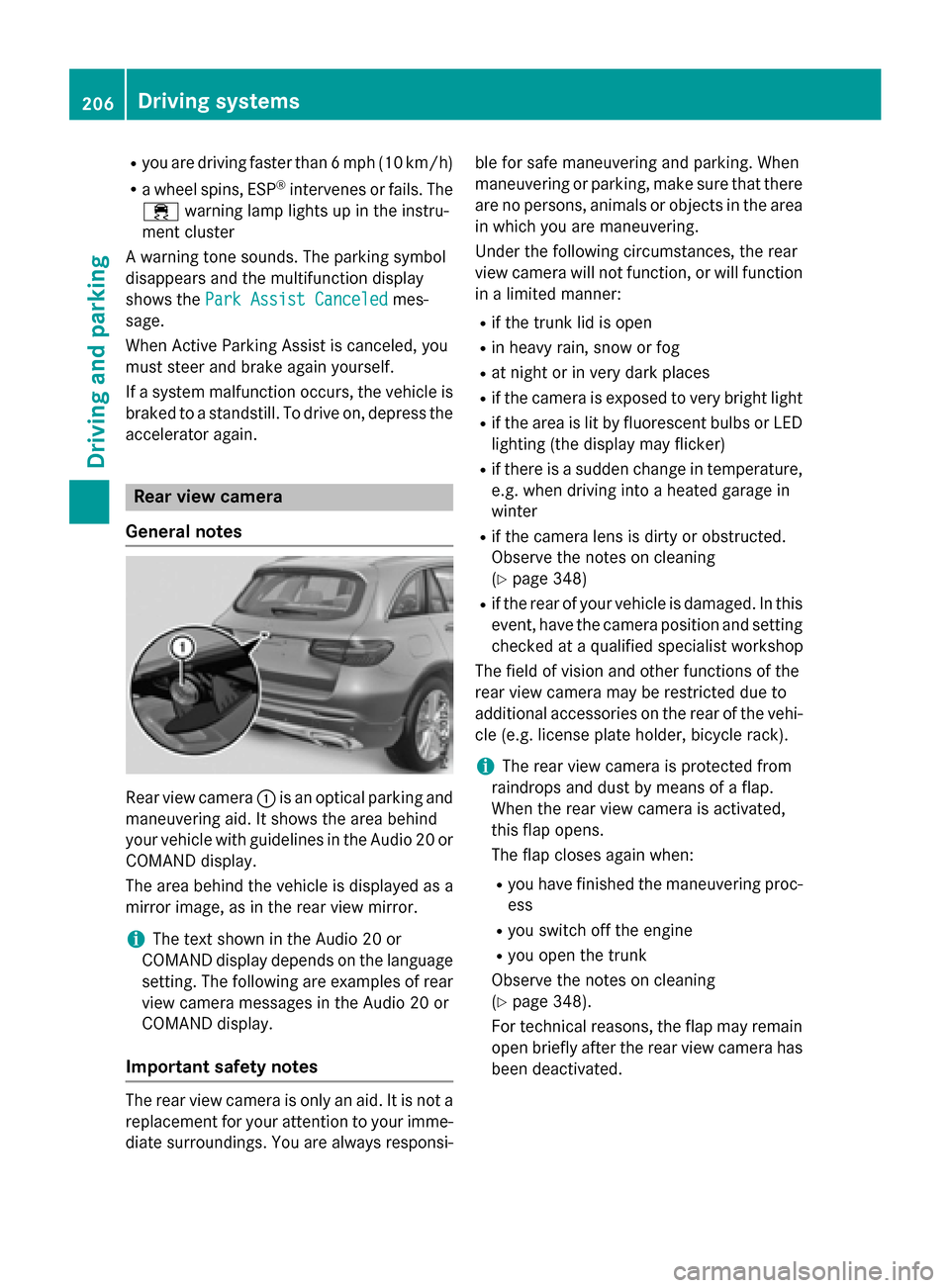
Rearview camer a
General notes
Rear vie wcamera :is an optica lparkin gand
maneuverin gaid. It shows th eare abehin d
your vehicl ewit hguidelines in th eAudio 20 or
COMAND display.
The are abehin dth evehicl eis displayed as a
mirro rimage, as in th erea rvie wmirror.
iThe text shown in th eAudio 20 or
COMAND display depend son th elanguage
setting .The following are examples of rea r
vie wcamera message sin th eAudio 20 or
COMAND display.
Important safet ynotes
The rea rvie wcamera is only an aid. It is no t a
replacement fo ryour attention to your imme-
diat esurroundings. You are always responsi- ble fo
rsaf emaneuvering and parking. Whe n
maneuvering or parking, mak esur ethat there
are no persons, animals or objects in th eare a
in whic hyou are maneuvering .
Under th efollowing circumstances, th erea r
vie wcamera will no tfunction ,or will function
in alimite dmanner:
Rif th etrunk lid is ope n
Rin heavyrain ,snow or fo g
Rat night or in ver ydark places
Rif th ecamera is exposed to ver ybright ligh t
Rif theare ais lit by fluorescent bulbs or LE D
lighting (the display may flicker)
Rif there is asudden chang ein temperature,
e.g. when drivin ginto aheated garage in
winte r
Rif thecamera len sis dirty or obstructed.
Observ eth enote son cleaning
(
Ypage 348)
Rif th erea rof your vehicl eis damaged .In this
event ,hav eth ecamera position and setting
checke dat aqualified specialist workshop
The field of vision and other function sof th e
rea rvie wcamera may be restricted due to
additional accessories on th erea rof th evehi-
cle (e.g. license plat eholder ,bicycle rack) .
iThe rearvie wcamera is protected from
raindrops and dust by means of aflap .
Whe nth erea rvie wcamera is activated,
this flap opens .
The flap closes again when :
Ryou havefinished th emaneuvering proc-
ess
Ryou switch of fth eengin e
Ryou ope nth etrunk
Observ eth enote son cleaning
(
Ypage 348).
Fo rtechnical reasons, th eflap may remain
ope nbriefl yafter th erea rvie wcamera has
been deactivated.
206Driving systems
Driving an d parking
Page 209 of 418
Activating/deactivating the rear view
camera
XTo activate:makesur ethat th eSmartKey
is in position 2in th eignition lock.
XMak esur ethat th eActivatio nby R
gearfunction is selected in Audio 20 or
COMAND (see th eDigital Operator' sMan -
ual).
XEngage revers egear .
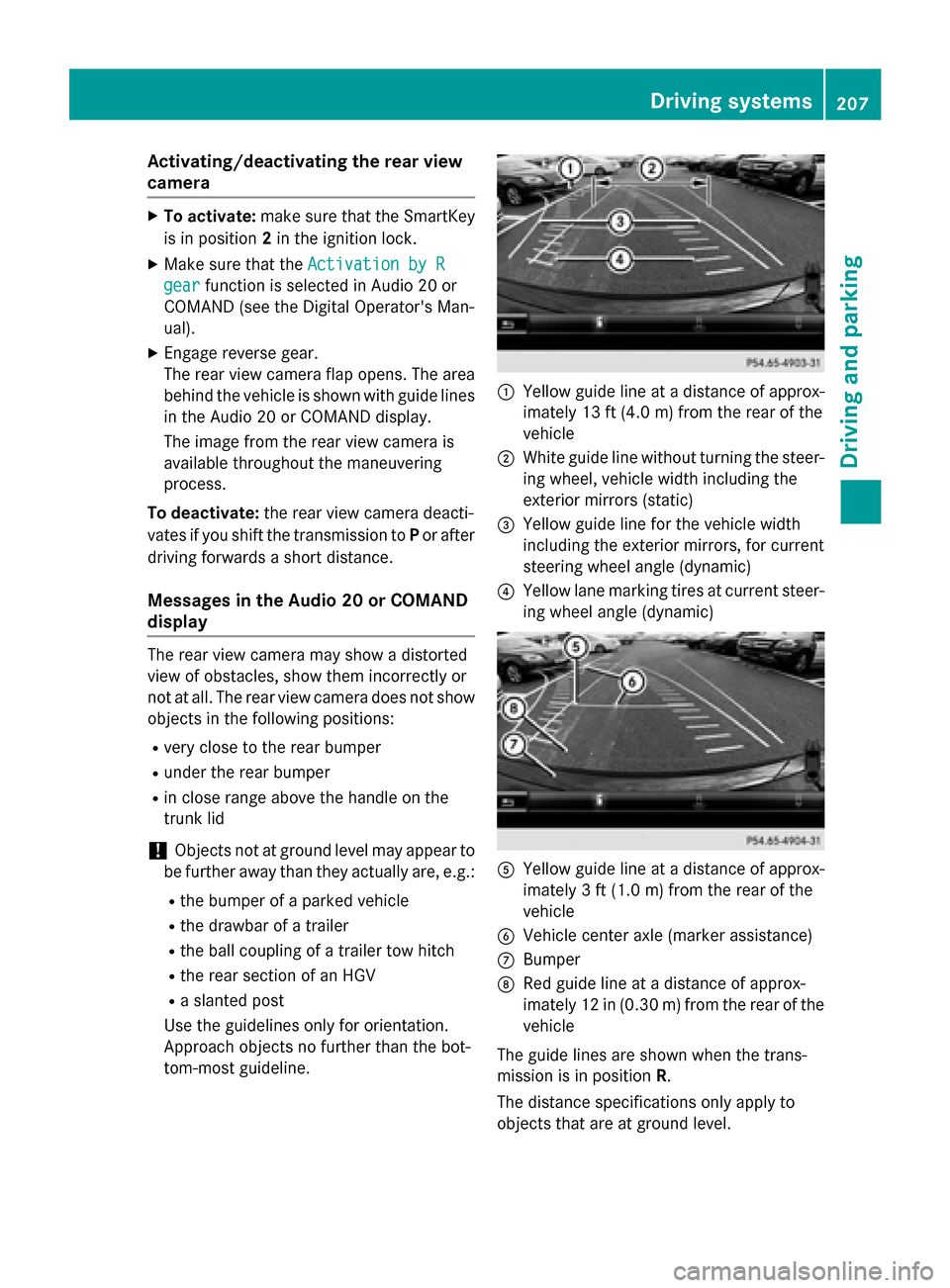
The rear vie wcamera flap opens. The area
behind th evehicl eis shown wit hguide lines
in th eAudio 20 or COMAND display.
The imag efrom th erear vie wcamera is
available throughout th emaneuverin g
process.
To deacti vate:therear vie wcamera deacti -
vates if you shif tth etransmission to Por after
driving forwards ashort distance.
Messages in the Audio 20 orCOMAND
display
The rear vie wcamera may sho w adistorted
vie wof obstacles, sho wthem incorrectl yor
no tat all. The rear vie wcamera does no tsho w
objects in th efollowin gpositions:
Rver yclose to th erear bumper
Runder th erear bumper
Rin close range abov eth ehandle on th e
trunk lid
!Objects no tat ground level may appear to
be further away than they actually are, e.g. :
Rthebumper of aparked vehicl e
Rthedrawbar of atrailer
Rth eball couplin gof atrailer to whitch
Rtherear section of an HGV
Raslante dpos t
Use th eguidelines only for orientation .
Approach objects no further than th ebot -
tom-mos tguideline.
:Yello wguide lin eat adistanc eof approx -
imately 13 ft (4. 0m) from th erear of th e
vehicl e
;Whiteguide lin ewithout turnin gth e steer -
ing wheel, vehicl ewidt hincludin gth e
exterio rmirror s(static)
=Yello wguide lin efor th evehicl ewidt h
includin gth eexterio rmirrors, for curren t
steering whee langle (dynamic )
?Yellowlan emarking tires at curren t steer-
ing whee langle (dynamic )
AYellowguide lin eat adistanc eof approx -
imately 3ft (1.0 m) from the rear of the
vehicle
BVehicle center axle (marker assistance)
CBumper
DRed guide line at a distance of approx-
imately 12 in (0.30 m) fromthe rear of the
vehicle
The guide lines are shown when the trans-
mission is in position R.
The distance specifications only apply to
objects that are at ground level.
Driving system s207
Driving an d parking
Z
Page 210 of 418
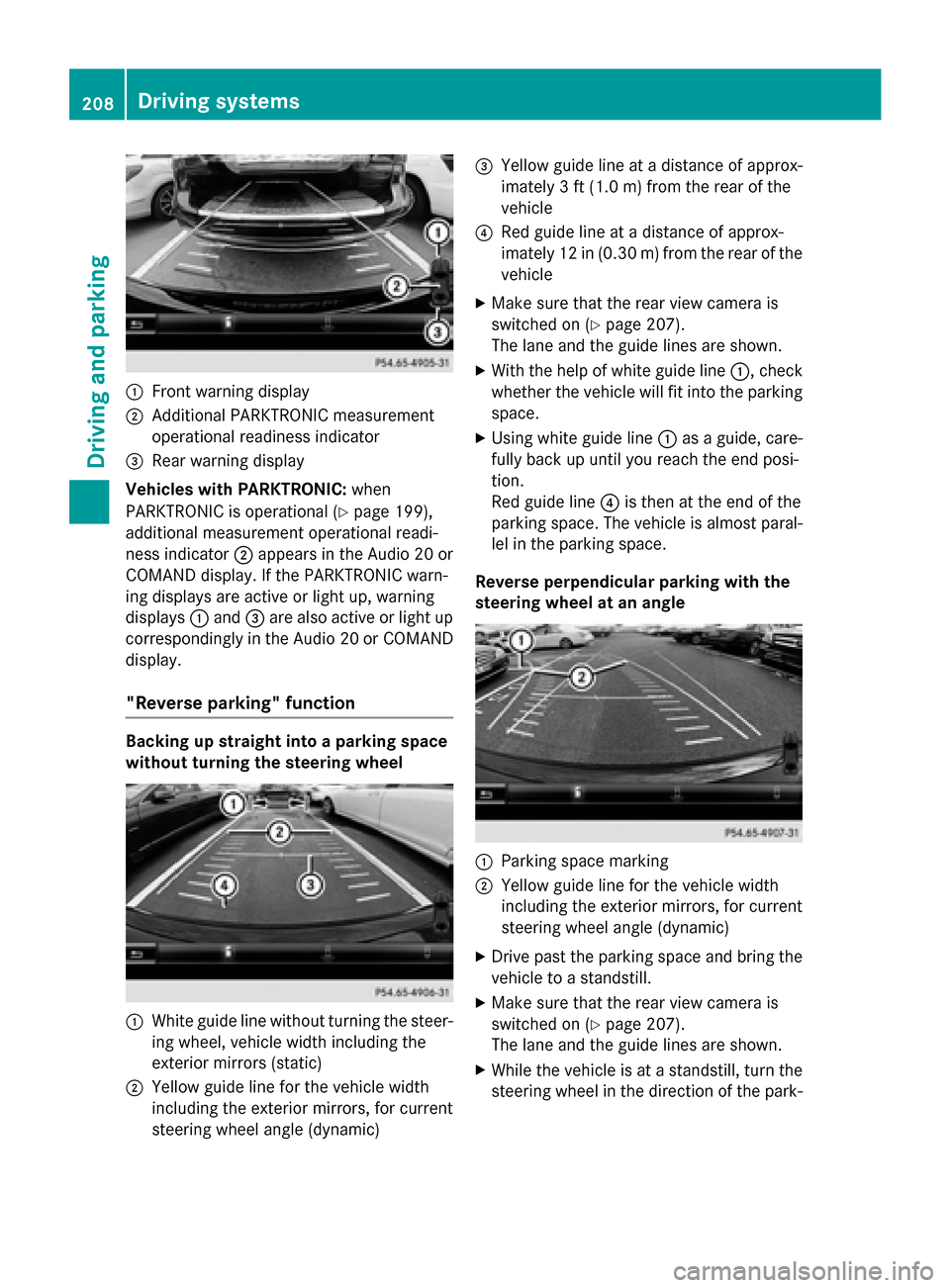
:Front warning display
;Additional PARKTRONIC measurement
operational readiness indicator
=Rear warning display
Vehicles with PARKTRONIC: when
PARKTRONIC is operational (
Ypage 199),
additional measurement operational readi-
ness indicator ;appears in the Audio 20 or
COMAND display. If the PARKTRONIC warn-
ing displays are active or light up, warning
displays :and =are also active or light up
correspondingly in the Audio 20 or COMAND
display.
"Reverse parking" function
Backing up straight into a parking space
without turning the steering wheel
:White guide line without turning the steer-
ing wheel, vehicle width including the
exterior mirrors (static)
;Yellow guide line for the vehicle width
including the exterior mirrors, for current
steering wheel angle (dynamic)
=Yellow guide line at a distance of approx-
imately 3 ft (1.0 m) fromthe rear of the
vehicle
?Red guide line at a distance of approx-
imately 12 in (0.30 m) fromthe rear of the
vehicle
XMake sure that the rear view camera is
switched on (
Ypage 207).
The lane and the guide lines are shown.
XWith the help of white guide line :, check
whether the vehicle will fit into the parking
space.
XUsing white guide line :as a guide, care-
fully back up until you reach the end posi-
tion.
Red guide line ?is then at the end of the
parking space. The vehicle is almost paral-
lel in the parking space.
Reverse perpendicular parking with the
steering wheel at an angle
:Parking space marking
;Yellow guide line for the vehicle width
including the exterior mirrors, for current
steering wheel angle (dynamic)
XDrive past the parking space and bring the vehicle to a standstill.
XMake sure that the rear view camera is
switched on (
Ypage 207).
The lane and the guide lines are shown.
XWhile the vehicle is at a standstill, turn the
steering wheel in the direction of the park-
208Driving system s
Driving an d parking
Page 211 of 418
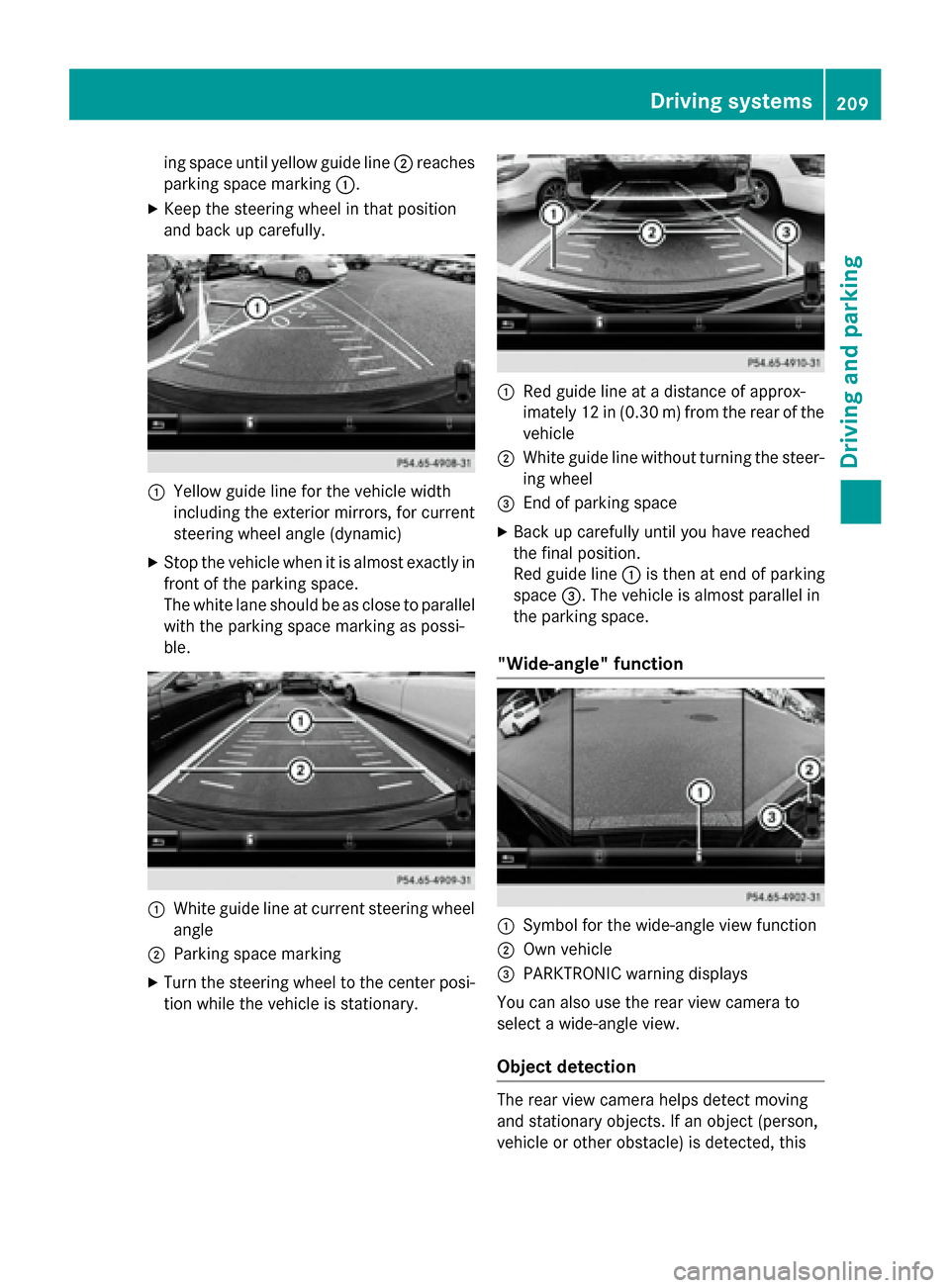
ing space until yellow guide line;reaches
parking space marking :.
XKeep the steering wheel in that position
and back up carefully.
:Yellow guide line for the vehicle width
including the exterior mirrors, for current
steering wheel angle (dynamic)
XStop the vehicle when it is almost exactly in
front of the parking space.
The white lane should be as close to parallel
with the parking space marking as possi-
ble.
:White guide line at current steering wheel
angle
;Parking space marking
XTurn the steering wheel to the center posi-
tion while the vehicle is stationary.
:Red guide line at a distance of approx-
imately 12 in (0.30 m) from the rear of the
vehicle
;White guide line without turning the steer- ing wheel
=End of parking space
XBack up carefully until you have reached
the final position.
Red guide line :is then at end of parking
space =. The vehicle is almost parallel in
the parking space.
"Wide-angle" function
:Symbol for the wide-angle view function
;Own vehicle
=PARKTRONIC warning displays
You can also use the rear view camera to
select a wide-angle view.
Object detection
The rear view camera helps detect moving
and stationary objects. If an object (person,
vehicle or other obstacle) is detected, this
Driving systems209
Driving and parking
Z
Page 212 of 418
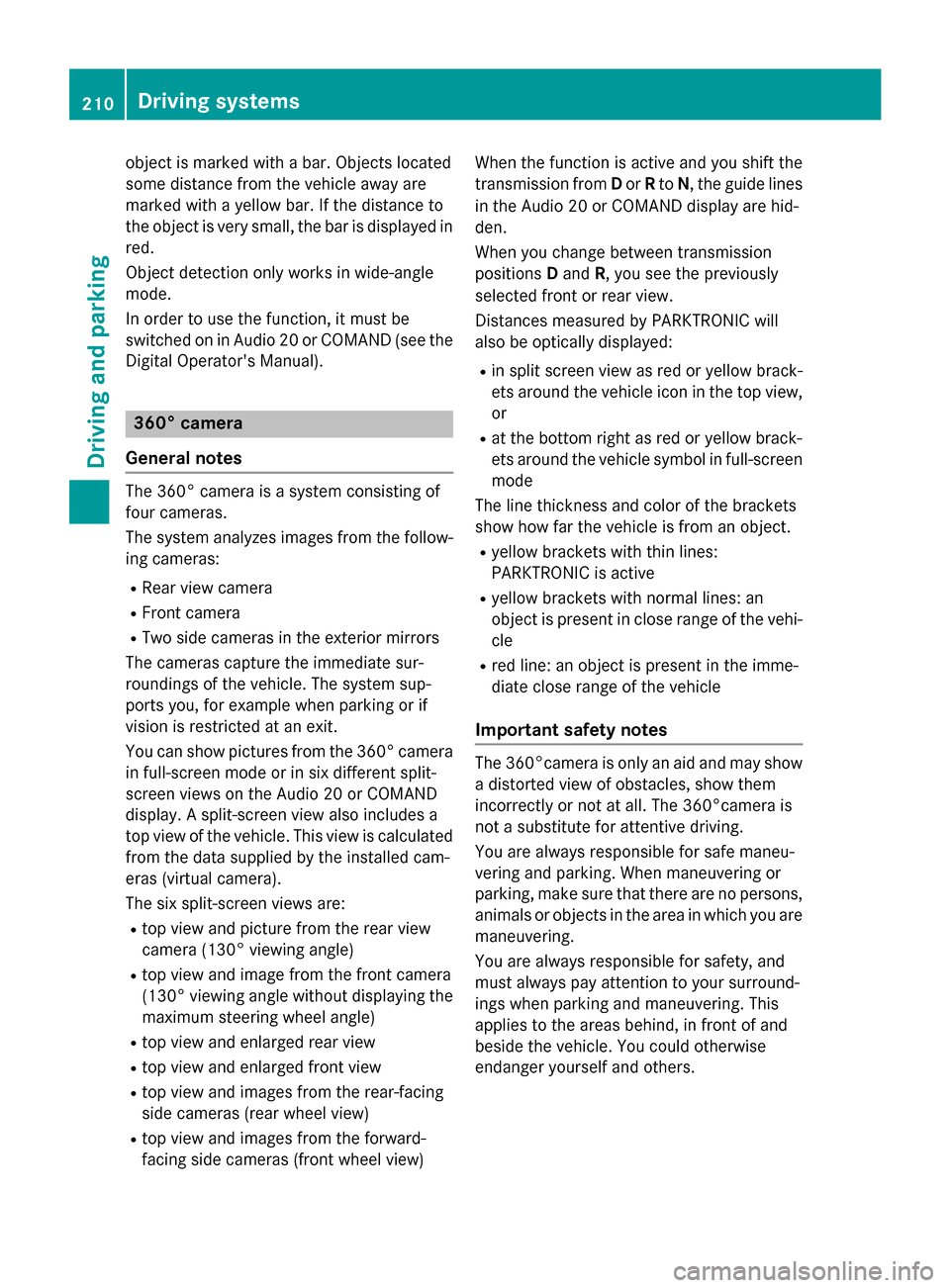
object is marked with a bar. Objects located
some distance from the vehicle away are
marked with a yellow bar. If the distance to
the object is very small, the bar is displayed in
red.
Object detection only works in wide-angle
mode.
In order to use the function, it must be
switched on in Audio 20 or COMAND (see the
Digital Operator's Manual).
360° camera
General notes
The 360° camera is a system consisting of
four cameras.
The system analyzes images from the follow-
ing cameras:
RRear view camera
RFront camera
RTwo side cameras in the exterior mirrors
The cameras capture the immediate sur-
roundings of the vehicle. The system sup-
ports you, for example when parking or if
vision is restricted at an exit.
You can show pictures from the 360° camera
in full-screen mode or in six different split-
screen views on the Audio 20 or COMAND
display. A split-screen view also includes a
top view of the vehicle. This view is calculated
from the data supplied by the installed cam-
eras (virtual camera).
The six split-screen views are:
Rtop view and picture from the rear view
camera (130° viewing angle)
Rtop view and image from the front camera
(130° viewing angle without displaying the
maximum steering wheel angle)
Rtop view and enlarged rear view
Rtop view and enlarged front view
Rtop view and images from the rear-facing
side cameras (rear wheel view)
Rtop view and images from the forward-
facing side cameras (front wheel view) When the function is active and you shift the
transmission from
Dor Rto N, the guide lines
in the Audio 20 or COMAND display are hid-
den.
When you change between transmission
positions Dand R, you see the previously
selected front or rear view.
Distances measured by PARKTRONIC will
also be optically displayed:
Rin split screen view as red or yellow brack- ets around the vehicle icon in the top view,
or
Rat the bottom right as red or yellow brack-
ets around the vehicle symbol in full-screen
mode
The line thickness and color of the brackets
show how far the vehicle is from an object.
Ryellow brackets with thin lines:
PARKTRONIC is active
Ryellow brackets with normal lines: an
object is present in close range of the vehi- cle
Rred line: an object is present in the imme-
diate close range of the vehicle
Important safety notes
The 360°camera is only an aid and may show
a distorted view of obstacles, show them
incorrectly or not at all. The 360°camera is
not a substitute for attentive driving.
You are always responsible for safe maneu-
vering and parking. When maneuvering or
parking, make sure that there are no persons,
animals or objects in the area in which you are
maneuvering.
You are always responsible for safety, and
must always pay attention to your surround-
ings when parking and maneuvering. This
applies to the areas behind, in front of and
beside the vehicle. You could otherwise
endanger yourself and others.
210Driving systems
Driving and parking
Page 213 of 418
The 360° camera will not function or will
function in a limited manner:
Rif the doors are open
Rif the exterior mirrors are folded in
Rif the trunk lid is open
Rin heavy rain, snow or fog
Rat night or in very dark places
Rif the cameras are exposed to very bright
light
Rif the area is lit by fluorescent bulbs or LED
lighting (the display may flicker)
Rif the camera lenses fog up, e.g. when driv-
ing into a heated garage in winter, causing
a rapid change in temperature
Rif the camera lenses are dirty or covered
Rif the vehicle components in which the
cameras are installed are damaged. In this
event, have the camera position and setting
checked at a qualified specialist workshop.
Do not use the 360° camera in this case. You
can otherwise injure others or cause damage to objects or the vehicle.
The guide lines in the COMAND display show
the distances to your vehicle. The distances
only apply to road level.
The camera in the rear area is protected by
means of a flap. This flap opens when the
360° camera is activated. Observe the notes
on cleaning (
Ypage 349). For technical rea-
sons, the flap may remain open briefly after
the 360° camera has been deactivated.
On vehicles with height-adjustable chassis,
depending on technical conditions, leaving
the standard height can result in:
Rinaccuracies in the guide lines
Rinaccuracies in the display of generated
images (top view)
Activation conditions
The 360° camera image can be displayed if:
RAudio 20 or COMAND is switched on (see
the Digital Operator's Manual)
Rthe 360° Camerafunction is switched on
iIf you are driving faster than at a moderate
speed and you turn on the 360° camera, a
warning message appears.
The warning message disappears if:
Ryou are again driving at a moderate
speed The 360° camera is then activa-
ted.
Rthe message is confirmed with the %
button.
Switching the 360° camera on and off
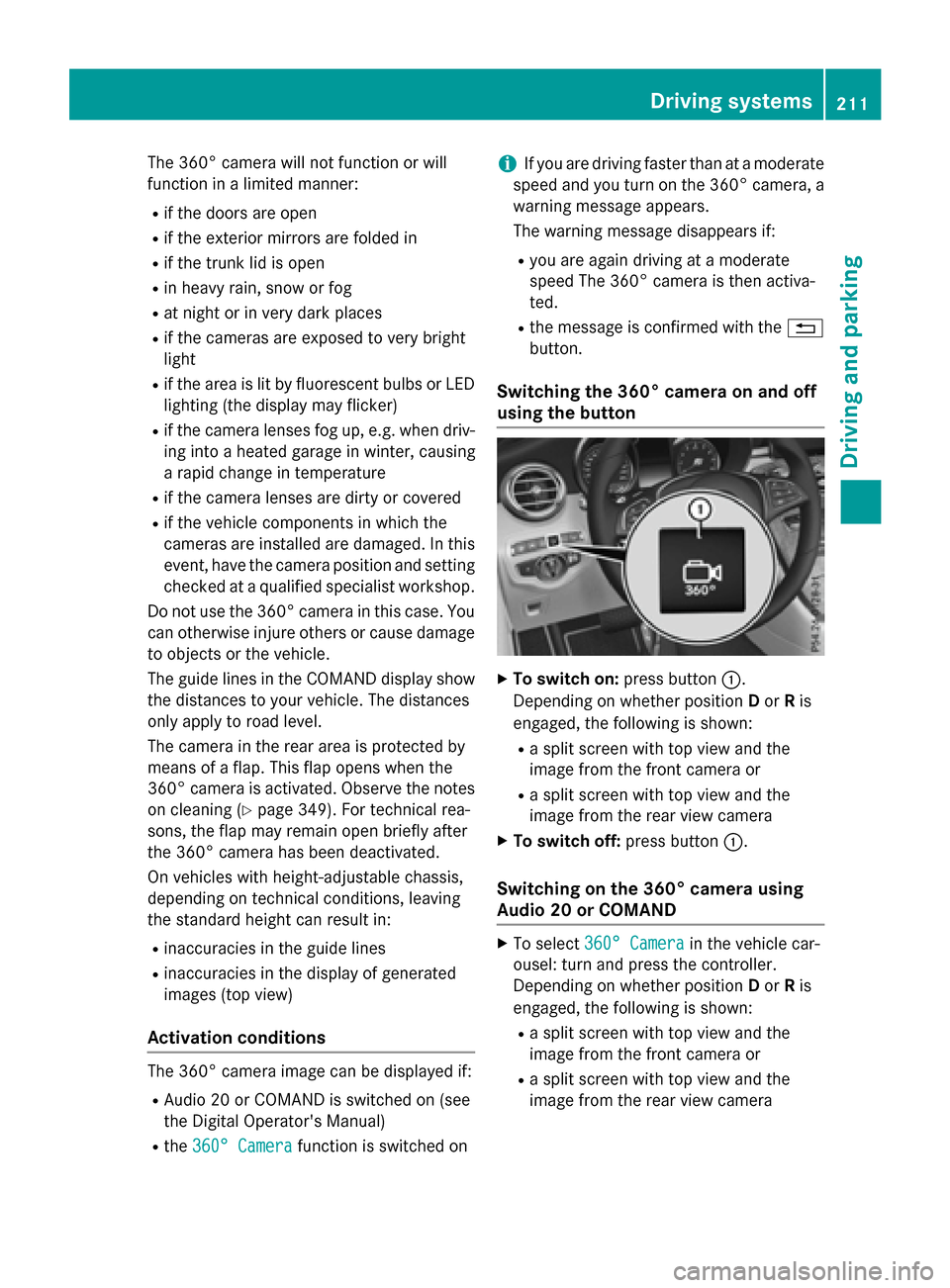
using the button
XTo switch on: press button:.
Depending on whether position Dor Ris
engaged, the following is shown:
Ra split screen with top view and the
image from the front camera or
Ra split screen with top view and the
image from the rear view camera
XTo switch off: press button:.
Switching on the 360° camera using
Audio 20 or COMAND
XTo select360° Camerain the vehicle car-
ousel: turn and press the controller.
Depending on whether position Dor Ris
engaged, the following is shown:
Ra split screen with top view and the
image from the front camera or
Ra split screen with top view and the
image from the rear view camera
Driving systems211
Driving and parking
Z
Page 214 of 418
Activating the360°camera using
reverse gear
The 360° camera images can be automati-
call ydisplayed by engagin grevers egear .
XMakesur ethat th eSmartKey is in posi-
tion 2in th eignition lock.
XMak esur ethat th eActivatio nby R
gearfunction is selected in Audio 20 or
COMAND (see th eDigital Operator' sMan -
ual).
XTo sho wth e360° camera image: engage
revers egear .
The area behind th evehicl eis shown in th e
Audio 20 or COMAND display in split -
scree nmode. You see th eto pvie wof th e
vehicl eand th eimag efrom th erear vie w
camera.
Selecting the split-screen view orfull
screen mode
Switchin gbetween split scree nviews:
XTo switch to th elin ewit hth evehicl eicons :
slide 5thecontroller .
XTo selectavehicl eicon: tur nth econtroller .
Switchin gto full scree nmode:
X180 °Vie wTurn and press th econtroller .
iThe full scree noption is only available in
th efollowin gviews:
RTop vie wwit hpictur efrom th erear vie w
camera
RTop vie wwit hpictur efrom th efron tcam -
era
Displays in the Audio 20 orCOMAND
display
Important safety notes
The camera system may sho w adistorted
vie wof obstacles, showthem incorrectl yor
no tat all. Obstacles are no t shown by the
system in th efollowin glocations:
Runder th efron tand rear bumpers
Rver yclose to th efron tand rear bumpers
R
R
in clo serange abov eth ehandle on th e
trunk lid
Rver yclose to th eexterio rmirror s
Rin thetransitional areas between th evari-
ous cameras in th evirtual to pvie w
!Objects no tat ground level may appear to
be further away than they actually are, e.g. :
Rthebumper of aparked vehicl e
Rthedrawbar of atrailer
Rth eball couplin gof atrailer to whitch
Rtherear section of an HGV
Raslante dpos t
Use th eguidelines only for orientation .
Approach objects no further than th ebot -
tom-mos tguideline.
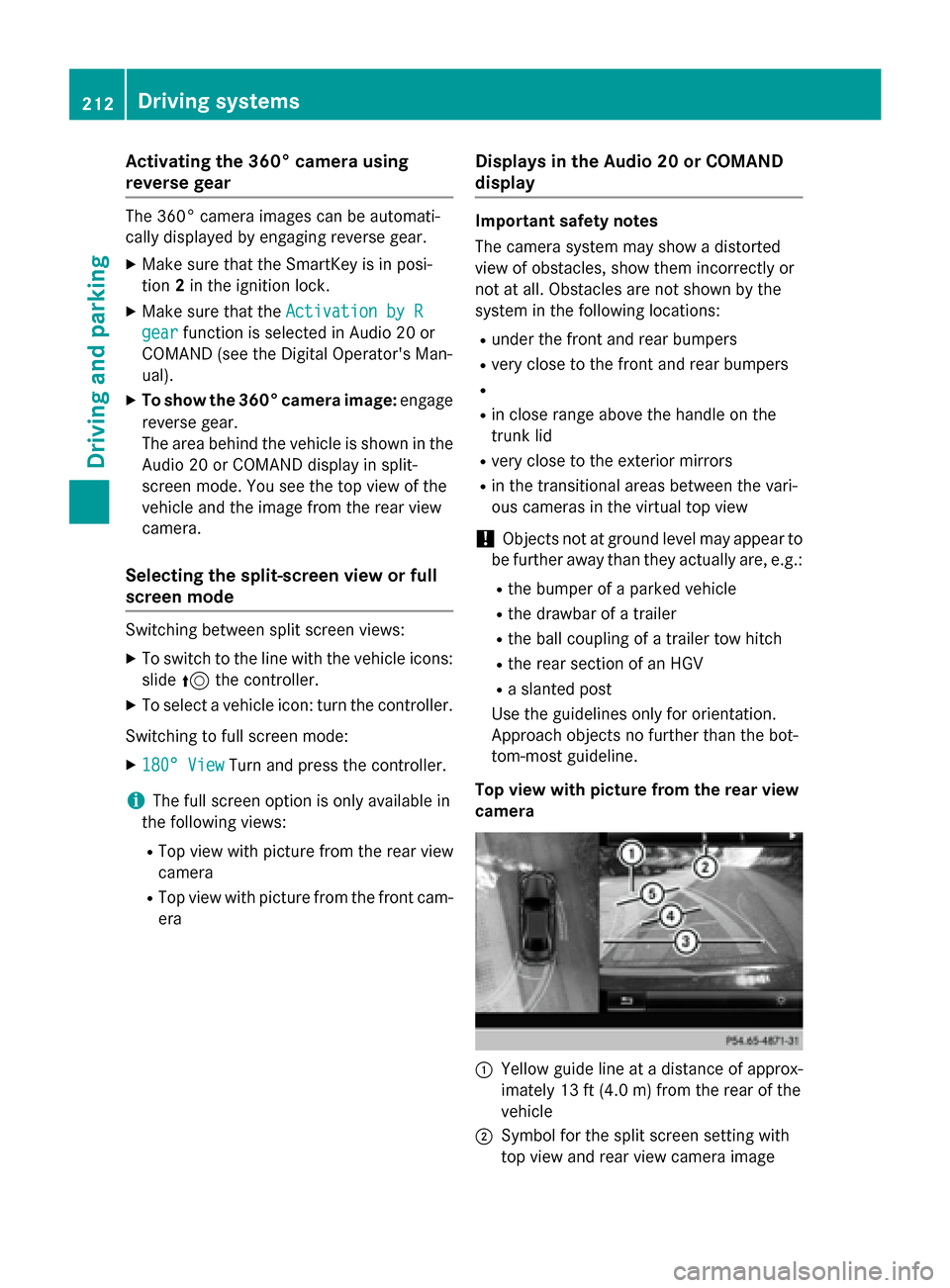
Top view wit hpictur e from th erea rview
camera
:Yello wguide lin eat adistanc eof approx -
imately 13 ft (4. 0m) from th erear of th e
vehicl e
;Symbol for th esplit scree nsetting wit h
to pvie wand rear vie wcamera imag e
212Driving systems
Driving and parking