display MERCEDES-BENZ GLC COUPE 2019 Manual PDF
[x] Cancel search | Manufacturer: MERCEDES-BENZ, Model Year: 2019, Model line: GLC COUPE, Model: MERCEDES-BENZ GLC COUPE 2019Pages: 657, PDF Size: 11.28 MB
Page 274 of 657
R
Limiter (/ page213)
R Active Dis tance Assi stDISTRONIC
(/ page 216)
* NO
TEEngine dama gedue toexc essively
high engine speeds The engine will be damaged if
you drive with
th e engine in theov errevving range. #
Do not drive wi th the engine in theove r‐
re vving range. The fuel supply will be inter
rupted toprotect the
engine when there d mark on there v counter
(o ve rrev ving range) is reached.
During no rmal operating conditions, the coolant
te mp erature display 4may rise to120 °C. &
WARNING Danger of bu rns when open‐
ing the bonn et
If yo u open the engine bonn etwhen the
engine has overheated or during a fire inthe
engine compartment, you could come into
contact with hot gases or other escaping
operating fluids. #
Before opening the bonn et, allow the
engine tocool down. #
Intheeve nt of a fire inthe engine com‐
partment, keep the engine bonn et
closed and call thefire service. Ve
hicles with a 48 V on-board electrical sys‐
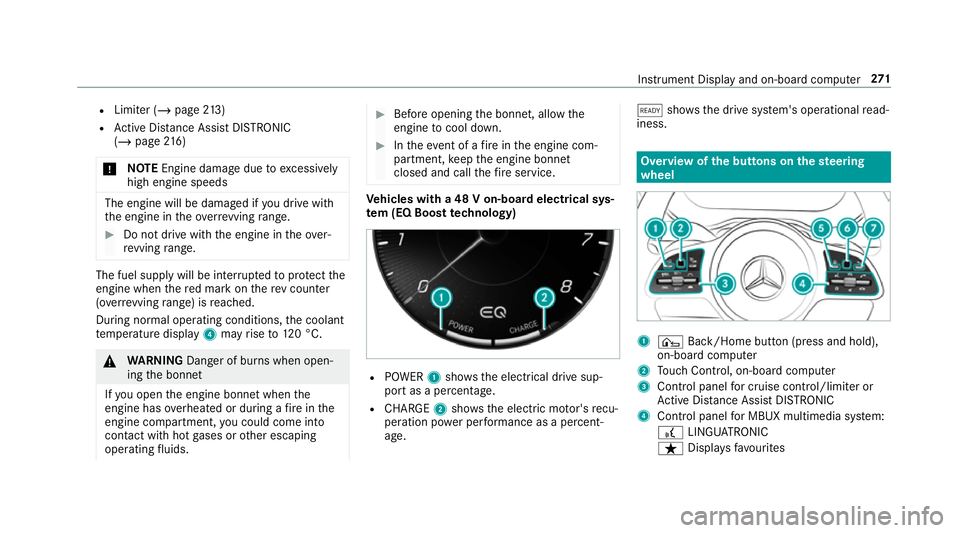
te m (EQ Boo sttech nology) R
POWER 1shows th e electrical drive sup‐
port as a percentage.
R CHARGE 2showsthe electric mo tor's recu‐
peration po wer per form ance as a percent‐
age. õ
showsthe drive sy stem's operational read‐
iness. Overview of
the but tons on thest eering
wheel 1
¤ Back/Home button (press and hold),
on-board computer
2 Touch Control, on-board co mputer
3 Control panel for cruise control/limiter or
Ac tive Dis tance Assi stDISTRONIC
4 Control panel for MBUX multimedia sy stem:
£ LINGU ATRO NIC
ß Displa ysfavo urites In
stru ment Display and on-board computer 271
Page 275 of 657
VO
L: control knob, adjusts thevo lume or
switches the sound off 8(press)
6 Makes/accepts a call
~ Rejects/ends a call
5 ò Calls up the home screen
6 Touch Control multimedia sy stem
7 % Back button Operating
the on-boa rdcompu ter
Mercedes-AMG vehicles: observeth e no tes in
th e Supplement. Otherwise, you may failto rec‐
ognise dangers. &
WARNING Risk of di stra ction from infor‐
mation sy stems and communications
equipment
If yo u operate information and communica‐
tion equipment integ rated in theve hicle
when driving, you will be distracted from the
traf fic situation. This could also cause youto
lose control of theve hicle. #
Only operate this equipment when the
traf fic situation permits. #
Ifyo u cannot be sure of this, stop the
ve hicle whilst paying attention toroad
and traf fic conditions and ope rate the
equipment with theve hicle stationar y. Obser
vethe legal requ irements forth e count ry
in which you are cur rently driving when operat‐
ing the on-board computer.
% The on-board computer displa yswill appear
on the multifunction display (/ page274). The on
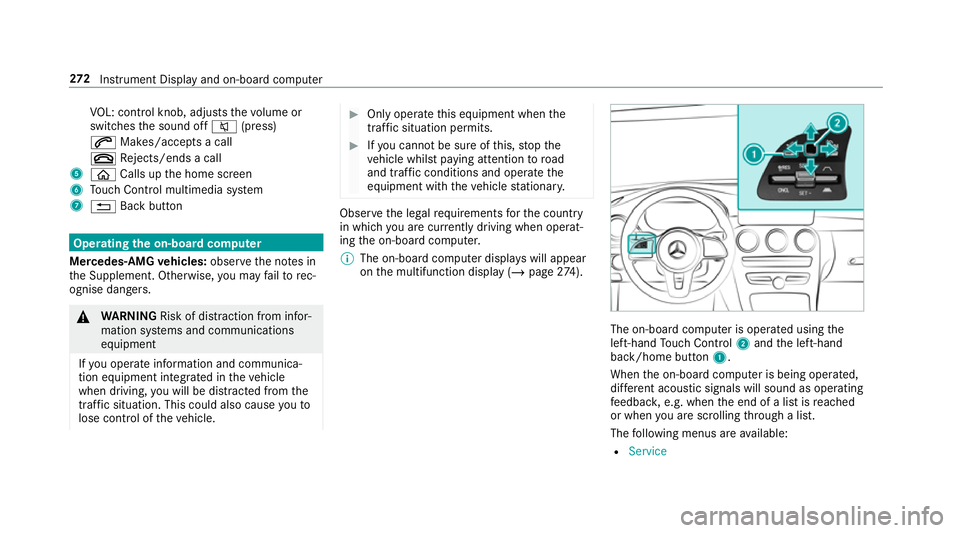
-boardcompu ter is operated using the
left-hand Touch Control 2and the left-hand
back/home button 1.
When the on-board computer is being operated,
dif fere nt acoustic signals will sound as operating
fe edbac k,e.g. when the end of a list is reached
or when you are sc rolling thro ugh a list.
The following menus are available:
R Service 272
Instrument Display and on-board computer
Page 276 of 657
R
Assistance
R Trip
R Navigation
R Radio
R Media
R Telephone
R HUD
R Vehicles with an instrument display in
th e widescreen cockpit: Design
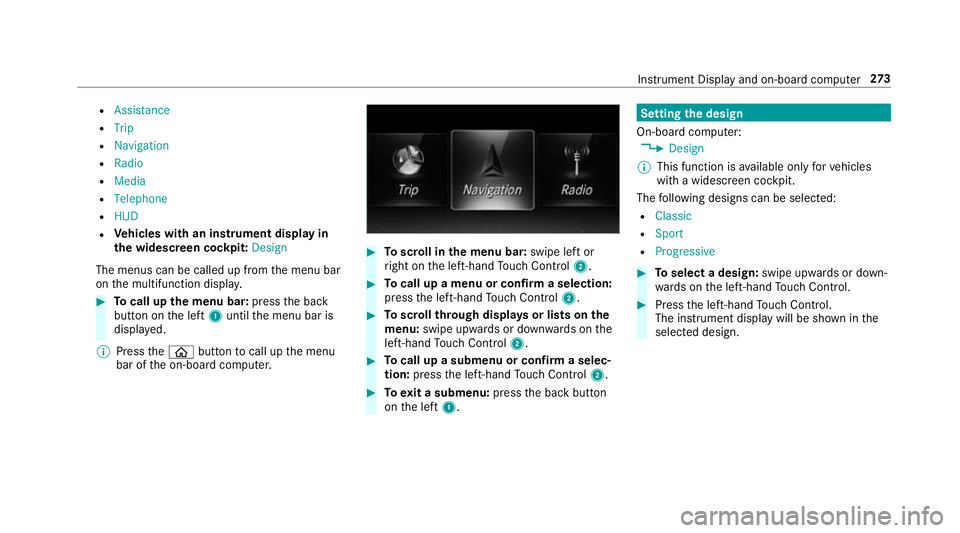
The menus can be called up from the menu bar
on the multifunction displa y.#
Tocall up the menu bar: pressthe back
button on the left 1until the menu bar is
displa yed.
% Press theò button tocall up the menu
bar of the on-board computer. #
Toscroll in the menu bar: swipe left or
ri ght on the left-hand Touch Control 2. #
Tocall up a menu or confirm a selection:
press the left-hand Touch Control 2. #
Toscroll through displa ysor lists on the
menu: swipe upwards or down wards on the
left-hand Touch Control 2. #
Tocall up a submenu or confirm a selec‐
tion: press the left-hand Touch Control 2. #
Toexit a submenu: pressthe back button
on the left 1. Setting
the design
On-board computer: 4 Design
% This function is available on lyforve hicles
with a widescreen cockpit.
The following designs can be selec ted:
R Classic
R Sport
R Progressive #
Toselect a design: swipe upwards or down‐
wa rds on the left-hand Touch Control. #
Press the left-hand Touch Control.
The instrument displ aywill be shown in the
selected design. Instrument Display and on-board computer
273
Page 277 of 657
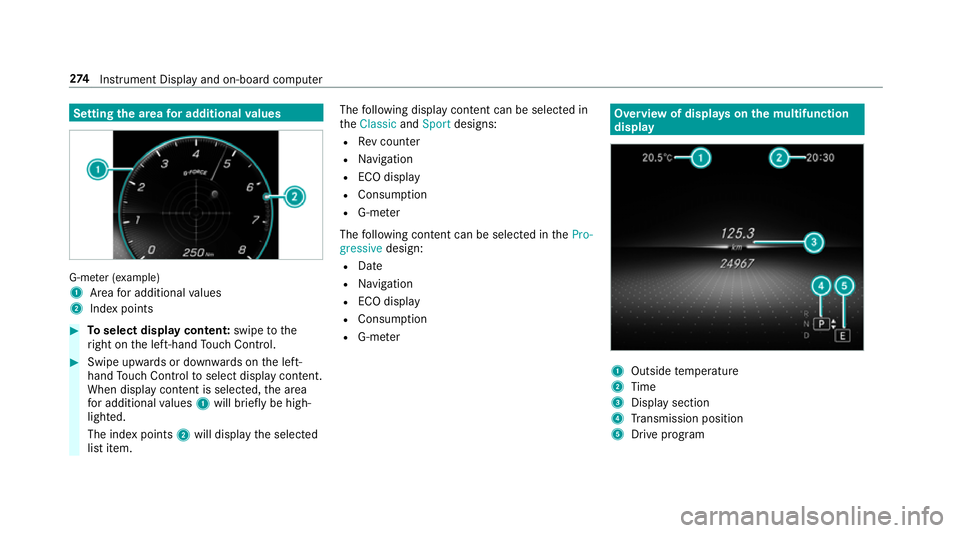
Setting
the area for additional values G-me
ter (e xamp le)
1 Area for additional values
2 Indexpoints #
Toselect display content: swipetothe
ri ght on the left-hand Touch Control. #
Swipe upwards or down wards on the left-
hand Touch Control toselect display content.
When display content is selected, the area
fo r additional values 1will briefly be high‐
lighted.
The index points 2will display the selected
list item. The
following display con tent can be selected in
th eClassic andSport designs:
R Rev counter
R Navigation
R ECO display
R Consu mption
R G-m eter
The following con tent can be selected in thePro-
gressive design:
R Date
R Navigation
R ECO display
R Consu mption
R G-m eter Overview of displa
yson the multifunction
display 1
Outside temp erature
2 Time
3 Display section
4 Transmission position
5 Drive prog ram 274
Instrument Display and on-board computer
Page 278 of 657
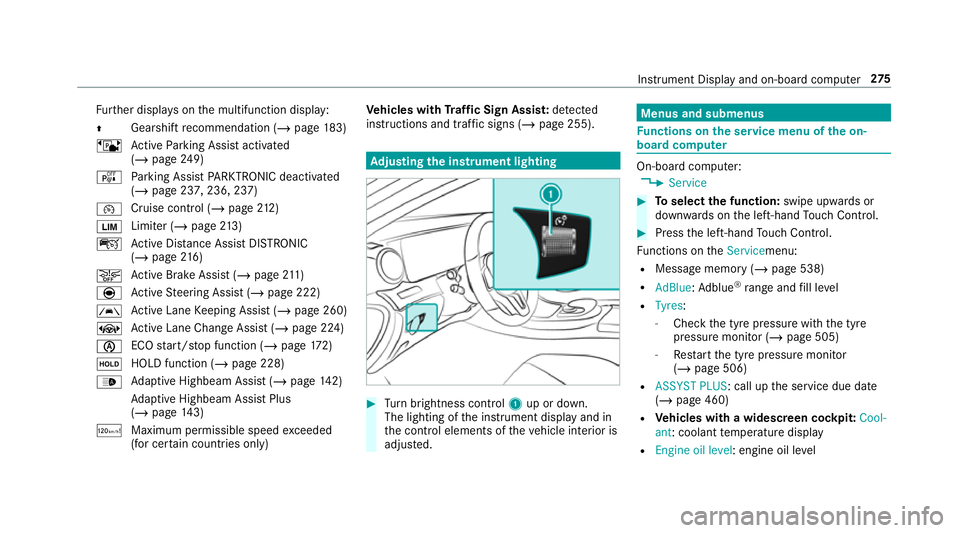
Fu
rther displa yson the multifunction display:
Z Gearshift
recommendation (/ page 183)
ë Active Parking Assist activated
(/ page 249)
é Parking Assist PARKTRONIC deacti vated
( / page 237, 236, 237)
¯ Cruise control (/
page212)
È Limi
ter (/ page213)
ç Active Dis tance Assi stDISTRONIC
(/ page 216)
æ Ac
tive Brake Assi st (/ page 211)
è Active Steering Assist (/ page 222)
à Ac
tive Lane Keeping Assist (/ page 260)
± Active Lane Change Assi st (/ page 224)
è ECO
start/ stop function (/ page172)
ë HOLD fu
nction (/ page 228)
_ Ad
aptive Highbeam Assist (/ page142)
Ad aptive Highbeam Assist Plus
(/ page 143)
ð Maximum pe rmissible speed exceeded
(for cer tain countries only) Ve
hicles with Traf fic Sign Assis t:de tected
instructions and traf fic signs (/ page 255). Ad
justing the in stru ment lighting #
Turn brightness control 1up or down.
The lighting of the instrument display and in
th e control elements of theve hicle interior is
adjus ted. Menus and submenus
Fu
nctions on the service menu of the on-
board compu ter On-board computer:
4 Service #
Toselect the function: swipe upwards or
down wards on the left-hand Touch Control. #
Press the left-hand Touch Control.
Fu nctions on theServicemenu:
R Message memory (/ page 538)
R AdBlue: Adblue ®
ra nge and fill le vel
R Tyres:
- Check the tyre pressure with the tyre
pressure monitor (/ page 505)
- Restart the tyre pressure monitor
(/ page 506)
R ASSYST PLUS: call up the service due date
(/ page 460)
R Vehicles with a widescreen cock pit:Cool-
ant: coolant temp erature display
R Engine oil level: engine oil le vel Instrument Display and on-board computer
275
Page 279 of 657
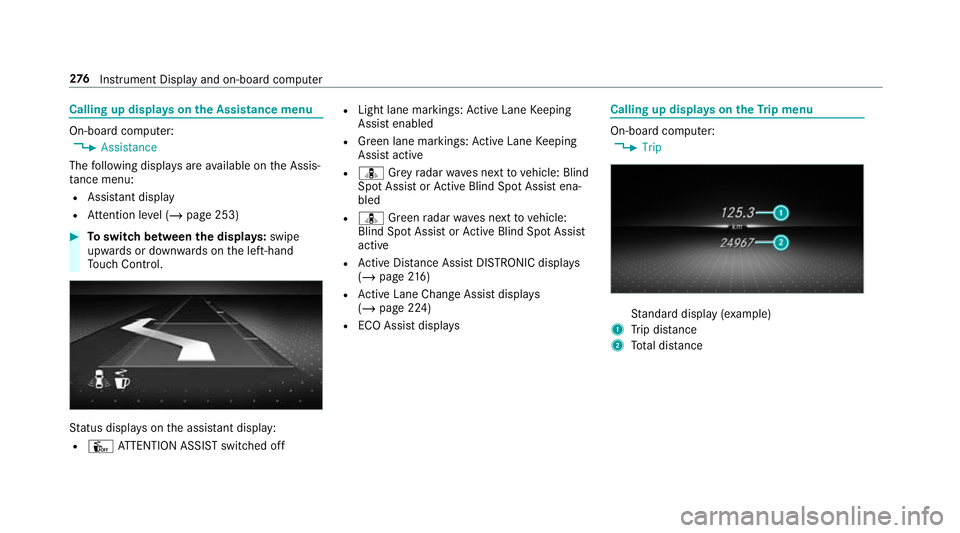
Calling up displa
yson the Assistance menu On-board computer:
4 Assistance
The following displa ysare available on the Assis‐
ta nce menu:
R Assi stant display
R Attention le vel (/ page 253) #
Toswitch between the displa ys:swipe
upwards or down wards on the left-hand
To uch Control. St
atus displa yson the assis tant displ ay:
R Û ATTENTION ASSIST switched off R
Light lane markings: Active Lane Keeping
Assist enabled
R Green lane markings: Active Lane Keeping
Assist active
R ¸ Grey radar waves next tovehicle: Blind
Spot Assist or Active Blind Spot Assi stena‐
bled
R ¸ Green radar waves next tovehicle:
Blind Spot Assist or Active Blind Spot Assi st
active
R Active Dis tance Assi stDISTRONIC displa ys
( / page 216)
R Active Lane Change Assi stdispla ys
( / page 224)
R ECO Assist displa ys Calling up displa
yson theTr ip menu On-board computer:
4 Trip St
andard display (e xamp le)
1 Trip dis tance
2 Total dis tance 276
Instrument Display and on-board computer
Page 280 of 657
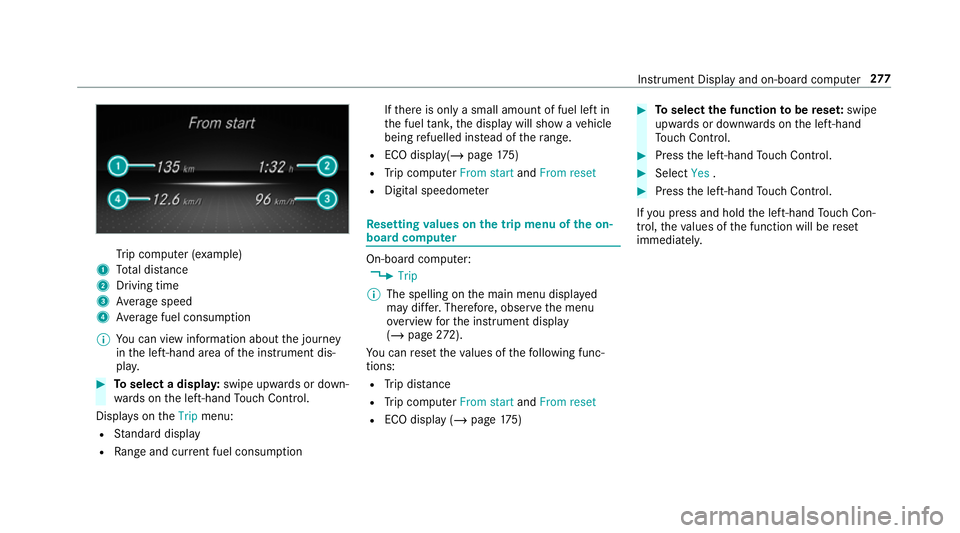
Tr
ip computer (e xamp le)
1 Total dis tance
2 Driving time
3 Average speed
4 Average fuel consum ption
% You can view information about the journey
in the left-hand area of the instrument dis‐
pla y. #
Toselect a displa y:swipe upwards or down‐
wa rds on the left-hand Touch Control.
Displa yson theTrip menu:
R Standard display
R Range and cur rent fuel consu mption If
th ere is only a small amount of fuel left in
th e fuel tank, the display will show a vehicle
being refuelled ins tead of thera nge.
R ECO displ ay(/ page 175)
R Trip computer From startandFrom reset
R Digital speedom eter Re
setting values on the trip menu of the on-
board compu ter On-board computer:
4 Trip
% The spelling on the main menu displa yed
may dif fer. Therefore, obser vethe menu
ove rview forth e instrument display
(/ page 272).
Yo u can reset theva lues of thefo llowing func‐
tions:
R Trip dis tance
R Trip computer From startandFrom reset
R ECO display (/ page175) #
Toselect the function tobe rese t:swipe
upwards or down wards on the left-hand
To uch Control. #
Press the left-hand Touch Control. #
Select Yes. #
Press the left-hand Touch Control.
If yo u press and hold the left-hand Touch Con‐
trol, theva lues of the function will be reset
immediatel y. Instrument Display and on-board computer
277
Page 281 of 657
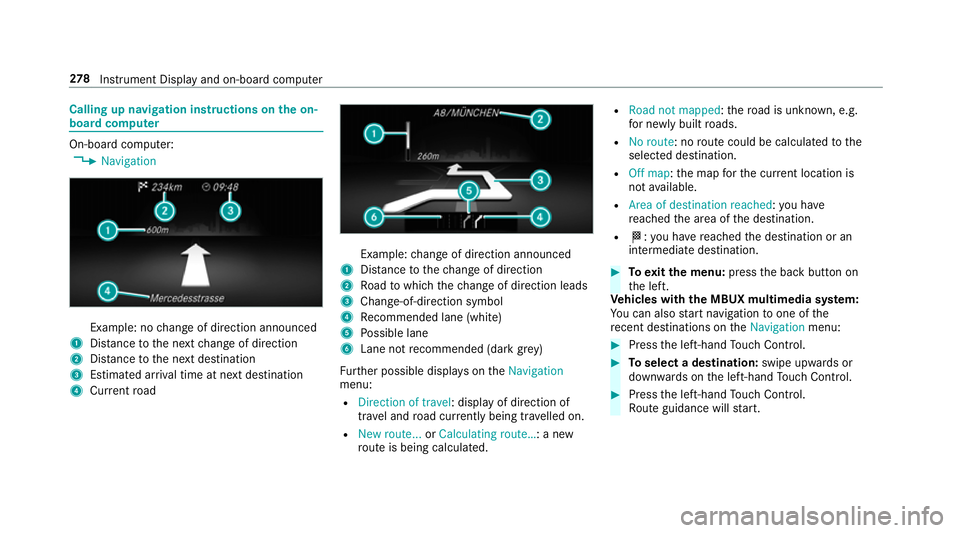
Calling up navigation instructions on
the on-
board compu terOn-board computer:
4 Navigation Example: no
change of direction announced
1 Distance tothe next change of direction
2 Distance tothe next destination
3 Estimated ar riva l time at next destination
4 Current road Example:
change of direction announced
1 Distance tothech ange of direction
2 Road towhich thech ange of direction leads
3 Chan ge-of-direction symbol
4 Recommended lane (white)
5 Possible lane
6 Lane not recommended (da rkgrey)
Fu rther possible displa yson theNavigation
menu:
R Direction of travel: display of direction of
tra vel and road cur rently being tr avelled on.
R New route... orCalculating route… : a new
ro ute is being calculated. R
Road not mapped :th ero ad is unknown, e.g.
fo r newly built roads.
R No route: no route could be calculated tothe
selected destination.
R Off map: the map forth e cur rent location is
not available.
R Area of destination reached: you ha ve
re ached the area of the destination.
R O: you ha vereached the destination or an
intermediate destination. #
Toexitth e menu: pressthe back button on
th e left.
Ve hicles with the MBUX multimedia sy stem:
Yo u can also start navigation toone of the
re cent destinations on theNavigation menu: #
Press the left-hand Touch Control. #
Toselect a destination: swipe upwards or
down wards on the left-hand Touch Control. #
Press the left-hand Touch Control.
Ro ute guidance will start. 278
Instrument Display and on-board computer
Page 282 of 657
If
ro ute guidance has already been activated,
a qu ery will appear asking whe ther you wish
to end the cur rent route guidance. #
Select Yes. #
Press the left-hand Touch Control.
Ro ute guidance will start. Selecting
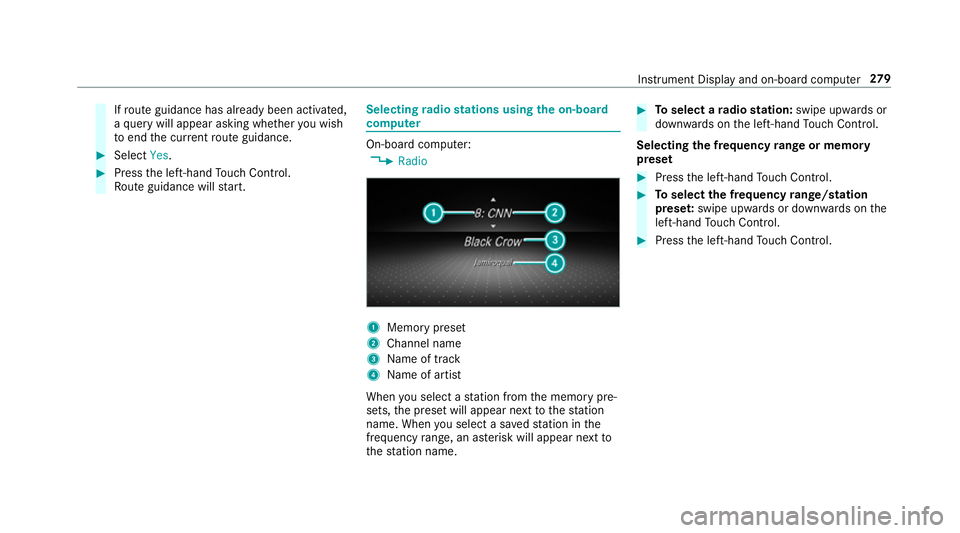
radio stations using the on-boa rd
compu ter On-board computer:
4 Radio 1
Memory preset
2 Channel name
3 Name of track
4 Name of artist
When you select a station from the memory pre‐
sets, the preset will appear next tothest ation
name. When you select a sa vedstation in the
frequency range, an as terisk will appear next to
th est ation name. #
Toselect a radio station: swipe upwards or
down wards on the left-hand Touch Control.
Selecting the frequency range or memory
preset #
Press the left-hand Touch Control. #
Toselect the frequency range/station
prese t:swipe upwards or down wards on the
left-hand Touch Control. #
Press the left-hand Touch Control. In
stru ment Display and on-board computer 279
Page 283 of 657
Operating media playback using
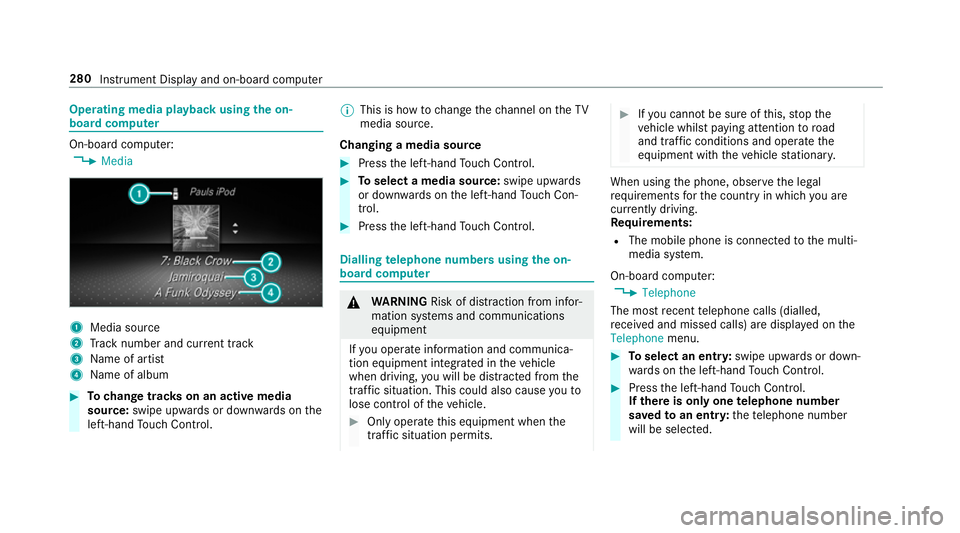
the on-
board compu terOn-board computer:
4 Media 1
Media source
2 Track number and cur rent track
3 Name of artist
4 Name of album #
Tochange trac kson an active media
source: swipe upwards or down wards on the
left-hand Touch Control. %
This is how tochange thech annel on theTV
media source.
Changing a media source #
Press the left-hand Touch Control. #
Toselect a media source: swipe upwards
or down wards on the left-hand Touch Con‐
trol. #
Press the left-hand Touch Control. Dialling
telephone numbers using the on-
board compu ter &
WARNING Risk of di stra ction from infor‐
mation sy stems and communications
equipment
If yo u operate information and communica‐
tion equipment integ rated in theve hicle
when driving, you will be distracted from the
traf fic situation. This could also cause youto
lose control of theve hicle. #
Only operate this equipment when the
traf fic situation permits. #
Ifyo u cannot be sure of this, stop the
ve hicle whilst paying attention toroad
and traf fic conditions and ope rate the
equipment with theve hicle stationar y. When using
the phone, obser vethe legal
re qu irements forth e count ryin which you are
cur rently driving.
Re quirements:
R The mobile phone is connec tedto the multi‐
media sy stem.
On-board computer: 4 Telephone
The most recent telephone calls (dialled,
re cei ved and missed calls) are displa yed on the
Telephone menu. #
Toselect an entr y:swipe upwards or down‐
wa rds on the left-hand Touch Control. #
Press the left-hand Touch Control.
If th ere is only one telephone number
sa ve dto an entr y:thete lephone number
will be selec ted. 280
Instrument Display and on-board computer