display MERCEDES-BENZ GLC COUPE 2019 Manual Online
[x] Cancel search | Manufacturer: MERCEDES-BENZ, Model Year: 2019, Model line: GLC COUPE, Model: MERCEDES-BENZ GLC COUPE 2019Pages: 657, PDF Size: 11.28 MB
Page 284 of 657
#
Ifth ere are multiple telephone numbers
sa ve dto an entr y:swipe upwards or down‐
wa rds on the left-hand Touch Control to
select the desired telephone number. #
Press the left-hand Touch Control.
The telephone number will be dialled.
The following displa ysmay appear ins tead of the
te lephone numbers dialled:
R Please wait... :th e application is starting. If a
Blue tooth ®
connection tothe mobile phone
is not es tablished, the menu for auth orising
and connecting a mobile phone will be dis‐
pla yed on the multimedia sy stem
(/ page 400).
R Updating data...: the call list is being upda‐
te d.
R Importing contacts... : contacts are being
impor ted from the mobile phone or a storage
medium.
Ac cepting/rejecting an incoming call
Ve hicles with head-up displa y:when you
re cei vea call, theIncoming call message will
appear on the head-up displa y. #
Swipe up wards or down wards on the left-
hand Touch Control and select 6(Accept)
or ~ (Reject). #
Press the left-hand Touch Control.
Yo u may accept or reject the call using the6
or ~ button on thesteering wheel. Ad
justing the head-up display settings on
the on-board co mputer On-board computer:
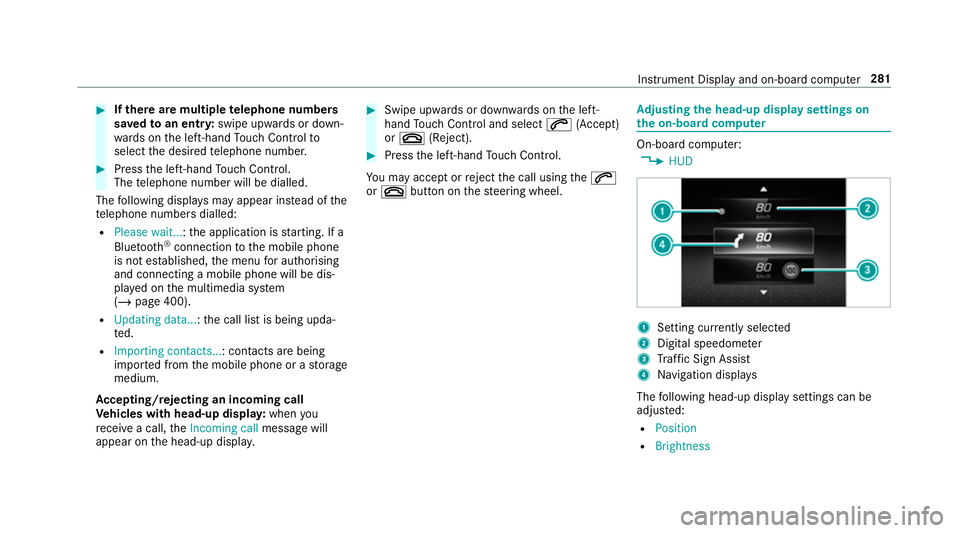
4 HUD 1
Setting cur rently selected
2 Digital speedome ter
3 Traf fic Sign Assi st
4 Navigation displa ys
The following head-up display settings can be
adjus ted:
R Position
R Brightness Instrument Display and on-board computer
281
Page 285 of 657
R
Display content #
Toselect a setting: swipe upwards or down‐
wa rds on the left-hand Touch Control. #
Press the left-hand Touch Control. #
Toadjust a value: swipe upwards or down‐
wa rds on the left-hand Touch Control. #
Press the left-hand Touch Control. Head-up Display
Fu
nction of the head-up display Mercedes-AMG
vehicles: be sure toobser ve
th e no tes in the Supplement. Otherwise, you
may failto recognise dangers.
The head-up displ ayprojects thefo llowing into
th e driver's field of vision:
R information from the navigation sy stem
R information from the driver assis tance sys‐
te ms
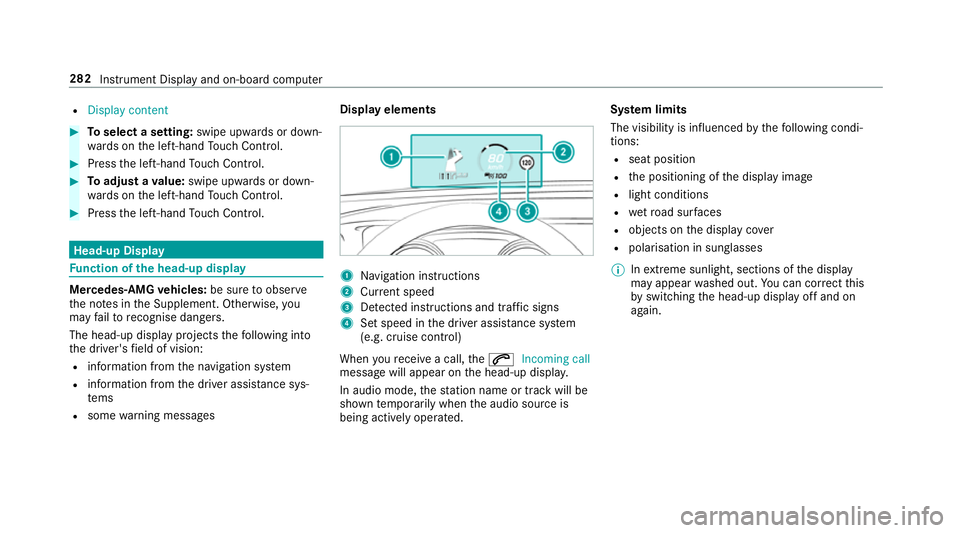
R some warning messages Display elements
1
Navigation instructions
2 Curr ent speed
3 Detected instructions and traf fic signs
4 Set speed in the driver assis tance sy stem
(e.g. cruise control)
When youre cei vea call, the6 Incoming call
message will appear on the head-up displa y.
In audio mode, thest ation name or track will be
shown temp orarily when the audio source is
being actively operated. Sy
stem limits
The visibility is influenced bythefo llowing condi‐
tions:
R seat position
R the positioning of the display image
R light conditions
R wetro ad sur faces
R objects on the display co ver
R polarisation in sunglasses
% Inextreme sunlight, sections of the display
may appear washed out. You can co rrect this
by switching the head-up display off and on
again. 282
Instrument Display and on-board computer
Page 286 of 657
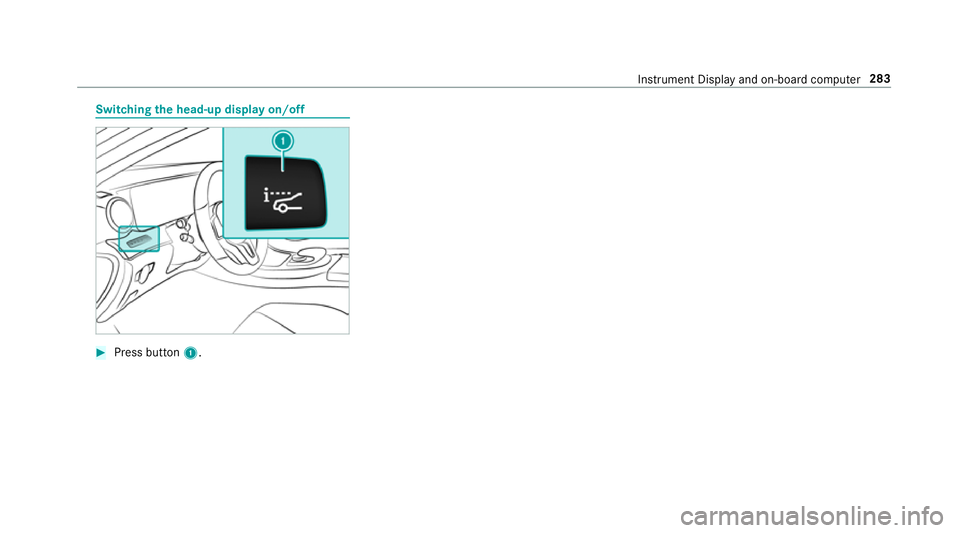
Switching
the head-up display on/off #
Press button 1. In
stru ment Display and on-board computer 283
Page 305 of 657
Vo
ice command Colloquialexample Function
Seat heating front passenger level
2 Seat heating front-passenger on
level 2Sets
the seat heating forth e driver's or front passenger seat toleve l 2.
Current speed limit I would like to hear the speed limitCalls up
the cur rent speed limit.
Outside temperature I would like to find out what the
temperature outside is likeCalls up
the outside temp erature.
Average consumption What is the current average con-
sumption?Calls up
average consu mption.
Vehicle data Can you please display the vehicle
data menu?Calls up
theve hicle data.
Range Tell me the current rangeCalls up
the cur rent range da ta.
Assistance menu Show me the driver assistance set-
tingsDispl
aysth e assis tance settings.
Climate control menu Jump to the climate control menuDispla
ys the climate control settings.
Light menu Switch to the light settingsDispla
ys the light settings.
Seats menu I would like to switch to seat menuDispla
ys the seat adjustment settings. 302
LINGU ATRO NIC
Page 307 of 657
Overview and operation
Overview of
the MBUX multimedia sy stem &
WARNING Risk of di stra ction from infor‐
mation sy stems and communications
equipment
If yo u operate information and communica‐
tion equipment integ rated in theve hicle
when driving, you will be distracted from the
traf fic situation. This could also cause youto
lose control of theve hicle. #
Only operate this equipment when the
traf fic situation permits. #
Ifyo u cannot be sure of this, stop the
ve hicle whilst paying attention toroad
and traf fic conditions and ope rate the
equipment with theve hicle stationar y. Yo
u must obse rveth e legal requirements forthe
country in whi chyou are cur rently driving when
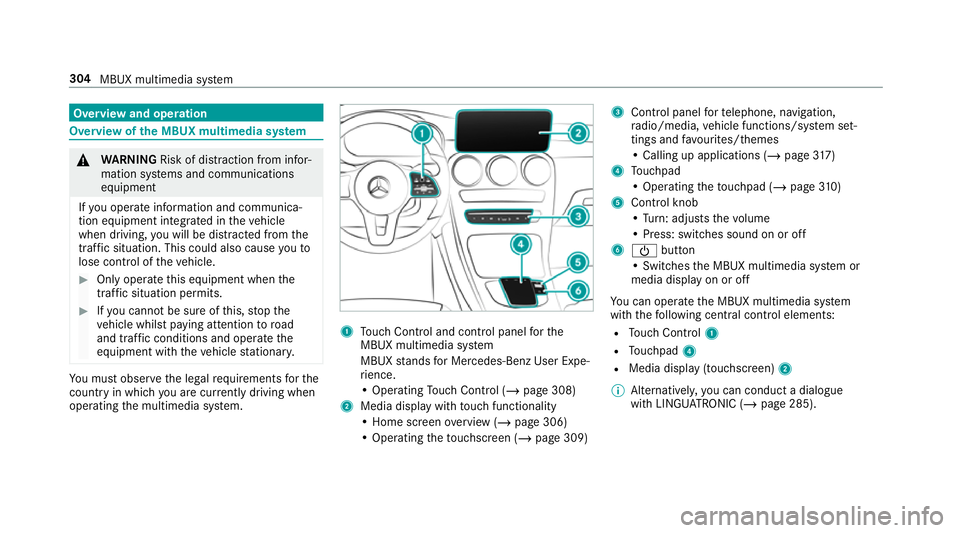
operating the multimedia sy stem. 1
Touch Control and cont rol panel forthe
MBUX multimedia sy stem
MBUX stands for Mercedes-Benz User Expe‐
ri ence.
• Operating Touch Control (/ page 308)
2 Media displ aywith touch functionality
• Home sc reen ove rview (/ page 306)
• Operating theto uchsc reen (/ page 309) 3
Control panel forte lephone, navigation,
ra dio/media, vehicle functions/sy stem set‐
tings and favo urites/ themes
• Calling up applications (/ page317)
4 Touchpad
• Operating theto uchpad (/ page310)
5 Con trol knob
• Turn: adjusts thevo lume
• Press: switches sound on or off
6 Ü button
• Swit ches the MBUX multimedia sy stem or
media display on or off
Yo u can operate the MBUX multimedia sy stem
with thefo llowing central control elements:
R Touch Control 1
R Touchpad 4
R Media displ ay(touchscreen) 2
% Alternatively, you can conduct a dialogue
with LINGU ATRO NIC (/ page 285). 304
MBUX multimedia sy stem
Page 308 of 657
%
Ifth eve hicle is fitted wi thgesture mode,
selected functions of the multimedia sy stem
can be operated conta ct-free aswell as turn‐
ing there ading light on or off (/ page312).
Nu merous application, online services, services
and apps are available foryo u. These can be
called up via the home screen or using buttons
3.
Yo u can co nveniently call up and add favo urites
on thesteering wheel using theß rock er
switch or using theß button on control panel
3. Quic k-access in the home screen and in the
applications ser vetoselect functions more
qu ickl y.
If yo u use the learn function of the multimedia
sy stem, you will recei vesuggestions during oper‐
ation of the most probable navigation destina‐
tions, media sources, radio stations and con‐ ta
cts. The configu ration of the suggestions takes
place in your profile. You can co mpileyour pro‐
fi le from various vehicle settings and settings of
th e multimedia sy stem. You can create themes
fo rva rious driving situations in the home screen
as well as using theß rocker switch or the
ß button.
The Notifications Centre collects incoming notifi‐
cations, e.g. about an available software update.
Depending on the type of notification it of fers
va rious actions. You can call up the Notifications
Centre on the home screen and in the applica‐
tion menus.
Wi th th eglobal sear chintheve hicle you can
sear chon-board across many categories as well
as online in the Internet. You can use theglobal
sear chinthe home screen and in the notifica‐
tions. Anti-theft pr
otection
This device is equipped with tech nical pr ovisions
to protect it against theft. More de tailed informa‐
tion about anti-theft pr otection can be obtained
at a qualified specialist workshop. Note
s onthe media display Obser
vethe no tes on caring forth e interior
(/ page 477).
Au tomatic temperature-cont rolled switch-
off feature: ifth ete mp erature is too high, the
brightness is initially reduced automatically. The
media display may then switch off comple tely for
a while.
% Ifyo u are wearing polarised sun glasses, it
may be dif ficult toread the multimedia sys‐
te m displa y. MBUX multimedia sy
stem 305
Page 310 of 657
8
Name of the application, beneath the cur rent
selection or information
9 Quick-access (in theex ample: calls up desti‐
nation ent ry, enters the destination address
fo r home) A
Number of applications and cur rently selec‐
te d display area
B Calls up the air conditioning menu
(/ page 155) C
Calls up SUGGESTIONS ,THEMES and
FAVOURITES MBUX multimedia sy
stem 307
Page 316 of 657
The MBUX In
terior Assistant supports thefo llowing interactions: Interaction area
InteractionDescription
In front of the media display/abo vetheto uch‐
pad Pr
ox imity tothe control element The MBUX Interior Assis tant recognises the approach of the
hand towa rds a contro l element.
Depending on the active application, the display will be
adjus ted in the media displa y.Some functions di fferentiate
between driver and front passenger.
No specific hand position is requ ired.
Abo vethe cent reconsole Defined poses With defined poses a function is triggered depending on the
application active.
Below the inside rearview mir rorB rief up and down mo vements With brief vertical up and down mo vements below the inside
re arview mir rorth ere ading light forth e driver or the front
passenger is switched on and off.
Fr ont passenger seat Stretching out the hand abo vethe
front passenger seat By
stre tching out the hand abo vethe front passenger seat
th e sear chlight is switched on. If the hand is withdr awn from
th is area, the sear chlight is switched off again. Operating functions
byprox imity of the hand
to theto uchscreen and touchpad
Re quirements: R
One of thefo llowing applications appears in
th e media display: -
Seat settings with displa ysforth e driver
and front passenger seat, e.g. Seat com-
fort
- Home screen MBUX multimedia sy
stem 313
Page 317 of 657
-
Radio menu or media menu
- Map in the navigation
- Active Parking Assist
R Recognition occu rsas the hand approaches
to appr oximately 10cm from theto uchpad or
th eto uchsc reen.
Seat adjustments bythe driver or front
passenger
In the seat settings menu, the MBUX Interior
Assis tant de tects pr oximity tovarious control
elements of the multimedia sy stem. In addition,
th e MBUX Interior Assis tant de tects from whi ch
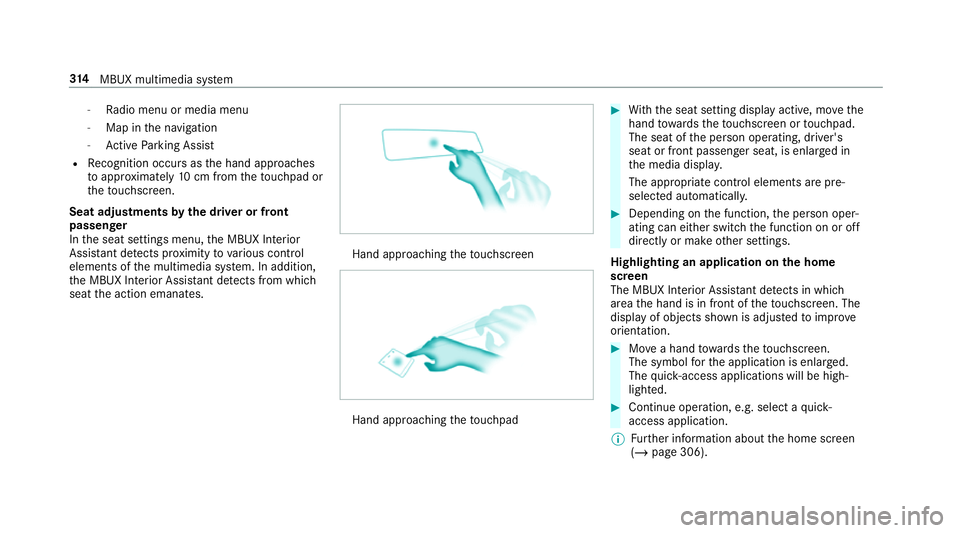
seat the action emanates. Hand approaching
theto uchsc reen Hand approaching
theto uchpad #
With th e seat setting display active, mo vethe
hand towa rdsth eto uchsc reen or touchpad.
The seat of the person operating, driver's
seat or front passenger seat, is enlar ged in
th e media displa y.
The appropriate contro l elements are pre-
selec ted automatically. #
Depending on the function, the person oper‐
ating can either switch the function on or off
directly or make other settings.
Highlighting an application on the home
screen
The MBUX In terior Assis tant de tects in whi ch
area the hand is in front of theto uchsc reen. The
display of objects shown is adjus tedto impr ove
orientation. #
Movea hand towa rdsth eto uchsc reen.
The symbol forth e application is enlar ged.
The quick- access applications will be high‐
lighted. #
Continue operation, e.g. select a quick-
access application.
% Further information about the home screen
(/ page 306). 314
MBUX multimedia sy stem
Page 318 of 657
Ac
tivating co verch ange in thera dio menu
and media menu
The MBUX Interior Assi stant reduces the number
of operating steps. #
Movea hand towa rdsth eto uchsc reen or
to uchpad.
The cur rent information, e.g. about thera dio
st ation, track and artist are hidden. Co ver
ch ange is activated. #
Continue operation and select a co ver. #
Asthe hand is mo vedaw ay from the
to uchsc reen or touchpad, the cur rent infor‐
mation is shown again.
% Further information on thera dio menu
(/ page 446) and the media menu
(/ page 440).
Showing the navigation menu on the map
The MBUX In terior Assis tant sho wsthe naviga‐
tion menu. #
Movea hand towa rdsth eto uchsc reen or
to uchpad.
The navigation menu is shown. #
Continue operation and select a symbol. #
Asthe hand is mo vedaw ay from the
to uchsc reen or touchpad, the media display
hides the navigation menu.
% Further information on the navigation menu
(/ page 354).
Showing operating symbols in theAc tive
Pa rking Assist camera ima ge(only from driv‐
er's seat)
The MBUX In terior Assis tant facilitates quick-
access forth e driver tovarious camera vie ws. #
With th eAc tive Parking Assist display active,
mo vethe hand in the direction of the
to uchsc reen.
The camera operation symbols are displa yed. #
Continue operation and display the desired
front, rear, left and right camera vie ws.
% Further information on Active Parking Assist
functions (/ page247).
Operating functions using poses
Re quirements:
R Tocall up favo urites: there is at least one
fa vo urite. R
The area forre cognition of thefa vo urite's
pose is abo vethe cent reconsole at the
height of the climate control vents and the
media displa y.The hand should ha vea dis‐
ta nce of at least 10cm from the media dis‐
pla y.
R The pose is held for a brief time.
Calling up favo urites
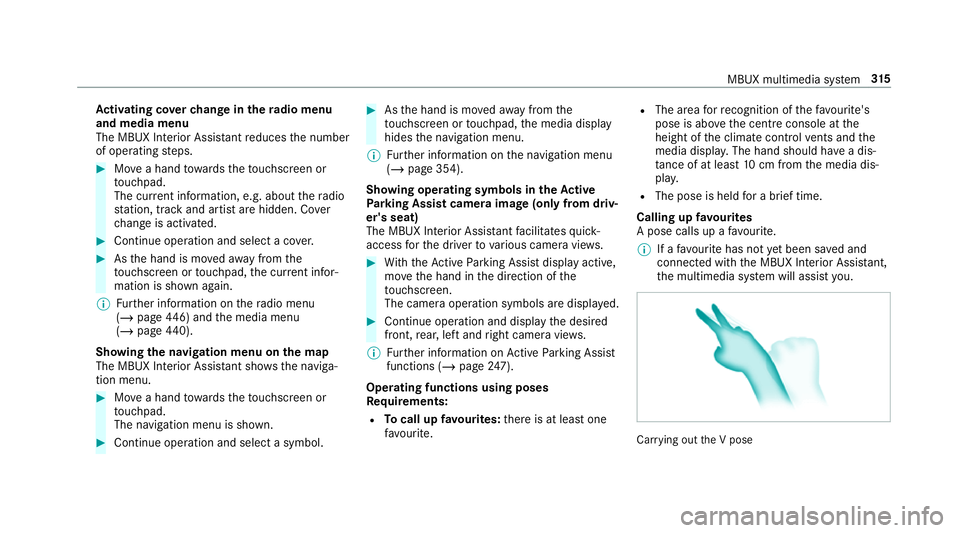
A pose calls up a favo urite.
% If afavo urite has not yet been sa ved and
connec ted with the MBUX Interior Assis tant,
th e multimedia sy stem will assist you. Car
rying out the V pose MBUX multimedia sy
stem 315