ECO mode MERCEDES-BENZ GLC SUV 2018 COMAND Manual
[x] Cancel search | Manufacturer: MERCEDES-BENZ, Model Year: 2018, Model line: GLC SUV, Model: MERCEDES-BENZ GLC SUV 2018Pages: 170, PDF Size: 4.1 MB
Page 150 of 170
Bluetooth®audio menu
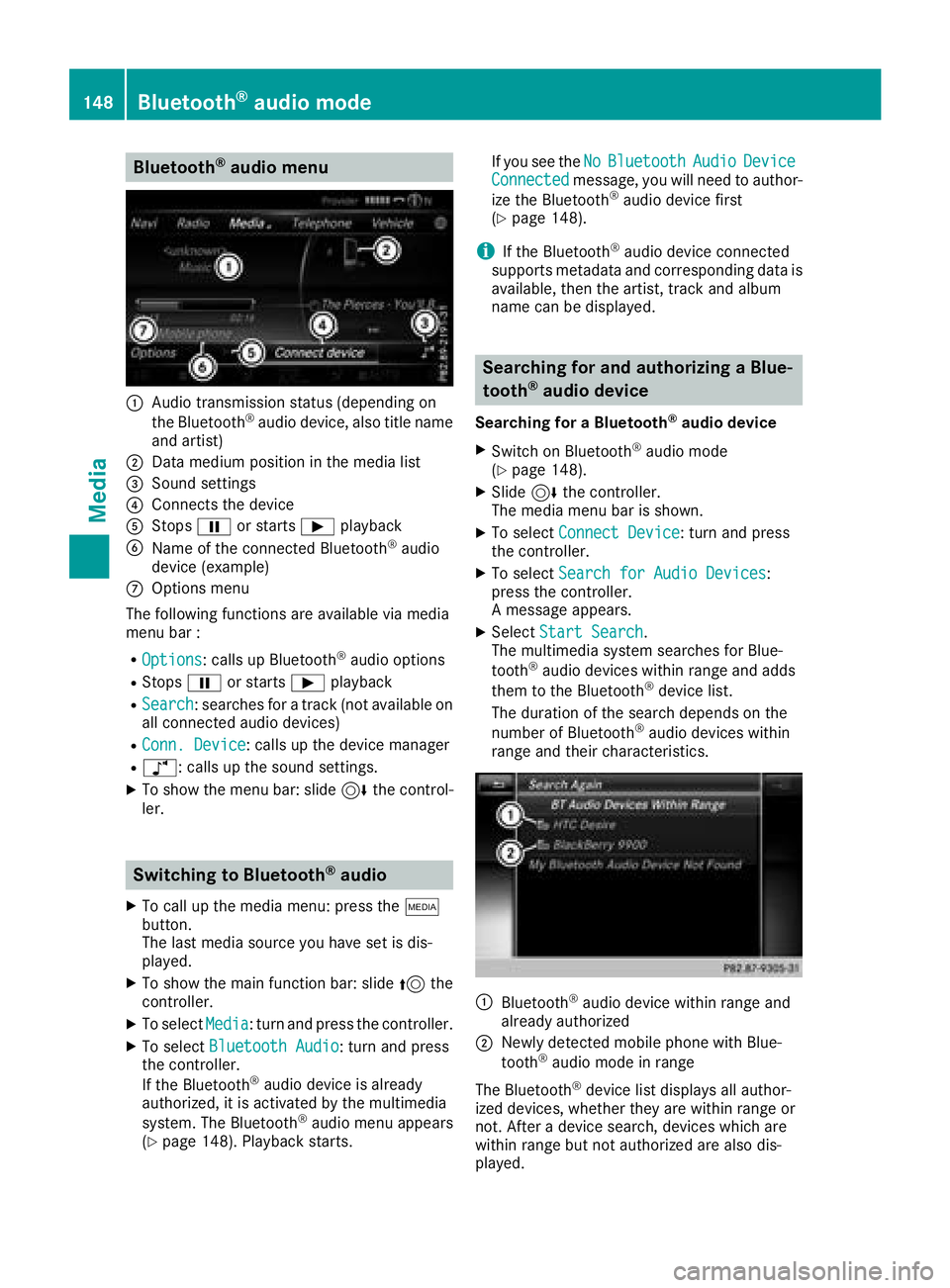
:Audio transmission status (depending on
the Bluetooth®audio device, also title name
and artist)
;Data medium position in the media list
=Sound settings
?Connects the device
AStops Ëor starts Ìplayback
BName of the connected Bluetooth®audio
device (example)
COptions menu
The following functions are available via media
menu bar :
ROptions: calls up Bluetooth®audio options
RStops Ëor starts Ìplayback
RSearch: searches for a track (not available on
all connected audio devices)
RConn. Device: calls up the device manager
Rà: calls up the sound settings.
XTo show the menu bar: slide 6the control-
ler.
Switching to Bluetooth®audio
XTo call up the media menu: press the Õ
button.
The last media source you have set is dis-
played.
XTo show the main function bar: slide 5the
controller.
XTo select Media: turn and press the controller.
XTo select Bluetooth Audio: turn and press
the controller.
If the Bluetooth
®audio device is already
authorized, it is activated by the multimedia
system. The Bluetooth
®audio menu appears
(Ypage 148). Playback starts. If you see the
No
BluetoothAudioDeviceConnectedmessage, you will need to author-
ize the Bluetooth®audio device first
(Ypage 148).
iIf the Bluetooth®audio device connected
supports metadata and corresponding data is
available, then the artist, track and album
name can be displayed.
Searching for and authorizing a Blue-
tooth®audio device
Searching for a Bluetooth®audio device
XSwitch on Bluetooth®audio mode
(Ypage 148).
XSlide 6the controller.
The media menu bar is shown.
XTo select Connect Device: turn and press
the controller.
XTo select Search for Audio Devices:
press the controller.
A message appears.
XSelect Start Search.
The multimedia system searches for Blue-
tooth
®audio devices within range and adds
them to the Bluetooth®device list.
The duration of the search depends on the
number of Bluetooth
®audio devices within
range and their characteristics.
:Bluetooth®audio device within range and
already authorized
;Newly detected mobile phone with Blue-
tooth®audio mode in range
The Bluetooth
®device list displays all author-
ized devices, whether they are within range or
not. After a device search, devices which are
within range but not authorized are also dis-
played.
148Bluetooth®audio mode
Media
Page 152 of 170
Starting playback if the Bluetooth®
audio device has been stopped
During the search for mobile phones
(
Ypage 93), the connection with the Bluetooth®
audio device is terminated. TheNoBluetoothAudioDeviceConnectedmessage appears in
the Bluetooth®audio menu (Ypage 148). When
the search is finished, the Bluetooth®audio
device can be reconnected.
XTo confirm the ConnectLastUsedPlayer
message in the Bluetooth®audio menu: press
the controller.
Depending on the Bluetooth
®audio device
used, playback starts immediately or you
must start playback manually.
In this case, you will see the Bluetooth
Audio Device Pausedmessage.
XTo start playback:To selectÌ: slide 6
and press the controller.
Playback resumes from the beginning.
Selecting a track
The function is not supported by all Bluetooth®
audio devices.
Some mobile phones impair function with
regard to the following criteria:
Rthe number of tracks that can be selected
Rthe time period until the next or previous track is played
XUse the multifunction steering wheel to
switch to the media menu in the on-board
computer; see the vehicle Operator's Manual.
XTo skip forward or back to a track: press
the 9 or: button on the multifunction
steering wheel.
XTo rapid scroll: press and hold the 9
or : button on the multifunction steering
wheel until the desired track is reached.
If you press and hold the 9or: but-
tons, the rapid scrolling speed increases after
a short time.
iDuring rapid scrolling, track names are not
displayed but only Track+1, Track+2, etc. (or
Track-1, Track-2, etc.). There are no playback
times shown for tracks that have been played.
This is available as an optional function start-
ing with AVRCP Version 1.3.
Playback options
General notes
If the Bluetooth®audio device supports the cor-
responding function, the following options are
available:
RNormal Track Sequence: the tracks are
played in the normal order (e.g. track 1, 2, 3
etc.).
Audio data playback is determined by the
order in which the tracks are written to the
data medium. Alphabetical order is the most
common. Once all the tracks in a folder have
been played, the tracks in the next folder are
played.
RRandomTrackList: the current track list is
played in random order (e.g. 3, 8, 5 etc.).
RRandom Medium: all tracks on the data
medium are played in random order (e.g.
track 3, 8, 5 etc.).
Playback options are optional functions and
are not, or only partially, supported by Blue-
tooth
®audio devices.
Selecting the playback option
XIn the Bluetooth®audio menu, slide 6the
controller (Ypage 148).
XTo select Options: turn and press the con-
troller.
XSelect Playback Mode.
A # dot indicates the current setting.
XSelect the desired option.
Increasing the volume in the multime-
dia system
XIn the Bluetooth®audio menu, slide 6the
controller (Ypage 148).
XTo select Options: turn and press the con-
troller.
XTo select Volume: turn and press the control-
ler.
A menu appears. The #dot indicates the cur-
rent setting.
XSelect StandardorBoost.
iIf playback on the Bluetooth®audio player is
too quiet, the Boostfunction may be used. It
is recommended, however, that you increase
150Bluetooth®audio mode
Media
Page 155 of 170
RPlaylists
RArtists
RAlbums
RTrack
RGenres
RYear
RComposers
RVideos
RPhotos
RPodcasts
RAudiobooks
iThe functions are available as soon as the
entire media content has been read and ana-
lyzed.
If the same device is reconnected with
unchanged media content, these functions
are available more quickly.
The audio books and podcasts categories are
only available for Apple
®devices.
When connecting Apple®devices, the cate-
gories “Folder”, “Year” and “Photos” are not
available.
Searching for a track
XIn media mode, slide 6the controller.
The media menu bar is shown.
XTo select Search: turn and press the control-
ler.
The category list appears.
XTo select a category, e.g. Current Track‐list: turn and press the controller.
A selection list appears.
XSelect the required track.
Using the keyword search
XTo select Keyword Searchin the category
list: turn and press the controller.
XEnter and confirm the characters of the
desired search using the controller
(
Ypage 144).
Search results are sorted according to the
available categories, displayed and can then
be selected.
Selecting the playback option
XIn media mode, slide 6the controller.
The media menu bar is shown.
XTo select Options: turn and press the con-
troller.
XTo select the desired playback option: turn
and press the controller.
Additional information on playback options
(
Ypage 141).
Selecting video settings
Video files from Apple®devices cannot be
played.
If playable video files are found, they will be
played by the multimedia system.
XTo activate full-screen mode: press the con-
troller in the Media Interface menu.
XTo show the video menu: slide 6the con-
troller in full-screen mode.
The Media Interface menu bar appears.
XTo select Options: turn and press the con-
troller.
XSelect Video Settings.
XChange the settings (Ypage 155).
Video DVD mode
Important safety notes
GWARNING
The CD/DVD drive is a class 1 laser product.
If you open the housing of the CD/DVD drive,
there is a risk of exposure to invisible laser
radiation. This laser radiation could damage
your retina. There is a risk of injury.
Never open the housing. Always have main-
tenance and repair work carried out at a quali- fied specialist workshop.
GWARNING
If you handle a disc while driving, you may be
distracted from the traffic situation. You could
also lose control of the vehicle. There is a risk of an accident.
Video DVD mode153
Media
Z
Page 161 of 170
Your multimediasyste mequipment
These operatin ginstruction sdescribe all th e
standar dan doptional equipment of your multi-
media system, as available at th etime of going
to press. Country-specifi cdifference sare pos -
sible. Bear in min dthat your vehicle may no t
feature all function sdescribed here. Thi salso
applies to safety-relevan tsystems an dfunc-
tions.
Read th einformation on qualifie dspecialis t
workshop sin th evehicle Operator's Manual.
Sound settings
Calling up th esound menu
You can mak evarious sound setting sfo rth e
differen taudio an dvideo sources. It is possible
to set more bass fo rradio mode than fo rCD
mode, fo rexample. The respective sound men u
can be called up from th emen uof th edesire d
mode.
XSwitch to radio mode (Ypage 129).
or
XSwitch to media mode (Ypage 137).
XTo switch to themen ubar :slid e6 thecon-
troller.
XTo selec tà :turn an dpress th econtroller .
The men uappears wit hth elast setting
accessed, e.g. Equalizer
.
Sound men uoverview
FunctionOptions
EqualizerSets treble ,mid -
range an dbass
Balance/faderMoves th esound
focus :left/right an d
front/rea r
Setting treble, mid-range an dbass
XCall up th esound men u (Ypage 159).
XTurnth econtroller until Equalizeris brought
to th efront.
XTo activat erotary menus fo rtreble ,mid-range
an dbass :slid e6 thecontroller .
XTo switch between th erotary menus: slid e
8 or9 thecontroller .
XTo maketh edesire dsettings: turn th econ-
troller.
Rotary menus sho wtheset values.
XTo return to th esound menu: slid e5 the
controller .
XTo return to media mode: press th e% but-
ton.
Adjusting th ebalance/fader
Balance moves th efocus of th esound between
lef tan dright .
Fader moves th efocus of th esound between
fron tan drear.
XCall up th esound men u (Ypage 159).
XTurnth econtroller until Balance/Faderis
brought to th efron tan dthen slid e6 the
controller .
XTo activat eth emen ufo rbalance an dfader:
press th econtroller .
XTo adjust th ebalance :slid e8 or9 the
controller .
XTo adjust th efader: slid e6 or5 thecon-
troller.
An imag eshows th esound focus set .
XTo return to thesound menu: press th e%
button.
XTo return to media mode: press th e% but-
ton.
Burmester®surroun dsound syste m
General notes
The Burmeste r®surround sound syste mis avail-
able fo rall function sin th eradio an dmedia
modes .
Fo rth ebes tsound ,we recommen dthat th e
Automati cVolume Adjustment
function is
deactivated (Ypage 39). Fo rfurther information
on automatic volume adjustment, see
(
Ypage 39) .
If usin gBluetoot h®audio mode, we recommen d
you selec tth eBoos tsetting (Ypage 150).
Calling up th esound menu
You can mak evarious sound setting sfo rth e
differen taudio an dvideo sources. It is possible
Burmester®surround sound system15 9
Sound