light MERCEDES-BENZ GLC SUV 2019 Owners Manual
[x] Cancel search | Manufacturer: MERCEDES-BENZ, Model Year: 2019, Model line: GLC SUV, Model: MERCEDES-BENZ GLC SUV 2019Pages: 673, PDF Size: 11.51 MB
Page 318 of 673
Vo
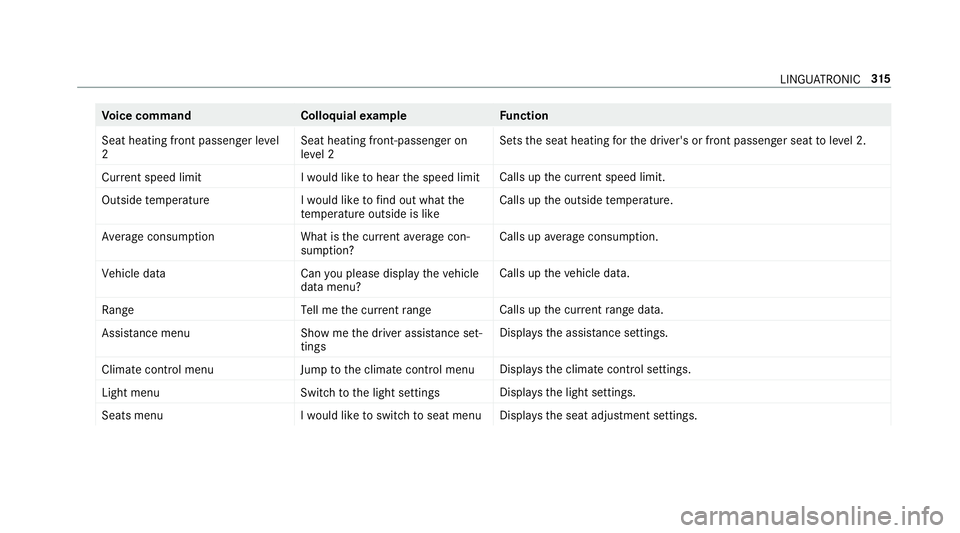
ice command Colloquialexample Function
Seat heating front passenger level
2 Seat heating front-passenger on
level 2Sets
the seat heating forth e driver's or front passenger seat toleve l 2.
Current speed limit I would like to hear the speed limitCalls up
the cur rent speed limit.
Outside temperature I would like to find out what the
temperature outside is likeCalls up
the outside temp erature.
Average consumption What is the current average con-
sumption?Calls up
average consu mption.
Vehicle data Can you please display the vehicle
data menu?Calls up
theve hicle data.
Range Tell me the current rangeCalls up
the cur rent range da ta.
Assistance menu Show me the driver assistance set-
tingsDispl
aysth e assis tance settings.
Climate control menu Jump to the climate control menuDispla
ys the climate control settings.
Light menu Switch to the light settingsDispla
ys the light settings.
Seats menu I would like to switch to seat menuDispla
ys the seat adjustment settings. LINGU
ATRO NIC 315
Page 321 of 673
%
Ifth eve hicle is fitted wi thgesture mode,
selected functions of the multimedia sy stem
can be operated conta ct-free aswell as turn‐
ing there ading light on or off (/ page 325).
Nu merous application, online services, services
and apps are available foryo u. These can be
called up via the home screen or using buttons
3.
Yo u can co nveniently call up and add favo urites
on thesteering wheel using theß rock er
switch or using theß button on control panel
3. Quic k-access in the home screen and in the
applications ser vetoselect functions more
qu ickl y.
If yo u use the learn function of the multimedia
sy stem, you will recei vesuggestions during oper‐
ation of the most probable navigation destina‐
tions, media sources, radio stations and con‐ ta
cts. The configu ration of the suggestions takes
place in your profile. You can co mpileyour pro‐
fi le from various vehicle settings and settings of
th e multimedia sy stem. You can create themes
fo rva rious driving situations in the home screen
as well as using theß rocker switch or the
ß button.
The Notifications Centre collects incoming notifi‐
cations, e.g. about an available software update.
Depending on the type of notification it of fers
va rious actions. You can call up the Notifications
Centre on the home screen and in the applica‐
tion menus.
Wi th th eglobal sear chintheve hicle you can
sear chon-board across many categories as well
as online in the Internet. You can use theglobal
sear chinthe home screen and in the notifica‐
tions. Anti-theft pr
otection
This device is equipped with tech nical pr ovisions
to protect it against theft. More de tailed informa‐
tion about anti-theft pr otection can be obtained
at a qualified specialist workshop. Note
s onthe media display Obser
vethe no tes on caring forth e interior
(/ page 491).
Au tomatic temperature-cont rolled switch-
off feature: ifth ete mp erature is too high, the
brightness is initially reduced automatically. The
media display may then switch off comple tely for
a while.
% Ifyo u are wearing polarised sun glasses, it
may be dif ficult toread the multimedia sys‐
te m displa y. 318
MBUX multimedia sy stem
Page 328 of 673
MBUX Interior Assistant
Note
s on lasers and laser classification &
WARNING Risk of inju ryfrom laser radi‐
ation from the camera
This product uses a laser sy stem. If the hous‐
ing is opened or damaged, invisible laser
beams can escape in an uncontrolled man‐
ner.
Laser radiation can damage your retina. #
Do not open the housing. #
Alw ays ha vemaintenance workand
re pairs car ried out byaqu alified spe‐
cialist workshop. This device is a class 1 laser product in accord‐
ance with DIN EN 60825-1:20
14 &
WARNING Risk of di stra ction from infor‐
mation sy stems and communications
equipment
If yo u operate information and communica‐
tion equipment integ rated in theve hicle
when driving, you will be distracted from the
traf fic situation. This could also cause youto
lose control of theve hicle. #
Only operate this equipment when the
traf fic situation permits. #
Ifyo u cannot be sure of this, stop the
ve hicle whilst paying attention toroad and traf
fic conditions and ope rate the
equipment with theve hicle stationar y. Yo
u must obse rveth e legal requirements forthe
country in whi chyou are cur rently driving when
operating the multimedia sy stem.
Overview of the MBUX Interior Assistant
If th eve hicle is fitted wi th the MBUX Interior
Assis tant, selected functions of the multimedia
sy stem can be operated conta ct-free. In addi‐
tion, there ading light or sear chlight can be
switched on or off con tact-free.
The MBUX Interior Assi stant can dif fere ntia te
between driver and front passenger interactions.
The MBUX Interior Assis tant recognises cer tain
hand positions (poses). MBUX multimedia sy
stem 325
Page 329 of 673
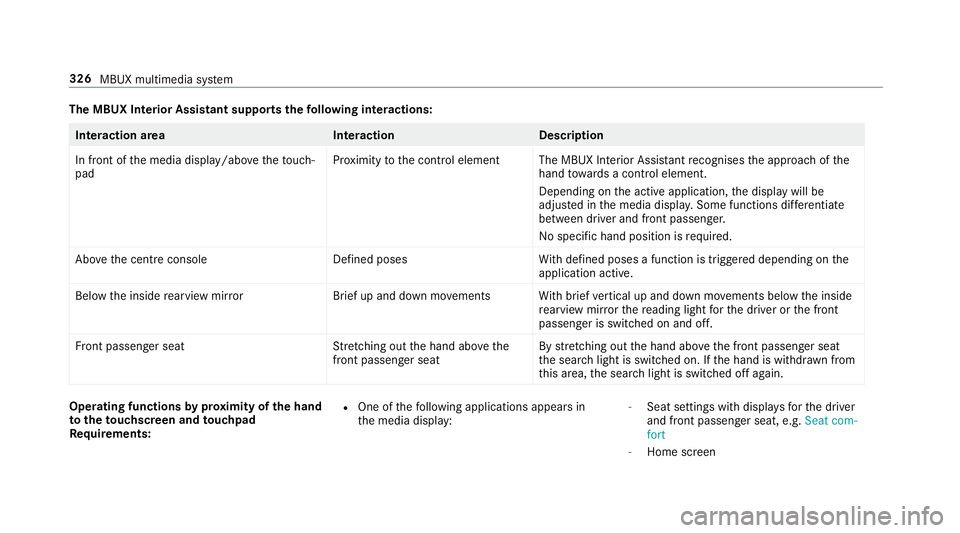
The MBUX In
terior Assistant supports thefo llowing interactions: Interaction area
InteractionDescription
In front of the media display/abo vetheto uch‐
pad Pr
ox imity tothe control element The MBUX Interior Assis tant recognises the approach of the
hand towa rds a contro l element.
Depending on the active application, the display will be
adjus ted in the media displa y.Some functions di fferentiate
between driver and front passenger.
No specific hand position is requ ired.
Abo vethe cent reconsole Defined poses With defined poses a function is triggered depending on the
application active.
Below the inside rearview mir rorB rief up and down mo vements With brief vertical up and down mo vements below the inside
re arview mir rorth ere ading light forth e driver or the front
passenger is switched on and off.
Fr ont passenger seat Stretching out the hand abo vethe
front passenger seat By
stre tching out the hand abo vethe front passenger seat
th e sear chlight is switched on. If the hand is withdr awn from
th is area, the sear chlight is switched off again. Operating functions
byprox imity of the hand
to theto uchscreen and touchpad
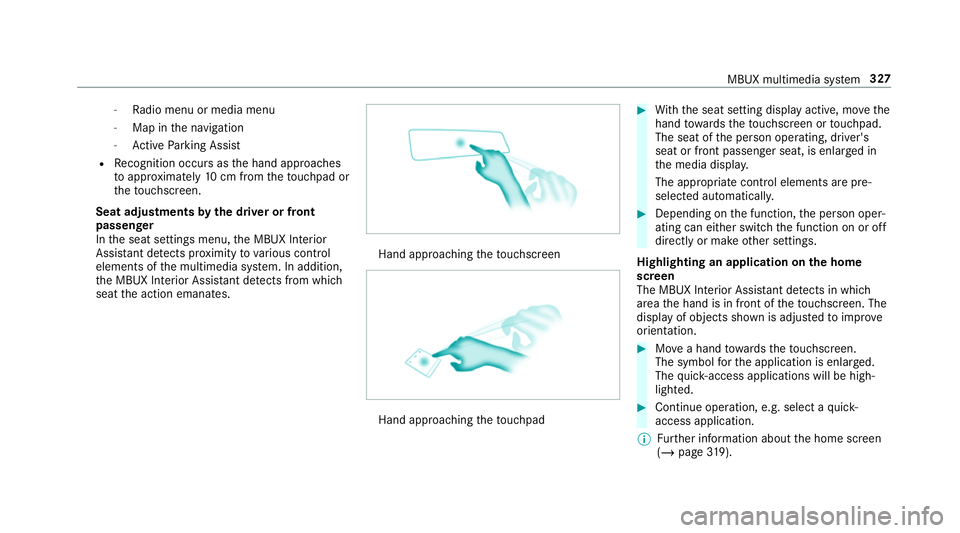
Re quirements: R
One of thefo llowing applications appears in
th e media display: -
Seat settings with displa ysforth e driver
and front passenger seat, e.g. Seat com-
fort
- Home screen 326
MBUX multimedia sy stem
Page 330 of 673
-
Radio menu or media menu
- Map in the navigation
- Active Parking Assist
R Recognition occu rsas the hand approaches
to appr oximately 10cm from theto uchpad or
th eto uchsc reen.
Seat adjustments bythe driver or front
passenger
In the seat settings menu, the MBUX Interior
Assis tant de tects pr oximity tovarious control
elements of the multimedia sy stem. In addition,
th e MBUX Interior Assis tant de tects from whi ch
seat the action emanates. Hand approaching
theto uchsc reen Hand approaching
theto uchpad #
With th e seat setting display active, mo vethe
hand towa rdsth eto uchsc reen or touchpad.
The seat of the person operating, driver's
seat or front passenger seat, is enlar ged in
th e media displa y.
The appropriate contro l elements are pre-
selec ted automatically. #
Depending on the function, the person oper‐
ating can either switch the function on or off
directly or make other settings.
Highlighting an application on the home
screen
The MBUX In terior Assis tant de tects in whi ch
area the hand is in front of theto uchsc reen. The
display of objects shown is adjus tedto impr ove
orientation. #
Movea hand towa rdsth eto uchsc reen.
The symbol forth e application is enlar ged.
The quick- access applications will be high‐
lighted. #
Continue operation, e.g. select a quick-
access application.
% Further information about the home screen
(/ page 319). MBUX multimedia sy
stem 327
Page 332 of 673
#
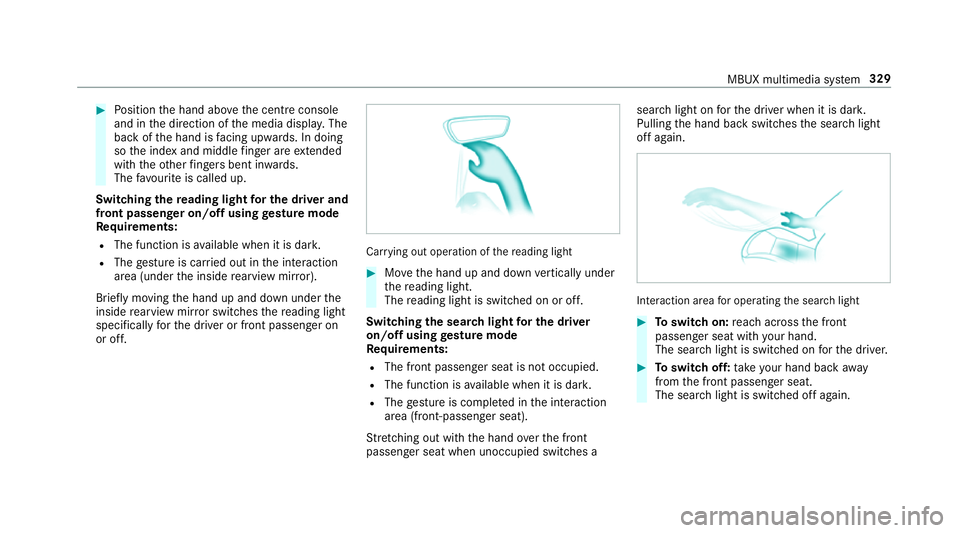
Position the hand abo vethe cent reconsole
and in the direction of the media displa y.The
back of the hand is facing up wards. In doing
so the index and middle finger are extended
wi th th eot her fingers bent in wards.
The favo urite is called up.
Swit ching there ading light for the driver and
front passen ger on/o ffusing gesture mode
Re quirements:
R The function is available when it is dar k.
R The gesture is car ried out in the interaction
area (under the inside rearview mir ror).
Brief lymoving the hand up and down under the
inside rearview mir ror switches there ading light
specifically forth e driver or front passenger on
or off. Car
rying out operation of there ading light #
Movethe hand up and down vertically under
th ere ading light.
The reading light is swit ched on or off.
Switching the sear chlight for the driver
on/o ffusing gesture mode
Re quirements:
R The front passen ger seat is not occupied.
R The function is available when it is dar k.
R The gesture is co mplete d in the interaction
area (front-passen ger seat).
St retching out wi th the hand overth e front
passenger seat when unoccupied switches a sear
chlight on forth e driver when it is dar k.
Pulling the hand back switches the sear chlight
off again. Interaction area
for operating the sear chlight #
Toswitch on: reach across the front
passenger seat with your hand.
The sear chlight is switched on forth e driver. #
Toswitch off: take your hand back away
from the front passenger seat.
The sear chlight is switched off again. MBUX multimedia sy
stem 329
Page 333 of 673
Settings
for the MBUX In terior Assistant
Multimedia sy stem:
4 © 5
Settings 5
System
5 Interior assistant #
Toswitch on full functionality of the
MBUX Interior Assistant: selectOn.
The option is activated #.#
Toactivate additional functions forre ad‐
ing and sear chlights: selectIncluding read-
ing light.
When the option is switched on, the display
button is activated.
The functions forth ere ading and sear ch
lights are activated in addition tothe pr oxim‐
ity functions. #
Toswitch off the MBUX Interior Assis‐
tant: select Off.
The option is activated #. Main functions
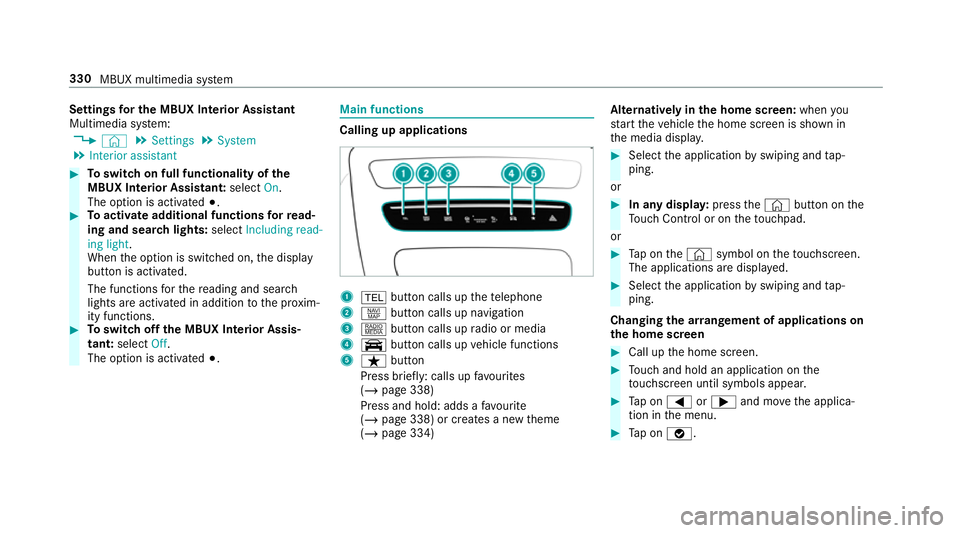
Calling up applications
1
% button calls up thete lephone
2 z button calls up navigation
3 | button calls up radio or media
4 y button calls up vehicle functions
5 ß button
Press brief ly: calls up favo urites
(/ page 338)
Press and hold: adds a favo urite
(/ page 338) or creates a new theme
(/ page 334) Alternatively in
the home screen: whenyou
st art theve hicle the home screen is shown in
th e media displa y. #
Select the application byswiping and tap‐
ping.
or #
In any displa y:press the© button on the
To uch Control or on theto uchpad.
or #
Tap on the© symbol on theto uchsc reen.
The applications are displa yed. #
Select the application byswiping and tap‐
ping.
Changing the ar rangement of applications on
th e home screen #
Call up the home screen. #
Touch and hold an application on the
to uchsc reen until symbols appear. #
Tap on = or; and mo vethe applica‐
tion in the menu. #
Tap on ø. 330
MBUX multimedia sy stem
Page 334 of 673
Profile
Note
s on profiles
The driver's seat is equipped with an anti-entra p‐
ment feature.
If th e driver's door is open, the driver's seat will
not be set af ter calling up the driver's profile.
Overview of profiles
Using the multimedia sy stem up toseven pro‐
fi les can be created in theve hicle.
Profiles store your personal vehicle settings and
settings forth e multimedia sy stem.
If th eve hicle is used byseveral drivers, the
driver can select their profile before the journe y,
without changing the settings of other drivers.
Yo u can select the profile:
R When entering (/ page 333)
R Using the home screen (/ page319)
The profile settings are activated as soon as a
profile is selected.
% Ifyo u call up your profile when driving then
th e driver's seat position will not be adjus‐
te d. Yo
u can cancel the setting process with the
fo llowing actions:
R Tap on thePositioning seat and steering
wheel. Please tap to cancel. warning on
th e media displa y.
R Press one of the seat operating buttons
in the driver's door.
Profile content
Depending on theve hicle equipment, thefo llow‐
ing settings can be stored in your profile, for
ex ample:
R Driver's seat memory
R Radio (including station list)
R Last destinations
R Climate control
R Ambient lighting
R DYNA MIC SELECT I (individual)
R Instrument Displa y,Head-up Display and
st yle (display style of the multimedia sy stem)
R Themes, suggestions and favo urites %
Settings for driver assi stance sy stems can‐
not be sa ved in the profile.
Mercedes me connect profile
If yo u use a profile from Mercedes me connect,
th efo llowing online functions are available, for
ex ample:
R You can configure the settings in theve hicle
using the Mercedes me app and the
Mercedes me por tal.
R You can syn chronise your profile on
Mercedes me connect with the profile in the
ve hicle (/ page 333).
R You can add a personal profile pho tothat is
shown in theve hicle.
R You can take your profile and some of your
settings with you in new vehicles.
Requ irements for using Me rcedes me con‐
nect profiles:
Fo rth eve hicle owner:
R You ha vea Mercedes me user account.
R The vehicle has been connected with the
user account. MBUX multimedia sy
stem 331
Page 337 of 673
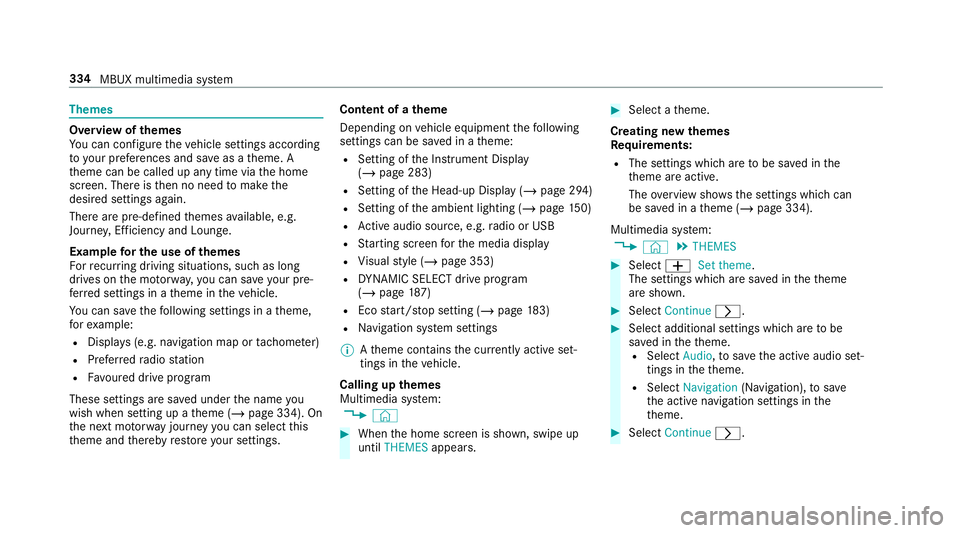
Themes
Overvi
ewofthemes
Yo u can configure theve hicle settings according
to yo ur preferences and sa veas a theme. A
th eme can be called up any time via the home
screen. There is then no need tomake the
desired settings again.
There are pre-defined themes available, e.g.
Journe y,Efficiency and Lounge.
Example for the use of themes
Fo rre cur ring driving situations, su chas long
drives on the mo torw ay,yo u can sa veyour pre‐
fe rred settings in a theme in theve hicle.
Yo u can sa vethefo llowing settings in a theme,
fo rex ample:
R Displa ys(e.g. navigation map or tach ome ter)
R Prefer redra dio station
R Favo ured drive program
These settings are sa ved under the name you
wish when setting up a theme (/ page 334). On
th e next mo torw ay jou rney yo u can select this
th eme and thereby restore your settings. Content of a
theme
Depending on vehicle equipment thefo llowing
settings can be sa ved in a theme:
R Setting of the Instrument Display
(/ page 283)
R Setting of the Head-up Display (/ page 294)
R Setting of the ambient lighting (/ page150)
R Active audio sou rce, e.g. radio or USB
R Starting sc reen forth e media display
R Visual style (/ page 353)
R DYNA MIC SELECT drive program
(/ page 187)
R Eco start/ stop setting (/ page183)
R Navigation sy stem settings
% Atheme conta insthe cur rently acti veset‐
tings in theve hicle.
Calling up themes
Multimedia sy stem:
4 © #
When the home screen is shown, swipe up
until THEMES appears. #
Select a theme.
Creating new themes
Re quirements:
R The settings which are tobe sa ved in the
th eme are active.
The overview sho wsthe settings which can
be sa ved in a theme (/ page 334).
Multimedia sy stem:
4 © 5
THEMES #
Select WSet theme.
The settings which are sa ved in theth eme
are shown. #
Select Continue r. #
Select additional settings which are tobe
sa ve d in theth eme.
R Select Audio, tosave the active audio set‐
tings in theth eme.
R Select Navigation (Navigation), tosave
th e active navigation settings in the
th eme. #
Select Continue r. 334
MBUX multimedia sy stem
Page 340 of 673
Calling up suggestions
Re
quirements:
R A profile has been created and is selected
(/ page 333). #
Tap on © inthe media displa y.
The home screen is shown. #
Swipe up until theSUGGESTIONS menu is
shown. #
Select a navigation destination, a media
source, a radio station or a con tact.
If ro ute guidance is already active, you can‐
not start a new route guidance or set an
intermediate destination forth eex isting
ro ute.
Configuring sug gestions
Re quirements:
R Toprotect settings using a PIN: your pro‐
fi le is connec ted with Mercedes me and your
Mercedes me account is PIN pr otected.
Multimedia sy stem:
4 © 5
f Profiles #
Select ufor a profile. #
Select Suggestions settings . #
Toswitch suggestions display on/off:
switch Allow destination suggestions ,Allow
music suggestions andAllow contact sugges-
tions on or off.
If an option is switched on, suggestions for
navigation de stinations, media sources, radio
st ations or con tacts are shown.
If th e option is switched off, no suggestions
are shown. #
Todeactivate the learn function for one
da y:activate Deact. learn. for 24h .
Fo r24 hours no new actions will be trained
and no data recorded forth e active profile.
Suggestions will continue tobe shown. The
re maining time is shown next toDeact.
learn. for 24h .
Before the time runs out, a messa geis
shown that the multimedia sy stem will con‐
tinue the learn function shortl y.
Example: if the option is switched on and a
ro ute toa new destination has been calcula‐
te d, this destination would not be take n into
account forth e learn function. #
Toreset the suggestion his tory:select
Reset suggestion history.
% This process cannot be reve rsed. #
Select Yes. #
Toprotect settings with a PIN: switchon
PIN protection.
If PIN pr otection is switched on, you must
en terth e Mercedes me PIN toset the sug‐
ge stions. This PIN will be set in the Mercedes
me por talfo rth e personalisation service to
pr otect your personal settings.
Re naming suggestions
Only navigation destinations can be renamed. #
Tap on the© symbol in the media displa y.
The home screen is shown. #
Swipe up until theSUGGESTIONS menu is
shown. #
Highlight a navigation destination and press
until theOPTIONS menu is shown. #
Select Rename. #
Ente rth e name. #
Toconfirm the entr y:select Yes. MBUX multimedia sy
stem 337