navigation MERCEDES-BENZ GLC SUV 2019 Repair Manual
[x] Cancel search | Manufacturer: MERCEDES-BENZ, Model Year: 2019, Model line: GLC SUV, Model: MERCEDES-BENZ GLC SUV 2019Pages: 673, PDF Size: 11.51 MB
Page 407 of 673
#
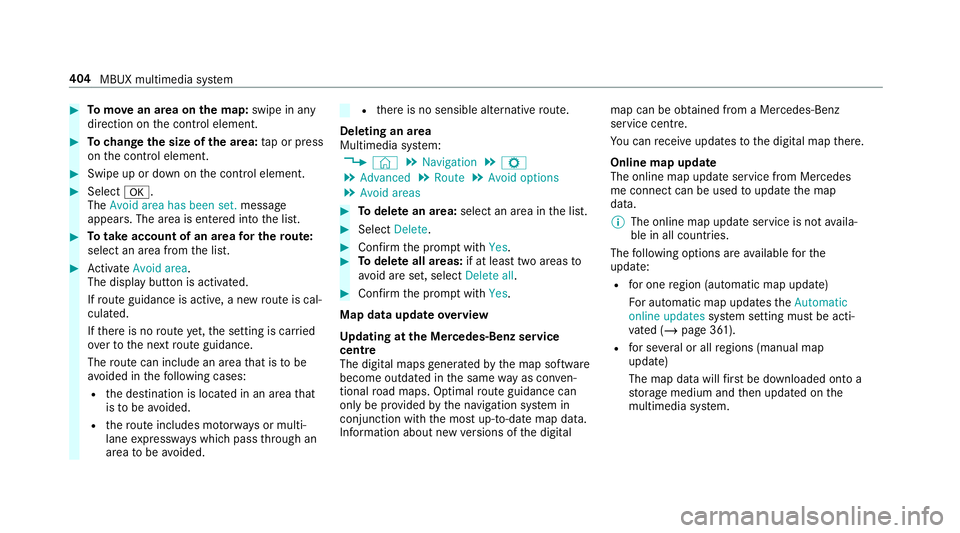
Tomo vean area on the map: swipe in any
direction on the control element. #
Tochange the size of the area: tap or press
on the control element. #
Swipe up or down on the control element. #
Select a.
The Avoid area has been set. message
appears. The area is entered into the list. #
Totake account of an area for the route:
select an area from the list. #
Activate Avoid area.
The display button is acti vated.
If ro ute guidance is active, a new route is cal‐
culated.
If th ere is no route yet,th e setting is car ried
ove rto the next route guidance.
The route can include an area that is tobe
av oided in thefo llowing cases:
R the destination is located in an area that
is to be avo ided.
R thero ute includes mo torw ays or multi-
lane expressw ays which pass thro ugh an
area tobe avo ided. R
there is no sensible alternative route.
Deleting an area
Multimedia sy stem:
4 © 5
Navigation 5
Z
5 Advanced 5
Route 5
Avoid options
5 Avoid areas #
Todel ete an area: select an area in the list. #
Select Delete. #
Confirm the prom ptwith Yes. #
Todel ete all areas: if at least two areas to
av oid are set, select Delete all. #
Confirm the prom ptwith Yes.
Map data upda teoverview
Up dating at the Mercedes-Benz se rvice
centre
The digital maps generated bythe map software
become outdated in the same way as co nven‐
tional road maps. Optimal route guidance can
on ly be pr ovided bythe navigation sy stem in
conjunction with the most up-to-date map data.
Information about new versions of the digital map can be obtained from a Mercedes-Benz
service cent
re.
Yo u can recei veupdates tothe digital map there.
Online map update
The online map update service from Mercedes
me connect can be used toupdate the map
data.
% The online map update service is not availa‐
ble in all countries.
The following options are available forthe
update:
R for one region (automatic map update)
Fo r auto matic map updates theAutomatic
online updates system setting must be acti‐
va ted (/ page 361).
R for se veral or all regions (manual map
update)
The map data will firs t be downloaded onto a
st orage medium and then updated on the
multimedia sy stem. 404
MBUX multimedia sy stem
Page 408 of 673
Fu
rther information on online map updates is
av ailable here:
R at any Mercedes-Benz service centre
R at: http://www.mercedes.me
Fu rther information on updates can be found at:
http://manuals.daimler.com/baix/cars/
connectme/en_GB/index.html.
Overview of map data
Yo ur vehicle is supplied with map data at thefa c‐
to ry. Depending on the count ry, map data for
yo ur region is either pre-ins talled or the map
data is supplied on a data storage medium.
If th e map data on your vehicle has been ins tal‐
led at thefa ctory and you wish toreins tall it, you
do not need toenter the activation code.
Fo r map data that you ha vepur chased in the
fo rm of a data storage medium, you must en ter
th e accompanying activation code.
% Ifyo u sa vethe map data on a data storage
medium with the online map update service,
no entry isrequ ired. The activation code is
st ored on the data storage medium during
th e downloading process. Obser
vethefo llowing when entering the activa‐
tion code:
R The activation code can be used for one vehi‐
cle
R The activation code is not transferable
R The activation code has six digits
In theeve nt of thefo llowing problems, please
con tact a Mercedes-Benz service centre:
R The multimedia sy stem does not accept the
activation code
R You ha velost the activation code
Displaying the compass
Multimedia sy stem:
4 © 5
Navigation 5
¡ 5
Position #
Select Compass.
The compass display sho wsthefo llowing
information:
R the cur rent di rection of tr avel with bear‐
ing (360° form at) and compass direction
R longitude and latitude coo rdinates in
degrees, minutes and seconds R
height (rounded)
R number of satellites from which a signal
can be recei ved
The information is not available in everycountr y.
Displaying Qibla
Multimedia sy stem:
4 © 5
Navigation 5
¡ 5
Position #
Select Qibla.
The ar rowonthe compass sho wsthe direc‐
tion toMecca in relation tothe cur rent di rec‐
tion of tr avel.
The number of satellites recei ved is shown.
% This function is not available in all countries.
Setting the map scale automatically
Multimedia sy stem:
4 © 5
Navigation 5
Z
5 Advanced #
Select View. #
Select Map orientation. MBUX multimedia sy
stem 405
Page 409 of 673
#
Activate Auto zoom.
The display button is acti vated. The map
scale is set automatically depending on your
driving speed and the type of road.
% The automatically selec ted map scale can be
ch anged manuall y.After a few seconds, this
is automatically reset.
Displaying the satellite map
Multimedia sy stem:
4 © 5
Navigation 5
Z
5 Advanced #
Select View. #
Select Map elements. #
Switch Satellite map on or off.
If th e display button is activated, satellite
maps are displa yed in map scales from 2 km.
If th e display button is deactivated, satellite
maps are not displa yed in map scales from
2 km to20 km.
% The satellite maps forth ese map scales are
not available in all countries. Displ
aying thera nge
Re quirements:
R The multimedia sy stem supports the func‐
tion.
Multimedia sy stem:
4 © 5
Navigation 5
Z
5 Advanced #
Select View. #
Select Map elements. #
Activate Range.
The display button is acti vated.
The range is shown on the map with thefo llow‐
ing displa ys:
R For petrol and diesel vehicles: green display
When the lo werre ser vecapacity is reached then
th era nge displ ayon the map is switched off.
% The range displ ayon the map is not available
in all countries.
Displ aying weather information and other
map contents
Re quirements: R
Mercedes me connect is available.
R You ha vea user account forth e Mercedes
me por tal.
R The service is available.
R The service has been activated.
Multimedia sy stem:
4 © 5
Navigation 5
Z
5 Advanced #
Select View. #
Select Map elements. #
Scroll up and show theONLINE MAP CON-
TENTS categor y.
The available services are displa yed. The
services are pr ovided byMercedes me con‐
nect. #
Switch on a service, e.g. Weather.
Cur rent we ather information is displa yed on
th e navigation map, e.g. temp erature or
cloud co ver.The service information is not
shown in all map scales, e.g. weather sym‐
bols. 406
MBUX multimedia sy stem
Page 410 of 673
Fu
rther information about available services and
about displaying information in the map scales
can be found at: http://www.mercedes.me
% Weather information is not available in all
countries.
Showing map view in the multifunction dis‐
play of the instrument clus ter
Multimedia sy stem:
4 © 5
Navigation 5
Z
5 Advanced #
Select View. #
Select Map orientation. #
Scroll up and show theINSTRUMENT CLUS-
TER VIEW category. #
Toset the map scale automaticall y:switch
on Auto zoom.
The display button is activated. The map
scale is set automatically depending on your
driving speed and the type of road. #
Toselect map orientation: select an option.
The #dot indicates the cur rent selection. The
following options are available:
R 2D heading up option:the 2D map view is
aligned tothe direction of tra vel.
R 2D north up option:the 2D map view is
displa yed so that no rth is alw ays at the
to p.
R 3Doption: the 3D map view is aligned to
th e direction of tra vel. Pa
rking service Note
s onthe pa rking service &
WARNING Risk of accident and inju ry
due tonot observing the maximum per‐
mitted access height
If th eve hicle height exceeds the maximum
permitted access height for multi-s torey car
par ksand unde rgro und car par ks,th eve hicle
ro of as well as other vehicle parts could be
damaged.
There could be a risk of injury totheve hicle
occupants. #
Before driving into a multi-s torey car
park or under ground car pa rkobser ve
th e locally signpos ted access height. #
Ifth eve hicle height, including any addi‐
tional equipment, exceeds the maxi‐
mum permitted access height, do not
drive into the multi-s torey car park or
underground car par k. This service is not
available in all countries.
Selecting pa rking options
* NO
TEBefore selecting the parking
option The data is based on
the information made
av ailable bythere spective service pr ovider. #
Alw ays pay attention tothe local infor‐
mation and circums tances. Re
quirements:
R The navigation services option is available,
subsc ribed toand activated in the Mercedes
me por tal. MBUX multimedia sy
stem 407
Page 411 of 673
R
The parking service is within the scope of the
navigation service.
R Parking is activated (/ page 408).
Multimedia sy stem:
4 © 5
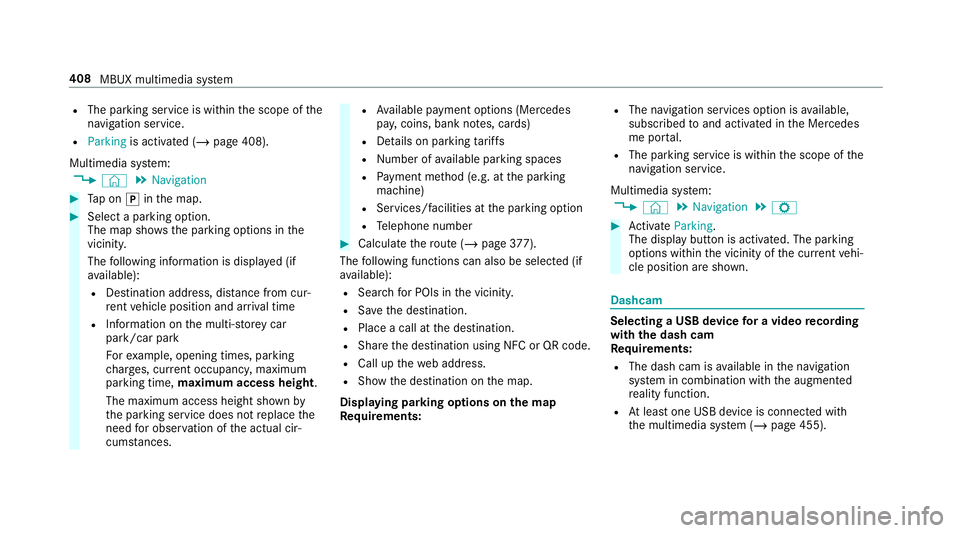
Navigation #
Tap on jinthe map. #
Select a parking option.
The map sho ws the parking options in the
vicinity.
The following information is displa yed (if
av ailable):
R Destination address, dis tance from cur‐
re nt vehicle position and ar riva l time
R Information on the multi-s torey car
park/car park
Fo rex ample, opening times, parking
ch arge s, cur rent occupancy, maximum
pa rking time, maximum access height .
The maximum access height shown by
th e parking service does not replace the
need for obser vation of the actual cir‐
cums tances. R
Available payment options (Mercedes
pa y,coins, bank no tes, cards)
R Details on parking tariffs
R Numb er ofavailable parking spaces
R Payment me thod (e.g. at the parking
machine)
R Services/ facilities at the parking option
R Telephone number #
Calculate thero ute (/ page377).
The following functions can also be selec ted (if
av ailable):
R Sear chfor POIs in the vicinit y.
R Save the destination.
R Place a call at the destination.
R Share the destination using NFC or QR code.
R Call up thewe b address.
R Show the destination on the map.
Displaying parking options on the map
Requ irements: R
The navigation services option is available,
subsc ribed toand activated in the Mercedes
me por tal.
R The parking service is within the scope of the
navigation service.
Multimedia sy stem:
4 © 5
Navigation 5
Z #
Activate Parking.
The display button is acti vated. The parking
options within the vicinity of the cur rent vehi‐
cle position are shown. Dashcam
Selecting a USB device
for a video recording
with the dash cam
Re quirements:
R The dash cam is available in the navigation
sy stem in combination with the augmented
re ality function.
R Atleast one USB device is connec ted with
th e multimedia sy stem (/ page 455). 408
MBUX multimedia sy stem
Page 421 of 673
Contacts
Information about
the contacts menu
The con tacts menu contains all contacts from
ex isting data sources, e.g. mobile phone or data
st orage medium.
Depending on the data source, it is possible to
sa ve /load thefo llowing number of con tacts:
R Perm anently sa ved con tacts: 3,000 entries
R Contacts loaded from the mobile phone:
5,000 entri es per mobile phone
Fr om the conta cts menu, you can per form the
fo llowing actions:
R Make a call, forex ample call a con tact
(/ page 419)
R Navigation (/ page374)
R Compose messages (/ page 423)
R Additional options (/ page 420)
If a mobile phone is connec tedto the multimedia
sy stem (/ page413) and auto matic calling up
(/ page 418) is ac tivated, the mobile phone's
conta cts are displ ayed in the address book. The multimedia sy
stem can show suggestions
based on frequently used conta cts aswell as
incoming and outgoing calls (/ page 337).
These are shown at theto p of the conta ct list.
Downloading mobile phone contacts
Multimedia sy stem:
4 © 5
Phone 5
5 Z #
Select Contacts & call list.
Au tomatically #
Ifth eSynchronise contacts automatically
function is not active: activate the function
by pressing once.
Manually #
Ifth eSynchronise contacts automatically
function is active: deactivate the function by
pressing once. #
Select Synchronise contacts .
Yo u can see from thest atus of controller tothe
ri ght of theSynchronise contacts automatically
display text wh ether the function is active. Calling up contacts
Multimedia sy
stem:
4 © 5
Phone 5
g
The following options can be used tosear chfor
contacts:
R searching byinitials
R sear ching byname
R searching byphone number #
Ente rch aracters into the sear chfield. #
Select the conta ct.
A contact can contain thefo llowing de tails:
R phone numbers
R navigation addresses
R geo-coordinates
R Internet address
R e-mail addresses
R voice tag (if set)
R relation (if set) 41 8
MBUX multimedia sy stem
Page 427 of 673
Fo
rw arding a message
Multimedia sy stem:
4 © 5
Phone 5
5 l
A message list is shown. #
Select rnexttoa con tact.
The messaging his tory with this con tact is
shown. #
Press and hold on a message. #
Toforw ard a message: selectForward.
Calling a message sender
Multimedia sy stem:
4 © 5
Phone 5
5 l
A message list is shown. #
Select rnexttoa con tact.
The messaging his tory with this con tact is
shown. #
Select Ä. #
Select Call. Using
telephone numbers or URLs from a
te xt message
Re quirements:
R An Internet connection is available tocall up
a URL.
Multimedia sy stem:
4 © 5
Phone 5
5 l
A message list is shown. #
Select rnexttoa con tact.
The messaging his tory with this con tact is
shown. #
Select a telephone number or a URL in the
messa ge.
If a URL is selected thewe b br ows er opens.
If a telephone number is selec tedth efo llow‐
ing options are available:
R Call
R Write new text message #
Select an option. Deleting a message
Multimedia sy
stem:
4 © 5
Phone 5
5 l #
Select a conta ct. #
Press and hold on a message. #
Todel eteth e message: selectDelete. In-Car Of
fice In-Car Of
fice functions
Using In-Car Of fice, you can connect your online
services with the multimedia sy stem.
The following functions are available:
R Display of the upcoming appointments in the
calenda r.
R Start navigation toan appointment. It is a
re qu irement that the appointment conta ins a
navigable destination forth e location.
R Display the appointment.
R Display and selection of tasks and calls to
compl ete. 424
MBUX multimedia sy stem
Page 436 of 673
Calling up
the Android Autosound settings
Multimedia sy stem:
4 © 5
Mercedes me & Apps
5 Smartphone 5
Android Auto 5
Z #
Select sound settings.
Setting control of the application but tons
(Android Auto)
Multimedia sy stem:
4 © 5
Mercedes me & Apps
5 Smartphone 5
Android Auto 5
Z
5 General #
Toswitch on Control via application buttons :
activate the display button. #
Toswitch off Control via application buttons :
deactivate the display button.
Ending Android Auto #
Toend the connection of Android Auto
(with cable): disconnectthe connection via
th e connecting cable between the mobile
phone and multimedia sy stem. %
Mercedes-Benz recommends disconnecting
th e connecting cable only when theve hicle
is stationar y. Tr
ansfer redve hicle data with Android Auto
and Apple CarPlay ® Overview of transfer
redve hicle data
When using Android Autoor Apple CarPlay ®
, cer‐
ta in vehicle data is transfer redto the mobile
phone. This enables youto getth e best out of
selected mobile phone services. Vehicle data is
not directly accessible.
The following sy stem information is transmit ted:
R Software release of the multimedia sy stem
R System ID (anonymised)
The transfer of this data is used tooptimise
communication between theve hicle and the
mobile phone.
To do this, and toassign se veralve hicles tothe
mobile phone, a vehicle identifier is randomly
ge nerated. This has no connection
totheve hicle identifica‐
tion number (VIN) and is dele ted when the multi‐
media sy stem is reset (/ page 362).
The following driving status data is transmit ted:
R Transmission position engaged
R Distinction between par ked, standstill, rolling
and driving
R Day/night mode of the instrument clus ter
The transfer of this data is used toalter how
con tent is displ ayed tocor respond tothe driving
situation.
The following position data is transmitte d:
R Coordinates
R Speed
R Compass direction
R Acceleration di rection
This da tais only transfer red while the navigation
sy stem is active, in order toimpr oveit (e.g. so it
can continue functioning when in a tunnel). MBUX multimedia sy
stem 433
Page 465 of 673
include logos, album co
vers, music trac ks, pro‐
grammes, ne wsor service information, forex am‐
ple. #
Select .
Ac
tivating/deactivating the frequency fix
function Multimedia sy
stem:
4 © 5
Radio 5
Z 5
General #
Switch Frequency fix on or off.
If th e function is activated, the set frequency
is ke pt eve n ifthere ception is poo r.Ac
tivating/deactivating traf fic announce‐
ments Multimedia sy
stem:
4 © 5
Radio 5
Z 5
General #
Switch Traffic announcements (TA) on or off. Setting
the traf fic information service vol‐
ume increase Multimedia sy
stem:
4 © 5
Settings 5
Audio #
Select Navigation and traffic announce-
ments. #
Set a value forTraffic announc. vol. increase . #
Set a value. #
Accept theva lue with q. Displaying
radio text Multimedia sy
stem:
4 © 5
Radio 5
Z 5
General #
Switch Radio text information on or off. TV
Information on
TVmode In
fo rm ation on copy right pr otection and
tradema rks
Ubiquitous DTCP-IP Copyright
®
20 15 Ubiquitous Corp.
DV B and DVB logos are tradema rks of theDVB
Project.
The TVtuner enables reception of digital chan‐
nels according tothefo llowing standards:
R DVB-T
R DVB-T2
In some countries, thest andards may not be
av ailable, or may not be available in all areas.
A CI+ module (Common In terface Module),
which is not included in the scope of deliver y,is
used todecrypt HD prog rammes according to
th e CI+ standard. In some countries, an addi‐
tional smart card is required, which is inse rted
into the CI+ module (see the manufacturer's
operating manual).
The CI+ module is connected in the CI+ box in
th eglov e compartment. 462
MBUX multimedia sy stem
Page 469 of 673
Selecting a
TVchannel from thech annel pre‐
sets and from thefa vo urites
Re quirements:
R The TVchannel has been sa ved in thech an‐
nel presets and in thefa vo urites.
Multimedia sy stem:
4 © 5
Media 5
TV #
Select in the menu .
#
Select Presets. #
Select theTV channel. #
Toset in thefa vo urites: briefly press the
ß rocker switch down on thesteering
wheel. #
Select theTV channel.
Selecting TVchannels in the bac kground
Re quirements:
R The navigation sy stem is active, forex ample
R TVmode is switched on in the bac kground
and the sound from the selected TVchannel
can be heard #
Swipe tothe left or right over the~ but‐
to n on theto uchpad.
The pr evious or next TVchannel is set.
or #
Inthe control menu: pressthe~ button
on theto uchpad. #
Select qorr.
The pr evious or next TVchannel is set.
Displ aying cur rent prog ramme in form ation
fo r the selected channel (EPG)
Multimedia sy stem:
4 © 5
Media 5
TV 5
Õ
EPG displa ys thefo llowing information (if availa‐
ble):
R Broadcast times
R Names of the cur rent and upcoming pro‐
grammes #
Select a programme name wi thr .
The programme information is displa yed. #
Toscroll: swipe up or down. #
Tolea vethe prog ramme in form ation dis‐
pla y:select q. #
Select GTo TV.
Fu nction of thech annel fix setting
Channel fix is switched on
The channel is not changed. This is useful if, for
ex ample, you drive theve hicle thro ugh reception
re gions that ove rlap. It pr events frequent switch‐
ing ba ckand forth between channels.
The FIXindicator is displa yed af terth e name of
th eTV channel.
Channel fix is switched off
Depending on reception qualit y,theTV tuner
au tomatical lyswitches toan alternative channel
with the same programme conte nt but better
re ception. Using this function, the best possible
te levision picture can be found, rega rdless of the
re ception qualit y.
Ac tivating/deactivating channel fix
Multimedia sy stem:
4 © 5
Media 5
TV 5
Z
5 General #
Select General settings. 466
MBUX multimedia sy stem