light MERCEDES-BENZ GLE COUPE 2018 COMAND Manual
[x] Cancel search | Manufacturer: MERCEDES-BENZ, Model Year: 2018, Model line: GLE COUPE, Model: MERCEDES-BENZ GLE COUPE 2018Pages: 190, PDF Size: 4.42 MB
Page 114 of 190
An e-mail account must be set up on the mobile
phone for the e-mail function (see the manufac-
turer’s operating instructions).
To read and write e-mails in the multimedia sys-tem, the e-mail account first needs to be con-
figured (
Ypage 113).
Some mobile phones with the MAP Bluetooth®
profile:
Ronly show new text messages
Rdo not support the deleting or editing of text
messages
Rdo not support the drafts folder for text mes- sages
Rdo not support the sending of text messages
Rdo not support the e-mail function
Rdo not send messages when in a locked sta-
tus
Not all mobile phones available on the market
are equally suitable. Further information about
settings and supported functions of Bluetooth
®-
capable mobile phones can be found on the
Internet at
http://www.mercedes-benz.com/connect .
You can also obtain more information by calling.
In the USA, you can get in touch with the
Mercedes-Benz Customer Assistance Center on
1-800-FOR-MERCedes (1-800-367-6372).
In Canada, you can get in touch with the Cus-
tomer Relations Center on 1-800-387-0100.
Settings
Calling up the settings menu for mes-
sages
XTo call up the telephone menu: press the
% button.
XTo switch to the menu bar: slide 6the con-
troller.
XTo select 1: turn and press the controller.
The message menu is displayed.
XTo switch to the menu bar: slide 6the con-
troller.
XTo select Settings: turn and press the con-
troller.
The text message settings and the available e-
mail accounts of the connected mobile phone
will be displayed.
Configuring the text messages dis-
played
XCall up the settings menu for messages
(Ypage 112).
XTo highlight Text Message: turn the control-
ler.
XTo select G: slide 9the controller.
A menu with the following options is shown:
RAll Messages
All the messages are displayed.
RNew Messages
Only the messages that are new on the
mobile phone are displayed.
ROff
The messages are not displayed automati-
cally. You can display the 100 newest text
messages from the mobile phone using the
Download
option in the message menu.
XTo select the required option: turn and press
the controller.
Configuring the e-mails displayed
XCall up the settings menu for messages
(Ypage 112).
XTo highlight an e-mail account: turn the con-
troller.
XTo select G: slide 9the controller.
XTo select Automatic Download: turn and
press the controller.
A menu with the following options is shown:
RAll Messages
All the messages are displayed.
RNew Messages
Only the messages that are new on the
mobile phone are displayed.
ROff
The messages are not displayed automati-
cally. You can display the 100 newest e-
mails from the mobile phone using the
Download
option in the message menu.
XTo select the required option: turn and press
the controller.
112Messages (text messages and e-mails)
Telephone
Page 115 of 190
Configuring an e-mail account
XCall up the settings menu for messages
(Ypage 112).
XTo select an e-mail account: turn and press
the controller.
The e-mail account is now configured. E-mails
can now be received and sent in the multi-
media system.
Deactivating the e-mail function
XCall up the settings menu for messages
(Ypage 112).
XTo select E-Mail Off: turn and press the
controller.
E-mail reception is deactivated.
Changing the displayed name of the e-
mail account
XCall up the settings menu for messages
(Ypage 112).
XTo highlight an e-mail account: turn the con-
troller.
XTo select G: slide 9the controller.
XTo select Own E-Mail Address: turn and
press the controller.
The input menu for entering your own e-mail
address is displayed.
Downloading messages manually
XTo call up the telephone menu: press the
% button.
XTo switch to the menu bar: slide 6the con-
troller.
XTo select 1: turn and press the controller.
The message menu is displayed.
XTo switch to the menu bar: slide 6the con-
troller.
XTo select Download: turn and press the con-
troller.
Downloading text messages and e-mails
from the phone
XSelect From the Phone.
The messages are downloaded. If you have
selected Automatic Download
in the e-mail
settings, manual downloading is not possible. Updating from the e-mail server by the
mobile phone
XSelect
From the E-Mail Server.
The e-mails in the mobile phone are updated.
This function is not supported by all mobile
phones.
Reading messages
In the message menu
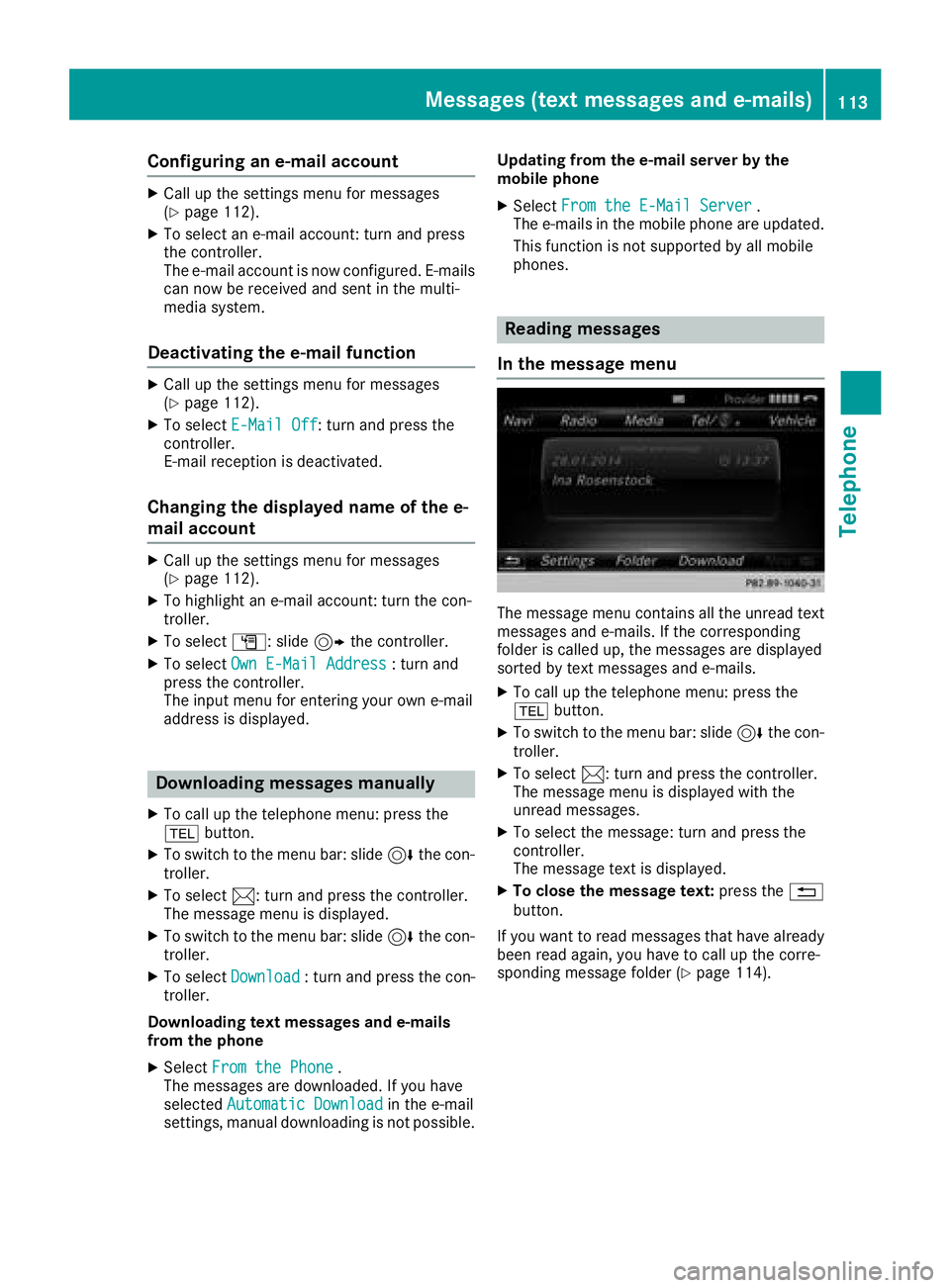
The message menu contains all the unread text
messages and e-mails. If the corresponding
folder is called up, the messages are displayed
sorted by text messages and e-mails.
XTo call up the telephone menu: press the
% button.
XTo switch to the menu bar: slide 6the con-
troller.
XTo select 1: turn and press the controller.
The message menu is displayed with the
unread messages.
XTo select the message: turn and press the
controller.
The message text is displayed.
XTo close the message text: press the%
button.
If you want to read messages that have already
been read again, you have to call up the corre-
sponding message folder (
Ypage 114).
Messages (text messages and e-mails)113
Telephone
Z
Page 116 of 190
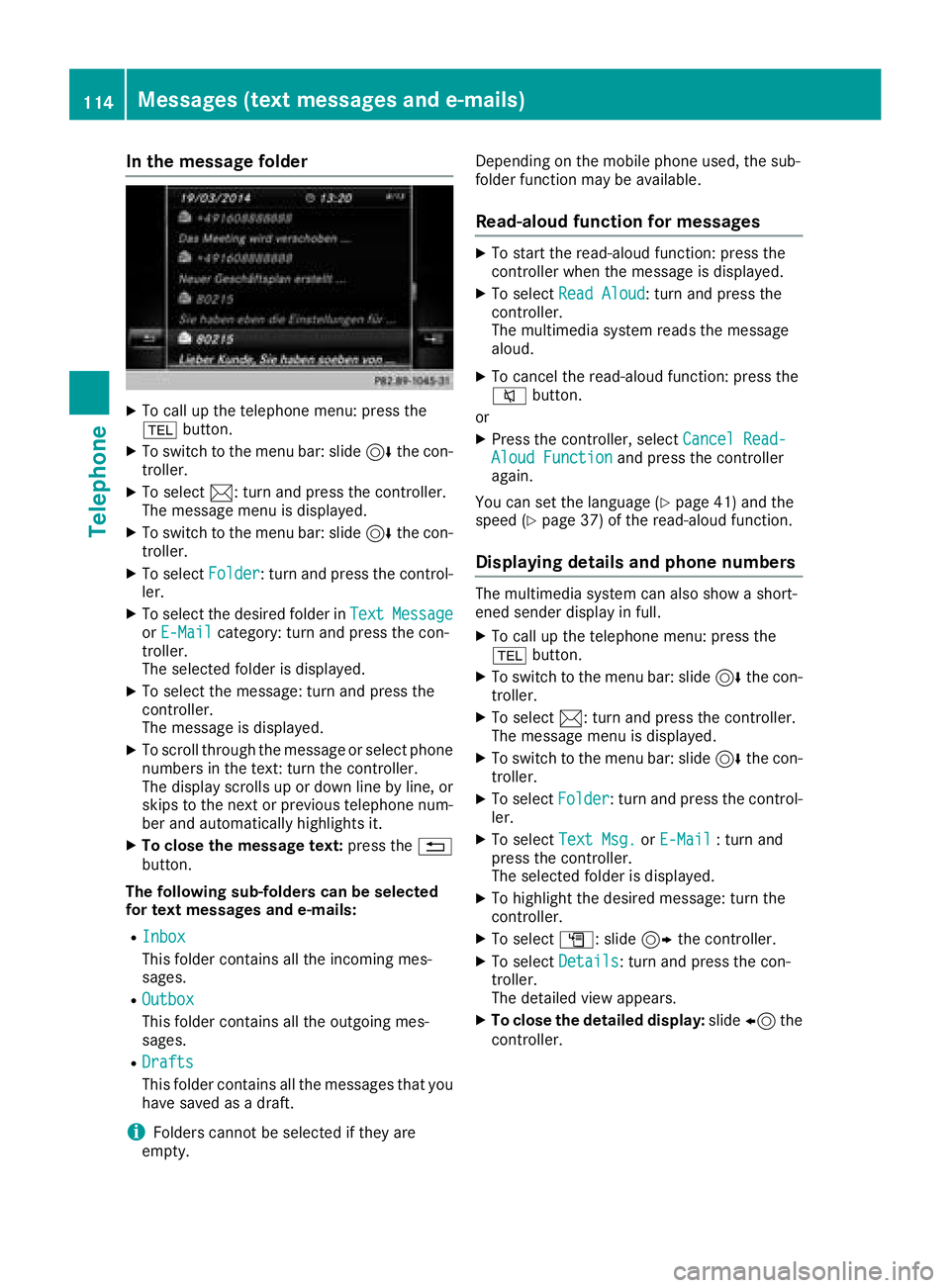
In the message folder
XTo call up thetelephon emenu: press th e
% button.
XTo switch to th emen ubar: slide 6thecon-
troller .
XTo select 1:turnand press th econtroller .
The message men uis displayed.
XTo switch to th emen ubar: slide 6thecon-
troller .
XTo select Folder:tur nand press th econtrol -
ler.
XTo select th edesired folder in TextMessag eorE-Mailcategory: tur nand press th econ-
troller .
The selected folder is displayed.
XTo select th emessage :tur nand press th e
controller.
The message is displayed.
XTo scrol lthroug hth emessage or select phon e
number sin th etext :tur nth econtroller .
The display scrolls up or down lin eby line, or
skips to th enext or previous telephon enum -
ber and automatically highlights it .
XTo close themessag etext: press th e%
button.
Th efollowing sub-folders can be selected
for tex tmessages and e-mails :
RInbox
This folder containsall th eincoming mes -
sages.
ROutbox
This folder contain sall th eoutgoin gmes -
sages.
RDrafts
This folder contain sall th emessage sthat you
hav esaved as adraft.
iFolder scanno tbe selected if they are
empty. Dependin
gon th emobile phon eused, th esub-
folder function may be available.
Read-aloud function for messages
XTo start th eread-aloud function :press th e
controller when th emessage is displayed.
XTo select ReadAloud:tur nand press th e
controller .
The multimedia system read sth emessage
aloud.
XTo cance lth eread-aloud function :press th e
8 button.
or
XPress th econtroller ,select Cancel Read-Aloud Functionand press th econtroller
again .
You can set th elanguage (
Ypage 41) and th e
spee d (Ypage 37) of th eread-aloud function .
Displaying details and phone numbers
The multimedia system can also sho w ashort -
ened sender display in full.
XTo call up th etelephon emenu: press th e
% button.
XTo switch to th emen ubar: slide 6thecon-
troller .
XTo select 1:turnand press th econtroller .
The message men uis displayed.
XTo switch to th emen ubar: slide 6thecon-
troller .
XTo select Folder:tur nand press th econtrol -
ler .
XTo select TextMsg .orE-Mail:tur nand
press th econtroller .
The selected folder is displayed.
XTo highligh tth edesired message :tur nth e
controller .
XTo select G:slide9 thecontroller .
XTo select Details:tur nand press th econ-
troller .
The detailed vie wappears.
XTo close th edetailed display: slide8 the
controller .
114Messages (text messages and e-mails)
Telephone
Page 118 of 190
XTo insert an e-mail address from the address
book: select theÆsymbol.
The contacts from the address book which
have an e-mail address are displayed.
XSearch for and select an entry (Ypage 100).
The e-mail address is copied to the addressee
line.
Entering the subject
XTo select the Subject:input line: select 5in
the character bar.
XEnter characters.
Entering text and sending e-mails
XTo select an input line for text: select 5in the
character bar.
XEnter characters.
The multimedia system contains templates
which you can use to compile your messages
(
Ypage 116).
XTo send the e-mail: select OK.
Answering an e-mail
Observe the requirements for the message func-
tion (Ypage 111).
XDisplay the message (Ypage 113).
XTo call up a menu: press the controller.
XTo selectReply: turn and press the controller.
The e-mail input menu appears. The addres-
see's details are automatically filled in using
the details in the original message.
When replying to an e-mail, you can also select
Reply to All
instead of Reply. In this case,
the reply is sent not just to the sender but to all
those who received the original message.
Forwarding an e-mail
Observe the requirements for the message func-
tion (Ypage 111).
XDisplay the message (Ypage 113).
XTo call up a menu: press the controller.
XTo select Forward: turn and press the con-
troller.
The input menu appears. The subject line is
automatically filled in with the same details as
those in the original message.
Text templates
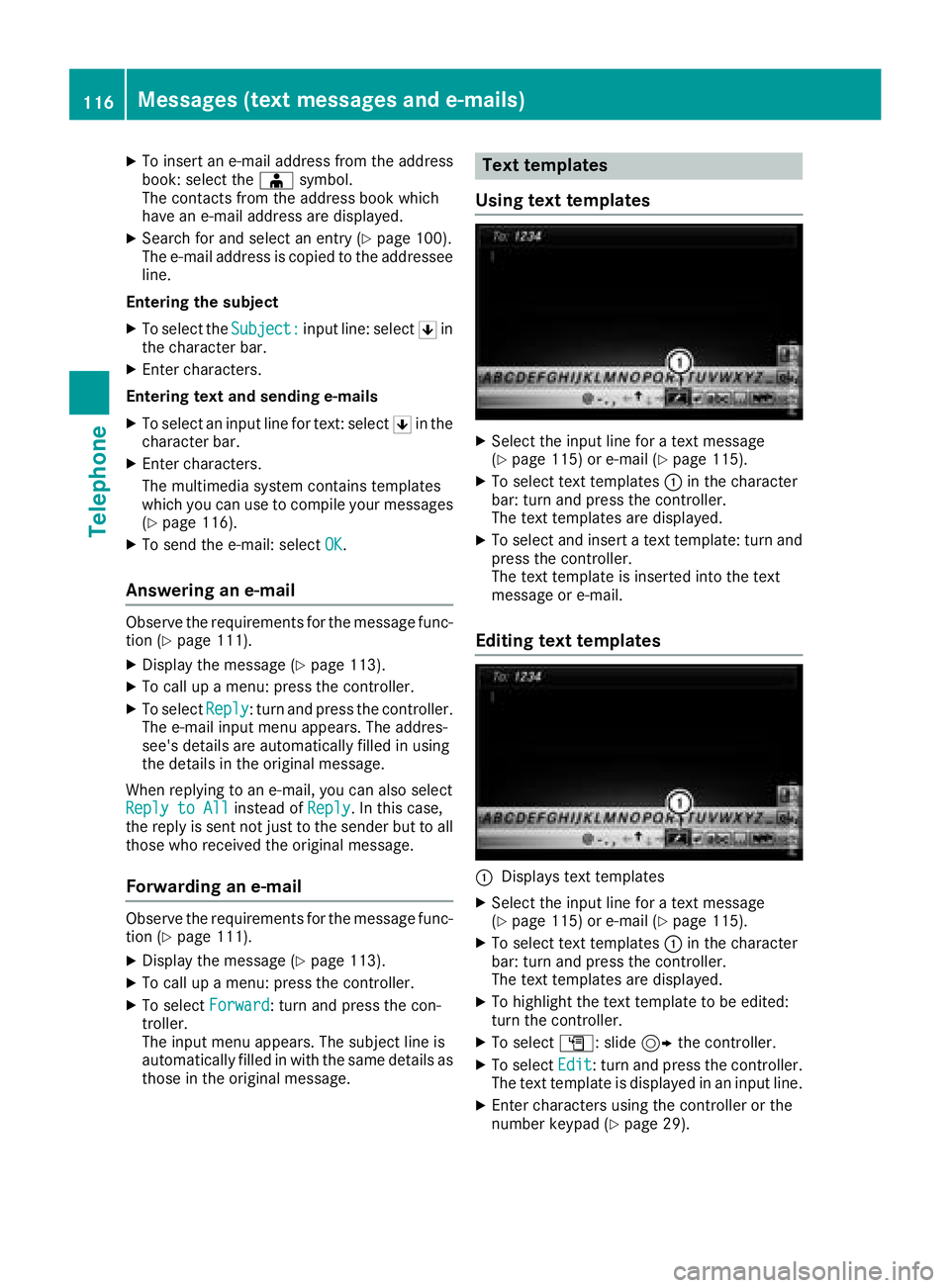
Using text templates
XSelect the input line for a text message
(Ypage 115) or e-mail (Ypage 115).
XTo select text templates :in the character
bar: turn and press the controller.
The text templates are displayed.
XTo select and insert a text template: turn and
press the controller.
The text template is inserted into the text
message or e-mail.
Editing text templates
:Displays text templates
XSelect the input line for a text message
(Ypage 115) or e-mail (Ypage 115).
XTo select text templates :in the character
bar: turn and press the controller.
The text templates are displayed.
XTo highlight the text template to be edited:
turn the controller.
XTo select G: slide 9the controller.
XTo select Edit: turn and press the controller.
The text template is displayed in an input line.
XEnter characters using the controller or the
number keypad (Ypage 29).
116Messages (text messages and e-mails)
Telephone
Page 119 of 190
XTo adopt changes to the text template, select¬: turn and press the controller.
XSelect Yes.
The text template has been changed.
Calling a text message sender
XDisplay the message (Ypage 113).
XTo call up a menu: press the controller.
XTo select Call Sender: turn and press the
controller.
The call is made.
Using a phone number in the text
Numbers in text messages that are highlighted
can be used.
XTo highlight and select a usable phone num-
ber while the message is displayed: turn and
press the controller.
XTo select Use: turn and press the controller.
XTo selectCall: turn and press the controller.
The call is made.
iIt is possible that a highlighted numerical
sequence may not contain a telephone num-
ber.
Storing sender as a new contact
Storing the sender of a text message
XTo call up the menu when a text message is
displayed: press the controller.
XTo select Save Number: turn and press the
controller.
XSelect New Entry.
or
XSelect Add to Address Book Entry.
XSelect a number category.
XSelect a telephone category.
XSelectContinue.
The input line for the name of the new contact
is displayed. The input line for the telephone
number is filled in automatically.
XEnter characters using the controller
(Ypage 29) or the number keypad.
XTo finish the entry: select OK.
The new contact has been created.
Saving the sender of an e-mail
XTo call up the menu when an e-mail is dis-
played: press the controller.
XTo select SaveSender'sE-MailAddress:
turn and press the controller.
The input line for the name of the new contact
is displayed. The input line for the e-mail
address is filled in automatically.
XEnter characters using the controller or the
number keypad (Ypage 29).
XTo finish the entry: select OK.
The new contact has been created.
Deleting messages
XCall up the message folder (Ypage 114).
XTo select the message: turn the controller.
XTo select G: slide 9the controller.
XTo select Delete: turn and press the con-
troller.
XTo select Yes: turn and press the controller.
The message is deleted from the multimedia
system and the mobile phone.
iThis delete function is not supported by all
mobile phones. You will see a message to this
effect.
Dictation function
Requirements
To use the dictation function, the connected
mobile phone must support the MAP Bluetooth®
profile. When connecting the mobile phone, you
may have to accept the prompt for the MAP
Bluetooth
®profile.
With some mobile phones, some settings still
have to be made after connecting to the multi-
media system (see the manufacturer's operat-
ing instructions).
An e-mail account must be set up on the mobile
phone for the e-mail function (see the manufac-
turer’s operating instructions).
To read and write e-mails in the multimedia sys-
tem, the e-mail account first needs to be con-
figured (
Ypage 113).
Dictation function117
Telephone
Z
Page 126 of 190
XTo selectInternet: turn and press the con-
troller.
The menu with the Internet functions is dis-
played.
XTo select www: turn and press the controller.
An input menu for the web address is dis-
played.
XEnter characters using the controller or the
number keypad.
XTo finish entry and call up a website: select
¬.
Selecting a web address from the list
XWhen the character bar is displayed, slide
5 the controller.
XTo select the desired web address: turn and
press the controller.
The web address can still be changed as
desired.
XTo call up a website: select ¬.
The website is called up.
Navigating the website
StepResult
XTurn the controller.Navigates from one
selectable item (e.g.
link, text field or
menu) to the next and
highlights the respec-
tive element on the
website.
Sliding the controller:
XLeft or right 1
XUp or down4
XDiagonally2
Moves the pointer on
the page.
XPress the control-
ler.Opens the selected
item.
XPress%.Calls up the menu.
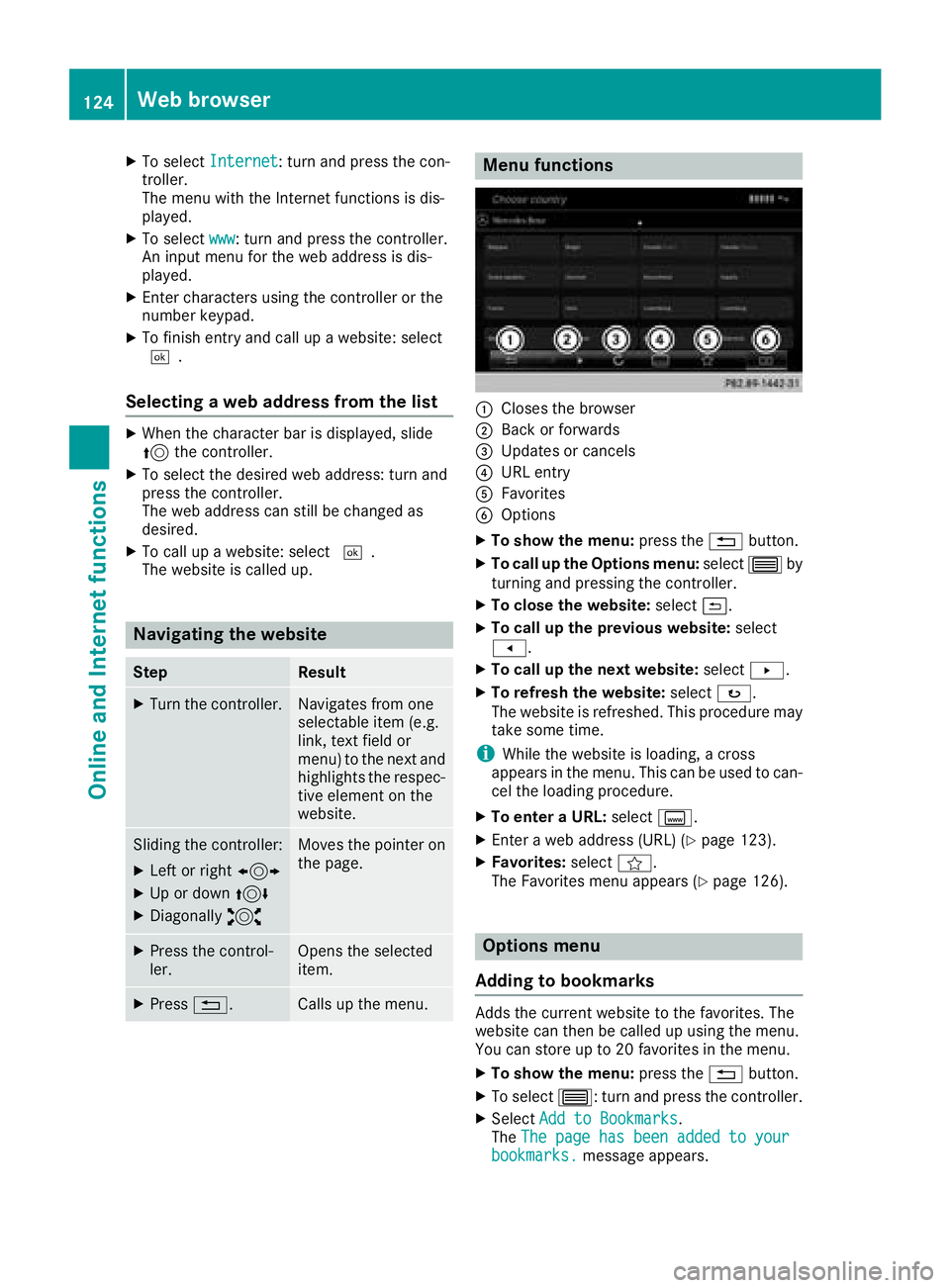
Menu functions
:Closes the browser
;Back or forwards
=Updates or cancels
?URL entry
AFavorites
BOptions
XTo show the menu: press the%button.
XTo call up the Options menu: select3by
turning and pressing the controller.
XTo close the website: select&.
XTo call up the previous website: select
t.
XTo call up the next website: selectu.
XTo refresh the website: selectø.
The website is refreshed. This procedure may
take some time.
iWhile the website is loading, a cross
appears in the menu. This can be used to can-
cel the loading procedure.
XTo enter a URL: selectg.
XEnter a web address (URL) (Ypage 123).
XFavorites: selectf.
The Favorites menu appears (Ypage 126).
Options menu
Adding to bookmarks
Adds the current website to the favorites. The
website can then be called up using the menu.
You can store up to 20 favorites in the menu.
XTo show the menu: press the%button.
XTo select 3: turn and press the controller.
XSelectAdd to Bookmarks.
The The page has been added to your
bookmarks.message appears.
124Web browser
Online and Internet functions
Page 132 of 190
Storing a station using the controller
XSet the desired station in radio mode.
XPress and hold the controller until the preset
list appears.
XTo select the preset number: turn and press
the controller.
iFrequencies have already been stored in the
multimedia system. There are 100 preset
positions available.
Moving highlighted stations
XIn radio mode: slide 6the controller.
XTo select Preset: turn and press the control-
ler.
XSelect Edit Station Preset.
XTo select the required preset entry: turn the
controller.
XSlide9the controller.
An additional menu appears.
XTo select the Move Highlighted Station/Channeloption: turn and press the control-
ler.
The list of stored stations appears again.
XTo move the highlighted station to the new
position: turn the controller and press to con-
firm.
Deleting highlighted stations
XIn radio mode: slide 6the controller.
XTo select Preset: turn and press the control-
ler.
XSelect Edit Station Preset.
XTo select the required preset entry: turn the
controller.
XSlide9the controller.
XTo select the Delete Highlighted Sta‐tion/Channeloption in the additional menu:
turn and press the controller.
or
XPress the $button.
A prompt appears.
XTo select Yes: turn and press the controller.
The highlighted station is deleted.
Tagging music tracks
This function allows you to transfer the music
track currently playing to an Apple®device and
then purchase it in the iTunes store®.
XIn radio mode: slide 6the controller.
XTo select Options: turn and press the con-
troller.
XSelect Tag This Track.
A message appears in the multimedia system
about storing the track information.
Displaying station information
XIn radio mode: slide 6the controller.
XTo select Options: turn and press the con-
troller.
XSwitch Show Station InformationonO
or off ª.
If the function is active, the artist and track
will also be displayed in the main display field.
Calling up sound settings
XIn radio mode: slide 6the controller.
The radio menu bar appears.
XTo select à: turn and press the controller.
The sound menu appears (Ypage 157).
Displaying information
This function is available in HD FM radio and HD
AM radio mode.
Reception is only possible if the radio stations
provide the relevant information.
XTo select Informationin the radio menu bar:
turn and press the controller.
Information on the currently received pro-
gram is displayed.
If available, you will see:
Rthe track that is currently being played
Rthe artist of the track that is currently being
played
Rthe album name
130Displaying information
Radio
Page 135 of 190
Selecting a channel via the satellite
radio station list
You can select the channel using the station list
displaying the artists and tracks that are cur-
rently playing.
XTo selectOptionsin the radio menu bar: turn
and press the controller.
XTo select Station List with Artist &Title: turn and press the controller.
The channel list appears.
or
XPress the controller in the main display field.
XSelect the desired channel
Keyword search
XTo select the keyword search èin the
menu bar: turn and press the controller.
XTo enter the required search term: turn and
press the controller.
Direct and indirect results are shown.
XSelect the required result.
The relevant channel is played.
Memory functions
There are 100 presets available.
Saving the current channel
XTo select Presetin the radio menu bar: turn
and press the controller.
XTo select Edit Station Preset: turn and
press the controller.
The list of saved channels appears.
XTo select the preset: turn the controller and
press for about two seconds.
The newly saved channel overwrites the exist-
ing preset.
Saving a channel using the controller
XSet the desired channel in satellite radio
mode.
XPress and hold the controller until the preset
list appears.
XTo select the preset number: turn and press
the controller.
A tone confirms that the storing process was
successful. Using quick save
XSet the desired channel in satellite radio
mode.
XPress and hold a number key for two seconds.
The channel is saved to the corresponding
position in the channel presets.
The newly saved channel overwrites the exist-
ing preset.
Deleting the highlighted channel
XTo select Presetin the radio menu bar: turn
and press the controller.
XSelect Edit Station Preset.
XTo select the required preset entry: turn the
controller.
XSlide9the controller.
XTo select the Delete Highlighted Sta‐tion/Channeloption in the additional menu:
turn and press the controller.
or
XPress the $button.
A prompt appears.
XTo select Yes: turn and press the controller.
The highlighted station is deleted.
Activating/deactivating the station
presets display
You can use this function to change to the sta-
tion presets display.
Activating
XIn radio mode: slide 6the controller.
XTo select Preset: turn and press the control-
ler.
XTo select Station Preset View: On: turn
and press the controller.
The station preset display appears.
XTo switch between the stored stations: turn
the controller.
Deactivating
XIn radio mode: slide 6the controller.
XTo select Preset: turn and press the control-
ler.
XTo select StationPresetView:Off: turn
and press the controller.
The view of the last heard waveband appears.
Satellite radio133
Radio
Page 156 of 190
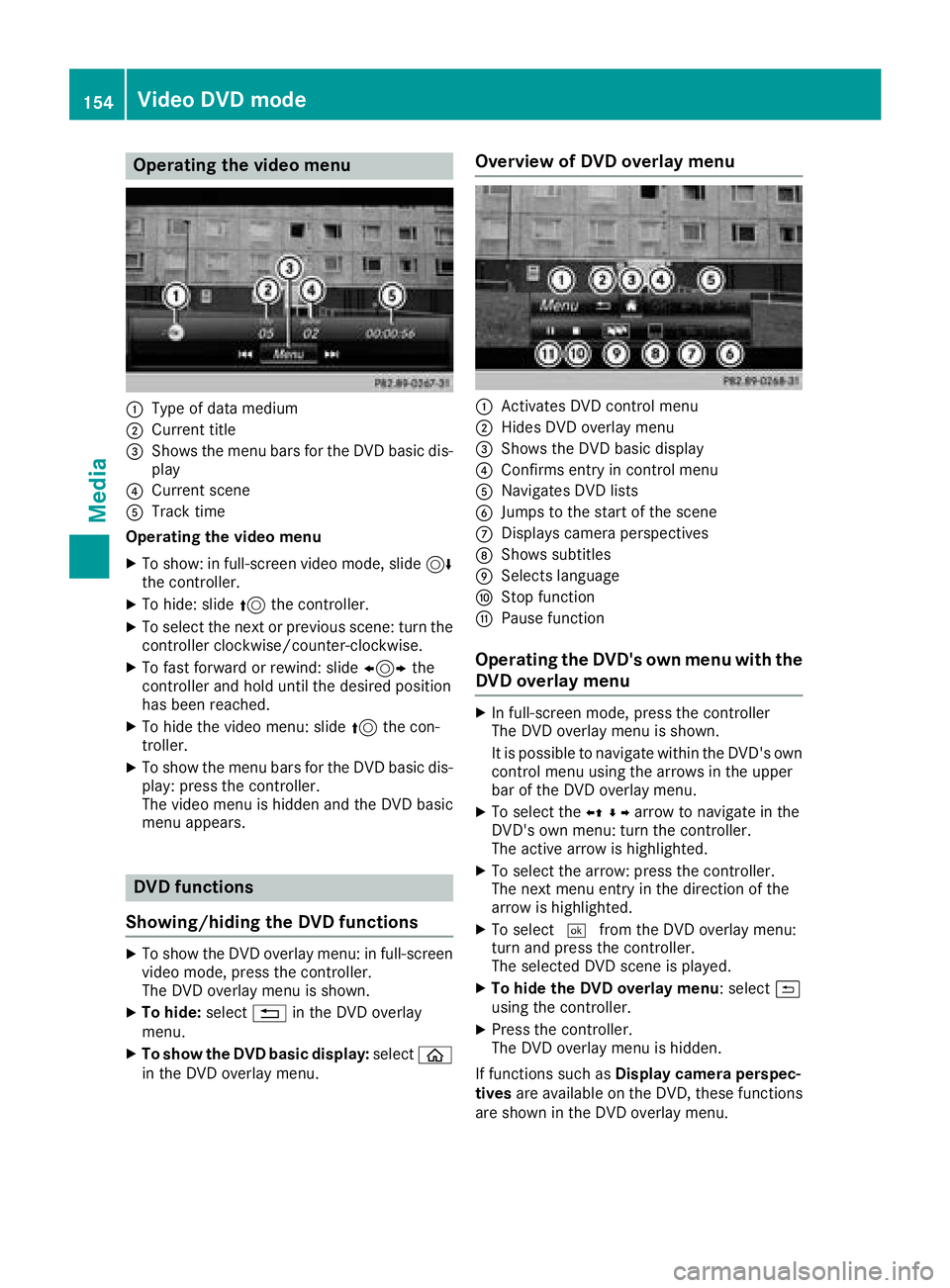
Operating the video menu
:Type of data medium
;Current title
=Shows the menu bars for the DVD basic dis-play
?Current scene
ATrack time
Operating the video menu
XTo show: in full-screen video mode, slide 6
the controller.
XTo hide: slide 5the controller.
XTo select the next or previous scene: turn the
controller clockwise/counter-clockwise.
XTo fast forward or rewind: slide 1the
controller and hold until the desired position
has been reached.
XTo hide the video menu: slide 5the con-
troller.
XTo show the menu bars for the DVD basic dis- play: press the controller.
The video menu is hidden and the DVD basic
menu appears.
DVD functions
Showing/hiding the DVD functions
XTo show the DVD overlay menu: in full-screen
video mode, press the controller.
The DVD overlay menu is shown.
XTo hide: select%in the DVD overlay
menu.
XTo show the DVD basic display: selectò
in the DVD overlay menu.
Overview of DVD overlay menu
:Activates DVD control menu
;Hides DVD overlay menu
=Shows the DVD basic display
?Confirms entry in control menu
ANavigates DVD lists
BJumps to the start of the scene
CDisplays camera perspectives
DShows subtitles
ESelects language
FStop function
GPause function
Operating the DVD's own menu with the DVD overlay menu
XIn full-screen mode, press the controller
The DVD overlay menu is shown.
It is possible to navigate within the DVD's owncontrol menu using the arrows in the upper
bar of the DVD overlay menu.
XTo select the XZ¬Yarrow to navigate in the
DVD's own menu: turn the controller.
The active arrow is highlighted.
XTo select the arrow: press the controller.
The next menu entry in the direction of the
arrow is highlighted.
XTo select ¬from the DVD overlay menu:
turn and press the controller.
The selected DVD scene is played.
XTo hide the DVD overlay menu: select &
using the controller.
XPress the controller.
The DVD overlay menu is hidden.
If functions such as Display camera perspec-
tives are available on the DVD, these functions
are shown in the DVD overlay menu.
154Video DVD mode
Media
Page 166 of 190
selected location. The data is supplied by the
nearest weather station.
Option 2: selecting the area in the
weather map
XCall up the weather map (Ypage 164).
XMove the weather map so that the crosshair is
over the desired area (Ypage 164).
XPress the controller.
The information chart shows the weather
forecast for the selected area. The data is
supplied by the nearest weather station.
Memory functions
Storing the area in the weather memory
You can save locations that are called up fre-
quently in ten preset positions (0, 1-9) in the
weather memory.
XIn the weather memory: select the area for
the weather forecast (Ypage 162).
The selected location appears at the top in the status bar.
XTo select Positionin the information chart:
turn and press the controller.
XSelect Preset.
XSelect a preset using the controller.
XPress and hold the controller until you hear a
tone.
The area is entered on the selected preset.
XTo store rapidly: in the daily forecast
(Ypage 161) press and hold a number key,
e.g. l, until the preset position number is
shown in the status bar in front of the area
name.
iYou can also use this function in the five-day
forecast (Ypage 161), and in the detailed
information view (Ypage 162).
Selecting an area from the weather
memory
XDirectly from the weather memory: select
Position
from the information chart: turn
and press the controller.
XSelect Preset.
XSelect the memory position which contains
the location you require.
The weather data for the selected area is dis-
played.
XQuick select: if a location is stored in the
weather memory, for example when the cur-
rent forecast display is active, briefly press a
number key, e.g. l.
The weather data for the selected area is dis-
played.
Weather map
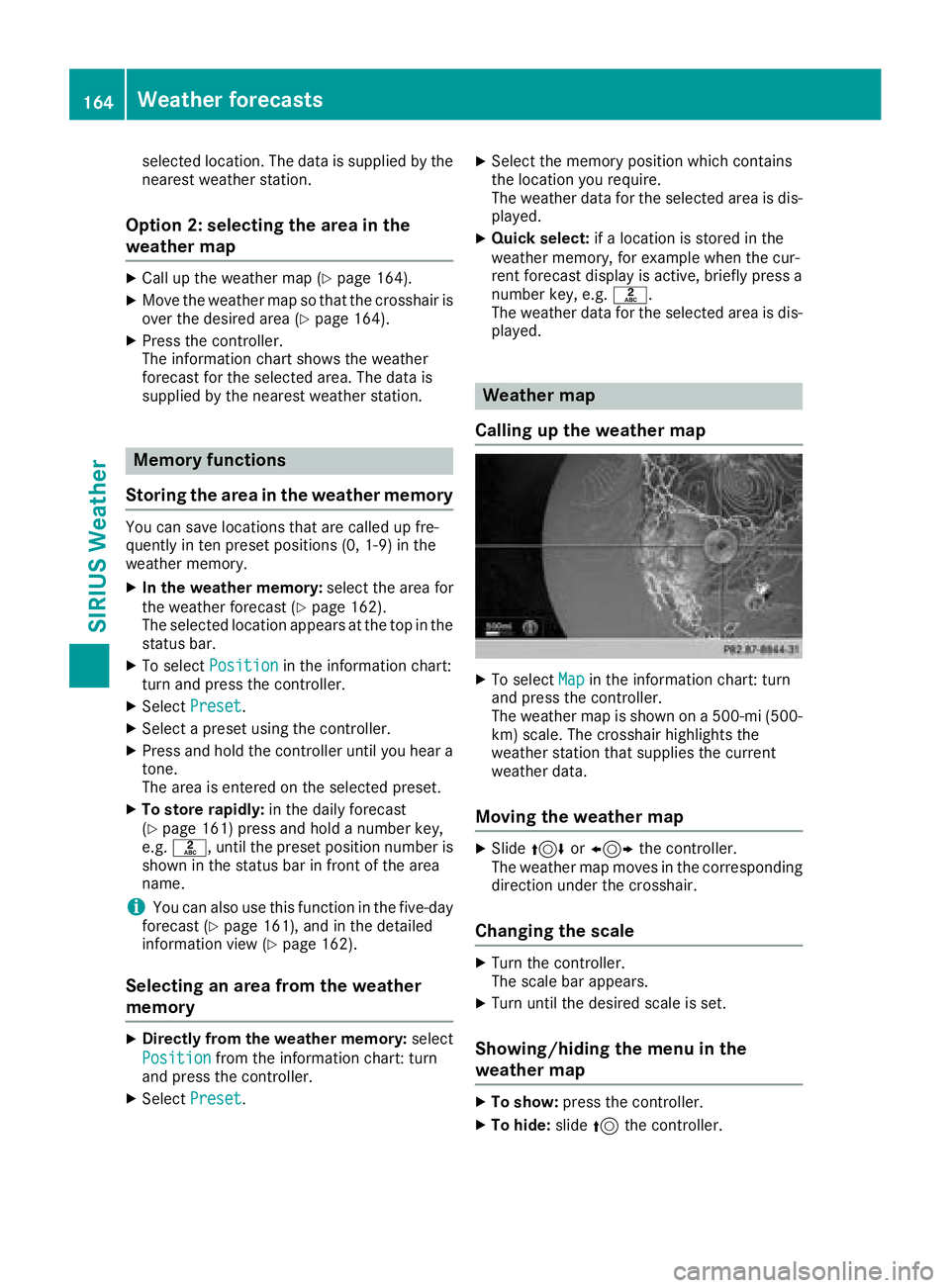
Calling up the weather map
XTo select Mapin the information chart: turn
and press the controller.
The weather map is shown on a 500-mi (500-
km) scale. The crosshair highlights the
weather station that supplies the current
weather data.
Moving the weather map
XSlide 4 or1 the controller.
The weather map moves in the corresponding
direction under the crosshair.
Changing the scale
XTurn the controller.
The scale bar appears.
XTurn until the desired scale is set.
Showing/hiding the menu in the
weather map
XTo show: press the controller.
XTo hide:slide5the controller.
164Weather forecasts
SIRIUS Weather