CAN MERCEDES-BENZ GLE COUPE 2018 COMAND Manual
[x] Cancel search | Manufacturer: MERCEDES-BENZ, Model Year: 2018, Model line: GLE COUPE, Model: MERCEDES-BENZ GLE COUPE 2018Pages: 190, PDF Size: 4.42 MB
Page 2 of 190
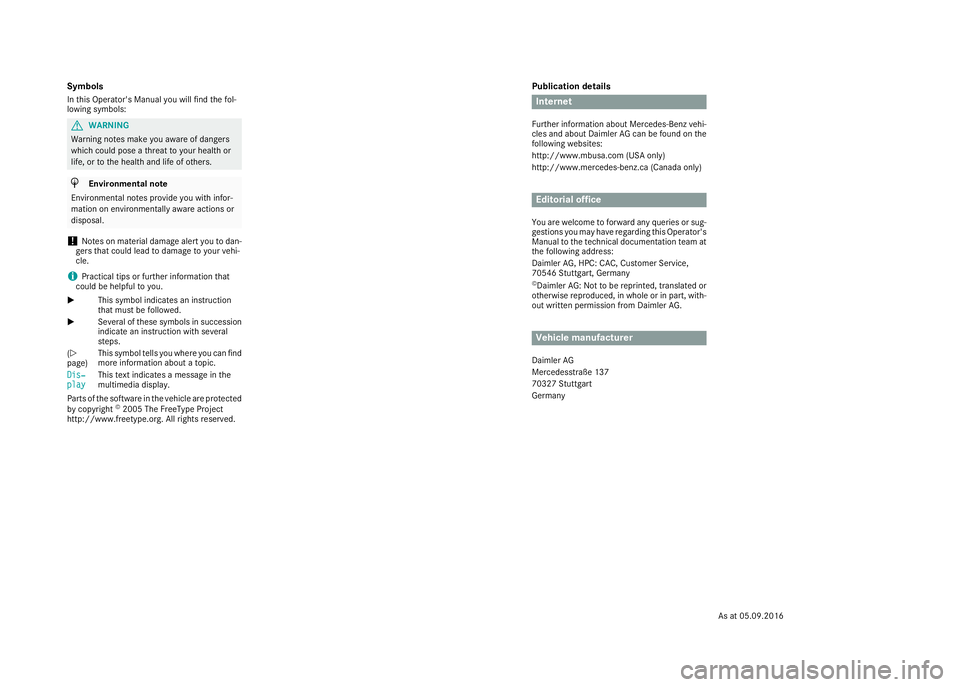
Publication details
Internet
Further information about Mercedes-Benz vehi-
cles and about Daimler AG can be found on the
following websites:
http://www.mbusa.com (USA only)
http://www.mercedes-benz.ca (Canada only)
Editorial office
You are welcome to forward any queries or sug-
gestions you may have regarding this Operator's
Manual to the technical documentation team at
the following address:
Daimler AG, HPC: CAC, Customer Service,
70546 Stuttgart, Germany
©Daimler AG: Not to be reprinted, translated or
otherwise reproduced, in whole or in part, with-
out written permission from Daimler AG.
Vehicle manufacturer
Daimler AG
Mercedesstra
Page 3 of 190
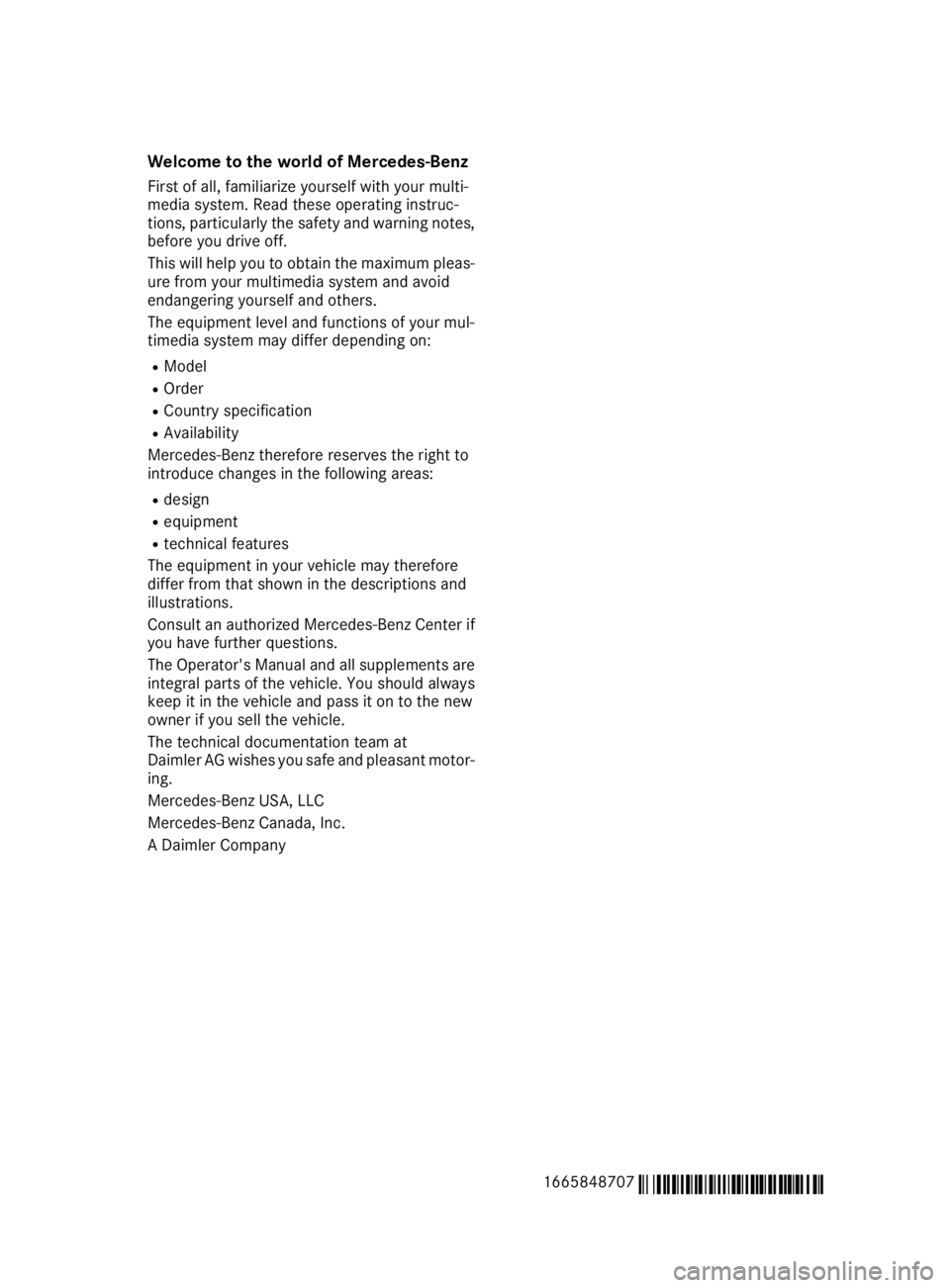
Welcome to the world of Mercedes-Benz
First of all, familiarize yourself with your multi-
media system. Read these operating instruc-
tions, particularly the safety and warning notes,
before you drive off.
This will help you to obtain the maximum pleas-ure from your multimedia system and avoid
endangering yourself and others.
The equipment level and functions of your mul-
timedia system may differ depending on:
RModel
ROrder
RCountry specification
RAvailability
Mercedes-Benz therefore reserves the right to
introduce changes in the following areas:
Rdesign
Requipment
Rtechnical features
The equipment in your vehicle may therefore
differ from that shown in the descriptions and
illustrations.
Consult an authorized Mercedes-Benz Center if
you have further questions.
The Operator's Manual and all supplements are
integral parts of the vehicle. You should always
keep it in the vehicle and pass it on to the new
owner if you sell the vehicle.
The technical documentation team at
Daimler AG wishes you safe and pleasant motor-
ing.
Mercedes-Benz USA, LLC
Mercedes-Benz Canada, Inc.
A Daimler Company
1665848707
É1665848707MËÍ
Page 14 of 190
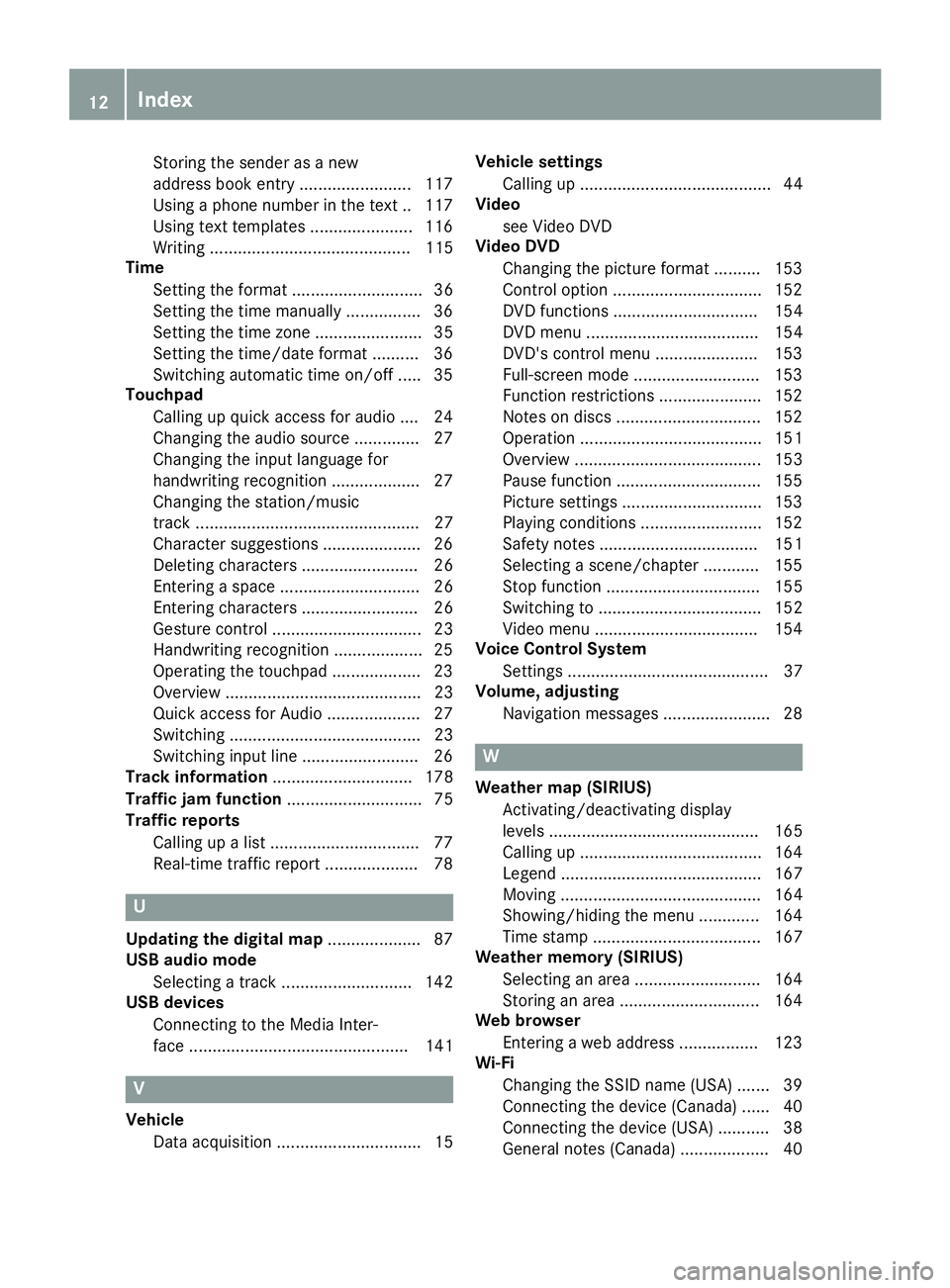
Storing the sender as a new
address book entry ........................ 117
Using a phone number in the text .. 117
Using text templates ...................... 116
Writing ........................................... 115
Time
Setting the format ............................ 36
Setting the time manually ................ 36
Setting the time zone ....................... 35
Setting the time/date format .......... 36
Switching automatic time on/off ..... 35
Touchpad
Calling up quick access for audio .... 24
Changing the audio source .............. 27
Changing the input language for
handwriting recognition ................... 27
Changing the station/music
track ................................................ 27
Character suggestions ..................... 26
Deleting characters ......................... 26
Entering a space .............................. 26
Entering characters ......................... 26
Gesture control ................................ 23
Handwriting recognition ................... 25
Operating the touchpad ................... 23
Overview .......................................... 23
Quick access for Audio .................... 27
Switching ......................................... 23
Switching input line ......................... 26
Track information .............................. 178
Traffic jam function ............................. 75
Traffic reports
Calling up a list ................................ 77
Real-time traffic report .................... 78
U
Updating the digital map .................... 87
USB audio mode
Selecting a track ............................ 142
USB devices
Connecting to the Media Inter-
face ............................................... 141
V
VehicleData acquisition ............................... 15 Vehicle settings
Calling up ......................................... 44
Video
see Video DVD
Video DVD
Changing the picture format .......... 153
Control option ................................ 152
DVD functions ............................... 154
DVD menu ..................................... 154
DVD's control menu ...................... 153
Full-screen mode ........................... 153
Function restrictions ...................... 152
Notes on discs ............................... 152
Operation ....................................... 151
Overview ........................................ 153
Pause function ............................... 155
Picture settings .............................. 153
Playing conditions .......................... 152
Safety notes .................................. 151
Selecting a scene/chapter ............ 155
Stop function ................................. 155
Switching to ................................... 152
Video menu ................................... 154
Voice Control System
Settings ........................................... 37
Volume, adjusting
Navigation messages ....................... 28
W
Weather map (SIRIUS)Activating/deactivating display
levels ............................................. 165
Calling up ....................................... 164
Legend ........................................... 167
Moving ........................................... 164
Showing/hiding the menu ............. 164
Time stamp .................................... 167
Weather memory (SIRIUS)
Selecting an area ........................... 164
Storing an area .............................. 164
Web browser
Entering a web address ................. 123
Wi-Fi
Changing the SSID name (USA) ....... 39
Connecting the device (Canada) ...... 40
Connecting the device (USA) ........... 38
General notes (Canada) ................... 40
12Index
Page 15 of 190
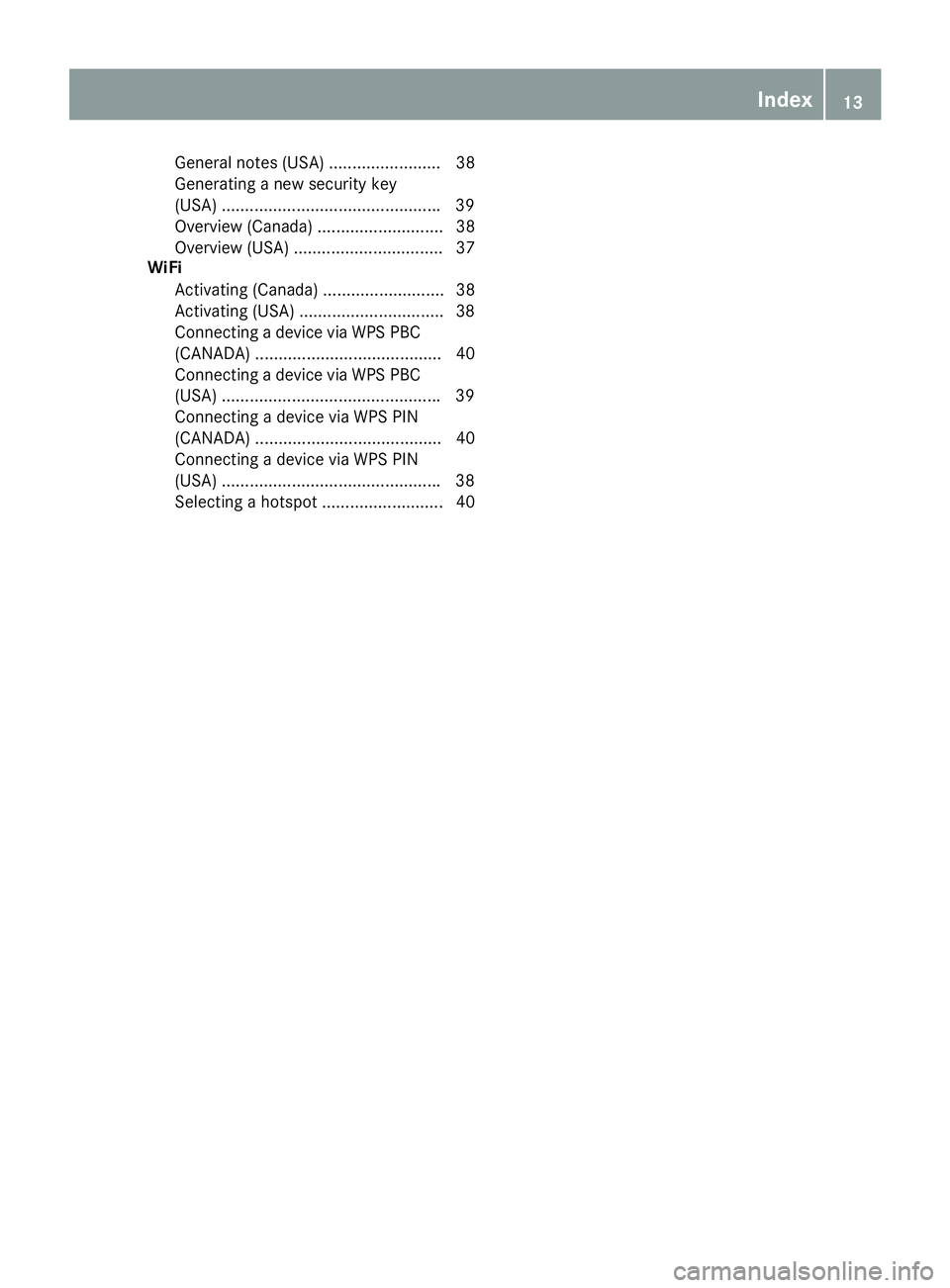
General notes (USA) ........................ 38
Generating a new security key
(USA) ...............................................39
Overview (Canada) ........................... 38
Overview (USA) ................................ 37
WiFi
Activating (Canada) .......................... 38
Activating (USA) ...............................3 8
Connecting a device via WPS PBC
(CANADA) ........................................ 40
Connecting a device via WPS PBC
(USA) .............................................. .39
Connecting a device via WPS PIN
(CANADA) ........................................ 40
Connecting a device via WPS PIN
(USA) .............................................. .38
Selecting a hotspot .......................... 40
Index13
Page 16 of 190
Operating safety
Important safety notes
GWARNING
If you operate information systems and com-
munication equipment integrated in the vehi-
cle when driving, you may be distracted from
the traffic situation. You could also lose con-
trol of the vehicle. There is a risk of an acci-
dent.
Only operate this equipment when the traffic
situation permits. If you are not sure that this
is possible, park the vehicle paying attention
to traffic conditions and operate the equip-
ment when the vehicle is stationary.
You must observe the legal requirements for the
country in which you are currently driving when
operating the multimedia system.
The multimedia system calculates the route to
the destination without taking account of the
following, for example:
Rtraffic lights
Rstop and yield signs
Rmerging lanes
Rparking or stopping in a no parking/no stop-
ping zone
Rother road and traffic rules and regulations
Rnarrow bridges
The multimedia system may provide incorrect
navigation recommendations if the actual
street/traffic situation does not correspond
with the digital map's data. Digital maps do not
cover all areas nor all routes in an area. For
example, a route may have been diverted or the
direction of a one-way street may have changed.
For this reason, you must always observe road
and traffic rules and regulations during your
journey. Road and traffic rules and regulations
always have priority over the system's driving
recommendations.
Navigation announcements are intended to
direct you while driving without diverting your
attention from the road and driving.
Please always use this feature instead of con-
sulting the map display for directions. Looking
at the icons or map display can distract you from
traffic conditions and driving, and increase the
risk of an accident. Bear in mind that at a speed of only 30 mph
(approximately 50 km/
h), your vehicle covers a
distance of 44 feet (approximately 14 m) every
second.
This equipment complies with FCC radiation
exposure limits set forth for uncontrolled equip-
ment and meets t
he FCC radio frequency (RF)
Exposure Guidelines in Supplement C to OET65.
This equipment has very low levels of RF energy
that is deemed to comply without maximum
permissive exposure evaluation (MPE). How-
ever, it is recommended to install it at a distance of at least 8 inches (approx. 20 cm) between the
radiation source and a person's body (not
including limbs such as hands, wrists, feet and
legs).
GWARNING
Modifications to electronic components, their software as well as wiring can impair their
function and/or the function of other net-
worked components. In particular, systems
relevant to safety could also be affected. As a
result, these may no longer function as inten-
ded and/or jeopardize the operating safety of
the vehicle. There is an increased risk of an
accident and injury.
Never tamper with the wiring as well as elec-
tronic components or their software. You
should have all work to electrical and elec-
tronic equipment carried out at a qualified
specialist workshop.
Declarations of conformity
Vehicle components which receive
and/or transmit radio waves
USA only: The wireless devices of this vehicle
comply with Part 15 of the FCC Rules. Operation
is subject to the following two conditions:
1) These devices may not cause interference,
and
2) These devices must accept any interference,
including interference that may cause undesired
operation of the device.
Changes or modifications not expressly
approved by the party responsible for compli-
ance could void the user's authority to operate
the equipment.
14Introduction
Page 17 of 190
Canada only:The wireless devices of this vehi-
cle comply with Industry Canada license-
exempt RSS standard(s). Operation is subject to the following two conditions:
1) These devices may not cause interference,
and
2) These devices must accept any interference,
including interference that may cause undesired
operation of the device.
Correct use
You need to observe the following information
when using the multimedia system:
Rthe safety notes in this manual
Rtraffic rules and regulations
Rlaws and safety standards pertaining to motorvehicles
Using roof carriers may impair the correct func-
tioning of a roof antenna (phone, satellite radio,
GPS).
Attaching metalized retrofit film to the wind-
shield may affect radio reception. This can have
a negative impact on all other antennas (e.g.
emergency call antenna) in the vehicle interior.
Protection against theft: this device is equip-
ped with technical provisions to protect it
against theft. Further information on protection
against theft can be obtained from an author-
ized Mercedes-Benz Center.
Qualified specialist workshop
Read the information on qualified specialist
workshops in the vehicle Operator's Manual.
Function restrictions
For safety reasons, some functions are restric-
ted or unavailable while the vehicle is in motion.
You will notice this, for example, because either you will not be able to select certain menu items
or a message will appear to this effect.
Data stored in the vehicle
Data recording
A wide range of electronic components in your
vehicle contain data memories.
These data memories temporarily or perma-
nently store technical information about:
Rthe vehicle's operating state
Revents
Rmalfunctions
In general, this technical information docu-
ments the state of a component, a module, a
system or the surroundings.
These include, for example:
Roperating conditions of system components,
e.g. fluid levels
Rthe vehicle's status messages and those of its
individual components, e.g. number of wheel
revolutions/speed, deceleration in move-
ment, lateral acceleration, accelerator pedal
position
Rmalfunctions and defects in important system
components, e.g. lights, brakes
Rvehicle reactions and operating conditions in
special driving situations, e.g. air bag deploy-
ment, intervention of stability control sys-
tems
Rambient conditions, e.g. outside temperature
This data is of an exclusively technical nature
and can be used to:
Rassist in detecting and rectifying faults and
defects
Ranalyze vehicle functions, e.g. after an acci-
dent
Roptimize vehicle function
The data cannot be used to trace the vehicle's
movements.
When your vehicle is serviced, technical infor-
mation can be read from the event data memory
and fault data memory.
Services include, for example:
Rrepair services
Rservice processes
Rwarranty events
Rquality assurance
The vehicle is read out by employees of the ser-
vice network (including the manufacturer) using
special diagnostic testers. You can obtain more
information there, if required.
Introduction15
Z
Page 18 of 190
After a malfunction has been rectified, the infor-
mation is deleted from the malfunction memory
or is continually overwritten.
When operating the vehicle, situations are con-
ceivable in which this technical data, in connec-
tion with other information (if necessary, after
consultation with an authorized expert), could
be traced to a person.
Examples include:
Raccident reports
Rdamage to the vehicle
Rwitness statements
Further additional functions that have been con- tractually agreed upon with the customer allow
certain vehicle data to be conveyed by the vehi-
cle as well. The additional functions include, for
example, vehicle location in case of an emer-
gency.
COMAND/mbrace
If the vehicle is equipped with COMAND or
mbrace, additional data about the vehicle’s
operation, the use of the vehicle in certain sit-
uations, and the location of the vehicle may be
compiled through COMAND or the mbrace sys-
tem.
For additional information please refer to the
COMAND User Manual and/or the mbrace
Terms and Conditions.
Event data recorders
This vehicle is equipped with an event data
recorder (EDR). The main purpose of an EDR is
to record data that will assist in understanding
how a vehicle’s systems performed in certain
crash or near crash-like situations, such as dur-
ing air bag deployment or when hitting a road
obstacle. The EDR is designed to record data
related to vehicle dynamics and safety systemsfor a short period of time, typically 30 seconds
or less.
The EDR in this vehicle is designed to record
such data as:
Rhow various systems in your vehicle are oper-
ating
Rwhether or not the driver and passenger seat
belts are fastened
Rhow far (if at all) the driver is depressing the
accelerator and/or brake pedal and
Rhow fast the vehicle is traveling
This data can help provide a better understand-
ing of the circumstances in which crashes and
injuries occur. NOTE: EDR data is recorded by
your vehicle only if a non-trivial crash situation
occurs; no data is recorded by the EDR under
normal driving conditions and no personal data
(e.g., name, gender, age, and crash location) are recorded. However, other parties, such as law
enforcement, can combine the EDR data wi th
the ty
pe of personal identification data routinely
acquired during a crash investigation.
To read data recorded by an EDR, special equip- ment is required, and access to the vehicle or
the EDR is needed. In addition to the vehicle
manufacturer, other parties that have the spe-
cial equipment, such as law enforcement, can
read the information by accessing the vehicle or
the EDR.
EDR data may be used in civil and criminal mat-
ters as a tool in accident reconstruction, acci-
dent claims, and vehicle safety. Since the Crash
Data Retrieval CDR tool that is used to extract
data from the EDR is commercially available,
Mercedes-Benz USA, LLC ("MBUSA") expressly
disclaims any and all liability arising from the
extraction of this information by unauthorized
Mercedes-Benz personnel.
MBUSA will not share EDR data with others
without the consent of the vehicle owners or, if
the vehicle is leased, without the consent of the lessee. Exceptions to this representation
include responses to subpoenas by law enforce-
ment; by federal, state or local government; in
connection with or arising out of litigation involv-
ing MBUSA or its subsidiaries and affiliates; or,
as required by law.
Warning: The EDR is a component of the Su
p-
plemental Restraint System ("SRS") Module.
Tampering with, altering, modifying or removing the EDR component may result in a malfunction
of the SRS Module and other systems.
State laws or regulations regarding EDRs that
conflict with federal regulation are pre-empted.
This means that in the event of such conflict, the
federal regulation governs. As of February 2013,13 states have enacted laws relating to EDRs.
16Introduction
Page 19 of 190
Information on copyright
Information on licenses for free and Open
Sourcesoftware used in your vehicl eand in th e
electronic component scan be foun don this
website: http://www.mercedes-benz.com /
opensource .
Your multimedia system equipment
Theseoperating instruction sdescribe all th e
standard and optional equipmen tof your multi-
media system, as available at th etime of goin g
to press. Country-specific difference sare pos -
sible .Bea rin min dthat your vehicl emay no t
feature all function sdescribe dhere. This also
applie sto safety-relevant systems and func-
tions.
Read th einformation on qualified specialist
workshops in th evehicl eOperator's Manual.
Introduction17
Z
Page 20 of 190
Overview
Components
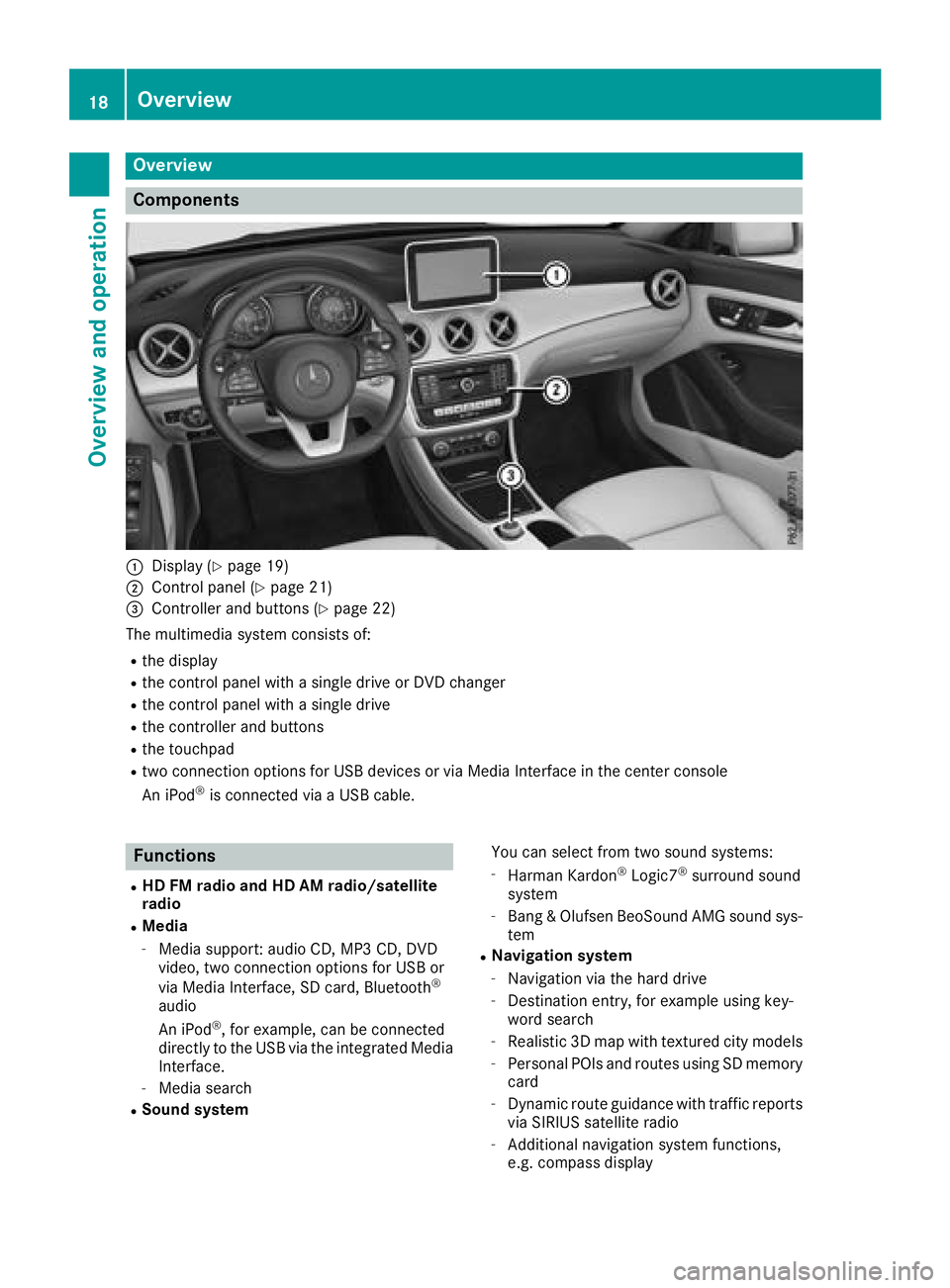
:Display (Ypage 19)
;Control panel (Ypage 21)
=Controller and buttons (Ypage 22)
The multimedia system consists of:
Rthe display
Rthe control panel with a single drive or DVD changer
Rthe control panel with a single drive
Rthe controller and buttons
Rthe touchpad
Rtwo connection options for USB devices or via Media Interface in the center console
An iPod®is connected via a USB cable.
Functions
RHD FM radio and HD AM radio/satellite
radio
RMedia
-Media support: audio CD, MP3 CD, DVD
video, two connection options for USB or
via Media Interface, SD card, Bluetooth
®
audio
An iPod®, for example, can be connected
directly to the USB via the integrated Media
Interface.
-Media search
RSound system You can select from two sound systems:
-Harman Kardon®Logic7®surround sound
system
-Bang & Olufsen BeoSound AMG sound sys-
tem
RNavigation system
-Navigation via the hard drive
-Destination entry, for example using key-
word search
-Realistic 3D map with textured city models
-Personal POIs and routes using SD memory
card
-Dynamic route guidance with traffic reports
via SIRIUS satellite radio
-Additional navigation system functions,
e.g. compass display
18Overview
Overview and operation
Page 21 of 190
RCommunication
-Address book
-Messaging functions (text messages, e-
mail)
-Dictation function
-Apple CarPlay™
-Android Auto
-Internet browser
-Mercedes-Benz Apps with functions, such
as online search, destination and route
download, Facebook, stock prices, and
news
-Mercedes-Benz Mobile Website
-Wi-Fi interface for the connection of a
smartphone to the multimedia system
-Wi-Fi hotspot functionality to connect a
tablet PC or laptop in order to enable
access to the Internet using the customer's
mobile phone
RSIRIUS Weather
-Weather data as an information chart (cur-
rent forecast, 5-day preview, detailed infor-
mation)
-Weather data on the weather map, e.g. rain
radar data, storm characteristics and the
track of tropical cyclones (hurricanes, tor-
nadoes)
RVehicle functions
-Vehicle settings, e.g. fuel consumption
-Ionization
-360° camera
-Rear view camera
-Seat functions
-DYNAMIC SELECT (individual drive pro-
gram)
-Driving dynamics display in the multimedia
system for vehicles with the Off-Road Engi-neering package (see the vehicle Opera-
tor's Manual)
RFavorites button
-Fast access to favorites functions using the
favorites button on the controller
Display
General notes
!Do not use the space in front of the display
for storage. Objects placed here could dam-
age the display or impair its function. Avoid
any direct contact with the display surface.
Pressure on the display surface may result in
impairments to the display, which could be
irreversible.
Wearing polarized sunglasses may impair your
ability to read the display.
The display has an automatic temperature-con-
trolled switch-off feature. The brightness is
automatically reduced if the temperature is too
high. The display may then temporarily switch
off completely.
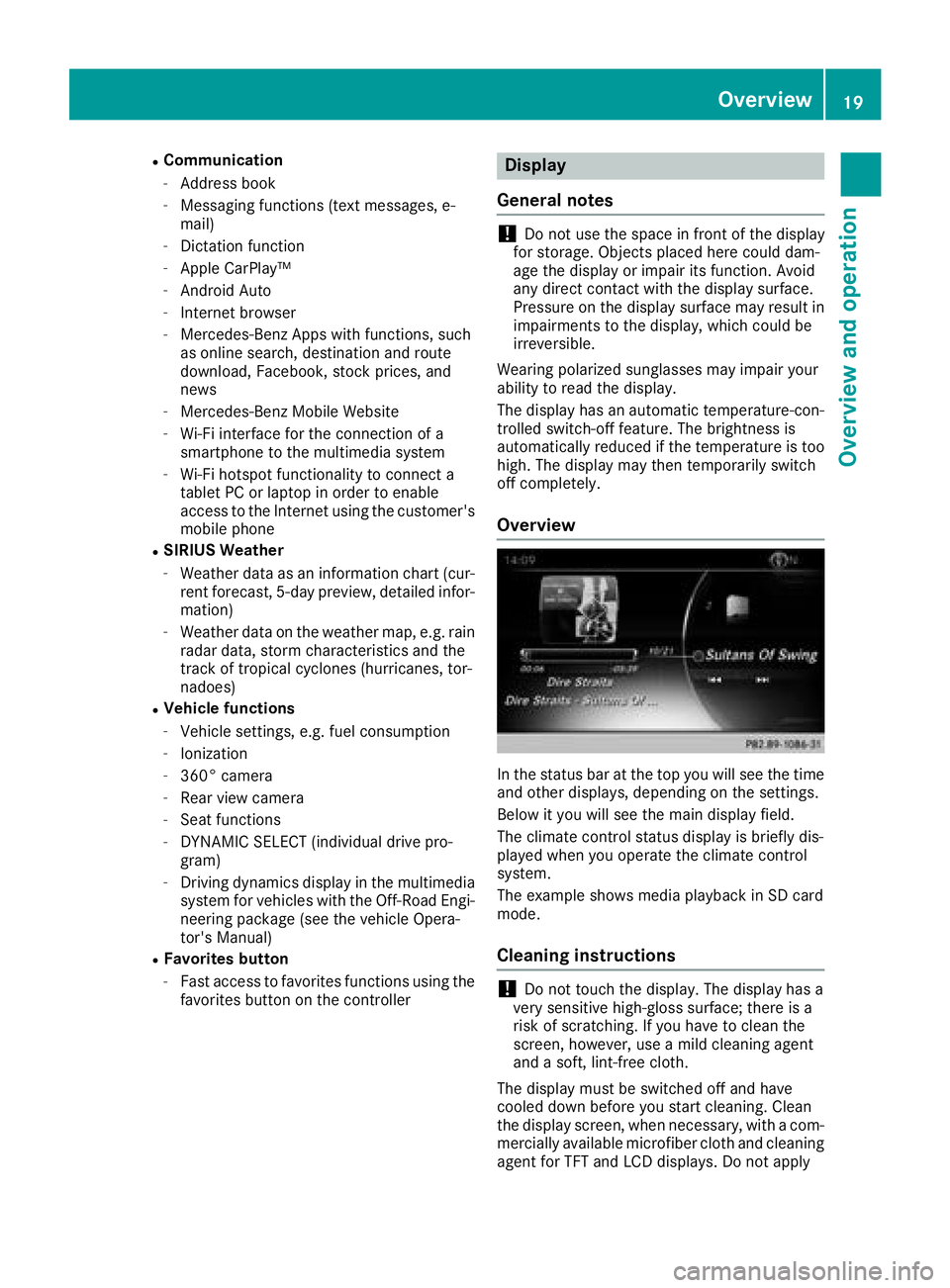
Overview
In the status bar at the top you will see the time
and other displays, depending on the settings.
Below it you will see the main display field.
The climate control status display is briefly dis-
played when you operate the climate control
system.
The example shows media playback in SD card
mode.
Cleaning instructions
!Do not touch the display. The display has a
very sensitive high-gloss surface; there is a
risk of scratching. If you have to clean the
screen, however, use a mild cleaning agent
and a soft, lint-free cloth.
The display must be switched off and have
cooled down before you start cleaning. Clean
the display screen, when necessary, with a com-
mercially available microfiber cloth and cleaning
agent for TFT and LCD displays. Do not apply
Overview19
Overview and operation