phone MERCEDES-BENZ GLE COUPE 2019 User Guide
[x] Cancel search | Manufacturer: MERCEDES-BENZ, Model Year: 2019, Model line: GLE COUPE, Model: MERCEDES-BENZ GLE COUPE 2019Pages: 697, PDF Size: 11.6 MB
Page 145 of 697
#
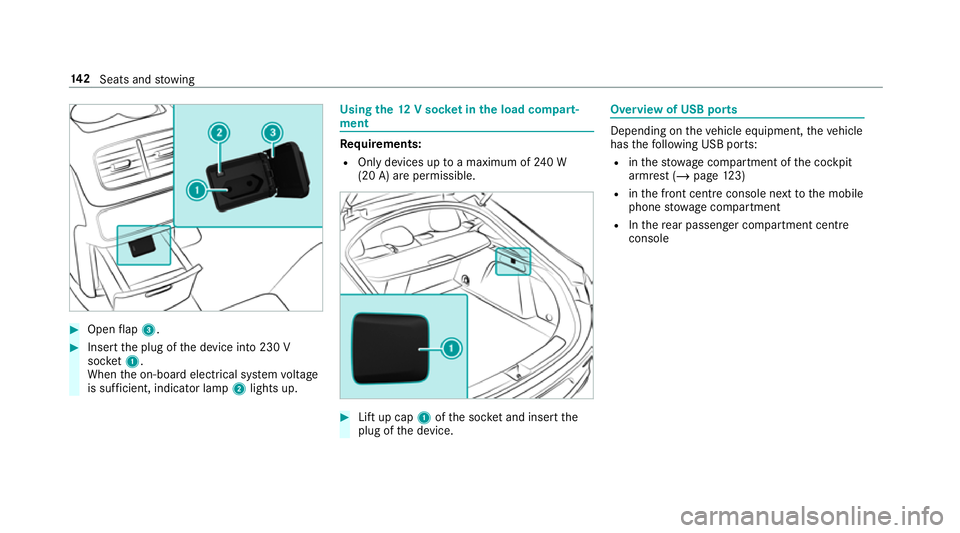
Open flap 3. #
Insert the plug of the device into 230 V
soc ket1.
When the on-board electrical sy stem voltage
is suf ficient, indicator la mp2lights up. Using
the12 V so cket inthe load compa rt‐
ment Re
quirements:
R Only devices up toa maximum of 240 W
(20 A) are permissible. #
Lift up cap 1ofthe soc ket and insert the
plug of the device. Overview of USB ports
Depending on
theve hicle equipment, theve hicle
has thefo llowing USB ports:
R inthestow age compartment of the cockpit
armrest (/ page123)
R inthe front cent reconsole next tothe mobile
phone stowage compartment
R Inthere ar passenger compartment centre
console 14 2
Seats and stowing
Page 146 of 697
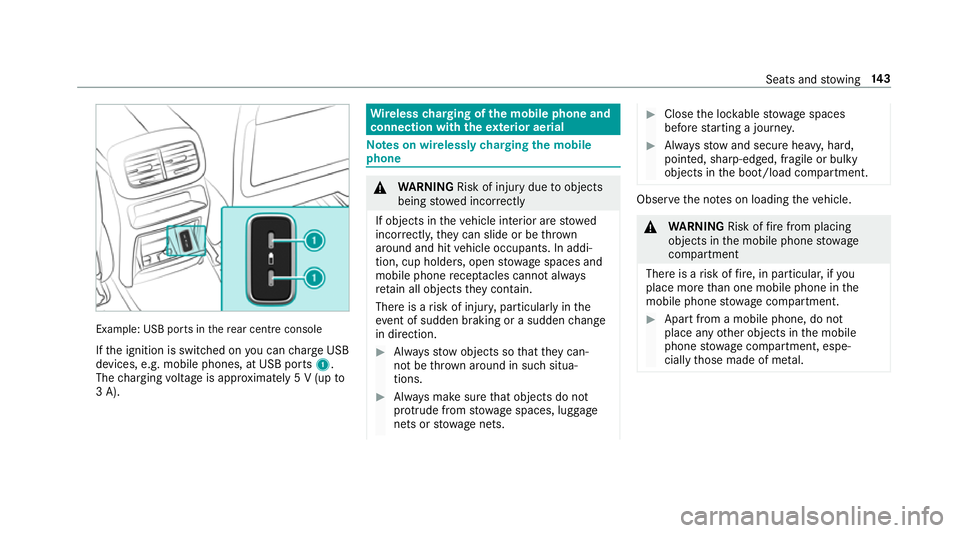
Example: USB po
rts in there ar centre console
If th e ignition is switched on you can charge USB
devices, e.g. mobile phones, at USB ports 1.
The charging voltage is appr oximately 5 V (up to
3 A). Wire
lesscharging of the mobile phone and
connection with theex terior aerial Note
s on wirelessly charging the mobile
phone &
WARNING Risk of inju rydue toobjects
being stowed incor rectly
If objects in theve hicle interior are stowed
incor rectly, they can slide or be thrown
around and hit vehicle occupants. In addi‐
tion, cup holders, open stowage spaces and
mobile phone recep tacles cannot al ways
re tain all objects they contain.
The reis a risk of injur y,particularly in the
ev ent of sudden braking or a sudden change
in direction. #
Alw aysstow objects so that they can‐
not be throw n around in su chsitua‐
tions. #
Alw ays make sure that objects do not
pr otru de from stowage spaces, luggage
nets or stowage nets. #
Close the loc kable stow age spaces
before starting a journe y. #
Alw aysstow and secure heavy, hard,
poin ted, sharp-edged, fragile or bulky
objects in the boot/load compartment. Obser
vethe no tes on loading theve hicle. &
WARNING Risk offire from placing
objects in the mobile phone stowage
compartment
There is a risk of fire , in particular, if you
place more than one mobile phone in the
mobile phone stowage compartment. #
Apart from a mobile phone, do not
place any other objects in the mobile
phone stowage compartment, espe‐
cially those made of me tal. Seats and
stowing 14 3
Page 147 of 697
*
NO
TEDama getoobjects caused by
placing them in the mobile phone stow‐
age compartment If objects are placed in
the mobile phone
stow age compartment, they may be dam‐
aged byelectromagnetic fields. #
Do not place credit cards, storage
media or other objects sensitive to
electromagnetic fields in the mobile
phone stowage compartment. *
NO
TEDama getothe mobile phone
stow age compartment caused byliquids If liquids enter
the mobile phone stowage
compartment, the compartment may be
damaged. #
Ensure that no liquids enter the mobile
phone stowage compartment. R
Depending on theve hicle equipment, the
mobile phone is connected totheve hicle's
ex terior aerial via thech arging module. R
The charging function and wireless connec‐
tion of the mobile phone totheve hicle's
ex terior aerial are only available if the ignition
is switched on.
R Small mobile phones may not be able tobe
ch arge d in everyposition of the mobile
phone stowage compartment.
R Largemobile phones which do not rest flat in
th e mobile phone stowage compartment may
not be able tobe charge d or connec ted with
th eve hicle's exterior aerial.
R The mobile phone may heat up during the
ch arging process. This may also depend on
th e applications (apps) cur rently open in the
bac kground.
R Toensure more ef ficient charging and con‐
nection with theve hicle's exterior aerial,
re mo vethe pr otective co ver from the mobile
phone. Pr otective co vers which are neces‐
sary for wireless charging are excluded. Wire
lesscharging of a mobile phone in the
cockpit Re
quirements:
R The mobile phone is suitable for wireless
ch arging.
% A list of compatible mobile phones can be
fo und at: http://www.mercedes-benz.com/
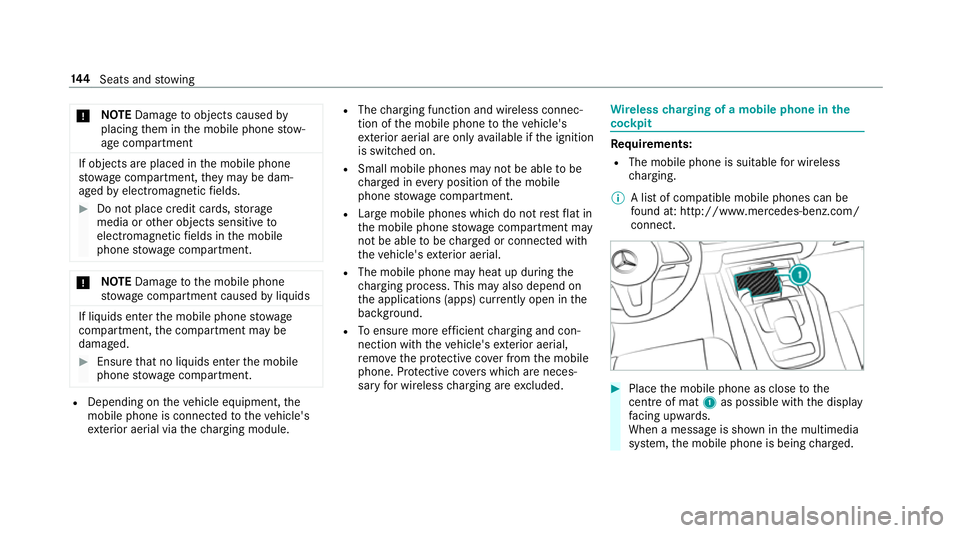
connect. #
Place the mobile phone as close tothe
centre of mat 1as possible wi th the display
fa cing up wards.
When a message is shown in the multimedia
sy stem, the mobile phone is being charge d. 14 4
Seats and stowing
Page 184 of 697
#
Key not detected Place smartphone in charg-
ing bracket: place the mobile phone in the
mar ked space (/ page144).
% You can swit choff the engine while driving
by pressing button 1for about thre e sec‐
onds or bypressing button 1thre e times
within thre e seconds. Be sure toobser vethe
saf ety no tes under "Driving tips"
(/ page 184).
St arting theve hicle with a Digital Vehicle
Key
Re quirements:
R one of thefo llowing versions of the Digital
Ve hicle Key is available:
- suitable mobile phone
- Digital Vehicle Keyst icker
R theve hicle is equipped with the "Digital Vehi‐
cle Key" function.
R the "Digital Vehicle Key" function is activated
via Mercedes me connec t:http://
www.mercedes.me.
R the mobile phone is suf ficiently charge d. %
You can check the suitability of your mobile
phone byentering the phone number at
http://www.mercedes.me.
Information about suitable mobile phones
can be obtained from your Mercedes-Benz
service centre or at http://www.mercedes-
benz.com/connect.
% Mercedes-Benz recommends that you car ry
th e emer gency key in case of function
re strictions.
% The function is only available in combination
with Mercedes me connect and on lyin cer‐
ta in countries.
% Protective cases around the mobile phone
can impair the functionality. Using
the Digital Vehicle Keyfo r the first
time #
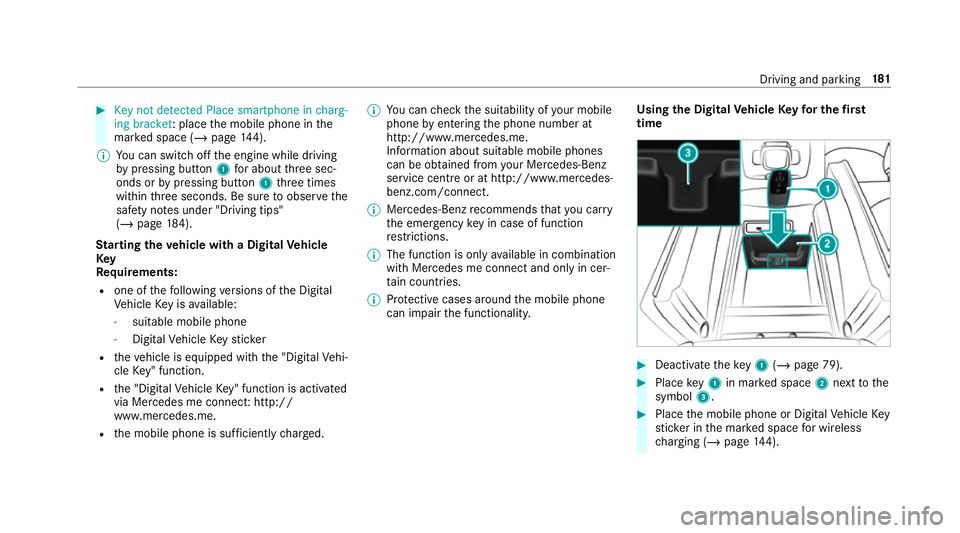
Deactivate theke y1 (/ page 79). #
Place key1 in mar ked space 2next tothe
symbol 3. #
Place the mobile phone or Digital Vehicle Key
st icke r in the mar ked space for wireless
ch arging (/ page144). Driving and pa
rking 181
Page 185 of 697
#
Dep ress the brake pedal and start theve hi‐
cle using thest art/ stop button.
Any fur ther starts with th e DigitalVehicle
Key
The key is not needed for any fur ther starts. #
Place the mobile phone or Digital Vehicle Key
st icke r in the mar ked space for wireless
ch arging (/ page144). #
Start theve hicle using thest art/ stop button.
The "Digital Vehicle Key" service can be deacti‐
va ted in Mercedes me connect at http://
www.mercedes.me. The function is then deacti‐
va ted in the mobile phone via an online connec‐
tion. If connection tothe Internet is not possible,
e.g. af terth e mobile phone or the Digital Vehicle
Ke yst icke r has been stolen, theke y function can
be deacti vated at a Mercedes-Benz service
centre.
St arting theve hicle with key in the ma rked
space (emer gency operation mode)
If th eve hicle does not start and thePlace the
key in the marked space See Owner's Manual
message appears in the multifunction displa y,yo
u can start theve hicle in emer gency operation
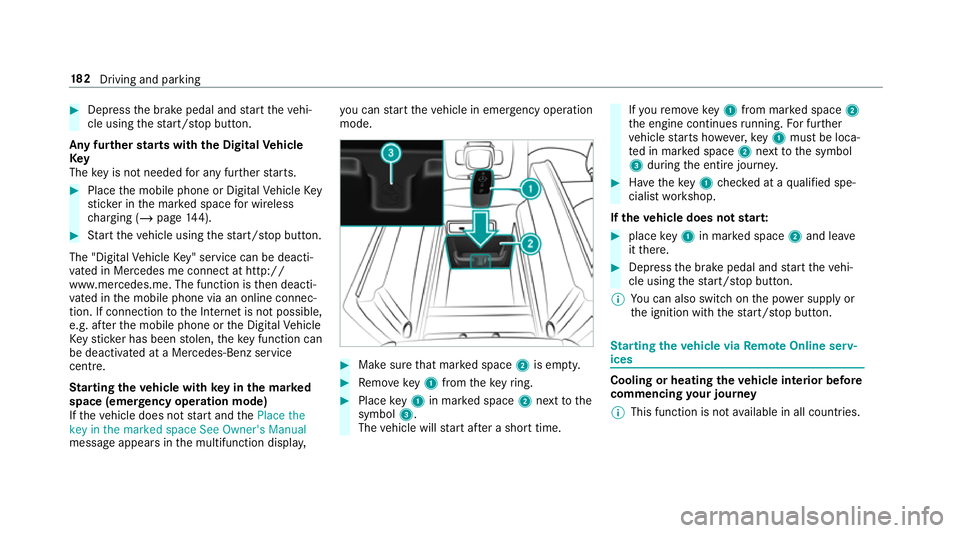
mode. #
Makesure that mar ked space 2is em pty. #
Remo vekey1 from theke yring. #
Place key1 in mar ked space 2next tothe
symbol 3.
The vehicle will start af ter a short time. If
yo ure mo vekey1 from mar ked space 2
th e engine continues running. For fur ther
ve hicle starts ho wever,ke y1 must be loca‐
te d in mar ked space 2next tothe symbol
3 during the entire journe y. #
Have theke y1 checked at a qualified spe‐
cialist workshop.
If th eve hicle does not star t: #
place key1 in mar ked space 2and lea ve
it th ere. #
Depress the brake pedal and start theve hi‐
cle using thest art/ stop button.
% You can also swit chon the po wer supp lyor
th e ignition with thest art/ stop button. St
arting theve hicle via Remo teOnline serv‐
ices Cooling or heating
theve hicle interior before
commencing your journey
% This function is not available in all countries. 18 2
Driving and pa rking
Page 186 of 697
If
yo ustart theve hicle via your smartphone, the
pr ev iously selec ted air conditioning adjustment
is active.
Ensure thefo llowing before starting the engine:
R the legal stipulations in the area where your
ve hicle is par ked allow engine starting via
smartphone.
R it is safe tostart and runth e engine where
yo ur vehicle is par ked.
R the fuel tank is su fficiently filled.
R thest ar ter battery is suf ficiently charge d.
% You can also set thete mp erature with your
smartphone. In form ation on Mercedes me
connect and other services: http://
www.mercedes.me
This function is not available for all models.
Charging the bat tery before commencing
yo ur journey
If th eve hicle battery is dischar ged, youre cei ve a
messa geon your smartphone. You can then
st art theve hicle with the smartphone tocharge
th e batter y.The vehicle is automatically
switched off af terte n minu tes. Ensure
thefo llowing before starting the engine:
R the legal stipulations in the area where your
ve hicle is par ked allow engine starting via
smartphone.
R it is safe tostart and runth e engine where
yo ur vehicle is par ked.
R the fuel tank is su fficiently filled.
St arting theve hicle (Remo teOnline) &
WARNING Risk of crushing or entrap‐
ment due tounin tentional starting of the
engine
Limbs could be crushed or trapped if the
engine is star ted unintentionally during
service or maintenance work. #
Alw ays secure the engine against unin‐
te ntional starting before car rying out
maintenance or repair work. Re
quirements:
R park position jis selected.
R the anti- theft alarm sy stem is not activated. R
the panic alarm is not activated.
R the hazard warning lights are switched off.
R the bonn etis closed.
R the doors are closed and loc ked.
R the windo wsand sliding sun roof are closed. #
Start theve hicle using the smartphone.
Af tereve ryvehicle start, the engine runs for
te n minu tes.
Yo u can car ryout a maximum of two consecu‐
tive starting attem pts. The vehicle must be star‐
te d once with theke y before trying tostart the
ve hicle again with the smartphone. you can stop
th eve hicle again at any time.
% Further information can be found in the
smartphone app.
Securing the engine against starting before
car rying out maintenance or repair work: #
switch on the hazard warning lights.
or #
unlock the doors.
or Driving and parking
18 3
Page 309 of 697
Obser
vethe legal requ irements forth e count ry
in which you are cur rently driving when operat‐
ing the on-board computer.
% The on-board computer displa yswill appear
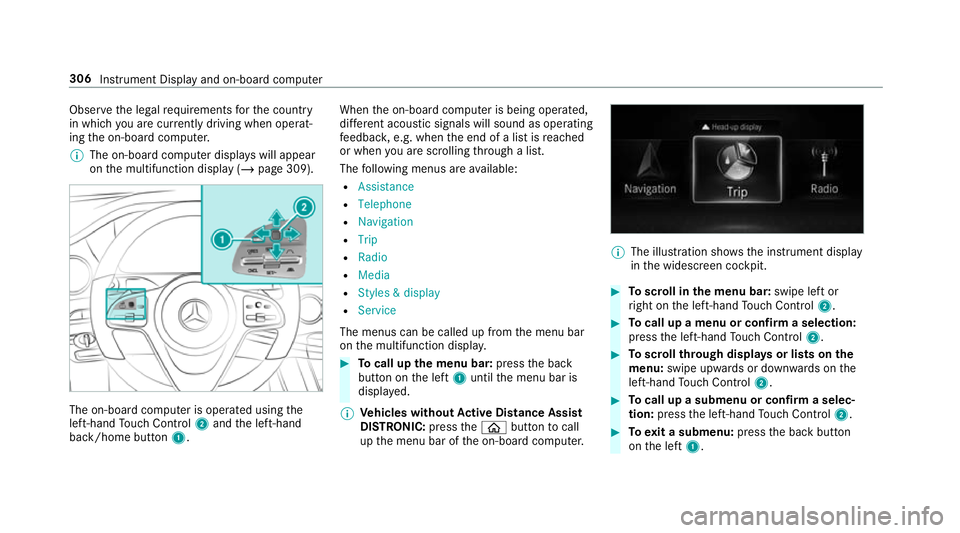
on the multifunction display (/ page 309).The on-board computer is operated using
the
left-hand Touch Control 2and the left-hand
back/home button 1. When
the on-board computer is being operated,
dif fere nt acoustic signals will sound as operating
fe edbac k,e.g. when the end of a list is reached
or when you are sc rolling thro ugh a list.
The following menus are available:
R Assistance
R Telephone
R Navigation
R Trip
R Radio
R Media
R Styles & display
R Service
The menus can be called up from the menu bar
on the multifunction displa y. #
Tocall up the menu bar: pressthe back
button on the left 1until the menu bar is
displa yed.
% Ve
hicles without Active Di stance Assist
DISTRO NIC:press theò button tocall
up the menu bar of the on-board computer. %
The illustration sho wsthe instrument display
in the widescreen cockpit. #
Toscroll in the menu bar: swipe left or
ri ght on the left-hand Touch Control 2. #
Tocall up a menu or confirm a selection:
press the left-hand Touch Control 2. #
Toscroll through displa ysor lists on the
menu: swipe upwards or down wards on the
left-hand Touch Control 2. #
Tocall up a submenu or confirm a selec‐
tion: press the left-hand Touch Control 2. #
Toexit a submenu: pressthe back button
on the left 1. 306
Instrument Display and on-board computer
Page 311 of 697
1
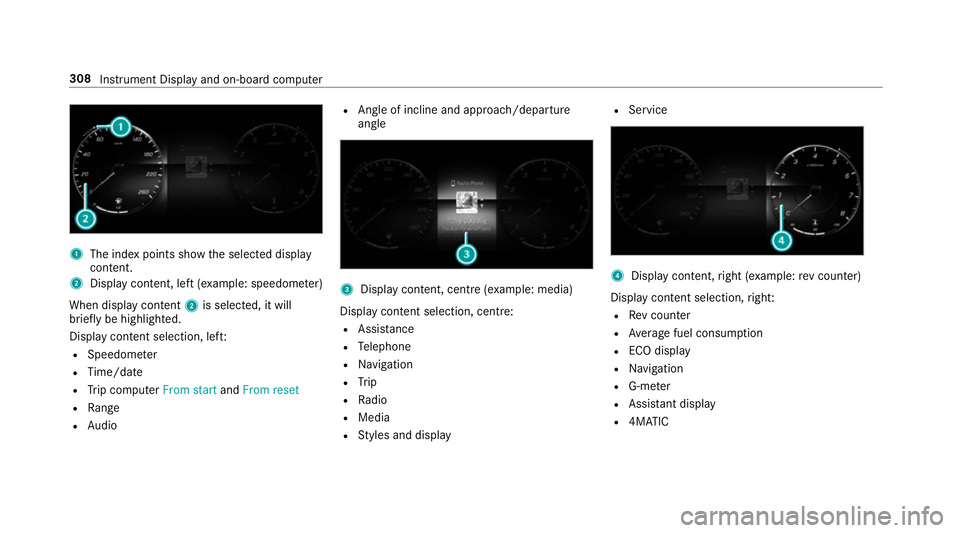
The index points show the selected display
conte nt.
2 Display content, le ft(exa mp le: speedom eter)
When display conte nt2 is selected, it will
brie fly be highligh ted.
Display con tent selection, le ft:
R Speedom eter
R Time/date
R Trip computer From startandFrom reset
R Range
R Audio R
Angl e of incline and approach/departure
angle 3
Display conte nt, centre (examp le: media)
Display con tent selection, centre:
R Assi stance
R Telephone
R Navigation
R Trip
R Radio
R Media
R Styles and display R
Service 4
Display conte nt,right (e xamp le:rev counter)
Display content selection, right:
R Rev counter
R Average fuel consum ption
R ECO display
R Navigation
R G-me ter
R Assi stant display
R 4MATIC 308
Instru ment Display and on-board computer
Page 318 of 697
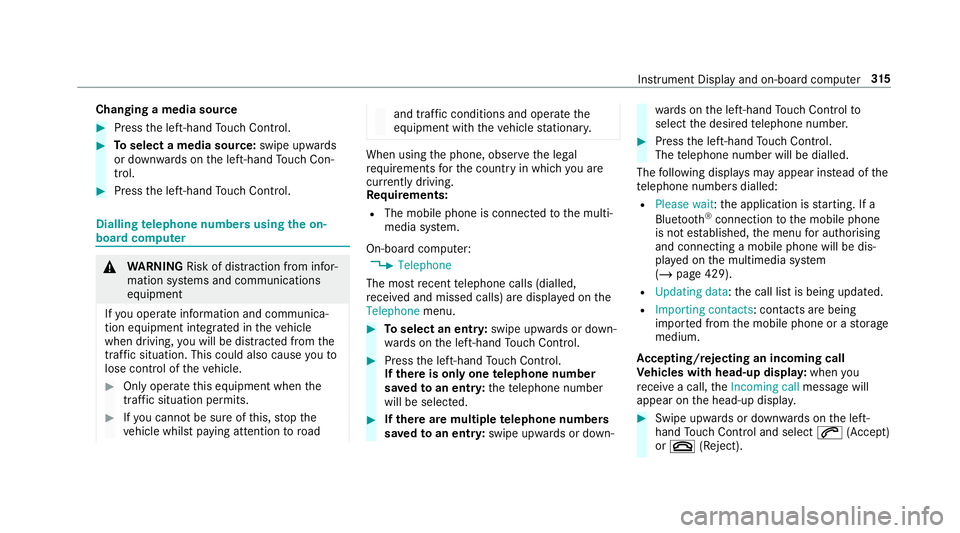
Changing a media source
#
Press the left-hand Touch Control. #
Toselect a media source: swipe upwards
or down wards on the left-hand Touch Con‐
trol. #
Press the left-hand Touch Control. Dialling
telephone numbers using the on-
board compu ter &
WARNING Risk of di stra ction from infor‐
mation sy stems and communications
equipment
If yo u operate information and communica‐
tion equipment integ rated in theve hicle
when driving, you will be distracted from the
traf fic situation. This could also cause youto
lose control of theve hicle. #
Only operate this equipment when the
traf fic situation permits. #
Ifyo u cannot be sure of this, stop the
ve hicle whilst paying attention toroad and traf
fic conditions and ope rate the
equipment with theve hicle stationar y. When using
the phone, obser vethe legal
re qu irements forth e count ryin which you are
cur rently driving.
Re quirements:
R The mobile phone is connec tedto the multi‐
media sy stem.
On-board computer: 4 Telephone
The most recent telephone calls (dialled,
re cei ved and missed calls) are displa yed on the
Telephone menu. #
Toselect an entr y:swipe upwards or down‐
wa rds on the left-hand Touch Control. #
Press the left-hand Touch Control.
If th ere is only one telephone number
sa ve dto an entr y:thete lephone number
will be selec ted. #
Ifth ere are multiple telephone numbers
sa ve dto an entr y:swipe upwards or down‐ wa
rds on the left-hand Touch Control to
select the desired telephone number. #
Press the left-hand Touch Control.
The telephone number will be dialled.
The following displa ysmay appear ins tead of the
te lephone numbers dialled:
R Please wait :th e application is starting. If a
Blue tooth ®
connection tothe mobile phone
is not es tablished, the menu for auth orising
and connecting a mobile phone will be dis‐
pla yed on the multimedia sy stem
(/ page 429).
R Updating data: the call list is being updated.
R Importing contacts : contacts are being
impor ted from the mobile phone or a storage
medium.
Ac cepting/rejecting an incoming call
Ve hicles with head-up displa y:when you
re cei vea call, theIncoming call message will
appear on the head-up displa y. #
Swipe up wards or down wards on the left-
hand Touch Control and select 6(Accept)
or ~ (Reject). In
stru ment Display and on-board computer 315
Page 319 of 697
#
Press the left-hand Touch Control.
Yo u may accept or reject the call using the6
or ~ button on thesteering wheel. Setting
the head-up display using the on-
board compu terOn-board computer:
4 HEAD-UP DISPLAY
The following head-up display settings can be
selec ted:
R Position
R Brightness
R Displa ys
R Messages
R Assis tance status
R Telephone
R Audio
R LINGU ATRO NIC #
Tochoose a setting: swipetotheright on
th e left-hand Touch Control.
The Settings menu 5is selected. #
Tocall up the Settings menu: pressthe
left-hand Touch Control. #
Toadjust the position: swipe upwards or
down wards on the left-hand Touch Control. #
Toadjust the brightness: swipetothe left
or right on the left-hand Touch Control. #
Toset messages, assistance status, tele‐
phone, audio and LINGU ATRO NIC: press
th e left-hand Touch Control.
The list of setting options will be displ ayed. #
Swipe upwards or down wards on the left-
hand Touch Control and select a setting by
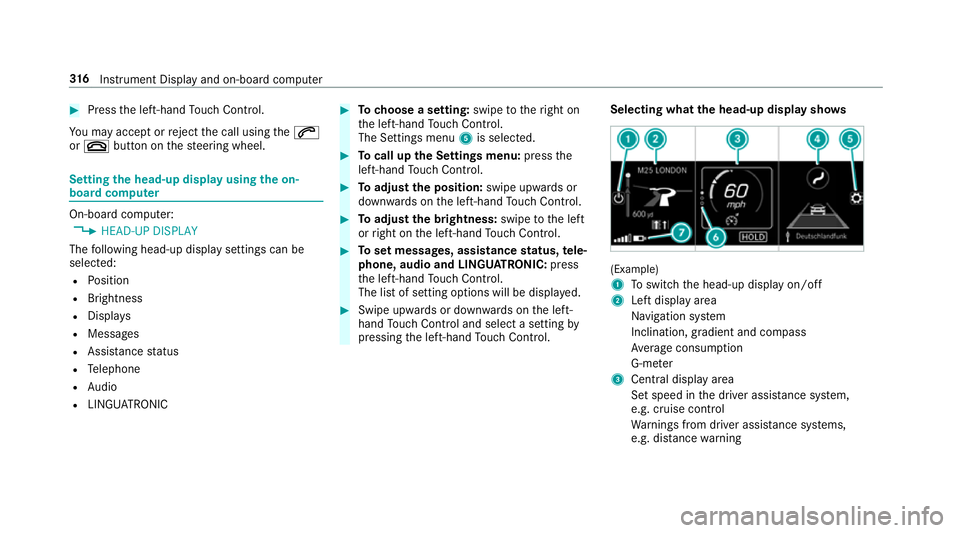
pressing the left-hand Touch Control. Selecting what
the head-up display sho ws (Example)
1
Toswitch the head-up display on/off
2 Left display area
Navigation sy stem
Inclination, gradient and compass
Av erage consum ption
G-me ter
3 Central displ ayarea
Set speed in the driver assis tance sy stem,
e.g. cruise control
Wa rnings from driver assis tance sy stems,
e.g. dis tance warning 316
Instrument Display and on-board computer