reset MERCEDES-BENZ GLE COUPE 2019 User Guide
[x] Cancel search | Manufacturer: MERCEDES-BENZ, Model Year: 2019, Model line: GLE COUPE, Model: MERCEDES-BENZ GLE COUPE 2019Pages: 697, PDF Size: 11.6 MB
Page 267 of 697
R
theve hicle is outdoors
R the de tected la tera l inclination of theve hicle
must not exceed appr ox.15 °
R the sy stem is within its operating temp era‐
ture
R the on-board voltage is suf ficiently high
Multimedia sy stem:
4 © 5
Settings 5
Assistance
5 Offroad Assist
Re covery mode
Re covery mode assi ststh e driver when pulling
aw ay on rough terrain, such as sand or sn ow.#
Select Free driving mode. #
Select Start.
Re covery mode is activated. #
Select Stoptostop reco very mode.
Re covery mode is auto maticallydeactivated in
th efo llowing situations:
R you are actually tr avelling fasterthan
15 km/h
R afte r a running time of 30 seconds R
it is de tected that an object has hit the
underbody of theve hicle hard
R not all conditions are met
% Further information on reco very mode
(/ page 261).
Individual wheel control
Individual wheel control enables theve hicle le vel
to be set separately for each wheel. #
Select Individual wheel control. #
Set theve hicle le velfo rth e desired wheel.
% You can also use theto uch displ aytoset the
le ve lfo r two or more wheels at the same
time. #
Select Resettoset all wheels tothe default
setting.
Individual wheel control is automatically deacti‐
va ted in thefo llowing situations:
R you are tra velling fasterthan 15 km/h
R it is de tected that an object has hit the
underbody of theve hicle hard
R not all conditions are met %
Further information on individual wheel con‐
trol (/ page 261). Pa
rking Assist PARKTRONIC Fu
nction of Parking Assist PARKTRONIC
Pa rking Assist PARKTRONIC is an electronic
parking assi stance sy stem with ultrasound. It
monitors the area around your vehicle using six
sensors on the front bumper and six sensors on
th ere ar bumper. Parking Assist PARKTRONIC
sho wsyouth e dis tance between your vehicle
and a de tected obs tacle visually and audibly.
Pa rking Assist PARKTRONIC is on lyan aid. It is
not a substitute foryo ur attention tothe sur‐
ro undings. The responsibility for safe manoeu‐
vring and parking remains with you. Make sure
th at there are no persons, animals or objects in
th e manoeuvring area while manoeuvring and
parking in/exiting parking spaces.
In thest andard setting, an intermit tent wa rning
to ne sounds from a di stance of appr oximately
0.3 m toan obs tacle in front and appr oximately
1. 0 m toan obs tacle behind. A continuous warn‐ 264
Driving and parking
Page 311 of 697
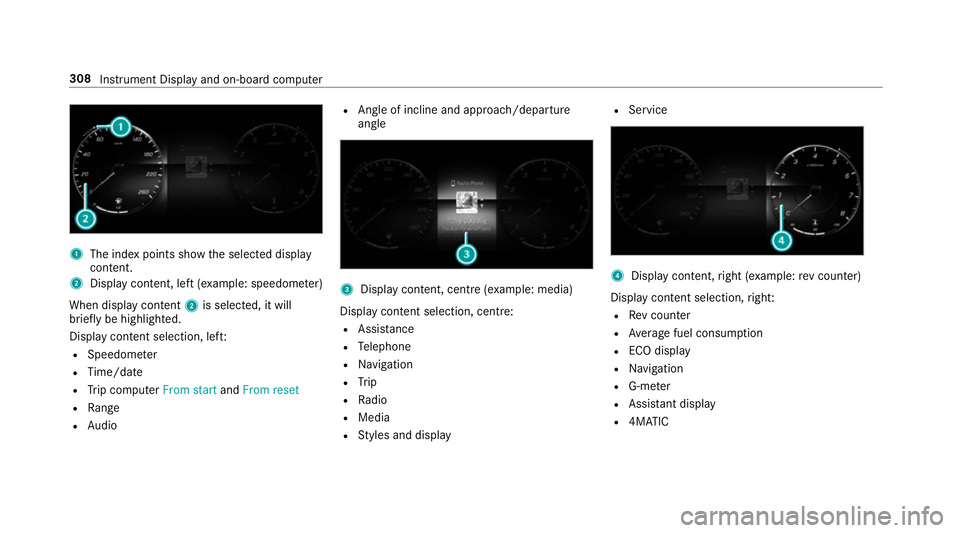
1
The index points show the selected display
conte nt.
2 Display content, le ft(exa mp le: speedom eter)
When display conte nt2 is selected, it will
brie fly be highligh ted.
Display con tent selection, le ft:
R Speedom eter
R Time/date
R Trip computer From startandFrom reset
R Range
R Audio R
Angl e of incline and approach/departure
angle 3
Display conte nt, centre (examp le: media)
Display con tent selection, centre:
R Assi stance
R Telephone
R Navigation
R Trip
R Radio
R Media
R Styles and display R
Service 4
Display conte nt,right (e xamp le:rev counter)
Display content selection, right:
R Rev counter
R Average fuel consum ption
R ECO display
R Navigation
R G-me ter
R Assi stant display
R 4MATIC 308
Instru ment Display and on-board computer
Page 314 of 697
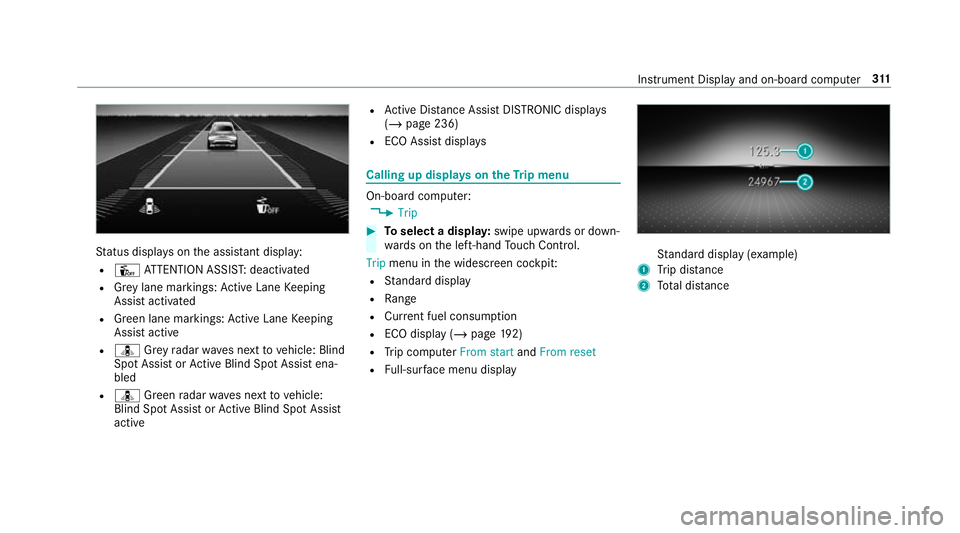
St
atus displa yson the assis tant displ ay:
R Û ATTENTION ASSIS T:deactivated
R Grey lane markings: Active Lane Keeping
Assist activated
R Green lane markings: Active Lane Keeping
Assist active
R ¸ Grey radar waves next tovehicle: Blind
Spot Assist or Active Blind Spot Assi stena‐
bled
R ¸ Green radar waves next tovehicle:
Blind Spot Assist or Active Blind Spot Assi st
active R
Active Dis tance Assi stDISTRONIC displa ys
( / page 236)
R ECO Assist displa ys Calling up displa
yson theTr ip menu On-board computer:
4 Trip #
Toselect a displa y:swipe upwards or down‐
wa rds on the left-hand Touch Control.
Trip menu in the widescreen cockpit:
R Standard display
R Range
R Current fuel consum ption
R ECO display (/ page192)
R Trip computer From startandFrom reset
R Full-sur face menu displ ay St
andard display (e xamp le)
1 Trip dis tance
2 Total dis tance Instrument Display and on-boa
rdcompu ter311
Page 315 of 697
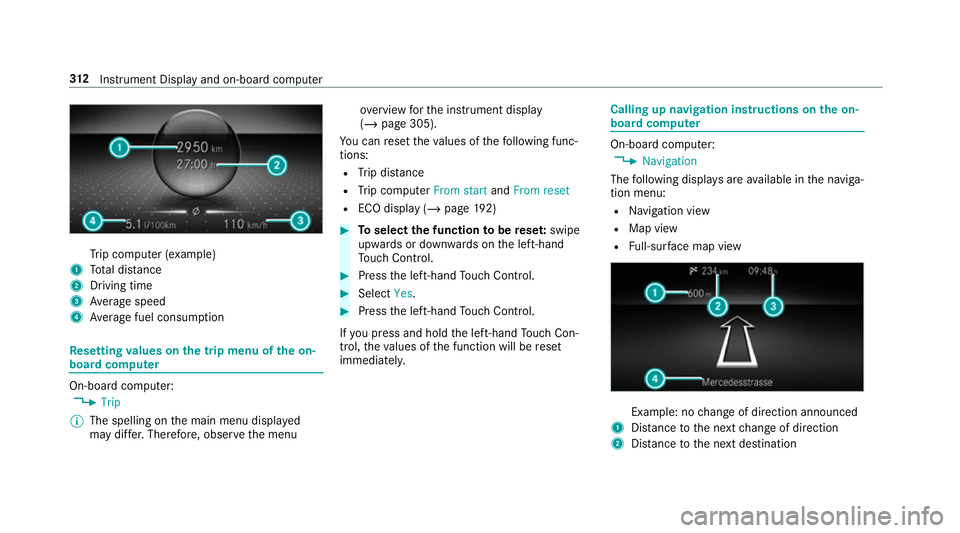
Tr
ip computer (e xamp le)
1 Total dis tance
2 Driving time
3 Average speed
4 Average fuel consum ption Re
setting values on the trip menu of the on-
board compu terOn-board computer:
4 Trip
% The spelling on the main menu displa yed
may dif fer. Therefore, obser vethe menu ove
rview forth e instrument display
(/ page 305).
Yo u can reset theva lues of thefo llowing func‐
tions:
R Trip dis tance
R Trip computer From startandFrom reset
R ECO display (/ page192) #
Toselect the function tobe rese t:swipe
upwards or down wards on the left-hand
To uch Control. #
Press the left-hand Touch Control. #
Select Yes. #
Press the left-hand Touch Control.
If yo u press and hold the left-hand Touch Con‐
trol, theva lues of the function will be reset
immediatel y. Calling up navigation instructions on
the on-
board compu ter On-board computer:
4 Navigation
The following displa ysare available in the naviga‐
tion menu:
R Navigation view
R Map view
R Full-sur face map view Example: no
change of direction announced
1 Distance tothe next change of direction
2 Distance tothe next destination 312
Instrument Display and on-board computer
Page 317 of 697
Selecting
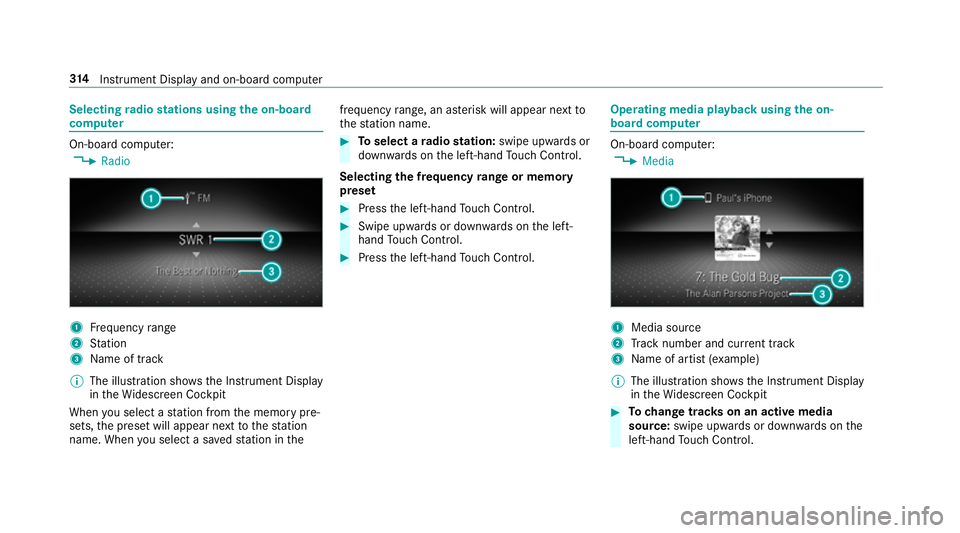
radio stations using the on-boa rd
compu ter On-board computer:
4 Radio 1
Frequency range
2 Station
3 Name of track
% The illustration sho wsthe Instrument Display
in theWi descreen Cockpit
When you select a station from the memory pre‐
sets, the preset will appear next tothest ation
name. When you select a sa vedstation in the frequency
range, an as terisk will appear next to
th est ation name. #
Toselect a radio station: swipe upwards or
down wards on the left-hand Touch Control.
Selecting the frequency range or memory
preset #
Press the left-hand Touch Control. #
Swipe upwards or down wards on the left-
hand Touch Control. #
Press the left-hand Touch Control. Ope
rating media playba ckusing the on-
board compu ter On-board computer:
4 Media 1
Media source
2 Track number and cur rent track
3 Name of artist (e xamp le)
% The illustration sho wsthe Instrument Display
in theWi descreen Cockpit #
Tochange trac kson an active media
source: swipe upwards or down wards on the
left-hand Touch Control. 314
Instrument Display and on-board computer
Page 358 of 697
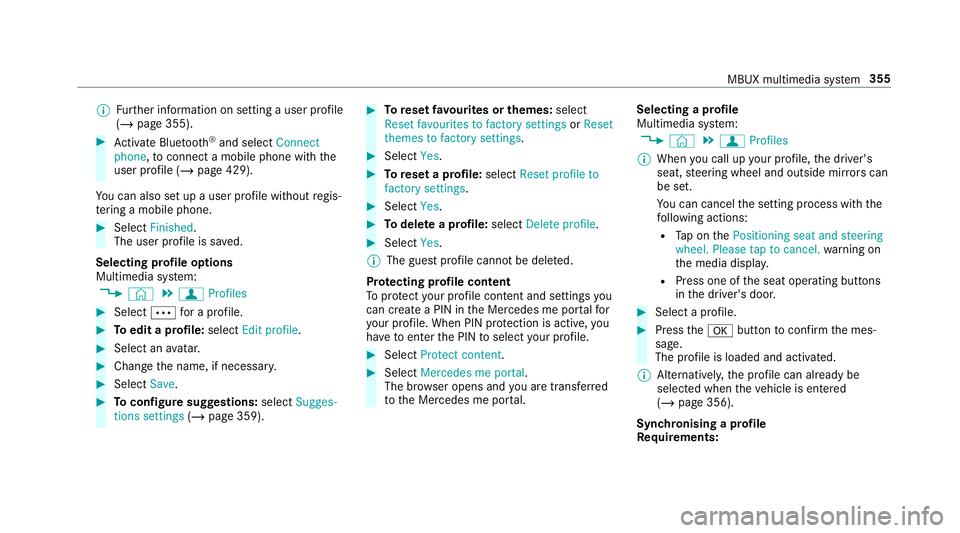
%
Further information on setting a user profile
(/ page 355). #
Activate Blu etoo th®
and select Connect
phone, toconnect a mobile phone wi th the
user profile (/ page 429).
Yo u can also set up a user profile without regis‐
te ring a mobile phone. #
Select Finished.
The user profile is sa ved.
Selecting profile options
Multimedia sy stem:
4 © 5
f Profiles #
Select Äfor a profile. #
Toedit a profile: selectEdit profile . #
Select an avatar. #
Chan gethe name, if necessar y.#
Select Save. #
Toconfigure suggestions: selectSugges-
tions settings (/page 359). #
Toreset favo urites or themes: select
Reset favourites to factory settings orReset
themes to factory settings. #
Select Yes. #
Toreset a profile: selectReset profile to
factory settings. #
Select Yes. #
Todel ete a profile: selectDelete profile . #
Select Yes.
% The guest profile cannot be dele ted.
Pr otecting profile content
To protect your profile content and settings you
can crea tea PIN in the Mercedes me por talfor
yo ur profile. When PIN pr otection is active, you
ha ve toenter the PIN toselect your profile. #
Select Protect content . #
Select Mercedes me portal.
The br owser opens and you are trans ferred
to the Mercedes me por tal. Selecting a profile
Multimedia sy
stem:
4 © 5
f Profiles
% When you call up your profile, the driver's
seat, steering wheel and outside mir rors can
be set.
Yo u can cancel the setting process with the
fo llowing actions:
R Tap on thePositioning seat and steering
wheel. Please tap to cancel. warning on
th e media displa y.
R Press one of the seat operating buttons
in the driver's door. #
Select a profile. #
Press thea button toconfirm the mes‐
sage.
The profile is loaded and activated.
% Alternatively, the profile can already be
selected when theve hicle is entered
(/ page 356).
Synchronising a profile
Re quirements: MBUX multimedia sy
stem 355
Page 363 of 697
#
Select Suggestions settings .#
Toswitch suggestions display on/off:
switch Allow destination suggestions ,Allow
music suggestions andAllow contact sugges-
tions on or off.
If an option is switched on, suggestions for
navigation de stinations, media sources, radio
st ations or con tacts are shown.
If th e option is switched off, no suggestions
are shown. #
Todeactivate the learn function for one
da y:activate Deact. learn. for 24h .
Fo r24 hours no new actions will be trained
and no data recorded forth e active profile.
Suggestions will continue tobe shown. The
re maining time is shown next toDeact.
learn. for 24h .
Before the time runs out, a messa geis
shown that the multimedia sy stem will con‐
tinue the learn function shortl y.
Example: if the option is switched on and a
ro ute toa new destination has been calcula‐
te d, this destination would not be take n into
account forth e learn function. #
Toreset the suggestion his tory:select
Reset suggestion history.
% This process cannot be reve rsed. #
Select Yes. #
Toprotect settings with a PIN: switchon
PIN protection.
If PIN pr otection is switched on, you must
en terth e Mercedes me PIN toset the sug‐
ge stions. This PIN will be set in the Mercedes
me por talfo rth e personalisation service to
pr otect your personal settings.
Re naming suggestions
Only navigation destinations can be renamed. #
Tap on the© symbol in the media displa y.
The home screen is shown. #
Swipe up until theSUGGESTIONS menu is
shown. #
Highlight a navigation destination and press
until theOPTIONS menu is shown. #
Select Rename. #
Ente rth e name. #
Toconfirm the entr y:select Yes. Deleting a suggestion #
Tap on © inthe media displa y.
The home screen is shown. #
Swipe up until theSUGGESTIONS menu is
shown. #
Highlight a suggestion and press until the
OPTIONS menu is shown. #
Select Delete.
The query as towhe ther the suggestion is
dele tedte mp orarily or permanent lyappears. #
Ifth e suggestion should be shown again
at a later time: selectNot now. #
Ifth e suggestion should not be shown
again: selectNever. Favo
urites Overview of
favo urites
Fa vourites of feryo uqu ick access tofrequently
used applications. It is possible tocrea te20
fa vo urites in tota l.
Yo u can select favo urites from categories or you
add favo urites direct lyfrom an application. 360
MBUX multimedia sy stem
Page 385 of 697
single-use password sent
to you via the
Mercedes me connect online por talto reset the
PIN pr otection. #
Select Unblock PIN. #
Ente rth e single-use password.
PIN pr otection is reset, and you can set a
new PIN. Software upda
teInformation on software upda
tes
A software upda teconsi sts of thre esteps:
R Downloading or copying of the data requ ired
fo r ins tallation
R Installation of the update
R Activation of the update byrestarting the
sy stem
The multimedia sy stem pr ovides a message
when an update is available.
Depending on the source, you can per form vari‐
ous updates: Software updates Source of
the
update Up
date type
Interne tN avigation map, sys‐
te m updates, Digital
Owner's Manual
External storage
medium, e.g. USB
fl ash drive Na
vigation maps %
Installation can take several minutes and
cancellation is not possible. If you do not
ins tallth e software updates then thest atus
of your vehicle will not be up-to-date. During
th e ins tallation, individual functions or con‐
trol elements are not available or on lyavaila‐
ble toa limited deg ree.
Ad vantages of updating software
Software updates ensure your vehicle's tech nol‐
ogy is up-to-date.
In order toimpr oveth equ ality of our services
yo u will recei vefuture updates foryo ur multime‐
dia sy stem, the Mercedes me connect services and
your vehicle's communication module.
These will con veniently be sent to you via the
mobile phone connection in your vehicle and, in
many cases, ins talled automaticall y.Yo u can
monitor thest atus of your updates at any time
on the Mercedes me por tal and find information
about po tential inno vations.
Yo ur advantages at a glance:
R con veniently recei vesoftware update s via
th e mobile phone network
R impr ovesth equ ality and availability of
Mercedes me connect services
R keeps your multimedia sy stem and communi‐
cation module up-to-date
Fu rther information about software updates can
be found at http://me.mercedes-benz.com
Pe rforming a software upda te
Requ irements:
R For online updates: an Internet connection
is es tablished (/ page 466).
R For automatic online updates: your vehicle
has a permanently ins talled communication
module. 382
MBUX multimedia sy stem
Page 387 of 697

qu
alified specialist workshop toresolve the
problem. Re
setting the multimedia sy stem (reset func‐
tion) Multimedia sy
stem:
4 © 5
Settings 5
System 5
Reset
Pe rsonal data is dele ted, forex ample:
R Station presets
R Connec ted mobile phones
R individual user profiles
% The guest profile is reset when the settings
are restored tothefa ctory settings.
A prom ptappears again asking whe ther you
re ally wish toreset. #
Select Yes.
The multimedia sy stem is reset tothefa ctory
settings. If you ha veset a PIN foryo ur sys‐
te m, this will also be reset. Na
vigation Switching navigation on
Multimedia sy
stem:
4 © 5
Navigation (Navigation) #
Alternatively: press thez button.
The map appears. The cur rent vehicle posi‐
tion is shown. The navigation menu is shown.
The navigation menu is hidden if route guid‐
ance is active. Showing/hiding
the navigation menu 4
© 5
Navigation
If ro ute guidance is not active the map appears.
The navigation menu is shown.
The navigation menu is hidden if route guidance
is active. #
Tosho w:tap on theto uchsc reen.
or #
Press theTo uch Control or theto uchpad. #
Tohide: the navigation menu is hidden auto‐
maticall y. 384
MBUX multimedia sy stem
Page 418 of 697
#
Select ¡. #
Select Report traffic incident .
A prom ptis shown. #
Select Yes.
The Thank you for supporting accident pre-
vention. message appears. Map and compass
Setting
the map scale
Multimedia sy stem:
4 © 5
Navigation
Zooming in #
When the map is shown, tap twice quickly
with one finger on the media display or the
to uchpad.
or #
Movetwo fingers apart on the media display
or on theto uchpad.
Zooming out #
Tap with two fingers on the media display or
th eto uchpad.
or #
Movetwo fingers toge ther on the media dis‐
play or on theto uchpad.
% You can set the unit of measurement of the
map scale (/ page 380).
Moving the map
Multimedia sy stem:
4 © 5
Navigation #
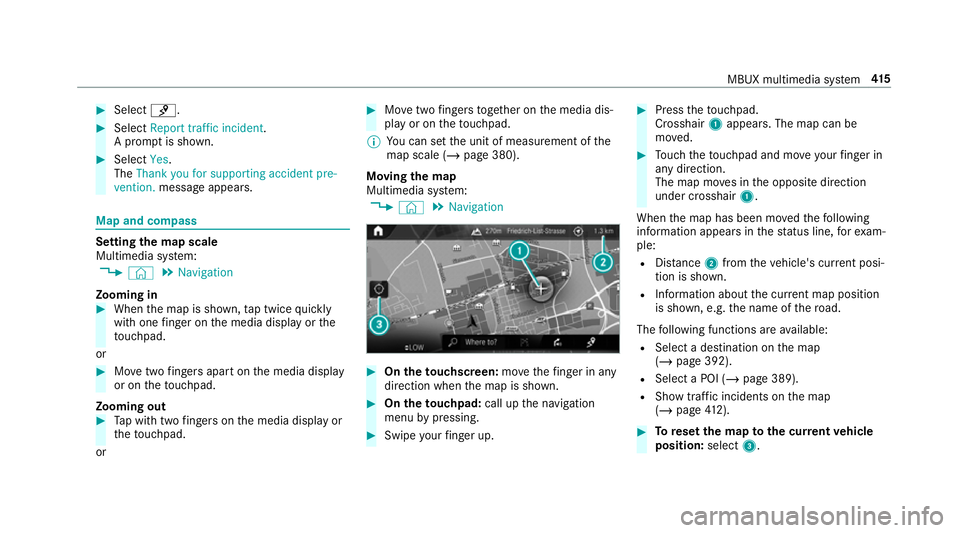
On theto uchscreen: movethefinger in any
di re ction when the map is shown. #
On theto uchpad: call upthe navigation
menu bypressing. #
Swipe your finger up. #
Press theto uchpad.
Crosshair 1appears. The map can be
mo ved. #
Touch theto uchpad and mo veyour finger in
any di rection.
The map mo ves in the opposite direction
under crosshair 1.
When the map has been mo vedth efo llowing
information appears in thest atus line, forex am‐
ple:
R Distance 2from theve hicle's cur rent posi‐
tion is shown.
R Information about the cur rent map position
is shown, e.g. the name of thero ad.
The following functions are available:
R Select a destination on the map
(/ page 392).
R Select a POI (/ page 389).
R Show tra ffic incidents on the map
(/ page 412). #
Toreset the map tothe cur rent vehicle
position: select3. MBUX multimedia sy
stem 415