change time MERCEDES-BENZ GLE COUPE 2020 Owner's Guide
[x] Cancel search | Manufacturer: MERCEDES-BENZ, Model Year: 2020, Model line: GLE COUPE, Model: MERCEDES-BENZ GLE COUPE 2020Pages: 757, PDF Size: 11.84 MB
Page 314 of 757
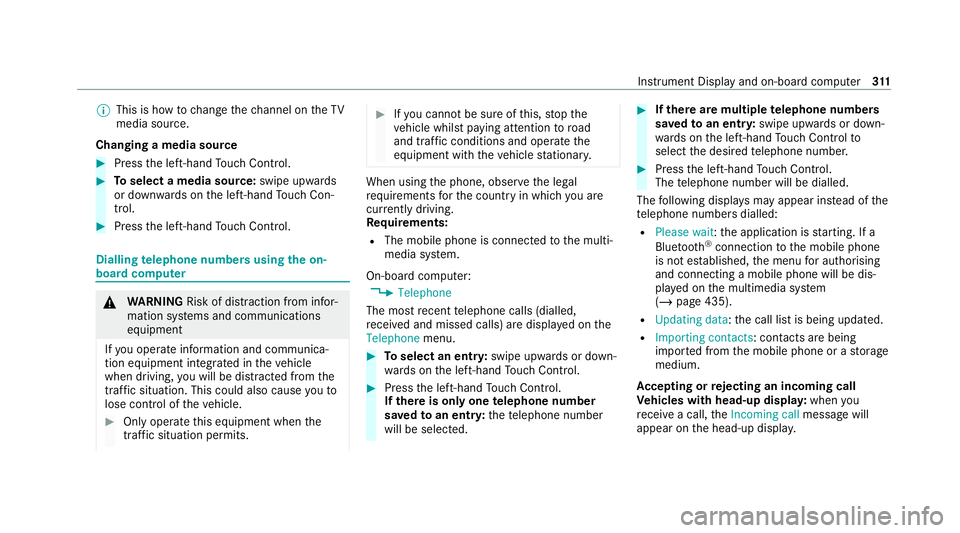
%
This is how tochange thech annel on theTV
media source.
Changing a media source #
Press the left-hand Touch Control. #
Toselect a media source: swipe upwards
or down wards on the left-hand Touch Con‐
trol. #
Press the left-hand Touch Control. Dialling
telephone numbers using the on-
board compu ter &
WARNING Risk of di stra ction from infor‐
mation sy stems and communications
equipment
If yo u operate information and communica‐
tion equipment integ rated in theve hicle
when driving, you will be distracted from the
traf fic situation. This could also cause youto
lose control of theve hicle. #
Only operate this equipment when the
traf fic situation permits. #
Ifyo u cannot be sure of this, stop the
ve hicle whilst paying attention toroad
and traf fic conditions and ope rate the
equipment with theve hicle stationar y. When using
the phone, obser vethe legal
re qu irements forth e count ryin which you are
cur rently driving.
Re quirements:
R The mobile phone is connec tedto the multi‐
media sy stem.
On-board computer: 4 Telephone
The most recent telephone calls (dialled,
re cei ved and missed calls) are displa yed on the
Telephone menu. #
Toselect an entr y:swipe upwards or down‐
wa rds on the left-hand Touch Control. #
Press the left-hand Touch Control.
If th ere is only one telephone number
sa ve dto an entr y:thete lephone number
will be selec ted. #
Ifth ere are multiple telephone numbers
sa ve dto an entr y:swipe upwards or down‐
wa rds on the left-hand Touch Control to
select the desired telephone number. #
Press the left-hand Touch Control.
The telephone number will be dialled.
The following displa ysmay appear ins tead of the
te lephone numbers dialled:
R Please wait :th e application is starting. If a
Blue tooth ®
connection tothe mobile phone
is not es tablished, the menu for auth orising
and connecting a mobile phone will be dis‐
pla yed on the multimedia sy stem
(/ page 435).
R Updating data: the call list is being updated.
R Importing contacts : contacts are being
impor ted from the mobile phone or a storage
medium.
Ac cepting or rejecting an incoming call
Ve hicles with head-up displa y:when you
re cei vea call, theIncoming call message will
appear on the head-up displa y. Instrument Display and on-board computer
311
Page 320 of 757
R
Weather
Fu ll functionality is only available foryo u with
activation of online voice control (/ page317). Note
s onthe language setting Yo
u can change the language of LINGU ATRO NIC
via the sy stem language settings. If the set sys‐
te m language is not suppor tedby LINGUA‐
TRONIC, English will be selected.
LINGU ATRO NIC is available in thefo llowing lan‐
guages:
R English
R English
R French
R Italian
R Dutch
R Polish
R Portuguese
R Russian
R Swedish
R Spanish R
Czech
R Turkish Setting LINGU
ATRO NIC (multimedia sy stem) Requ
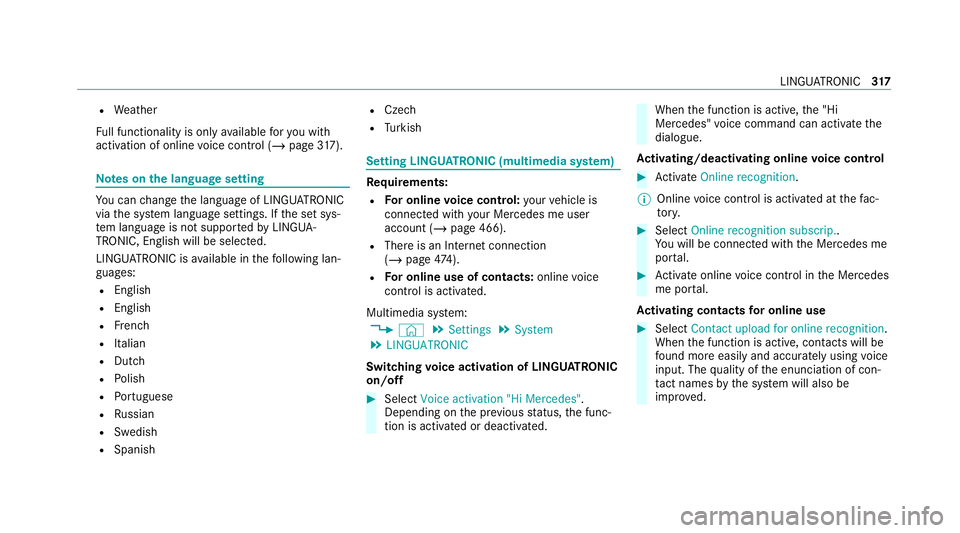
irements:
R For online voice control: your vehicle is
connected with your Mercedes me user
account (/ page 466).
R There is an In tern et connection
(/ page 474).
R For online use of contacts: onlinevoice
control is activated.
Multimedia sy stem:
4 © 5
Settings 5
System
5 LINGUATRONIC
Switching voice activation of LINGU ATRO NIC
on/o ff #
Select Voice activation "Hi Mercedes".
Depending on the pr evious status, the func‐
tion is activated or deactivated. When
the function is active, the "Hi
Mercedes" voice command can activate the
dialogue.
Ac tivating/deactivating online voice control #
Activate Online recognition.
% Online voice control is activated at thefa c‐
to ry. #
Select Online recognition subscrip..
Yo u will be connected with the Mercedes me
por tal. #
Activate online voice control in the Mercedes
me por tal.
Ac tivating contacts for online use #
Select Contact upload for online recognition.
When the function is active, conta cts will be
fo und more easily and accurately using voice
input. The quality of the enunciation of con‐
ta ct names bythe sy stem will also be
impr oved. LINGU
ATRO NIC 317
Page 368 of 757
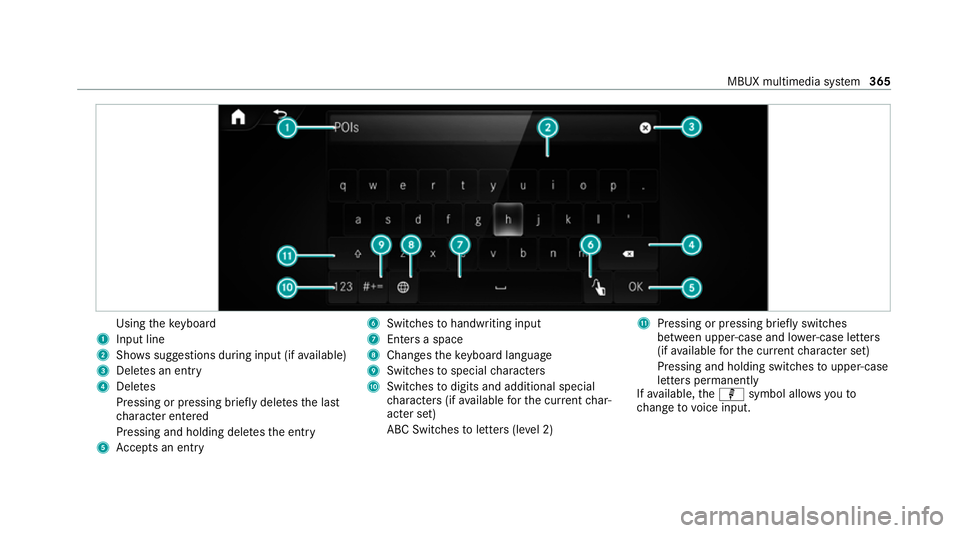
Using
theke yboard
1 Input line
2 Shows suggestions during input (if available)
3 Dele tes an entry
4 Dele tes
Pressing or pressing brief lydele testh e last
ch aracter entered
Pressing and holding dele testh e entry
5 Accepts an entry 6
Switches tohandwriting input
7 Enters a space
8 Changes theke yboard language
9 Switches tospecial characters
A Swit ches todigits and additional special
ch aracters (if available forth e cur rent char‐
acter set)
ABC Swit ches toletters (le vel 2) B
Pressing or pressing brief lyswitches
between upper-case and lo wer-case letters
(if available forth e cur rent character set)
Pressing and holding swit ches toupper-case
letters permanently
If av ailable, thep symbol allo wsyouto
ch ange tovoice input. MBUX multimedia sy
stem 365
Page 371 of 757
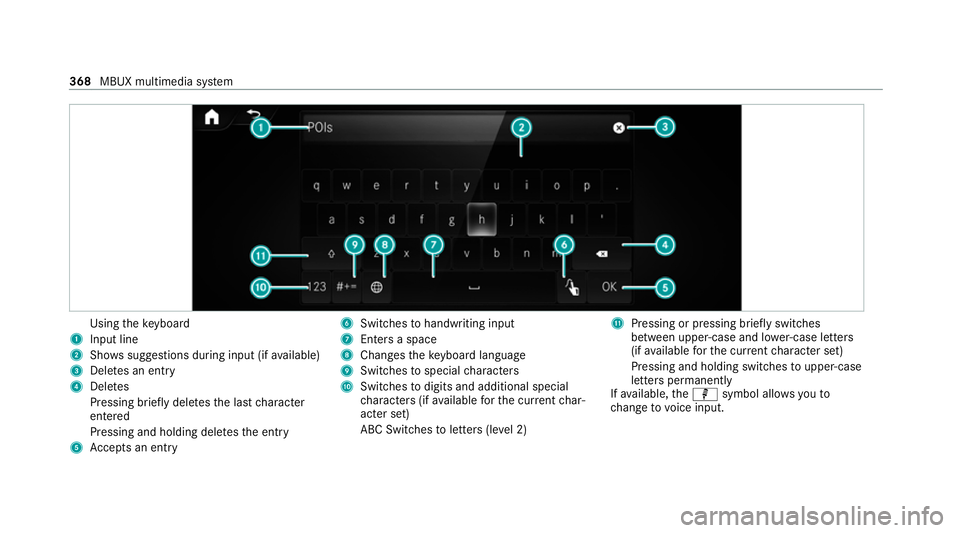
Using
theke yboard
1 Input line
2 Shows suggestions during input (if available)
3 Dele tes an entry
4 Dele tes
Pressing brief lydele testh e last character
entered
Pressing and holding dele testh e entry
5 Accepts an entry 6
Switches tohandwriting input
7 Enters a space
8 Changes theke yboard language
9 Switches tospecial characters
A Swit ches todigits and additional special
ch aracters (if available forth e cur rent char‐
acter set)
ABC Swit ches toletters (le vel 2) B
Pressing or pressing brief lyswitches
between upper-case and lo wer-case letters
(if available forth e cur rent character set)
Pressing and holding swit ches toupper-case
letters permanently
If av ailable, thep symbol allo wsyouto
ch ange tovoice input. 368
MBUX multimedia sy stem
Page 373 of 757
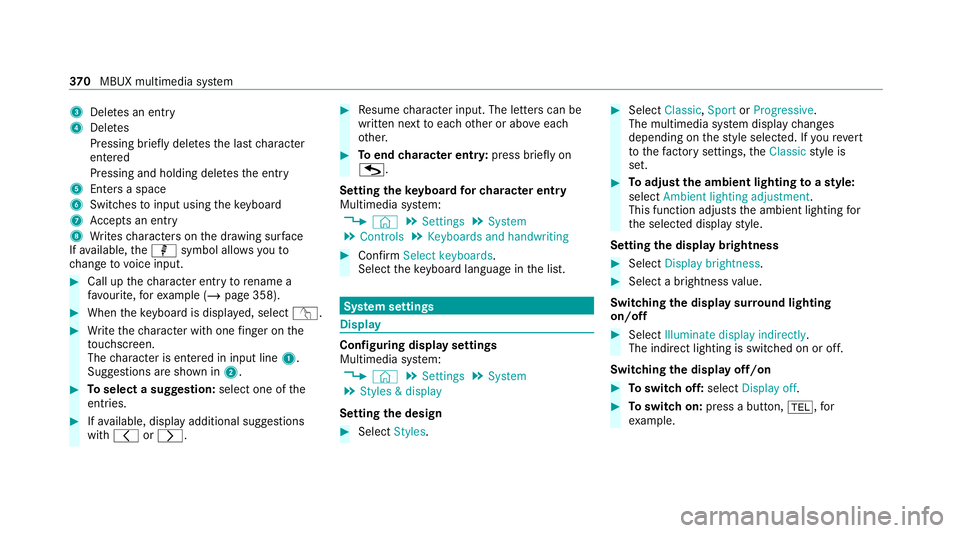
3
Deletes an entry
4 Deletes
Pressing brief lydele testh e last character
entered
Pressing and holding dele testh e entry
5 Enters a space
6 Switches toinput using theke yboard
7 Accepts an entry
8 Writes characters on the dr awing sur face
If av ailable, thep symbol allo wsyouto
ch ange tovoice input. #
Call up thech aracter ent ryto rename a
fa vo urite, forex ample (/ page 358). #
When theke yboard is displa yed, select v. #
Write thech aracter with one finger on the
to uchsc reen.
The character is entered in input line 1.
Suggestions are shown in 2.#
Toselect a suggestion: select one ofthe
entri es. #
Ifav ailable, display additional suggestions
with 0047 or0048. #
Resume character input. The letters can be
written next toeach other or abo veeach
ot her. #
Toend character entr y:press briefly on
G.
Setting theke yboard forch aracter entry
Multimedia sy stem:
4 © 5
Settings 5
System
5 Controls 5
Keyboards and handwriting #
Confirm Select keyboards.
Select theke yboard language in the list. Sy
stem settings Display
Configuring display settings
Multimedia sy
stem:
4 © 5
Settings 5
System
5 Styles & display
Setting the design #
Select Styles. #
Select Classic ,Sport orProgressive .
The multimedia sy stem display changes
depending on thest yle selected. If youre ve rt
to thefa ctory settings, theClassic style is
set. #
Toadjust the ambient lighting toastyl e:
select Ambient lighting adjustment.
This function adjusts the ambient lighting for
th e selected display style.
Setting the display brightness #
Select Display brightness . #
Select a brightness value.
Switching the display sur round lighting
on/off #
Select Illuminate display indirectly .
The indirect lighting is switched on or off.
Switching the display off/on #
Toswitch off: selectDisplay off . #
Toswitch on: press a button, 002B,for
ex ample. 37 0
MBUX multimedia sy stem
Page 381 of 757
originates from ano
ther vehicle, this is recog‐
nised du ring da tareading. #
Con firm the prom pt.
The files are impor ted. The multimedia sy stem is
re star ted once the data has been impor ted.
% Current vehicle settings can be edited af ter
th e import.
Exporting
If PIN pr otection is activated, your PIN is reques‐
te d. #
Ente rth efo ur-digit PIN. #
Select a data storage medium.
A prom ptappears asking whe ther youre ally
wish tocar ryout theex port. #
Confirm the prom pt.
The data is expor ted. The data export may
ta ke several minutes.
% After successful export, the data is sa ved in
th e "MyMercedesBac kup" directory which
can be found on thestorage medium. Ac
tivating/deactivating PIN pr otection Re
quirements:
R Tounlo ckthe PIN: there is an Internet con‐
nection.
R A Mercedes me account exists at https://
me.secure.mercedes-benz.com.
R An individual user profile is active
(/ page 352).
Multimedia sy stem:
4 © 5
Settings 5
System
5 PIN protection
Setting the PIN #
Select Set PIN. #
Enter a four-digit PIN. #
Enterth efo ur-digit PIN again.
If bo thPINs match, PIN pr otection is active.
Changing the PIN #
Select Change settings. #
Enterth e cur rent PIN. #
Select Change PIN . #
Set a new PIN.
Ac tivating PIN pr otection for data export #
Select Protect data export .
Ac tivate or deacti vate the function.
Un blocking the PIN via the Mercedes me por‐
tal
If th e PIN has been entered incor rectly three
times, the PIN will be bloc ked. You can ha ve a
single-use password sent to you via the
Mercedes me connect online por talto reset the
PIN pr otection. #
Select Unblock PIN. #
Ente rth e single-use password.
PIN pr otection is reset, and you can set a
new PIN. Software upda
te Information on software upda
tes
A software upda teconsi sts of thre esteps:
R Downloading or copying of the data requ ired
fo r ins tallation
R Installation of the update 378
MBUX multimedia sy stem
Page 385 of 757
ENERGIZING COMFORT
Overview of
the ENERGIZING COMFORT prog ramme
Prog ramme overview: Prog
ramme Function
Re fresh
Can maketargeted changes tothe interior climate torefresh vehicle occupants. Cooling air flow and ionisa‐
tion purify the air. The vehicle interior is illuminated with cool colours and the seats are ventilated.
Wa rmth
Can increase the comfort le vel of theve hicle occupants. The vehicle's panel, seat and steering wheel heat‐
ing produce a cosy warmth. The air is pu rified using ionisation and a pleasant fragrance is released. The
ve hicle interior is illuminated with warm lighting.
Vi tality
Can countera ct diminishing attentiveness in mono tonous driving situations. Fast-paced music and a vitalis‐
ing massa geprov ide invigorating stimulation forth eve hicle occupants. The air is purified using ionisation
and a pleasant fragrance is released. The vehicle interior is illuminated in a stimulating hue and the seat is
ve ntilated.
Pleasure Can promotea positive mood in theve hicle occupants as well as men tal and ph ysical rege neration. Moder‐
ately fastmusic is pla yed and a massage programme is activated. The air is purified using ionisation and a
pleasant fragrance is released. The vehicle interior is illuminated with amicable lighting.
We ll being
Can aidthe ph ysical and men talre laxation of vehicle occupants. A back massage combined with local
wa rmthprov ide relaxation. The air is purified using ionisation and a pleasant fragrance is released. The
audio pla yer pla ysselections of calming music and theve hicle interior is illuminated with pleasant lighting. 382
MBUX multimedia sy stem
Page 394 of 757
R
POI categories, e.g. Filling station
R Town, POI name
R Telephone number, if this is available for
th e POI
R Contact name
Example of quick address ent ry:
R Ifyo u are sear ching forKö nigsstraße in
St utt gart,fo rex ample, you can en ter
ST UT and KÖN.
R Ifyo u are sear ching for a POI in theUn i‐
te d Kingdom, forex ample, you can en ter
THE SHARD.
If yo uwo uld like totry out bo thexamples,
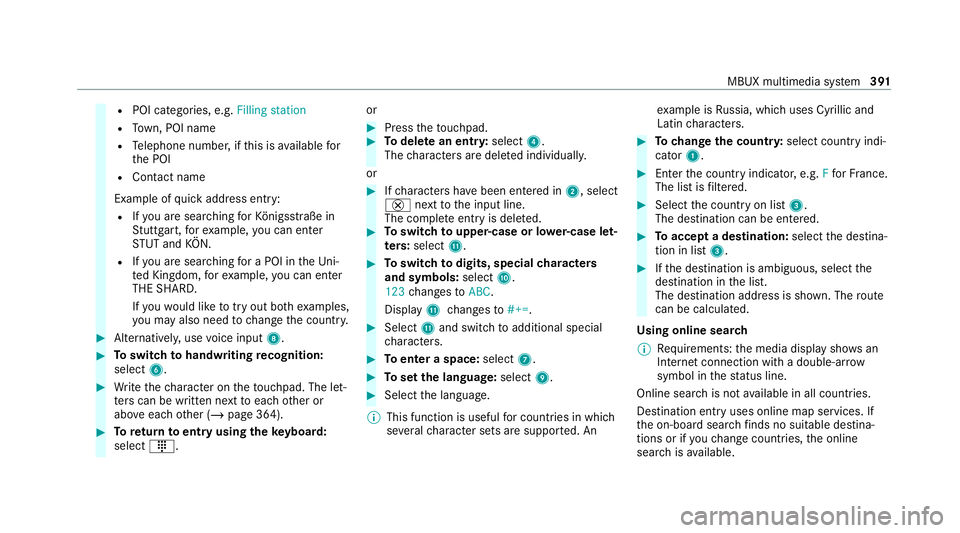
yo u may also need tochange the count ry. #
Alternati vely, use voice input 8. #
Toswitch tohandwriting recognition:
select 6. #
Write thech aracter on theto uchpad. The let‐
te rs can be written next toeach other or
abo veeach other (/ page 364). #
Toreturn toentry using theke yboard:
select _. or #
Press theto uchpad. #
Todel ete an entr y:select 4.
The characters are dele ted individually.
or #
Ifch aracters ha vebeen entered in 2, select
£ nexttothe input line.
The comple teentry is dele ted. #
Toswitch toupper-case or lo wer-case let‐
ters :select B. #
Toswitch todigits, special characters
and symbols: selectA.
123 changes toABC.
Displ ayB changes to#+=. #
Select Band switch toadditional special
ch aracters. #
Toenter a space: select7. #
Toset the language: select9. #
Select the language.
% This function is useful for countries in which
se veralch aracter sets are suppo rted. An ex
ample is Russia, which uses Cyrillic and
Latin characters. #
Tochange the count ry:select country indi‐
cator 1. #
Enter the count ryindicator, e.g. Ffo rFr ance.
The list is filtered. #
Select the count ryon list 3.
The destination can be entered. #
Toaccept a destination: selectthe destina‐
tion in list 3. #
Ifth e destination is ambiguous, select the
destination in the list.
The destination address is shown. The route
can be calculated.
Using online sear ch
% Requirements: the media display sho wsan
In te rn et connection wi tha double-ar row
symbol in thest atus line.
Online sear chis not available in all countries.
De stination ent ryuses online map services. If
th e on-board sear chfinds no suitable de stina‐
tions or if youch ange countries, the online
sear chisavailable. MBUX multimedia sy
stem 391
Page 395 of 757
Fo
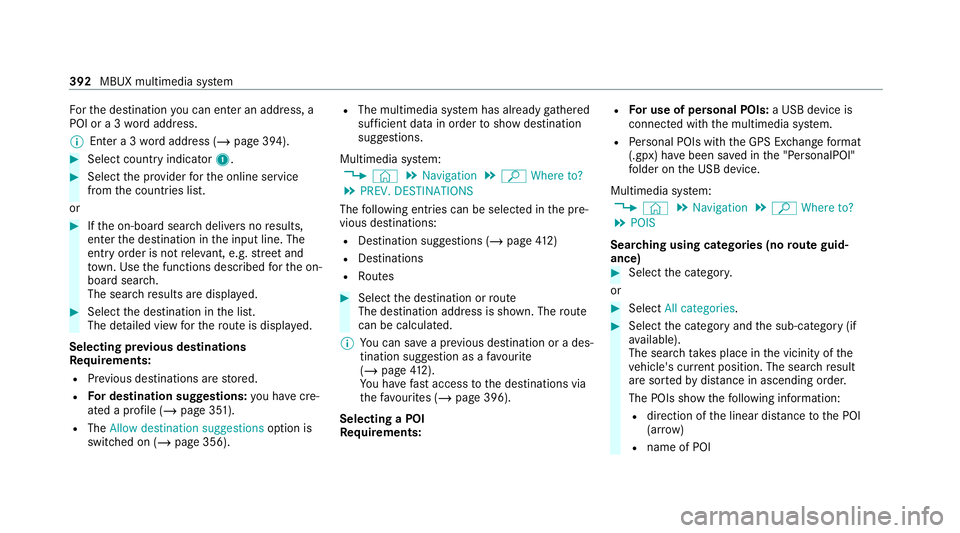
rth e destination you can en ter an addre ss, a
POI or a 3 wordaddress.
% Enter a 3 wordaddress (/ page 394). #
Select country indicator 1.#
Select the pr ovider forth e online service
from the count ries list.
or #
Ifth e on-board sear chdelivers no results,
enter the destination in the input line. The
entry order is not releva nt, e.g. stre et and
to wn. Use the functions described forth e on-
board sear ch.
The sear chresults are displa yed. #
Select the destination in the list.
The de tailed view forth ero ute is displ ayed.
Selecting pr evious destinations
Re quirements:
R Prev ious destinations are stored.
R For destination sug gestions: you ha vecre‐
ated a profile (/ page 351).
R The Allow destination suggestions option is
switched on (/ page 356). R
The multimedia sy stem has already gathered
suf ficient da tain order toshow destination
suggestions.
Multimedia sy stem:
4 © 5
Navigation 5
ª Where to?
5 PREV. DESTINATIONS
The following ent ries can be selected in the pre‐
vious destinations:
R Destination suggestions (/ page412)
R Destinations
R Routes #
Select the destination or route
The destination address is shown. The route
can be calculated.
% You can sa vea pr evious destination or a des‐
tination suggestion as a favo urite
(/ page 412).
Yo u ha vefast access tothe destinations via
th efa vo urites (/ page 396).
Selecting a POI
Requ irements: R
For use of personal POIs: a USB device is
connected wi th the multimedia sy stem.
R Personal POIs with the GPS Ex change form at
(.gpx) ha vebeen sa ved in the "PersonalPOI"
fo lder on the USB device.
Multimedia sy stem:
4 © 5
Navigation 5
ª Where to?
5 POIS
Sear ching using categories (no route guid‐
ance) #
Select the categor y.
or #
Select All categories. #
Select the category and the sub-category (if
av ailable).
The sear chtake s place in the vicinity of the
ve hicle's cur rent position. The sea rchre sult
are sor tedby distance in ascending order.
The POIs show thefo llowing information:
R direction of the linear dis tance tothe POI
(ar row)
R name of POI 392
MBUX multimedia sy stem
Page 396 of 757
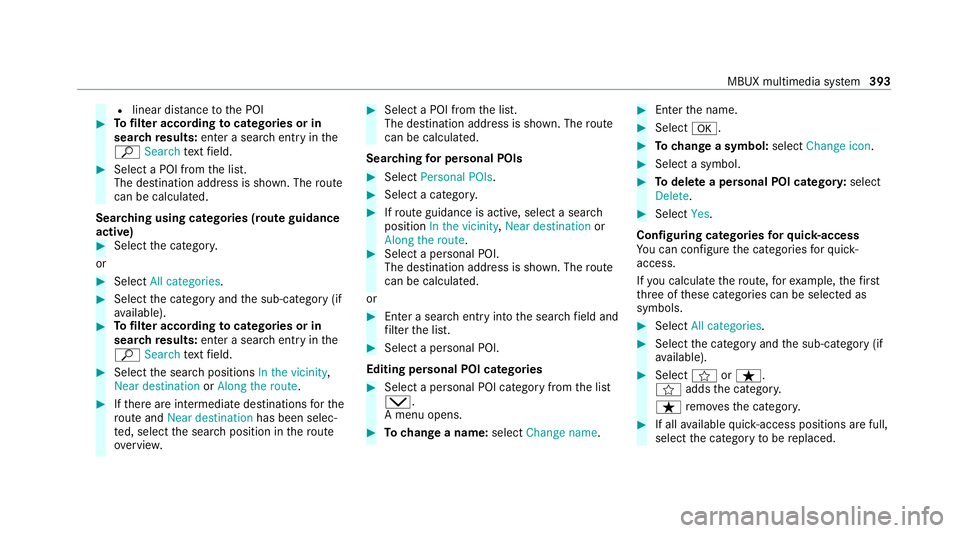
R
linear dis tance tothe POI #
Tofilter according tocategories or in
sear chresults: enter a sear chentry inthe
ª Search text field. #
Select a POI from the list.
The destination address is shown. The route
can be calculated.
Sea rching using categories (route guidance
active) #
Select the categor y.
or #
Select All categories. #
Select the category and the sub-category (if
av ailable). #
Tofilter according tocategories or in
sear chresults: enter a sear chentry inthe
ª Search text field. #
Select the sear chpositions In the vicinity,
Near destination orAlong the route. #
Ifth ere are intermediate destinations forthe
ro ute and Near destination has been selec‐
te d, select the sear chposition in thero ute
ove rview. #
Select a POI from the list.
The destination address is shown. The route
can be calculated.
Sea rching for personal POIs #
Select Personal POIs. #
Select a categor y. #
Ifro ute guidance is active, select a sear ch
position In the vicinity, Near destination or
Along the route. #
Select a personal POI.
The destination address is shown. The route
can be calculated.
or #
Enter a sear chentry intothe sear chfield and
fi lter the list. #
Select a personal POI.
Editing personal POI categories #
Select a personal POI category from the list
0049.
A menu opens. #
Tochange a name: selectChange name. #
Enter the name. #
Select 0076. #
Tochange a symbol: selectChange icon. #
Select a symbol. #
Todel ete a personal POI categor y:select
Delete. #
Select Yes.
Configuring categories forqu ick- access
Yo u can configure the categories forqu ick-
access.
If yo u calculate thero ute, forex ample, thefirst
th re e of these categories can be selected as
symbols. #
Select All categories. #
Select the category and the sub-category (if
av ailable). #
Select forß.
f addsthe categor y.
ß remo vesth e categor y. #
If all available quick- access positions are full,
select the category tobe replaced. MBUX multimedia sy
stem 393