display MERCEDES-BENZ GLE COUPE 2021 Manual PDF
[x] Cancel search | Manufacturer: MERCEDES-BENZ, Model Year: 2021, Model line: GLE COUPE, Model: MERCEDES-BENZ GLE COUPE 2021Pages: 525, PDF Size: 8.83 MB
Page 274 of 525
R
Blind Spot Assi stor Active Blind Spot Assi st
R Drive AwayAssi st
R Cross Traf fic Alert
R Reversing camera
R 360° Camera
R AIRMATIC
R E-AC TIVE BODY CONTROL
Coupling up a trailer
* NO
TEDama getothest ar ter battery due
to full discharge Charging
the trailer battery using the po wer
supply of the trailer can damage thest ar ter
batter y. #
Do not use theve hicle's po wer supply
to charge the trailer batter y. #
Remo vethe co ver cap from the ball head and
st ore it in a safe place. #
Position the trailer on a le vel sur face behind
th eve hicle and couple it up totheve hicle. #
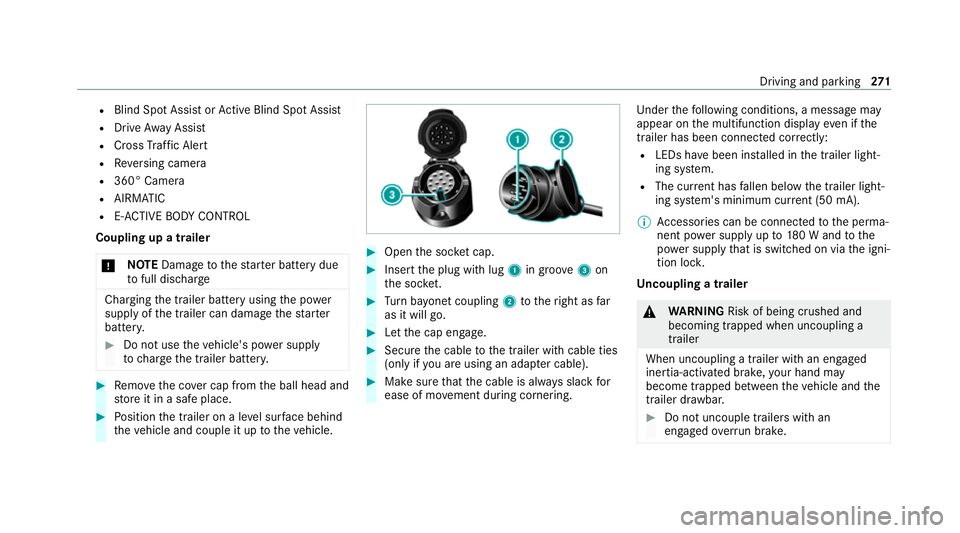
Open the soc ket cap. #
Inse rtthe plug with lug 1in groo ve3 on
th e soc ket. #
Turn bayonet coupling 2totheright as far
as it will go. #
Let the cap engage. #
Secure the cable tothe trailer with cable ties
(only if you are using an adap ter cable). #
Make sure that the cable is alw ays slack for
ease of mo vement during cornering. Under
thefo llowing conditions, a message may
appear on the multifunction display even if the
trailer has been connected cor rectly:
R LEDs ha vebeen ins talled in the trailer light‐
ing sy stem.
R The cur rent has fallen below the trailer light‐
ing sy stem's minimum cur rent (50 mA).
% Accessories can be connected tothe perma‐
nent po wer supp lyup to180 W and tothe
po we r supp lythat is swit ched on via the igni‐
tion loc k.
Un coupling a trailer &
WARNING Risk of being crushed and
becoming trapped when uncoupling a
trailer
When uncoupling a trailer with an engaged
ine rtia-activated brake, your hand may
become trapped between theve hicle and the
trailer dr awbar. #
Do not uncouple trailers with an
engaged overrun brake. Driving and pa
rking 271
Page 279 of 525
Note
s onthe instrument display and on-
board compu ter &
WARNING Risk of accident due toan
instrument display malfunction
If th e instrument display has failed or mal‐
functioned, the function restrictions applying
to saf etyre leva nt sy stems are not visible.
The operating saf ety of your vehicle may be
impaired. #
Drive on carefull y.#
Have theve hicle checked immediately
at a qualified specialist workshop. &
WARNING Risk of dist raction from infor‐
mation sy stems and communications
equipment
If yo u operate information and communica‐
tion equipment integ rated in theve hicle
when driving, you will be distracted from the
traf fic situation. This could also cause youto
lose control of theve hicle. #
Only operate this equipment when the
traf fic situation permits. #
Ifyo u cannot be sure of this, stop the
ve hicle whilst paying attention toroad
and traf fic conditions and ope rate the
equipment with theve hicle stationar y. *
NO
TEMercedes-AMG vehicles #
Obser vethe no tes in the Supplement.
Yo u could otherwise failto recognise
dangers. *
NO
TEPlug-in hybrid #
Obser vethe no tes in the Supplement.
Yo u could otherwise failto recognise
dangers. Yo
u must obse rveth e legal requirements forthe
country in whi chyou are cur rently driving when
operating the on-board computer.
The on-board computer sho wsonly display mes‐
sages and warnings from specific sy stems on th
e multifunction displa y.Yo u must therefore
ensure that your vehicle is alw aysre liable.
If th e operating saf ety of your vehicle is
impaired, park theve hicle immediately and in
accordance with the traf fic conditions. Contact a
qu alified specialist workshop. 276
Instrument display and on-board computer
Page 280 of 525
Instrument display
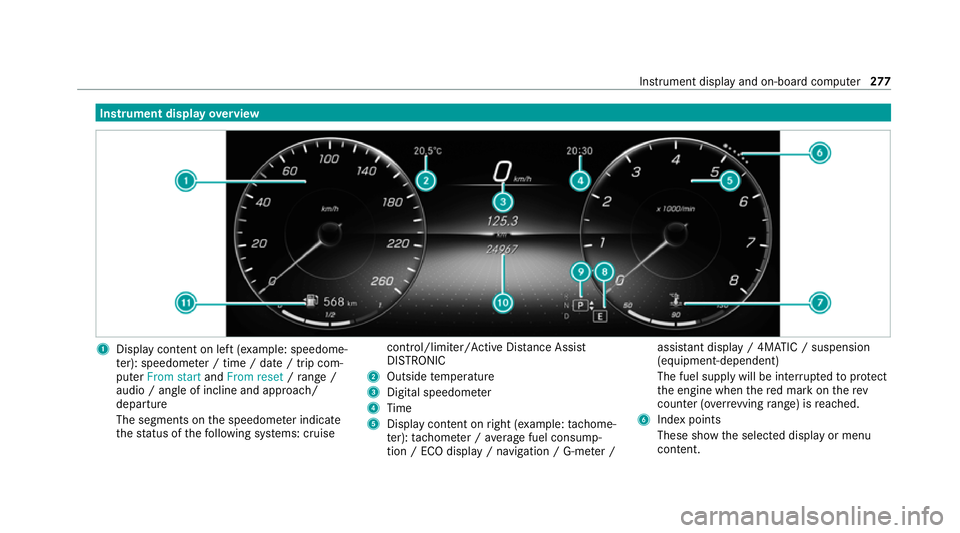
overview 1
Display con tent on le ft(exa mp le: speedome‐
te r): speedome ter / time / date / trip com‐
puter From start andFrom reset /range /
audio / angle of incline and approa ch/
departure
The segments on the speedome ter indica te
th est atus of thefo llowing sy stems: cruise control/limiter/Active Dis
tance Assi st
DISTRONIC
2 Outside temp erature
3 Digital speedome ter
4 Time
5 Display content on right (e xamp le:tac home‐
te r): tach ome ter / average fuel consump‐
tion / ECO display / navigation / G-me ter / assi
stant display / 4MATIC / suspension
(equipment-dependent)
The fuel supply will be inter rupted toprotect
th e engine when there d mark on therev
counter (o verrev ving range) is reached.
6 Index points
These show the selected display or menu
conte nt. Instrument displ
ayand on-board computer 277
Page 281 of 525
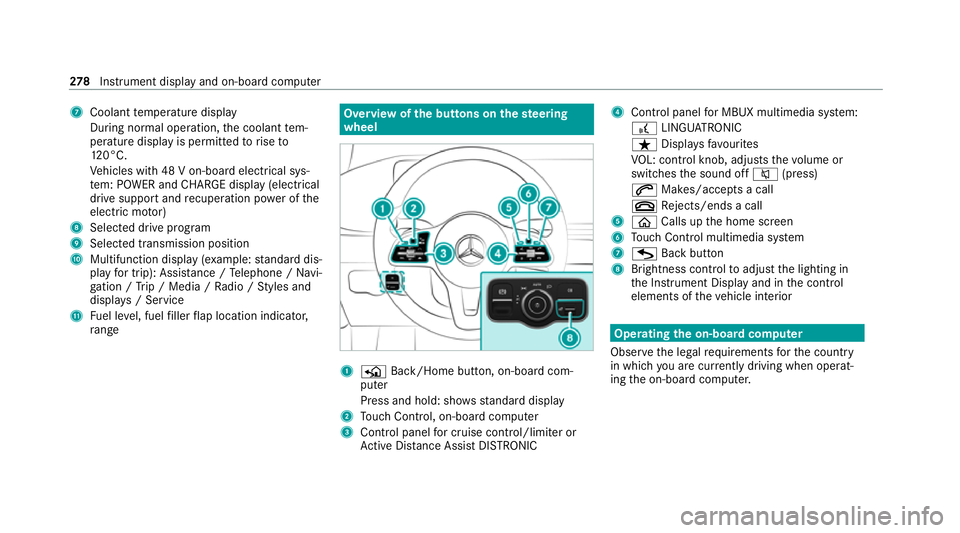
7
Coolant temp erature display
During normal operation, the coolant tem‐
perature display is permitted torise to
12 0°C.
Ve hicles with 48 V on-board electrical sys‐
te m: POWER and CHARGE displ ay(elect rical
drive support andrecuperation po wer of the
electric mo tor)
8 Selected drive program
9 Selected transmission position
A Multifunction display (e xamp le:standard dis‐
play for trip): Assis tance / Telephone / Navi‐
ga tion / Trip / Media / Radio / Styles and
displa ys/ Service
B Fuel le vel, fuel filler flap location indicator,
ra nge Overvi
ewofthe but tons on thest eering
wheel 1
P Back/Home button, on-board com‐
puter
Press and hold: sho wsstandard display
2 Touch Control, on-board co mputer
3 Control panel for cruise control/limiter or
Ac tive Dis tance Assi stDISTRONIC 4
Control panel for MBUX multimedia sy stem:
£ LINGU ATRO NIC
ß Displa ysfavo urites
VO L: control knob, adjusts thevo lume or
switches the sound off 0063(press)
0061 Makes/accepts a call
0076 Rejects/ends a call
5 00E2 Calls up the home screen
6 Touch Control multimedia sy stem
7 G Back button
8 Brightness control toadjust the lighting in
th e Instrument Display and in the control
elements of theve hicle interior Operating
the on-boa rdcompu ter
Obser vethe legal requ irements forth e count ry
in which you are cur rently driving when operat‐
ing the on-board computer. 278
Instrument display and on-board computer
Page 282 of 525
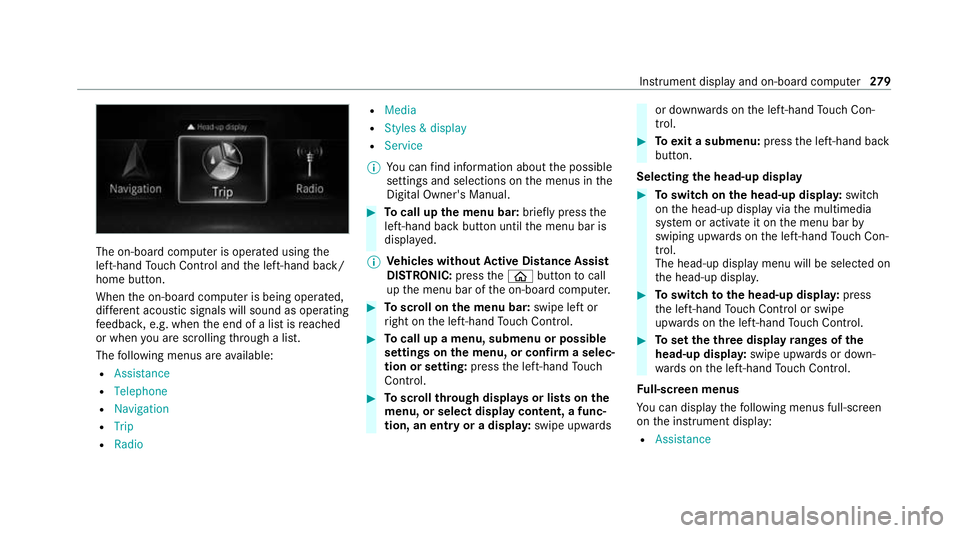
The on-board computer is operated using
the
left-hand Touch Control and the left-hand back/
home button.
When the on-board computer is being operated,
dif fere nt acoustic signals will sound as operating
fe edbac k,e.g. when the end of a list is reached
or when you are sc rolling thro ugh a list.
The following menus are available:
R Assistance
R Telephone
R Navigation
R Trip
R Radio R
Media
R Styles & display
R Service
% You can find information about the possible
settings and selections on the menus in the
Digital Owner's Manual. #
Tocall up the menu bar: briefly pressthe
left-hand back button until the menu bar is
displa yed.
% Ve
hicles without Active Di stance Assist
DISTRO NIC:press the00E2 button tocall
up the menu bar of the on-board computer. #
Toscroll on the menu bar: swipe left or
ri ght on the left-hand Touch Control. #
Tocall up a menu, submenu or possible
settings on the menu, or confirm a selec‐
tion or setting: pressthe left-hand Touch
Control. #
Toscroll through displa ysor lists on the
menu, or select display content, a func‐
tion, an entry or a displa y:swipe upwards or down
wards on the left-hand Touch Con‐
trol. #
Toexit a submenu: pressthe left-hand back
button.
Selecting the head-up display #
Toswitch on the head-up displa y:switch
on the head-up display via the multimedia
sy stem or activate it on the menu bar by
swiping upwards on the left-hand Touch Con‐
trol.
The head-up displ aymenu will be selected on
th e head-up displa y. #
Toswitch tothe head-up displa y:press
th e left-hand Touch Control or swipe
upwards on the left-hand Touch Control. #
Toset theth ree display ranges of the
head-up displa y:swipe upwards or down‐
wa rds on the left-hand Touch Control.
Fu ll-screen menus
Yo u can displ aythefo llowing menus full-screen
on the instrument display:
R Assistance Instrument display and on-board computer
279
Page 283 of 525
R
Trip
R Navigation #
Onthe cor responding menu, use the left-
hand Touch Control toscroll tothe end of the
list. #
Press the left-hand Touch Control.
The selected menu will be displ ayed full-
screen. Overview of what is shown on
the multi‐
function display
Displa yson the multifunction display
u Active Parking Assist (/ page 261)
é Parking Assist PARKTRONIC deacti vated
( / page 258, 257)
h Cruise control (/ page 208)
00CB Limiter (/
page 208)
ç Active Dis tance Assi stDISTRONIC
(/ page 211)
ê Active Brake Assi st (/ page 223)
à Active Steering Assist (/ page 220) ¬
Active Stop-and-Go Assist (/ page218)
00B0 Ac
tive Lane Keeping Assist (/ page 234)
00D6 ECO
start/ stop function (/ page173)
00D9 HOLD function (/
page 204)
00CE Ad
aptive Highbeam Assist Plus
(/ page 138)
ð Maximum pe rmissible speed exceeded
(for cer tain countries only)
Ve hicles with Speed Limit Assis t:de tected
instructions and traf fic signs (/ page 228).
Ve hicles with Traf fic Sign Assis t:de tected
instructions and traf fic signs (/ page 229).
Fo r an overview of the indicator and warning
lamps, see (/ page 467). Head-up display
Fu
nction of the head-up display *
NO
TEMercedes-AMG vehicles #
Obser vethe no tes in the Supplement.
Yo u could otherwise failto recognise
dangers. The head-up displ
ayprojects thefo llowing infor‐
mation into the driver's field of vision abo vethe
cockpit, forex ample:
R The vehicle speed
R Information from the navigation sy stem
R Information from the driving sy stems and
driving saf ety sy stems
R Some warning messages
Depending on theve hicle's equipment, dif fere nt
content can be shown in theth re e areas of the
head-up display (/ page 281).280
Instrument display and on-board computer
Page 284 of 525
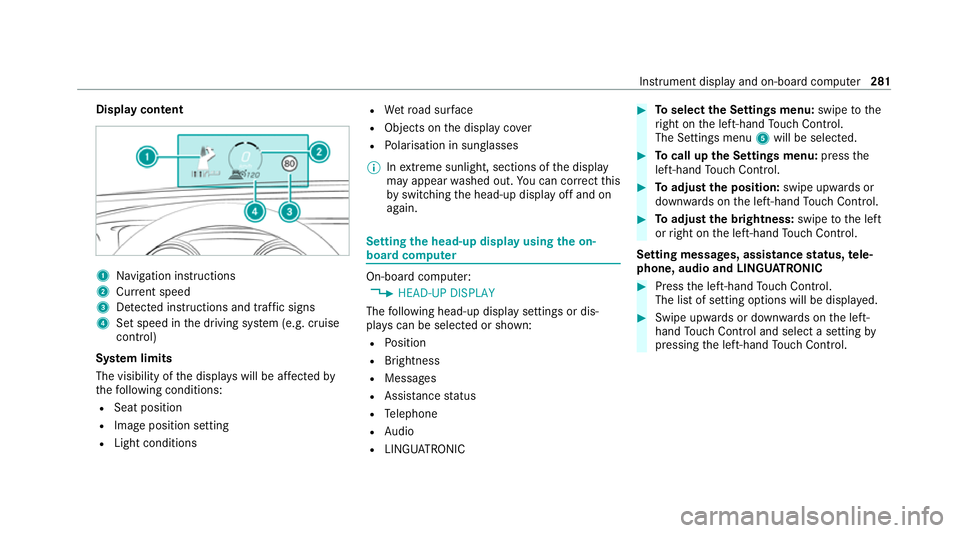
Display content
1
Navigation instructions
2 Curr ent speed
3 Detected instructions and traf fic signs
4 Set speed in the driving sy stem (e.g. cruise
control)
Sy stem limits
The visibility of the displa yswill be af fected by
th efo llowing conditions:
R Seat position
R Image position setting
R Light conditions R
Wetro ad sur face
R Objects on the display co ver
R Polarisation in sunglasses
% Inextreme sunlight, sections of the display
may appear washed out. You can co rrect this
by switching the head-up display off and on
again. Setting
the head-up display using the on-
board compu ter On-board computer:
4 HEAD-UP DISPLAY
The following head-up display settings or dis‐
pla yscan be selected or shown:
R Position
R Brightness
R Messages
R Assis tance status
R Telephone
R Audio
R LINGU ATRO NIC #
Toselect the Settings menu: swipetothe
ri ght on the left-hand Touch Control.
The Settings menu 5will be selected. #
Tocall up the Settings menu: pressthe
left-hand Touch Control. #
Toadjust the position: swipe upwards or
down wards on the left-hand Touch Control. #
Toadjust the brightness: swipetothe left
or right on the left-hand Touch Control.
Setting messages, assistance status, tele‐
phone, audio and LINGU ATRO NIC #
Press the left-hand Touch Control.
The list of setting options will be displ ayed. #
Swipe upwards or down wards on the left-
hand Touch Control and select a setting by
pressing the left-hand Touch Control. In
stru ment display and on-board computer 281
Page 285 of 525
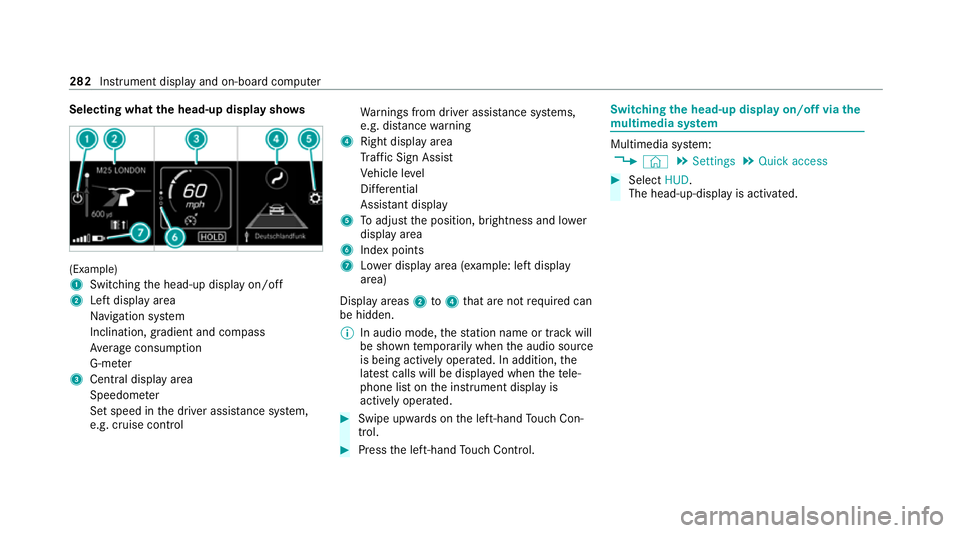
Selecting what
the head-up display sho ws(Example)
1
Switching the head-up display on/off
2 Left display area
Navigation sy stem
Inclination, gradient and compass
Av erage consum ption
G-me ter
3 Central displ ayarea
Speedom eter
Set speed in the driver assis tance sy stem,
e.g. cruise control Wa
rnings from driver assis tance sy stems,
e.g. dis tance warning
4 Right display area
Traf fic Sign Assi st
Ve hicle le vel
Dif fere ntial
Assi stant display
5 Toadjust the position, brightness and lo wer
display area
6 Index points
7 Lowe r display area (e xamp le: left display
area)
Display areas 2to4 that are not requ ired can
be hidden.
% In audio mode, thest ation name or track will
be shown temp orarily when the audio source
is being actively operated. In addition, the
latest calls will be displa yed when thete le‐
phone list on the instrument display is
actively operated. #
Swipe upwards on the left-hand Touch Con‐
trol. #
Press the left-hand Touch Control. Swit
ching the head-up display on/off via the
mu ltimedia sy stem Multimedia sy
stem:
4 © 5
Settings 5
Quick access #
Select HUD.
The head-up-display is activated. 282
Instrument display and on-board computer
Page 286 of 525
Overview and operation
Note
s onthe MBUX multimedia sy stem &
WARNING Risk of dist raction from infor‐
mation sy stems and communications
equipment
If yo u operate information and communica‐
tion equipment integ rated in theve hicle
when driving, you will be distracted from the
traf fic situation. This could also cause youto
lose control of theve hicle. #
Only operate this equipment when the
traf fic situation permits. #
Ifyo u cannot be sure of this, stop the
ve hicle whilst paying attention toroad
and traf fic conditions and ope rate the
equipment with theve hicle stationar y. Yo
u must obse rveth e legal requirements forthe
country in whi chyou are cur rently driving when
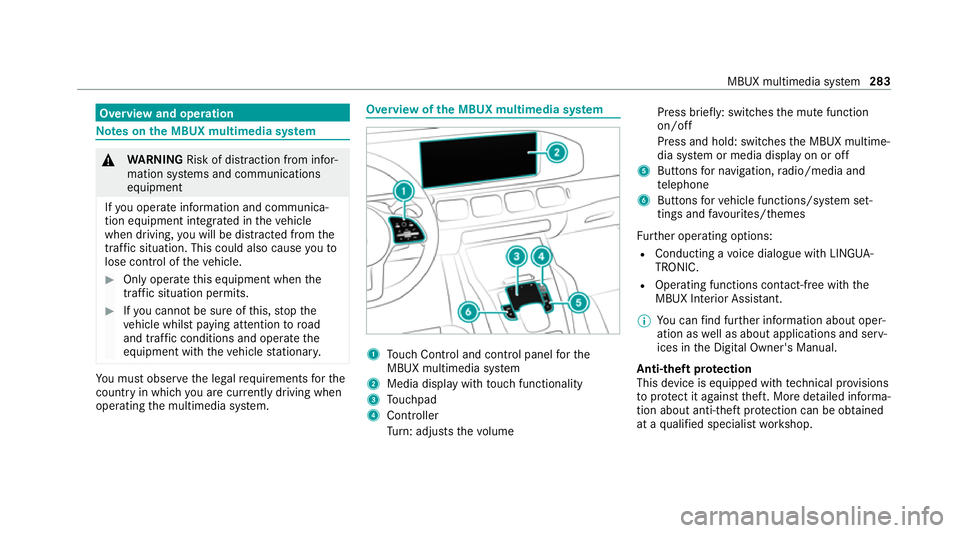
operating the multimedia sy stem. Overview of
the MBUX multimedia sy stem 1
Touch Control and cont rol panel forthe
MBUX multimedia sy stem
2 Media display with touch functionality
3 Touchpad
4 Controller
Turn: adjusts thevo lume Press brief
ly: switches the mute function
on/off
Press and hold: switches the MBUX multime‐
dia sy stem or media display on or off
5 Buttons for navigation, radio/media and
te lephone
6 Buttons forve hicle functions/sy stem set‐
tings and favo urites/ themes
Fu rther operating options:
R Conducting a voice dialogue with LINGUA‐
TRONIC.
R Operating functions con tact-free with the
MBUX Interior Assis tant.
% You can find fur ther information about oper‐
ation as well as about applications and serv‐
ices in the Digital Owner's Manual.
Anti-theft pr otection
This device is equipped with tech nical pr ovisions
to protect it against theft. More de tailed informa‐
tion about anti-theft pr otection can be obtained
at a qualified specialist workshop. MBUX multimedia sy
stem 283
Page 288 of 525
%
If Mercedes me connect is active 5,the
ve hicle is linked with Mercedes me connect.
Ve hicle data is then transmit tedto the bac k-
end sy stem. What data is transmit ted
depends on which services are activated.
Fu rther de tails can be found in the Mercedes
me connect term s and conditions and data
pr otection information. The function is coun‐
tr y- dependent.
If Transmission of vehicle position is active
6, Mercedes me connect services ha ve
been activated forth is vehicle which access
th eve hicle's geoposition. In which ins tances
th ege oposition is transmitted depends on
th e particular services. Further de tails can
be found in the Mercedes me connect terms
and conditions and data pr otection informa‐
tion. The function is count ry-dependent. Ope
rating the MBUX multimedia sy stem Using
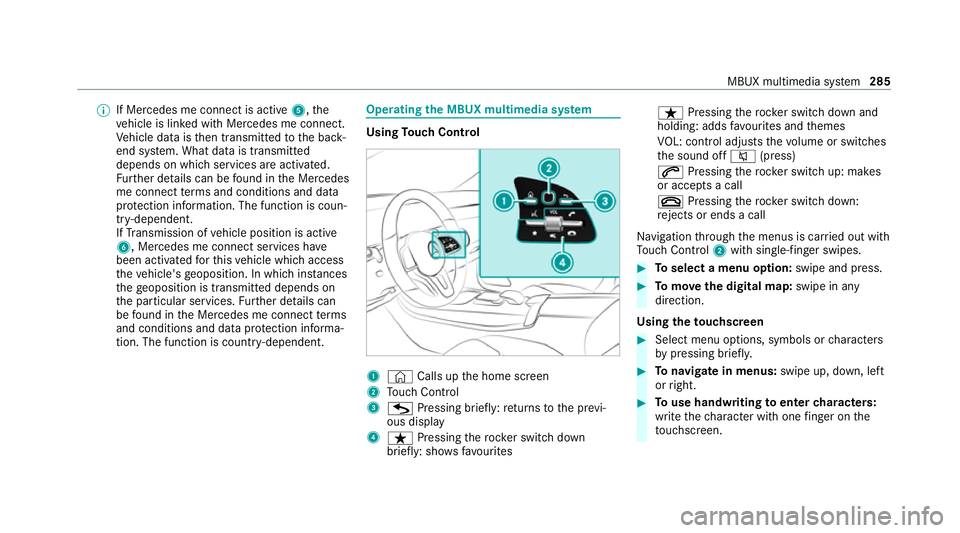
Touch Control 1
© Calls up the home screen
2 Touch Control
3 G Pressing brief ly:re turns tothe pr evi‐
ous display
4 ß Pressing therock er switch down
brief ly: sho ws fa vourites ß
Pressing therock er switch down and
holding: adds favo urites and themes
VO L: control adjusts thevo lume or switches
th e sound off 0063(press)
0061 Pressing therock er switch up: makes
or accepts a call
0076 Pressing therock er switch down:
re jects or ends a call
Na vigation thro ugh the menus is car ried out with
To uch Control 2with sin gle-finger swipes. #
Toselect a menu option: swipe and press. #
Tomo vethe digital map: swipe in any
direction.
Using theto uchscreen #
Select menu options, symbols or characters
by pressing briefly. #
Tonavigate in menus: swipe up, down, left
or right. #
Touse handwriting toenter characters:
write thech aracter with one finger on the
to uchsc reen. MBUX multimedia sy
stem 285